


 Video Converter Ultimate
 Screen Recorder
 Reparație video
 Descărcare sigură
O modalitate grozavă de a elimina filigranul din Camtasia 9 pe care trebuie să-l încercați
Dacă ești în căutarea unei modalități simple și eficiente de a elimina filigranul din Camtasia 9, acesta este locul potrivit. Există multe videoclipuri excelente pe care vrem să le urmărim. Totuși, unele dintre ele au un filigran mare, ceea ce le face mai iritante și ne împiedică să apreciem conținutul real al videoclipului. În plus, din cauza acestor elemente inutile, există porțiuni ale videoclipului pe care nu le poți vedea, ceea ce îi dezamăgește și mai mult pe spectatori. Din fericire, există câteva programe cu instrumente de eliminare a filigranelor pe care le poți folosi pentru a șterge filigranele din videoclipuri, astfel încât să te poți bucura de filmele preferate fără întreruperi. Dacă vrei să afli mai multe despre cum să elimini rapid filigranele din videoclipurile tale, citește acest articol de la început până la sfârșit.

Partea 1: Cel mai bun mod de a elimina filigranul din Camtasia
Folosind Video Converter Ultimate
Dacă ești în căutarea unei aplicații excelente și de încredere, cu instrumente de eliminare a filigranului, Video Converter Ultimate este un software excelent pe care îl poți folosi. Poți elimina filigranele din videoclipurile tale folosind această aplicație. O poți utiliza și dacă videoclipul tău are filigrane de la alte aplicații, cum ar fi Camtasia. În plus, este ușor de folosit și simplu, fiind potrivit pentru începători. De asemenea, oferă diverse instrumente de editare de care te poți bucura, precum Video Compressor, Video Enhancer, Video Trimmer, Audio Compressor, Video Reverser, Video Rotator și altele. Acest articol îți va arăta două moduri de a elimina filigranele din videoclipurile tale folosind Video Converter Ultimate.
1. Folosind Video Watermark Remover
Pasul 1: Descarcă Video Converter Ultimate pe computerul tău. Apoi treci la procesul de instalare.
Descărcare gratuită pentru Windows 7 sau o versiune ulterioară Descărcare securizată
Descărcare gratuită pentru MacOS 10.7 sau o versiune ulterioară Descărcare securizată
Pasul 2: Când instalarea s-a încheiat, deschide aplicația și mergi la Toolbox > Video Watermark Remover. Apoi va apărea o nouă interfață pe ecran.
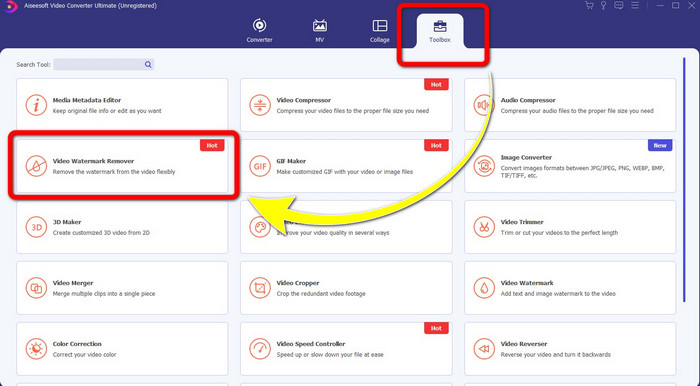
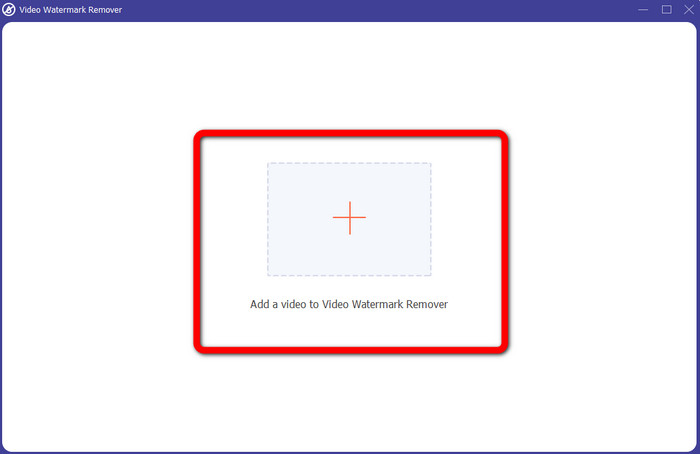
Pasul 3: Când noua interfață a apărut deja, fă clic pe butonul cu semnul Plus și adaugă videoclipul cu filigran.
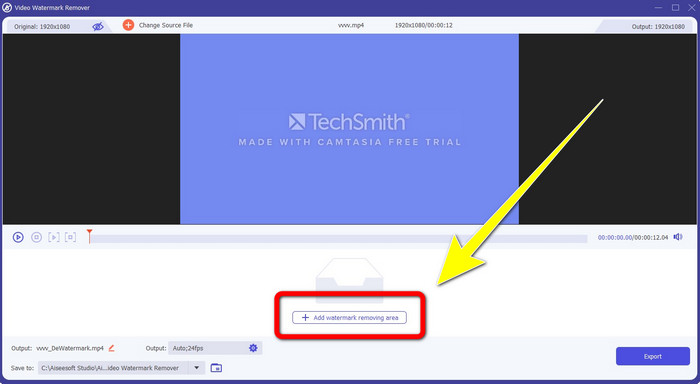
Pasul 4: După ce ai adăugat videoclipul cu filigran, fă clic pe Add Watermark Removing Area.
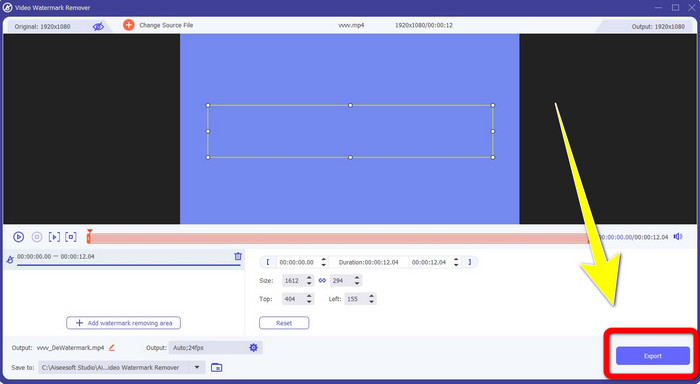
Pasul 5: Va apărea pe ecran o zonă în formă de casetă. Folosește această casetă pentru a acoperi filigranul din videoclipul tău.
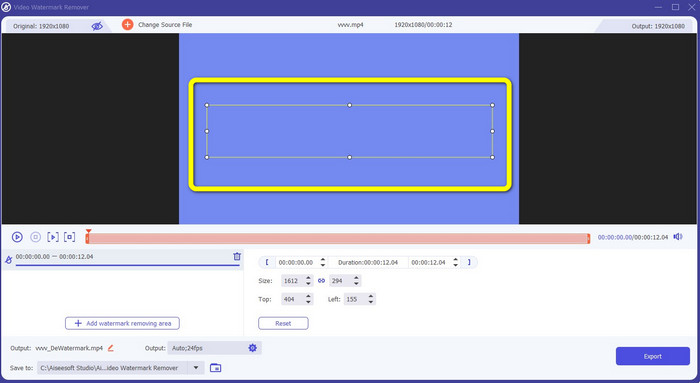
Pasul 6: După ce filigranul a fost acoperit, acesta va dispărea din videoclipul tău. Fă clic pe Export pentru a-ți salva videoclipul. În acest fel, poți elimina acum filigranul dintr-un videoclip realizat cu Camtasia.
2. Utilizarea caracteristicilor de decupare
Un alt mod pe care îl poți încerca este folosirea funcției de decupare din Video Converter Ultimate. Este unul dintre cele mai simple moduri de a elimina filigranele din videoclipuri, în special dacă filigranul se află doar într-un colț sau pe marginea imaginii. Prin decuparea videoclipurilor poți șterge instantaneu elementele inutile din cadru. Urmează acești pași simpli pentru a elimina filigranele folosind un instrument de decupare.
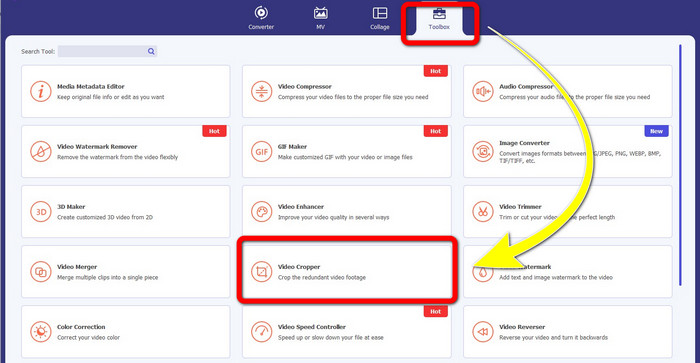
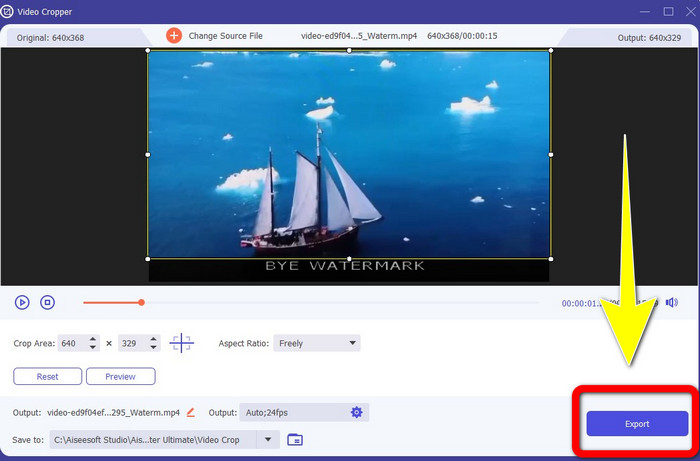
Pasul 1: Deschide Video Converter Ultimate. Fă clic pe Toolbox > Video Cropper. Apoi va apărea o nouă interfață pe ecran.
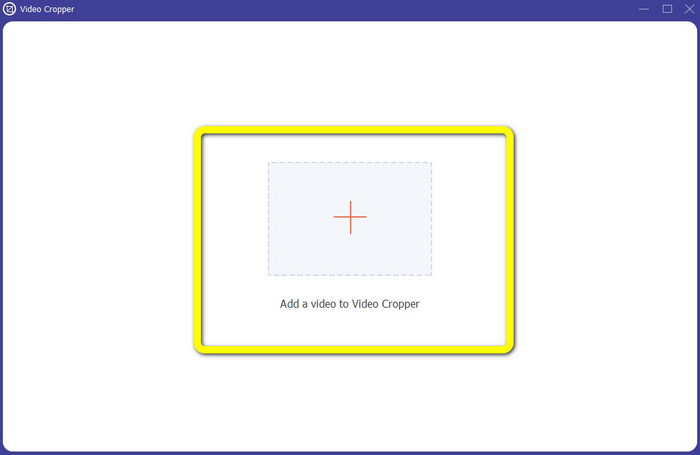
Pasul 2: Fă clic pe butonul cu semnul Plus și adaugă videoclipul cu filigran pe care vrei să-l elimini.
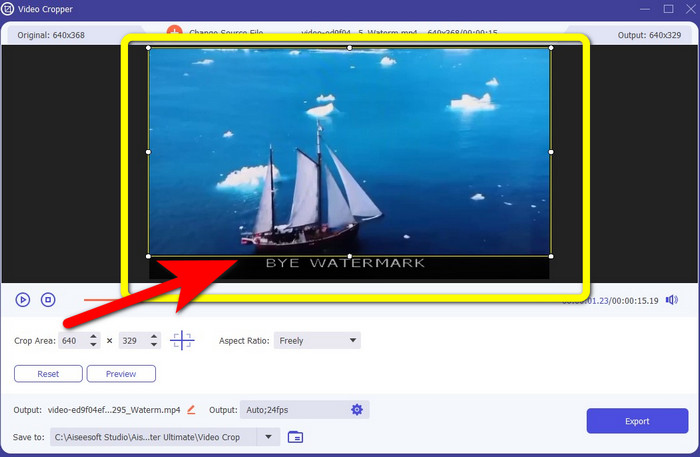
Pasul 3: După ce ai atașat videoclipul cu filigran, poți acum să decupeszi marginea videoclipului până la zona în care se află filigranul. În acest fel, poți îndepărta filigranele.
Pasul 4: Dacă ai decupat deja videoclipul și ai observat că filigranul a dispărut, fă clic pe Export pentru a-ți salva videoclipul editat. Acum te poți bucura de vizionarea videoclipului fără niciun filigran pe ecran.
Partea 2: Cum să produci videoclipuri în Camtasia fără un filigran
Vrei să înveți cum să produci un videoclip în Camtasia fără filigran? Mai întâi, să definim ce este Camtasia. Camtasia este un instrument de editare simplu și util pe care îl poți folosi. În plus, este și un software de înregistrare a ecranului. De asemenea, are diverse funcții de editare de care te poți bucura, cum ar fi adnotări, tranziții, animații, efecte audio, efecte video și altele. Totodată, poți crea prezentări (slideshow-uri) în această aplicație.
Cu ajutorul acestei aplicații, vă puteți face videoclipurile mai atractive și unice pentru spectatori. În Camtasia, puteți produce videoclipuri frumoase de care vă puteți bucura. Cu toate acestea, această aplicație are un filigran după ce exportați videoclipul, cu excepția cazului în care achiziționați aplicația. Urmați acești pași simpli pentru a învăța multe lucruri în această aplicație, în special pentru a crea videoclipuri în Camtasia.
Cu ajutorul acestei aplicații, vă puteți face videoclipurile mai atractive și unice pentru spectatori. În Camtasia, puteți produce videoclipuri frumoase de care vă puteți bucura. Cu toate acestea, această aplicație are un filigran după ce exportați videoclipul, cu excepția cazului în care achiziționați aplicația. Urmați acești pași simpli pentru a învăța multe lucruri în această aplicație, în special pentru a crea videoclipuri în Camtasia.
Pasul 1: Trebuie să descarci Camtasia pe Windows. Fă clic pe butonul Download Free Trial pentru a obține aplicația. Apoi, deschide aplicația după finalizarea instalării.
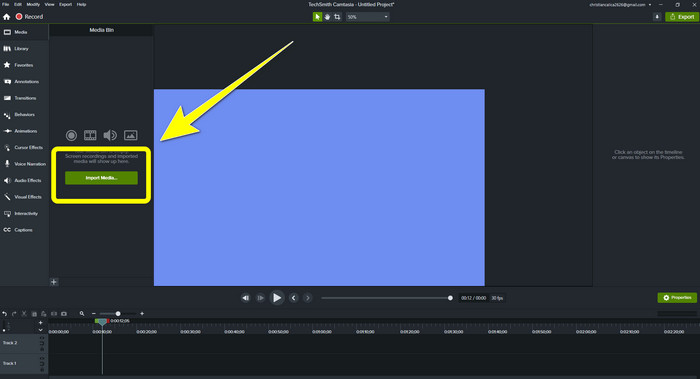
Pasul 2: După lansarea aplicației, fă clic pe butonul Import Media pentru a adăuga fișierul pe care vrei să-l editezi.
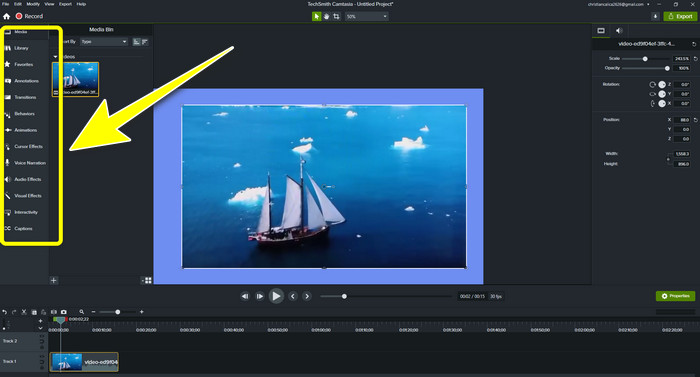
Pasul 3: Poți acum să îți editezi fișierele în această aplicație folosind instrumentele de editare, cum ar fi adăugarea de subtitrări, tranziții, animații, adnotări, comportamente și altele.
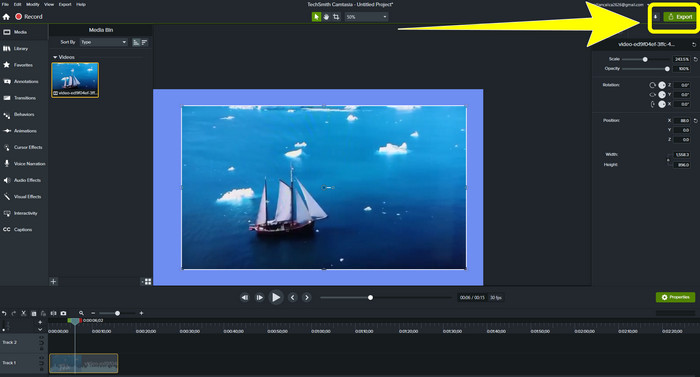
Pasul 4: Dacă ai terminat și ești mulțumit de editarea videoclipurilor, poți face clic pe butonul Export > Local File pentru a-ți salva rezultatul.
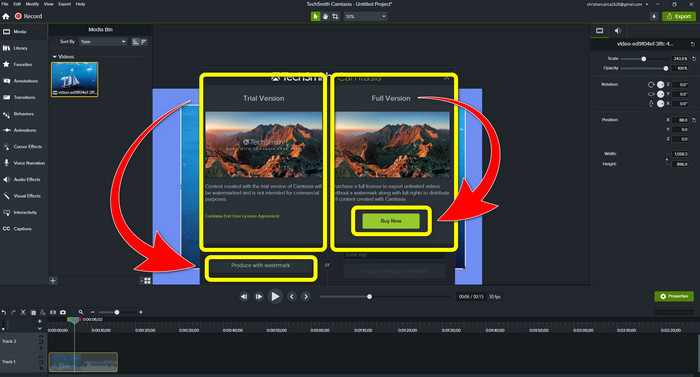
Pasul 5: După ce ai făcut clic pe Export > Local File Button, va apărea o altă interfață. Dacă dorești să cumperi aplicația, fă clic pe butonul Buy pentru a produce un videoclip în Camtasia fără filigran. Totuși, dacă folosești doar versiunea de probă gratuită, videoclipul tău va avea un filigran după export și salvare.
Legat de:
Cum să elimini filigranul Filmora din videoclipurile sau proiectele tale gratuit
Cel mai rapid truc pentru a elimina filigranul Adobe Stock dintr-un videoclip [ Tutorial ]
Partea 3: Întrebări frecvente despre eliminarea filigranelor
Există un agent de îndepărtare a filigranului excelent pe care îl pot folosi pe Mac-ul meu?
Categoric, da! Poți folosi aplicații cu instrumente de eliminare a filigranului, cum ar fi Video Converter Ultimate. Aceasta este capabilă să șteargă filigranele din videoclipurile tale. În plus, aplicația este disponibilă atât pe Windows, cât și pe Mac, ceea ce o face mai convenabilă.
Există vreo modalitate prin care pot elimina filigranele din fotografii?
Cu siguranță, da! Puteți utiliza multe aplicații de pe dispozitiv pentru a elimina filigranele din fotografii. Cel mai bun lucru pe care trebuie să-l faceți este să căutați în browserele dvs. instrumentele de eliminare a filigranelor și să căutați primele 10 rezultate pe pagina de rezultate.
Pot elimina filigranele folosind telefonul meu?
Da, poti! Unele dintre aplicațiile cu dispozitive de îndepărtare a filigranelor sunt acum accesibile pe Mac și Windows și pe telefoane mobile precum telefoanele Android și iPhone-urile.
Cum pot elimina filigranele folosind un instrument de decupare?
Eliminarea filigranelor de pe fotografii sau videoclipuri folosind un instrument de decupare este o simplă simplă, mai ales dacă filigranul se află pe marginea imaginii. Tot ce trebuie să faceți este să-l decupați, să eliminați filigranul și gata.
Concluzie
După cum poți vedea, acest articol prezintă cele mai bune moduri de a elimina filigranul din Camtasia 9. De asemenea, oferă o aplicație excelentă și de încredere, cu două metode de a înlătura elementele nedorite din videoclipurile tale. Această aplicație este Video Converter Ultimate.
-
 5 moduri de a elimina un filigran dintr-un videoclip într-un mod profesional
 Trebuie să eliminați un filigran dintr-un videoclip pentru a-l face să arate profesional? Ei bine, citiți acest articol, deoarece adăugăm un tutorial despre cum să o faceți!
-
 3 dintre cele mai recente dispozitive de îndepărtare a filigranelor Shutterstock de care veți avea vreodată nevoie
 Nu-i place filigranul Shutterstock atașat videoclipului exportat? Puteți folosi un dispozitiv de îndepărtare a filigranului Shutterstock pentru a-l șterge eficient.
-
 Cele mai ușoare metode despre cum să eliminați filigranul din fotografii
 Ești iritat de filigranele de pe fotografia ta? Nu vă faceți griji! Acest articol va oferi metode simple și ușoare de a elimina filigranele din fotografiile dvs
