


 Video Converter Ultimate
 Screen Recorder
 Reparație video
 Descărcare sigură
Cum să eliminați filigranul Viva Video de pe videoclipuri ușor și eficient
Viva Video este o aplicație de editare și creare video pe care o puteți descărca pe dispozitivele mobile pentru a crea un videoclip remarcabil pe care nu îl puteți realiza cu celălalt editor video. Cu aceasta, puteți folosi versiunea sa gratuită sau editarea video premium în avantajul dvs. Astfel, utilizatorii întâmpină probleme în utilizarea versiunii gratuite, deoarece lasă un filigran, iar alte funcții de editare nu sunt aceleași cu versiunea pro. Filigranul încorporat în videoclip ar putea împiedica vizualul, iar eliminarea acestuia este mai bună.
Cu toate acestea, poți folosi câteva instrumente pentru a elimina filigranul, pe care le poți găsi în PlayStore și App Store, dar care este cel mai bun? Continuă să citești acest articol, deoarece îți prezentăm instrumentul pe care îl poți folosi pentru a elimina filigranul, împreună cu un ghid pas cu pas pentru a elimina filigranul Viva Video din videoclipul tău.

Partea 1. Cum să eliminați filigranul video Viva folosind cele mai bune aplicații pentru eliminarea filigranului
Video Eraser - Eliminați filigran/logo-ul din videoclip [Android]
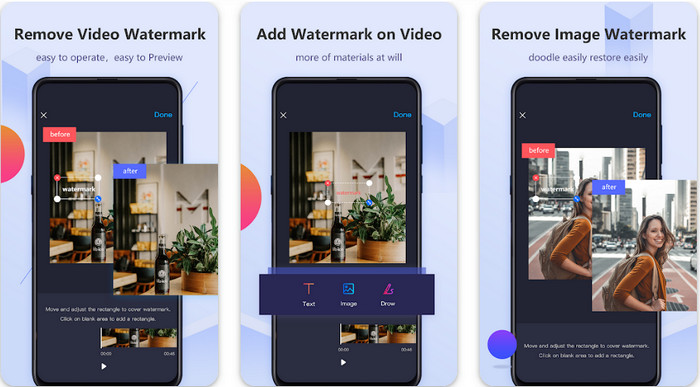
Video Eraser - Remove Watermark/Logo from Video este un puternic program de eliminare a filigranului pe care îl poți descărca pe dispozitivul tău Android pentru a elimina filigranul încorporat în videoclip. Această aplicație te poate ajuta să elimini orice tip de filigran din videoclip, cum ar fi logo, text, ștampile etc. De asemenea, o poți folosi dacă vrei să adaugi propriul filigran personalizat, să decupezi, să tai, să inversezi, să comprimi și să schimbi viteza videoclipului. Chiar dacă are funcții bogate, poți descărca acest instrument gratuit. Așadar, pentru a elimina filigranul Viva Video pe Android, poți urma pașii de mai jos.
Pasul 1. Mai întâi, descarcă aplicația pe Android accesând PlayStore, apoi apasă pe Download.
Pasul 2. Deschide programul de eliminare a filigranului, apasă pe Remove Watermark from Video, permite instrumentului să aibă acces la videoclipurile tale, apoi încarcă videoclipul cu filigran.
Pasul 3. Plasează dreptunghiul peste filigran pentru a-l acoperi.
Pasul 4. Apasă Done pentru a salva videoclipul fără filigran.
Articole similare:
Eraser video - Eliminare retuşare [iOS]
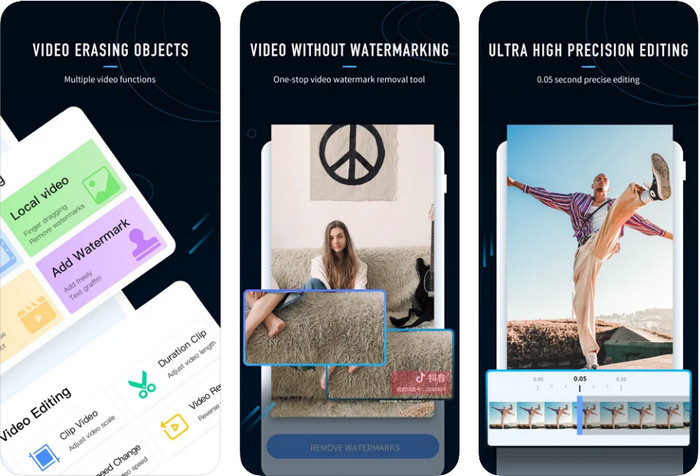
Pentru iOS, poți descărca din App Store aplicația Video Eraser- Retouch Removal. Se numără printre programele de eliminare a filigranului Viva Video pe care le poți descărca gratuit și care îți permit să elimini eficient marcajul de pe videoclip. La fel ca eliminatorul de filigran pentru Android prezentat aici, și acesta acceptă alte funcții de editare pe care le poți folosi, cum ar fi îmbunătățirea rezoluției videoclipului, adăugarea unui filigran, decuparea, tăierea, comprimarea și oglindirea. Toate acestea sunt incluse. Deși are funcții similare cu aplicația Android, modul lor de funcționare diferă, iar înainte de a putea folosi acest instrument pentru a elimina filigranul, va trebui să îl achiziționezi. Poți urma pașii de mai jos pentru a învăța cum să elimini filigranul din Viva Video după export; urmează pașii indicați mai jos.
Pasul 1. Descarcă aplicația din App Store, apoi deschide-o după ce s-a încheiat descărcarea.
Pasul 2. După ce ai deschis software-ul, apasă pe Local Video/GIF pentru a încărca videoclipul cu filigran. Asigură-te că permiți aplicației accesul la Fotografii.
Pasul 3. Atinge partea din videoclip unde se află filigranul; apoi pe ecran va apărea o formă dreptunghiulară.
Pasul 4. Atinge Eliminate Watermark pentru a exporta videoclipul și a-l salva fără ca filigranul să te mai încurce.
Partea 2. Cum să eliminați filigranul video Viva pe Windows și Mac [Software Ultimate]
Dacă folosești Windows sau Mac, vei avea nevoie de un software eficient pentru a elimina filigranul din videoclip fără a lăsa urme. FVC Video Converter Ultimate te poate învăța cum să elimini gratuit filigranul Viva Video, oferind un rezultat profesional. La fel ca aplicațiile de eliminare a filigranului pe care le poți descărca pe Android și iOS, acest instrument acceptă de asemenea mai multe funcții și opțiuni de care poți profita. Acest program oferă mai mult decât cele două aplicații de eliminare a filigranului pe care le-am menționat.
Ce face ca acest instrument să fie impresionant? Funcțiile de eliminare pe care le acceptă acest instrument sunt mai bune decât alte dispozitive de îndepărtare a filigranelor pe care le puteți folosi în videoclipul dvs. Deci, dacă utilizați acest lucru, vă puteți bucura de vizionarea videoclipului fără filigran după ce îl eliminați aici. Ai nevoie de un tutorial despre cum să folosești acest lucru? Următoarele detalii vă vor permite să știți cum să utilizați acest instrument la fel de ușor ca 1-2-3.
Pasul 1. Pentru a descărca acest software „ultimate”, poți da clic pe butonul de descărcare de mai jos, apoi instalează programul pe dispozitivul tău. Urmează pașii de instalare WinRAR, apoi apasă Start Now.
Descărcare gratuită pentru Windows 7 sau o versiune ulterioară Descărcare securizată
Descărcare gratuită pentru MacOS 10.7 sau o versiune ulterioară Descărcare securizată
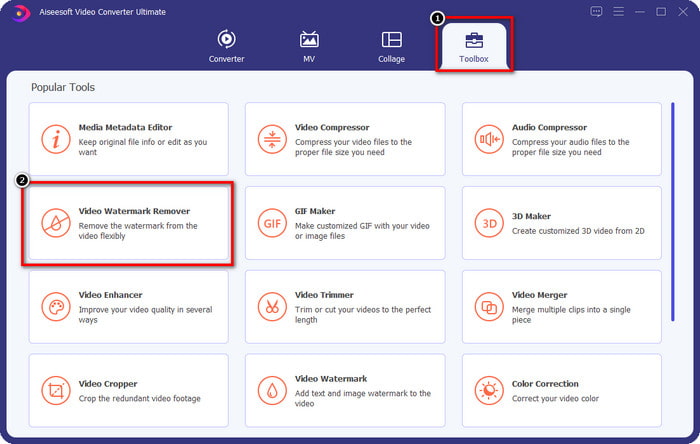
Pasul 2. Mergi la Toolbox, apoi apasă pe Video Watermark Remover pentru a începe să folosești această funcție eficientă de eliminare a filigranului.
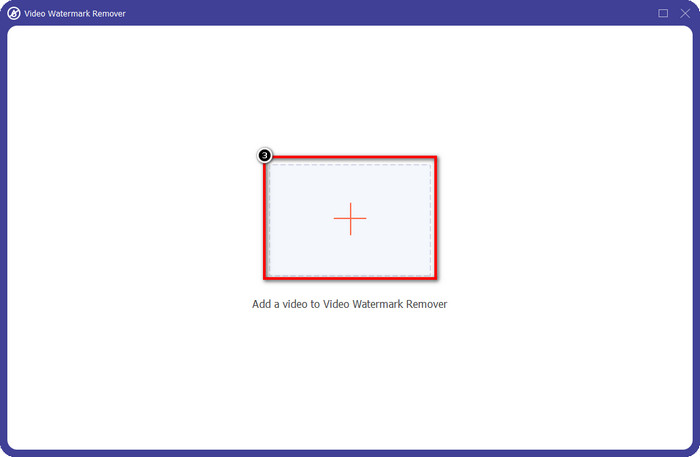
Pasul 3. Poți încărca videoclipul Viva Video cu filigran salvat pe desktop făcând clic pe pictograma +. Găsește fișierul video în folderul care va apărea pe ecran și apasă pe Open pentru a-l încărca cu succes.
Pasul 4. Apasă pe Add Watermark Removing Area pentru a începe să folosești funcția de eliminare a filigranului.
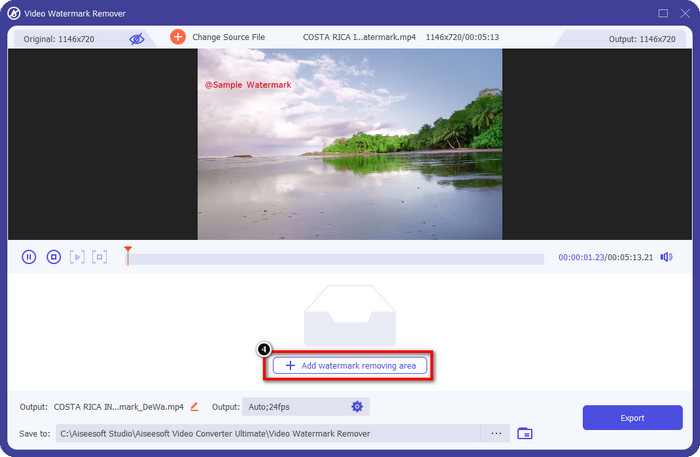
Pasul 5. Trage și plasează forma dreptunghiulară peste filigranul din videoclip și acoperă-l complet. Este important să îl acoperi în întregime, deoarece, dacă nu o faci, vor rămâne urme ale filigranului, iar forma poate fi redimensionată după necesități.
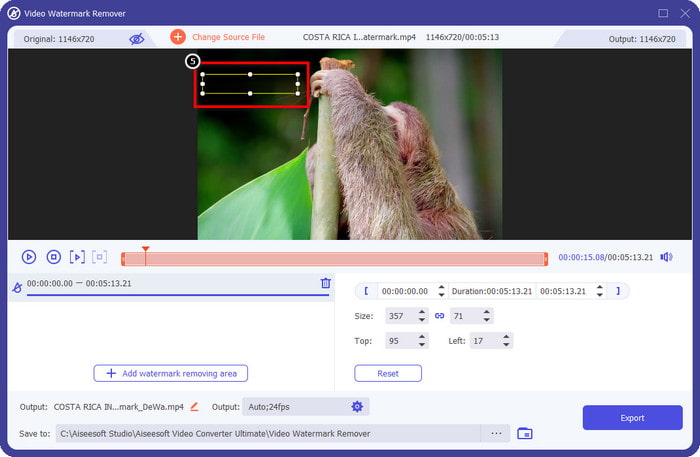
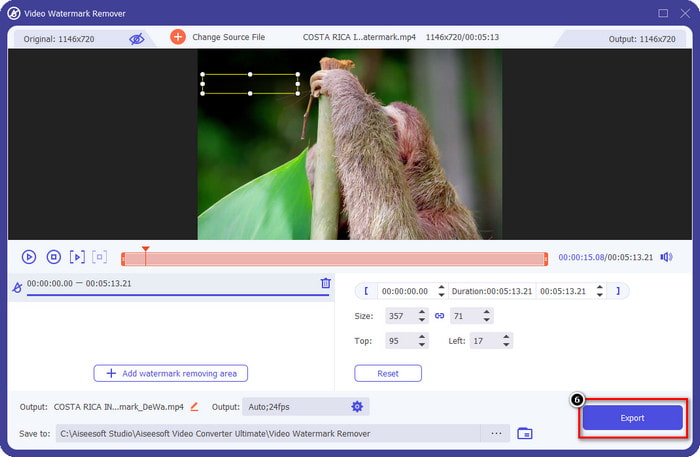
Pasul 6. După aceea, apasă pe Export pentru a salva videoclipul fără filigran. Simplu? Ei bine, acesta este scopul principal al acestui instrument „ultimate”: să fie ușor de folosit, dar eficient în toate privințele.
Partea 3. Întrebări frecvente despre cum să eliminați filigranul video Viva
Pot descărca Viva Video fără filigran?
Da, puteți achiziționa versiunea pro a acestui instrument, astfel încât atunci când exportați videoclipul pe care îl editați aici, nu va lăsa un filigran pe videoclip. De asemenea, după ce achiziționați versiunea pro a acestui instrument, veți folosi cealaltă caracteristică premium pe care o are acest instrument, care nu este disponibilă gratuit.
Viva Video are o versiune desktop?
Puteți descărca versiunea Viva Video doar pe Android și iOS. Deci, dacă doriți să descărcați versiunea desktop, nu veți găsi niciuna, dar puteți căuta cele mai bune alternative pentru editarea video, cum ar fi ceea ce oferă Viva Video.
Viva Video are spyware?
În 2017, rapoartele despre această aplicație au confirmat ulterior că are malware. Deci, persoanele care au descărcat acest software au șters cu forță această aplicație de pe dispozitivele lor pentru a evita consecințele ulterioare.
Concluzie
Cu dispozitivul de eliminare a filigranului Viva Video din acest articol, puteți elimina filigranul pe care Viva Video îl încorporează pe videoclipul exportat. Puteți încerca să utilizați aplicațiile menționate mai sus și să urmați instrucțiunile pe care le includem despre cum să eliminați filigranul. Dar pentru utilizatorii de Windows și Mac cu un filigran Viva Video, este mai bine să utilizați software-ul final pentru a elimina filigranul rapid și eficient și pentru a avea un rezultat profesional. Ce mai astepti? Faceți clic pe butonul de descărcare pentru a elimina filigranul suprem de pe dispozitivul dvs. chiar acum și utilizați-l urmând pașii de mai sus.
-
 Cum să eliminați filigranul Lomotif folosind aceste instrumente minunate
 Doriți să aflați cum să eliminați filigranul Lomotif din videoclipul dvs.? Citiți acest articol pentru a cunoaște cele mai remarcabile metode de eliminare online și offline.
-
 Cum să eliminați turiștii din fotografii folosind dispozitivele de îndepărtare a filigranelor
 Cum să eliminați turiștii din fotografii? Dacă doriți să aflați cum să eliminați lucrurile nedorite din fotografia dvs., aceste instrumente vă vor ajuta. Citiți acest articol pentru a afla mai multe.
-
 Dispozitive de îndepărtare a filigranelor 123rf – O revizuire amănunțită a instrumentelor de vârf
 Dacă doriți să știți care sunt cele mai remarcabile dispozitive de îndepărtare a filigranelor 123rf, citiți cu atenție acest articol. Acest articol oferă o revizuire aprofundată a instrumentelor.
