


 Video Converter Ultimate
 Screen Recorder
 Reparație video
 Descărcare sigură
Cum să eliminați filigranul în SmartDraw cu 2 moduri posibile
Dacă ai nevoie de o modalitate ușoară și puternică de a crea grafice, desene și hărți, apoi de a le prezenta la un nivel de calitate enterprise, folosește SmartDraw. Îți poți folosi imaginația și o poți transforma în realitate cu ajutorul SmartDraw. Este instrumentul gratuit? Poți utiliza versiunea de probă gratuită de șapte zile pe care o oferă, pentru a folosi instrumentul gratuit, dar cu un filigran pe el. Gestionarea unui filigran pe fișierul exportat poate fi neplăcută. Aici îți prezentăm acest articol de blog, deoarece îți recomandăm doar cele mai bune instrumente de pe piață, care funcționează eficient pentru a elimina filigranul. Rămâi și citește informațiile de mai jos pentru a afla cum să elimini filigranul din SmartDraw în două moduri eficiente.

Partea 1. Cum să eliminați filigran în Smart Draw prin achiziționarea unei chei de licență [versiunea oficială]
Cum să eliminați filigranul din SmartDraw? Este primul mod pe care vi-l vom prezenta și este prin achiziționarea cheii de licență pentru acest instrument. Această platformă vă oferă diferite tipuri de planuri pe care le puteți obține și care vă vor avantaja finalul. În plus, nu puteți achiziționa acces de o lună la acest instrument, așa că, dacă intenționați să achiziționați cheia de licență, veți fi facturat lunar, dar totalul pe care îl veți plăti este în versiunea sa anuală. Dacă apreciați performanța acestui instrument și doriți să-l achiziționați, puteți urma pașii pe care îi adăugăm mai jos.
Pași despre cum să eliminați filigranul din SmartDraw cu o cheie de licență:
Pasul 1. Deschide site-ul oficial SmartDraw și asigură-te că accesezi site-ul corect pentru a avea o tranzacție securizată.
Pasul 2. Pe site, dă clic pe Buy pentru a vedea planurile disponibile.
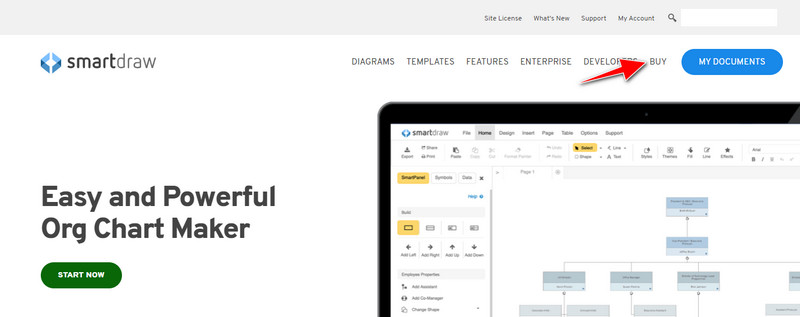
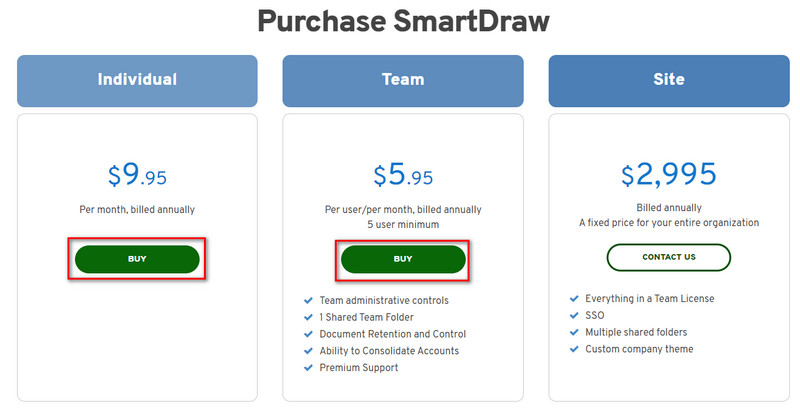
Pasul 3. Poți cumpăra SmartDraw ca Individual, Team sau Site. Fă clic pe Buy Now dacă urmează să cumperi versiunea Individual sau Team.
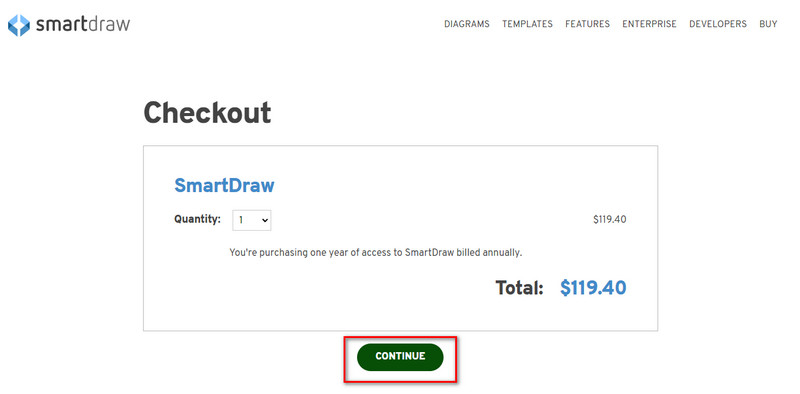
Pasul 4. În partea dreaptă, vei vedea costul total al instrumentului pentru un an; fă clic pe Continue pentru a continua.
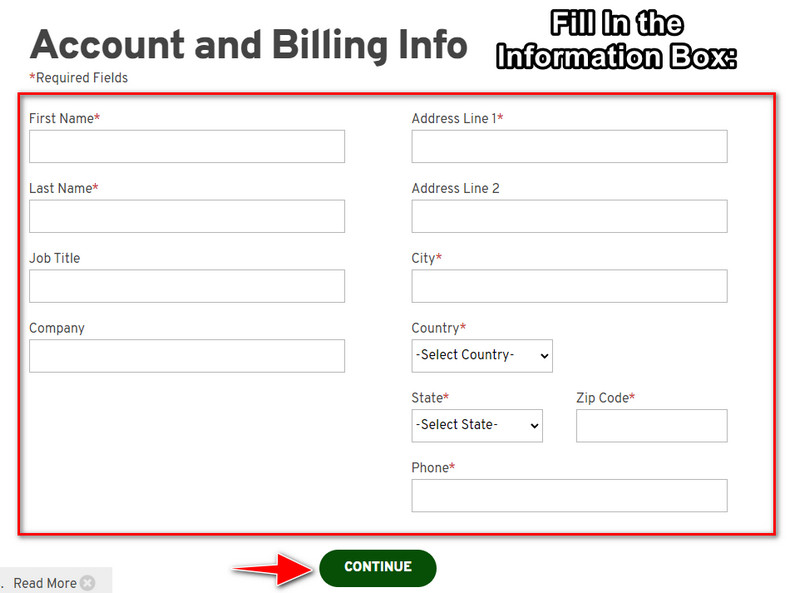
Pasul 5. Adaugă informațiile de cont și de facturare necesare, apoi apasă Continue pentru a continua și a obține cheia de licență.
Partea 2. Cum să eliminați filigranul din Smart Draw gratuit folosind serviciul web [Fără cost]
Cum să elimini filigranul din versiunea de probă SmartDraw fără să cumperi? Atunci va trebui să folosești FVC Free Watermark Remover Online. Acest instrument de eliminare a filigranelor este gata să fie folosit de tine. Nu ai nevoie de expertiză pentru a elimina filigranul de pe imagine, pentru că utilizarea acestui instrument nu va fi dificilă. Chiar dacă ești expert, poți folosi în continuare acest software pentru a elimina filigrane sau obiecte nedorite de pe imagine. Cu ajutorul acestui remover de filigrane, nu va exista nicio pată pe imagine pe care să nu o poată elimina. Vrei să încerci acest software în loc să cumperi cheia de licență? Dacă da, urmărește tutorialul de mai jos pentru a elimina eficient filigranul de pe imagini.
Pași despre cum să eliminați gratuit filigranul SmartDraw pe grafic sau diagramă:
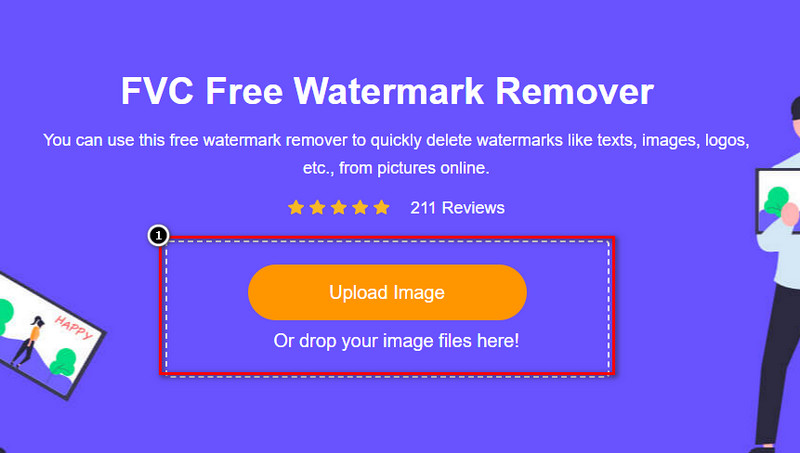
Pasul 1. În loc să cauți instrumentul web în browser, poți da clic pe acest link pentru a-l deschide; se va deschide într-o filă nouă în motorul tău de căutare.
Pasul 2. Folosindu-ți mouse-ul, trage și plasează graficul sau diagrama pe care ai creat-o în SmartDraw, pentru a o încărca.
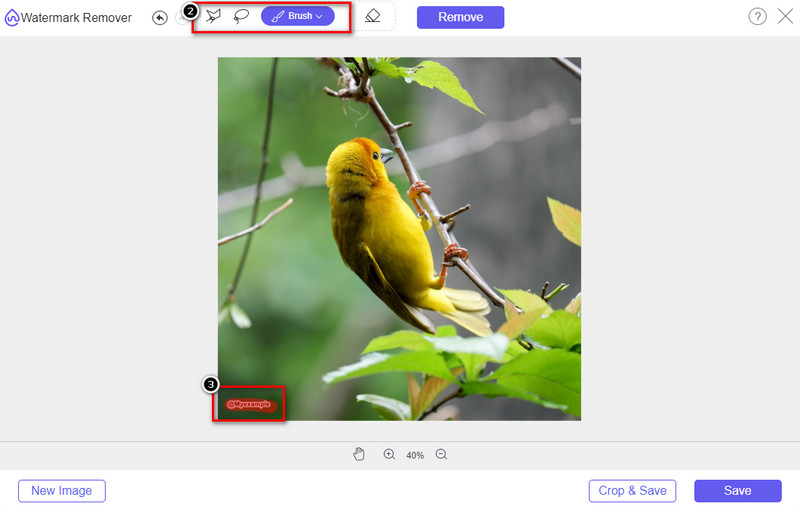
Pasul 3. Acum că instrumentul online de eliminare a filigranelor este deschis, alege unealta cu care vrei să evidențiezi filigranul de pe imagine.
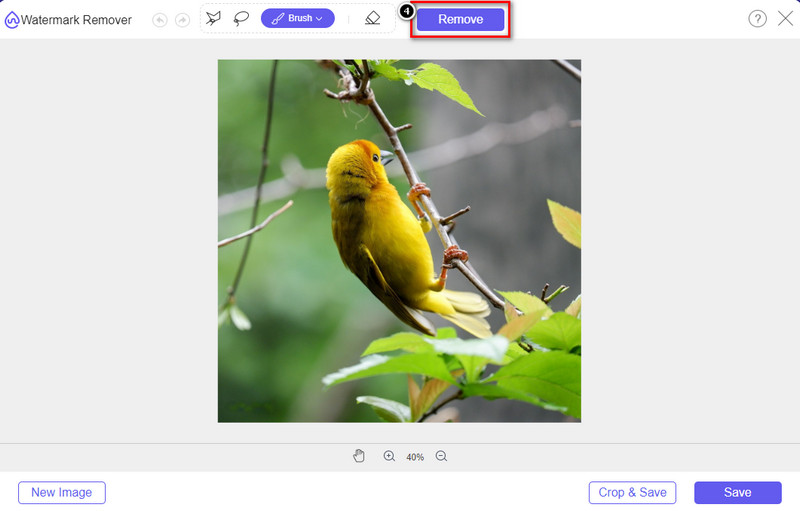
Pasul 4. După ce ai evidențiat filigranul sau logo-ul de pe imaginea încărcată, apasă Remove.
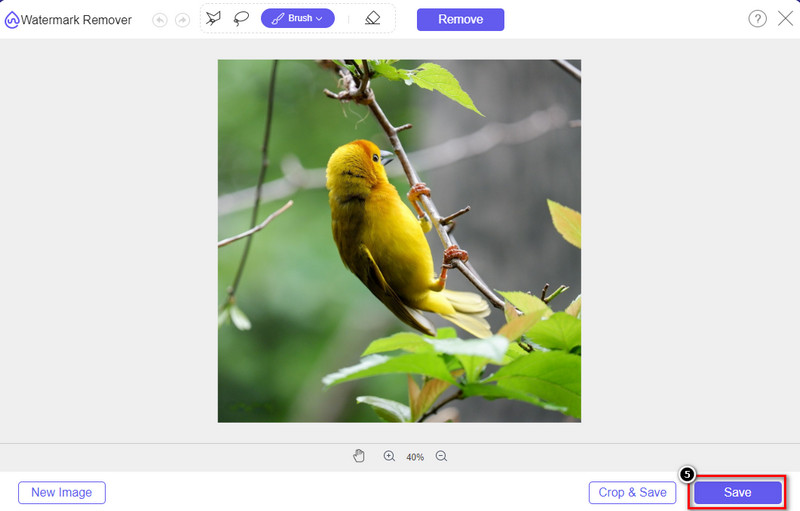
Pasul 5. Așteaptă finalizarea procesului de eliminare a filigranului și dă clic pe Save pentru a descărca graficul sau diagrama pe care ai încărcat-o. Un folder va apărea pe ecran; verifică acum versiunea graficului sau diagramei pe care ai creat-o, fără filigran.
Avantajele utilizării FVC Free Watermark Remover Online:
◆ Descărcarea aplicației nu este necesară deoarece este disponibilă pe web.
◆ Acceptă o gamă largă de imagini și poate elimina eficient filigranele.
◆ Este un dispozitiv dedicat pentru îndepărtarea filigranelor care produce rezultate de înaltă calitate.
◆ Nu se adaugă niciun filigran la rezultatul final după export.
◆ Fără limitare în ceea ce privește numărul de ori utilizat și dimensiunea fișierului.
Partea 3. Parte suplimentară – Cum să faci o diagramă, un grafic sau o diagramă pe SmartDraw cu pași detaliați
Partea anterioară vă învață cum să scăpați de filigranul SmartDraw. În această parte, vă vom învăța cum să realizați o diagramă, un grafic și o diagramă cu ajutorul SmartDraw; puteți urma pașii pe care îi adăugăm mai jos pentru a ști cum să o faceți.
Pasul 1. Mergi pe site-ul oficial pentru a crea un grafic, o diagramă sau un chart.
Pasul 2. Acum că ai deschis site-ul oficial, dă clic pe Start Now și deschide-ți contul.
Pasul 3. În partea stângă, alege ce tip de șablon vrei să folosești sau să creezi.
Pasul 4. Adaugă informațiile în fiecare flowchart. Vor exista opțiuni suplimentare pe care le poți folosi în partea stângă a site-ului.
Pasul 5. Fă clic pe butonul Export, alege formatul pe care îl dorești și dă clic pe el pentru a începe procesul. Dacă folosești versiunea gratuită, va exista un filigran; poți copia pașii din partea a 2-a pentru a elimina filigranul.
Lecturi suplimentare:
Cum să elimini filigranul B612 din imaginile tale
Cum să elimini gratuit filigranul WOW Slider
Partea 4. Întrebări frecvente despre cum să eliminați filigranul SmartDraw
SmartDraw poate exporta imagini PNG?
Da, puteți avea o diagramă transparentă în format PNG. Cu toate acestea, va adăuga un filigran dacă utilizați versiunea gratuită. Puteți achiziționa versiunea oficială, așa că va exista un filigran pe imaginea exportată.
Cât costă SmartDraw?
Dacă sunteți pe cale să achiziționați un plan pe SmartDraw, puteți achiziționa planul acestuia începând cu $ 5.95. Puteți consulta celelalte prețuri pe care le oferă pe site-ul oficial.
Care este avantajul cumpărării versiunii premium a SmartDraw?
Puteți obține controlul administratorului echipei, folderul echipei, asistență premium și puteți exporta imagini fără filigran pentru planurile individuale. Pentru alte avantaje premium, puteți obține, vizitați site-ul oficial și vedeți ce caracteristici și funcții puteți obține.
Concluzie
Acum că știți cum să salvați SmartDraw fără un filigran cu cele două moduri pe care le adăugăm. Fie îl cumpărați, fie utilizați un instrument pentru a elimina filigranul de pe fișierul exportat. Dacă nu vă place să cumpărați instrumentul, trebuie să îl utilizați deoarece este cel mai eficient instrument web pentru eliminarea filigranului. Dacă credeți că acest articol v-a ajutat să rezolvați problema, atunci ne evaluați cu 5 stele.
-
 Cele mai bune 4 moduri de a elimina filigranul din GIF [Online și Offline]
 Trebuie să eliminați filigranul din GIF? Cu instrumentul din acest articol, veți învăța diferitele stiluri cu diferitele dispozitive de îndepărtare a filigranelor disponibile pe platforma dvs.
-
 Cele mai simple 5 moduri de a elimina metadatele din orice fișier media
 Cum să eliminați metadatele? Este greu să o faci? Trebuie să cumpăr sau să folosesc un instrument gratuit pentru a elimina etichetele? Toate aceste întrebări au răspunsuri în acest articol.
-
 Remarcabil Photobucket Watermark Remover online și offline
 Aflați cum să eliminați filigranul Photobucket din fotografiile dvs. folosind acest uimitor dispozitiv de îndepărtare a filigranului Photobucket. Citiți acest articol pentru a afla modalitățile.
