


 Video Converter Ultimate
 Screen Recorder
 Reparație video
 Descărcare sigură
Cele mai rapide și mai ușoare modalități de a scurta videoclipuri cu cele mai bune instrumente
Decuparea sau scurtarea unui videoclip este importantă, deoarece evidențiază doar clipurile necesare din videoclipul dvs. Decuparea unui videoclip înseamnă eliminarea începutului de la sfârșitul unui videoclip. Acest element fundamental de editare este necesar pentru a nu pierde atenția publicului. Deci, dacă doriți să tăiați sau să scurtați videoclipul lung, veți afla în acest articol modalitățile cum să scurtați un videoclip.

Partea 1. 2 Metode de scurtare a unui videoclip pe un trimmer folosind cea mai bună aplicație
FVC Video Converter Ultimate este cel mai bun instrument desktop pentru tăierea videoclipurilor. Acest instrument are o interfață de software intuitivă și este gratuit de utilizat. Acest convertor offline îți permite să adaugi segmente la fișierul tău video. În plus, are o funcție prin care poți împărți rapid videoclipul în diferite părți, după preferințe. Iar dacă ești în căutarea unui instrument care poate îmbina mai multe fișiere de formate diferite într-unul singur, această aplicație poate face asta pentru tine.
Mai mult, acest instrument oferă multe funcții avansate, precum creator GIF, unificare video, eliminare filigran video etc. Și, ceea ce este și mai grozav, acceptă numeroase formate de fișiere, inclusiv MP4, WMV, FLV, AVI, MPG, WebM, MKV și peste 1000 de alte formate. Așadar, dacă vrei să folosești această aplicație pentru a scurta videoclipul, îți oferim două metode pe care le poți urma.
Metoda 1. Folosiți Trimmerul video FVC
Pasul 1. Mai întâi, descarcă FVC Video Converter Ultimate făcând clic pe butonul Download de mai jos. Urmează procesul de instalare, apoi pornește aplicația.
Descărcare gratuită pentru Windows 7 sau o versiune ulterioară Descărcare securizată
Descărcare gratuită pentru MacOS 10.7 sau o versiune ulterioară Descărcare securizată
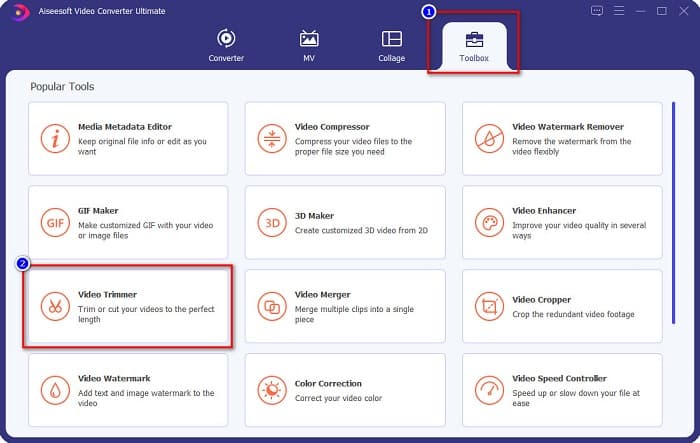
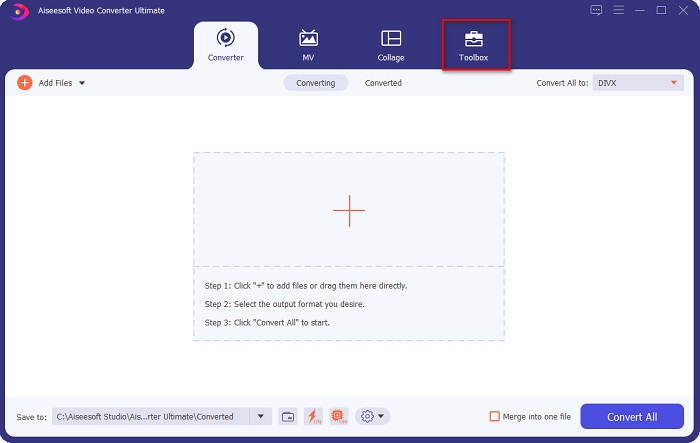
Pasul 2. Apoi selectează panoul Toolbox aflat în partea de sus a interfeței software-ului. Apoi, în panoul Toolbox, dă clic pe Video Trimmer.
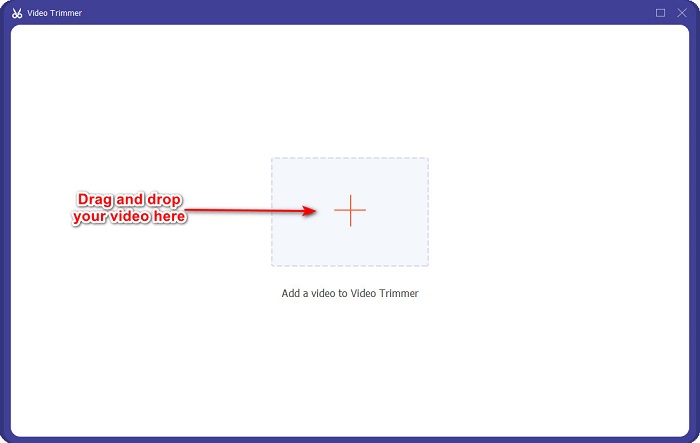
Pasul 3. Apoi, în interfața următoare, dă clic pe butonul cu semnul + sau trage și plasează videoclipul peste semnul +.
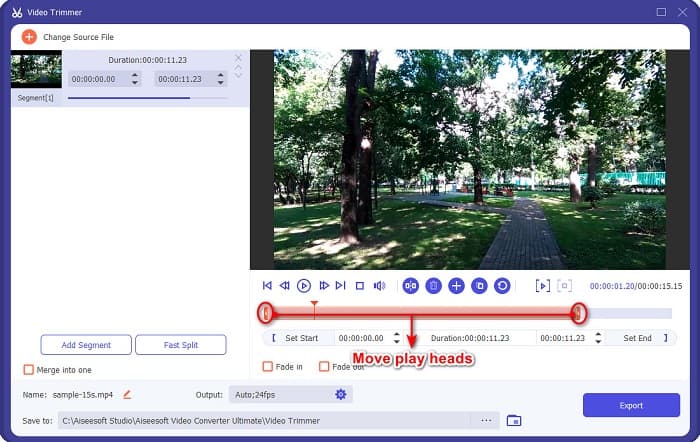
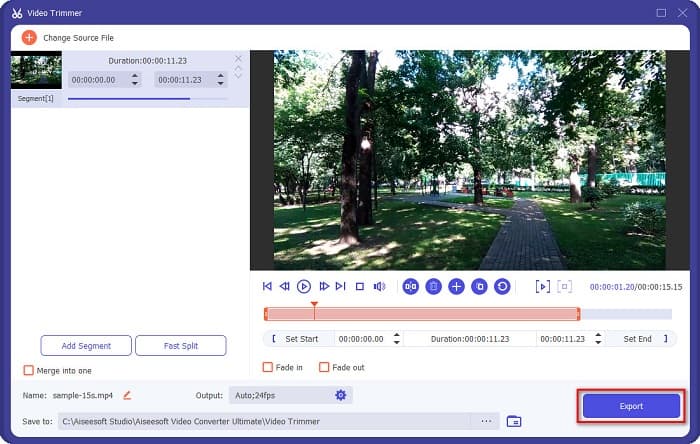
Pasul 4. Apoi, mută cursorii de redare la lungimea dorită. Săgeata indică locul previzualizării videoclipului tău. Iar cursorii de redare indică lungimea videoclipului. Poți vedea modificările temporare ale videoclipului în fereastra de previzualizare.
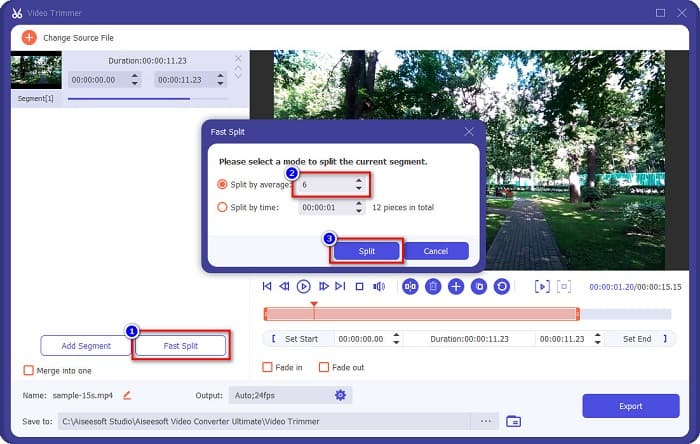
Opțional. Dacă vrei o modalitate mai simplă de a împărți videoclipul în segmente:
1. Dă clic pe butonul Fast Split.
2. Selectează numărul de secțiuni în care vrei să împarți videoclipul, apoi apasă Split.
3. Dacă nu doriți să vă împărțiți videoclipul, treceți la pasul următor.
Pasul 5. La final, dă clic pe butonul Export pentru a aplica modificările asupra videoclipului. Apoi fișierul de ieșire va fi salvat automat în folderele de pe computer.
Metoda 2. Utilizați Video Speed Changer de la FVC
FVC Video Converter Ultimate are, de asemenea, o funcție prin care puteți modifica viteza videoclipului cu viteze de 0,125x, 0,25x, 0,5x, 0,75x, 1,25x, 1,5x, 2x, 4x și 8x. Și dacă doriți să scurtați durata videoclipului, reglați videoclipul la o viteză mare. Pentru pași mai detaliați, urmați ghidul de mai jos.
Pasul 1. Deschide FVC Video Converter Ultimate. Iar în interfața principală a software-ului, dă clic pe opțiunea Toolbox.
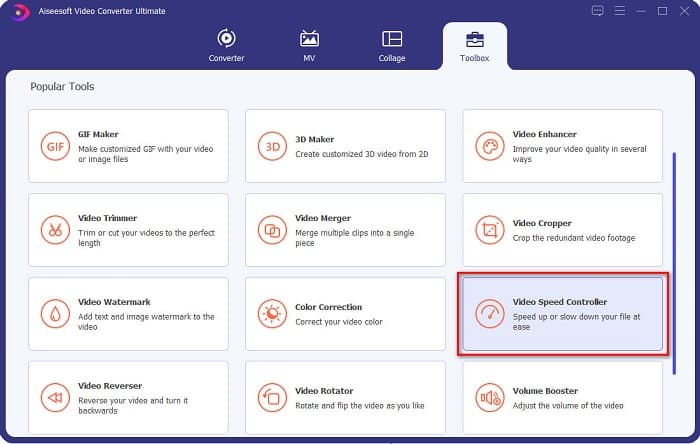
Pasul 2. Apoi, dă clic pe Video Speed Controller și treci la pasul următor.
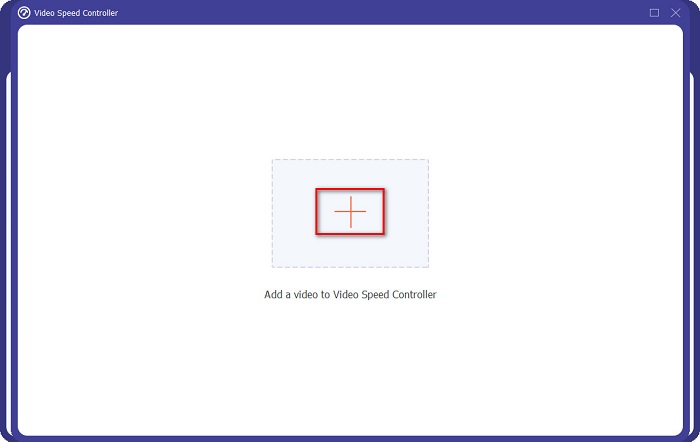
Pasul 3. Apoi, dă clic pe butonul cu semnul + pentru a încărca videoclipul pe care vrei să-l scurtezi. Vor apărea folderele computerului, de unde vei selecta videoclipul și îl vei încărca în interfața software-ului.
Pasul 4. Pentru a-ți scurta videoclipul, selectează viteza între 1,25x și 8x.
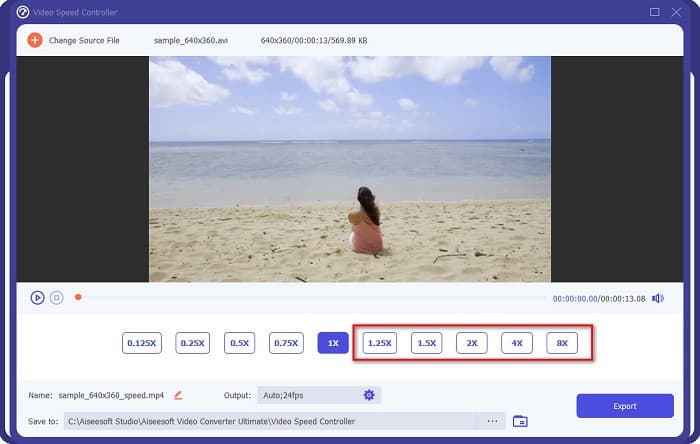
Pasul 5. Pentru ultimul pas, dă clic pe butonul Export pentru a salva modificările aduse videoclipului. Apoi fișierul de ieșire va fi salvat automat în folderele de pe computer.
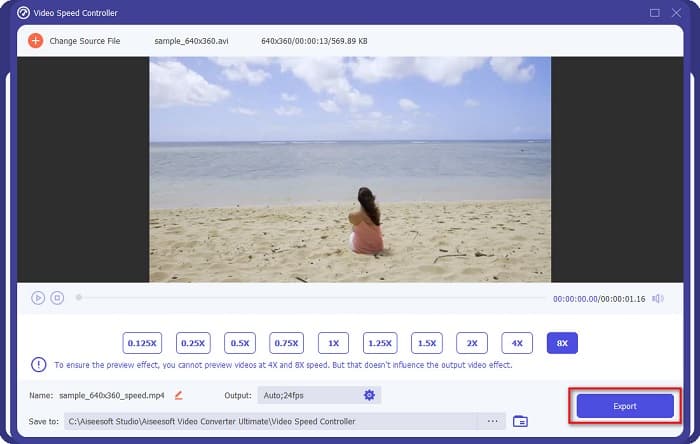
Pentru o lungime video mai scurtă, selectați viteza de 8x.
Pro
- Acceptă numeroase formate de fișiere, inclusiv MOV, MKV, AVI, MP4, WMV, WMA, MPEG și peste 1000 de formate.
- Are o interfață software ușor de utilizat.
- Vă permite să împărțiți rapid videoclipul cu doar câteva clicuri.
- Se poate descărca pe toate platformele cross-media, cum ar fi Windows, Mac și Linux.
Contra
- Achiziționați mai întâi aplicația înainte de a accesa celelalte funcții ale acesteia.
Partea 2. 2 Trimmer video online de încercat
Dacă doriți să tăiați videoclipul fără să descărcați nimic, există dispozitive de tuns video online pe care le puteți folosi. Am enumerat cele mai bune trimmere video online pe care multe persoane le folosesc în această parte.
Decupați video
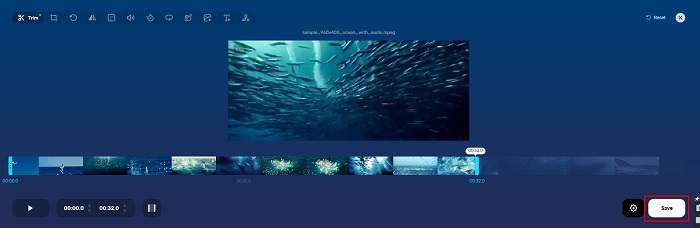
Trim Video este un instrument online de tăiere a videoclipurilor, ușor de utilizat datorită interfeței sale intuitive. Este un instrument practic deoarece nu necesită instalare, spre deosebire de alte unelte online. În plus, are o funcție prin care poți roti videoclipul la 90, 180 sau 270 de grade. Mai mult, nu trebuie să îți faci griji în privința securității datelor, deoarece acest instrument este protejat din punct de vedere al confidențialității. Totuși, fiind o aplicație bazată pe web, conține reclame care te pot distrage.
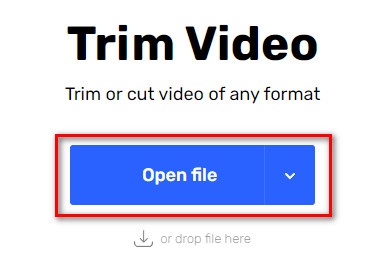
Pasul 1. În browser, caută „online video trimmer”. Apoi dă clic pe site-ul Trim Video. În interfața principală a software-ului, dă clic pe butonul Open File.
Pasul 2. Apoi, ajustează butoanele play head la lungimea dorită.
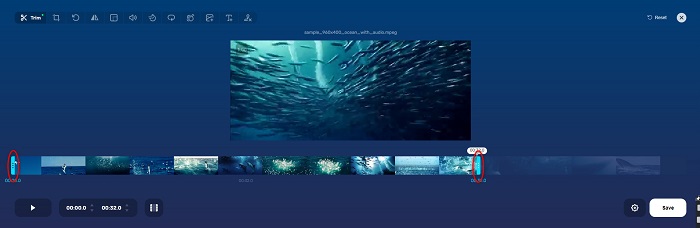
Pasul 3. Dă clic pe butonul Save pentru a schimba lungimea videoclipului.
Pro
- Are o interfață grafică ușor de utilizat.
- Are funcții pentru a tăia și roti videoclipul.
- Este sigur de utilizat.
Contra
- Conține reclame deranjante.
- Are un proces lent de încărcare și încărcare.
Clideo
Un alt instrument online de tăiere video este Clideo. Acest instrument online are o interfață simplă, ceea ce îl face ușor de utilizat. De asemenea, acceptă majoritatea formatelor standard de fișiere, precum AVI, MP4, VOB, MPG, MOV etc. Mai mult, acest instrument oferă un nivel ridicat de securitate, ceea ce înseamnă că datele tale sunt în siguranță și nu pot fi vizualizate de alte persoane. În plus, Clideo nu conține reclame care te-ar putea distrage.
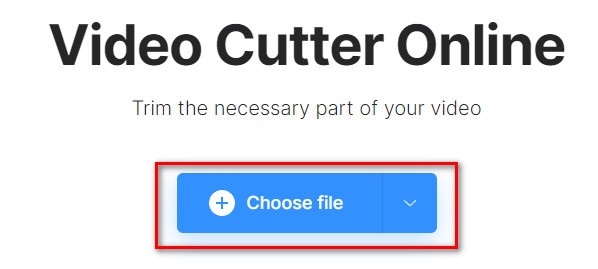
Pasul 1. În browserul pe care îl folosești, caută Clideo video trimmer. Iar în prima interfață a software-ului, dă clic pe butonul Choose File. Vor apărea folderele computerului, de unde vei selecta videoclipul pe care vrei să-l scurtezi.
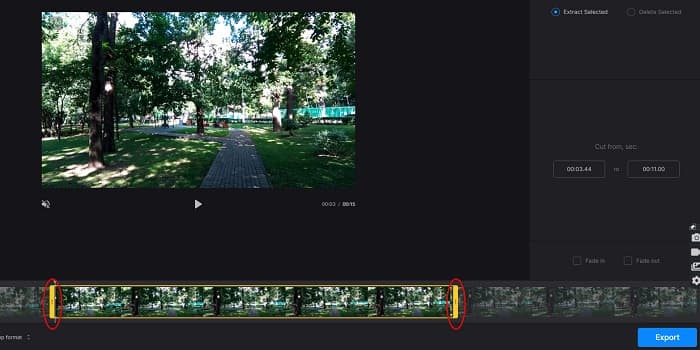
Pasul 2. Mută butoanele play head la lungimea pe care vrei să o aibă videoclipul.
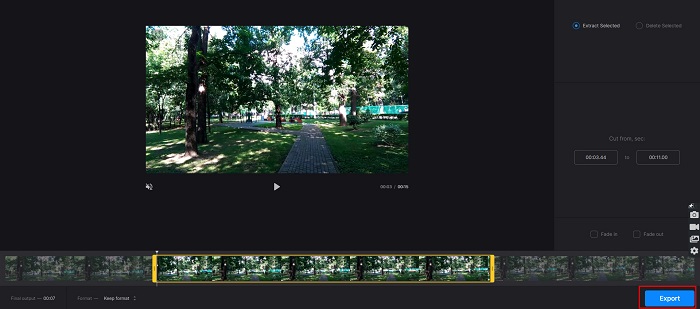
Pasul 3. Pentru ultimul pas, dă clic pe butonul Export pentru a modifica durata videoclipului.
Pro
- Are o interfață ușor de utilizat.
- Este sigur de utilizat.
- Nu conține reclame.
Contra
- Este posibil să aveți un proces lent atunci când conexiunea la internet este lentă.
Partea 3. Întrebări frecvente despre cum să scurtați videoclipul
Cum să scurtezi videoclipul pe iPhone?
Mai întâi, deschideți aplicația Foto și selectați videoclipul pe care doriți să îl tăiați. Apoi atingeți Editați. După aceea, mutați glisoarele la durata dorită a videoclipului și atingeți Terminat pentru a salva modificările din videoclip.
Decuparea videoclipului afectează calitatea?
Nu. Majoritatea instrumentelor de tăiere nu afectează calitatea videoclipului. Dar dacă vă asigurați de un instrument care nu afectează calitatea atunci când scurtați videoclipul, utilizați FVC Video Converter Ultimate.
Scurtarea videoclipului afectează dimensiunea fișierului?
Da. Cu cât videoclipul este mai scurt, cu atât este mai mică dimensiunea fișierului. În schimb, dacă videoclipul este lung, acesta conține o dimensiune uriașă a fișierului.
Concluzie
Aceasta este totul despre cum să scurtezi un videoclip folosind un trimmer și un schimbător de viteză video. Toate instrumentele enumerate oferă rezultate excelente și îți garantează cea mai bună performanță. Dar dacă ești în căutarea celui mai bun instrument, cu multe funcții și foarte popular când vine vorba de scurtarea videoclipurilor, FVC Video Converter Ultimate este cea mai bună opțiune pentru tine.
-
 Cum să tăiați și să îmbinați melodiile online - cele mai bune 4 moduri pe care ar trebui să le cunoașteți
 Când doriți să tăiați și să îmbinați melodiile online pentru a crea o piesă muzicală, puteți afla mai multe despre cele mai bune 4 instrumente online pentru a tăia melodiile și a combina fișiere din articol.
-
 Descoperiți cel mai bun aparat de tuns MP4 cu procedură și informații
 Vrei să înveți cum să tai videoclipuri precum vloggerii pe care îi urmărești? Apoi continuați să citiți această postare pentru a afla ce trimmere MP4 puteți folosi.
-
 5 dispozitive de tăiere MP3 pentru a tăia cu ușurință orice sunet [Actualizare 2022]
 Aveți nevoie de un dispozitiv de tăiere MP3 pentru a tăia sunetul? În acest caz, citiți acest articol, deoarece vă oferim instrumentele pe care vă puteți baza, care oferă o tăiere ușoară pentru audio.
