


 Video Converter Ultimate
 Screen Recorder
 Reparație video
 Descărcare sigură
Cum să tăiați videoclipuri cu TikTok: inclusiv programe offline pentru a tăia videoclipuri pentru TikTok
Ai un videoclip pe telefon pe care vrei să‑l postezi pe TikTok? Dar problema este că videoclipul este prea lung. Dacă da, acest ghid îți va oferi cei mai simpli pași pentru a scurta un videoclip pentru TikTok. În plus, vei învăța metode ușoare de a tăia videoclipuri cu TikTok. Mai mult, îți vom pune la dispoziție și un program offline pentru a decupa videoclipul. Așadar, dacă ești nerăbdător să descoperi toate aceste subiecte, te rugăm să citești această postare.

Partea 1. Cum să tăiați videoclipuri pentru TikTok pe desktop
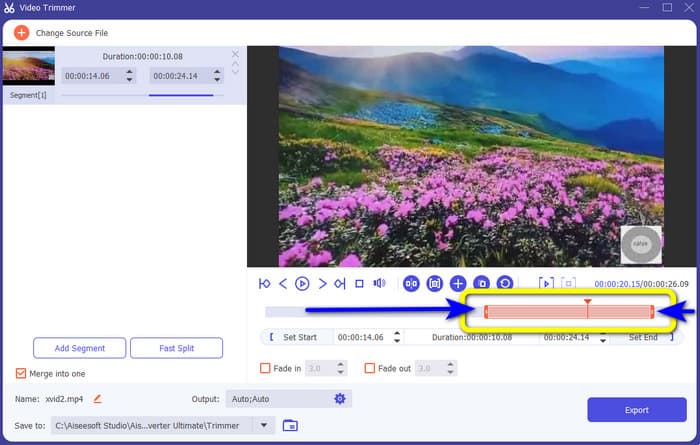
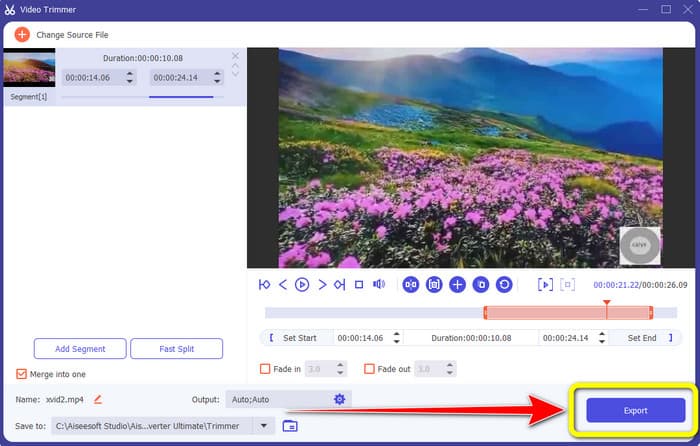
Dacă folosești computerul pentru a tăia un videoclip pentru TikTok, există un program excelent pentru tine. Pentru a tăia un videoclip pe computer, folosește Video Converter Ultimate. În ceea ce privește tăierea videoclipurilor, îți oferă o metodă directă și simplă. Îți permite să tai videoclipuri în doar câteva clicuri, ceea ce îl face convenabil pentru toți utilizatorii. De asemenea, poți ajusta marginile videoclipului pentru a‑l decupa sau tăia. O altă modalitate este să folosești opțiunile Set Start și Set End. În plus, poți apăsa pe opțiunile Fade In și Fade Out pentru a da un alt efect videoclipului tău. Poți încă să accesezi opțiunile Setting sau Output în timpul tăierii pentru a face unele modificări. Programul îți permite să schimbi rezoluția, rata de cadre, modul de zoom și calitatea video. Poți chiar modifica rata de eșantionare și bitrate‑ul pentru sunetul videoclipului.
În plus, utilizatorii Mac și Windows pot accesa acest software descărcabil. Video Converter Ultimate este disponibil pe computerele Windows și Mac, ceea ce îl face convenabil pentru utilizatori. Există mai multe funcții pe care le puteți întâlni când utilizați acest program offline. Dacă doriți să experimentați caracteristicile sale, încercați-l singur. Consultați pașii simpli de mai jos pentru a scurta un videoclip pentru TikTok folosind Video Converter Ultimate.
Pasul 1. Poți face clic pe butonul Download de mai jos pentru a accesa Video Converter Ultimate. Butoanele de mai jos sunt disponibile pentru computere Windows și Mac. După instalarea programului, rulează‑l pe computer.
Descărcare gratuită pentru Windows 7 sau o versiune ulterioară Descărcare securizată
Descărcare gratuită pentru MacOS 10.7 sau o versiune ulterioară Descărcare securizată
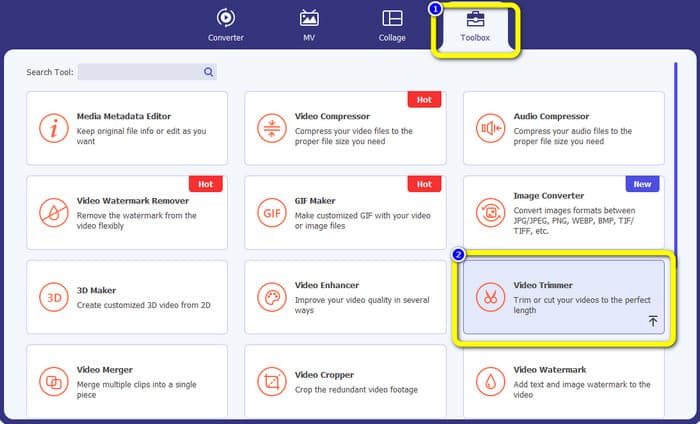
Pasul 2. Când interfața apare pe ecran, mergi în partea de sus a interfeței și apasă pe panoul Toolbox. Apoi selectează instrumentul Video Trimmer pentru a continua procesul de tăiere. Asigură‑te că videoclipul este deja pe computer înainte de a utiliza programul offline.
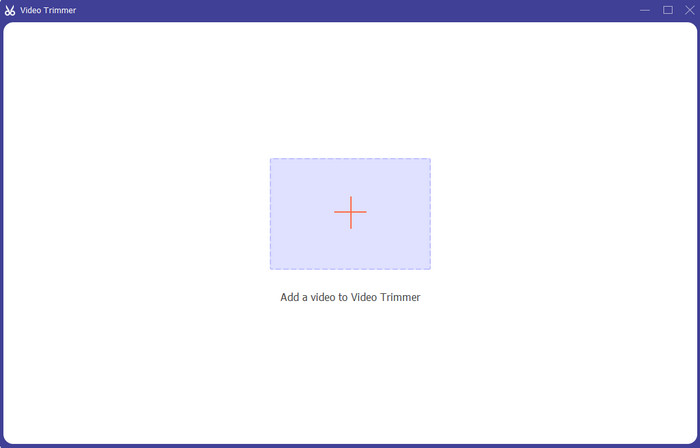
Pasul 3. Apasă pictograma Plus din centrul interfeței și adaugă videoclipul din folderul de fișiere.
Pasul 4. Apoi poți trece la procesul de tăiere. Mergi la cursorul de redare al videoclipului. După aceea, poți trage fiecare margine a videoclipului pentru a începe tăierea.
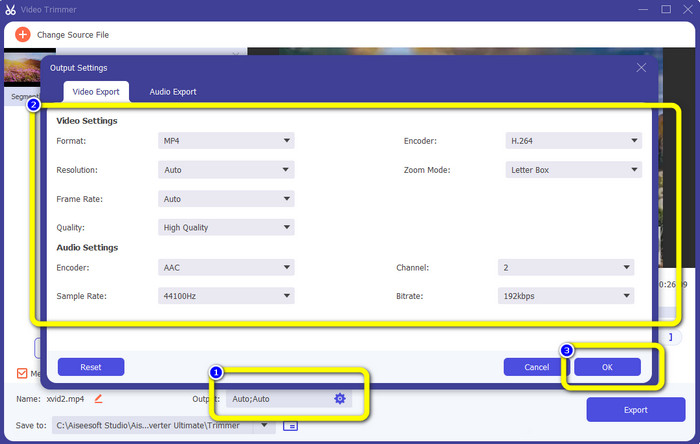
Pasul 5. De asemenea, poți accesa opțiunea Output Settings, unde poți modifica rezoluția videoclipului, formatul de ieșire, calitatea și rata de cadre. În afară de asta, poți chiar modifica bitrate‑ul audio, rata de eșantionare și alți parametri.
Pasul 6. Când ai terminat procesul de tăiere, apasă opțiunea Export pentru a salva videoclipul editat. După aceea, așteaptă procesul de export și ai terminat.
Partea 2. Cum să tăiați un videoclip pentru TikTok folosind aplicația mobilă
Dacă vrei să folosești telefonul mobil pentru a tăia videoclipul, utilizează Easy Video Cutter. Această aplicație mobilă este capabilă să îți scurteze clipul video ușor și rapid. De asemenea, are o procedură ușor de înțeles, ceea ce o face perfectă pentru toți utilizatorii. În plus, pentru utilizatorii de Android, este o aplicație disponibilă în Play Store. Este mai degrabă un pachet complet pentru editare video. Totuși, instrumentul de tăiere video al acestei aplicații se remarcă prin simplitatea de utilizare. De asemenea, videoclipurile procesate după tăiere nu au filigrane aplicate pe ele. Folosind acest program, poți combina și mai multe videoclipuri într‑unul singur. Găsirea videoclipului pe care vrei să‑l editezi este simplă și poți chiar sorta videoclipurile după oră, dată, album, artist, durată și alți factori. Astfel eviți complicațiile inutile atunci când cauți un film aflat aparent aproape de partea de jos a listei de videoclipuri.
Cu toate acestea, Easy Video Cutter are dezavantaje. Această aplicație mobilă este accesibilă numai pentru Android. Dacă sunteți utilizator iPhone, nu puteți utiliza aplicația. De asemenea, aplicația afișează reclame enervante la editarea unui videoclip. Utilizați pașii de mai jos pentru a tăia videoclipul folosind această aplicație mobilă.
Pasul 1. Intră în Google Play Store și descarcă aplicația Easy Video Cutter. După procesul de instalare, rulează aplicația pe telefon.
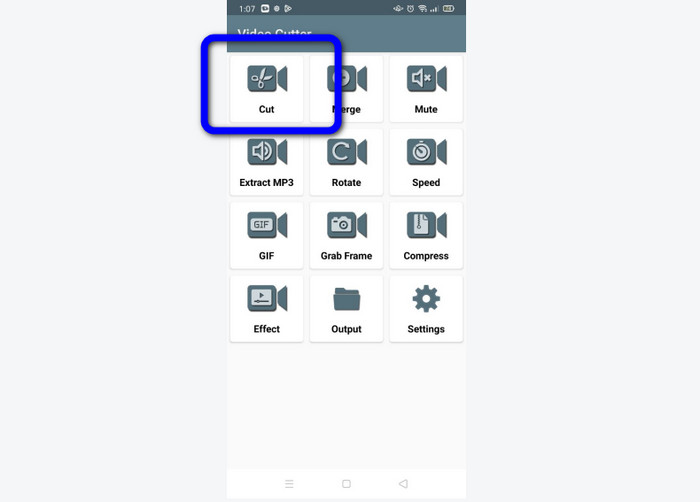
Pasul 2. După lansarea aplicației, interfața principală va apărea pe ecranul telefonului. Pe interfață poți vedea multe instrumente. Apasă pe opțiunea Cut. Apoi deschide videoclipul din fișierele tale.
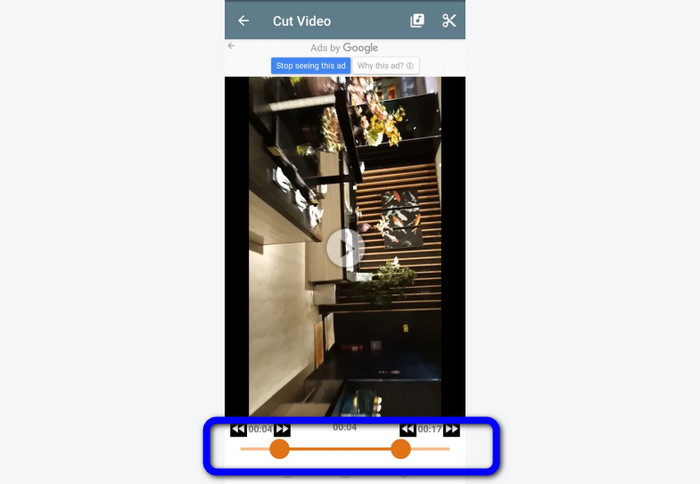
Pasul 3. În această parte, poți decupa videoclipul ajustând cursorul video din partea de jos a interfeței. Poți ajusta punctul de început și punctul de final.
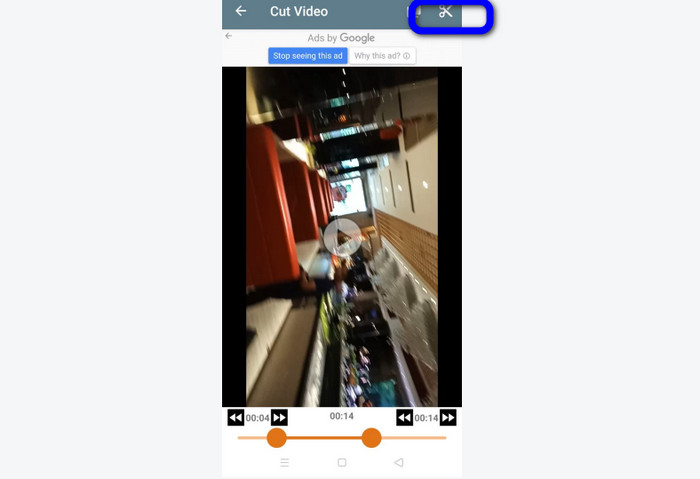
Pasul 4. Apasă pictograma Foarfecă din colțul din dreapta sus al ecranului pentru a tăia videoclipul. După aceea, salvează videoclipul editat pe telefon. Acesta este totul despre cum să tai videoclipuri pe Android.
Partea 3. Cum să tăiați un videoclip folosind TikTok
Vrei să înveți modalități de a tăia videoclipuri pe TikTok? Veți găsi răspunsul în această parte. Urmați pașii de mai jos pentru a cunoaște metoda de tăiere a unui videoclip în schițele de TikTok.
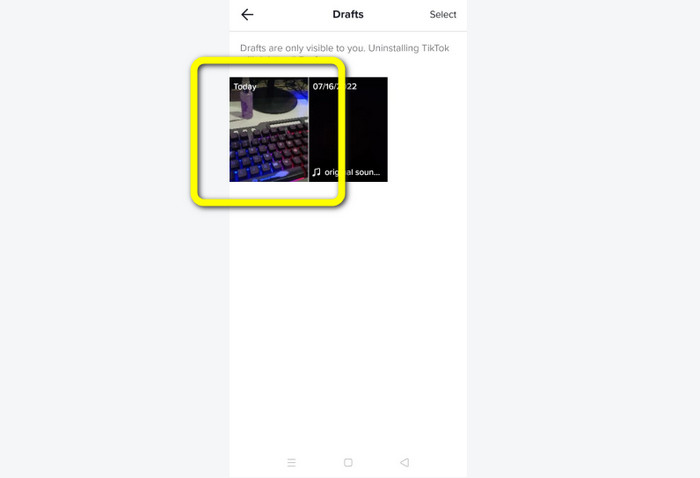
Pasul 1. Deschide aplicația TikTok pe telefonul mobil. După aceea, mergi la Profile și deschide videoclipul din Drafts.
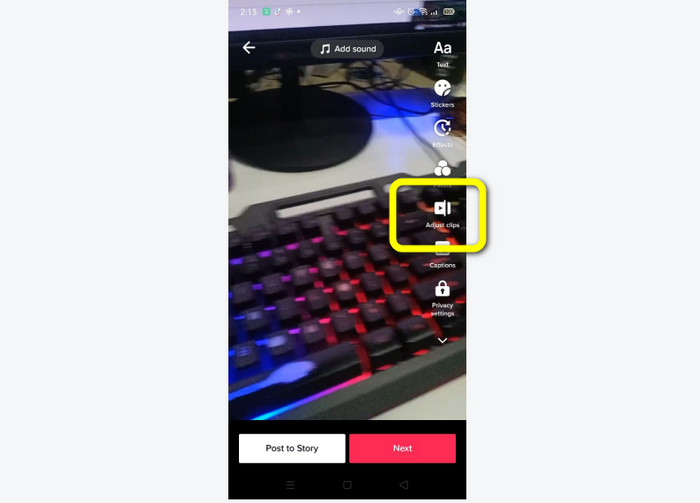
Pasul 2. După ce deschizi videoclipul, mergi în partea dreaptă a ecranului și apasă pe opțiunea Adjust Clip.
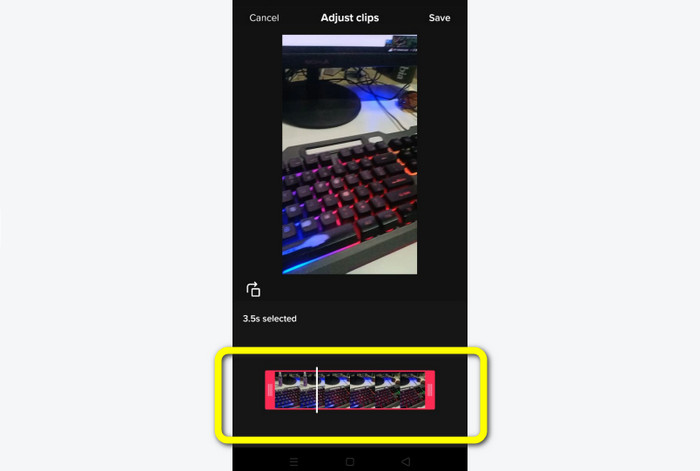
Pasul 3. Apoi poți tăia videoclipul ajustând marginea cursorului de redare. Poți muta atât marginea din dreapta, cât și pe cea din stânga a videoclipului.
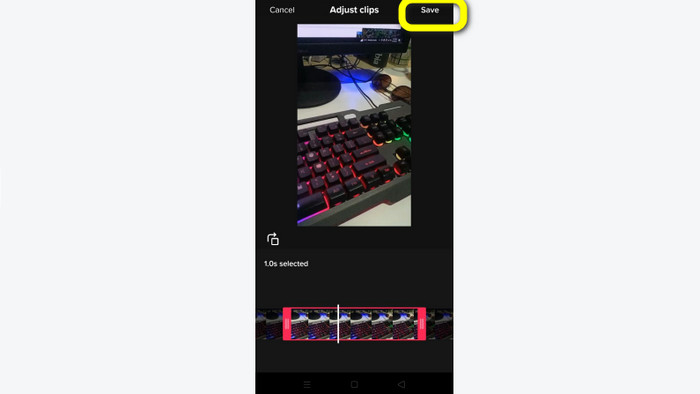
Pasul 4. După ce ai tăiat videoclipul, apasă butonul Save din colțul din dreapta sus al ecranului telefonului. În acest fel poți salva videoclipul editat și îl poți posta pe TikTok.
Partea 4. Întrebări frecvente despre cum să tăiați un videoclip cu TikTok
1. De ce nu mă lasă TikTok să-mi decupez videoclipul?
Unul dintre motive este că nu puteți vedea butonul implicit sau ați postat deja videoclipul.
2. De ce imi taie TikTok clipurile scurte?
TikTok are o lungime maximă a videoclipului. Dacă videoclipul tău nu îndeplinește cerințele, TikTok îți va tăia clipurile. Înseamnă că TikTok se asigură că videoclipurile au o lungime adecvată.
3. Cât de lungi ar trebui să aibă videoclipurile mele TikTok?
Puteți posta până la 3 minute de videoclip înainte. Dar acum, TikTok vă permite să încărcați un videoclip cu până la 10 minute mai mult.
Concluzie
Asta a fost tot! Acum ești capabil să îți tai videoclipurile cu TikTok. Așadar, dacă vrei să știi cum să tai un videoclip cu TikTok, citește informațiile detaliate de mai sus. De asemenea, dacă vrei să îți scurtezi videoclipul pentru TikTok, cel mai bun software de editare video pe care ți‑l putem oferi este Video Converter Ultimate. Acest program are metode mai ușoare și o interfață simplă, ceea ce îl face perfect pentru toți utilizatorii.
-
 2 moduri fără efort de a accelera un videoclip pe TikTok
 Vrei să știi secretul cum să accelerezi videoclipurile pe TikTok? Atunci citește acest articol pentru a avea o idee despre cum să o faci și pentru a ști care sunt celelalte 2 instrumente care te vor ajuta
-
 4 moduri eficiente de a elimina filigranele Tiktok din videoclipurile Tiktok
 Trebuie să eliminați filigranul Tiktok din videoclipurile dvs. Tiktok exportate? O poți face aici cu ajutorul instrumentelor pe care le prezentăm; o poți face cu ușurință.
-
 3 moduri eficiente de a adăuga videoclipuri și imagini împreună pe Tiktok
 Vrei să știi cum să adaugi imagini în videoclipurile Tiktok? În acest caz, faceți clic și citiți acest articol pentru a afla cum să adăugați cu ușurință imagini la videoclipul dvs. Tiktok.
