


 Видео конвертер Ultimate
 Устройство записи экрана
 Видео ремонт
 Безопасная загрузка
Профессиональные способы конвертации изображений в вектор
Лучшим графическим форматом для логотипов и чертежей являются векторные изображения. Это обусловлено их чёткими кривыми и линиями. Кроме того, вместо пикселей для их построения используются уравнения. Векторы можно масштабировать до любого размера без потери чёткости. Пользователю необходимо уметь конвертировать фотографии в векторы. Хорошая новость в том, что всему этому можно научиться в интернете благодаря множеству доступных инструментов и уроков. Дизайнеры и маркетологи должны уметь работать с широко распространённым типом файлов — векторными изображениями. В конце концов, билборды и другие виды рекламы отдают предпочтение именно этому формату. Существует множество способов преобразования растровых изображений в векторные. Если вы хотите найти лучший способ конвертировать изображения в векторы, то у вас есть причина прочитать это руководство.

Часть 1. Что такое вектор изображения?
Компьютерное изображение с точками, линиями и кривыми называется векторным изображением. На основе математических уравнений он используется для создания различных фигур. Каждое математическое уравнение имеет уникальные свойства, такие как цвет, толщина, кривая и многое другое. Благодаря этому векторное изображение можно увеличивать и уменьшать в большую или меньшую сторону без потери деталей изображения. Это означает, что линии, кривые и точки остаются гладкими независимо от размера или степени увеличения изображения. В художественном произведении никогда не будет размытых или рваных краев. Логотипы часто представляют собой векторные файлы. Кроме того, цвета делятся на отдельные формы. Так же просто, как нажатие кнопки, упрощает изменение цветов этой графики.
Часть 2. Лучший способ векторизации изображения
Как векторизовать изображение в Illustrator
Если вы хотите векторизовать свои изображения, вы можете использовать Illustrator. Эта программа позволяет идеально векторизовать изображение. В ней есть полный набор необходимых инструментов и параметров. Кроме того, она поддерживает практически все самые распространённые форматы изображений для добавления любых картинок. Вы можете добавлять JPG, BMP, PNG, EPS, TIFF и другие. Однако, если вы хотите использовать программу ежедневно, её нужно купить. Illustrator предоставляет только несколько дней бесплатной пробной версии. Также процесс установки довольно запутанный. Если вы новичок, вам будет сложно с ней работать. Чтобы векторизовать изображения в Illustrator, вам, скорее всего, придётся обратиться за помощью к более опытным пользователям. Кроме того, программа имеет сложные параметры. Необходимо сначала изучить работу с программой, а уже затем пользоваться ею. Также при векторизации изображения выполняется множество операций. Ознакомьтесь с инструкцией ниже, чтобы узнать, как векторизовать изображение.
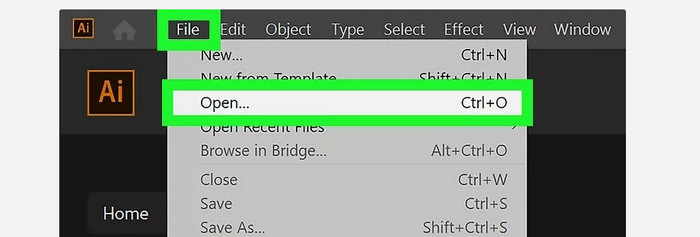
Шаг 1. Скачайте Illustrator на свой компьютер. При желании вы можете воспользоваться бесплатной пробной версией. После установки запустите программу. Перейдите в меню File > Open, чтобы добавить изображение, которое вы хотите векторизовать.
Шаг 2. В новом появившемся окне установите флажок Preview, чтобы просматривать изображение в векторном формате в режиме реального времени.
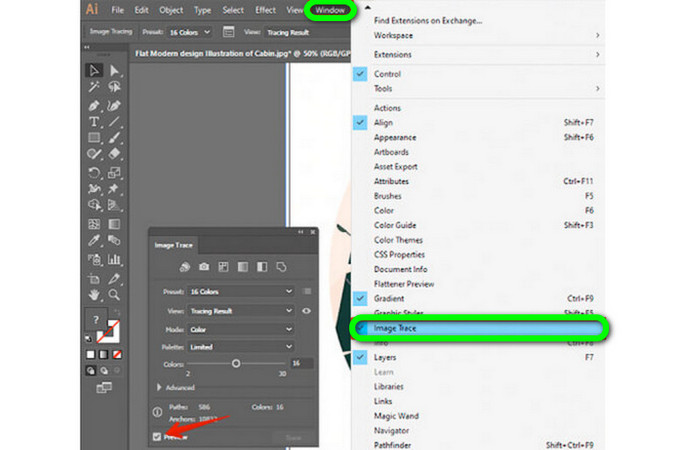
Шаг 3. Выбор режима — следующий шаг в освоении того, как векторизовать изображение в Illustrator. Найдите раскрывающийся список Mode на панели Image Trace и выберите режим, который лучше всего подходит для вашего дизайна. Доступны режимы: градации серого, чёрно-белый или цветной.

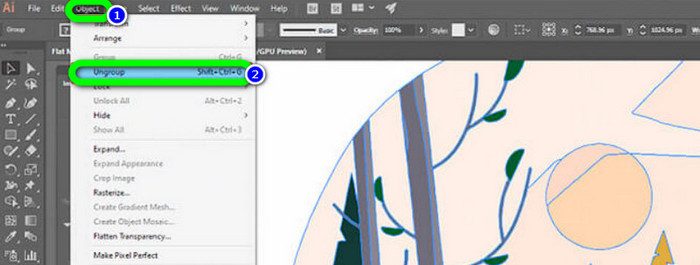
Шаг 4. Затем щёлкните правой кнопкой мыши по изображению. Вкладке Object в выпадающем меню выберите команду Ungroup. Также можно использовать сочетания клавиш Shift+Ctrl+G/Shift+Cmd+G, если вы предпочитаете горячие клавиши для более быстрого доступа. В результате этой операции цветовые области будут разделены на части.
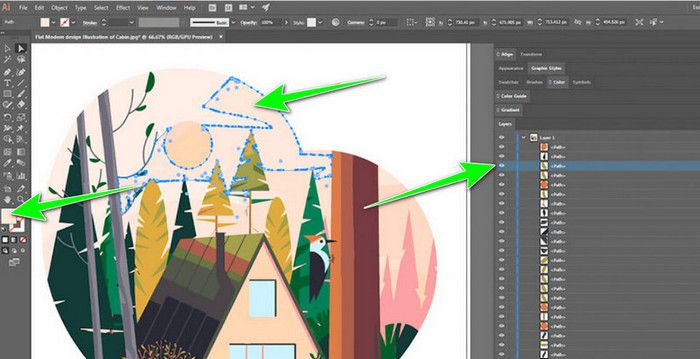
Шаг 5. После завершения конвертации вы можете свободно изменять изображение. Щёлкните по нужной фигуре, затем выберите Select > Same > Fill Color, чтобы удалить любые группы одноцветных объектов.
Шаг 6. Наконец, сохраните изображение как векторный файл. Перейдите в меню File > Save as. Затем выберите формат файла SVG.
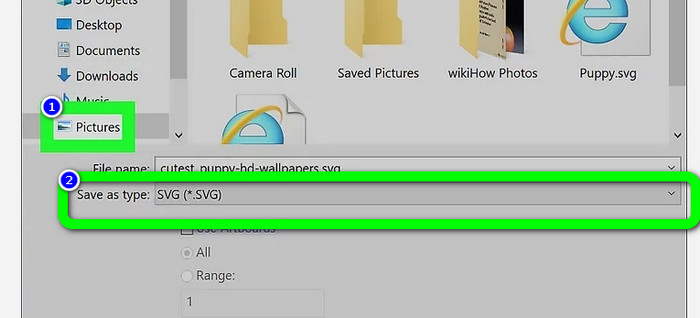
Как векторизовать изображение в Photoshop
Adobe Photoshop хорошо подходит для векторизации изображения. В нём есть эффективные методы, упрощающие работу для всех пользователей. Кроме того, вы можете векторизовать изображение всего за несколько шагов. Photoshop также позволяет редактировать изображения. Если вы хотите отредактировать фото перед сохранением, вы можете это сделать. Однако у Photoshop есть некоторые недостатки. Он предоставляет только 7-дневную бесплатную пробную версию. После её истечения необходимо оплачивать подписку. Процесс установки также занимает много времени.
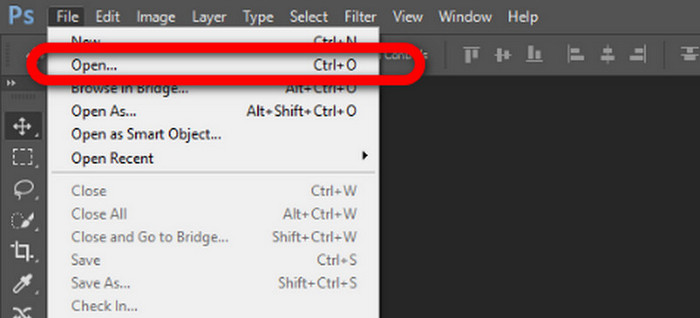
Шаг 1. Запустите Adobe Photoshop на компьютере. Затем откройте меню File и выберите пункт Open, чтобы добавить изображение, которое вы хотите векторизовать.
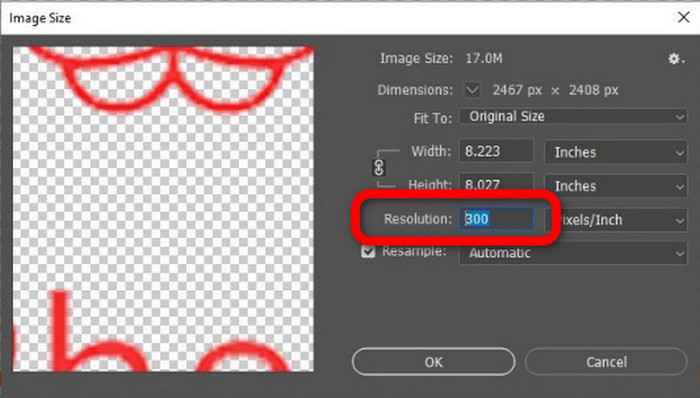
Шаг 2. Нажмите Ctrl + Alt + I на клавиатуре, чтобы открыть окно Image Size и установить разрешение на 300.
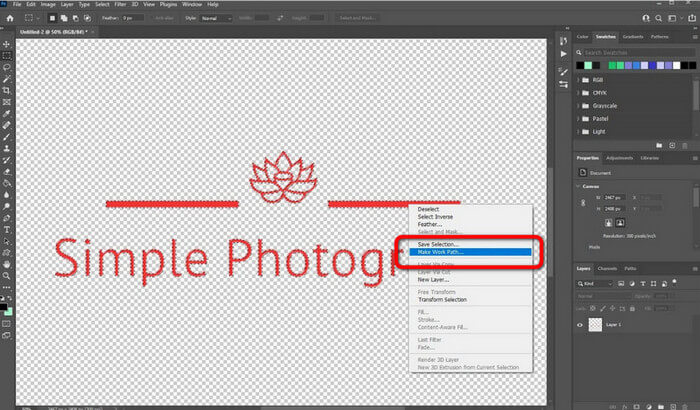
Шаг 3. Переместите курсор над выделением, выберите инструмент Marquee на панели инструментов и щёлкните правой кнопкой мыши. Затем в меню выберите пункт Make Work Path.
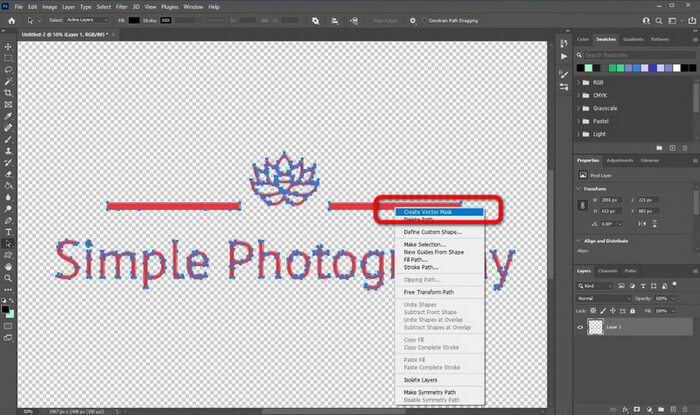
Шаг 4. Затем нажмите Ctrl + A на клавиатуре, чтобы активировать инструмент Direct Selection. После этого щёлкните правой кнопкой мыши по изображению и выберите опцию Create Vector Mask. Так будет создана векторная маска над слоем.
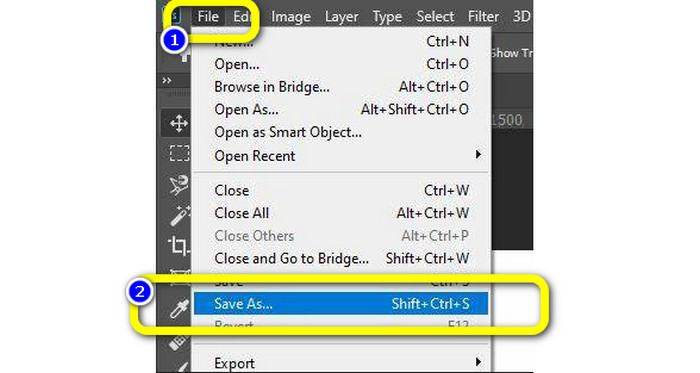
Шаг 5. Чтобы сохранить векторизованное изображение, откройте меню File и выберите пункт Save as.
Часть 3. Как конвертировать векторные изображения
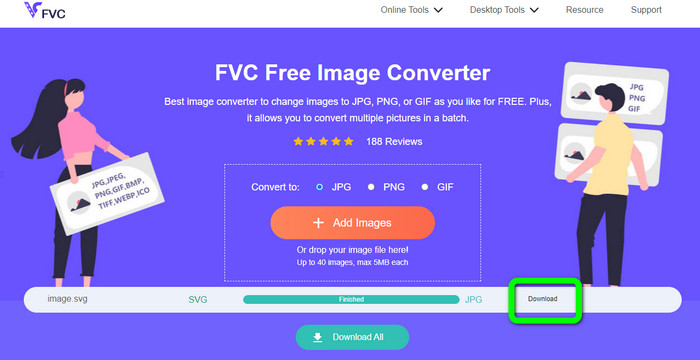
Отличным онлайн-конвертером изображений является FVC Free Image Converter. Он может конвертировать векторную графику в другие форматы, такие как JPG и PNG. Интерфейс пользователя превосходен. Вы можете сосредоточиться на конвертации файлов, поскольку на сайте отсутствует навязчивая реклама. Кроме того, устанавливать этот конвертер не требуется. Он полностью управляется прямо через браузер. После конвертации качество изображения будет таким же, как у исходного файла. Он предлагает простой в использовании интерфейс и понятные инструкции, что идеально подойдёт для пользователей. Также можно конвертировать сразу несколько файлов. Этот конвертер изображений поддерживает пакетное преобразование. Более того, вы можете скачивать множество преобразованных файлов одним щелчком. Он принимает входные файлы во множестве дополнительных форматов, таких как PNG, BMP, TIFF и GIF. Отсутствие назойливой рекламы — одно из его преимуществ. Это позволяет добиться того, чтобы итоговый продукт был приятен в использовании и просмотре. При работе с FVC Free Image Converter ваша конфиденциальность защищена. Сервис не сохраняет ваши данные после загрузки изображения.
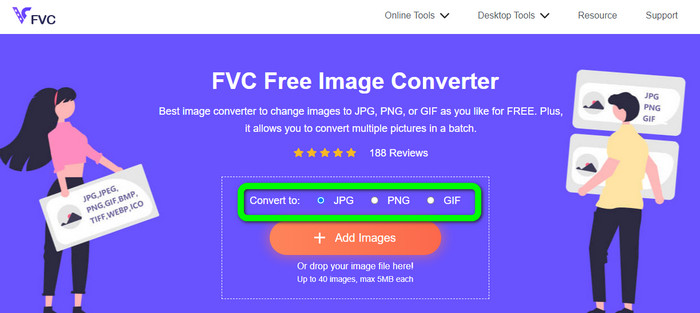
Шаг 1. Перейдите на сайт FVC Free Image Converter. Откройте раздел конвертации и выберите желаемый выходной формат.
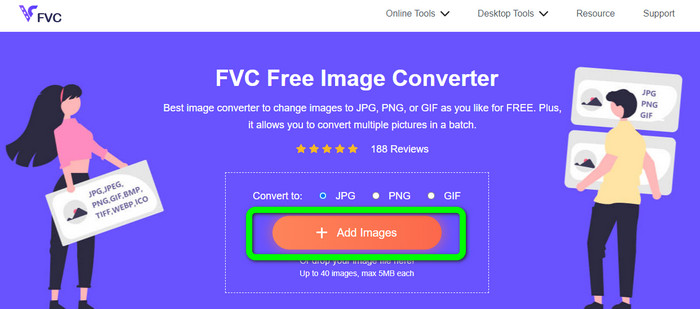
Шаг 2. Нажмите кнопку Add Images, чтобы загрузить векторное изображение. Вы также можете перетащить файл в специальное поле.
Шаг 3. После загрузки векторного изображения инструмент автоматически выполнит конвертацию. Затем по завершении процесса нажмите кнопку Download.
Относится к:
Простые способы конвертировать изображения в чёрно‑белый формат
Лучшие способы конвертировать изображения в ссылки [полные методы]
Часть 4. Часто задаваемые вопросы о преобразовании изображений в вектор
1. Каковы различные варианты использования векторных изображений?
Есть много причин, по которым вам нужно использовать векторные файлы. Если вы планируете печатать изображения, лучше поместить изображение в векторный файл. Помимо печати, он также идеально подходит для анимации. Пользователи используют это для покадровых изображений, которые требуют меньше вычислительной мощности. Также некоторые дизайнеры используют векторные изображения для билбордов и рекламных роликов.
2. Какие существуют основные типы форматов векторных изображений?
Основными форматами векторных изображений являются Scalable Vectors Graphics (SVG), Windows Metafile (WMF), Adobe Illustrator Artwork (AI), Encapsulated PostScript (APS) и Portable Document Format (PDF).
3. Всегда ли мне нужен векторный файл, если у меня есть проектная работа?
Не всегда. Существуют способы использования различных форматов файлов. Но потребуются ли вам векторные файлы, в конечном итоге зависит от того, какую работу вы проделали. В конце концов, если вы выполнили работу по дизайну, обсудите форматы файлов со своим дизайнером. Таким образом, вы можете собрать или сгенерировать нужные файлы, если они недоступны.
4. Как преобразовать любое изображение в черно-белый векторный силуэт?
Чтобы преобразовать изображение в черно-белое, вы можете использовать Photoshop. Перейдите в меню «Файл» и выберите параметр «Открыть», чтобы добавить изображение. Затем в верхнем интерфейсе щелкните меню «Изображение». Выберите «Настройки» > «Порог». Затем появится окно Threshold. Затем нажмите ОК.
Заключение
Векторные изображения отлично подходят для рекламы, билбордов и многого другого. Поэтому в статье были рассмотрены лучшие способы, как векторизовать изображение. Также вы узнали, как преобразовать векторные изображения в другие форматы, такие как JPG и PNG. Если вы хотите векторизовать изображение и конвертировать изображения в другие форматы, используйте FVC Free Image Converter.
-
 Простые для понимания способы преобразования PSD в PNG или JPG
 В этом посте вы найдете пошаговые инструкции по конвертации PSD в JPG или PNG. Существуют различные конвертеры, которые вы можете использовать для преобразования ваших файлов. Узнайте больше, чтобы узнать.
-
 Проверенные способы конвертировать TGA в PNG легко, но профессионально
 Ознакомьтесь с этими руководствами, чтобы узнать, как конвертировать TGA в PNG с помощью онлайн-конвертеров изображений. Нажмите на статью, чтобы узнать все подробности о преобразовании изображений.
-
 Несравненные учебники по преобразованию изображений в формат SVG
 Вы хотите преобразовать свои фотографии в формат файла SVG? Тогда этот пост даст вам отличные конвертеры, которые вы можете использовать онлайн, офлайн и на мобильных устройствах.
