


 Видео конвертер Ultimate
 Устройство записи экрана
 Видео ремонт
 Безопасная загрузка
Лучшие офлайн и онлайн-объединители GIF | Как легко объединить GIF-файлы
Вы когда‑нибудь хотели создать забавное и запоминающееся изображение, совместив несколько GIF‑анимаций? Отличные новости! Объединять GIF стало проще и удобнее, чем когда‑либо, благодаря лучшим онлайн‑ и офлайн‑инструментам объединения GIF. С помощью этих мощных приложений вы можете легко комбинировать свои любимые GIF‑файлы и создавать нечто совершенно новое и оригинальное, что наверняка привлечёт внимание. В этом обучающем руководстве мы покажем как онлайн‑, так и офлайн‑способы объединения GIF и дадим советы, как максимально эффективно использовать каждый метод. Самое время начать изучать увлекательный мир GIF‑миксов.

Часть 1. Лучший GIF-комбайнер в автономном режиме
Использование офлайн‑программы для объединения GIF даёт пользователям несколько преимуществ: не требуется подключение к интернету, обеспечивается лучший контроль над процессом, повышаются конфиденциальность и безопасность, а обработка идёт быстрее. С офлайн‑программой вы можете создавать и совмещать GIF‑файлы в удобном для вас темпе и настраивать результат по своему вкусу. В этой связи мы хотели бы порекомендовать FVC Video Converter Ultimate.
Этот инструмент позволяет пользователям объединять несколько GIF-файлов вместе и настраивать размер, скорость и параметры воспроизведения полученного GIF-файла. Что отличает его от конкурентов, так это то, что это многофункциональное программное обеспечение для редактирования видео, которое включает функцию GIF Maker, позволяющую пользователям выполнять другие задачи редактирования видео, помимо объединения GIF-файлов. Кроме того, он может похвастаться удобным интерфейсом с пошаговыми инструкциями, что делает его доступным как для опытных, так и для начинающих пользователей. Узнайте, как объединить несколько GIF-файлов в MP4 на ПК или в других форматах, следуя упрощенному руководству.
Совместимость: Windows 11/10/8/7 и Mac OS X 10.12 или новее
Рейтинг: 9.8 / 10
Цена: $49.96, пожизненная лицензия
Ключевые особенности:
◆ Преобразование видео: FVC Video Converter Ultimate может преобразовывать видео в широкий спектр форматов, включая MP4, AVI, WMV, MKV и другие.
◆ Извлечение аудио: пользователи могут извлекать звуковые дорожки из видеофайлов.
◆ Объединение GIF-файлов: FVC Video Converter Ultimate включает встроенный инструмент GIF Maker, который позволяет пользователям объединять несколько GIF-файлов, регулировать скорость воспроизведения и настраивать другие параметры.
◆ Высокое качество вывода: FVC Video Converter Ultimate утверждает, что сохраняет исходное качество исходных файлов в процессе преобразования, обеспечивая высокое качество вывода.
◆ Пакетная обработка: пользователи могут конвертировать и объединять множество файлов одновременно, экономя время и повышая эффективность.
Шаги по объединению GIF с помощью этого GIF‑объединителя:
Шаг 1. Сначала скачайте программу, нажав любую из кнопок Free Download ниже, соответствующую операционной системе вашего компьютера. Затем откройте установщик и следуйте инструкциям мастера, чтобы корректно установить GIF‑объединитель на компьютер. После установки запустите программу.
Бесплатная загрузкаДля Windows 7 и новееБезопасная загрузка
Бесплатная загрузкаДля macOS 10.7 и новееБезопасная загрузка
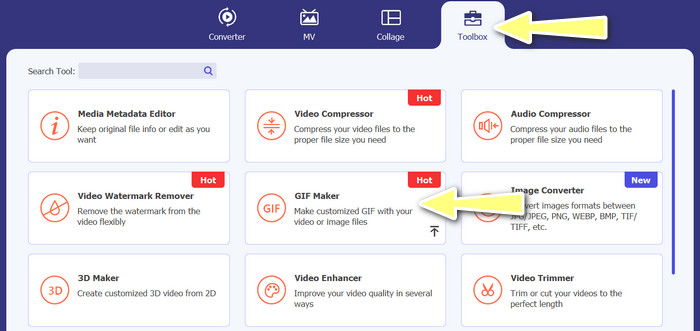
Шаг 2. Далее перейдите на вкладку Toolbox в верхней части интерфейса программы. После этого вы попадёте в раздел со всеми доступными инструментами. Здесь выберите GIF Maker и добавьте GIF‑файлы, нажав кнопку Photos to GIF. Затем выберите все GIF‑файлы, которые вы хотите объединить в один.
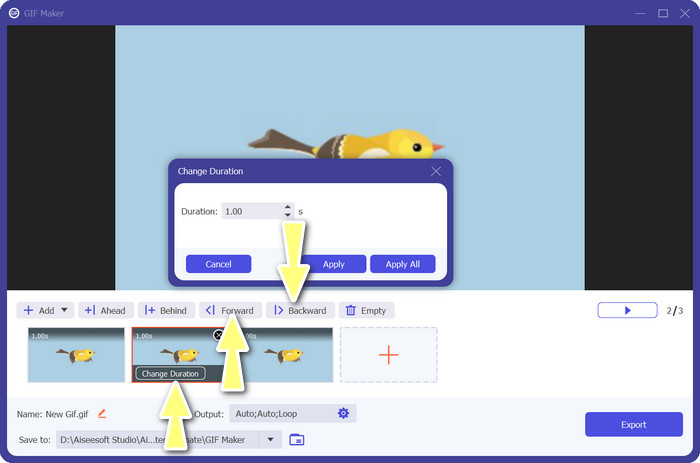
Шаг 3. На панели редактирования подведите курсор к каждому GIF, чтобы появилась опция Change Duration, и отрегулируйте длительность каждого GIF. Также вы можете изменить порядок воспроизведения, выбрав в главном меню кнопки Backward и Forward.
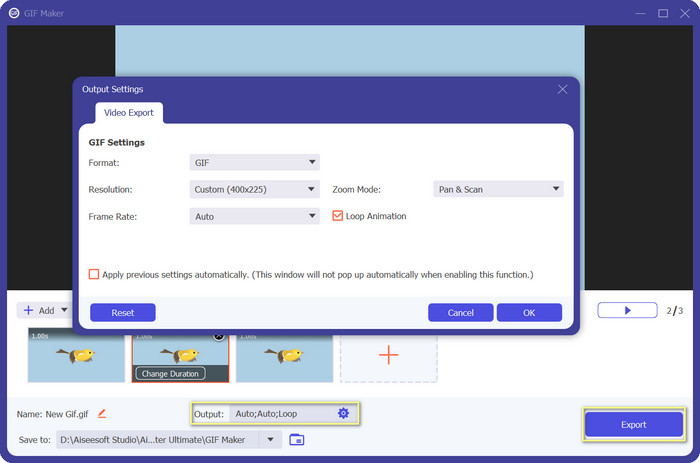
Шаг 4. Затем при необходимости настройте другие параметры — формат, разрешение, частоту кадров и режим масштабирования — в разделе Output. В конце нажмите кнопку Export, чтобы получить итоговый файл.
Часть 2. Топ 4 GIF Combiner онлайн
Есть также несколько онлайн-альтернатив для объединения GIF-файлов в один. Таким образом, вы можете легко присоединиться к своим GIF-файлам, не загружая какую-либо программу на свой компьютер. Проверьте их, проверив программы, представленные ниже.
1. ЭЗГИФ
EZGIF — это широко используемый веб-сервис для создания и изменения GIF-файлов. Функция GIF Joiner позволяет объединить несколько GIF-файлов в один с возможностью изменения скорости воспроизведения и других параметров. Ниже приведено простое руководство о том, как использовать EZGIF для объединения файлов GIF в один.
Шаг 1. Запустите любимый веб‑браузер и зайдите на официальный сайт сервиса. Там перейдите в раздел GIF Maker.
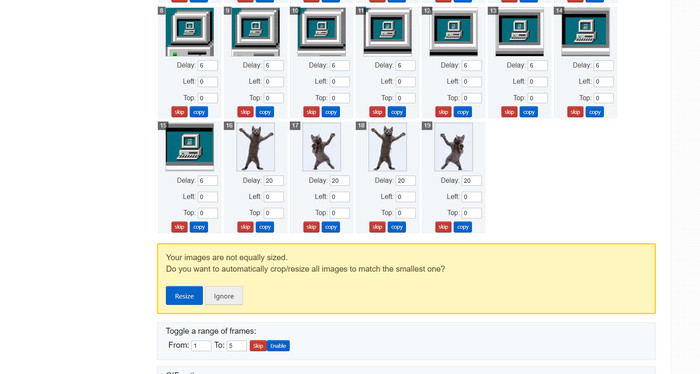
Шаг 2. Далее загрузите GIF‑файлы, которые хотите объединить, и инструмент на следующей странице подгрузит все кадры вашего GIF‑файла.
Шаг 3. Теперь вы можете выбрать, какие кадры GIF включить или исключить.
Шаг 4. Внизу страницы доступны дополнительные параметры. Если вас устраивают настройки, нажмите кнопку Make a GIF.
2. Гифы
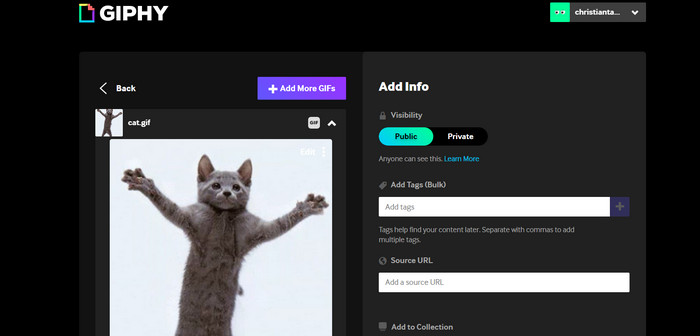
Хотя большинство людей знают GIPHY как место для поиска и обмена GIF-файлами, они могут не знать, что на сайте также есть GIF Creator, который позволяет пользователям комбинировать GIF-файлы и добавлять текст или наклейки. С другой стороны, вот пошаговый процесс объединения GIF-файлов с GIPHY.
Шаг 1. Чтобы приступить к созданию GIF, перейдите на сайт GIPHY и откройте вкладку Create. В появившемся меню выберите GIF Creator.
Шаг 2. Нажмите кнопку Choose Files и выберите на компьютере GIF‑файлы, которые хотите объединить.
Шаг 3. Перетащите выбранные GIF на таймлайн в нижней части экрана. Просто перетаскивая GIF‑файлы, вы можете изменить порядок их воспроизведения.
Шаг 4. Чтобы изменить длительность каждого GIF, используйте предоставленный ползунок. С помощью инструментов редактирования GIPHY вы можете персонализировать GIF, добавляя текст, стикеры и другие элементы. Когда результат вас устроит, нажмите Create GIF, чтобы сохранить объединённый GIF на компьютер.
3. Капвинг
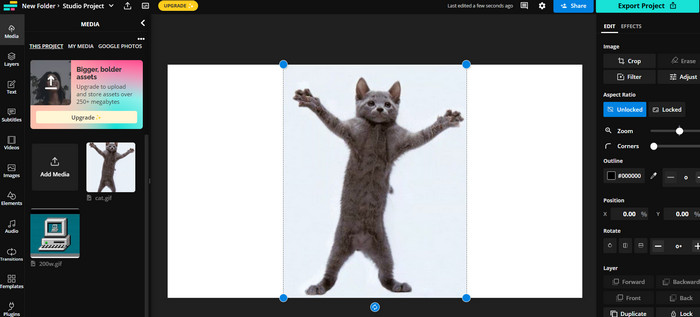
Kapwing — это бесплатный онлайн‑сервис, который позволяет пользователям редактировать видео и создавать GIF из изображений. Он даёт возможность загрузить несколько GIF‑файлов, объединить их в один, выбрать скорость воспроизведения и изменить другие параметры. Чтобы узнать, как соединить два GIF с помощью Kapwing, ознакомьтесь с инструкцией ниже.
Шаг 1. Перейдите на сайт Kapwing и нажмите Get Started, чтобы начать. Затем нажмите Click to Upload и выберите на компьютере GIF‑файлы, которые хотите объединить.
Шаг 2. Перетащите выбранные GIF на таймлайн внизу экрана. Вы можете изменить порядок GIF, перетаскивая их в нужное место.
Шаг 3. Отрегулируйте скорость воспроизведения и длительность каждого GIF с помощью инструментов редактирования Kapwing. Также вы можете добавить текст, стикеры и другие элементы в GIF, используя те же инструменты.
Шаг 4. Когда результат вас устроит, нажмите Publish, чтобы сохранить объединённый GIF на компьютер.
4. Имгфлип
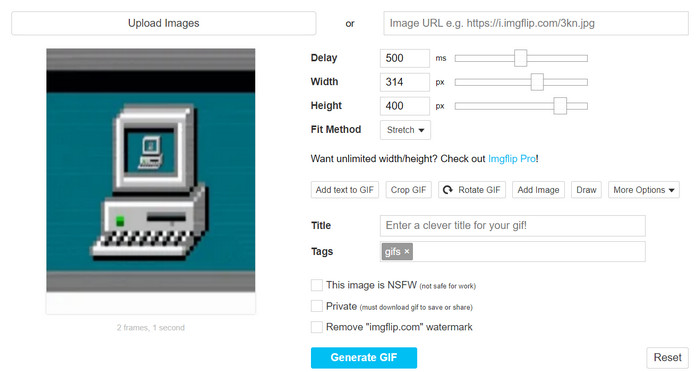
Популярный онлайн-мем и создатель GIF Imgflip также имеет генератор GIF. Пользователи могут добавлять текстовые наложения, изменять скорость воспроизведения и публиковать сразу несколько GIF-файлов. Ознакомьтесь с шагами и узнайте, как объединить GIF-файлы в один.
Шаг 1. Зайдите на сайт Imgflip и в верхней части страницы нажмите Create. В раскрывающемся меню выберите Video to GIF.
Шаг 2. Нажмите Upload Video и выберите на компьютере GIF‑файлы, которые хотите объединить. После загрузки ваших GIF нажмите Join GIFs в верхней части страницы.
Шаг 3. Расположите GIF‑файлы в нужном порядке, перетаскивая их мышью. При необходимости отрегулируйте скорость воспроизведения и другие параметры.
Шаг 4. Когда вы будете довольны итоговым результатом, нажмите Create GIF, чтобы сохранить объединённый GIF на компьютер.
Часть 3. Часто задаваемые вопросы о GIF Combiners
Могу ли я комбинировать GIF-файлы разного размера?
Да, большинство слияний GIF позволяют вам комбинировать GIF-файлы разных размеров и соотношений сторон. Однако важно отметить, что конечный результат может быть обрезан или изменен в зависимости от размеров отдельных GIF-файлов.
Законно ли объединять GIF-файлы, которые не принадлежат мне?
Важно соблюдать законы об авторском праве и объединять только те GIF-файлы, на использование которых у вас есть право. Это могут быть GIF-файлы, находящиеся в общественном достоянии, или созданные вами самостоятельно.
Могу ли я добавить текст или стикеры в свой объединенный GIF?
Да, большинство программ‑объединителей GIF предлагают функции редактирования, позволяющие добавлять текст, стикеры и водяные знаки на GIF. Это помогает усилить визуальную привлекательность и выразительность вашего GIF.
Заключение
В мире, где визуальный контент становится всё более важным, умение объединять GIF‑файлы — ценный навык. Обладая возможностью объединять несколько GIF в один файл, вы можете создавать по‑настоящему уникальные материалы, которые привлекут внимание аудитории и побудят людей взаимодействовать с вашим контентом.
-
 5 лучших средств изменения размера GIF, доступных на всех платформах [2023]
 Хотите узнать, какие средства изменения размера GIF вы можете использовать? В этом случае информация, представленная ниже, будет говорить о средствах изменения размера, которые вы можете использовать в своих GIF-файлах на всех платформах.
-
 Loop GIF с лучшим анимированным GIF Looper для Windows и Mac
 Хотите узнать секрет лучшего цикла GIF? Хотите сделать один? Если это так, вы находитесь в правильном месте. Итак, узнайте, как создать петлю с лучшим из доступных луперов.
-
 6 лучших способов объединения файлов MP4 в Windows / Mac / в Интернете
 Хотите объединить необработанные файлы MP4 для своего проекта? В этом посте собраны 6 лучших способов с легкостью объединить видео MP4 на Windows, Mac и в Интернете.
