


 Видео конвертер Ultimate
 Устройство записи экрана
 Видео ремонт
 Безопасная загрузка
Как записать MP4 на iPhone: настройки и лучшие решения
iPhone записывает в MP4? Обычно iPhone записывает видео в формате MOV, с которым в большинстве случаев не возникает проблем. Однако если вы хотите поделиться этими видео с устройствами, которые не поддерживают MOV, вы просто столкнетесь с трудностями. Поэтому, независимо от того, просматриваете ли вы, снимаете или редактируете видео на iPhone, важно понимать, какие форматы видео он использует. Это понимание и знание помогут избежать проблем с воспроизведением за счёт выбора подходящего типа файла и кодеков. В этой статье я покажу три простых способа записывать видео на iPhone сразу в MP4, чтобы сделать их совместимыми для воспроизведения и редактирования.

Часть 1. Записывает ли iPhone видео в формате MP4
Многие люди, особенно пользователи iPhone, задаются вопросом, записывает ли iPhone формат MP4. Что ж, чтобы ответить на этот вопрос быстро, iPhone могут записывать видео в двух форматах. Но это еще зависит от настроек. По умолчанию используется MOV — широко используемый формат для устройств Apple, который хорошо воспроизводится на некоторых устройствах. Однако iPhone также предлагает опцию экономии места, называемую высокой эффективностью или HEVC. Здесь используется другой формат, но вы по-прежнему можете просматривать эти записи прямо на своем iPhone.
Что касается записи экрана, встроенная программа записи экрана iPhone сохраняет записи только в формате MOV. Таким образом, если вам нужны записи в формате MP4 и вы хотите редактировать эти видео в формате MP4 непосредственно на своем iPhone, вам придется прибегнуть к профессиональному устройству записи экрана или программному обеспечению для редактирования на своем компьютере из-за ограничений в App Store.
Часть 2. Как записать MP4 на iPhone без конвертации
В контексте записи видео в MP4 на iPhone стоит упомянуть профессиональное программное обеспечение под названием FVC Screen Recorder, которое поможет вам записывать всё с экрана iPhone, в том числе видео, и получать из них выходной файл в формате MP4. FVC Screen Recorder включает различные режимы записи, в том числе и для iPhone. Он зеркалирует экран телефона на компьютер и записывает всё происходящее, включая системный звук. Его особенность в том, что он предлагает инструменты аннотаций, с помощью которых вы сможете персонализировать сделанные записи. С этим FVC Screen Recorder вам действительно не придётся конвертировать видео с iPhone, чтобы получить качественный MP4. Всё, что нужно, — следовать инструкции ниже по записи MP4 на iPhone, и у вас всё получится.
Шаг 1. Сначала необходимо установить программу записи на компьютер. Вы можете скачать её для ПК или Mac, нажав кнопки Download ниже. Совет: заранее подготовьте iPhone и подключите его к той же сети WLAN, к которой подключен ваш компьютер.
Free DownloadДля Windows 7 и новееБезопасная загрузка
Free DownloadДля MacOS 10.7 и новееБезопасная загрузка
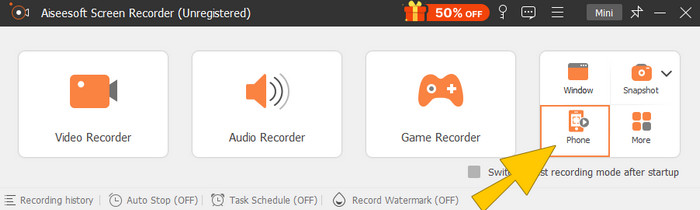
Шаг 2. Запустите программу записи экрана и нажмите инструмент Phone для записи с телефона. Затем выберите опцию iOS. Откройте Пункт управления на iPhone, коснитесь функции «Повтор экрана» (Screen Mirroring) и выберите там вариант Screen Recorder. Это подключит два устройства и запустит процесс записи.
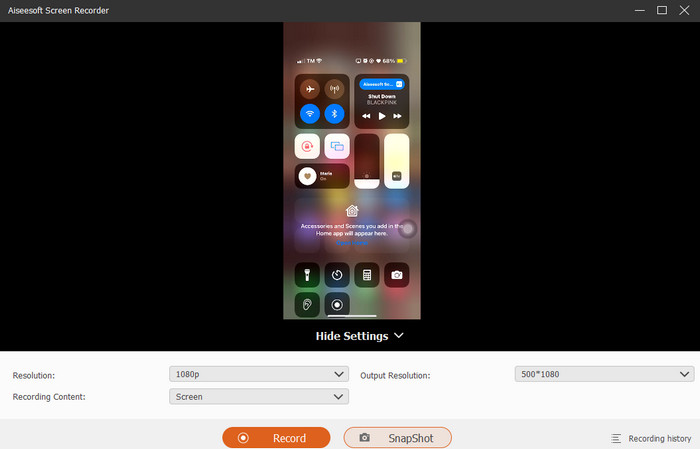
Шаг 3. После подключения нажмите кнопку Record. По завершении нажмите кнопку Stop.
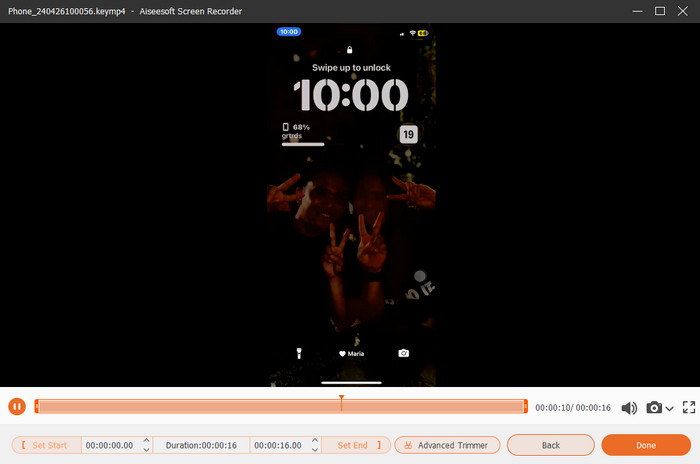
Шаг 4. После записи программа перенаправит вас в раздел сохранения, где можно отредактировать исходную запись. Доступно редактирование громкости звука, обрезка видео и создание снимков экрана. В противном случае нажмите кнопку Done, чтобы сохранить записанный MP4-файл.
Часть 3. Как записать MP4 через настройки iPhone
Обычно видео, которые вы снимаете на iPhone, не сохраняются в виде файлов MP4. Однако, если вы хотите, чтобы они были в формате MP4, вам необходимо настроить параметры, что, вероятно, является самым простым способом сделать это. Но подождите, важно отметить, что переход на MP4 может занять много места на вашем телефоне. Таким образом, прежде чем менять настройки, подумайте, стоит ли пробовать. В противном случае посмотрите шаги, представленные ниже.
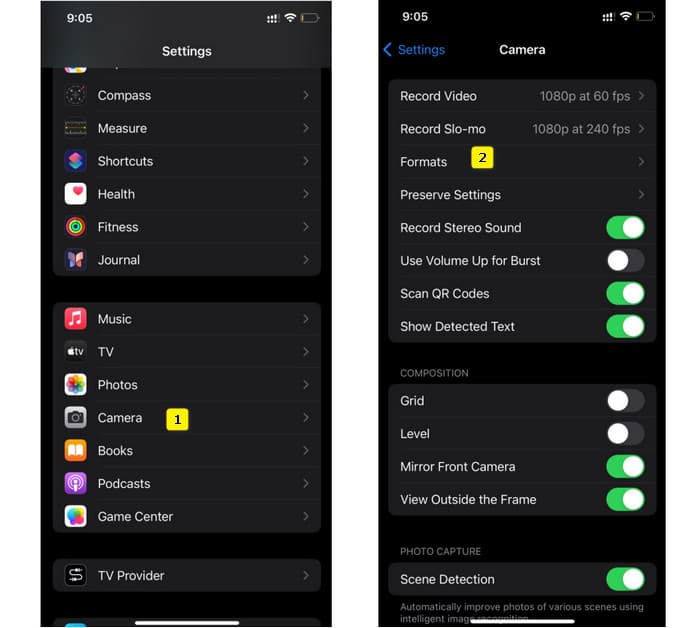
Шаг 1. Откройте приложение Настройки на телефоне, найдите раздел Камера и коснитесь его, чтобы открыть.
Шаг 2. Теперь перейдите в раздел Форматы и нажмите на него. Затем установите параметр Наиболее совместимый (Most Compatibility), чтобы по умолчанию получать файлы MP4.
Шаг 3. После этого вы можете начать запись с iPhone, используя встроенный рекордер экрана.
Часть 4. Конвертируйте записи iPhone в MP4 онлайн бесплатно
Признайте, если запись сразу в MP4 вам недоступна или не подходит, последним вариантом остаётся конвертация. В этом случае вы можете воспользоваться бесплатным онлайн-конвертером, который обеспечит более простой и быстрый способ обработки видео. Познакомьтесь с FVC Free Video Converter Online — бесплатной программой, позволяющей конвертировать ваши видео и музыку в разные форматы. Она работает с популярными видео- и аудиофайлами и может преобразовывать их в форматы MP4, FLV, AVI, WMV, MOV, MKV и многие другие. Даже видео высокой чёткости можно конвертировать быстро и без потери качества! Вы также можете преобразовывать сразу несколько видео, экономя время на конвертации. Дополнительное удобство в том, что вам не придётся отдельно скачивать конвертированные файлы: достаточно выбрать папку, куда результаты будут сохранены напрямую! Итак, давайте попробуем этот замечательный инструмент и быстро конвертируем ваши видео с iPhone!
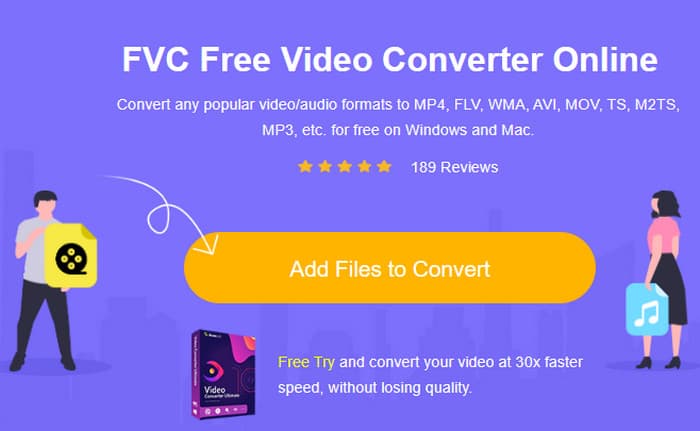
Шаг 1. В браузере на компьютере перейдите на официальный сайт инструмента. Затем нажмите кнопку Add Files to Convert, чтобы скачать лаунчер. После установки снова нажмите эту кнопку, чтобы загрузить видео с iPhone.
Шаг 2. Оказавшись в основном интерфейсе и желая добавить больше видео с iPhone для конвертации, просто нажмите кнопку Add File. Затем установите для файлов формат MP4, выбрав их и нажав на выбор формата внизу.
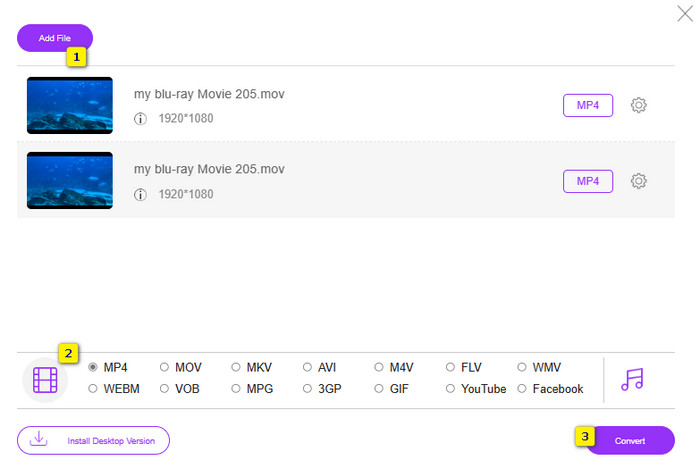
Шаг 3. Когда всё будет готово, нажмите кнопку Convert и выберите папку для сохранения файлов. Сразу после выбора начнётся процесс конвертации.
С помощью описанных выше шагов вы можете легко бесплатно конвертировать iPhone‑видео в формате MOV в MP4 с помощью MOV to MP4.
Часть 5. Часто задаваемые вопросы о видеозаписях iPhone MP4
Могу ли я редактировать видео в формате MP4, записанные на моем iPhone?
Да, вы можете редактировать видео MP4 на своем iPhone. Для этого используйте различные приложения для редактирования видео, доступные в вашем App Store. В противном случае вы можете перенести видео на свой компьютер и отредактировать их с помощью профессионального программного обеспечения для редактирования видео.
Как перенести видео MP4 с iPhone на компьютер?
Есть несколько способов перенести видео с iPhone на ПК. Вы можете использовать USB-кабель, загрузить видео в облачное хранилище или использовать программное обеспечение, которое поможет вам их перенести.
Какое качество и разрешение видео записывает iPhone в MP4?
Это зависит от модели вашего iPhone. iPhone обычно записывает видео в формате MP4 с различными разрешениями и параметрами качества. Доступные варианты варьируются от стандартного разрешения до высокого разрешения и даже 4K на новых моделях.
Заключение
Это методы, которые помогут вам легко записать MP4 на iPhone. Выбирайте то, что подойдет вам больше всего, и делитесь этим с друзьями!
-
 Как конвертировать MP4 в MOV на Mac / ПК / онлайн
 Как конвертировать MP4 в MOV на Mac? Есть ли бесплатный способ конвертировать MP4 в MOV без потери качества? В этом посте рассказывается о 4 простых способах конвертации видео из MP4 в MOV на Mac, ПК с Windows и в Интернете.
-
 Учебник - 4 бесплатных способа объединить видео на iPhone в новое
 Хотите объединить видео в одно на своем iPhone? Прочтите и получите 4 простых способа с поддержкой всех моделей iPhone и версий iOS.
-
 [Решено] Как исправить видео, которые не воспроизводятся на iPhone, с подробными инструкциями
 Локальные видео из галереи не могут воспроизводиться на вашем iPhone через видеоплеер по умолчанию? Онлайн-видео с YouTube, которое не воспроизводится на iPhone, всегда происходит? Вот 5 решений, которые помогут вам в этой статье.
