


 Видео конвертер Ultimate
 Устройство записи экрана
 Видео ремонт
Выберите лучшее средство записи экрана GIF для записи GIF [онлайн и офлайн]
Это факт, что GIF-файлы - это простые, но легкодоступные форматы файлов в Интернете. Размер файла GIF настолько мал, что он стал одним из наиболее эффективных способов отправки видео или движущихся изображений через Интернет. Во время просмотра фильма вы нашли отличную сцену из фильма, который смотрите, и хотите поделиться им с друзьями, близкими или семьей. Но большинство устройств записи экрана имеют формат MP4 и MOV, которые являются одними из самых больших форматов файлов. Для нас не новость, что передача этого типа файлового формата займет час или больше, и большую часть времени они терпят неудачу из-за перебоев в Интернете или в других случаях формат становится недоступным, потому что не все локальные медиаплееры поддерживают все форматы.
Просматривая сайты в поисках решения, вы натыкаетесь на GIF‑файлы. Этот формат гораздо меньше по размеру и его легко отправлять. Поэтому вы задумываетесь, какой GIF‑рекордер лучше всего использовать, чтобы записать сцену из фильма, который вы смотрите. В списке ниже описаны некоторые популярные инструменты для записи GIF, с которыми вы, возможно, уже сталкивались в интернете, а возможно, и нет. Продолжайте читать, чтобы узнать, что это за инструменты и как с их помощью захватывать анимированные GIF‑файлы.

Часть 1. Лучшие характеристики, которые должен иметь устройство записи GIF
Прежде всего, очень важно выбрать лучший рекордер экрана. Но, возможно, вы задаётесь вопросом, на что обратить внимание при выборе GIF‑рекордера? Список ниже подскажет, какими характеристиками должен обладать хороший рекордер.
● Должен быть простым в использовании – Выбирайте продукт, который не создаст вам проблем во время записи.
● Доступная цена – это относится только к платным инструментам. Лучше выбрать недорогое решение, чем тратить деньги на то, что может дать более дешёвая премиум‑версия. Факт в том, что платный инструмент обычно обеспечивает наилучшее качество. Но это относится только к платным программам. Бесплатным онлайн‑ или офлайн‑инструментам о цене волноваться не нужно.
● Доступность программы – например, если вы меняете ПК на Mac или наоборот, вам не придётся привыкать к новому рекордеру. Поэтому важно выбрать такой GIF‑рекордер экрана, который доступен на всех платформах. Тогда при обновлениях вам не придётся сталкиваться с радикальными изменениями: скорее всего, поменяется что‑то незначительное, например название, но не весь интерфейс.
● Отсутствие вредоносного ПО и вирусов – это относится и к онлайн‑, и к офлайн‑решениям. Любая программа должна обеспечивать вам отличную запись при полной безопасности, чтобы избежать потери данных и их утечки.
Хотя это простые характеристики, которые должен обеспечивать самописец, уникальность инструмента, который вы можете выбрать, указана в списке ниже. Найдите разницу между каждым инструментом и выберите лучший рекордер GIF из списка для своей записи.
Часть 2. Лучшие средства записи GIF через Интернет
1. FVC Free Screen Recorder.
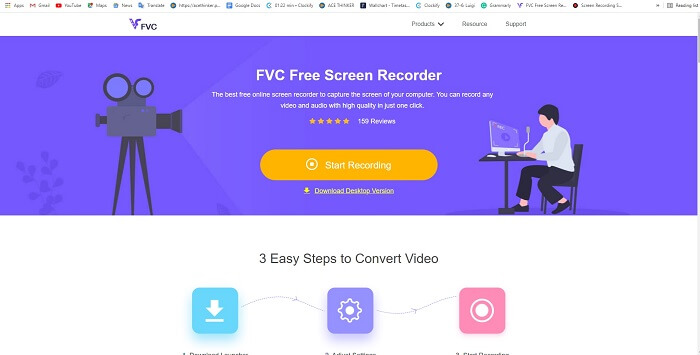
Лучший способ поделиться моментом – записать его, а лучший способ записать сцену или действие на экране – воспользоваться FVC Free Screen Recorder. Этот инструмент с открытым исходным кодом позволяет записывать экран через интернет. Если у вас есть подключение к сети, вы можете использовать эту программу. Она поддерживает основные форматы файлов, кодеки и т. д. Несмотря на то что это лёгкий онлайн‑GIF‑рекордер для ПК и Mac, он предоставляет широкие возможности записи без каких‑либо ограничений и водяных знаков. Чтобы показать, как пользоваться этим инструментом, следуйте следующим шагам.
Шаг 1. Нажмите на эту ссылку, чтобы перейти на главную страницу.
Шаг 2. На экране откроется сайт. Нажмите Start Recording и Allow, чтобы запустить онлайн‑инструмент.
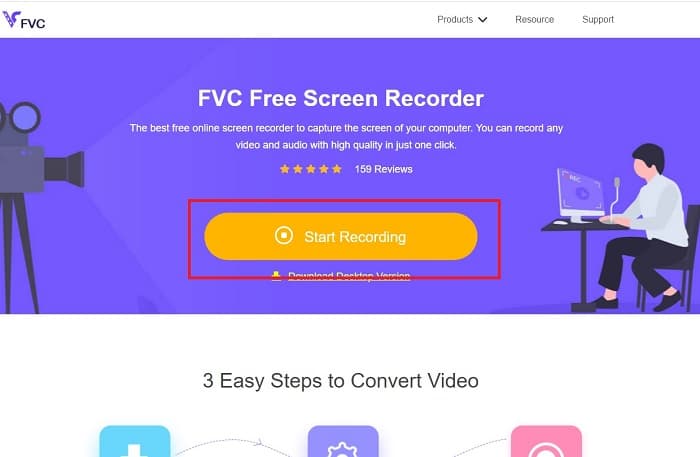
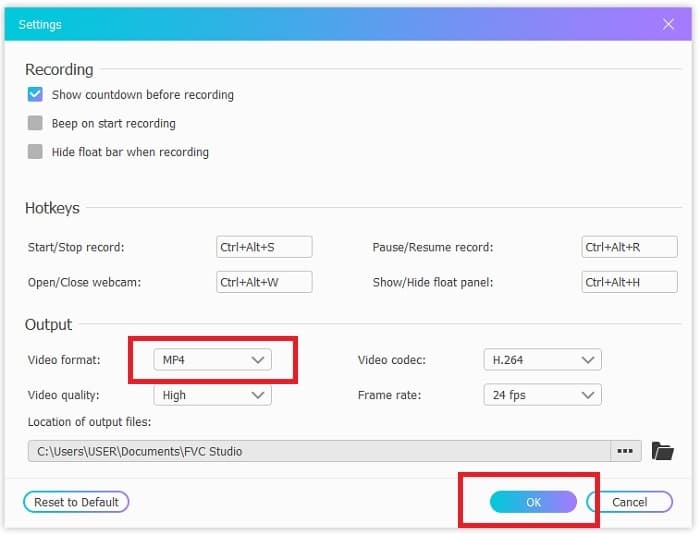
Шаг 3. На экране появится плавающая панель инструментов. Нажмите на значок шестерёнки, чтобы открыть настройки, изменить формат видео и другие параметры при необходимости. Нажмите OK, чтобы сохранить изменения.
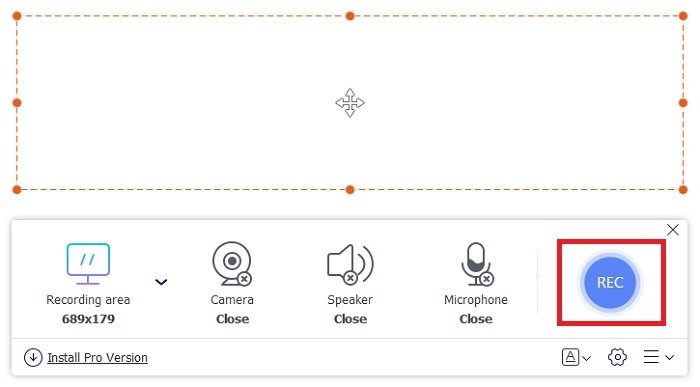
Шаг 4. Отрегулируйте область захвата или нажмите Full screen для записи всего экрана. Динамик и микрофон при создании GIF не используются, так как звук в GIF не сохраняется. Но вы можете добавить своё лицо, включив Webcam. Когда будете готовы начать запись, нажмите кнопку REC.
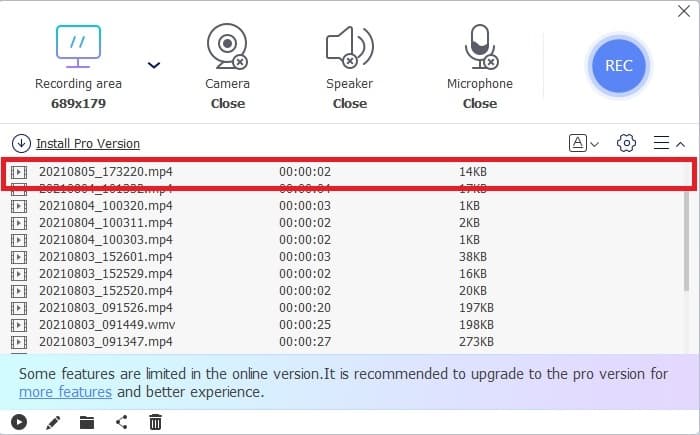
Шаг 5. Чтобы завершить запись, нажмите кнопку квадрат для остановки. Готовую запись можно посмотреть в истории.
2. Устройство записи экрана FVC
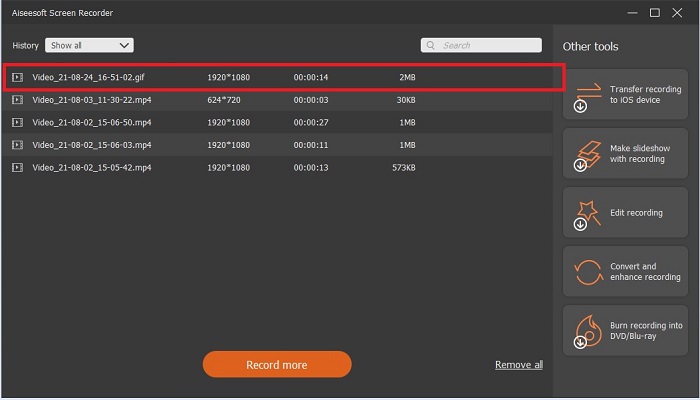
Если бесплатный онлайн‑инструмент FVC вызвал у вас восторг, то установка этого лучшего GIF‑рекордера — FVC Screen Recorder — произведёт на вас именно тот эффект «вау», которого вы давно ждали. Что же в нём такого, что даёт этот эффект? Он предназначен не только для записи GIF. Программа также позволяет записывать видео и аудио, а также геймплей. Но это ещё не всё: она поддерживает разные форматы вывода, такие как MP4, GIF, MOV и многие другие.
Еще одна его особенность - это функция блокировки экрана, это уникальная особенность этого инструмента, которую даже такой тяжеловесный рекордер, как Bandicam, не может предоставить. Запись и снимок экрана в формате GIF без отображения самого инструмента. FVC Screen Recorder обеспечивает соотношение цены и качества при записи. Итак, независимо от того, что вы записываете, этот рекордер может это записывать. Чтобы узнать, как использовать этот инструмент, выполните следующие простые шаги на пути к успеху записи в формате GIF.
Шаг 1. Вам предоставлен установщик программы. Выберите одну из двух доступных операционных систем. Установите программу на жёсткий диск, измените настройки в соответствии с вашими потребностями и нажмите finish, чтобы сохранить изменения.
Бесплатная загрузка для Windows 7 и более поздних версий. Безопасная загрузка.
Бесплатная загрузка для MacOS 10.7 или более поздних версий. Безопасная загрузка.
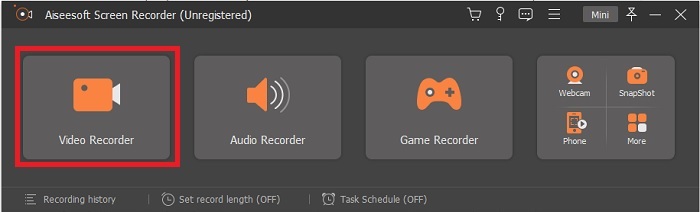
Шаг 2. Выберите Video Recorder, чтобы записать содержимое экрана. Такие доступные режимы, как аудиорекордер и рекордер игр, пригодятся вам позже.
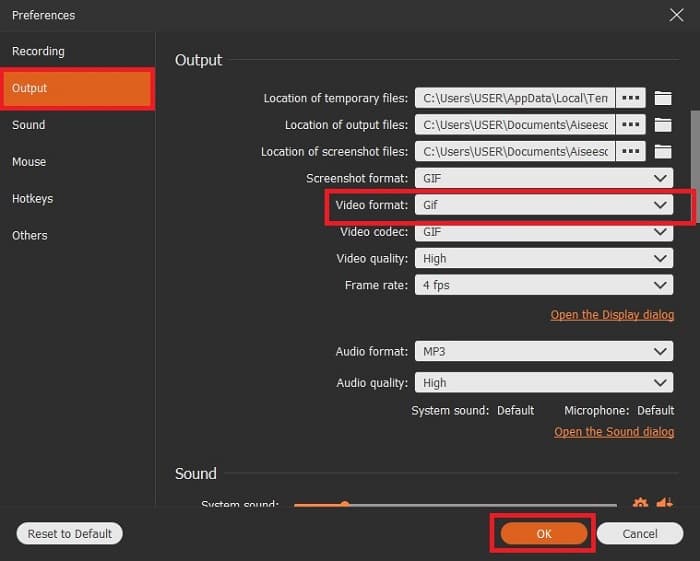
Шаг 3. На экране появится плавающая панель инструментов. Нажмите кнопку с шестерёнкой, чтобы открыть настройки, и в разделе Output измените формат на GIF или любой другой, который вы хотите использовать. Чтобы сохранить изменение, нажмите OK.
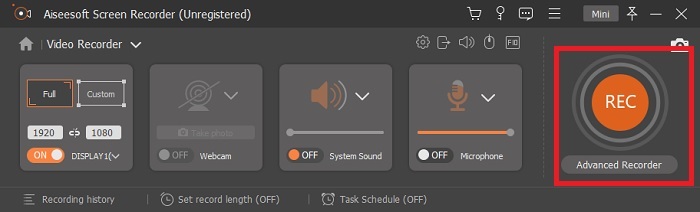
Шаг 4. На главной панели отрегулируйте область записи или нажмите full screen для полноэкранного режима. При записи в GIF формат звук и микрофон роли не играют. Но вы можете добавить Webcam, чтобы показывать свою реакцию. Когда всё готово, нажмите круглую кнопку, чтобы начать запись.
Шаг 5. Когда запись будет завершена, нажмите кнопку в виде куба, чтобы остановить её. Нажмите Save и Next, чтобы сохранить результат. Чтобы просмотреть записанный ранее GIF, нажмите на значок с тремя линиями, и история записей появится на экране.
3. ScreenToGif
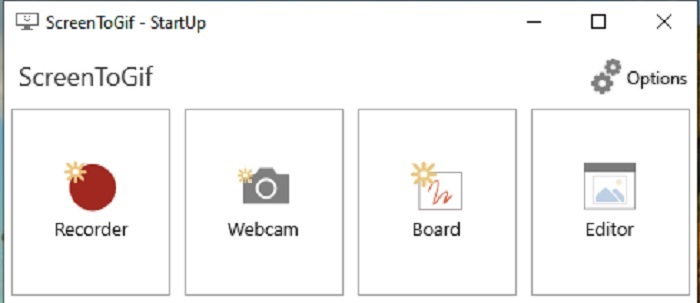
Этот загружаемый GIF‑рекордер для Mac и ПК имеет две версии: установочную (Installer) и портативную (Portable). Выберите ту, которую хотите скачать. Однако во время работы программы вы можете столкнуться с незначительными сбоями. Кроме того, единственный доступный формат финального файла — .gif. Поэтому, если вам нужен другой формат, этот инструмент его не предоставит. Зато он бесплатен, так что, если вам нужно записывать только GIF, вы можете им пользоваться. Интерфейс и инструменты выглядят довольно скучно из‑за полностью белого фона. Смотрится не слишком привлекательно, но свою работу выполняет.
4. Гязо
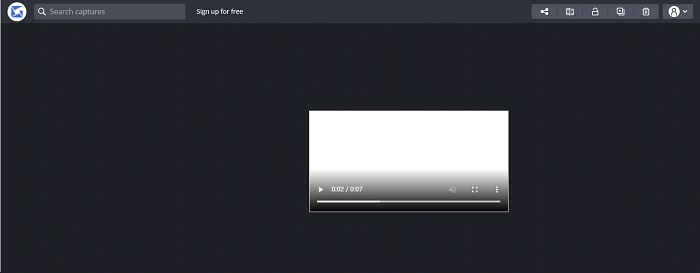
Это один из лучших GIF‑рекордеров для Windows. Gyazo — это программа, специально предназначенная для записи GIF. После установки на диск автоматически будут загружены три инструмента. Они являются частями одного комплекса, но отличаются друг от друга и по функциям. Эти три программы — Gyazo, Gyazo GIF и Gyazo Replay. Запись GIF в Gyazo GIF ограничена 7 секундами. Поэтому, если вам нужна запись дольше 7 секунд, это не лучший вариант. Кроме того, готовое видео не будет автоматически сохранено на ваш диск. В браузере откроется новая вкладка, и вам придётся скачать файл вручную. Загрузка готового GIF зависит от качества интернет‑соединения, имейте это в виду.
5. RecordIt!
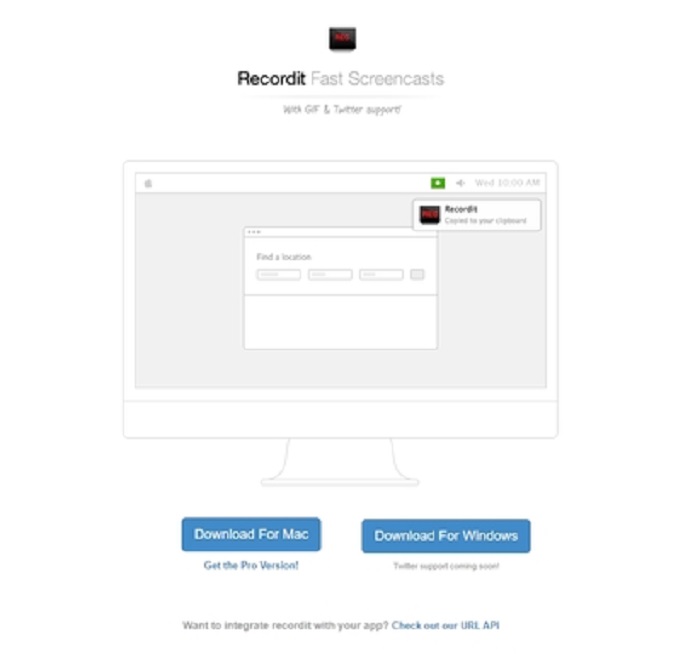
Ещё один инструмент для создания GIF — RecordIt!, лучший GIF‑рекордер для Mac. У этого инструмента есть и версия для Windows. Но основная проблема связана с установкой. После завершения мастера настройки вы можете столкнуться с трудностями при инсталляции программы. Это нормально: если вы не обновляете компоненты в системе, программа не установится. Есть обходной путь, но он может быть опасен для вашего компьютера. Вы можете нажать «Ignore», чтобы продолжить загрузку и проигнорировать все уведомления. Поэтому скачивайте на свой страх и риск; кроме того, в инструменте есть реклама, и будьте осторожны с ней, так как часть объявлений может быть небезопасной. Есть и Pro‑версия, в которой реклама убрана и добавлены дополнительные функции.
Часть 3. Часто задаваемые вопросы о программе записи GIF
Могу ли я конвертировать GIF в формат MOV?
Да, вы можете конвертировать GIF в формат MOV с помощью онлайн-конвертера видео, такого как FVC Free Online Video Converter.
Какие бывают типы GIF-файлов?
Есть 5 GIF-файлов: GIF-файлы Replay, GIF-реакция, Cinema graph, Perfect loop и Technical GIF. Все это может быть на основе анимации, видео и стикеров.
Какие еще есть альтернативы GIF-файлам?
Несмотря на создание гифок более 30 лет. В сети есть несколько конкурентов, которые производят как фильмы, так и гифки. Это лучшие альтернативы анимированным GIF-файлам: APNG, WebP, AVIF, MNG и FLIF.
Заключение
Мы подошли к концу, и, как говорится, каждая хорошая история завершается хорошим выводом. Подводя итог, GIF‑изображения позволяют очень выразительно передавать эмоции получателю. Но далеко не все нужные вам видео существуют в формате GIF. Вместо того чтобы ждать, пока кто‑то сделает GIF, почему бы не создать его самому? С помощью лучшего GIF‑рекордера, которым является FVC Screen Recorder, вы можете записать GIF и добавить в него свою изюминку. Если вы всё ещё сомневаетесь, что выбрать, перечитайте список ключевых характеристик — и вы увидите, что всем этим требованиям полностью соответствует именно FVC Screen Recorder.
-
 [2 Решения] Как легко конвертировать SWF в файлы GIF бесплатно
 Если вам не удается экспортировать формат GIF с помощью программного обеспечения Flash, вы можете сначала попробовать сохранить файлы в формате SWF. Затем из этой статьи вы узнаете 2 простых способа конвертировать файлы SWF в GIF.
-
 4 способа бесплатно объединить видео на Windows / Mac / онлайн
 Вот 4 быстрых способа объединить видео в новое видео. Нет ограничений по размеру или формату видеофайла. Вы можете успешно объединять 2, 3, 4 и даже больше видеоклипов в разных форматах и разрешениях.
-
 (Решения 2) Как конвертировать видео WMV в файлы GIF бесплатно
 Если вы хотите вырезать замечательные части видео WMV и сделать из них GIF, вы можете узнать о 2 простых методах передачи видео WMV в GIF в этой статье.
