


 Видео конвертер Ultimate
 Устройство записи экрана
 Видео ремонт
 Безопасная загрузка
Как сжать аудиофайлы WAV без потери качества
Когда люди хотят сохранить музыкальные файлы в формате с высоким качеством, они часто выбирают WAV в качестве аудиоформата. Однако, как общее правило, чем выше качество, тем больше места на носителе занимает файл. По сравнению с MP3, WAV обеспечивает более высокое качество звука, но и размер файла будет больше. Поэтому, если вы хотите поделиться файлом WAV с друзьями или загрузить его в социальные сети, лучше сначала уменьшить его размер. Мы познакомим вас с тремя разными инструментами для сжатия файлов WAV. Мы также покажем их преимущества, недостатки и подробную инструкцию по использованию. Продолжайте читать, чтобы узнать больше.

Часть 1. Лучший способ сжатия WAV-файла
Сначала мы рекомендуем достаточно многофункциональный инструмент для редактирования аудио и видео — тщательно отобранный FVC Video Converter Ultimate. В нём используются передовые инструменты анализа, которые начинают обработку ваших файлов сразу после загрузки. Если вы ищете средство, позволяющее свободно регулировать процент сжатия аудио WAV, это будет вашим лучшим помощником. Вы даже можете обрезать длину аудио, настроить аудиоканал и изменить громкость перед экспортом файла. После открытия встроенного аудиокомпрессора появляется новое окно. Там вы увидите множество доступных настроек. Программа предоставляет высокий уровень кастомизации и позволяет точно управлять аудиопараметрами. Если вам кажется, что размер файла WAV всё ещё слишком велик, вы можете воспользоваться конвертером, предлагаемым FVC, чтобы преобразовать аудио в более удобный для распространения формат, например MP3.
Бесплатная загрузкаДля Windows 7 или более поздних версийБезопасная загрузка
Бесплатная загрузкаДля MacOS 10.7 или более поздних версийБезопасная загрузка
Здесь мы научим вас, как сжимать WAV-файлы с помощью FVC Video Converter Ultimate.
Шаг 1. Скачайте и установите FVC Video Converter Ultimate на свой компьютер.
Шаг 2. Перейдите в основной интерфейс программы и выберите Toolbox > Audio Compressor.
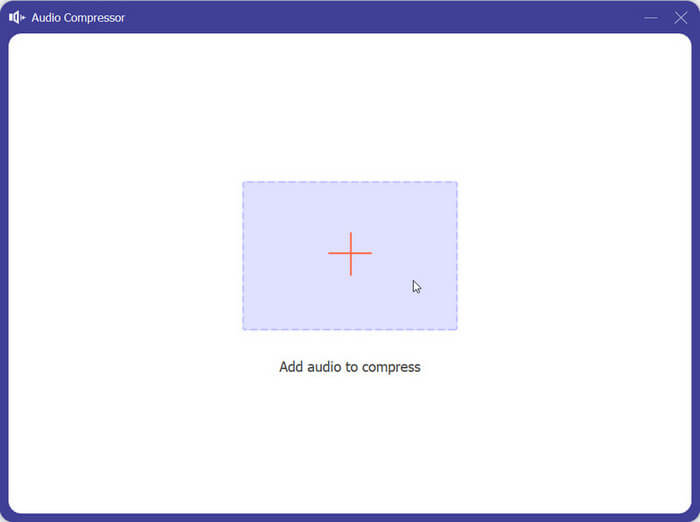
Шаг 3. После входа в окно Audio Compressor нажмите большую кнопку с плюсом, чтобы загрузить нужный файл WAV.
Шаг 4. Вы можете задать размер файла после сжатия, изменяя значение параметра Size. После настройки вы увидите процент сжатия файла.
Здесь вы также можете задать имя файла, формат, звуковой канал, частоту дискретизации и битрейт вашего звука.
Шаг 5. Чтобы просмотреть итоговое аудио, нажмите Preview. Если результат вас устраивает, нажмите Compress.
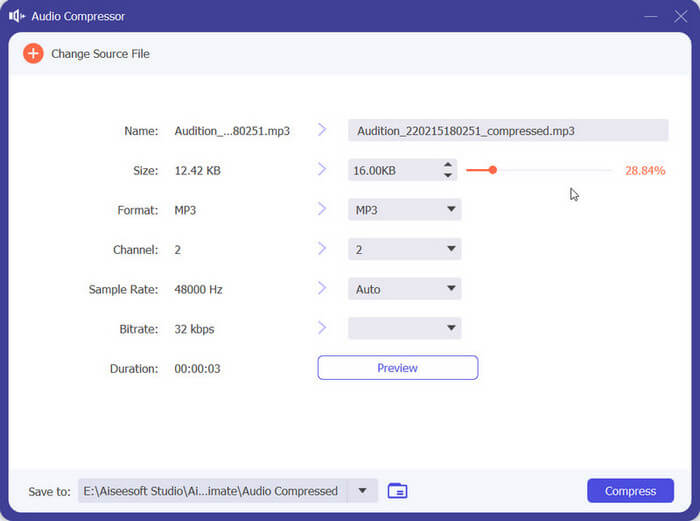
В настоящее время он может сжимать WAV-аудио до 50% от размера исходного файла. Скорость сжатия настолько высока, что нам почти не нужно ждать, чтобы экспортировать сжатый файл. Практически нет потери качества. Однако у нас есть только 5 бесплатных попыток, и если мы хотим больше, нам нужно платить.
Часть 2. Сжатие WAV-файла онлайн
Настольное программное обеспечение предлагает больше функций редактирования, но требует загрузки и установки на ваш компьютер. Это также занимает часть памяти вашего компьютера и требует некоторого времени для запуска программного обеспечения. Если вы хотите испытать более быстрое сжатие аудиофайлов WAV, попробуйте онлайн-инструменты. Среди множества доступных продуктов мы рекомендуем вам попробовать FreeConvert WAV Compressor, бесплатный компрессор с очень удобным интерфейсом. Все, что вам нужно сделать, это зайти на его официальный сайт, и вы сразу же найдете нужную кнопку. Даже если вы никогда не использовали его раньше, вы сможете начать в кратчайшие сроки.
Здесь мы научим вас, как уменьшить размер WAV-файла с помощью FreeConvert WAV Compressor.
Шаг 1. Откройте FreeConvert WAV Compressor в браузере.
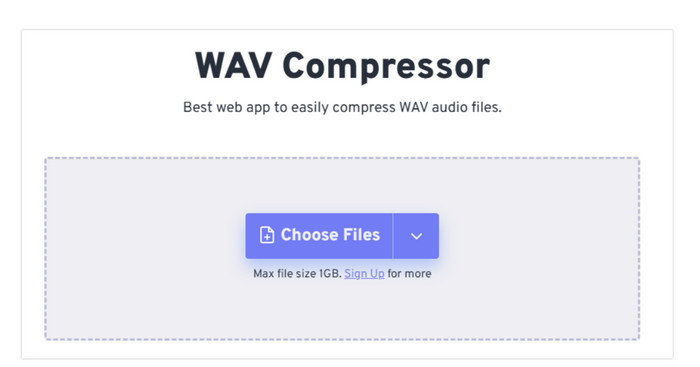
Шаг 2. Нажмите Choose Files, чтобы загрузить аудио, которое хотите сжать.
.
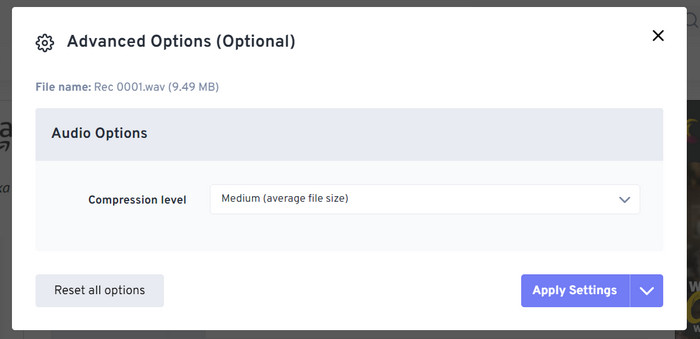
Шаг 3. Чтобы настроить степень сжатия, нажмите Advanced settings (optional). Вы можете выбрать Low, Medium или Strong. Затем нажмите Apply Settings.
Шаг 4. Наконец, нажмите Compress Now. Программа выполнит сжатие вашего файла WAV онлайн.
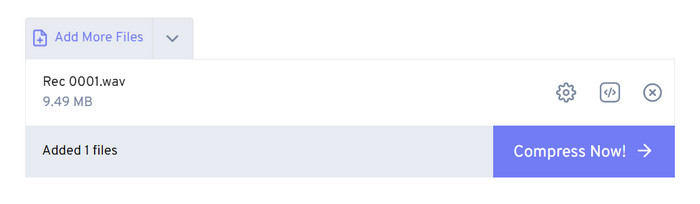
После наших попыток мы обнаружили, что он работает довольно эффективно, и качество звука выходного файла не сильно отличается от исходного файла. Однако, вы можете выбрать только три степени сжатия, и вы не можете визуализировать процент сжатия и размер сжатого файла. В настоящее время пользователи могут использовать его только для сжатия файлов размером до 1 ГБ.
Часть 3. Сжатие WAV-файла в Audacity
Помимо универсального программного обеспечения для обработки мультимедиа, существует множество инструментов, разработанных специально для работы со звуком. В части редактирования музыки они демонстрируют более высокий профессионализм и тонкость настроек. Если вы используете профессиональный инструмент для уменьшения размера файла WAV, качество звука может быть сохранено максимально. Одной из лучших программ считается Audacity, которая уже многие годы остаётся вне конкуренции. Пользователи могут с её помощью выполнить полный цикл записи аудио и его последующей обработки. Среди поддерживаемых операций редактирования — изменение длины музыкального фрагмента, сжатие размера файла, конвертирование аудиоформата и добавление специальных звуковых эффектов. Всё это для неё — задача несложная.
Далее мы расскажем вам, как сжимать WAV-файлы с помощью Audacity.
Шаг 1. Загрузите и установите Audacity на своё устройство.
Шаг 2. Откройте программу и выберите File > Open.
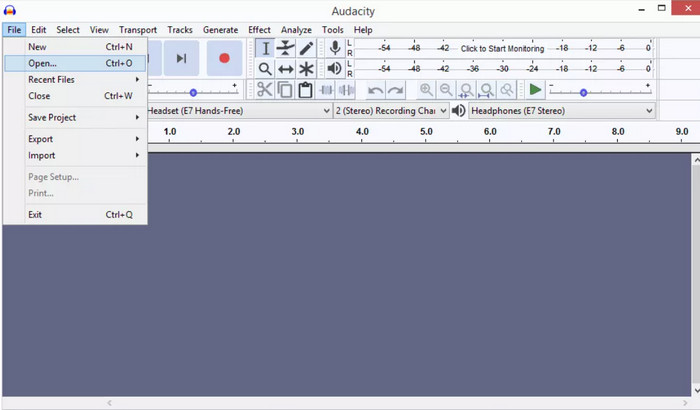
Шаг 3. Загрузите файл, который хотите сжать, и нажмите на клавиатуре Ctrl + A, чтобы выделить звуковую дорожку. Затем нажмите Effect > Compressor.
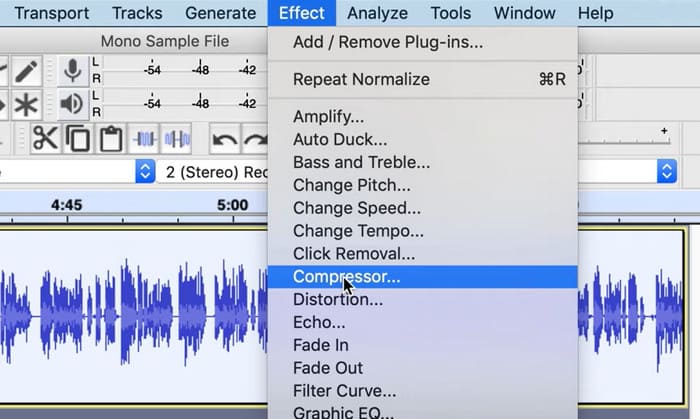
Шаг 4. Теперь вы можете изменить параметры WAV-файла, включая порог (threshold), уровень шума (noise floor), коэффициент сжатия (ratio), время атаки (attack) и время спада (release).
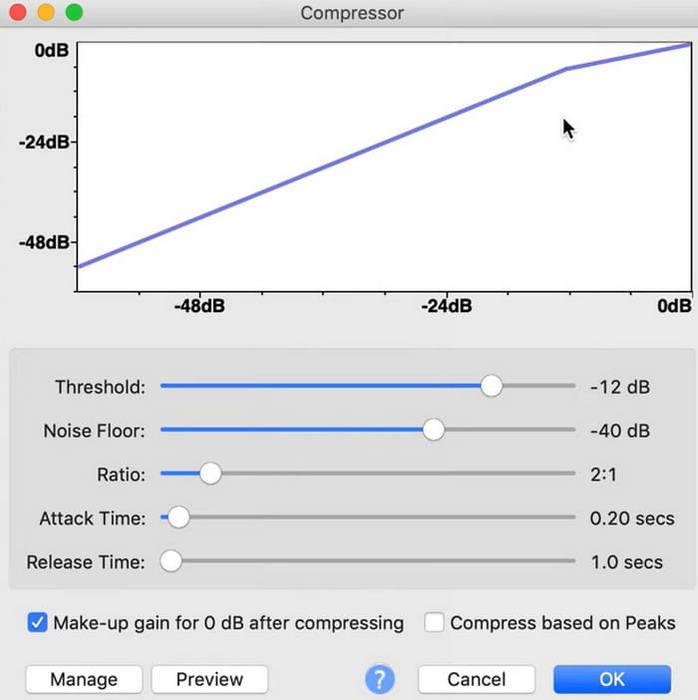
Шаг 5. В завершение снова нажмите File и выберите Export.
Он позволяет вам сжимать WAV-файлы бесплатно и без ограничений по размеру файла. Вы можете точно контролировать скорость сжатия и экспортировать готовый продукт сразу после применения настроек. Его интерфейс довольно сложен, и неопытным пользователям будет трудно найти нужные им функции. Потребуется некоторое время, чтобы научиться им пользоваться умело.
Часть 4. Часто задаваемые вопросы о сжатии WAV-файлов
Почему мой WAV-файл такой большой?
Файлы WAV, как правило, представляют собой несжатые аудиофайлы, которые хранят звуковые данные в 'сыром' формате без какого-либо ухудшения качества. Кроме того, файлы WAV часто имеют более высокую битовую глубину и частоту дискретизации по сравнению с сжатыми аудиоформатами. Если вам нужно уменьшить размер WAV-файла, вы можете рассмотреть возможность его сжатия или конвертации WAV в MP3.
Снижается ли качество при сжатии WAV-файла?
Когда вы сжимаете файл WAV в аудиоформат с потерями, такой как MP3, AAC или OGG, это обычно приводит к снижению качества звука. Однако выбор хорошего инструмента сжатия может в некоторой степени компенсировать эту проблему. Важно учитывать баланс между размером файла и качеством звука.
Можно ли обрезать WAV-файл в проигрывателе Windows Media?
Windows Media Player не имеет встроенных возможностей для прямого редактирования или обрезки аудиофайлов, таких как файлы WAV. Чтобы обрезать файл WAV в Windows, вы можете использовать другие программные приложения, которые предлагают функции редактирования аудио, такие как FVC Video Converter Ultimate и Audacity.
Заключение
Эта статья предназначена для того, чтобы помочь вам решить проблему сжатия файлов WAV. Мы предложили три инструмента на выбор. Если вы хотите получить более комплексный сервис по редактированию аудио, используйте отобранный FVC Video Converter Ultimate. Если вы не хотите устанавливать дополнительное программное обеспечение на компьютер, можете рассмотреть FreeConvert WAV Compressor. Если вам нужно максимально профессиональное программное обеспечение для обработки звука, чтобы сжимать ваши файлы, Audacity полностью удовлетворит ваши потребности.
-
 WAV Player - 5 лучших приложений WAV Player для Android, iPhone, ПК и Mac
 Как воспроизводить файлы WAV на телефоне Android? Какой плеер умеет проигрывать WAV? В этом посте представлены 5 лучших бесплатных WAV-плееров для Android, iPhone, Mac и ПК.
-
 Подробное руководство по сжатию звука в 2024 году (пошаговое)
 Вам нужно сжать аудио, но вам нужна помощь, чтобы понять, с чего начать? В этом посте мы представим лучшие варианты уменьшения размера файлов ваших треков.
-
 Эффективные аудиокомпрессоры для офлайн- и онлайн-пользователей
 Возникли проблемы с большими аудиофайлами? Существует множество компрессоров аудиофайлов, доступных для офлайн- и онлайн-пользователей. Проверьте их здесь.
