


 Видео конвертер Ultimate
 Устройство записи экрана
 Видео ремонт
 Безопасная загрузка
Вырезание файлов WMA: полное руководство для пользователей Windows и Mac
Редактировать аудиофайлы весело, по крайней мере до тех пор, пока не приходится разбираться с длинными WMA‑дорожками, которые кажутся невозможными для обрезки. Будь вы подкастером, музыкантом или просто человеком, который любит возиться со звуком, обрезка файлов WMA может показаться довольно сложной задачей без нужных инструментов и знаний. Эта статья призвана упростить процесс как для пользователей Windows, так и Mac, предложив пошаговые инструкции и лучшие доступные инструменты, чтобы сделать работу со звуком более простой и эффективной. Читайте дальше, чтобы узнать больше.

Часть 1: Лучший способ обрезать WMA-файл на Windows/Mac
Лучший и максимально удобный способ обрезать файлы WMA как в Windows, так и на Mac — использовать отобранный FVC инструмент Video Converter Ultimate. Этот универсальный конвертер видео и аудио отлично работает с форматами WMA, особенно когда речь идёт об их обрезке. В нём есть специальная функция, которая легко укорачивает аудиофайлы. Это особенно полезно тем, кому нужно обрезать чрезмерно длинные WMA‑дорожки или удалить ненужные фрагменты и сегменты. Кроме того, с помощью этого инструмента вы можете вручную выбрать часть файла WMA, которую хотите вырезать, либо обрезать их автоматически с помощью функции быстрого разбиения (Fast Slip).
Шаг 1. Сначала загрузите и установите Video Converter Ultimate на свой компьютер Mac или Windows.
Бесплатная загрузкаДля Windows 7 или более поздних версийБезопасная загрузка
Бесплатная загрузкаДля MacOS 10.7 или более поздних версийБезопасная загрузка
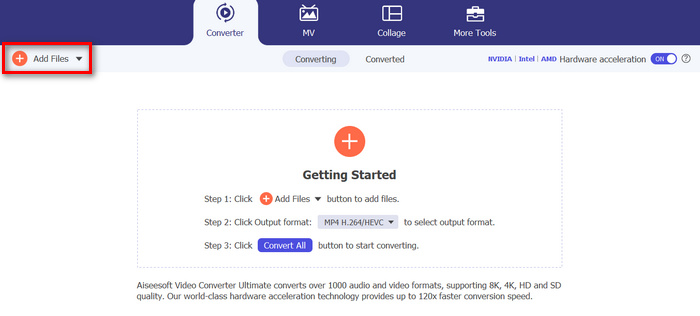
Шаг 2. Чтобы импортировать файлы WMA, которые вы хотите обрезать, нажмите кнопку Add Files (Добавить файлы).
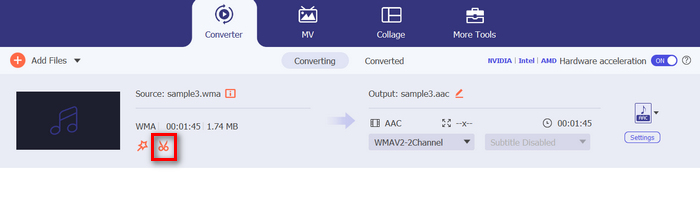
Шаг 3. Затем нажмите кнопку Cut.
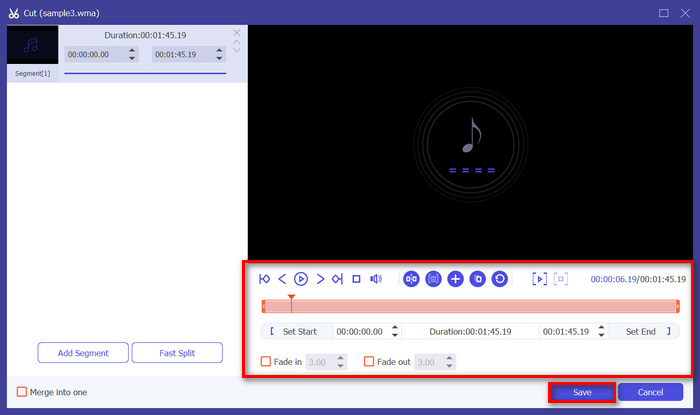
Шаг 4. Чтобы обрезать ваши файлы WMA, вы можете сделать это вручную, просто отрегулировав или перемещая полосу начала и конца клипа — перетаскивая её слева направо — либо введя время начала и конца той части WMA‑файла, которую хотите обрезать.
Этот процесс автоматически вырезает часть аудио в зависимости от времени, когда вы хотите начать и закончить обрезку.
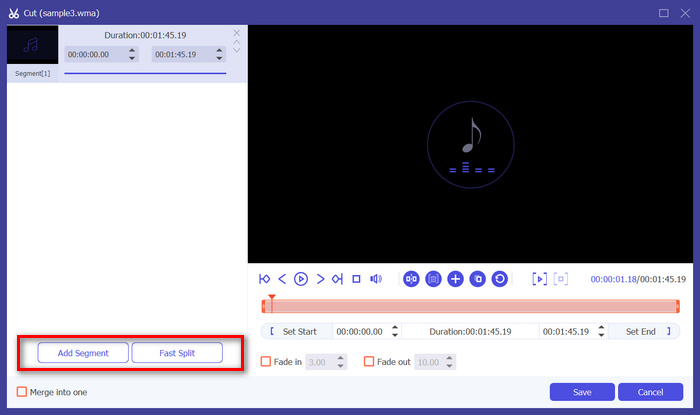
Шаг 5. Если же вы хотите обрезать файл с помощью функции триммера Fast Slip, вам нужно нажать кнопку Fast Slip, расположенную рядом с кнопкой Add Segment (Добавить сегмент). Затем выберите режим, в котором вы хотите разделить сегмент. Если вы выбираете разбиение по среднему значению, просто укажите количество частей, а если хотите разделить по времени — укажите временной интервал. После этого нажмите кнопку Save (Сохранить).
Шаг 6. Наконец, чтобы экспортировать обрезанный WMA‑файл, нажмите кнопку Convert All (Преобразовать всё).
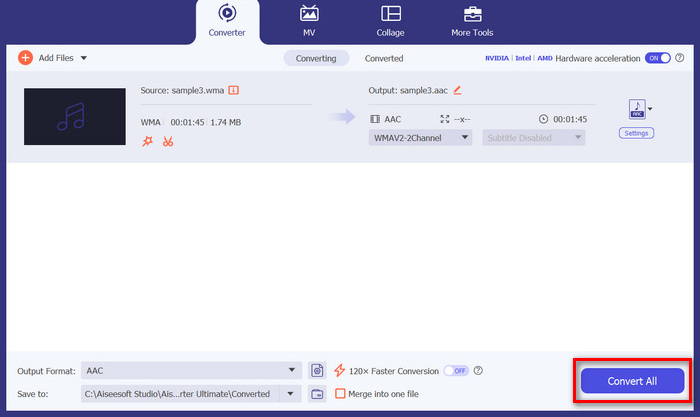
Когда дело доходит до резки файлов WMA, этот выбранный FVC Video Converter Ultimate действительно является обязательным решением. Его простой и удобный интерфейс гарантирует, что вы можете легко и точно обрезать ваши файлы WMA, а его различные параметры обрезки дают вам гибкость в том, как вы хотите легко обрезать ваши аудиофайлы.
Часть 2: Вырезать WMA-файл онлайн бесплатно
Audio Trimmer — бесплатный инструмент, позволяющий пользователям обрезать аудиофайлы на лету. Он поддерживает широкий спектр популярных аудиоформатов, включая WMA, что делает этот инструмент одной из лучших альтернатив, если вы предпочитаете обрезать файлы WMA онлайн.
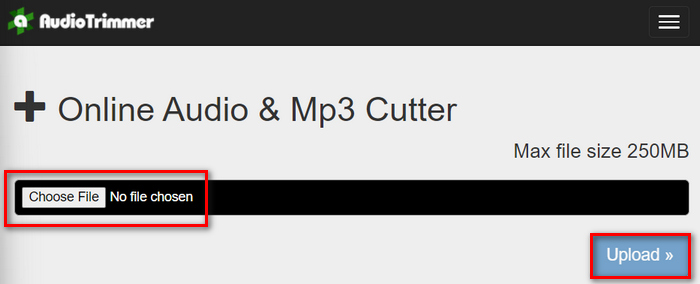
Шаг 1. Чтобы импортировать файлы WMA, которые вы хотите обрезать, нажмите кнопку Choose File (Выбрать файл), а затем кнопку Upload (Загрузить).
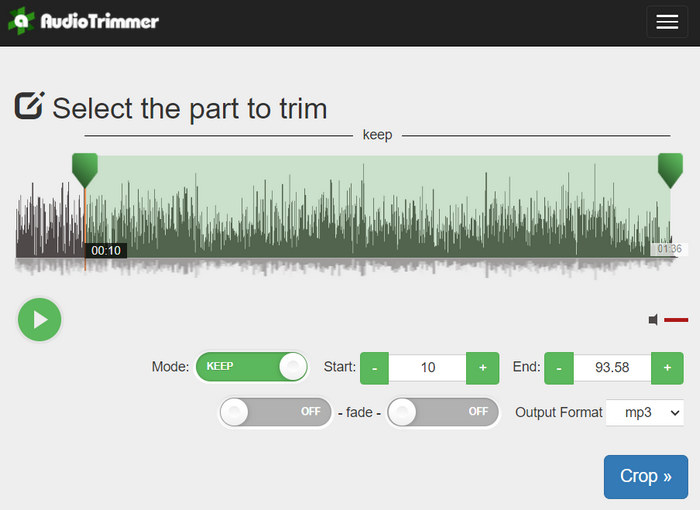
Шаг 2. Теперь просто передвиньте ползунок и выберите часть аудиодорожки, которую хотите обрезать. Когда закончите, нажмите кнопку Crop (Обрезать).
Шаг 3. Чтобы сохранить обрезанный WMA‑файл, просто нажмите кнопку Download (Скачать).
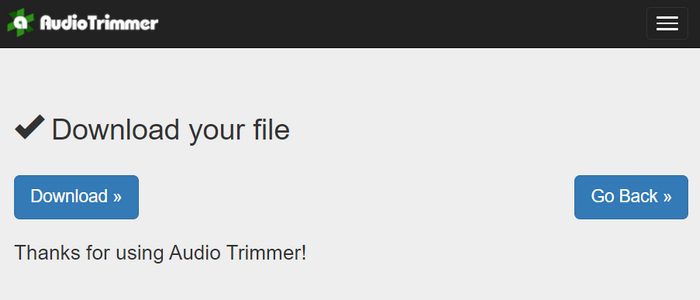
Вот и всё, затем вы можете просмотреть ваши клипы в WMA‑плеере, чтобы убедиться, что вы обрезали их правильно. Благодаря простому и очень интуитивно понятному интерфейсу обрезка WMA‑файлов занимает всего 3 шага. Хотя этот бесплатный онлайн‑инструмент и обеспечивает лёгкость обрезки аудио, воспользоваться им смогут не все пользователи: он ограничен обработкой файлов размером до 250 МБ.
Часть 3: Нарезка WMA с помощью VLC Media Player
VLC Media Player — широко используемый медиаплеер с открытым исходным кодом благодаря своей универсальности. Этот инструмент поддерживает широкий спектр аудио- и видеоформатов, включая файлы WMA. Помимо функций воспроизведения, потоковой передачи и записи мультимедиа, этот инструмент также можно использовать для обрезки файлов WMA. Благодаря этому пользователи могут легко обрезать разделы, записывая в реальном времени, без необходимости вручную изменять время воспроизведения.
Шаг 1. Откройте VLC Media Player. Просто перетащите в него WMA‑файл, который вы хотите обрезать.
Шаг 2. Аудио начнёт воспроизводиться автоматически. Поставьте его на паузу, затем нажмите кнопку View (Вид) и отметьте пункт Advanced Controls (Дополнительные элементы управления). Теперь вы увидите четыре новые кнопки над значком воспроизведения.
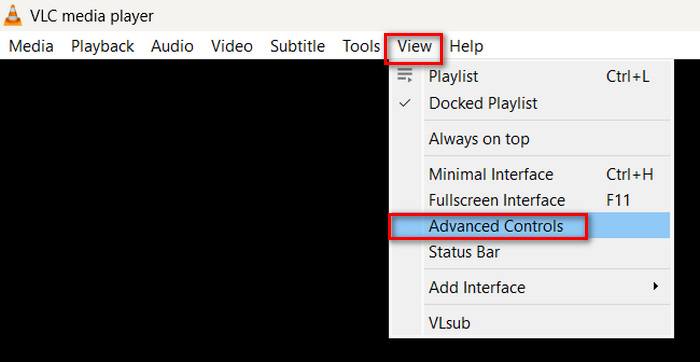
Шаг 3. Переместите ползунок воспроизведения в точку, с которой вы хотите начать клип. Теперь настройте ползунок в месте, где вы хотите начать обрезку WMA‑файла. Когда будете готовы, запустите воспроизведение и нажмите кнопку Record (Запись).
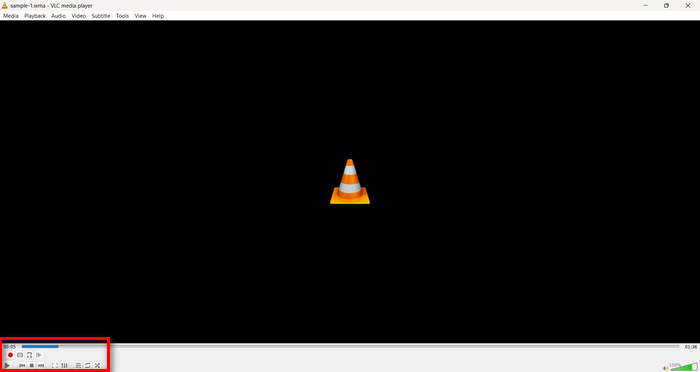
Шаг 4. Когда дойдёте до конца фрагмента, который хотите сохранить, снова нажмите кнопку Record, чтобы остановить запись.
Не перетаскивайте полосу прокрутки, чтобы изменить время воспроизведения во время записи, так как VLC нужно записывать фрагмент в режиме реального времени. Если вам понравился этот инструмент, не пропустите альтернативы VLC, представленные здесь.
Часть 4: Часто задаваемые вопросы о нарезке WMA
Как вырезать часть из аудиофайла?
Чтобы вырезать часть из аудиофайла, вы можете использовать такие инструменты, как Video Converter Ultimate. Для этого вам просто нужно импортировать ваш WMA-файл, нажать кнопку Cut и настроить время начала и окончания.
WMA лучше MP3?
Формат WMA часто обеспечивает лучшее качество звука при низких битрейтах по сравнению с MP3, что даёт меньший размер файлов при хорошем качестве аудио. Однако MP3 гораздо шире поддерживается на различных устройствах и платформах. Выбор между WMA и MP3 зависит от ваших требований к качеству и совместимости. Также вы можете быстро конвертировать WMA в MP3 с помощью инструментов‑конвертеров WMA в MP3.
Как обрезать аудиофайлы в проигрывателе Windows Media?
Чтобы обрезать аудиофайлы в Windows Media Player, вам понадобится плагин SolveigMM WMP Trimmer Plugin Home Edition. Этот плагин позволяет пользователям легко обрезать аудиофайлы непосредственно в интерфейсе Windows Media Player, предоставляя удобное решение для задач редактирования аудио.
Заключение
Обрезка файлов WMA не должна вызывать стресс. Независимо от того, предпочитаете ли вы программы вроде Video Converter Ultimate, онлайн‑инструмент вроде Audio Trimmer или универсальный VLC Media Player, существуют эффективные методы как для пользователей Windows, так и Mac. Выберите способ, который больше всего вам подходит, и начните редактировать свои аудиофайлы без хлопот. Хотите упростить процесс звукового монтажа? Попробуйте один из этих способов уже сегодня!
-
 2 метода конвертации FLV в WMA Audio [бесплатно и онлайн]
 Хотите извлечь звук WMA из видео FLV? Вот 2 бесплатных аудио экстрактора WMA для преобразования FLV (Flash Video) в WMA (Windows Media Audio) с высокой скоростью преобразования в Mac OS X и Windows 10/8/7.
-
 Лучшие редакторы метаданных WMA, которые нельзя пропустить [2024]
 Почему я не могу редактировать теги WMA? Эта проблема часто встречается у пользователей' запросы. Но сегодня мы предоставим вам метаредакторы WMA, которые вы сможете использовать в 2024 году.
-
 8 способов конвертировать MP4 в MP3 Audio (пакетное преобразование и большой размер)
 Если вы хотите извлечь звук в формате MP3 из видео в формате MP4, вы можете проверить эту статью и получить 8 решений. Есть онлайн и офлайн способы с легкостью конвертировать MP4 в MP3 на телефоне или компьютере.
