


 Видео конвертер Ultimate
 Устройство записи экрана
 Видео ремонт
 Безопасная загрузка
Как конвертировать JPEG в JPG с помощью проверенных и проверенных конвертеров изображений
Некоторые люди говорят, что JPEG и JPG — это один и тот же формат. Это действительно так. Но некоторые программы принимают только расширение из трёх букв. Поэтому вместо JPEG используется JPG. Формат JPG сегодня очень популярен. Так что если вы тоже хотите конвертировать свой файл изображения JPEG в формат JPG, вам повезло. В этом руководстве вы найдёте лучшее решение. Вы можете мгновенно конвертировать JPEG в JPG, используя конвертеры JPEG в JPG. Эти конвертеры доступны онлайн и на мобильных устройствах. Если вы хотите познакомиться с такими приложениями, не упустите возможность прочитать эту статью.

Часть 1. Полезные способы конвертировать JPEG в JPG онлайн
Как конвертировать JPEG в JPG с помощью FVC Free Image Converter
Лучший способ изменить JPEG на JPG — использовать FVC Free Image Converter. Это отличный выбор для конвертации JPEG в JPG или другие форматы, такие как PNG и GIF. Он может обрабатывать все форматы изображений, включая JPG, JPEG, PNG, SVG, BMP, TIFF и GIF. Таким образом, вам не нужно переживать, что ваши файлы изображений не откроются в определённых программах или на устройствах. Лучшее решение — конвертировать их с помощью этого онлайн-конвертера изображений. Кроме того, он сохраняет высокое качество исходных изображений. После процесса конвертации вы не увидите разницы с оригиналом. Помимо этого, конвертер изображений FVC поддерживает пакетную конвертацию. Это значит, что вы можете конвертировать множество изображений одновременно. Это гораздо удобнее и эффективнее. Ему нет равных среди других конвертеров форматов изображений на рынке.
FVC Free Image Converter может обрабатывать до 40 изображений одновременно. Так вы сможете сэкономить больше времени. Вам также не нужно платить ни копейки за эту программу. Это бесплатный конвертер изображений. Вам также не нужно создавать учетную запись для работы с ним. Все, что вам нужно сделать, это посетить веб-сайт и начать преобразование. Все мы знаем, что реклама раздражает. Но в этом инструменте нет рекламы, поэтому вы можете спокойно конвертировать. Вы можете получить доступ к этому онлайн-программному обеспечению во всех веб-браузерах, включая Chrome, Mozilla, Edge, Explorer и другие.
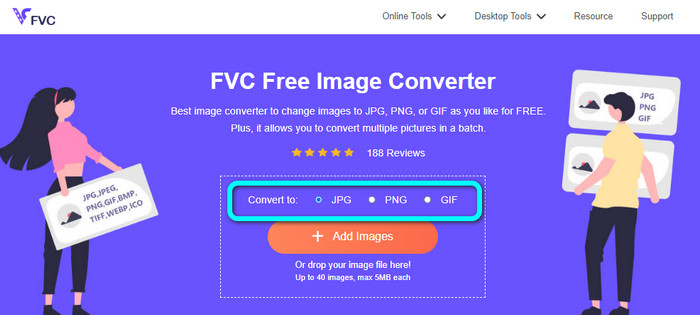
Шаг 1: Откройте браузер и перейдите на основной сайт FVC Free Image Converter. Перейдите к опции Convert to и выберите формат JPG.
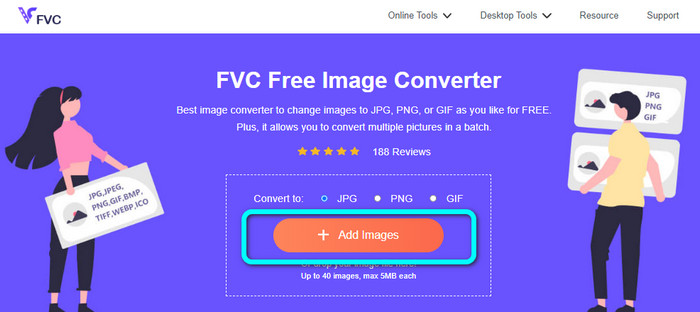
Шаг 2: После выбора формата JPG нажмите кнопку Add Images. Затем на экране компьютера откроется папка с файлами. Добавьте изображение JPEG, которое хотите конвертировать.
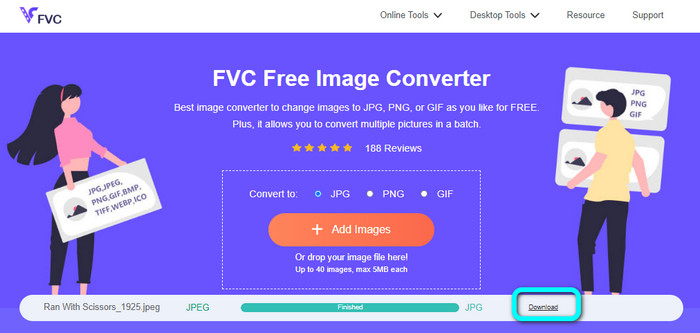
Шаг 3: После добавления изображения в формате JPEG вы увидите, что оно будет конвертировано автоматически. Из JPEG оно станет JPG. Когда процесс конвертации завершится, нажмите кнопку Download. Таким образом вы сохраните изображение JPG на своём компьютере.
Как конвертировать JPEG в JPG на Convertio
Ещё один конвертер JPEG в JPG, который вы можете использовать, — это Convertio. Этот конвертер изображений позволяет конвертировать JPEG в JPG с помощью предельно простого алгоритма. Он также предлагает удобный интерфейс, понятный пользователям. Поэтому этим онлайн‑конвертером могут пользоваться как профессионалы, так и новички. Кроме того, в программе доступна пакетная конвертация. Так что вы можете конвертировать несколько изображений одновременно. Процесс конвертации также быстрый: изображения можно конвертировать за несколько секунд. Convertio доступен в популярных браузерах, таких как Google, Firefox, Explorer и других. Более того, Convertio предлагает и дополнительные возможности: помимо изображений, вы можете конвертировать видео, аудио, документы и многое другое.
Однако доступная версия этой программы имеет ограничения. Вы можете загружать только изображения размером до 100 МБ. После этого вы больше не сможете конвертировать изображения. Итак, если вы хотите испытать все его возможности, приобретите план подписки. Кроме того, необходимо надежное подключение к Интернету, чтобы увидеть его производительность на высоком уровне.
Шаг 1: Перейдите на основной сайт Convertio. Нажмите кнопку Choose files. Выберите файл изображения JPEG в папке на компьютере и откройте его.

Шаг 2: После открытия файла изображения JPEG выберите формат JPG из списка форматов.
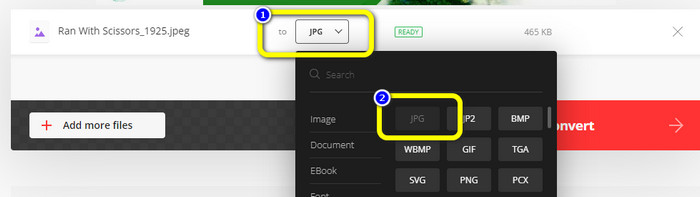
Шаг 3: После открытия файла изображения JPEG выберите формат JPG из списка форматов. Также вы можете нажать кнопку Add more files, чтобы выполнить пакетную конвертацию.
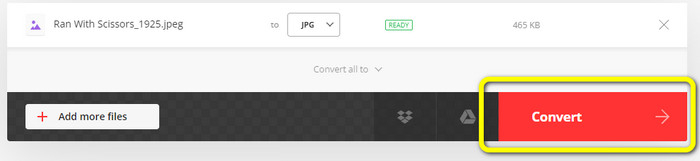
Шаг 4: Нажмите кнопку Convert, чтобы запустить процесс конвертации. Затем, по завершении конвертации, нажмите кнопку Download.
Как конвертировать JPEG в JPG на CloudConvert
CloudConvert — это веб‑инструмент для конвертации JPEG в JPG. С его помощью вы можете быстро преобразовать JPEG в JPG. Кроме того, этот инструмент предлагает интуитивно понятный интерфейс с простыми инструкциями по конвертации. Поэтому конвертировать JPEG в JPG легко, независимо от того, опытный вы пользователь или новичок. Более того, CloudConvert доступен в различных браузерах, включая Mozilla, Explorer и Firefox, что делает его ещё более доступным. Лучшая часть этого инструмента — возможность изменять параметры изображения. Вы можете регулировать разрешение, размер файла и качество. Одним из приоритетов этого сервиса, помимо конвертации, является конфиденциальность пользователя. CloudConvert гарантирует защиту вашей информации и не передаёт ваши данные третьим лицам. После процесса конвертации ваши изображения автоматически удаляются через 24 часа.
Однако у этого веб-конвертера изображений есть недостатки. Если вы используете только бесплатную версию, вы можете конвертировать только 25 изображений в день. Вам необходимо приобрести план подписки, чтобы конвертировать больше изображений. Также одним из требований этого конвертера является доступ в интернет. Поскольку это онлайн-инструмент, необходимо подключение к Интернету.
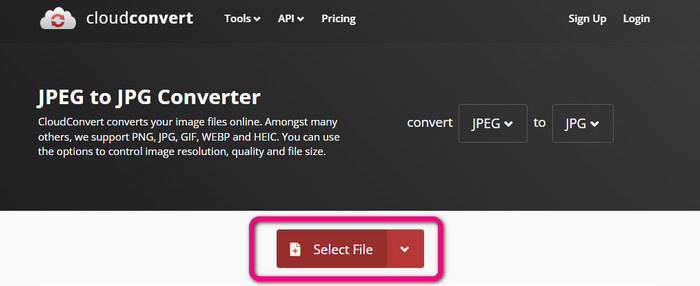
Шаг 1: Нажмите кнопку Select File. Затем откройте изображение JPEG из своего файла.
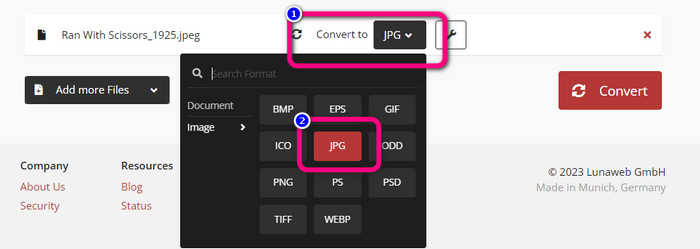
Шаг 2: Перейдите к опции Convert to. Выберите нужный формат — JPG.
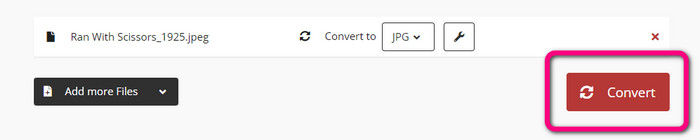
Шаг 3: После выбора формата JPG нажмите кнопку Convert. Дождитесь окончания процесса конвертации и сохраните итоговое изображение на рабочем столе. Также вы можете использовать этот инструмент, чтобы конвертировать JPG в PNG.
Часть 2. Как конвертировать JPEG в JPG с помощью Android и iPhone
Как конвертировать JPEG в JPG в Image Converter
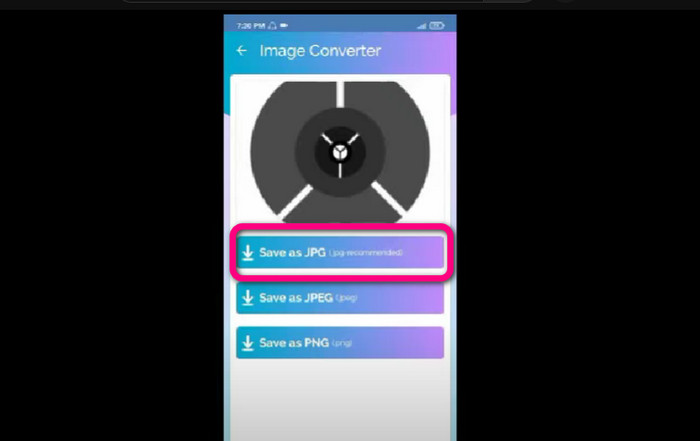
Если вы хотите конвертировать JPEG в JPG на Android, используйте приложение Image Converter. Оно доступно на устройствах Android. Процедура конвертации изображений проста, что делает приложение удобным для непрофессиональных пользователей. Кроме того, вы можете скачать его бесплатно. Интерфейс также понятен и прост. Поэтому никто не запутается при работе с конвертером. Помимо этого, Image Converter обеспечивает плавный процесс конвертации. После выбора формата приложение конвертирует и сохранит изображение на вашем телефоне без лишних действий. Однако оно поддерживает только ограниченное число выходных форматов, таких как PNG, JPG и JPEG. Поэтому вы не сможете использовать его для конвертации изображений в GIF, SVG, BMP и другие форматы.
Шаг 1: Откройте приложение Play Store и скачайте Image Converter. Затем запустите приложение после установки.
Шаг 2: Нажмите кнопку Select Photo, чтобы прикрепить фотографию JPEG из галереи телефона.
Шаг 3: Нажмите опцию Save as JPG на заключительном этапе. Дождитесь процесса конвертации. После завершения изображение автоматически сохранится в вашей галерее.
Как конвертировать JPEG в JPG в JPG Image Converter & Resizer
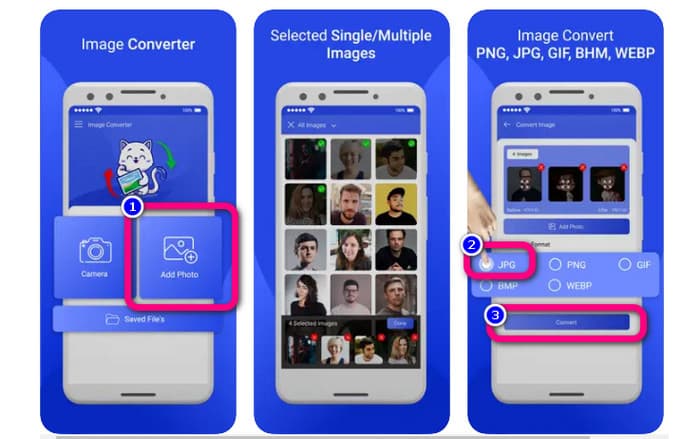
Если вы хотите конвертировать JPEG в JPG на iPhone, используйте приложение JPG Image Converter & Resizer. Это ПО доступно в Apple Store, и вы можете скачать его бесплатно. Кроме того, процесс конвертации прост. Благодаря интуитивно понятному интерфейсу пользователям несложно им пользоваться. В приложении есть функция пакетной конвертации. Таким образом вы можете конвертировать несколько изображений одновременно. Также оно поддерживает различные форматы изображений, включая PNG, BMP, GIF, WebP и т. д. Однако использовать это приложение можно только на iPhone с версией iOS не ниже 12.0. Загрузить его можно на устройства с iOS 12.0 и выше.
Шаг 1: Перейдите в Apple Store и скачайте JPG Image Converter & Resizer. Затем запустите приложение.
Шаг 2: Нажмите значок Add Photo, чтобы вставить изображение JPEG, которое хотите конвертировать. При желании вы можете добавить несколько изображений.
Шаг 3: Выберите формат JPG из списка форматов. После этого нажмите кнопку Convert, чтобы запустить процесс конвертации.
Часть 3. Часто задаваемые вопросы о преобразовании JPEG в JPG
1. Как преобразовать изображения из PNG в JPG?
Вы можете использовать FVC Free Image Converter. Этот онлайн‑конвертер изображений поддерживает входной формат PNG. Таким образом, вы можете преобразовать PNG‑изображение в формат JPEG. Просто перейдите к опции выбора формата и укажите JPG. Затем нажмите кнопку Add Images, чтобы добавить PNG‑изображение. После этого нажмите кнопку скачивания.
2. Почему мои файлы JPEG не работают на моем Mac?
Есть две возможные причины, по которым ваше изображение в формате JPEG не работает. Возможно, ваша MacOS не обновлена. Другая причина заключается в том, что изображение в формате JPEG может быть повреждено из-за заражения вирусом. Вам нужно исправить изображение JPEG или обновить macOS.
3. Как сохранить фотографию, отправленную по электронной почте, в формате .jpg?
Диалоговое окно спросит, где вы хотите сохранить изображение при загрузке изображения. В этот момент вы можете сохранить изображение в желаемом формате из параметра формата.
Заключение
Подводя итог, в этом материале представлены самые эффективные способы конвертировать JPEG в JPG с помощью различных конвертеров изображений. Но большинство пользователей предпочитают простые методы конвертации файлов. В таком случае вы можете использовать FVC Free Image Converter, который позволяет легко и мгновенно конвертировать различные файлы.
-
 Что такое файл PNG: как открыть и преобразовать? [Полная информация]
 Вы знаете, что такое формат PNG? Вы можете узнать все основные детали этого файла. Прочтите этот путеводитель и усвойте всю информацию, которую сможете получить.
-
 Полная информация о различиях JPEG, JPG и PNG
 Этот пост даст вам достаточно информации о различиях между JPEG, JPG и PNG. Кроме того, вы узнаете, как конвертировать изображения в эти файлы.
-
 Методы преобразования изображений в JPG онлайн и офлайн
 Вы хотите преобразовать файл в формат JPG по какой-либо причине? Тогда эта статья для вас. Мы научим вас лучшему способу преобразования вашего изображения в JPG.
