


 Видео конвертер Ultimate
 Устройство записи экрана
 Видео ремонт
Обзор функций и улучшений Fotor Remove Background
При работе с фоторедактированием удаление фона и использование инструментов для улучшения фото являются обычной практикой в этой сфере; они могут повысить качество результата и сделать его более заметным. Именно в этом контексте на сцене фоторедактирования появился Fotor, сделавший упор на удаление фона и улучшение фотографий. Часто возникает вопрос: безопасен ли Fotor? В этом обзоре мы подробно рассматриваем многогранный функционал Fotor и раскрываем его возможности. Одновременно мы отправляемся в поиски примечательной альтернативы, которую вам также стоит попробовать. Продолжайте читать этот обзор Fotor, чтобы узнать о возможностях Fotor в удалении фона и улучшении фотографий и решить, действительно ли это подходящий инструмент для ваших задач.

Часть 1. Обзор Fotor — средство для удаления фона и усилитель фотографий
Доступ к универсальным и мощным инструментам редактирования имеет решающее значение в динамичном мире цифровой фотографии и творческого дизайна. Fotor, комплексная программа для редактирования фотографий, превосходно предоставляет пользователям инструменты, необходимые для навигации в этой постоянно развивающейся сфере. Изучите его возможности, в частности такие выдающиеся функции, как «Удаление фона» и «Улучшение фотографий», чтобы улучшить свое творческое путешествие уже сегодня!
Фотор
Fotor — это многофункциональный инструмент для редактирования фотографий, известный своим удобным интерфейсом и впечатляющим набором функций для улучшения изображений и удаления фона. Его функция Background Remover позволяет пользователям легко убирать фон и улучшать свои изображения. В сочетании с их фотоулучшателем вы получите именно тот высококачественный результат, который ищете. Этот инструмент предназначен не только для фоторетуши, но и предлагает множество шаблонов, с помощью которых непрофессионалы могут легко начать работу над своими проектами. Если вы ищете программное обеспечение, в котором собраны практически все базовые функции, а также инструменты для удаления фона и улучшения фотографий, вам стоит рассмотреть Fotor в качестве одного из вариантов.
Лучшее для
Fotor идеально подходит для частных лиц и предприятий, которые ищут интуитивно понятную платформу для улучшения своих фотографий, особенно когда для получения безупречного конечного результата необходимо точное удаление фона. Ниже приведены некоторые из возможностей Fotor, которые лучше всего использовать:
◆ Частные пользователи и бизнес. Это удобное программное обеспечение подходит как профессионалам, так и новичкам, что делает его отличным решением, позволяющим частным пользователям и компаниям с легкостью создавать и улучшать проекты благодаря интуитивному интерфейсу и функциям.
◆ Инструменты для улучшения изображений. Fotor оснащён шаблонами и фильтрами, позволяющими сделать ваши фотографии максимально качественными. Кроме того, Fotor устраняет размытости и другие недостатки при использовании функций улучшения фото, что делает его идеальным инструментом при работе с проблемами качества изображений.
◆ Удаление фона. Точность Fotor при удалении фона по‑настоящему заслуживает похвалы, поскольку он обеспечивает более точные результаты по сравнению с другим программным обеспечением в интернете.
◆ Фоторедактирование. В программе собраны все необходимые инструменты для работы с фоторедактированием и похожими задачами. В результате Fotor становится программой, к которой обращаются в первую очередь при выполнении множества задач по обработке фотографий.
Цены
Модель ценообразования: Basic и Pro
Fotor Basic: бесплатно
Fotor Pro: $8.99 в месяц
◆ Пакетная обработка изображений.
◆ Редактор изображений и усилитель.
◆ Доступность на нескольких устройствах.
◆ Готовые шаблоны.
◆ Удаление фона.
◆ Инструмент для создания фотоколлажей.
◆ Конвертер файлов RAW.
◆ Расширенные фильтры и эффекты.
◆ Создатель дизайна.
Шаги по использованию Fotor Photo Enhancer
Шаг 1. Перейдите на сайт Fotor Photo Enhancer и загрузите фотографию, которую хотите улучшить, в поле Enhance Photo Now.
Шаг 2. Fotor автоматически обработает ваше изображение. Вам останется лишь сравнить предварительный просмотр «до» и «после», перетаскивая курсор‑стрелку слева направо.
Шаг 3. Когда будете довольны результатом, нажмите Apply, чтобы сохранить изменения фотографии.
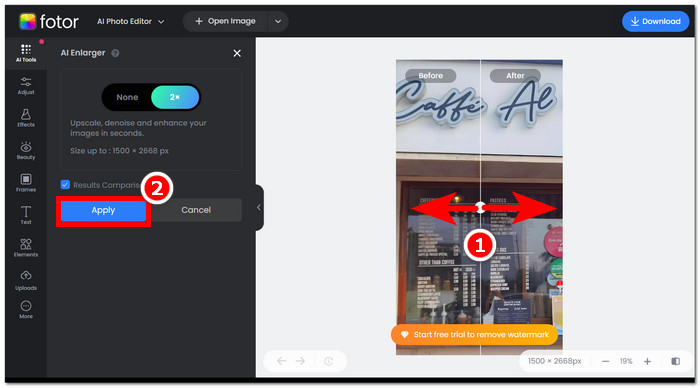
Шаг 4. Чтобы сохранить улучшенное изображение, нажмите Download, расположенную в правом верхнем углу экрана.,
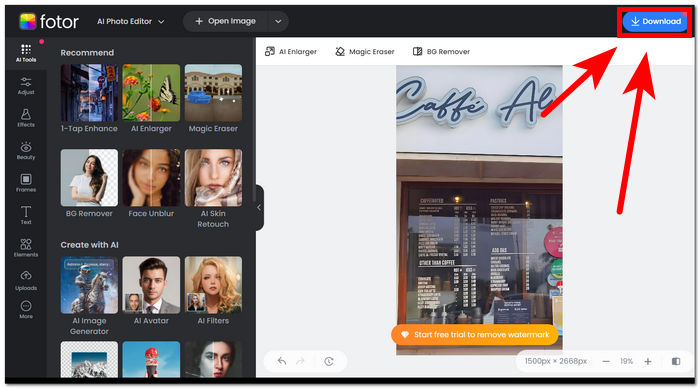
Шаги по использованию средства удаления фона Fotor
Шаг 1. Перейдите на сайт Fotor Background Remover и загрузите фотографию, у которой хотите удалить фон, в поле Upload Image.
Шаг 2. После загрузки фотография будет автоматически обработана, и фон с неё будет удалён.
Шаг 3. Вы можете вручную стереть или восстановить части фона, поэкспериментировав с инструментом Erase/Restore, который расположен на панели навигации в левом верхнем углу.
Шаг 4. Когда вы будете удовлетворены результатом, нажмите Download в правом верхнем углу экрана, чтобы сохранить изображение на компьютер.
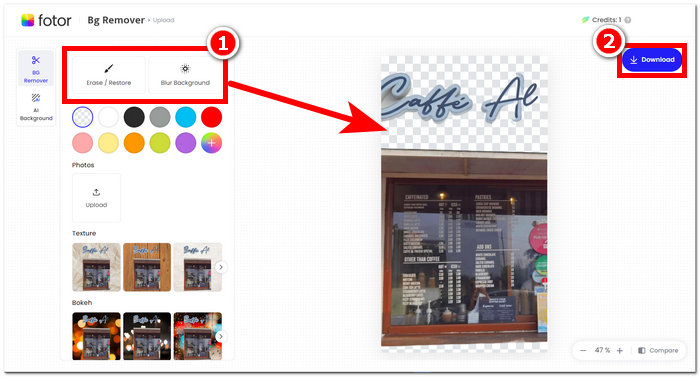
Подводя итог обзору Fotor, можно сказать, что его возможности в области редактирования фотографий слишком велики. Следовательно, это позволит вам с легкостью создавать замечательные проекты. Помимо того, что он состоит из всех основных инструментов для работы с фотографиями, акцент на улучшении фотографий и удалении фона очевиден, поскольку в его интерфейсе легко и удобно ориентироваться. Однако из всех представленных функций вы сможете в полной мере насладиться функциями и возможностями Fotor только при подписке на ежемесячный план.
Часть 2. Альтернатива Fotor для удаления фона и повышения качества фотографий
FVC расширила свою деятельность, создав инструменты и программное обеспечение, которые отвечают потребностям создателей в индустрии визуального редактирования. Двумя из таких инструментов являются FVC Free Background Remover и FVC Free Image Upscaler; у обоих есть отдельные веб‑сайты, чтобы разделить их назначение и не путать пользователей. В отличие от программных пакетов, где все инструменты для разных задач собраны в одной программе и на освоение которых уходит немало времени, эти онлайн‑инструменты FVC позволяют авторам свободно пользоваться их возможностями без лишних хлопот с загрузкой и установкой. Ниже перечислены шаги по использованию инструментов FVC для удаления фона и увеличения изображений.
Шаги по использованию FVC Free Background Remover:
Шаг 1. Перейдите на сайт FVC Free Background Remover и загрузите фотографию, у которой хотите удалить фон.
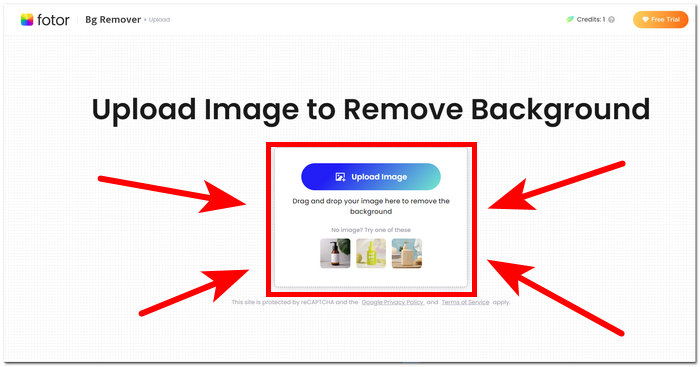
Шаг 2. FVC AI автоматически определит и удалит фон с вашей фотографии.
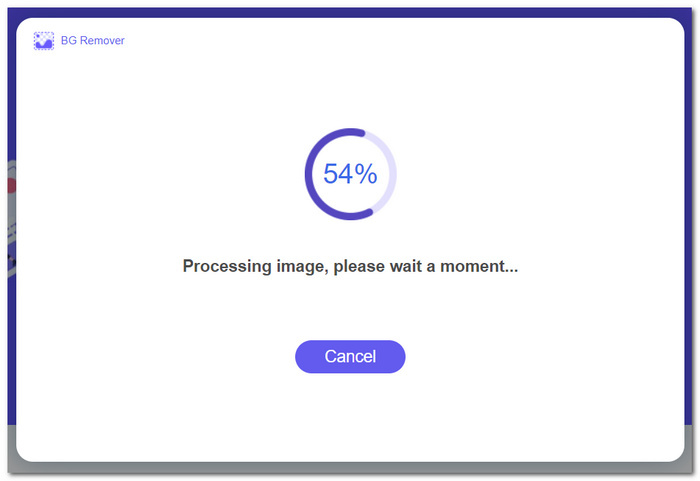
Шаг 3. После завершения процесса вы можете скачать свою фотографию.
Шаги по использованию функций FVC Free Image Upscaler:
Шаг 1. Загрузите свою фотографию на сайт FVC Image Upscaler.
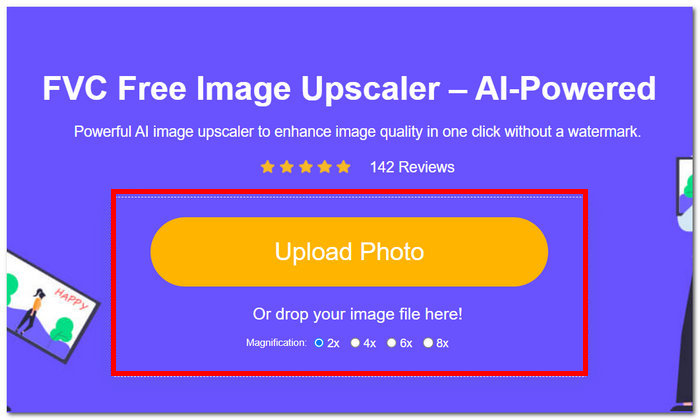
Шаг 2. Выберите желаемое увеличение и просто нажмите на него.
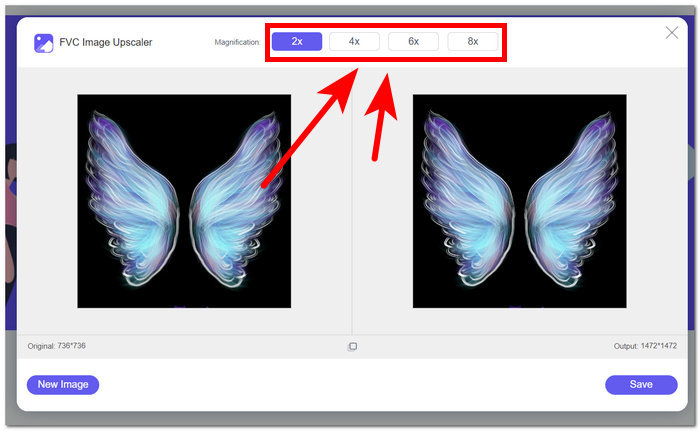
Шаг 3. Инструмент автоматически обработает фотографию, и вы сможете увидеть разницу в зависимости от выбранной степени увеличения.
Шаг 4. Теперь ваше увеличенное изображение готово к сохранению. Просто нажмите Download.
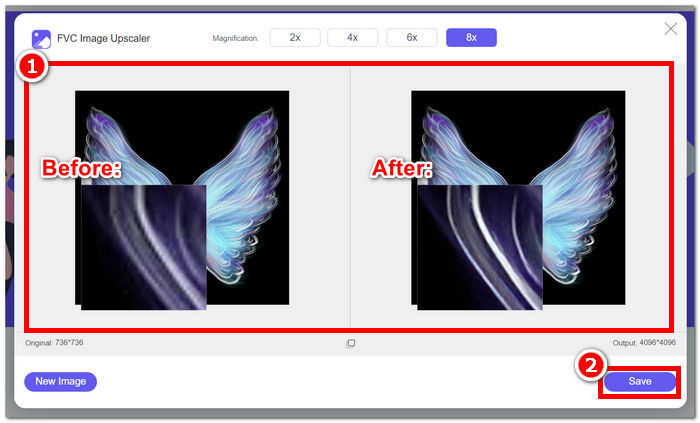
Инструменты Fotor и FVC могут давать одинаковые результаты по качеству и точности, когда дело доходит до удаления фона и масштабирования изображения. Однако они различаются по доступности, когда инструменты FVC можно использовать бесплатно в любом локальном браузере, тогда как Fotor может иметь базовые бесплатные функции, но ограничены. Обязательно сначала проверьте функциональность и удобство, которые они вам приносят, и погрузитесь в использование быстрых, эффективных и безопасных онлайн-инструментов. FVC поможет вам сэкономить время и вовремя вернуться к завершению незавершенных проектов.
Часть 3. Часто задаваемые вопросы о Fotor
Бесплатно ли использование Fotor?
Да, Fotor предлагает бесплатную версию своей платформы для редактирования фотографий, предоставляющую пользователям бесплатный доступ к основным инструментам. Это позволяет людям использовать основные функции без каких-либо затрат.
Сколько стоит Fotor в месяц?
Fotor предлагает разнообразные тарифные планы, включающие как ежемесячную, так и годовую подписку, стоимость которых варьируется в зависимости от включенных функций. Чтобы просмотреть актуальную и точную информацию о ценах, пользователям рекомендуется посетить официальный сайт Fotor для получения подробной информации об их текущих предложениях.
Как долго длится бесплатная пробная версия Fotor?
Fotor может предоставить бесплатную пробную версию своих премиум-функций, однако продолжительность пробной версии может быть изменена. Для получения самой актуальной информации о продолжительности бесплатной пробной версии рекомендуется посетить официальный сайт Fotor.
Фотор не работает?
Если у вас возникли проблемы с неработоспособностью Fotor, рассмотрите возможность проверки подключения к Интернету, очистки кеша браузера или обновления приложения, если вы используете версию для настольного компьютера. Если проблемы не исчезнут, рекомендуется обратиться за помощью в службу поддержки Fotor. Они могут помочь вам в решении технических проблем или предложить информацию о любых потенциальных обновлениях системы.
Fotor хорошая программа?
Да, Fotor считается хорошей программой для редактирования фотографий, предлагающей удобный интерфейс, подходящий как новичкам, так и более опытным пользователям. Его разнообразные функции, включая функцию удаления фона, делают его универсальным для различных задач редактирования. Однако пригодность Fotor зависит от индивидуальных предпочтений и конкретных требований к улучшению фотографий.
Заключение
Fotor является заметным претендентом, особенно благодаря своим функциям по удалению фона и улучшению изображений. Он стал одним из стандартных инструментов при редактировании фотографий благодаря разнообразию функций и интерфейсу, который включает почти все базовые инструменты, необходимые в этой области. Однако, учитывая разнообразные потребности пользователей, изучение альтернатив, таких как FVC, позволяет получить более широкий взгляд. Вы выберете Fotor или его альтернативы — главное, чтобы инструменты соответствовали вашему творческому видению. Обязательно попробуйте и максимально используйте каждый инструмент, чтобы найти лучший вариант для проектов по удалению фона и улучшению фотографий.
-
 Как удалить фон из изображения с помощью GIMP
 Начните работу с GIMP и пошаговым процессом удаления фона из изображений. Откройте для себя эффективные способы создания прозрачных изображений с помощью GIMP уже сегодня!
-
 Как увеличить размер изображения онлайн и офлайн
 Откройте для себя самый простой способ увеличить размер изображения без потери качества. Ознакомьтесь с нашими инструментами и программным обеспечением для изменения размера, чтобы обеспечить оптимальное качество ваших изображений.
-
 Как изменить размер изображения в Photoshop: обязательное руководство
 Изучите пошаговый процесс изменения размера изображения в Photoshop. Следуйте этому руководству, чтобы эффективно, легко и качественно изменять размер изображений!
