


 Видео конвертер Ultimate
 Устройство записи экрана
 Видео ремонт
 Безопасная загрузка
Удалите объект с фотографий с помощью 6 эффективных программ [бесплатно]
Миллионы фотографов, даже начинающих, делают множество снимков заката, пляжа, туристических мест, луны и многого другого. С помощью изображений мы можем выразить, кто мы есть на самом деле. Одним простым щелчком камеры вы можете разжечь творческую искру и пробудить художественные способности у каждого. Но не каждый сделанный нами кадр оказывается идеальным; иногда нам нужно удалить определённый объект, который не должен был попасть на фотографию. Нужен инструмент, чтобы удалить объект с фото? Здесь мы представим разные способы и инструменты, с помощью которых вы можете мгновенно убрать ненужные объекты с только что сделанного снимка.

Часть 1. Удаление объекта с фотографии с помощью лучшего средства для удаления объектов [веб-служба]
FVC Free Watermark Remover — наш первый выбор для бесплатного онлайн‑удаления объектов с фотографий. С его помощью вы можете моментально стереть всё, что портит ваш идеальный кадр, без установки программы на компьютер и даже без какого‑либо опыта в подобном редактировании. Вы можете смело полагаться на этот инструмент: достаточно лишь выделить объект, и он удалит его с изображения без следов и артефактов. Этот инструмент нам показался удобным и эффективным для удаления ненужных элементов на фото; если вы хотите им воспользоваться, повторите шаги, приведённые ниже.
Шаг 1. Чтобы открыть инструмент и удалить объект при помощи разработки FVC, перейдите по этой ссылке на официальный сайт.
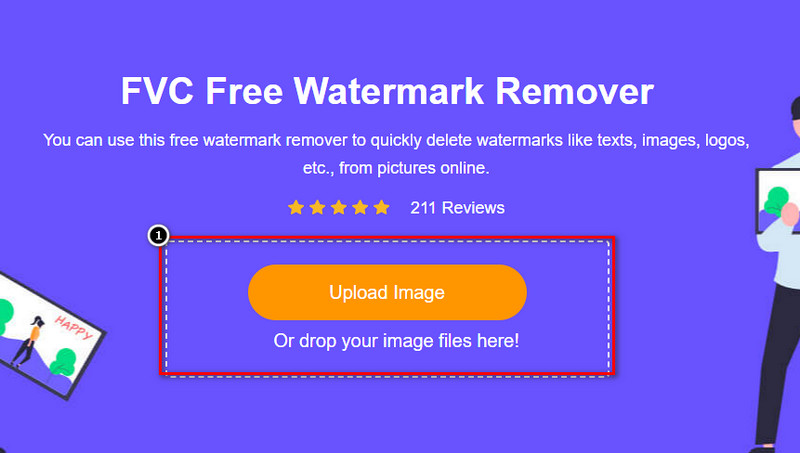
Шаг 2. Нажмите Upload Image, чтобы импортировать фотографию, на которой есть лишний объект.
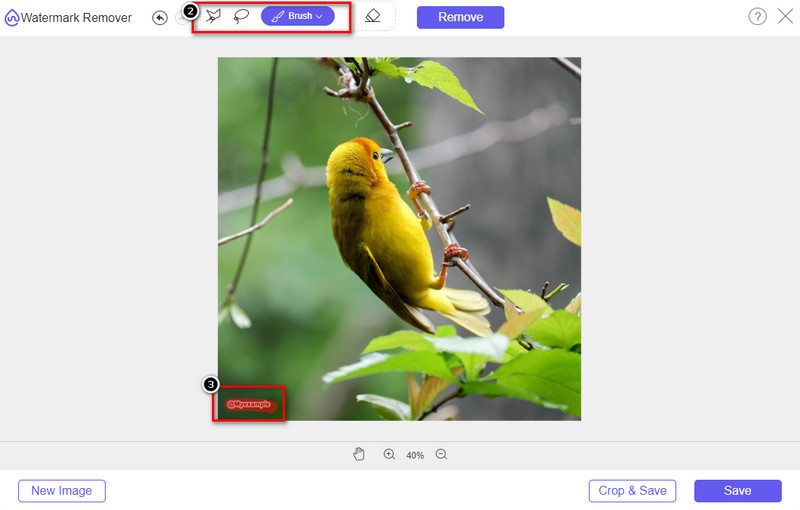
Шаг 3. С помощью доступных здесь инструментов выделите объект.
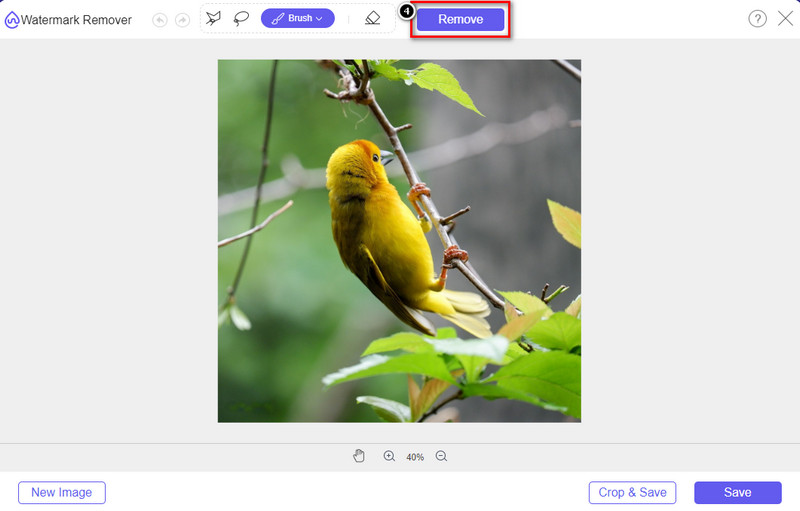
Шаг 4. Нажмите кнопку Remove, чтобы удалить объект с помощью ИИ‑технологии, поддерживаемой этим инструментом.
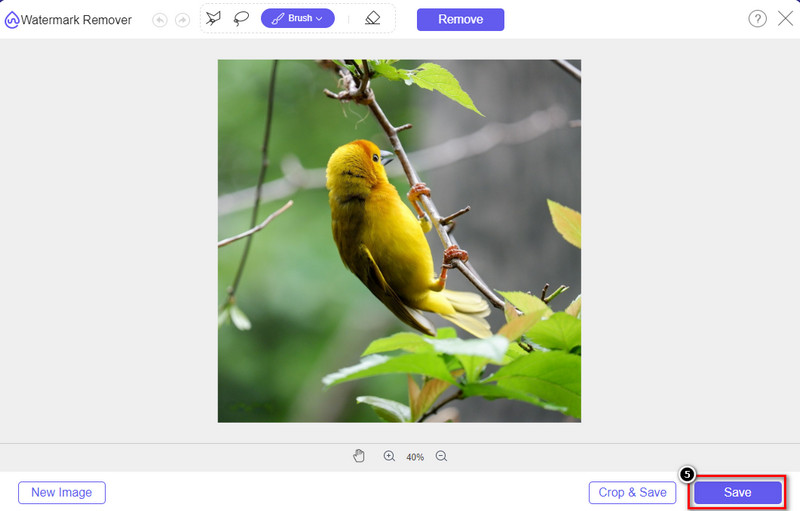
Шаг 5. Чтобы загрузить отредактированное идеальное изображение, нажмите Save.
Часть 2. Профессиональное удаление объекта с фотографии с помощью настольных программ [Windows и Mac]
Фотошоп
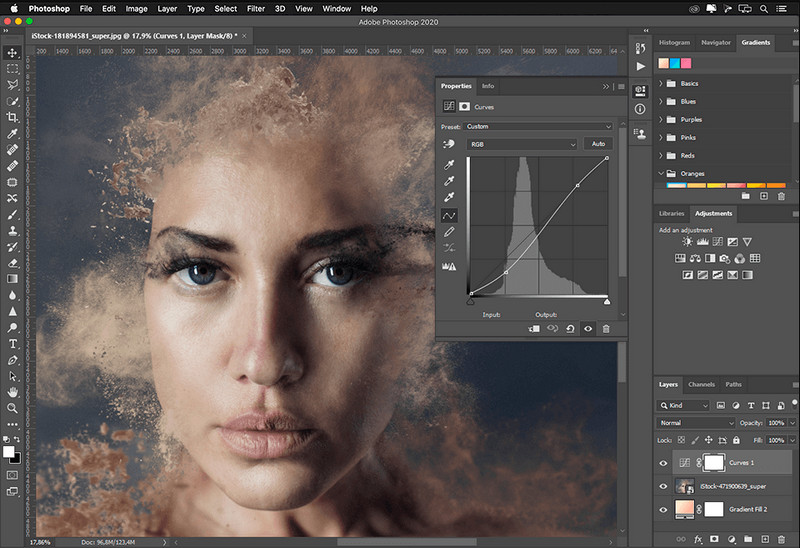
Если вам нужен профессиональный инструмент для удаления объектов с фотографий, тогда Photoshop — это то, что вам нужно! Этот инструмент представляет собой полноценный редактор изображений, который Adobe с гордостью представляет нам. Ничто не мешает вам сделать изображение невероятным благодаря своим характеристикам и функциям. Из-за его популярности среди профессионалов многие новички пытаются использовать это программное обеспечение для редактирования и создания своих изображений. Итак, если вы хотите узнать, как использовать этот профессиональный инструмент, вы можете следовать руководству, которое мы добавляем ниже.
Шаг 1. Откройте официальный сайт Adobe и скачайте Photoshop на свой компьютер.
Шаг 2. Нажмите File и выберите Open, чтобы загрузить изображение, которое нужно отредактировать.
Шаг 3. В левой части выберите Magic Wand Tool, чтобы автоматически обвести объект на изображении.
Шаг 4. Перейдите в раздел Edit и выберите там Content-Aware Fill.
Шаг 5. После открытия эта функция автоматически удалит водяной знак, затем нажмите OK.
GIMP
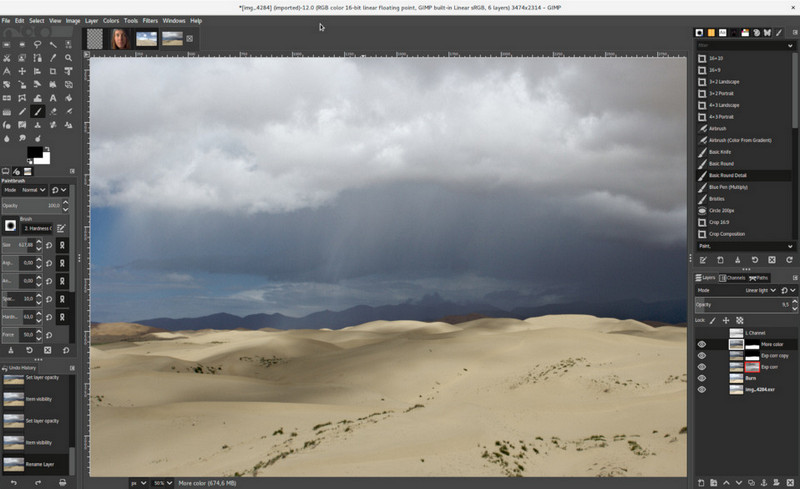
GIMP — это полноценный фоторедактор, которым можно бесплатно удалять объекты с фото на Mac, Linux и Windows. Это надёжный инструмент, подобный Photoshop. Хотя GIMP считается одним из лучших вариантов при обсуждении альтернатив Adobe Photoshop, он всё ещё активно развивается. С его помощью вы можете серьёзно дорабатывать свои изображения, делая их более привлекательными для зрителей. Кроме того, вы можете настраивать интерфейс под себя, чтобы упростить работу. Если вы рассматриваете загрузку этого инструмента для профессионального редактирования, можем заверить, что он вам подойдёт. Несмотря на то, что это редактор с открытым исходным кодом, ему всё ещё требуется доработка, так как его графический интерфейс находится в стадии развития. Поэтому, если вы хотите им воспользоваться, шаги ниже подскажут вам, как удалить объект с фото в GIMP. Приведённые ниже инструкции помогут вам.
Шаг 1. Скачайте и запустите программу, чтобы загрузить изображение, которое нужно отредактировать. Также скачайте её плагин Resynthesizer.
Шаг 2. В панели инструментов слева выберите Free Select и измените режим на Add Current Selection.
Шаг 3. Обведите объект, который хотите удалить; после того как вы полностью его выделите, нажмите Enter на клавиатуре.
Шаг 4. Чтобы использовать скачанный плагин, перейдите в меню Filter, затем Enhance и выберите Heal Selection.
Шаг 5. Появится диалоговое окно: при необходимости измените ширину выборки (sampling width), установите параметр выборки на all-around, а порядок заполнения (Filling the Order) на random. Нажмите OK, чтобы начать синтез и заполнение области на изображении.
Приложение «Фото» на Mac
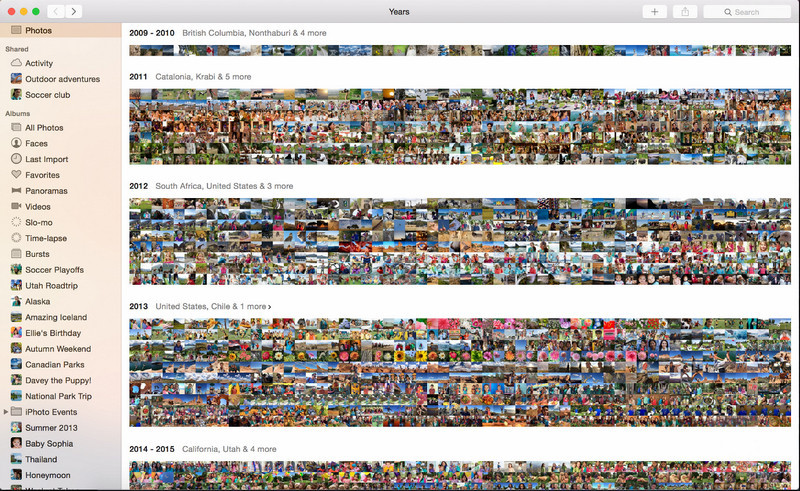
Photo App — это встроенное приложение на обновлённых устройствах Apple, таких как Mac. Оно предустановлено, поэтому вы можете пропустить этап загрузки и сразу же начать пользоваться. Эта программа не является полноценным фоторедактором, так как её основное назначение — библиотека и просмотрщик фотографий на Mac или iOS‑устройствах. Но даже если у вас нет профессионального редактора на Mac, вы можете воспользоваться её возможностями, чтобы одним кликом получить достаточно профессиональный результат. Если вы хотите удалить объект в Photos App, следуйте приведённым ниже шагам.
Шаг 1. Откройте приложение «Фото» (Photos) на Mac и выберите изображение с ненужным объектом.
Шаг 2. В правом верхнем углу нажмите кнопку Edit, чтобы начать редактирование изображения.
Шаг 3. Справа вы увидите опцию Retouch; нажмите на неё, чтобы использовать эту функцию.
Шаг 4. Кликните и потяните курсор по области, которую хотите удалить.
Шаг 5. Нажмите кнопку Done, чтобы сохранить внесённые изменения.
Часть 3. Удалить объект с фотографии с помощью приложения на Android и iOS
Фотошоп ИСПРАВЛЕНИЕ
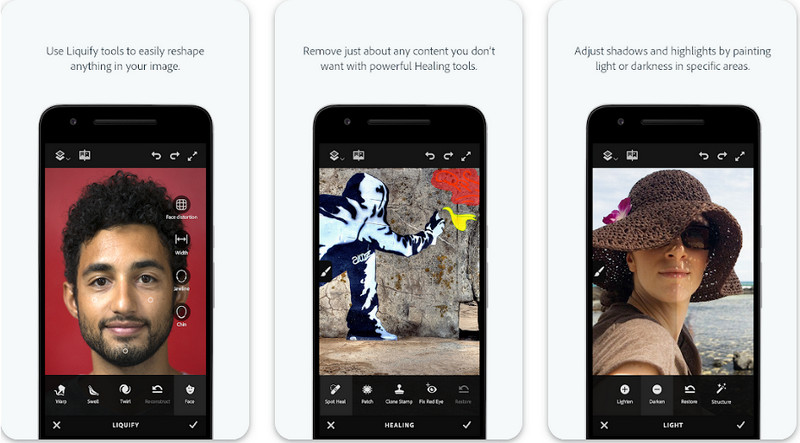
Photoshop FIX — это эффективное Android‑приложение для профессионального, но при этом простого в использовании удаления объектов с фотографий. Это условно‑бесплатное приложение с открытым доступом, которое вы можете скачать на своё устройство через Play Store. Несмотря на статус открытого приложения, его функция по удалению объектов работает безупречно. Это одно из самых скачиваемых приложений на Android для решения такой задачи. Если вы хотите узнать, как им пользоваться, читайте дальше.
Шаг 1. Скачайте приложение на своё Android‑устройство.
Шаг 2. Нажмите On My Phone, чтобы отобразить все изображения в вашей библиотеке. Выберите фото, которое хотите отредактировать.
Шаг 3. Чтобы воспользоваться функцией удаления объектов в этом приложении, нажмите Healing.
Шаг 4. Здесь есть два варианта удаления. Чтобы «смахнуть» объект, выберите Spot Heal. Если хотите клонировать пиксели, выберите Clone Stamp. Выделите водяной знак или объект выбранным инструментом.
Шаг 5. Сохраните изображение в галерею (Camera Roll) — и готово!
Ретушь фотографий
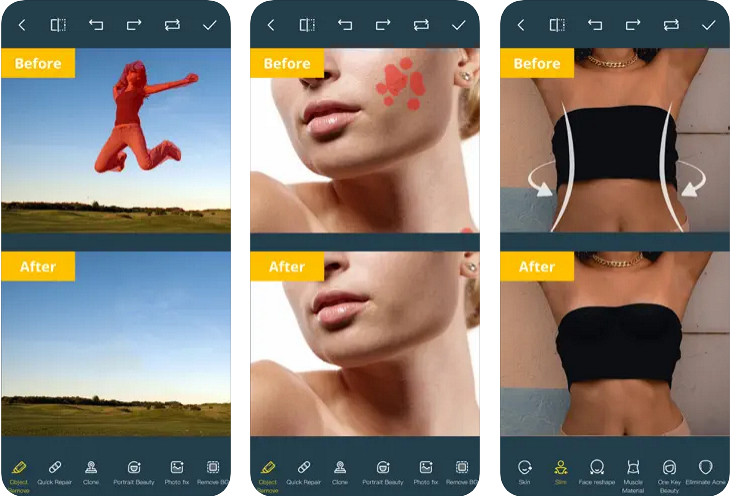
Photo Retouch — надёжное приложение для удаления объектов с фотографий на iPhone без лишних сложностей. Даже если вы не профессионал в удалении объектов с изображений, вы сможете сделать это эффективно. Вы можете бесплатно скачать это приложение в App Store, чтобы попробовать его в деле. Кроме того, при необходимости здесь можно удалить фон и водяной знак с фотографии. Если вы готовы использовать это приложение для удаления объектов с изображения, следуйте шагам ниже.
Шаг 1. Скачайте официальное приложение и запустите его.
Шаг 2. Нажмите Photo Eraser, затем Photo. Выберите изображение с ненужным фоном, который хотите удалить, и убедитесь, что оно находится в разделе Photos на вашем iPhone.
Шаг 3. В нижней части экрана выберите опцию Object Removal.
Шаг 4. Используйте кисть, поддерживаемую этим приложением, чтобы обвести объект, который хотите удалить, и нажмите GO, чтобы удалить его.
Связанный материал:
Удалить водяной знак Dreamstime
Удалить водяной знак фильтра Picsart
Часть 4. Часто задаваемые вопросы о том, как удалить объекты с фотографий
Зачем мне удалять объекты с фотографий?
Много раз мы что-то снимали, и были фотобомбардировщики. Этот объект является проблемой для большинства профессионалов на других людях, потому что он не выделяет изображение, которое вы снимаете. Итак, вместо того, чтобы переснимать изображение, вы можете прочитать следующие идеальные способы удаления объекта на вашей фотографии.
Могу ли я обрезать изображение, чтобы удалить объекты?
Да, ты можешь. Если объект, который вы хотите удалить, находится сбоку от фотографии, то вы можете попробовать обрезать изображение с помощью вашего встроенного редактора. Однако этот выбор невозможен, особенно если объект находится в средней части или рядом с изображением, которое вы снимаете. Обрезка изображения обрежет фотографию, поэтому лучше дважды подумать, если вы хотите попробовать этот вариант.
Почему я не могу загрузить изображение, чтобы удалить объект?
Вы не можете загрузить изображение; либо изображение повреждено, либо расширение изображения не поддерживается. Если ваше изображение повреждено, есть способы это исправить. Их можно найти в сети, если поискать. Обычно это может быть расширение файла изображения; чтобы решить эту проблему, вам нужно будет преобразовать его.
Заключение
Удалять объекты с фотографии легко благодаря инструменту и приложению, которые мы задействуем в этой статье. Итак, какой инструмент вы предпочитаете больше всего? Мы надеемся, что это руководство, которое мы добавляем, действительно поможет вам легко решить проблему.
-
 Как преобразовать изображение с низким разрешением в изображение с высоким разрешением онлайн
 Если вы хотите узнать, как онлайн конвертировать изображения с низким разрешением в изображения с высоким разрешением, то эта статья для вас. Прочтите полностью, чтобы узнать, как это сделать.
-
 Простые методы удаления водяных знаков Shootproof
 Удалите водяной знак Shootproof, следуя этим простым методам. Используйте эти удивительные средства для удаления водяных знаков, чтобы легко удалить водяной знак Shootproof с вашего изображения.
-
 Как легко удалить водяной знак Bandicam [3 эффективных способа]
 Как убрать водяной знак Bandicam? С инструментами, которые мы добавим сюда, вы будете знать, как эффективно с этим бороться!
