


 Видео конвертер Ultimate
 Устройство записи экрана
 Видео ремонт
 Безопасная загрузка
Удалить водяной знак из JPG онлайн: 3 лучших метода
В наше время сохранение фотографий — лучший способ беречь воспоминания о дорогих нам людях. Однако иногда на ваших снимках могут быть водяные знаки. К счастью, ниже вы найдёте подробную информацию о том, как удалить водяные знаки с JPG-файлов онлайн с помощью нескольких приложений. Формат JPG — один из самых популярных форматов изображений, используемый в цифровых камерах, поэтому часть ваших фотографий может быть сохранена в формате JPG. Если вы относитесь к тем, кто хочет удалить ненужные элементы с изображения, особенно с JPG-файла, вам следует прочитать следующие разделы этой статьи.

Часть 1. Можно ли удалить водяной знак из JPG
В современную эпоху удаление мешающих объектов, таких как водяные знаки, логотипы и текст, из файла формата JPG не представляет сложности, если вы знаете, что делать и какие инструменты будете использовать. Не только в файле JPG, но и в других форматах файлов изображений. Все, что вам нужно сделать, это поискать в Интернете законные средства для удаления водяных знаков.
Часть 2: Как удалить водяной знак из JPG онлайн
Удалить водяной знак из JPG с помощью бесплатного средства для удаления водяных знаков FVC
Умение удалять водяной знак с JPG-файла очень полезно, потому что большинству людей не нравятся отвлекающие объекты на их фотографиях. Если вы ищете лучшие бесплатные способы удалить водяные знаки с JPG, вы можете воспользоваться сервисом FVC Free Watermark Remover. Это приложение обеспечивает быструю загрузку и удаление, поэтому пользователям не приходится долго ждать, пока водяные знаки будут убраны с их фото. Оно поддерживает различные форматы файлов, такие как JPG/JPEG, PNG, BMP и другие. Кроме того, существует два способа удалить водяной знак с вашего JPG: с помощью инструмента обрезки (Cropping tool) и инструмента удаления водяных знаков (Watermark Removing tool). После успешного удаления водяных знаков изображение можно сохранить в том же формате, что и исходный файл. Более того, благодаря подробным инструкциям, простым кнопкам и интуитивно понятному интерфейсу этот онлайн-инструмент отлично подходит для непрофессиональных пользователей. Для его использования не требуется регистрация, в отличие от многих других программ. Также вам не нужно устанавливать приложение — вы можете работать с ним прямо в браузере. Наконец, только вы имеете доступ к своему файлу, так что можете быть уверены в его безопасности и конфиденциальности.
Функции
◆ Он может обрезать изображение до или после удаления водяных знаков.
◆ Он предлагает три инструмента удаления: «Лассо», «Кисть» и «Многоугольник» для удаления мешающих объектов.
Плюсы
- Он имеет подробные руководства и простой интерфейс, что хорошо для новичков.
- Онлайн-программа бесплатна, поэтому покупать подписку не нужно.
- Обеспечивает быстрый процесс удаления.
- Сохраните изображение с тем же качеством.
- Файл в безопасности и защищен.
- Нет необходимости загружать приложение, потому что его можно использовать прямо в браузере.
Минусы
- Для работы приложения необходимо подключение к интернету.
Давайте удалим водяные знаки из JPG, используя FVC Free Watermark Remover. Следуйте простым шагам ниже. Мы будем использовать инструменты для удаления водяных знаков. Следите за тем, чтобы область водяного знака располагалась в средней части фотографии.
Использование инструмента Polygonal
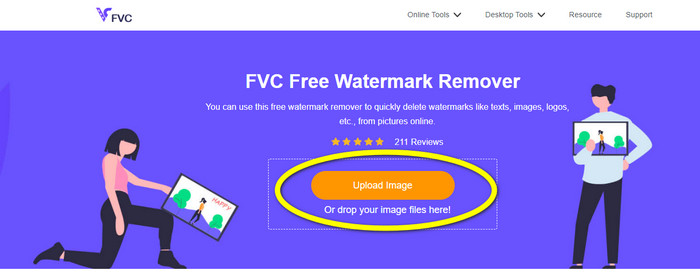
Шаг 1: Сначала перейдите на сайт FVC Free Watermark Remover. Нажмите кнопку Upload Image или перетащите ваш JPG-файл, чтобы загрузить его в этот инструмент.
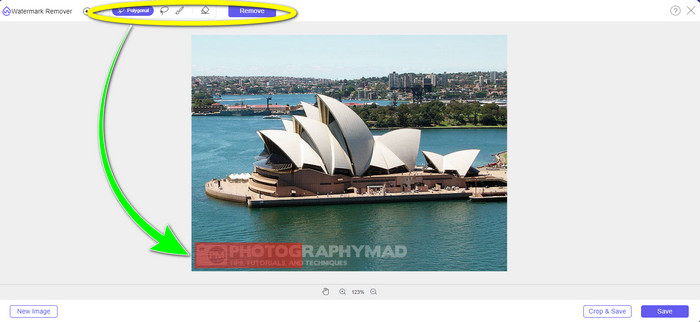
Шаг 2: После загрузки фотографии выделите водяные знаки. Для выделения можно использовать инструменты Lasso, Polygonal и Brush.
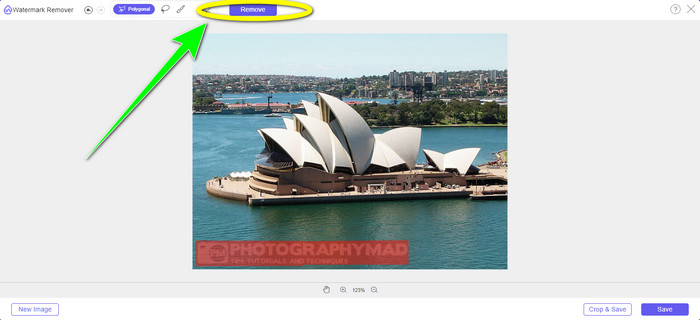
Шаг 3: Когда вы выделите все водяные знаки на JPG-файле, вы можете удалить их, нажав кнопку Remove. Дождитесь завершения процесса удаления и переходите к следующему шагу.
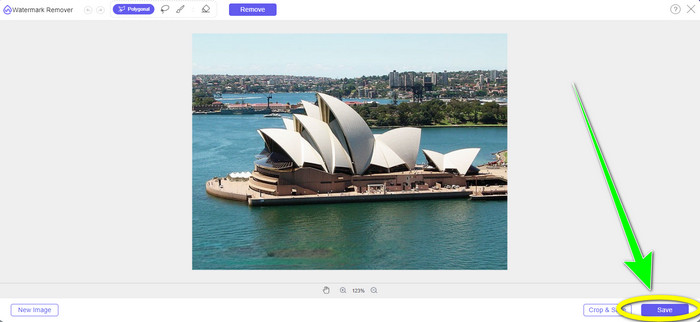
Шаг 4: Когда вы будете довольны результатом, нажмите кнопку Save, чтобы сохранить JPG-файл без водяного знака.
Использование инструмента Brush
Шаг 1: Загрузите JPG-изображение с водяным знаком, который вы хотите удалить.
Шаг 2: В панели инструментов для удаления водяных знаков выберите инструмент Brush, чтобы выделить водяной знак на фотографии. Вы также можете нажимать значки + и - в нижней части интерфейса, чтобы масштабировать изображение. При помощи ползунка под инструментом Brush можно изменить размер кисти.
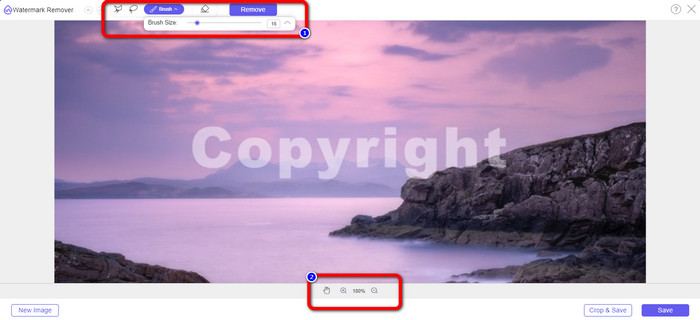
Шаг 3: После выбора инструмента Brush выделите все водяные знаки на вашей фотографии.
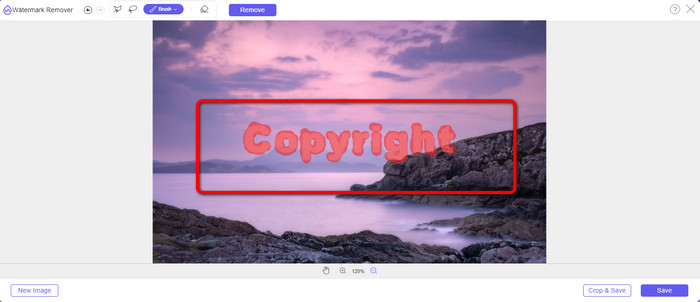
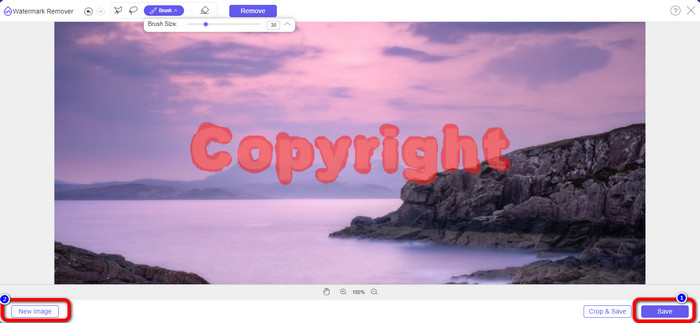
Шаг 4: Когда вы завершите выделение водяных знаков, вы можете удалить их, нажав кнопку Save, и фото будет сохранено автоматически. Откройте файл и посмотрите на изображение без водяного знака. Если вы хотите удалить водяной знак с другой фотографии, нажмите кнопку New Image в левом нижнем углу интерфейса.
Использование инструмента Lasso
Шаг 1: Загрузите JPG-изображение с водяным знаком.
Шаг 2: Выберите Lasso в качестве инструмента для удаления водяных знаков.
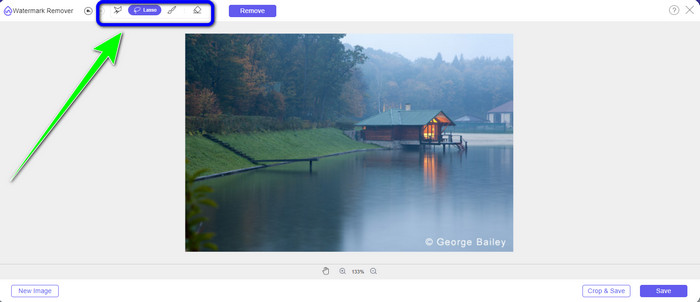
Шаг 3: Нажмите значок + под фотографией, чтобы лучше рассмотреть водяной знак. Затем с помощью инструмента Lasso выделите водяные знаки. Процесс похож на рисование карандашом при нажатой левой кнопке мыши. Вы также можете нажать кнопку Eraser в верхней части интерфейса, чтобы заново выбрать область выделения.
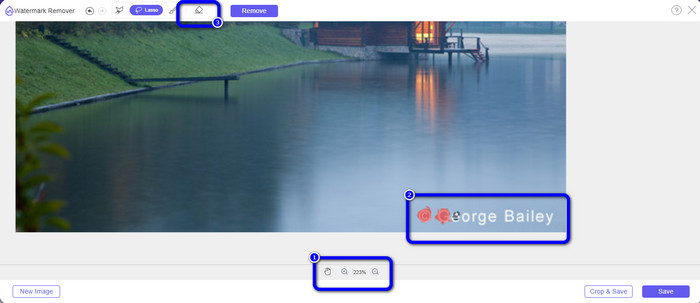
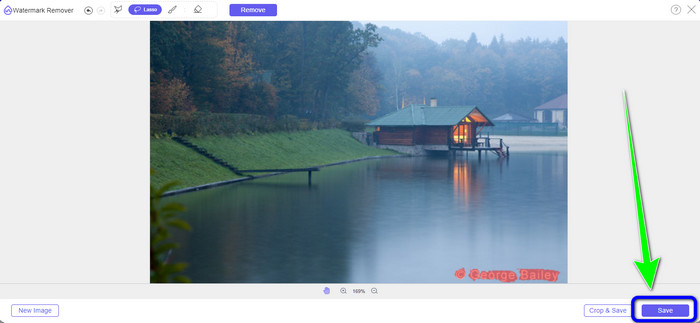
Шаг 4: Когда вы закончите выделение водяного знака с помощью инструмента Lasso, нажмите кнопку Save, чтобы сохранить фотографию. Затем посмотрите на JPG-изображение уже без водяного знака.
Использование инструмента обрезки (Cropping Tool)
При использовании инструмента «Обрезка» убедитесь, что область водяного знака из вашего jpg находится на краю или в углу.
Шаг 1: Загрузите JPG-изображение.
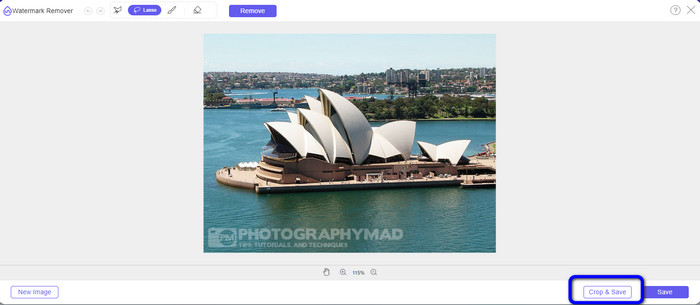
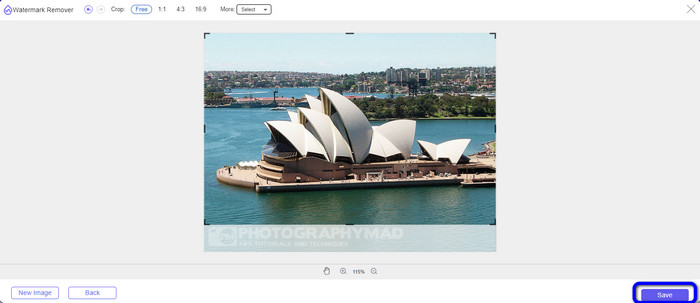
Шаг 2: Нажмите кнопку Crop & Save, чтобы перейти к процессу обрезки.
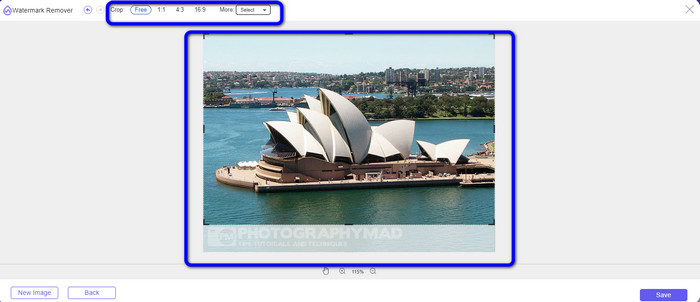
Шаг 3: На этом этапе вы можете обрезать фотографию. Вы также можете использовать верхнюю часть интерфейса для выбора области обрезки.
Шаг 4: После обрезки фотографии нажмите кнопку Save, чтобы сохранить её.
Связанные материалы:
Как удалить людей с фотографий: простой и быстрый способ
Простые способы убрать логотип iSkysoft с видео
Часть 3: Часто задаваемые вопросы об удалении водяного знака из JPG
Что произойдет, если удалить водяной знак с фотографии?
После удаления водяного знака с фотографии отредактированное изображение будет удалено в кратчайшие сроки. Это из-за интенсивной модификации оригинальной фотографии.
Есть ли водяной знак, который трудно удалить?
Да, есть. Единственным исключением из этого правила является водяной знак с полным изображением, например тот, который используется компаниями, занимающимися стоковой фотографией, для защиты фотографий. Полностью искоренить их невозможно. Если вы это сделаете, вы увидите низкое качество фотографии после удаления водяного знака с полным изображением.
Могу ли я удалить водяные знаки из JPG без потери качества?
Да, можете. Используйте FVC Free Watermark Remover. Это онлайн-приложение позволяет удалять любые нежелательные элементы с JPG-изображений без потери качества.
Заключение
В этой статье представлены лучшие способы, которые вы можете использовать, чтобы удалить водяные знаки с JPG онлайн. Кроме того, вы ознакомились с наиболее эффективными инструментами для удаления водяных знаков, такими как Lasso, Polygonal, Brush и инструмент обрезки (Cropping tool). Все эти инструменты доступны в надёжном онлайн-сервисе — FVC Free Watermark Remover.
-
 Самый быстрый способ удалить логотип с видео в Adobe Premiere Pro
 Попробуйте эти простые и быстрые способы удаления логотипов из видео в Adobe Premiere Pro. Эта статья предложит вам лучшие способы использования вашего устройства.
-
 Как удалить логотип из видео с помощью Windows Movie Maker
 Если вы хотите узнать об удалении логотипов из видео с помощью Windows Movie Maker и других альтернативных способов, прочитайте эту статью. У нас есть простые способы для вас.
-
 Как легко удалить логотип VideoScribe с видео
 Вам больше не нужно беспокоиться об удалении логотипа VideoScribe из ваших видео. Эта статья даст безотказные методы. Прочтите этот пост, чтобы узнать больше.
