


 Видео конвертер Ultimate
 Устройство записи экрана
 Видео ремонт
Узнайте, как конвертировать F4V в MOV за самые простые шаги
Файл видео Flash MP4, также известный как файл видео MPEG-4, — это видеофайл, основанный на контейнере Apple QuickTime. Файлы с расширением F4V — это видеофайлы, основанные на контейнерном формате Apple QuickTime. По внешнему виду он сопоставим с форматом MP4. Несмотря на краткое объяснение формата F4V, вы всё ещё можете не знать, как конвертировать это видео в другой формат. Благодаря этой статье вы узнаете, как конвертировать F4V в MOV.

Часть 1. Обсуждение деталей: F4V и MOV
Файлы Flash‑видео используют расширение .f4v. Расширение .f4v было применено к файлам MPEG-4, которые ранее имели расширение .mp4. Когда речь идёт о распространении динамических медиа, F4V является общепринятым стандартным форматом. Важно отметить, что файлы F4V по сути являются контейнерами, используемыми для воспроизведения определённых медиафайлов. В Adobe Flash Player файлы F4V содержат медиаконтент, транслируемый онлайн, и могут просматриваться. По оценкам, до 80 % современных онлайн‑видео можно просматривать с использованием технологии Adobe Flash. Приложение Adobe Air также поддерживает формат файлов F4V.
Однако, как формат QuickTime, MOV используется в среде QuickTime в Mac OS X. Как мультимедийный контейнер, он на платформе Windows позволяет хранить несколько дорожек, каждая из которых содержит разные типы данных (аудио, видео, субтитры). Разделение медиаданных и их смещений, абстрагирование ссылок на данные и ведение списков правок — всё это способы, с помощью которых можно улучшить работу инструментов видеомонтажа. Контейнерный формат MOV широко используется для распространения фильмов и видеороликов в интернете.
Часть 2. Самые полезные советы по преобразованию F4V в MOV
Используйте Video Converter Ultimate для преобразования таких форматов, как F4V в MOV, и по сравнению с другими приложениями и веб-конвертерами это программное обеспечение имеет самый быстрый конвертер, который вы можете себе представить, поскольку оно оснащено технологией аппаратного ускорения, которая ускоряет преобразование F4V в MOV в 8 раз быстрее. . Кроме того, он может конвертировать широкий спектр форматов, даже самые малоизвестные форматы видео, такие как RMVB, MXF, OGV, F4V и т. д. Каждому следует подумать об использовании этого программного обеспечения из-за высокого качества вывода, которое оно обеспечивает, и широкого спектра опций. доступны, которые могут улучшить ваше видео бесплатно. Без лишних слов, вот шаги, которые вы должны предпринять:
Шаг 1. Чтобы начать загрузку, просто щёлкните по символу Free Download, расположенному справа от этого текста, чтобы запустить процесс скачивания. После завершения загрузки вам будет предложено установить программу либо на компьютер с Windows, либо на Macintosh. Чтобы начать пользоваться программой, сначала установите её на рабочий стол компьютера, а затем выберите Start Now в меню «Пуск».
Бесплатная загрузкаДля Windows 7 или более поздних версийБезопасная загрузка
Бесплатная загрузкаДля MacOS 10.7 или более поздних версийБезопасная загрузка
Шаг 2. Запустите только что скачанную программу. После первого запуска на экране отобразится окно с интерфейсом Converter.
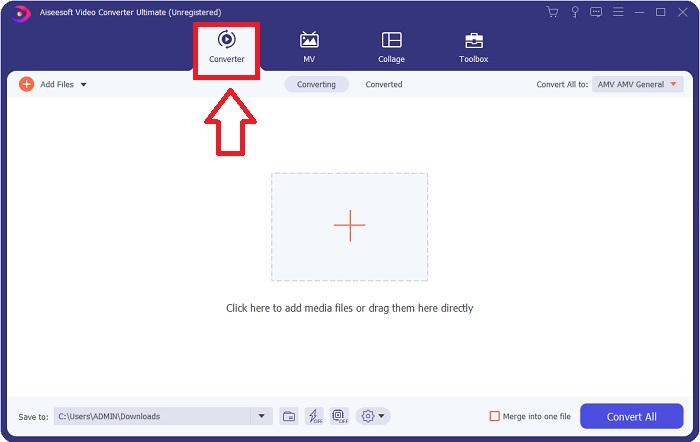
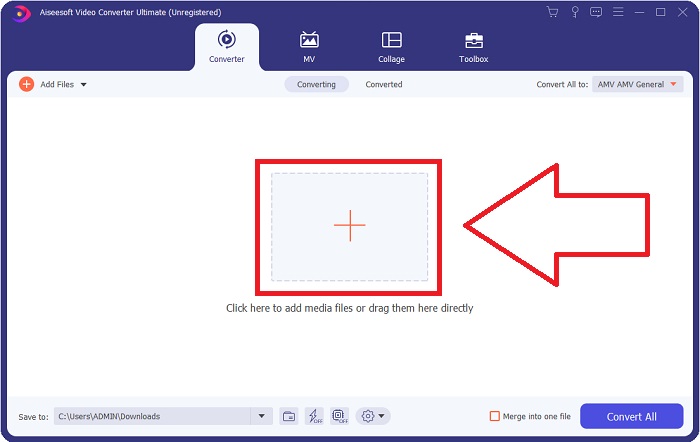
Шаг 3. Импортируйте свои файлы в конвертер, чтобы начать процесс преобразования. Перетащите видеофайл, который вы хотите конвертировать, на значок «+».
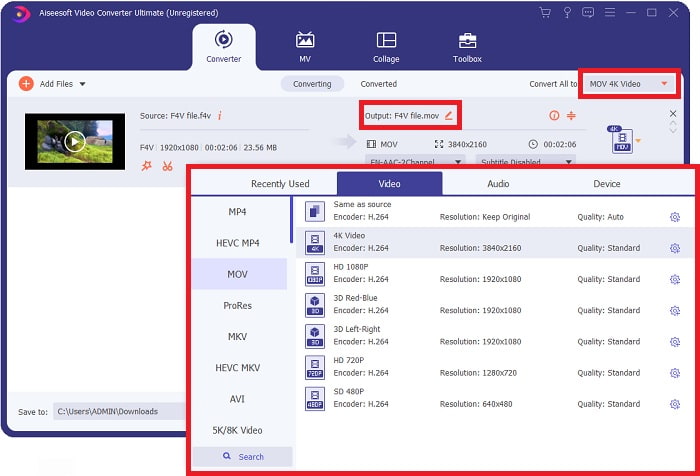
Шаг 4. Чтобы выбрать видеоформат, щёлкните по раскрывающемуся меню в правом верхнем углу экрана. В раскрывающемся меню выберите MOV в качестве видеоформата. После выбора формата MOV вы можете отрегулировать качество видео. Однако если нужный вариант выходного видео не указан, вы можете изменить параметры качества в соответствии со своими потребностями. Можно изменить частоту кадров изображения и качество звука, щёлкнув по значку шестерёнки. Чтобы сохранить изменения, нажмите кнопку Create New.
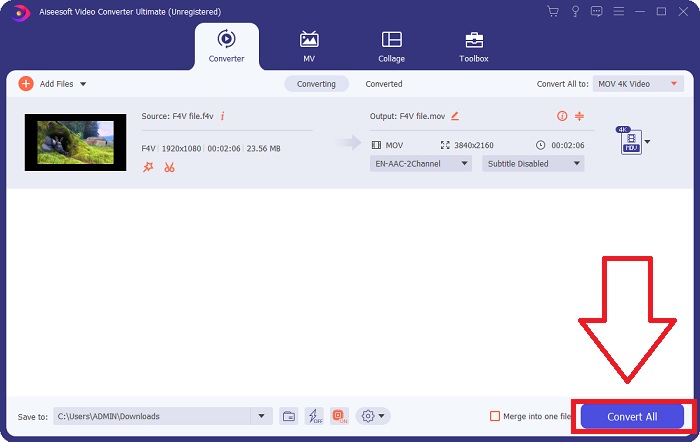
Шаг 5. Когда вы закончите редактировать видео и оно будет готово к конвертации, выберите Convert All, чтобы начать преобразование.
Часть 3. Бонусные советы! Конвертировать F4V в MOV онлайн
Если у вас нет времени скачивать полную версию Video Converter Ultimate, вместо этого воспользуйтесь онлайн‑версией. Free Video Converter Online — лучший онлайн‑инструмент для быстрого и лёгкого преобразования между широким спектром видеоформатов. Поскольку Free Video Converter не имеет ограничений по типам поддерживаемых файлов, он особенно рекомендуется новичкам, в отличие от других интернет‑конвертеров. Чтобы узнать больше об этом веб‑приложении, следуйте приведённым ниже инструкциям.
Шаг 1. Вы можете перейти на официальный сайт данного онлайн‑конвертера, нажав на эту ссылку.
Шаг 2. Если вы используете программу впервые, нажмите Add Files, чтобы загрузить файл с вашего компьютера (кнопка расположена в центре экрана), а также установить небольшое приложение‑запускатель для вашего устройства. После завершения второй загрузки оно запустится автоматически. Когда файл второй раз будет загружен, найдите его в своей папке и нажмите Open, чтобы начать работу.
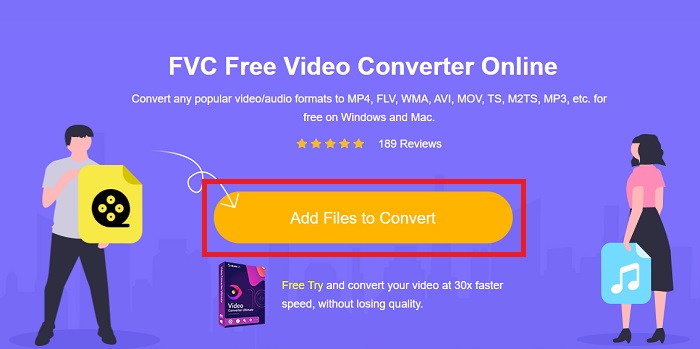
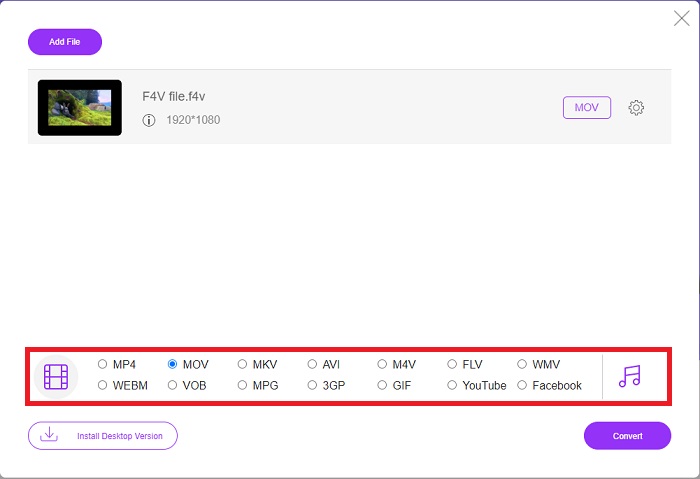
Шаг 3. Чтобы начать процесс конвертации, выберите формат MOV в списке форматов, расположенном в нижней части окна, и щёлкните по нему.
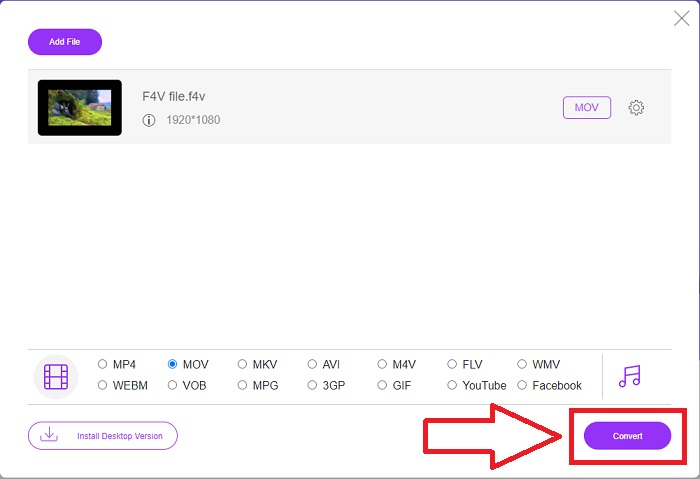
Шаг 4. После того как вы выбрали формат для конвертации, нажмите Convert, чтобы начать процесс преобразования в другой формат.
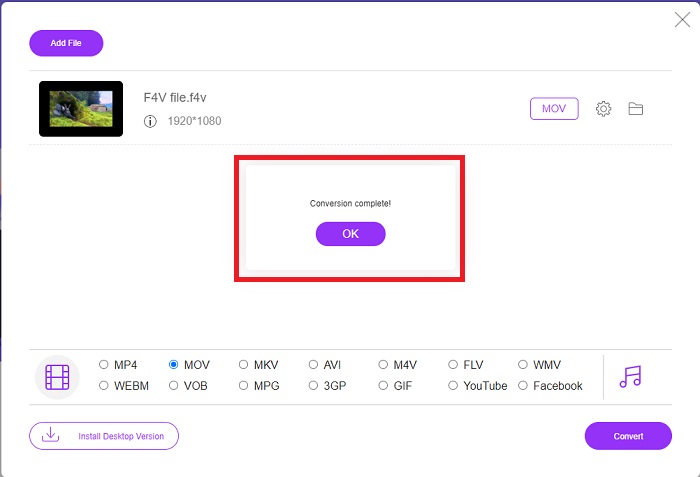
Шаг 5. Пройдёт всего несколько минут, и преобразованный файл появится в папке, которую вы сможете открыть и сразу же начать просмотр.
Часть 4. Часто задаваемые вопросы о преобразовании F4V в MOV
Как воспроизвести файлы F4V на VLC?
Вы можете импортировать и воспроизводить видео F4V в VLC Player, просто перетаскивая его. Для этого вы должны сначала открыть папку, в которой хранится ваш файл F4V. VLC Player необходимо запустить, файл F4V следует перетащить в интерфейс проигрывателя, а затем бросить. Ваш видеофайл должен начать воспроизводиться, как только вы вставите его в проигрыватель.
Как воспроизвести файлы F4V на Mac?
По словам Eltima, сначала необходимо загрузить Elmedia Player с официального сайта. Затем Elmedia может импортировать файлы F4V следующими способами: Просто перетащите файлы F4V в окно проигрывателя или на значок в доке. Выберите пункт меню «Открыть с помощью» в контекстном меню Finder. Используйте Elmedia Player. В главном меню Elmedia Player выберите «Файл», затем «Открыть». Наконец, получайте удовольствие.
Является ли файл MOV таким же, как MP4?
MOV — это проприетарный формат файлов Apple для QuickTime, тогда как MP4 является общеотраслевым стандартом. Поскольку файлы MOV совместимы не со всеми протоколами потоковой передачи, большинство стриминговых сервисов предпочитают файлы MP4. С другой стороны, файлы MOV, как правило, обладают более высоким качеством и большим размером по сравнению с MP4. Для видеомонтажа на Mac файлы MOV лучше, поскольку они специально разработаны для QuickTime, что делает их удобнее в использовании. Продолжайте чтение, чтобы узнать больше подробностей о различиях между MOV и MP4.
Заключение
Важно помнить, что, несмотря на множество описанных выше онлайн‑решений, проблемы с подключением — одна из самых частых причин сбоев при онлайн‑конвертации видео. Поэтому рекомендуется использовать бесплатное программное обеспечение, такое как Video Converter Ultimate, которое можно скачать и установить. Помимо того, что этот конвертер преобразует ваши видеоклипы с приемлемо высокой скоростью, он предлагает широкий набор полезных функций. Кроме того, он поддерживает множество видеоформатов, так что вам не придётся беспокоиться о конвертации непривычных файлов, чтобы получить максимально качественный результат.
-
 4 новейших онлайн- и офлайн-конвертера для преобразования F4V в формат AVI
 Разве вы не знаете, какой конвертер следует использовать для преобразования F4V в AVI или любой другой видеоформат? Затем прочитайте эту статью, чтобы узнать, как конвертировать с помощью доступного инструмента.
-
 Как конвертировать M2TS в MOV бесплатно [онлайн и офлайн]
 Вам нужно преобразовать M2TS в MOV для воспроизведения видеофайлов на нескольких проигрывателях и платформах? Эта статья поможет вам найти лучший онлайн / офлайн метод преобразования M2TS в MOV на Windows / Mac.
-
 Как конвертировать MP4 в MOV на Mac / ПК / онлайн
 Как конвертировать MP4 в MOV на Mac? Есть ли бесплатный способ конвертировать MP4 в MOV без потери качества? В этом посте рассказывается о 4 простых способах конвертации видео из MP4 в MOV на Mac, ПК с Windows и в Интернете.
