


 Видео конвертер Ultimate
 Устройство записи экрана
 Видео ремонт
Выдающиеся инструменты, которые решают вопрос о том, как преобразовать MPEG в MOV
Будучи стандартом сжатия видео- и аудиофайлов, он также обеспечивает более эффективную передачу этих файлов. Группа экспертов по движущимся изображениям (Moving Picture Experts Group, MPEG) — это название комитета специалистов, которые разрабатывают стандарты MPEG. Все эти варианты имеют собственные спецификации и области применения в индустрии, из‑за чего бывает сложно понять, какой из них выбрать. Ниже приводится краткий обзор содержания этой статьи. В основном в ней рассматривается, как конвертировать MPEG в MOV, а также приводятся сопутствующие детали и информация. Продолжайте чтение, чтобы узнать о различиях и сравнении этих двух видеоформатов.
Часть 1. MPEG VS. MOV - Введение
MPEG — устаревший тип видеофайлов, в котором сжатие видеоданных выполняется с помощью стандартов MPEG-1 или MPEG-2. Наиболее распространённые области применения этой технологии — интернет‑видео и распространение видео на DVD. Отсутствие возможности полностью без потерь сжимать данные и меньшая гибкость по сравнению с некоторыми другими форматами делают MPEG не лучшим вариантом для видеомонтажа. Поскольку MPEG долгое время являлся стандартом, он хорошо поддерживается основными браузерами и видеоплеерами и подходит для потоковой передачи. Это отличный выбор для распространения готового видеопродукта через Интернет и на DVD.
Однако видео в формате MOV обычно ассоциируется с мультимедийным плеером QuickTime. Компания Apple создала это видеорасширение. Формат сжимает видео и аудио с помощью специального алгоритма. Несмотря на то что это продукт Apple, он совместим как с операционной системой macOS, так и с Windows. Теперь, когда вы знаете всё об этих двух видеоформатах, в следующей части будут рассмотрены лучшие программы и онлайн‑сервисы, с помощью которых можно конвертировать MPEG в MOV и наоборот.
Часть 2. Как конвертировать MPEG в MOV на Mac
Если вы ищете подходящее программное обеспечение для Mac, чтобы конвертировать MPEG в MOV, в этой статье рекомендуется Video Converter Ultimate. Эту программу можно бесплатно скачать, она доступна как для Windows, так и для Mac. Ею может пользоваться широкий круг пользователей, поскольку она обладает очень простыми в использовании инструментами и удобным интерфейсом.
Помимо другого программного обеспечения и онлайн-инструментов, которые могут конвертировать, это программное обеспечение имеет конвертер, который поддерживает множество видеоформатов и может конвертировать файлы менее чем за минуту. За исключением исключительной функции конвертера, это программное обеспечение предлагает различные инструменты для еще большего улучшения вашего видео. Достаточно описательных подробностей о программном обеспечении, давайте погрузимся в процедуры, которым вам необходимо следовать:
Шаг 1: Щёлкните правой кнопкой мыши по значку Бесплатная загрузка, приведённому ниже, чтобы начать процесс скачивания. Программа поддерживает как компьютеры под управлением Windows, так и macOS. После завершения загрузки установите её и начните работу, нажав кнопку Начать сейчас.
Бесплатная загрузкаДля Windows 7 или более поздних версийБезопасная загрузка
Бесплатная загрузкаДля MacOS 10.7 или более поздних версийБезопасная загрузка
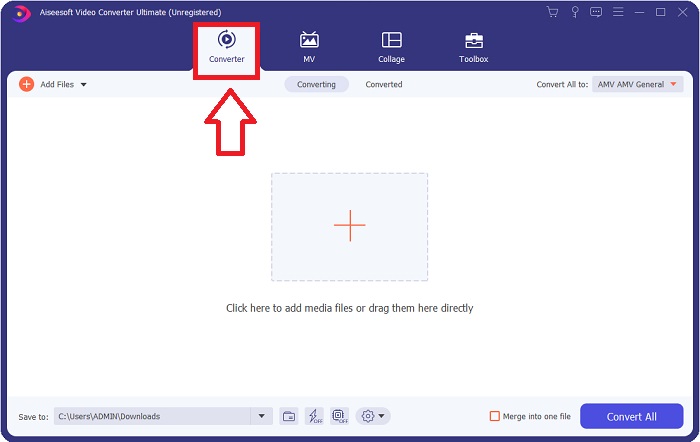
Шаг 2: После загрузки программы откройте её. При первом запуске появится окно. Начните процесс конвертации, добавив в него свой видеофайл.
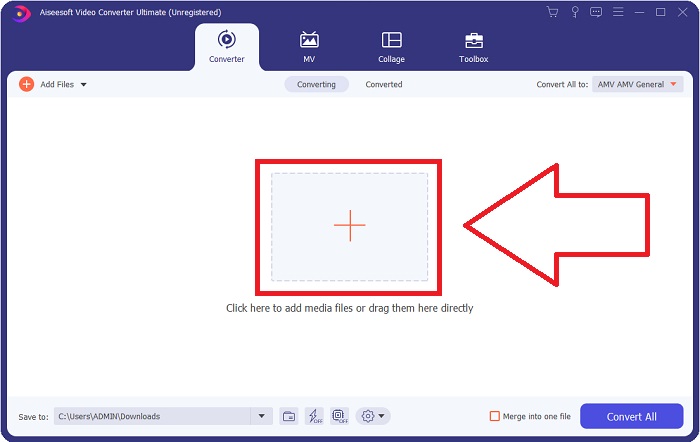
Шаг 3: Запустите процесс конвертации, загрузив в конвертер файлы, которые вы хотите преобразовать. Для этого перетащите видео или нажмите на символ «+».
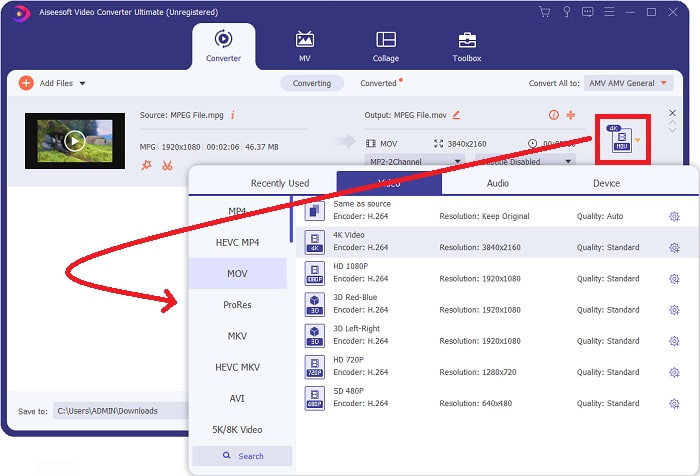
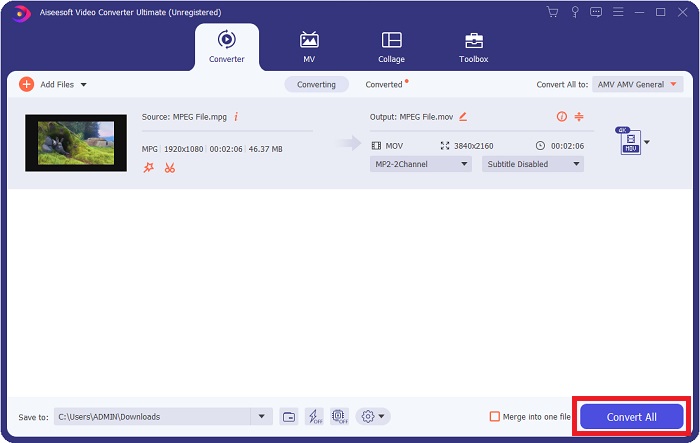
Шаг 4: В правом верхнем углу экрана отображается меню параметров, где вы можете выбрать видеоформат. В раскрывающемся меню Конвертировать всё теперь можно выбрать MOV как целевой видеоформат. В зависимости от выбранного формата MOV вы можете указать один из доступных уровней качества видео. Однако вы также можете изменить настройки качества, если нужный вам вариант вывода не предусмотрен. Нажав на значок шестерёнки, можно изменить частоту кадров и качество звука. Чтобы сохранить изменения, нажмите кнопку Создать новый.
Шаг 5: Когда вы закончите редактирование видео и оно будет готово к конвертации, нажмите Конвертировать всё, чтобы начать преобразование.
Часть 3. Отличные онлайн-конвертеры, которые помогают конвертировать MPEG в MOV
Метод 1. Используйте бесплатный онлайн-конвертер видео.
FVC Free Video Converter Online — это бесплатный мультимедийный конвертер, который поддерживает широкий спектр форматов. Если у вас есть видео высокой чёткости, вы можете без потери качества легко конвертировать его в такие форматы, как MP4, FLV и WMV. Если у вас много видео- или аудиофайлов, которые нужно преобразовать, вы можете сделать это без потери качества. Это бесплатное приложение для конвертации видео популярно для конвертирования и редактирования, предоставляя пользователям множество параметров для тонкой настройки своих роликов. Давайте пристегнёмся и разберём все необходимые шаги:
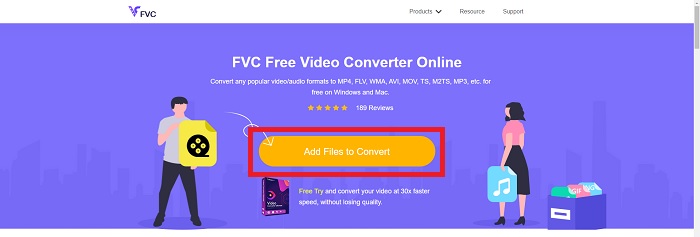
Шаг 1: Эта ссылка перенесёт вас на главную страницу конвертера FVC.
Шаг 2: При первом использовании нажмите справа Добавить файлы, чтобы установить загрузчик на ваш компьютер. При повторном скачивании процесс начнётся автоматически. В проводнике/папке найдите файл и нажмите «Открыть», чтобы вновь запустить процесс загрузки.
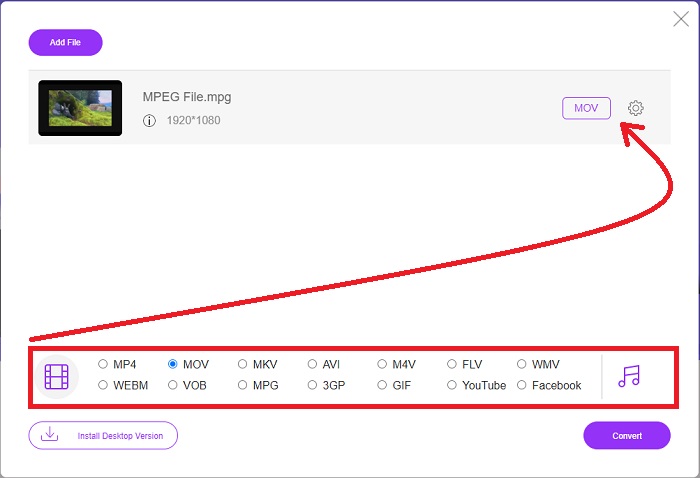
Шаг 3: Чтобы задать параметры ещё до начала конвертации, выберите нужный формат из раскрывающегося списка ниже и щёлкните по нему.
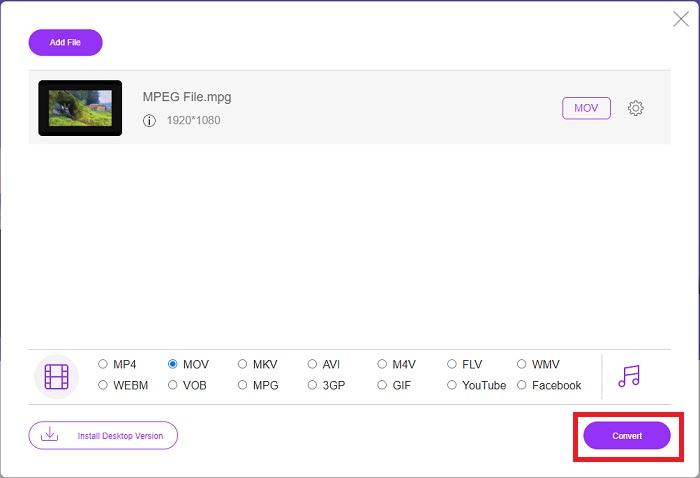
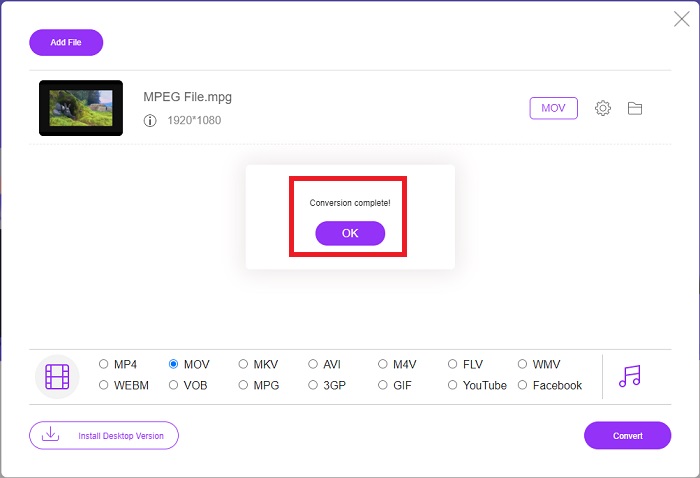
Шаг 4: После того как вы выбрали формат MOV для конвертации, нажмите Конвертировать, чтобы начать процесс преобразования.
Шаг 5: Через несколько минут вы увидите папку с преобразованным файлом, после чего сможете открыть его и начать просмотр.
Способы 2. Используйте CloudConvert
CloudConvert — это онлайн‑сервис для конвертации файлов. На нашей платформе можно воспроизводить практически любые аудио‑ и видеофайлы. С CloudConvert конвертировать файлы стало как никогда просто. На нашей системе можно проигрывать почти любые типы музыкальных и видеофайлов. Вы также можете пользоваться нашим веб‑инструментом без установки какого‑либо программного обеспечения на компьютер. Итак, вот шаги, которые вам нужно знать:
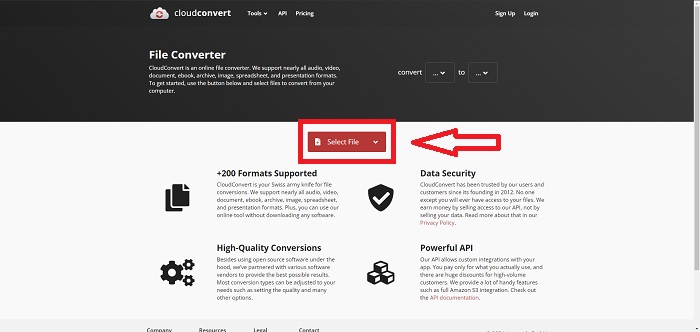
Шаг 1: В главном интерфейсе вы можете сразу указать текущий видеоформат и формат, в который хотите конвертировать файл. Нажмите Выбрать файл, чтобы загрузить файл с компьютера.
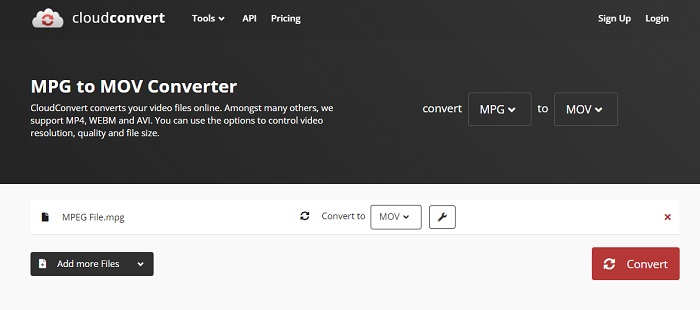
Шаг 2: Вы можете выбрать, в какой видеоформат будет выполнено преобразование, нажав на многоточие рядом с кнопкой Convert («Конвертировать»).
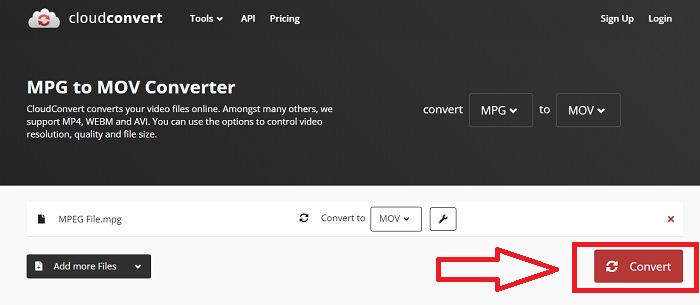
Шаг 3: После того как все настройки будут выполнены, нажмите кнопку Convert («Конвертировать»), чтобы запустить процесс преобразования.
Часть 4. Сравнительная таблица: MPEG и MOV
| Расширение файла | MOV | MPEG |
| Тип файла | Apple QuickTime Movie | Фильм MPEG |
| Разработано | яблоко | Нет данных |
| Плюсы | Качественные фильмы и | Один из немногих форматов |
| Мультимедиа можно сжимать более эффективно с помощью нескольких кодеков. | Признается практически всеми DVD-плеерами; позволяет улучшить сжатие. | |
| Минусы | Несмотря на то, что многие бесплатные видеоплееры могут воспроизводить его, у него все еще есть проблемы, потому что это контейнерный формат, содержащий различные кодеки. | В общем, формат MPEG имеет меньшее количество приложений и разработчиков, потому что это более строгий стандарт. |
Часть 5. Часто задаваемые вопросы о преобразовании MPEG в MOV
Как уменьшить размер файла MOV?
Используя VideoConverter, вам нужно всего лишь найти файл MOV, который вы хотите отредактировать, и щелкнуть его правой кнопкой мыши, чтобы выбрать «Свойства» в контекстном меню. Затем выберите «Общие», затем перейдите к «Дополнительно» в раскрывающемся меню. Чтобы сэкономить место для хранения, установите флажок рядом с Сжать содержимое в раскрывающемся меню. Нажатие OK приведет к тому, что файл будет сохранен в меньшем размере, чем был изначально.
Как сжать файлы MOV?
Файл MOV можно сжать и заархивировать в Windows, выбрав его и нажав и удерживая правую кнопку мыши до появления всплывающего окна, затем выбрав в появившемся меню пункт 'Отправить'. В выпадающем списке в качестве назначения нужно указать «Сжатая (zip)‑папка». Либо вы можете воспользоваться видеосжатием, чтобы сжать свои MOV‑файлы.
MPG и MPEG - это одно и то же?
Расширения файлов MPEG-1 и MPEG-2 также используются для обозначения файлов MPG. Файлы MPG обоих типов служат средством синхронизации аудио- и видеоданных как файлы-контейнеры для этих данных. Благодаря совместимости с различными приложениями, MPEG-2 стал популярным выбором для сжатия файлов.
Заключение
Подводя итог всему тому, что мы обсуждали, трудно использовать незнакомый видеоформат для воспроизведения его на некоторых медиаплеерах, поэтому выдающееся программное обеспечение, на которое вы можете положиться, - это то, что вам нужно. Video Converter Ultimate - это то, что эта статья больше всего рекомендует, особенно в процессе конвертации и многое другое с его различными и полезными инструментами, которые могут сделать вас профессиональным редактором.
-
 Как конвертировать файлы MPEG в MP4 бесплатно на Windows, Mac, в Интернете
 Прочтите и получите 3 бесплатных способа конвертировать MPEG в файлы MP4 на вашем компьютере. Вы можете использовать онлайн-конвертеры и конвертеры видео для настольных компьютеров, чтобы легко преобразовать MPEG в формат MP4.
-
 [2021] Лучшие инструменты и простые способы преобразования MPEG в MP3
 В этой статье в основном рассказывается о том, как конвертировать видео MPEG в MP3 с использованием самых надежных инструментов из списка.
-
 Как конвертировать AVI в MOV с помощью простых шагов и инструментов
 Вы хотите знать, как преобразовать AVI в воспроизводимый MOV? Вы должны следовать этой статье, чтобы узнать, как это сделать, и узнать, как добиться успешного преобразования.
