


 Видео конвертер Ultimate
 Устройство записи экрана
 Видео ремонт
 Безопасная загрузка
Как конвертировать FLAC в MP3: руководство по высококачественному сжатию аудио
Хотите избежать ситуации, когда ваши высококачественные аудиофайлы FLAC занимают слишком много места на устройстве? Конвертация их в широко совместимый формат MP3 поможет решить эту проблему без существенной потери качества звука. В этом руководстве мы шаг за шагом покажем, как конвертировать FLAC в MP3. Мы рассмотрим всё: от лучших инструментов и советов для эффективной конвертации до способов максимально сохранить качество в процессе. Наслаждайтесь любимой музыкой на любом устройстве, не беспокоясь о свободном месте.

1. Конвертер видео FVC Ultimate
FVC Video Converter Ultimate — это многофункциональное программное обеспечение для конвертации видео, которое умеет преобразовывать не только различные видеоформаты, но и поддерживает конвертацию аудио. Это универсальное решение для конвертации, загрузки, редактирования и записи видео- и аудиофайлов. Помимо возможностей по обработке видео, FVC Video Converter Ultimate может конвертировать аудиофайлы между различными форматами, в том числе выполнять преобразование FLAC в MP3. Он поддерживает широкий спектр аудиоформатов, таких как WAV, AAC, M4A, WMA и многие другие. Чтобы узнать, как пользоваться этим конвертером FLAC в MP3, выполните следующие шаги.
Шаг 1. Установите программу
Сначала вам нужно установить программу на компьютер. Для этого нажмите одну из кнопок Бесплатная загрузка, чтобы скачать инструмент. Затем следуйте указаниям мастера установки, чтобы инсталлировать программу. После этого запустите её на компьютере, чтобы увидеть основной интерфейс.
Бесплатная загрузкаДля Windows 7 или более поздних версийБезопасная загрузка
Бесплатная загрузкаДля MacOS 10.7 или более поздних версийБезопасная загрузка
Шаг 2. Добавьте файл FLAC или MP3
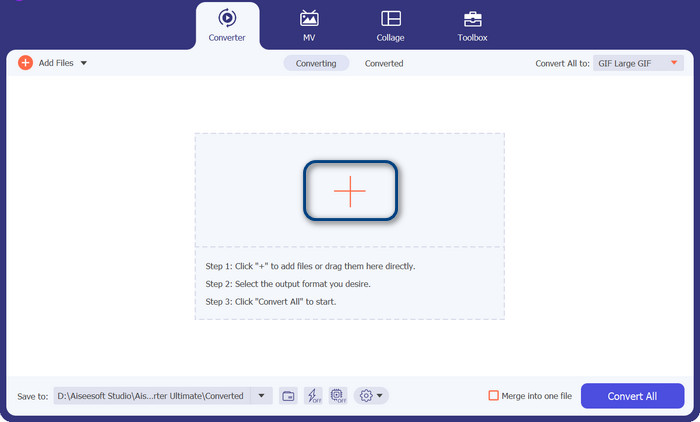
Если вы хотите конвертировать MP3 в FLAC или наоборот, добавьте аудиофайл, нажав кнопку со знаком плюс в главном интерфейсе. Вы можете выбрать один или несколько аудиофайлов по своему желанию. После этого вы должны увидеть их миниатюру в главном интерфейсе.
Шаг 3. Укажите выходной формат
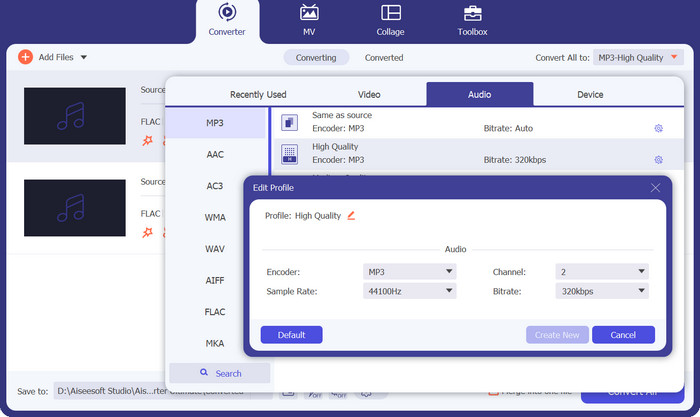
Теперь нажмите меню Профиль в верхней правой части интерфейса программы. Когда список откроется, выберите вкладку Аудио и найдите MP3. Чтобы конвертировать MP3 в FLAC, выберите формат FLAC в качестве выходного файла. При желании вы можете отредактировать настройки вывода в соответствии со своими предпочтениями.
Шаг 4. Конвертируйте в FLAC
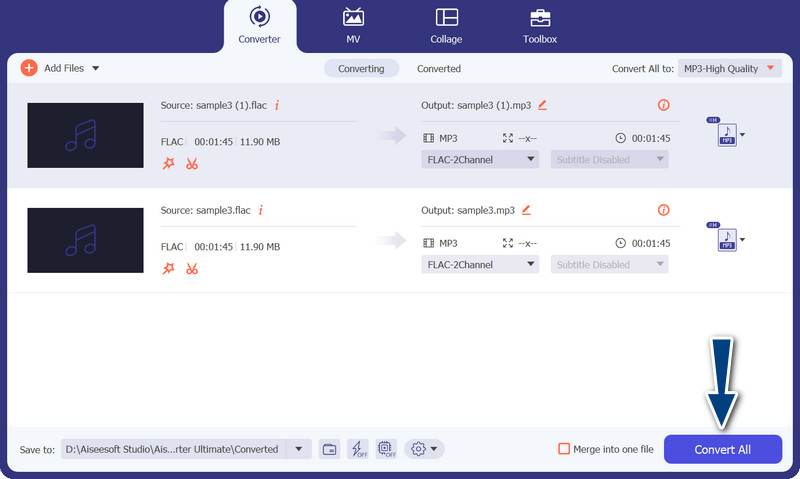
Теперь задайте папку, в которой вы хотите сохранить выходные файлы. Она находится в самой нижней части интерфейса. Нажмите на неё и укажите папку для сохранения. Когда всё будет готово, нажмите кнопку Convert All (Конвертировать всё), чтобы начать преобразование. Так работает этот конвертер MP3 в FLAC и FLAC в MP3.
Плюсы
- Он предоставляет удобный интерфейс и простые в использовании инструменты для преобразования.
- Программное обеспечение включает в себя функции для редактирования видео.
- Быстрая скорость преобразования без ущерба для качества.
Минусы
- Это платный конвертер FLAC в MP3.
- Качество преобразования может варьироваться в зависимости от источника.
2. Бесплатный онлайн-конвертер видео
Если вы ищете бесплатную программу и хотите узнать, как конвертировать FLAC в MP3 онлайн, стоит обратить внимание на Free Video Converter Online. Как видно из названия, он помогает пользователям конвертировать видео- или аудиофайлы совершенно бесплатно. Кроме того, он даёт возможность настроить параметры выходного файла по своему усмотрению. К тому же скорость конвертации не разочарует. Пока у вас есть доступ к интернету, вы можете рассчитывать на получение нужного результата. Узнайте, как работает этот бесплатный конвертер FLAC в MP3, ознакомившись с пошаговой инструкцией ниже:
Шаг 1. Откройте веб-браузер и зайдите на выбранный онлайн-конвертер видео.
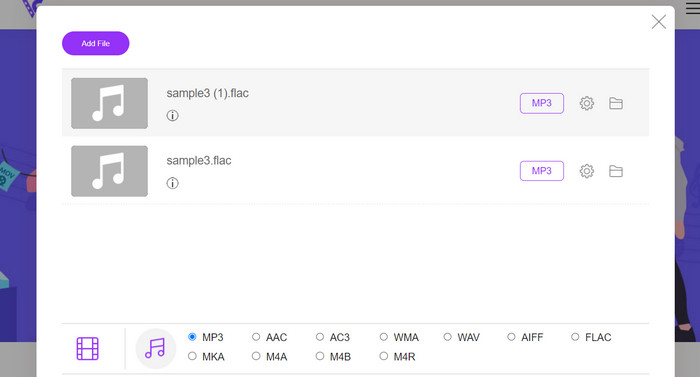
Шаг 2. Нажав кнопку Add Files to Convert (Добавить файлы для конвертации), вы можете загрузить файл FLAC, который хотите преобразовать из FLAC в MP3.
Шаг 3. В списке доступных форматов выберите MP3 в качестве выходного формата в меню форматов Audio (Аудио). Затем задайте желаемый битрейт или качество выходного MP3-файла.
Шаг 4. Чтобы запустить процесс конвертации, нажмите кнопку Convert (Конвертировать). В зависимости от размера файла и скорости интернет-соединения может потребоваться несколько минут, чтобы конвертация завершилась.
Плюсы
- Получите доступ к лучшему бесплатному конвертеру FLAC в MP3 в любое время.
- Требует минимальных технических знаний.
- Это может сэкономить время и место на компьютере.
Минусы
- Он не предлагает такой же уровень настройки, как настольное программное обеспечение.
- Требуется стабильное и быстрое интернет-соединение.
Часть 2. Преобразование FLAC в MP3 или MP3 в FLAC на мобильном устройстве
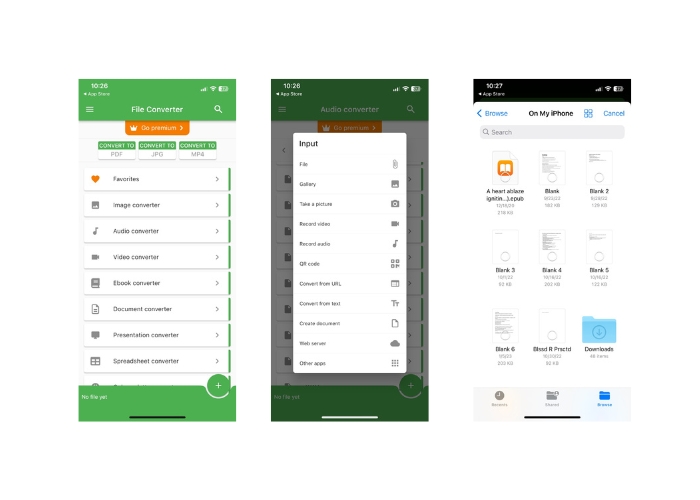
File Converter — это бесплатное мобильное приложение для устройств iOS, которое позволяет конвертировать файлы различных форматов, включая аудио- и видеофайлы. Приложение предоставляет простой и удобный интерфейс, который позволяет конвертировать файлы без необходимости в каком-либо дополнительном программном обеспечении. Приложение поддерживает широкий спектр аудио- и видеоформатов, включая FLAC, MP3, WAV, M4A и другие.
Это означает, что вы можете легко конвертировать аудио- и видеофайлы из одного формата без каких-либо хлопот. Одной из выдающихся особенностей File Converter является его способность выполнять пакетное преобразование FLAC в MP3. Это означает, что вы можете конвертировать несколько файлов одновременно, экономя ваше время и усилия.
Шаг 1. Загрузите и установите приложение File Converter из App Store. Откройте приложение и выберите опцию Audio (Аудио).
Шаг 2. В списке доступных вариантов аудиоконвертации выберите FLAC to MP3 (FLAC в MP3).
Шаг 3. Чтобы добавить файлы FLAC, которые вы хотите конвертировать, используйте кнопку +. После добавления файлов вы при желании можете изменить параметры конвертации. Можно настроить качество выходного файла, битрейт и другие параметры.
Шаг 4. Чтобы начать процесс конвертации, ещё раз нажмите кнопку Convert (Конвертировать). Преобразованные MP3-файлы будут сохранены локально на вашем устройстве.
Плюсы
- Он может конвертировать несколько файлов одновременно.
- Процесс преобразования относительно быстрый.
Минусы
- Он имеет ограничение на размер файла 250 МБ.
- Он не предоставляет расширенные параметры.
Дополнительные материалы:
WAV в MP3 – 5 лучших бесплатных конвертеров для преобразования WAV в MP3
3 лучших редактора метаданных FLAC для Mac и Windows [обновлено в 2023 году]
Часть 3. Часто задаваемые вопросы о конвертации FLAC и MP3
Могу ли я конвертировать FLAC в MP3 на Mac?
Да, ты можешь. Если на вашем Mac установлен iTunes, вы можете использовать его для преобразования файлов FLAC в MP3. Просто импортируйте файлы FLAC в iTunes, выберите файлы, которые вы хотите преобразовать, а затем выберите «Файл» > «Преобразовать» > «Создать версию MP3». Преобразованные файлы MP3 будут сохранены в вашей медиатеке iTunes.
Может ли Audacity конвертировать FLAC в MP3?
Да, Audacity может выполнять пакетное преобразование файлов FLAC в MP3 на Mac. Для этого сначала откройте Audacity и создайте цепочку редактирования, включающую команды «Экспорт нескольких». В диалоговых окнах «Экспорт нескольких» установите тип файла «Файлы MP3» и настройте параметры экспорта MP3 по своему вкусу.
Повлияет ли преобразование FLAC в MP3 на качество звука?
Да, преобразование FLAC в MP3 связано с некоторой потерей качества звука, поскольку MP3 — это формат сжатия с потерями. Тем не менее, с хорошим кодировщиком и правильными настройками вы можете свести к минимуму потерю качества и при этом получить прилично звучащий файл MP3.
Заключение
Преобразование FLAC в MP3 может быть удобным способом сделать большие аудиофайлы более управляемыми, при этом сохранив достойное качество звука. Благодаря множеству доступных инструментов, включая настольные программы и мобильные приложения, пользователи легко могут подобрать подходящее решение под свои задачи. Однако важно помнить, что при конвертации из формата без потерь в формат с потерями, такой как MP3, неизбежно происходит некоторое снижение качества звука, и пользователям стоит взвесить плюсы и минусы различных методов конвертации, прежде чем приступать. В целом, при должном внимании к настройкам и деталям конвертация FLAC в MP3 может стать эффективным способом управления большими аудиофайлами.
-
 Загрузка MP3-плеера — 10 лучших бесплатных музыкальных MP3-плееров 2023 года
 Какой лучший музыкальный проигрыватель MP3? Как поставить музыку на MP3-плеер? Как заставить музыкальный проигрыватель MP3 скачать? В этом посте представлен подробный обзор 10 лучших бесплатных MP3-плееров для ПК с Windows и Mac.
-
 Практическое руководство по преобразованию видео в формат MP3
 Возникли проблемы с преобразованием видео в MP3? Затем вы должны полагаться на это описание, поскольку мы исследуем, какой преобразователь обеспечивает наилучшее преобразование.
-
 5 MP3-резаков для легкой обрезки любого аудио [обновление 2023 г.]
 Вам нужен MP3-резак для обрезки аудио? В этом случае прочитайте эту статью, потому что мы предоставляем инструменты, на которые вы можете положиться и которые обеспечивают простую нарезку аудио.
