


 Видео конвертер Ultimate
 Устройство записи экрана
 Видео ремонт
 Безопасная загрузка
Лучшие конвертеры MP3 в M4A: быстрое и простое преобразование аудио
Вы остаетесь недовольны, когда слушаете звук низкого качества, который не передает всю прелесть ваших любимых треков? Пришло время улучшить впечатления от прослушивания с помощью мощного преобразования MP3 в M4A! Конвертируя аудиофайлы в формат M4A, вы сможете раскрыть истинный потенциал своей музыкальной коллекции и сами услышать разницу. В этом руководстве мы расскажем о преимуществах конвертации MP3 в M4A и предложим лучшее программное обеспечение для конвертации, чтобы обеспечить вам максимально простой и плавный процесс. Подготовьтесь изменить свой аудиоопыт и наслаждаться музыкой так, как никогда раньше.

Часть 1. Лучшие способы конвертировать MP3 в M4A
Вот некоторые из лучших аудио конвертеров из MP3 в M4a. Существует автономный способ, который представляет собой настольное приложение, и еще один онлайн-инструмент, который представляет собой веб-программу. Ознакомьтесь с ними, чтобы узнать больше.
1. Конвертер видео Ultimate
Video Converter Ultimate — это многофункциональная программа, предлагающая широкий набор возможностей для конвертации аудио и видео. Когда речь идет о преобразовании MP3 в M4A, Video Converter Ultimate — отличный выбор, обеспечивающий пользователям простой и понятный процесс конвертации аудиофайлов. Инструмент поддерживает множество аудиоформатов, а его продвинутая технология аудиокодека гарантирует высокое качество результата. Нужно ли вам конвертировать аудио для личного или профессионального использования, Video Converter Ultimate делает процесс быстрым, позволяя сосредоточиться на самом важном — наслаждении высококачественными аудиофайлами.
Шаг 1. Скачайте программу и установите её
Для начала нажмите одну из кнопок Бесплатная загрузка, а затем следуйте инструкциям на экране, чтобы сохранить файл на компьютер. Далее запустите приложение и ознакомьтесь с его интуитивно понятным управлением.
Бесплатная загрузкаДля Windows 7 и новееБезопасная загрузка
Бесплатная загрузкаДля macOS 10.7 и новееБезопасная загрузка
Шаг 2. Добавьте аудиофайлы
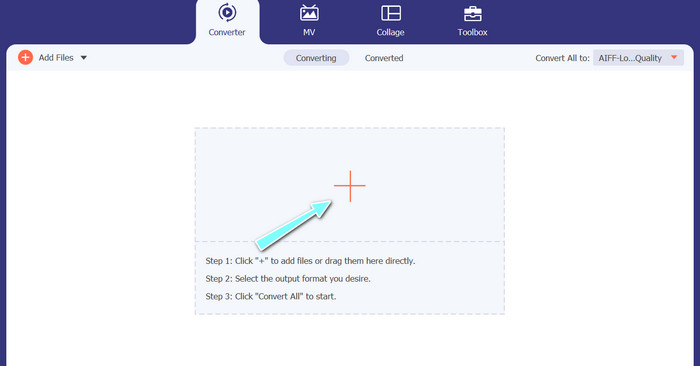
Затем нажмите на значок плюс в главном окне и перейдите к расположению аудиофайла, который хотите конвертировать. После загрузки файла его предварительный просмотр отобразится в интерфейсе. Если вы хотите пакетно конвертировать MP3 в M4A, вы можете загрузить целую папку файлов.
Шаг 3. Выберите выходной формат
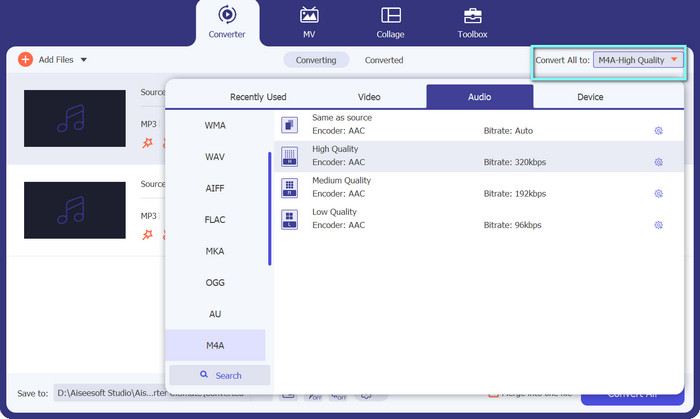
Теперь выберите выходной формат, щелкнув вкладку Audio в меню Profile (расположено в правом верхнем углу окна). Вы можете конвертировать в MP3 или из него, используя формат MP3 или M4A.
Шаг 4. Сохраните результат
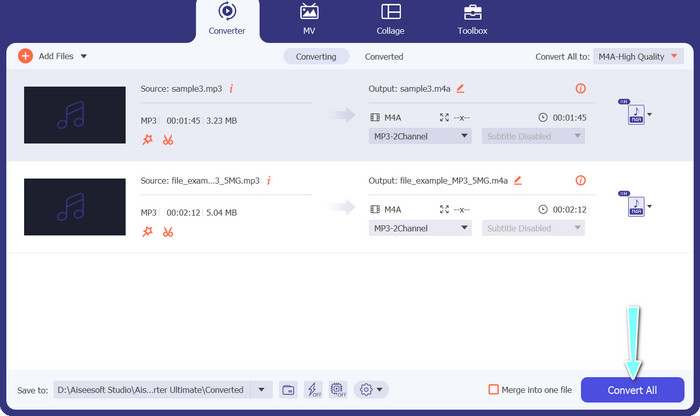
Внизу экрана выберите папку для сохранения. Когда будете готовы начать конвертацию, нажмите кнопку Convert All.
2. Бесплатный онлайн-конвертер видео
Нет свободного места для установки еще одной программы? Не переживайте: вы можете воспользоваться онлайн‑инструментом, чтобы конвертировать файлы без скачивания ПО. Веб‑приложение Free Video Converter Online позволяет выполнять конвертацию прямо в браузере. Кроме того, оно поддерживает множество форматов как для видео, так и для аудио. К тому же с помощью этого онлайн‑сервиса можно выполнять пакетную конвертацию. Помимо этого, возможность настраивать параметры выходного аудиофайла — еще одно сильное преимущество инструмента. Ознакомьтесь, как работает этот онлайн‑конвертер MP3 в M4A.
Шаг 1. Чтобы начать работу с Free Video Converter Online, сначала откройте любимый веб‑браузер и перейдите прямо на сайт сервиса.
Шаг 2. Затем выберите MP3‑файл, который вы хотите конвертировать в M4A, нажав кнопку Add Files to Convert.
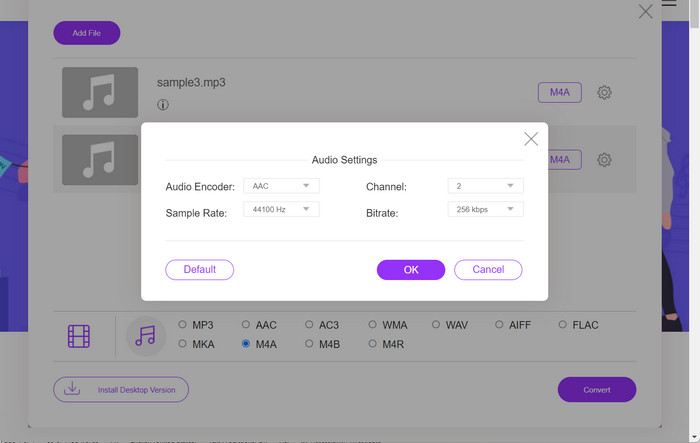
Шаг 3. В разделе форматов Audio выберите M4A в качестве желаемого выходного файла. Вы также можете изменить качество (битрейт) выходного файла M4A.
Шаг 4. Нажмите кнопку Convert, чтобы запустить процесс конвертации. Вот так вы конвертируете MP3 в M4A онлайн.
Часть 2. Преобразование MP3 в M4A в Windows
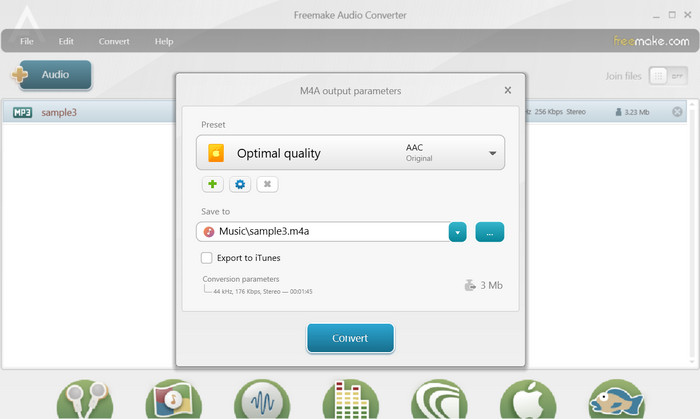
Freemake Audio Converter — бесплатная и простая в использовании программа, которая позволяет пользователям конвертировать аудиофайлы в различные форматы, включая M4A, MP3, WAV и другие. Благодаря простому интерфейсу перетаскивания пользователи могут легко добавлять свои файлы MP3 и преобразовывать их в M4A без каких-либо сложных настроек или конфигураций. Инструмент также имеет ряд параметров настройки, позволяющих пользователям настраивать такие параметры, как битрейт и частота дискретизации, чтобы получить желаемое качество вывода. В общем, это один из лучших конвертеров MP3 в M4A, который вы можете использовать.
Шаг 1. Скачайте и установите Freemake Audio Converter на компьютер под управлением Windows.
Шаг 2. Запустите программу и нажмите кнопку +Audio, чтобы добавить ваш(и) MP3‑файл(ы) в программу.
Шаг 3. Внизу окна программы выберите пункт M4A из списка доступных форматов. Используйте раскрывающееся меню, чтобы задать нужное качество выходного файла.
Шаг 4. Выберите папку, в которую хотите сохранить конвертированный файл. Наконец, нажмите кнопку Convert, чтобы начать процесс конвертации.
Часть 3. Преобразование MP3 в M4A на Mac
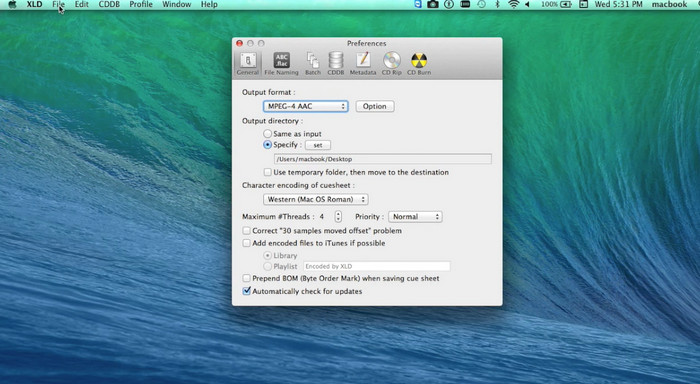
XLD — бесплатная и простая в использовании программа, которая позволяет пользователям Mac конвертировать аудиофайлы в различные форматы, включая M4A, MP3, FLAC и другие. Благодаря простому интерфейсу перетаскивания пользователи могут легко добавлять свои файлы MP3 и преобразовывать их в M4A без каких-либо сложных настроек или конфигураций. XLD также предлагает ряд параметров настройки, позволяя пользователям настраивать такие параметры, как битрейт и частота дискретизации, для достижения желаемого качества вывода.
Шаг 1. Скачайте и установите XLD на ваш Mac.
Шаг 2. Запустите программу и нажмите кнопку Open, чтобы добавить ваш(и) MP3‑файл(ы) в приложение.
Шаг 3. В настройках программы выберите M4A из списка доступных форматов. В раскрывающемся меню вы можете выбрать желаемое качество выходного файла.
Шаг 4. Далее выберите папку, в которую хотите сохранить конвертированный файл. В завершение нажмите кнопку Convert, чтобы запустить процесс конвертации. Так вы можете бесплатно конвертировать MP3 в M4A на Mac.
Часть 4. Преобразование MP3 в M4A на Android
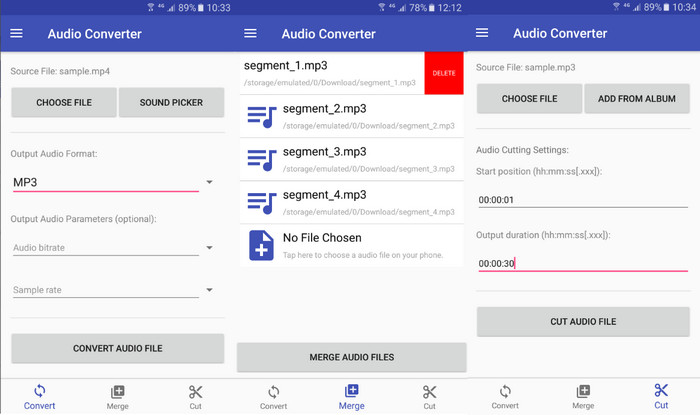
Когда дело доходит до преобразования аудиофайлов, трудно превзойти бесплатное и простое программное обеспечение Android Audio Converter от Online-Convert.com. Пользователи могут просто перетащить свои файлы MP3 в интерфейс программы, чтобы начать процесс преобразования в M4A. Качество вывода аудиофайла можно настроить, изменив такие параметры, как битрейт и частота дискретизации в Audio Converter. Вот шаги, чтобы изменить MP3 на M4A на Android:
Шаг 1. Скачайте и установите приложение Audio Converter от Online-Convert.com из Google Play на свое устройство Android. Запустите приложение и нажмите кнопку Convert Audio.
Шаг 2. Затем выберите MP3 в качестве входного формата и M4A в качестве выходного формата.
Шаг 3. Теперь нажмите кнопку Select Files, чтобы добавить ваш(и) MP3‑файл(ы) в приложение. Наконец, нажмите кнопку Start Conversion, чтобы начать процесс конвертации. Все настолько просто! Теперь вы знаете, как конвертировать MP3 в M4A на Android.
Часть 5. Преобразование MP3 в M4A на iOS
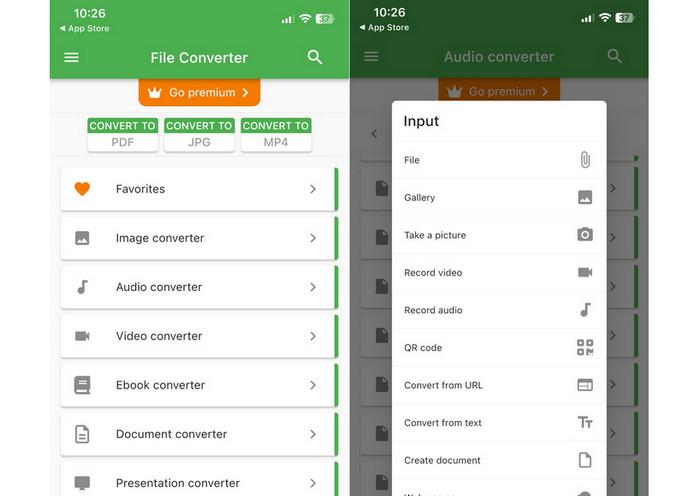
Аудиофайлы, такие как MP3, можно преобразовать в более портативный формат M4A без потерь с помощью File Converter Free, бесплатного и простого программного обеспечения для iOS. Его простой дизайн позволяет любому загружать файлы MP3 и преобразовывать их в M4A без необходимости возиться с какими-либо настройками или настройками.
Шаг 1. Приложение File Converter Free можно найти в App Store, оно бесплатно для загрузки и использования. Запустите программу и перейдите на вкладку Audio.
Шаг 2. Выберите MP3 в качестве входного и выходного формата и M4A для формата AAC от Apple. С помощью раскрывающегося меню задайте желаемое качество выходного файла. Чтобы импортировать MP3 в программу, нажмите кнопку Add File.
Шаг 3. Чтобы запустить процесс конвертации, нажмите кнопку Convert.
Часть 6. Часто задаваемые вопросы о преобразовании MP3 в M4A
Могу ли я конвертировать MP3 в M4A с помощью проигрывателя Windows Media?
Да, вы можете конвертировать MP3 в M4A с помощью Windows Media Player, но это требует нескольких дополнительных шагов, так как M4A не поддерживается в Windows Media Player напрямую. Либо вы можете просто воспользоваться альтернативой Windows Media Player.
Приведет ли преобразование MP3 в M4A к потере качества звука?
Преобразование MP3 в M4A может привести к небольшой потере качества звука из-за различий в алгоритмах сжатия, используемых в этих двух форматах.
Могу ли я преобразовать M4A обратно в MP3?
Да, многие программы и инструменты для конвертации аудио позволяют при необходимости конвертировать M4A в MP3. Однако имейте в виду, что многократное перекодирование между форматами может привести к потере качества.
Заключение
Преобразование MP3 в M4A — ценный процесс для всех, кто стремится улучшить качество и совместимость своих аудиофайлов. Следуя шагам и советам, изложенным в этом материале, вы легко сможете конвертировать MP3‑файлы в M4A и наслаждаться высококачественным звуком на любом устройстве.
-
 Бесплатно и онлайн | Как конвертировать MP4 в M4A на Windows / Mac
 Как мне конвертировать MP4 в M4A онлайн? Могу ли я извлечь звук из файлов MP4? Прочтите этот пост, и вы получите все ответы о преобразовании из MP4 в M4A.
-
 Лучшие инструменты, которые вы можете использовать для пакетного преобразования файлов MP3 в M4R
 Ищете конвертер, который может пакетно преобразовать ваш MP3-файл в рингтон M4R для вашего iPhone или iPad? Прочтите статью, чтобы узнать о лучших из них.
-
 5 MP3-резаков для легкой обрезки любого аудио [обновление 2023 г.]
 Вам нужен MP3-резак для обрезки аудио? В этом случае прочитайте эту статью, потому что мы предоставляем инструменты, на которые вы можете положиться и которые обеспечивают простую нарезку аудио.
