


 Видео конвертер Ultimate
 Устройство записи экрана
 Видео ремонт
 Безопасная загрузка
Как конвертировать WebP в MP4 на ПК для вывода анимированного видео
Существуют различные причины, по которым мы конвертируем WebP в MP4. Одна из основных причин в том, что когда у вас есть коллекция анимированных изображений в формате WebP, ваши устройства могут не поддерживать его. Досадно осознавать, что вы не можете просматривать собственные файлы на своём устройстве. Поэтому большинство пользователей в такой ситуации предпочитают преобразовать свои файлы WebP в формат, например MP4, чтобы сделать свои цифровые материалы более совместимыми и компактными. Но как сделать это в первый раз? К счастью, в этой статье собраны хорошие конвертеры, которые серьёзно помогут вам в этом. Кроме того, мы добавили профессиональный подход, который также поможет вам в данном вопросе.

Часть 1. Как конвертировать WebP в MP4 онлайн
В этом разделе мы представим вам три наших лучших решения для конвертации WebP в MP4 онлайн.
1. ЭЗГИФ
Первое из лучших онлайн-решений — EZGIF. Это удобный бесплатный инструмент, к которому вы можете получить доступ в Интернете. Этот инструмент помогает вам создавать, изменять и настраивать GIF-файлы. Но он не только о GIF-файлах, поскольку он также обрабатывает форматы WebP, AVIF и APNG. Кроме того, EzGIF позволяет вам переключаться между этими форматами на GIF, JPG, PNG и, конечно же, MP4. Как следует из названия, EZGIF — это все о том, чтобы сделать вещи простыми. Хотите ли вы быстро создать анимированные фотографии или превратить анимацию в видео, этот инструмент вас поддержит. Таким образом, вы также можете использовать его для переключения файлов WebP, как неподвижных, так и движущихся, в MP4. Поэтому вот простые шаги, которые нужно выполнить с EZGIF.
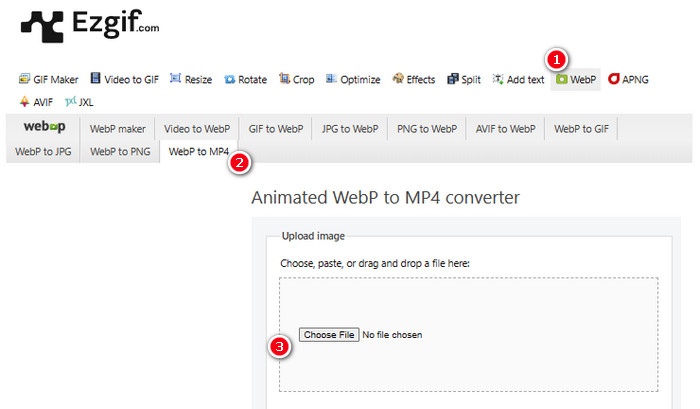
Шаг 1. На сайте EZGIF перейдите к инструменту WebP>WebP to MP4, чтобы открыть конвертер WebP в MP4. Затем нажмите кнопку «Choose File», чтобы загрузить ваш файл WebP.
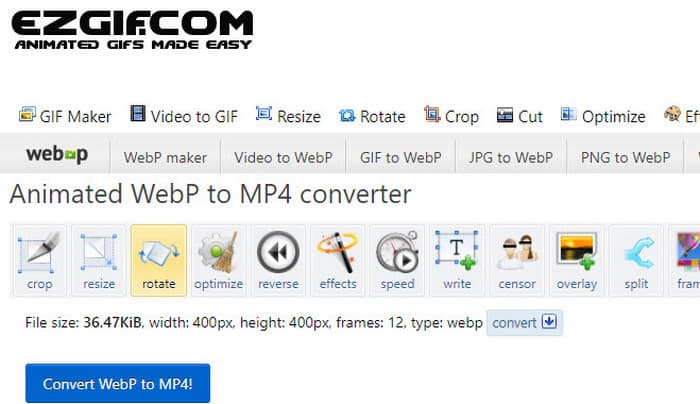
Шаг 2. После загрузки файла WebP можно переходить к процессу конвертации. Нажмите кнопку «Convert», чтобы начать.
Шаг 3. По завершении скачайте только что сконвертированный файл.
2. MConverter
Следующий инструмент — MConverter. Этот конвертер — действительно удобный инструмент в сети, который помогает вам преобразовывать файлы из одного типа в другой. Примечательно, что если у вас есть куча изображений WebP, которые вы хотите преобразовать в видео MP4, MConverter позволяет вам сделать это все сразу. Разве это не экономит много времени? Кроме того, он может обрабатывать множество форматов — например, видео, песни, изображения, субтитры и т. д. Но есть одна загвоздка в бесплатной версии — она позволяет вам преобразовывать файлы размером только до 200 МБ. А пока давайте посмотрим, как работает MConvert, когда вы конвертируете WebP в MP4 с его помощью.
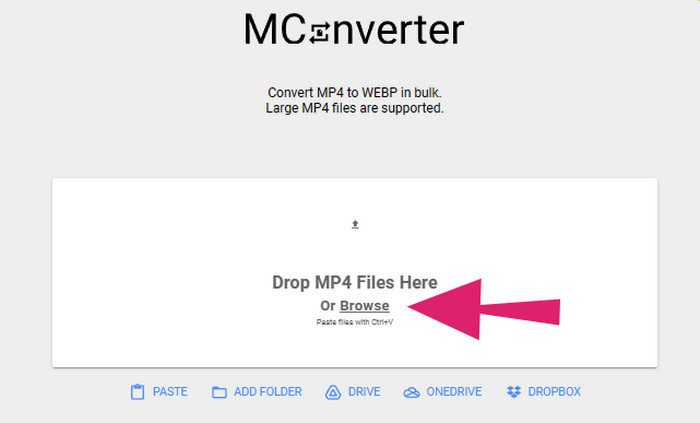
Шаг 1. В онлайн‑инструменте нажмите кнопку Browse, чтобы загрузить файлы WebP, которые нужно конвертировать.
Шаг 2. Когда файл будет успешно загружен, среди предложенных вариантов выберите формат MP4.
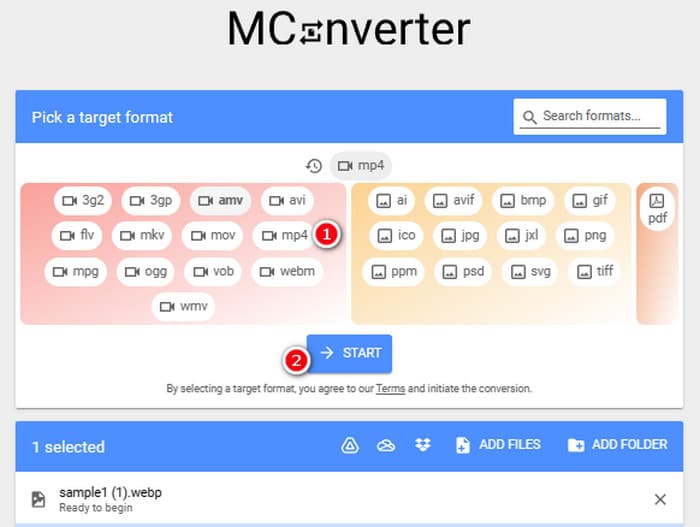
Шаг 3. Затем нажмите кнопку START, чтобы выполнить конвертацию.
3. Онлайн-конвертация
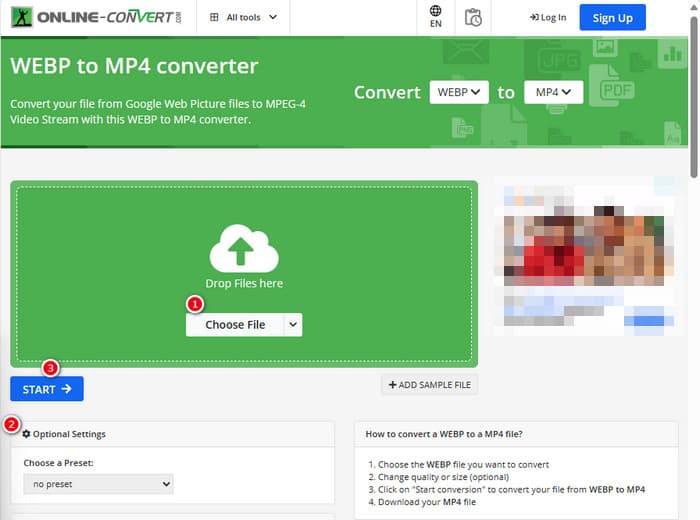
Наконец, позвольте Online Convert занять последнюю позицию в сети. Этот Online Convert — замечательный конвертер, который может изменить практически любой тип медиафайла для вас. Несмотря на это, он не будет стоить вам ни копейки за любое преобразование, которое вы хотите сделать, если он поддерживает это. Более того, он работает довольно быстро, за исключением случаев, когда у вас проблемы с интернетом. Теперь, если вы хотите превратить файл WebP в MP4, вы можете сделать это на их веб-сайте. Более того, вы можете настроить параметры видео, такие как его размер, частоту кадров и качество, и даже перевернуть его, обрезать или вырезать части, которые вам не нужны. Итак, если ваш файл WebP готов к преобразованию, то немедленно выполните следующие шаги.
Шаг 1. Когда вы попадёте на официальный сайт, обязательно выберите инструмент для конвертации WebP в MP4.
Шаг 2. Нажмите кнопку Choose File и импортируйте файл WebP. Затем, при желании, можете настроить параметры, воспользовавшись опциями, представленными в интерфейсе.
Шаг 3. Либо просто нажмите кнопку START, чтобы запустить процесс конвертации.
Часть 2. Профессиональный подход к конвертации файла WebP в MP4: FFmpeg
Для профессионального подхода к преобразованию файлов изображений в видео вы можете использовать FFmpeg. Это мощный программный инструмент для обработки мультимедийных файлов. Эта программа позволяет конвертировать аудио‑, видео‑ и графические форматы между широким набором кодеков. Однако она работает через командную строку, что делает её сложной для новичков. Поэтому ниже приведены упрощённые шаги, которым вы можете следовать. Кстати, FFmpeg как профессиональный видеотранскодер может даже восстанавливать повреждённые видео.
Шаг 1. Откройте FFmpeg после установки на ваш ПК. Затем начните с ввода команды CD, чтобы открыть командную строку.
Шаг 2. Теперь вы можете перейти в каталог, содержащий файл WebP. Затем используйте команду ffmpeg -i input.webp output.mp4.
Шаг 3. Запустите процесс конвертации, нажав клавишу ENTER на клавиатуре.

Часть 3. Бонусный совет: лучший способ конвертировать файлы MP4 в любой тип видео/аудио онлайн
Как насчёт того, чтобы конвертировать ваши файлы MP4 в нужные видео‑ и аудиоформаты онлайн? Это будет просто, быстро и эффективно, если вы воспользуетесь FVC Free Video Converter Online. Это бесплатное решение позволяет преобразовывать ваши видео в формате MP4 в различные видео‑ и аудиоформаты, такие как WMV, MOV, FLV, AVI, MKV, AAC, MP3, WAV и другие. Кроме того, вы можете без потери качества конвертировать свои видео высокой чёткости в более компактные MP4. Более того, вы можете конвертировать несколько файлов одновременно, при этом весь процесс остаётся лёгким и быстрым. Плюс, вам не нужно беспокоиться о водяных знаках на ваших видео или потере данных во время конвертации, поскольку этот онлайн‑конвертер гарантирует чистые и безопасные результаты! Ниже приведены три простых шага для конвертации ваших файлов MP4 в различные типы форматов.
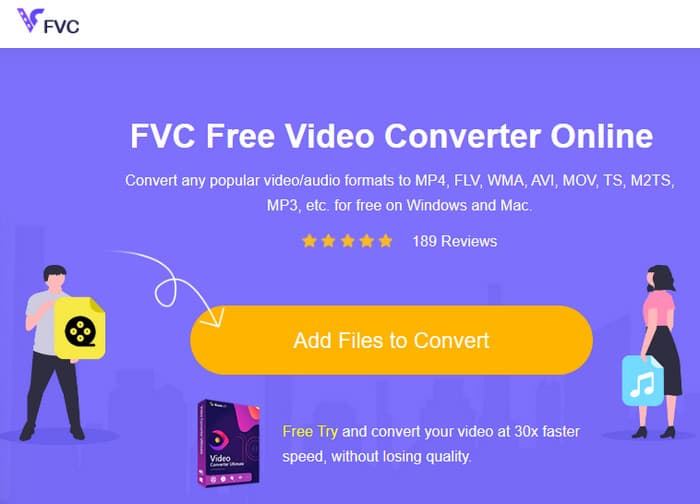
Шаг 1. По переходе на сайт нажмите вкладку Add Files to Convert. Это позволит вам загрузить файлы MP4.
Шаг 2. После импорта файлов установите для них желаемый выходной формат.
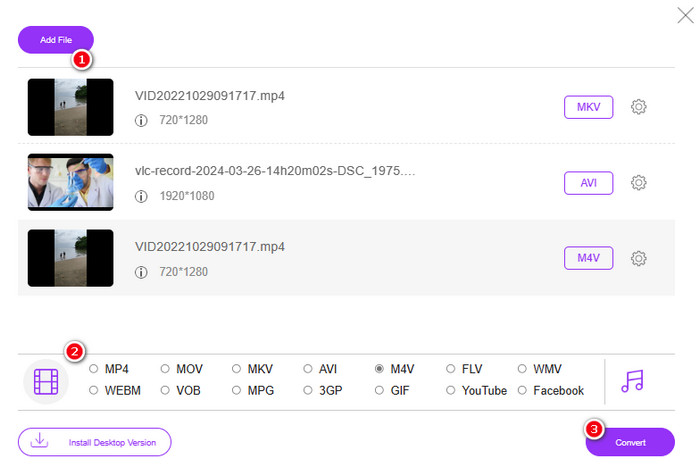
Шаг 3. Как только всё будет настроено, нажмите кнопку Convert, чтобы запустить конвертацию.
Ниже приведены дополнительные советы по конвертации изображений в формат MP4.
Расширенное чтение
Как конвертировать VLC в MP4: самые быстрые методы, которые стоит освоить
Как без потери качества легко конвертировать видео с iPhone в MP4 на ПК
Часть 4. Часто задаваемые вопросы о конвертации Webp и MP4
Зачем мне конвертировать файл изображения, например WebP, в видео, например MP4?
-Вам необходимо преобразовать изображение в видео для обеспечения более широкой совместимости и сохранности.
Могут ли изображения в формате WebP отображаться во всех веб-браузерах?
-Нет. Некоторые старые браузеры, в частности Internet Explorer, изначально не поддерживают WebP. Однако современные браузеры поддерживают его отображение.
Как преобразовать изображение в WebP?
-Вы должны использовать специальный WebP maker. Также, есть несколько инструментов и библиотек, доступных для конвертации изображений в формат WebP.
Заключение
С представленными выше конвертерами WebP в MP4 ваш опыт конвертации станет значительно проще. Таким образом, для достижения желаемого результата используются три наиболее распространённых метода. Если при работе с одним из них у вас возникнут трудности, смело выполните конвертацию с помощью других.
-
 Изучите самые простые способы быстрого преобразования WebP в JPG
 Давайте все узнаем эффективные способы легко конвертировать веб-изображения в JPG. Эта статья даст вам отличные конвертеры изображений, которые вы можете использовать для преобразования файлов изображений.
-
 Идеальные методы для преобразования WebP в PNG без особых усилий
 Будьте осведомлены о замечательных методах преобразования WebP в PNG. Этот путеводитель предоставит вам самые полезные конвертеры изображений, которые вы можете попробовать.
-
 Лучшие методы идеального преобразования WebP в GIF
 Вы хотите конвертировать WebP в GIF, но не знаете, что делать? К счастью, в этом посте будет представлено несколько способов мгновенного преобразования WebP в GIF.
