


 Видео конвертер Ultimate
 Устройство записи экрана
 Видео ремонт
Будьте всесторонним критическим анализом в устранении рассинхронизации [аудио и видео]
У вас завтра онлайн‑доклад для учебного занятия. Вы ищете лучшие приложения или программы, с помощью которых можно записать видео для сдачи отчёта. Но вместо решения проблемы начинается хаос: вы начинаете переживать, потому что звук и видео идут несинхронно. Не стоит волноваться, вам повезло: в этой статье собрано всё, что нужно знать, чтобы устранить эту проблему.

Часть 1. Почему звук не синхронизируется с видео?
Аудио и видео могут быть не синхронизированы по нескольким причинам, включая следующие: Трансляция или соединение между вашей кабельной/спутниковой приставкой может быть проблемой при просмотре телепрограммы. Виной тому может быть ненадежный проигрыватель DVD или Blu-ray DiscTM или сам диск, если одно из этих устройств подключено к телевизору. Если ваш домашний кинотеатр подключен к телевизору с помощью оптического кабеля, вы можете заметить задержку звука, которую необходимо исправить вручную. С другой стороны, виноваты могут быть настройки вашего телевизора.
Часть 2. 3 лучших проверенных инструмента: как синхронизировать аудио и видео
1. Используйте Video Converter Ultimate
В Интернете доступно множество способов и программного обеспечения, которые могут помочь в решении данной проблемы, и это один из лучших инструментов, который мы рекомендуем использовать. Загрузите на свой компьютер FVC Video Converter Ultimate, программу с различными функциями, улучшающими видеоклип. Одна из предлагаемых функций может решить проблему синхронизации аудио и видео видеоклипа в Windows 10, например, путем настройки задержки. Выполните следующие шаги, чтобы узнать, как использовать программное обеспечение:
Шаг 1: Чтобы загрузить программу на компьютер, нажмите кнопку «Бесплатная загрузка». Затем установите программу и настройте установку по своему усмотрению. Если всё в порядке, запустите программу после установки.
Бесплатная загрузкаДля Windows 7 или более поздних версийБезопасная загрузка
Бесплатная загрузкаДля MacOS 10.7 или более поздних версийБезопасная загрузка
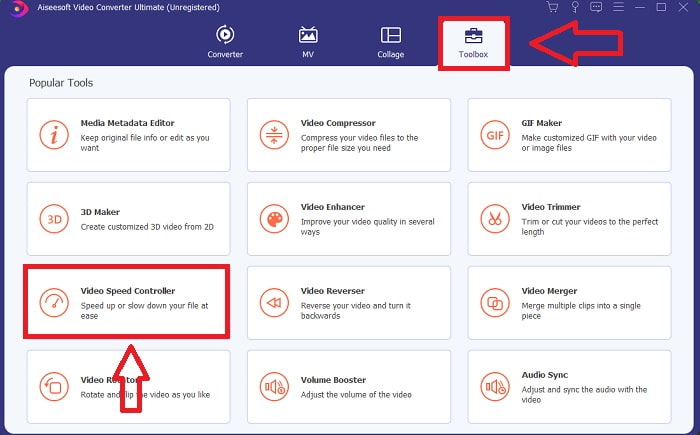
Шаг 2: В главном интерфейсе нажмите вкладку Ящик инструментов и выберите Синхронизация звука.
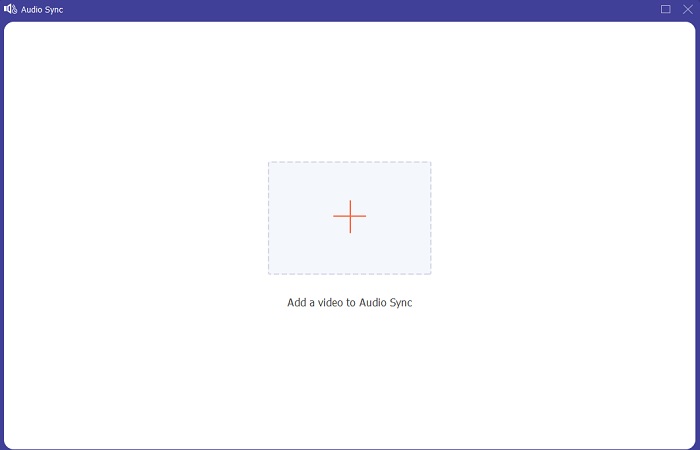
Шаг 3: Добавьте любой файл, нажав кнопку «+» по своему выбору, и переходите к редактированию видеоклипа.
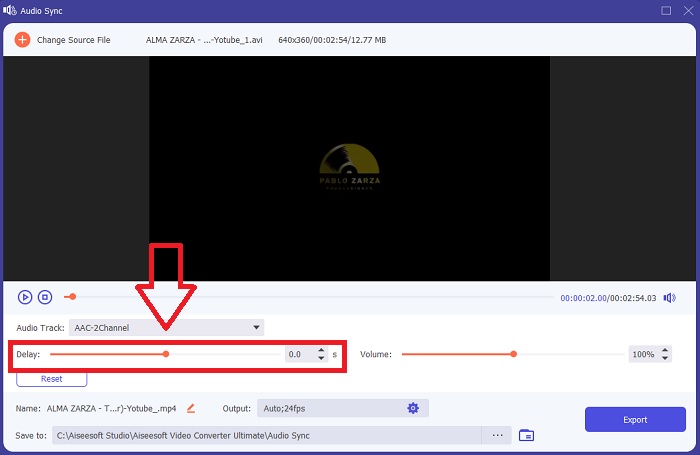
Шаг 4: Отрегулируйте ползунок звука, чтобы синхронизировать его с видеоклипом. Вы также можете изменить выходное устройство и настроить громкость видеоклипа.
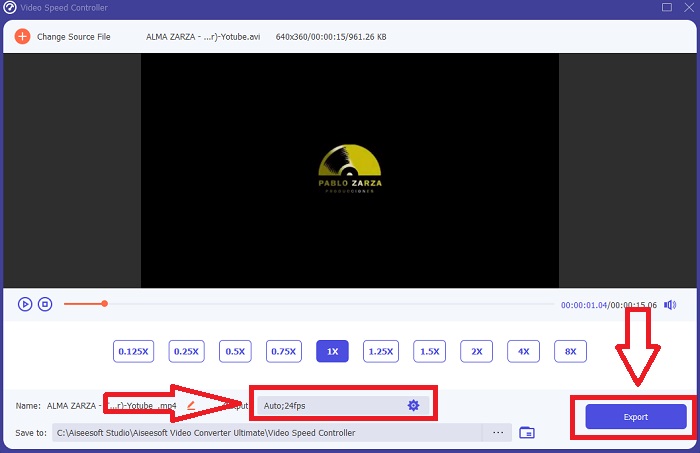
Шаг 5: Когда вы закончите редактировать синхронизацию видеоклипа, нажмите Экспорт и выберите, куда сохранить файл.
2. Используйте медиаплеер VLC
Медиаплеер VLC — это приложение, доступное на всех операционных системах: Windows, Mac, iPhone и Android. Хотя его можно установить почти на любое устройство, на каждом из них способ устранения задержки звука и синхронизации аудио с видеоклипом будет немного отличаться. Этот медиаплеер нередко грешит сбоями, но его же можно использовать, чтобы навсегда исправить рассинхрон звука и видео.
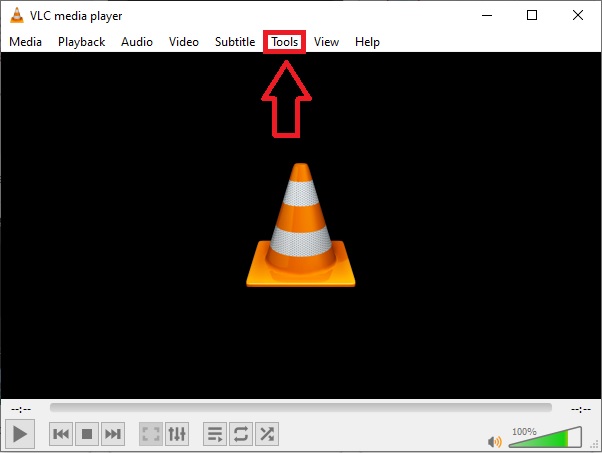
Шаг 1: Откройте медиаплеер VLC в Windows и нажмите вкладку Инструменты. После этого выберите пункт Настройки.
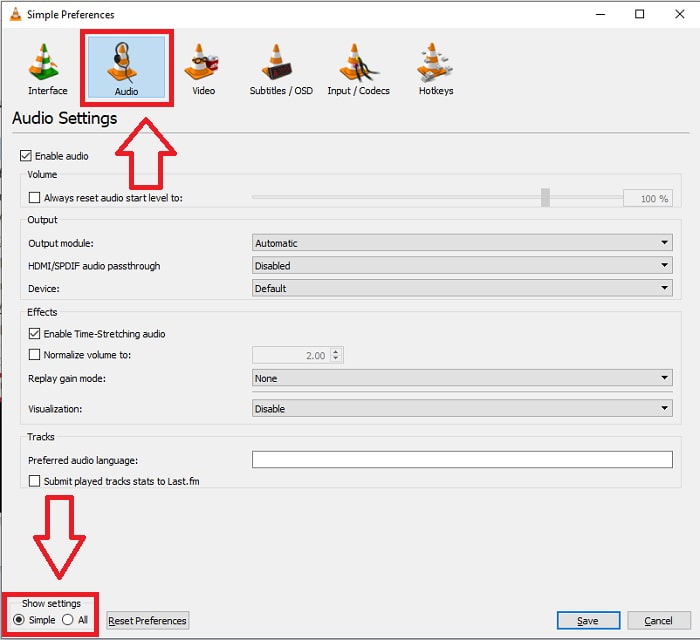
Шаг 2: На экране откроется новое окно. Продолжайте, нажав вкладку Аудио. В левом нижнем углу выберите Все, чтобы получить доступ к расширенным настройкам.
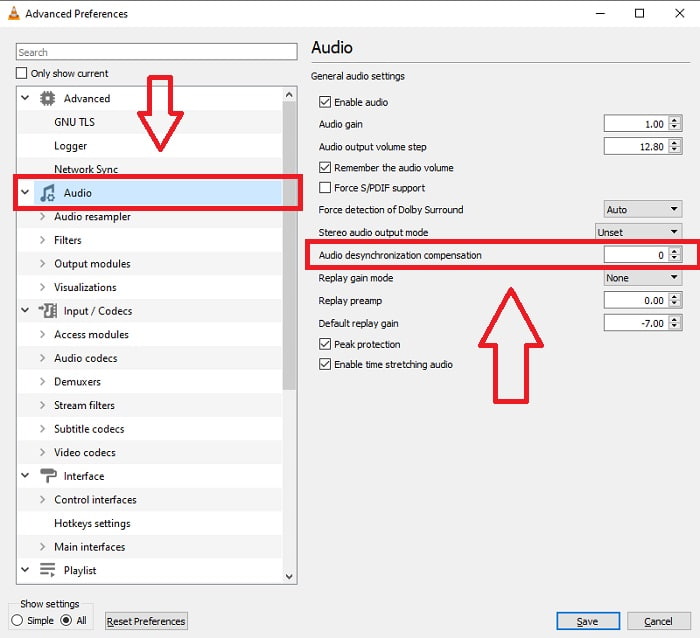
Шаг 3: В расширенных настройках вы получите полный набор параметров. Найдите раздел Аудио на вкладке расширенных настроек. После нажатия вы увидите общие настройки звука и сможете отрегулировать параметр Компенсация рассинхронизации аудио. Если звук отстаёт от видео, задайте положительное значение для компенсации. Если звук опережает видео, используйте отрицательные значения. Рассинхрон в VLC будет окончательно устранён с помощью этой процедуры.
Связанный материал:
Как исправить проблему, когда VLC не воспроизводит MKV
Как исправить проблему, когда VLC не воспроизводит DVD
3. Используйте Премьер Про
Когда речь идёт о создании вещательного, высококачественного HD‑видео, Premiere Pro — один из лучших инструментов. С его помощью можно импортировать любые медиафайлы, включая видео и аудио, затем редактировать их и экспортировать в нужном формате для распространения. В Premiere Pro можно монтировать вместе различные видео и неподвижные изображения. К видео можно добавлять титры, фильтры и другие эффекты. Эта программа особенно полезна, когда звук и видео идут несинхронно, особенно для пользователей настольных компьютеров и ноутбуков. Ниже приведены шаги для правильного выполнения процедуры.
Шаг 1: Убедитесь, что звуковые и видеодорожки расположены слоями на таймлайне, как показано на иллюстрации.
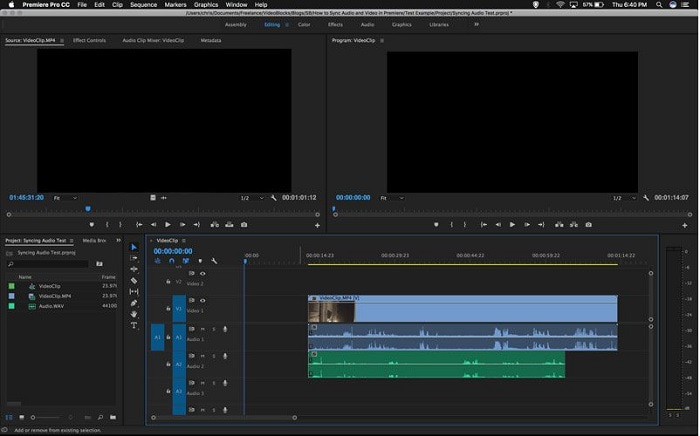
Шаг 2: Щёлкните правой кнопкой мыши, чтобы выделить и звуковую, и видеодорожку. Появится выпадающее меню. В нём выберите Синхронизировать.
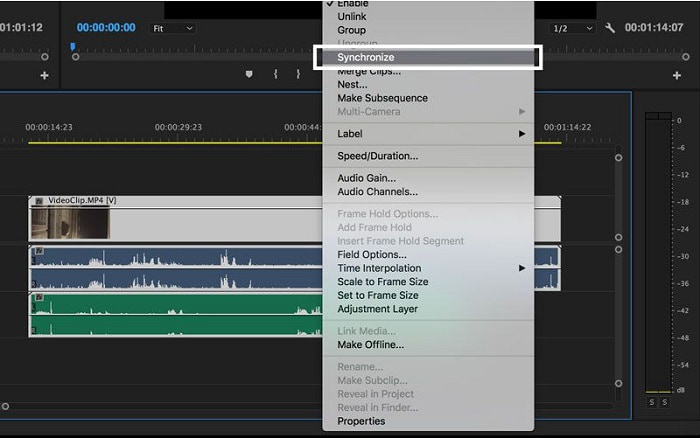
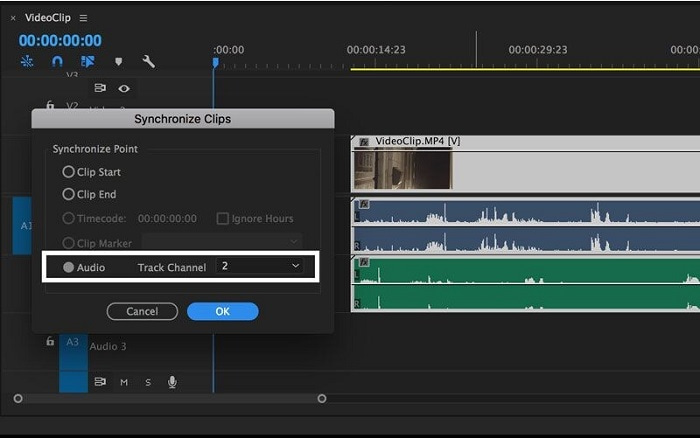
Шаг 3: Теперь выберите Аудио в качестве точки синхронизации. Укажите дорожку, которую нужно синхронизировать. В завершение удалите «черновую» дорожку и выберите опцию Связать, чтобы связать клипы.
Часть 3. Часто задаваемые вопросы о рассинхронизации аудио и видео
Если я изменю частоту дискретизации, ухудшится ли качество звука?
Если вы хотите только слушать звук в своем видеоклипе и не вносить никаких изменений, вы должны изменить частоту дискретизации, чтобы не отставать. Вы сможете синхронизировать звук видео только путем настройки задержки звука видеоклипа в FVC Video Converter Ultimate. Вы больше не будете беспокоиться об ухудшении качества звука при настройке частоты дискретизации. С этим программным обеспечением вы не будете беспокоиться о звуке, который не синхронизируется с видео. Это программное обеспечение содержит функцию, которая может решить данную проблему; у него также есть другие функции, которые могут быть полезны каждому пользователю и легко использоваться.
Что такое компенсация десинхронизации звука?
Установите положительную или отрицательную задержку времени компенсации десинхронизации звука в миллисекундах в настройках VLC, щелкнув «Аудио» и установив флажок «Дополнительные параметры».
В чем еще причина рассинхронизации видео и звука?
Другая причина, по которой видео и аудио не синхронизированы, связана с неподдерживаемым видеовыходом, который аудиоустройство не может использовать, и наоборот.
Заключение
В заключение, задержка звука и видео — сложная ситуация, с которой часто сталкиваются в онлайн‑среде. Особенно во время пандемии, когда гаджеты и онлайн‑сервисы получили широкое распространение: как нормально работать и выполнять задачи, если возникают помехи, вроде проблемы как синхронизировать звук и видео? Если присутствует задержка. Все описанные способы и альтернативы для решения этих вопросов приведены в этой статье. Мы рекомендуем использовать Video Converter Ultimate, чтобы в будущем избегать подобных неприятных ситуаций.
-
 5 лучших проигрывателей замедленного видео на компьютере (Windows / Mac / Linux)
 Замедленная съемка - очень полезная функция во многих ситуациях. Чтобы смотреть видео с медленной скоростью и получать более подробную информацию в мимолетных кадрах, вы можете изучить 5 лучших видеопроигрывателей с замедленной съемкой в этой статье.
-
 [2 лучших решения] Как легко воспроизводить фильмы AVI на iPhone / iPad
 Не можете воспроизводить фильмы AVI на вашем iPhone / iPad и не хотите загружать сторонние видеоплееры? Вы можете узнать 2 эффективных способа конвертировать видео AVI для воспроизведения на iPhone.
-
 Может ли Wii / Wii U воспроизводить DVD без Homebrew? 2 решения для вас
 Когда вы вставляете DVD-диски в Wii, вы обнаружите, что Wii не может читать и воспроизводить DVD-диски из-за региональной блокировки. В этой статье вы узнаете, как легко воспроизводить DVD на Wii/Wii U без взлома Homebrew.
