


 Видео конвертер Ultimate
 Устройство записи экрана
 Видео ремонт
 Безопасная загрузка
Узнайте, как изменить размер видео на Android с помощью эффективных методов
Независимо от того, являетесь ли вы инфлюенсером в социальных сетях или просто хотите поделиться своими последними путешествиями с друзьями и семьёй, изменение размера видео может сыграть решающую роль. Оно не только помогает оптимизировать размер файла для более удобной отправки, но и улучшает качество просмотра для вашей аудитории. В этом материале мы покажем, как изменить размер видео на Android — от настройки соотношения сторон до смены разрешения. Следуя нашему простому и наглядному руководству, вы сможете менять размер своих видео как профессионал и вывести свой контент на новый уровень.

Часть 1. Учебное пособие Как обрезать видео на Android с помощью галереи Samsung
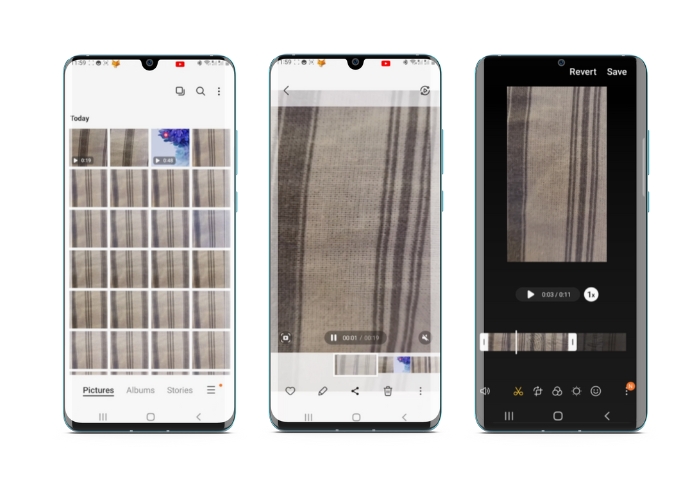
Приложение Samsung Gallery является обязательным для управления визуальным контентом и его редактирования, если у вас есть устройство Samsung. Одной из полезных функций приложения является возможность кадрировать видео на ходу. Это позволяет пользователям удалять ненужные части видео или настраивать соотношение сторон. Функция обрезки делает его простым и интуитивно понятным. С Samsung Gallery вы можете легко создавать и публиковать высококачественные видеоролики, соответствующие вашим потребностям. См. шаги ниже, чтобы помочь вам использовать этот инструмент обрезки видеоредактора Android.
Шаг 1. Откройте приложение «Галерея» на устройстве Samsung и найдите видео, которое хотите обрезать.
Шаг 2. Нажмите на видео, чтобы открыть его, затем коснитесь кнопки Редактировать (значок карандаша) внизу экрана. На экране Редактирование выберите опцию Обрезать.
Шаг 3. Теперь вы увидите прямоугольник поверх видео с маркерами по углам. Перетаскивайте маркеры, чтобы изменить размер прямоугольника и обрезать видео по необходимости. Нажмите кнопку Воспроизвести, чтобы просмотреть получившийся фрагмент.
Шаг 4. Если результат вас устраивает, нажмите кнопку Сохранить, чтобы сохранить обрезанное видео в Галерее.
Часть 2. Пошаговое руководство Как обрезать видео на Android с помощью Google Фото
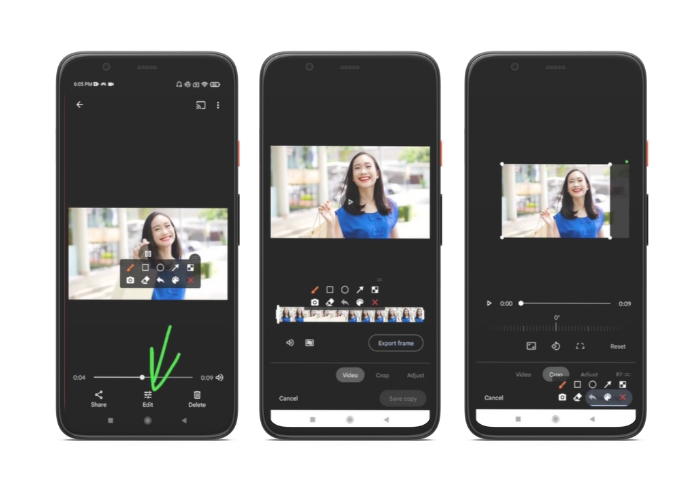
Google Фото — популярное приложение для управления фотографиями и видео для пользователей Android, которое предлагает широкий спектр функций, помогающих редактировать и улучшать визуальный контент. Одной из замечательных особенностей этого инструмента является возможность обрезать видео, что позволяет удалить ненужные части и сосредоточиться на наиболее важных моментах. Вы можете обрезать видео всего несколькими касаниями, что позволяет легко и интуитивно создавать безупречный и профессионально выглядящий видеоконтент на вашем устройстве Android. Здесь мы покажем вам, как шаг за шагом обрезать видео с помощью Google Фото.
Шаг 1. Запустите приложение Google Photos на своём Android‑устройстве и найдите видео, которое хотите обрезать. Затем нажмите кнопку Редактировать, расположенную внизу экрана.
Шаг 2. На экране редактирования выберите опцию Обрезка и поворот.
Шаг 3. Теперь вы увидите прямоугольник, наложенный на видео, с маркерами по углам. Используйте эти маркеры, чтобы изменить размер прямоугольника и обрезать ролик по своему усмотрению.
Шаг 4. В конце нажмите Сохранить, чтобы сохранить внесённые изменения в видео.
Часть 3. Руководство, как обрезать видео на Android с помощью стороннего приложения
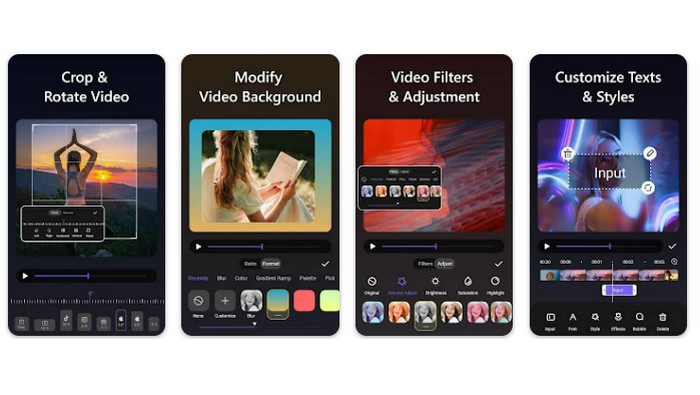
Благодаря приложению Vid.fun простое создание и редактирование видео стало доступно каждому владельцу Android‑смартфона. Эта программа позволяет по‑разному обрабатывать ролики: добавлять музыку, текст и эффекты, обрезать и объединять фрагменты и многое другое. Узнать, как изменить размер видео на Android, вы можете, следуя приведённым ниже шагам для этого приложения.
Шаг 1. Скачайте приложение Vid.fun из Google Play и создайте новый проект.
Шаг 2. Из галереи или плёнки камеры на устройстве выберите клип, который хотите обрезать, и перетащите его на шкалу времени.
Шаг 3. Нажмите на нужный фрагмент видео на шкале времени, затем используйте кнопку Обрезать внизу экрана, чтобы изменить этот фрагмент.
Шаг 4. На видео будет наложен прямоугольник — потянув за его углы, вы можете настроить область кадра. Чтобы обрезать ролик, просто переместите угловые маркеры в нужное положение. Когда закончите, вы можете отправить видео близким или выложить его в сеть.
Часть 4. Рекомендация приложения
Разумеется, помимо мобильных приложений, мы рекомендуем и настольную программу. Video Converter Ultimate от FVC — это комплексное решение для изменения форматов видео с большим набором инструментов редактирования. Одной из ключевых функций является возможность настраивать соотношение сторон ролика.
С помощью этой программы вы можете легко изменить форму и размер видео, изменив соотношение сторон. Если вы хотите поделиться видео в социальных сетях с определенным соотношением сторон или вам просто нужно, чтобы видео соответствовало определенному размеру экрана, FVC Video Converter Ultimate поможет вам. Узнайте, как обрезать видео на Android с помощью этой программы.
Шаг 1. Загрузка и установка FVC Video Converter Ultimate
Вы можете скачать приложение, нажав одну из кнопок Бесплатная загрузка ниже. После загрузки установите программу и запустите её на компьютере.
Бесплатная загрузкаДля Windows 7 и новееБезопасная загрузка
Бесплатная загрузкаДля macOS 10.7 и новееБезопасная загрузка
Шаг 2. Импорт видео для обрезки
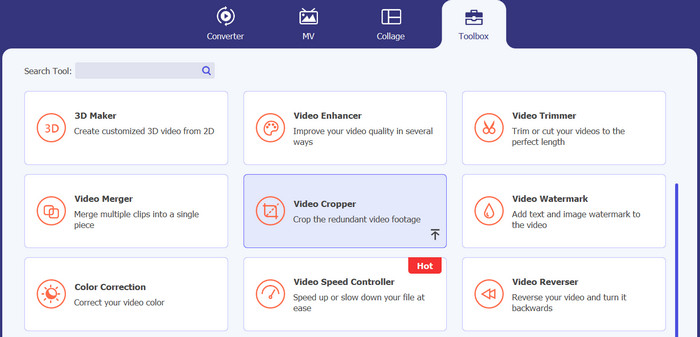
Затем перейдите во вкладку Toolbox в верхней части интерфейса программы. Выберите инструмент Video Cropper и добавьте файл, нажав кнопку с плюсом.
Шаг 3. Обрежьте видеофайл
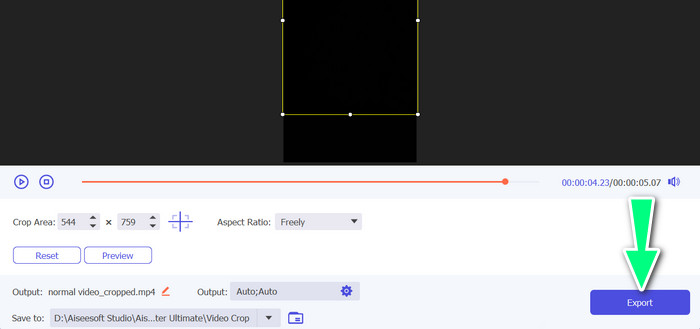
Теперь вы можете обрезать импортированное видео. С помощью ползунков области обрезки отрегулируйте область, которую вы хотите обрезать из видео. Вы также можете выбрать конкретное соотношение сторон в раскрывающемся меню. Предварительно просмотрите обрезанное видео, чтобы убедиться, что нужная часть видео была обрезана.

Шаг 4. Экспортируйте обрезанное видео
В завершение нажмите кнопку Экспорт в правом нижнем углу, чтобы закончить процесс обрезки и сохранить получившееся видео.
Часть 5. Часто задаваемые вопросы об обрезке видео на Android
Как обрезать видео без потери качества?
Один из способов обрезать видео без потери качества — использовать инструмент для редактирования видео, поддерживающий неразрушающую обрезку. Это означает, что исходный видеофайл не изменяется, и только обрезанная часть сохраняется как новый файл.
Повлияет ли обрезка видео на Android на его качество или разрешение?
Да, обрезка видео на Android может повлиять на его качество или разрешение, поскольку процесс включает удаление части исходного видео. Однако степень влияния на качество или разрешение зависит от различных факторов, таких как размер обрезки, качество исходного видео и метод обрезки видео.
Можно ли обрезать видео и одновременно добавлять эффекты или фильтры на Android?
Да, на Android можно одновременно обрезать видео и добавлять к нему эффекты или фильтры. В магазине Google Play доступно множество видеоредакторов, которые поддерживают и обрезку, и эффекты, и видеофильтры. Среди популярных примеров — FVC Video Converter Ultimate, Filmora и другие.
Заключение
Освоить, как обрезать видео на Android, довольно просто — это можно сделать с помощью разных приложений и программ. Samsung Gallery, Google Photos и FVC Video Converter Ultimate — лишь несколько примеров инструментов, которые помогут вам обрезать видео на устройствах Android.
-
 Руководство по ремонту видео, которые не воспроизводятся на телефонах Android
 Хотите знать, по каким причинам нельзя воспроизводить видео на вашем устройстве Android? И если да, то есть ли способы решить проблему самостоятельно? Продолжайте читать, чтобы узнать больше.
-
 Самые простые способы ускорить видео на устройствах Android [2023]
 Знаете ли вы, что на вашем Android-устройстве можно ускорить просмотр видео? Итак, если вы хотите узнать, как ускорить воспроизведение видео на своем телефоне Android, прочтите эту статью.
-
 3 отличных метода, как обрезать видео на Android
 Вы хотите использовать свое Android-устройство, чтобы вырезать видео? Тогда этот пост для вас. Мы обсудим ценные способы сокращения видео на Android.
