


 Видео конвертер Ultimate
 Устройство записи экрана
 Видео ремонт
 Безопасная загрузка
Как корректировать цвет с помощью 5 лучших инструментов, которые обязательно должны быть в наличии
Коррекция цвета — это базовый процесс в видеомонтаже, который улучшает и выравнивает цвета в видео, делая изображение более привлекательным и заметным. Она включает настройку контраста, насыщенности, яркости и оттенков видео, чтобы добиться идеальной визуальной атмосферы. Независимо от того, являетесь ли вы профессиональным видеографом или начинающим создателем контента, понимание того, как выполнять коррекцию цвета, кардинально меняет подход к созданию выразительного визуального ряда. Процесс начинается с определения и анализа существующего баланса белого, светов, теней и полутонов в видеоматериале. Далее выполняются корректировки с помощью специализированного программного обеспечения, которое обеспечивает точный контроль над этими цветовыми параметрами. Давайте подробно разберём в этой статье, как исправить проблемы с цветом в видео с помощью лучших инструментов, на которые можно положиться.

Часть 1. Пять способов цветокоррекции видео
Найти в Интернете различные бесплатные цветокоррекции для видеоредакторов, которые помогут повысить визуальную привлекательность вашего видео, может быть так же просто, как вы думаете. Однако найти более продвинутые и надежные решения, чтобы создать правильное настроение для ваших видео, довольно сложно. Откройте для себя пять эффективных способов улучшить цвета вашего видео с помощью различного универсального программного обеспечения, улучшая повествование и привлекая аудиторию.
1. Конвертер видео Ultimate
Video Converter Ultimate — это многофункциональное решение для работы с видео, которое позволяет улучшать качество роликов, настраивая ключевые параметры, такие как яркость, контраст и насыщенность. Этот удобный инструмент для коррекции цвета также даёт возможность редактировать видео с помощью функций обрезки фрагментов, кадрирования и склейки. Кроме того, он предлагает множество вариантов для конвертации видео, позволяя преобразовывать ролики в тысячи форматов и адаптировать их для различных устройств, таких как MP4, MKV, MOV, MP3, AAC, GIF, iPhone, Samsung и Apple TV, чтобы они корректно воспроизводились на разных платформах. Помимо этого, пользователи могут добавлять субтитры и водяные знаки, делая свои видео более персонализированными. Благодаря простому и понятному интерфейсу этот инструмент подойдёт как новичкам, так и опытным пользователям. Следуйте шагам ниже, чтобы узнать, как успешно выполнить цветокоррекцию вашего видео с помощью Video Converter Ultimate.
Шаг 1: Загрузите и установите инструмент для коррекции цвета
Сначала загрузите программу, нажав одну из кнопок Бесплатная загрузка ниже. В зависимости от операционной системы вашего компьютера убедитесь, что вы скачали подходящую версию Video Converter Ultimate. Затем следуйте инструкциям по установке.
Бесплатная загрузкаДля Windows 7 и новееБезопасная загрузка
Бесплатная загрузкаДля MacOS 10.7 и новееБезопасная загрузка
Шаг 2. Запустите Video Converter Ultimate
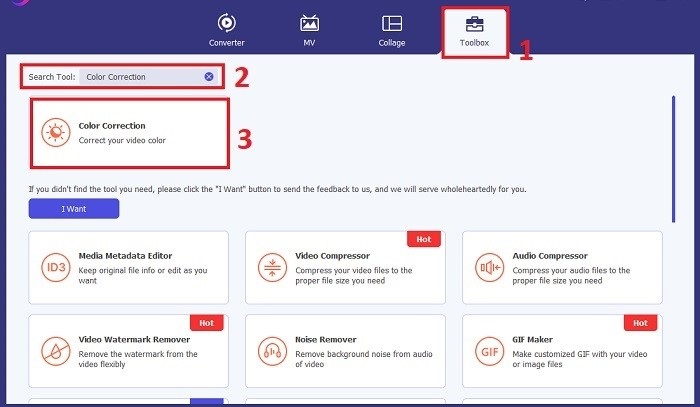
После установки откройте Video Converter Ultimate. Перейдите в раздел Набор инструментов в главном меню и найдите функцию Коррекция цвета. Нажмите на неё, чтобы продолжить.
Шаг 3: Импортируйте видео для коррекции цвета
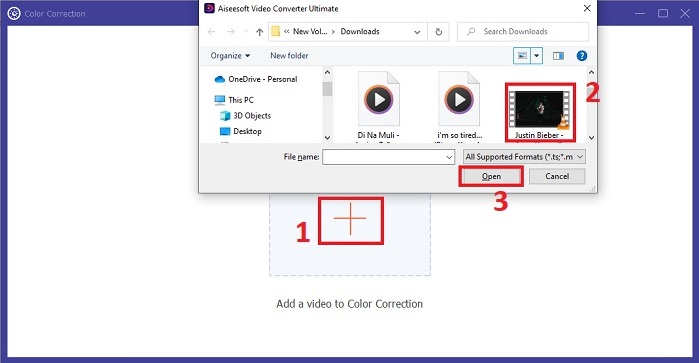
Теперь нажмите кнопку Плюс, чтобы импортировать видео, для которого вы хотите выполнить коррекцию цвета. Найдите файл видео на своём компьютере. Затем нажмите Открыть, чтобы добавить его в программу.
Шаг 4: Настройте параметры цвета видео и сохраните результат
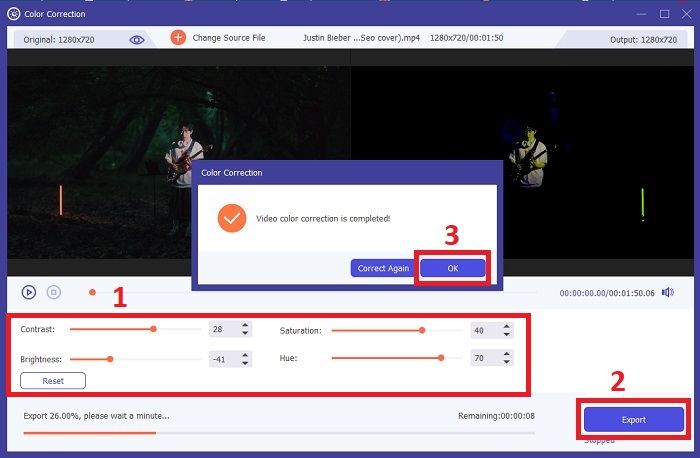
После импорта видео тонко отрегулируйте параметры цвета, такие как яркость, контраст, насыщенность и оттенок, чтобы добиться желаемой цветокоррекции. Когда вы будете довольны настройками цвета, нажмите Экспорт. Дайте программе обработать видео и сохраните откорректированную версию в выбранное вами место.
2. Цветокоррекция Premiere Pro
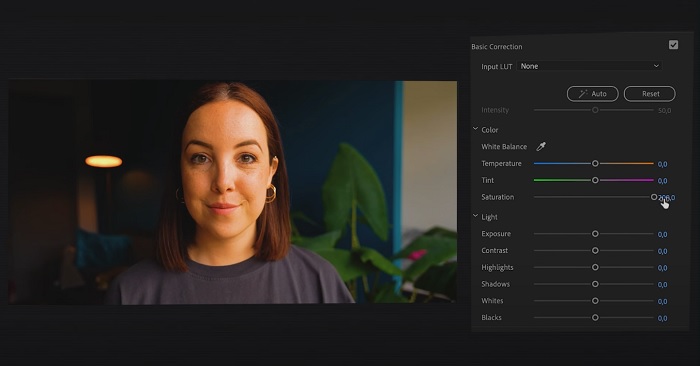
Premiere Pro известен своим высококачественным программным обеспечением для редактирования видео и комплексными возможностями цветокоррекции. Он предлагает разнообразные инструменты и эффекты цветокоррекции для точной настройки. Цветокоррекция Premiere Pro позволяет настраивать цветовой баланс и экспозицию или применять креативные эффекты для достижения желаемого визуального стиля. Вы также можете выбрать один из сотен встроенных видеоэффектов и переходов или начать с профессионально разработанных шаблонов и изменить их для получения желаемого результата. Более того, он имеет функции совместной работы и легко интегрируется с другим программным обеспечением Adobe, что делает его лучшим выбором среди профессионалов.
Шаг 1. Откройте Premiere Pro и импортируйте ваш видеоролик. Затем перейдите в область работы Color.
Шаг 2. Внутри области работы Color используйте панель Lumetri Color, чтобы настроить экспозицию, цветовой баланс и творческие стили (creative looks).
Шаг 3. Используйте шкалы (scopes), чтобы убедиться, что цветовые корректировки точно соответствуют желаемому результату. В конце просмотрите и экспортируйте откорректированное видео.
3. Цветокоррекция Davinci Resolve
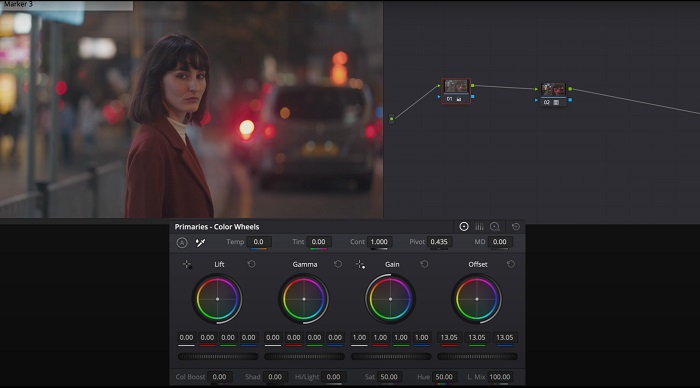
Откройте для себя исключительные возможности цветокоррекции. Это универсальное программное обеспечение сочетает в себе профессиональное редактирование, цветокоррекцию, визуальные эффекты и постобработку аудио. Благодаря удобному интерфейсу и обширному набору функций этого инструмента вы сможете точно и стильно воплотить в жизнь свое творческое видение. Усовершенствованные инструменты цветокоррекции Davinci Resolve Color Correction позволят вам выделить ваши видеоролики. Независимо от того, работаете ли вы над передовыми голливудскими фильмами или над личными проектами, этот инструмент дает профессионалам и энтузиастам возможность создавать захватывающие повествования беспрецедентного качества.
Шаг 1. Откройте Davinci Resolve и импортируйте ваше видео. После импорта перейдите на вкладку Color.
Шаг 2. На вкладке Color используйте цветовые колёса, кривые и ноды для коррекции цвета видео. Вы можете использовать доступные scopes для более точной настройки.
Шаг 3. После выполнения необходимых цветовых корректировок просмотрите откорректированное видео, чтобы убедиться, что оно соответствует вашим ожиданиям. Когда результат вас устроит, экспортируйте откорректированное видео — оно будет готово к использованию.
4. Цветокоррекция Final Cut Pro
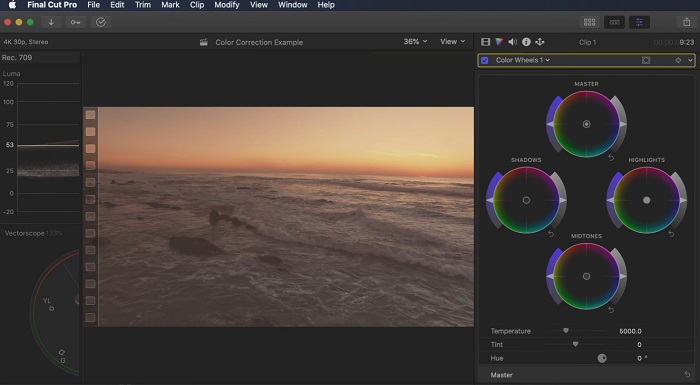
Если вы пользователь Mac и ищете первоклассное приложение для редактирования видео, Final Cut Pro — отличный вариант. Он может похвастаться удобным интерфейсом и мощными функциями, которые упрощают редактирование. Когда дело доходит до цветокоррекции, Final Cut Pro предлагает цветовую доску и цветовые колеса для настройки экспозиции, насыщенности и оттенка. Вы можете применять цветовые эффекты в реальном времени и использовать расширенные инструменты цветокоррекции для улучшения отснятого материала. Кроме того, он беспрепятственно экспортируется на устройства Apple и популярные онлайн-платформы. Если вы профессионал, стремящийся к эффективности и творчеству, Final Cut Pro не составит труда. Убедитесь, что у вас macOS 13.4 или новее, а также компьютер Mac с процессором Apple для обеспечения оптимальной производительности.
Шаг 1. Импортируйте ваш видеоролик в Final Cut Pro, затем перейдите в область работы Color.
Шаг 2. Используйте Color Board или Color Wheels, чтобы выполнить базовую настройку экспозиции, насыщенности и оттенка.
Шаг 3. Дополнительно доработайте цвет видео с помощью дополнительных инструментов цветокоррекции, чтобы добиться наилучшего результата. По завершении просмотрите и экспортируйте откорректированное видео.
5. Цветокоррекция After Effects
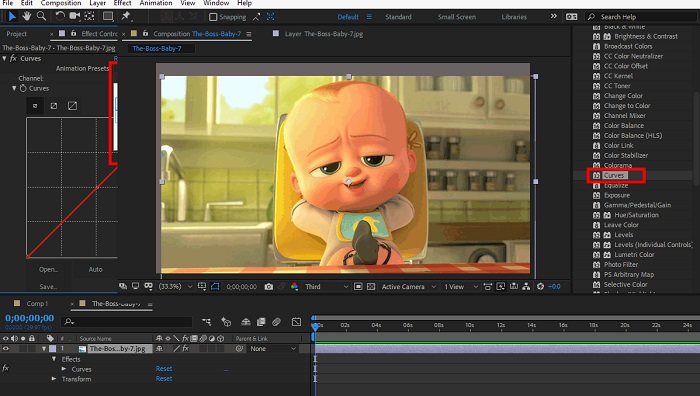
After Effects — известное программное обеспечение для анимированной графики и визуальных эффектов с надежными возможностями цветокоррекции. Помимо основных эффектов цветокоррекции, он предоставляет различные корректирующие слои и эффекты для улучшения и изменения цветов. Вы можете быстро анимировать текст и графику, оживляя их захватывающими движениями. Цветокоррекция After Effects позволяет использовать уровни, кривые и режимы наложения для достижения желаемой цветокоррекции. Это универсальный вариант цветокоррекции благодаря интеграции с различными продуктами Adobe и большому сообществу, предоставляющему учебные пособия и плагины. Более того, программное обеспечение постоянно развивается, добавляя такие функции, как интуитивно понятная панель свойств, прозрачное управление слоями и эффективный многокадровый рендеринг, которые оптимизируют рабочие процессы и сохраняют творческие способности на переднем крае творчества.
Шаг 1. Импортируйте ваш видеоклип в проект программы. Примените эффекты цветокоррекции через панель Effects & Presets, выбрав подходящие инструменты, такие как Curves, Levels или Color Balance.
Шаг 2. Щёлкните по применённому эффекту цветокоррекции, чтобы получить доступ к его параметрам. Затем измените настройки, такие как экспозиция, контраст, насыщенность и оттенок, чтобы исправить и улучшить цвета в вашем видео.
Шаг 3. Просмотрите видео в панели Composition, чтобы увидеть, как цветокоррекция влияет на материал. Точно подстройте корректировки по результатам предпросмотра, добейтесь желаемой цветокоррекции и переходите к рендеру или экспорту откорректированного видео.
Дополнительные материалы:
Лучшие бесплатные приложения для улучшения цвета фото на Android и iOS
4 удивительных способа добавить фильтр к видео в Windows и macOS
Часть 2. Часто задаваемые вопросы о корректорах цвета видео
Как выполнить цветокоррекцию в iMovie?
Чтобы выполнить коррекцию цвета в iMovie, импортируйте видеоклип, выделите его и нажмите кнопку Color Correction (значок волшебной палочки). Отрегулируйте ползунки экспозиции, насыщенности и цвета, чтобы добиться желаемого вида.
Как я могу получить доступ к инструментам цветокоррекции в OpenShot?
Для коррекции цвета в OpenShot Video Editor выберите клип, перейдите на вкладку Effects и нажмите Color Correction. Отрегулируйте ползунки яркости, контраста, оттенка и насыщенности, чтобы получить нужную цветокоррекцию.
Как получить доступ к инструментам цветокоррекции в Sony Vegas?
Для коррекции цвета в Sony Vegas выберите клип, который хотите скорректировать, перейдите на вкладку Video FX и найдите Color Corrector. Перетащите его на клип и настройте параметры цвета в окне Effect Controls.
Заключение
Владение цветокоррекцией играет ключевую роль в повышении визуальной выразительности ваших видео и создании захватывающего зрительского опыта. В этом руководстве мы рассмотрели пять мощных инструментов цветокоррекции, позволяющих добиться безупречной цветовой обработки. Если вы ищете качественные инструменты для видеомонтажа, обратите внимание на Video Converter Ultimate, Premiere Pro, Final Cut Pro, DaVinci Resolve или After Effects. Эти программы предлагают широкий набор функций и возможностей, чтобы вы могли создавать профессионально выглядящие ролики. У каждой из них есть свои особенности и инструменты, которые подойдут пользователям с разными предпочтениями и уровнем подготовки.
-
 Как добавить и сделать фильтр Instagram перед публикацией изображения и видео
 Какие есть фильтры в Instagram? Как это применить? Как сделать один? На эти вопросы будут прямые ответы в этом посте, так что читайте их.
-
 Безотказные методы преобразования изображений в черно-белые
 Хотите, чтобы ваши фотографии выглядели ностальгическими? У нас есть ответ для вас. В этом посте будут предложены известные способы преобразования цветного изображения в черно-белое.
-
 6 любимых анимированных фильтров Snapchat на Snapchat
 Хотите узнать, как лучше всего добавлять фильтры к видео Snapchat? Что ж, вы можете щелкнуть здесь и изучить различные фильтры, которые вы можете использовать для применения к видео Snapchat.
