


 Видео конвертер Ultimate
 Устройство записи экрана
 Видео ремонт
 Безопасная загрузка
Как объединить файлы M4V? Вот 2 самых быстрых решения
Файлы M4V, также известные как видеofайлы MPEG-4, обычно загружаются из iTunes. Они очень похожи на файлы MP4, поскольку оба используют контейнерный формат MPEG-4. Довольно часто бывает так, что вы скачали несколько незавершённых видеоклипов в формате M4V из iTunes и затем хотите объединить файлы M4V в одну целостную историю без разрывов. Как соединить файлы M4V? В этой статье предлагаются два способа сделать это эффективно и без потери качества изображения.

Часть 1. Самое быстрое решение - используйте бесплатное онлайн-слияние M4V
Для самого быстрого решения вы можете использовать FVC Free Online Video Merger, который не требует много времени на изучение шагов и настроек. Просто откройте инструмент в браузере, добавьте свои файлы M4V и затем одним щелчком объедините их.
Ключевые особенности
- • Бесплатно объединяйте файлы M4V любого количества и любого размера в один файл.
- • Простой в использовании интерфейс и интуитивно понятные процессы предварительного слияния.
- • Вы можете сохранить объединенные файлы M4V в 9 других основных форматах.
- • Не оставляйте водяных знаков в объединенных видео M4V.
- • Загрузите файлы любого размера всего за 1 секунду.
Шаги для бесплатного онлайн‑объединения файлов M4V
Шаг 1. Нажмите здесь, чтобы открыть FVC Free Online Video Merger. На веб‑странице онлайн‑инструмента нажмите кнопку Upload Videos to Merge в центре экрана.
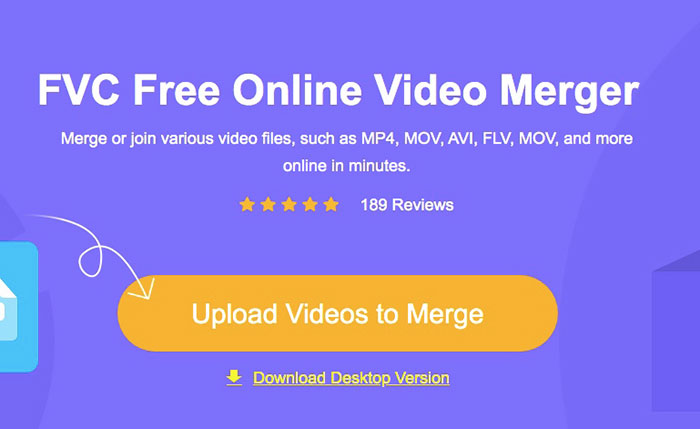
Примечание: Если вы пользуетесь этим инструментом впервые, появится запрос на загрузку и установку лаунчера. После установки лаунчера снова нажмите кнопку Upload Videos to Merge.
Шаг 2. Теперь должно появиться окно Open. Здесь нужно выбрать файлы M4V и затем нажать кнопку Open внизу окна.
Шаг 3. После загрузки файлов M4V вы можете настроить их последовательность, удаляя существующие и вставляя новые файлы в нужные места.
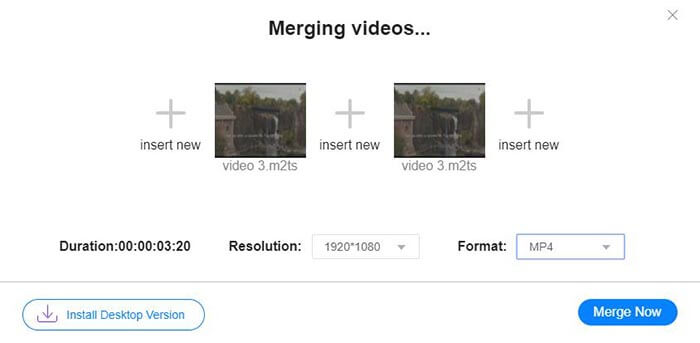
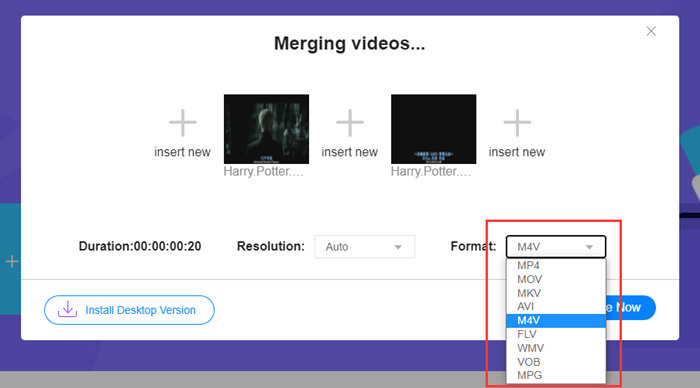
Шаг 4. Чтобы сохранить объединённый файл в формате M4V, необходимо выбрать M4V в списке Format. Вы также можете выбрать любой из предложенных форматов, чтобы конвертировать объединённое видео M4V.
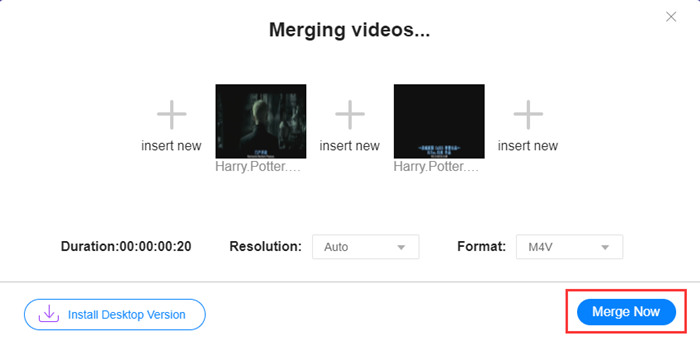
Шаг 5. Нажмите кнопку Merge Now, чтобы начать объединение файлов M4V. Затем инструмент попросит вас указать папку для сохранения выходного файла.
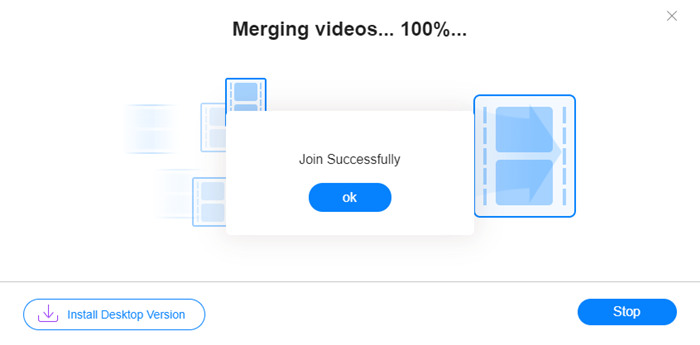
Когда вы видите уведомление об успешном выполнении ниже, объединенное видео сохраняется на вашем компьютере.
Вы уже узнали о самом быстром способе объединить файлы M4V. Однако этот метод позволяет только соединить видео одно за другим и не даёт обрезать ненужные фрагменты в начале или конце, что может привести к появлению участков с чёрным экраном. Возможно, вам понадобится и следующий метод, который поможет не только соединить файлы M4V, но и аккуратно обрезать их. Здесь вы также можете сжать файлы M4V.
Часть 2: Метод бесшовного слияния файлов M4V
Чтобы получить полностью цельное и плавное видео, простого последовательного соединения файлов M4V недостаточно. Необходимо также обрезать лишние фрагменты в начале и конце. Для этого нужен инструмент видеомонтажа. Вы можете выбрать один из множества вариантов, но мы рекомендуем Video Converter Ultimate. Причина проста: им легко пользоваться, и при этом его функции достаточно мощные.
Ключевые особенности
- • Объединяйте, обрезайте, поворачивайте, кадрируйте и добавляйте эффекты к видео M4V.
- • Технология аппаратного ускорения позволяет соединять файлы M4V в 70 раз быстрее.
- • Обильная коллекция фильтров и эффектов для украшения ваших видео.
- • Используйте встроенный усилитель видео, чтобы улучшить качество видео.
- • Превратите свои видео в 3D и смотрите их в 3D-очках.
Бесплатная загрузкаДля Windows 7 или более поздних версийБезопасная загрузка
Бесплатная загрузкаДля MacOS 10.7 или более поздних версийБезопасная загрузка
Шаги для бесшовного объединения файлов M4V
Шаг 1. Установите и запустите Video Converter Ultimate. Нажмите кнопку Add Files или перетащите файлы в окно программы, чтобы добавить видео.
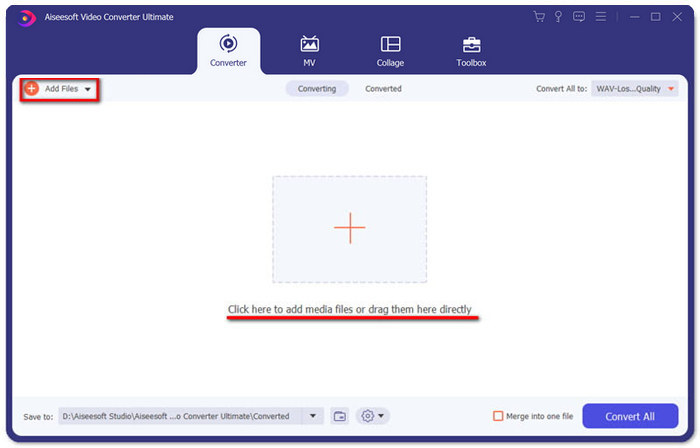
После добавления вы можете перетаскивать файлы вверх и вниз, изменяя их порядок. Также нужно поставить галочку у пункта Merge into one file, чтобы программа не конвертировала добавленные видео по отдельности.
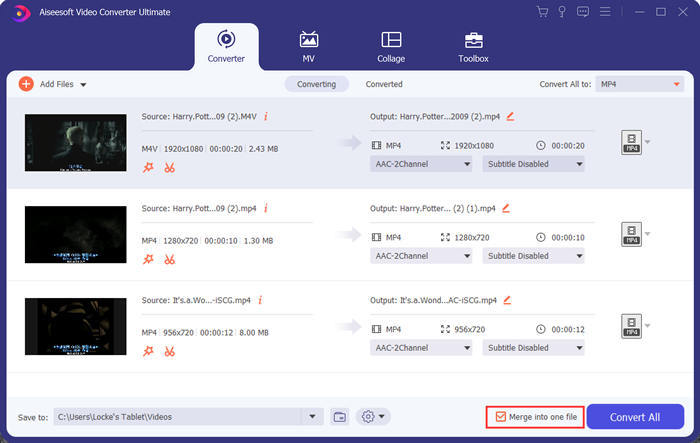
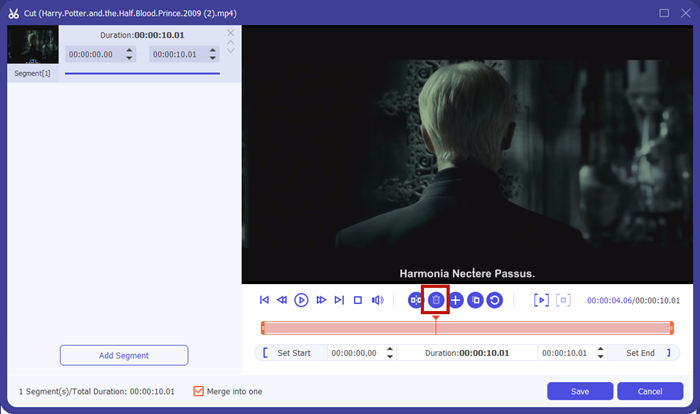
Шаг 2. Чтобы воспользоваться функцией обрезки, нажмите значок Cut на выбранном видео.
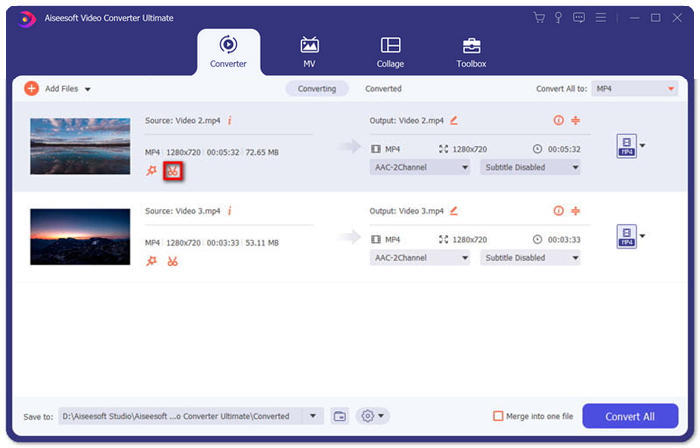
В интерфейсе Cut вы можете легко удалить ненужные части видео. Просто выберите фрагмент, указав начальную и конечную точки, а затем нажмите значок корзины, чтобы его удалить.
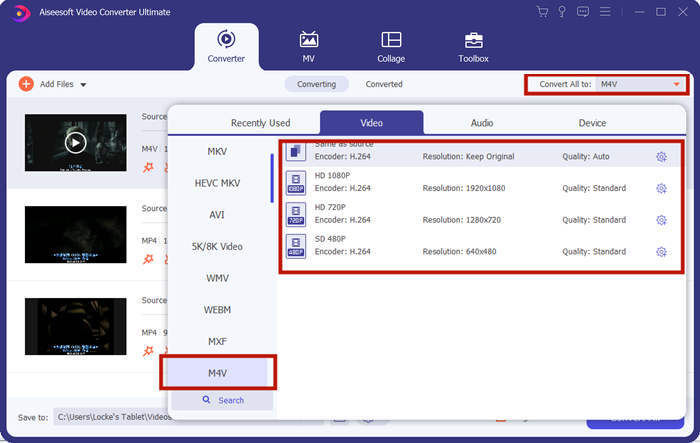
Шаг 3. Вернувшись в основное окно, вы можете выбрать выходной файл. Нажмите стрелку вниз рядом с Convert All to. Затем выберите M4V или любой другой формат в качестве выходного.
Шаг 4. Нажмите кнопку Convert All в правом нижнем углу программы и дождитесь, пока она объединит файлы M4V.

Когда слияние будет завершено, вы увидите уведомление об успешном завершении. Затем вы можете найти объединенный файл M4V в папке назначения. Выше представлены два метода соединения видеофайлов M4V. Мы также ответили на несколько наиболее часто задаваемых вопросов ниже.
Часть 3: Часто задаваемые вопросы о присоединении к файлам M4V
Что это за файл - M4V?
M4V, разработанный Apple, иногда также называют видеофайлом iTunes. Он похож на MP4, потому что они оба основаны на MPEG-4. Самой особенной особенностью M4V является то, что iTunes может добавить в него защиту DRM, чтобы предотвратить несанкционированное распространение видео iTunes.
Как открыть файл M4V?
Если файл M4V не защищён DRM, его можно воспроизводить в VLC, QuickTime, Windows Media Player и многих других медиаплеерах. Иногда для его открытия достаточно изменить расширение .M4V на .MP4. Однако файл M4V с DRM‑защитой можно воспроизводить только на авторизованных устройствах.
Могу ли я снять защиту DRM с файла M4V?
Да, ты можешь. Вы можете найти бесчисленное количество программ удаления DRM на рынке. Вот некоторые из них: TunesKit DRM M4V Converter, Aimersoft DRM Media Converter, Requiem DRM Remover, Ondesoft iTunes Convertert, Apple Music Converter.
Заключение
В этом материале были представлены два эффективных способа объединить несколько видеофайлов M4V в один. Для самого быстрого решения лучше всего подойдёт FVC Free Online Video Merger. Им можно пользоваться без установки каких‑либо программ, а загрузка файлов происходит практически мгновенно. Но если вам нужно более высокое качество или вы хотите не только объединить файлы M4V, но и обрезать их, обратитесь к Video Converter Ultimate. Он предоставляет мощные функции редактирования и при этом имеет интуитивно понятный интерфейс для новичков. Если вы нашли более удачные решения, нам будет интересно узнать о них — просто оставьте комментарий ниже.
-
 Как конвертировать M4V в MP4 с / без DRM
 6 способов бесплатного преобразования M4V в MP4 (включая удаление DRM)
-
 5 лучших плееров M4V для удобного воспроизведения файлов M4V на компьютерах / мобильных устройствах
 5 лучших плееров M4V для Windows / Mac / Android / iOS, о которых вы должны знать
-
 Как извлечь MP3 из M4V с помощью 4 отличных методов, которые вы должны знать
 Конвертер M4V в MP3 - 4 лучших метода извлечения MP3 из файлов M4V
