


 Видео конвертер Ultimate
 Устройство записи экрана
 Видео ремонт
 Безопасная загрузка
Лучшие способы удаления водяных знаков с видео в After Effects
Удалить водяные знаки с фотографии легко с помощью Adobe Photoshop. Но знаете ли вы, как удалить водяные знаки с видео в Adobe After Effects? Некоторые говорят, что это сложно, потому что есть всего несколько приложений, с помощью которых можно убрать водяные знаки с видео. Вам повезло. Используя Adobe After Effects, в этой статье будут предложены отличные методы удаления ненужных объектов из ваших видеороликов или фильмов, таких как водяные знаки, логотипы, тексты, стикеры и т.д. Кроме того, вы познакомитесь с лучшими альтернативами, которые стоит попробовать, чтобы у вас было много вариантов приложений на выбор. Прочтите статью для получения более подробной информации.

Часть 1: Как удалить водяные знаки с видео в After Effects
Adobe After Effects может легко удалить водяные знаки и другие раздражающие элементы из ваших видео. Кроме того, вы можете делать больше вещей с его многочисленными инструментами. After Effects, одна из самых популярных и передовых программ для редактирования видео от Adobe, поднимает вашу работу на новый уровень. Этот инструмент используется для постпродакшна фильмов, телепрограмм и видеоигр. Кроме того, вы можете положиться на это приложение для анимации, компостирования, отслеживания и наложения ключей.
Кроме того, After Effects используют визуальные дизайнеры, аниматоры, рекламные агентства, видеоредакторы, дизайнеры анимированной графики, специалисты по социальным сетям, продюсеры видео, видеоредакторы, специалисты по пользовательскому опыту и аниматоры. Однако Adobe After Effects не идеален для непрофессиональных пользователей. В нем много инструментов, сложных процессов и расширенных функций, что сбивает с толку. Кроме того, вы можете использовать бесплатную пробную версию только до семи дней. Вы должны приобрести программное обеспечение, чтобы использовать его постоянно. Следуйте простым шагам ниже, чтобы удалить водяные знаки из видео.
Шаг 1: Скачайте Adobe After Effects и установите его на своё устройство. Запустите приложение и перейдите в File > Open, чтобы вставить видео с водяным знаком.
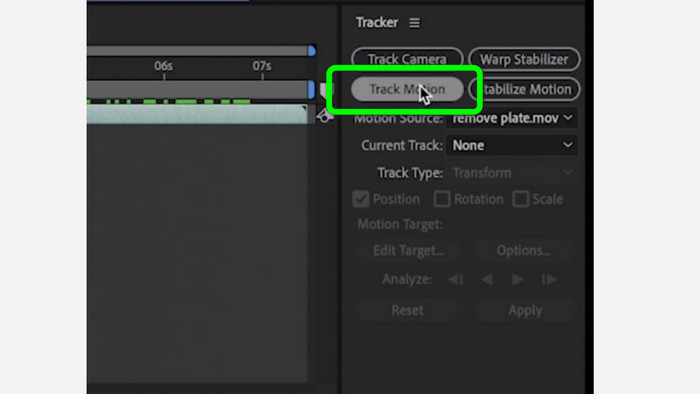
Шаг 2: Перейдите на вкладку Tracker и нажмите Tracker motion. Поместите окно трекинга на область с водяным знаком и нажмите стрелку трекинга вперёд.
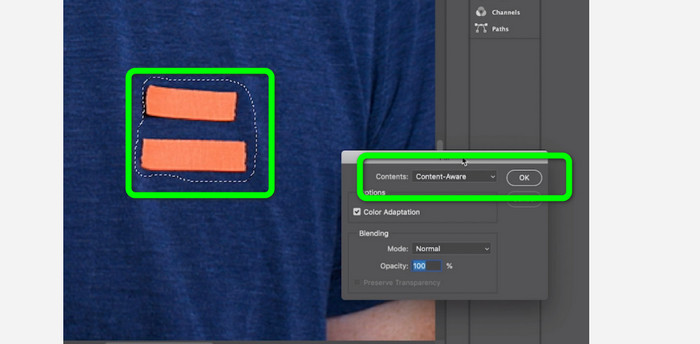
Шаг 3: Выделите водяной знак с помощью инструмента Marquee и выберите Edit > Fill. Когда появится диалоговое окно, выберите Content-aware и нажмите OK.
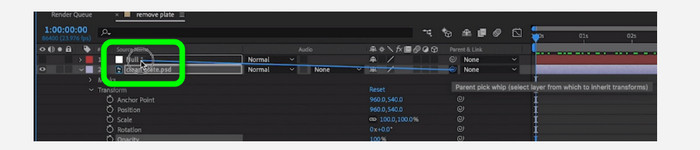
Шаг 4: Свяжите отслеживаемый объект Null с замаскированным неподвижным кадром с помощью инструмента «pick whip». Затем он будет ассоциирован с движущимся объектом Null. При воспроизведении видео водяной знак теперь должен быть незаметным.
Часть 2: самые простые способы удалить водяной знак из видео
Использование конвертера видео Ultimate
Как известно, Adobe After Effects сложно в использовании, особенно для новичков. В этом случае наиболее эффективным и простым приложением для удаления водяных знаков из ваших видео является Video Converter Ultimate. У него простой интерфейс и понятные способы работы, что идеально подходит для всех. Помимо водяных знаков, вы также можете удалять другие мешающие элементы, такие как логотипы, стикеры, эмодзи, тексты и многое другое. Процесс удаления в этом инструменте быстрый, поэтому вам не придётся долго ждать.
Кроме того, он имеет больше возможностей, чем вы думаете. Если другие устройства не поддерживают ваше видео, вы можете преобразовать его в другой формат файла. Этот инструмент может конвертировать форматы видео и аудио файлов. Кроме того, если ваше видео слишком быстрое и вы хотите замедлить его, вы все равно можете положиться на это приложение, поскольку оно предлагает функцию контроллера скорости видео, с помощью которой вы можете регулировать скорость видео от 0,125x до 8x быстрее.
Чтобы удалить водяные знаки из ваших видео, воспользуйтесь подробными инструкциями ниже.
Использование удаления водяных знаков с видео
Шаг 1: Вы можете скачать Video Converter Ultimate для Windows и Mac, нажав кнопку «Download» ниже. После установки вы можете сразу запустить программу.
Бесплатная загрузкаДля Windows 7 или более поздних версийБезопасная загрузка
Бесплатная загрузкаДля MacOS 10.7 или более поздних версийБезопасная загрузка
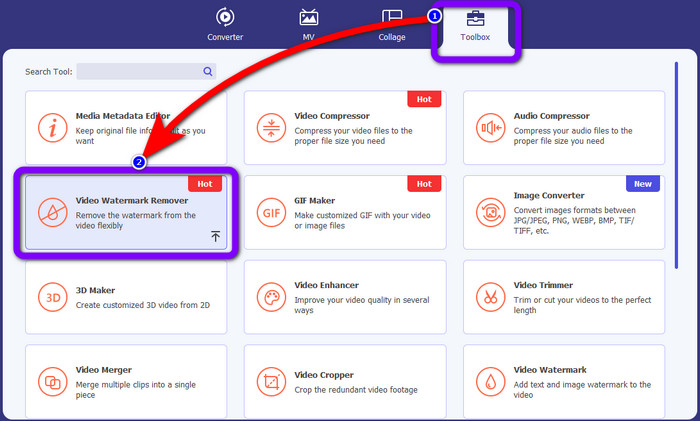
Шаг 2: Выберите вкладку Toolbox из четырёх вариантов в верхней части и нажмите Video Watermark Remover. Ожидайте, что появится ещё один интерфейс. После установки вы можете сразу запустить программу.
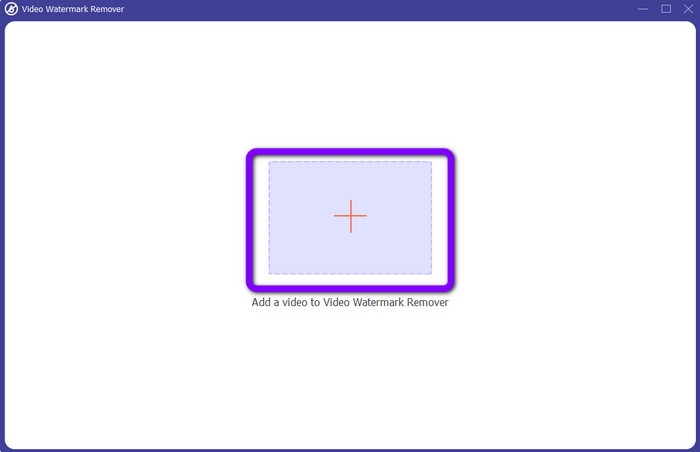
Шаг 3: Нажмите на значок Plus. Откроется ваша папка, затем выберите видео с водяным знаком, который вы хотите удалить.
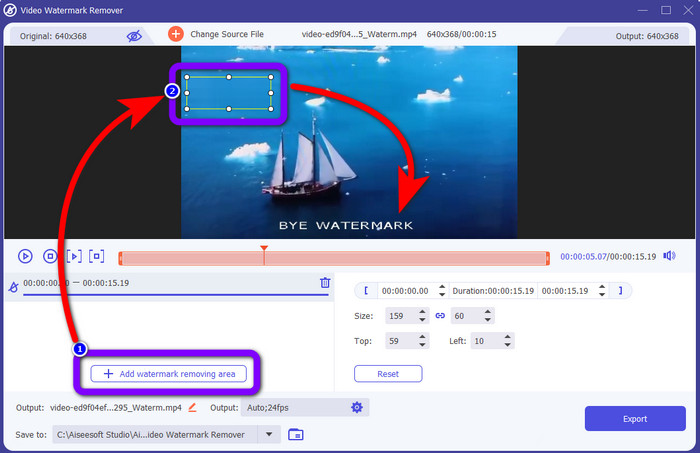
Шаг 4: Нажмите кнопку Add Watermark Removing Area после добавления видео с водяным знаком. На вашем видео появится небольшой квадрат. Используйте его, чтобы закрыть водяные знаки.
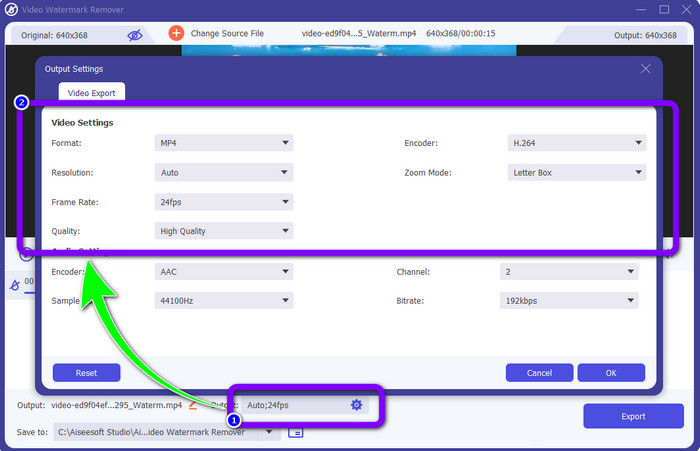
Шаг 5: После того как вы закроете водяные знаки, вы также можете изменить формат, качество, частоту кадров и разрешение видео, нажав параметр Output в нижней части интерфейса.
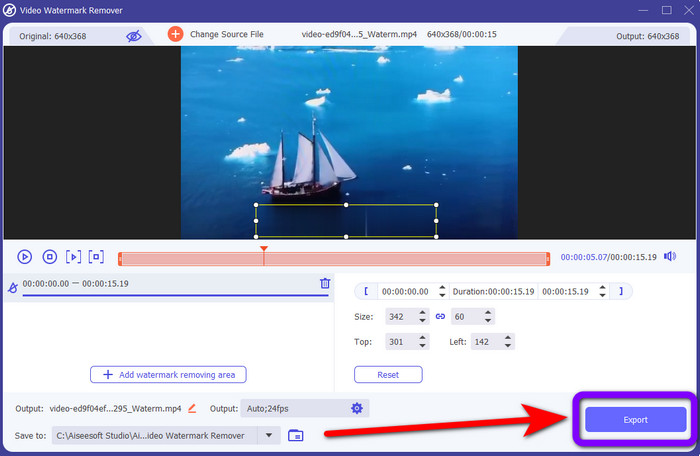
Шаг 6: Шаг 6: Для завершения нажмите кнопку Export и сохраните отредактированное видео.
Использование обрезки видео
Шаг 1: Перейдите на вкладку Toolbox и выберите инструмент Video Cropper.
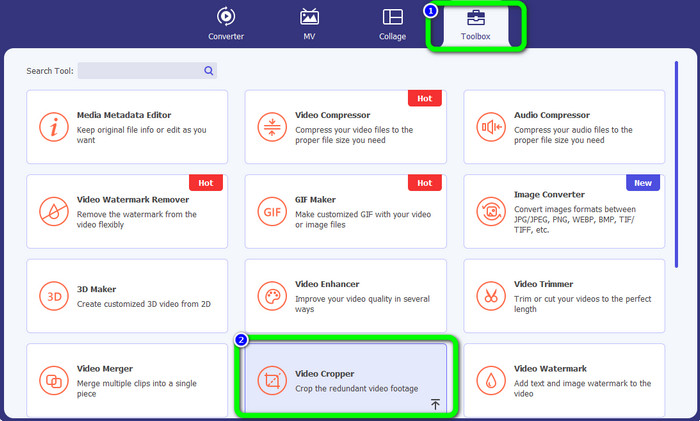
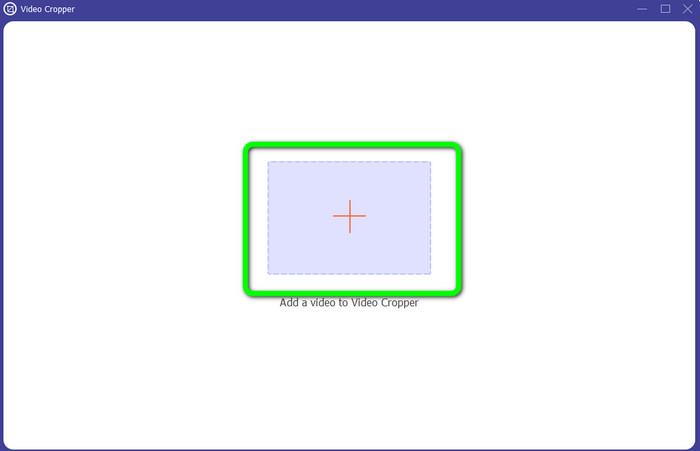
Шаг 2: Нажмите значок +, чтобы добавить видео с водяным знаком.
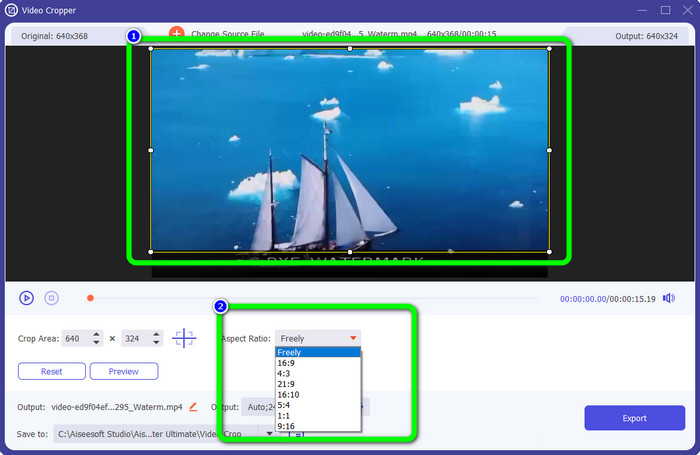
Шаг 3: На этом этапе вы можете обрезать видео, чтобы удалить водяной знак. Вы также можете перейти ко второй вкладке, чтобы выбрать предпочитаемый шаблон обрезки.
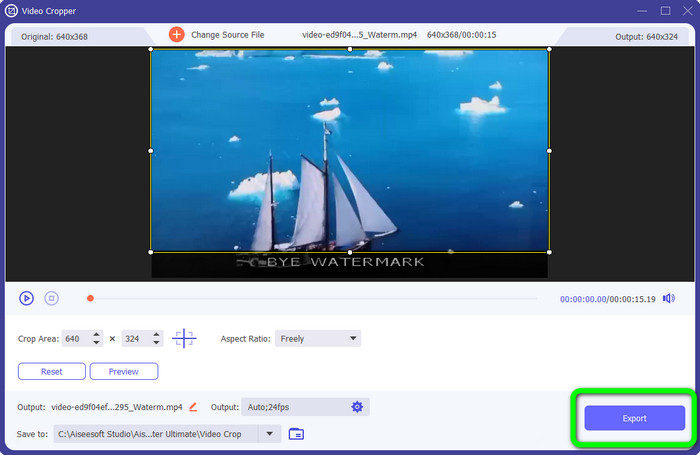
Шаг 4: Когда вы закончите обрезать видео, нажмите кнопку Export, чтобы сохранить видео без водяного знака.
Использование видео для удаления водяных знаков онлайн
После того как вы узнали самые простые методы с использованием офлайн‑инструментов, мы покажем вам ещё один удалитель водяных знаков, который можно попробовать онлайн. Это приложение — Video Watermark Remover Online. Это новый, полностью автоматизированный удалитель водяных знаков с видео, который упростит вам жизнь. Также вы можете удалить из видео различные элементы, такие как логотипы, подписи, штампы даты, водяные знаки, тексты и другое. Это программное обеспечение похоже на другие удалители, но единственное, что делает его уникальным, — оно может автоматически удалять водяные знаки. Это приложение разработано для обнаружения объектов и замены их подходящими цветами, чтобы при рендеринге и заполнении всё выглядело как исходный файл.
Однако при использовании бесплатной версии вы можете загрузить только пять видео. Он также имеет медленный процесс кодирования, и вы не можете экспортировать его в другие форматы файлов. Вы должны купить подписку, чтобы использовать больше замечательных функций этого инструмента. Выполните следующие действия, чтобы удалить водяные знаки из ваших видео с помощью Video Watermark Remover Online.
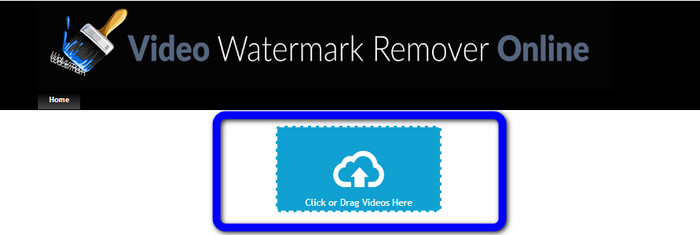
Шаг 1: Перейдите на сайт Video Watermark Remover Online. Нажмите Blue box, чтобы добавить видео. Вы также можете просто перетащить своё видео.
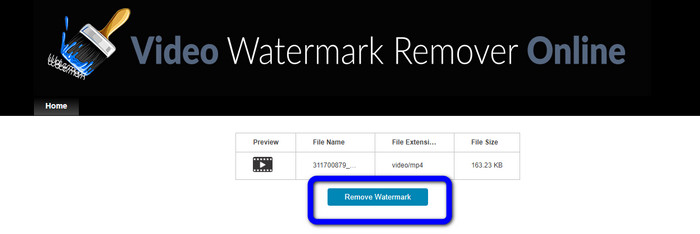
Шаг 2: После обработки файла нажмите кнопку Remove Watermark. Подождите завершения процесса удаления. Сохраните видео без водяного знака.
Часть 3. Часто задаваемые вопросы об удалении водяных знаков из видео
1. Какое средство для удаления водяных знаков лучше всего подходит для Windows и Mac?
Video Converter Ultimate — лучшее средство для удаления водяных знаков. Он может легко удалить нежелательные объекты из ваших видео, такие как водяные знаки, логотипы, наклейки, тексты и т. д.
2. Безопасно ли средство для удаления водяных знаков с видео в Интернете?
Не все безопасны. После удаления водяных знаков с помощью онлайн-инструментов они могут немедленно удалить ваш файл, чтобы никто не мог просматривать и использовать ваш видеофайл. Однако некоторые приложения небезопасны, поэтому сначала необходимо проверить приложение, которое вы используете.
3. Изменится ли качество моего видео после удаления водяных знаков?
Это зависит от приложений, которые вы используете. Если вы не хотите влиять на качество ваших видео, вы можете использовать Video Converter Ultimate.
Заключение
Теперь вы получили представление и узнали, как удалять водяные знаки с видео в Adobe After Effects. Кроме того, в этом посте представлены лучшие альтернативы для удаления водяных знаков с помощью максимально простых методов. И если вы хотите эффективно удалять нежелательные элементы из своих видео без потери качества, попробуйте использовать Video Converter Ultimate.
-
 Убедительные доказательства того, что видео в замедленной съемке можно снимать с помощью After Effects
 Любые мысли или чувства могут быть созданы или усилены просмотром чего-либо в замедленном режиме. Прочтите эту статью, чтобы узнать, как создать замедленное движение в After Effects.
-
 Как ускорить видео в After Effects [Лучший инструмент для ускорения]
 Ускорьте или замедлите видео, используя лучший инструмент для ускорения видео. Узнайте, как ускорить видео в After Effects, прочитав эту статью.
-
 Пошаговые инструкции по удалению эмодзи из видео
 Вас раздражают смайлики в ваших видео? В этом посте вы найдете лучшие процедуры для мгновенного удаления смайликов из ваших видео с помощью отличных инструментов.
