


 Видео конвертер Ultimate
 Устройство записи экрана
 Видео ремонт
 Безопасная загрузка
Как легко и эффективно удалить водяной знак Viva Video с видео
Viva Video — это приложение для редактирования и создания видео, которое вы можете загрузить на свои мобильные устройства, чтобы создать выдающееся видео, которого вы не сможете добиться с помощью другого видеоредактора. При этом вы можете использовать его бесплатную версию или премиальное редактирование видео в своих интересах. Таким образом, пользователи сталкиваются с проблемами при использовании бесплатной версии, поскольку она оставляет водяной знак, а другие функции редактирования отличаются от профессиональной версии. Водяной знак, встроенный в видео, может мешать просмотру, поэтому лучше его удалить.
Однако вы можете использовать несколько инструментов для удаления водяного знака, которые можно найти в PlayStore и App Store, но какой из них лучший? Продолжайте читать эту статью, и мы расскажем о средстве, с помощью которого вы сможете убрать водяной знак, а также дадим инструкцию как убрать водяной знак Viva Video с вашего видео.

Часть 1. Как удалить водяной знак Viva Video с помощью лучших приложений для удаления водяных знаков
Video Eraser — удалить водяной знак/логотип из видео [Android]
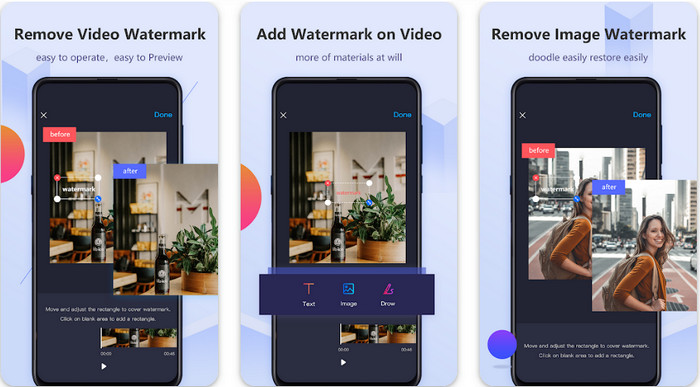
Video Eraser - Remove Watermark/Logo from Video — это мощный удалитель водяных знаков, который можно загрузить на Android-устройство, чтобы убрать водяной знак, встроенный в ваше видео. Это приложение помогает удалить любой тип водяного знака в ролике, например логотип, текст, штампы и т. д. Им также можно воспользоваться, если вы хотите добавить свой собственный водяной знак, обрезать, подрезать, развернуть, сжать видео и изменить скорость воспроизведения. Несмотря на богатый функционал, это средство можно скачать бесплатно. Поэтому, чтобы удалить водяной знак Viva Video на Android, выполните следующие шаги.
Шаг 1. Сначала скачайте приложение на свой Android через PlayStore, затем нажмите «Download» («Загрузить»).
Шаг 2. Откройте средство для удаления водяных знаков, нажмите Remove Watermark from Video, разрешите приложению доступ к вашим видео и загрузите ролик с водяным знаком.
Шаг 3. Поместите прямоугольник на водяной знак, чтобы полностью его закрыть.
Шаг 4. Нажмите Done, чтобы сохранить видео без водяного знака.
Связанный материал:
Video Eraser — Удаление ретуши [iOS]
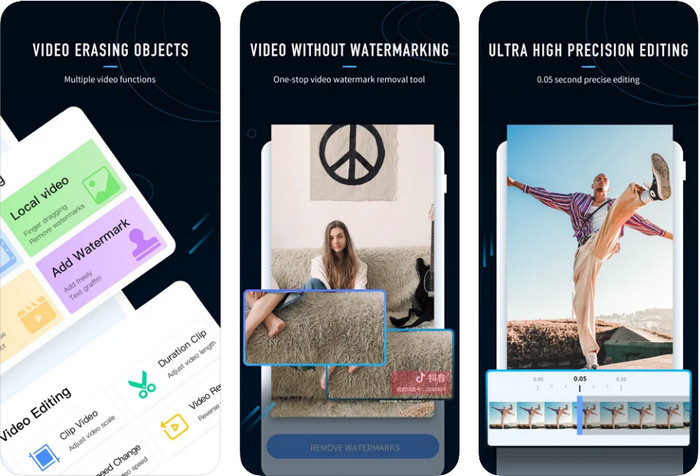
Для iOS вы можете загрузить в App Store приложение Video Eraser- Retouch Removal. Это один из бесплатных инструментов для удаления водяного знака Viva Video, который позволяет эффективно избавляться от отметки на вашем видео. Как и Android-версия, представленная выше, это приложение также поддерживает другие функции редактирования, такие как повышение качества видео, добавление водяного знака, обрезка, подрезка, сжатие и отражение. Всё это доступно здесь. Хотя по функциям оно похоже на Android-приложение, различия в их работе всё же есть, и перед тем как использовать этот инструмент для удаления водяного знака, его придётся приобрести. Чтобы узнать, как убрать водяной знак из видео, экспортированного в Viva Video, следуйте шагам ниже.
Шаг 1. Скачайте приложение в App Store, затем откройте его после завершения загрузки.
Шаг 2. После запуска приложения нажмите Local Video/GIF, чтобы загрузить видео с водяным знаком. Обязательно предоставьте приложению доступ к разделу «Фото».
Шаг 3. Нажмите на участок видео с водяным знаком — на экране появится прямоугольная фигура.
Шаг 4. Нажмите Eliminate Watermark, чтобы экспортировать видео и сохранить его без мешающего водяного знака.
Часть 2. Как удалить водяной знак Viva Video на Windows и Mac [Ultimate Software]
Если вы пользователь Windows или Mac, вам понадобится эффективная программа, которая удалит водяной знак с видео без каких-либо полос и следов. FVC Video Converter Ultimate поможет бесплатно убрать водяной знак Viva Video и при этом обеспечить профессиональное качество итогового ролика. Как и приложения для удаления водяных знаков на Android и iOS, этот инструмент также поддерживает множество дополнительных функций, которыми вы можете воспользоваться. Он предлагает больше возможностей, чем два упомянутых выше мобильных приложения.
Что делает этот инструмент впечатляющим? Функции удаления, которые поддерживает этот инструмент, лучше, чем другие средства для удаления водяных знаков, которые вы можете использовать на своем видео. Итак, если вы используете это, вы можете наслаждаться просмотром видео без водяного знака, удалив его здесь. Нужен учебник о том, как использовать это? Следующие детали позволят вам узнать, как использовать этот инструмент так же легко, как 1-2-3.
Шаг 1. Чтобы загрузить это универсальное ПО, нажмите кнопку скачивания ниже, затем установите программу на своё устройство. Следуйте инструкции WinRAR, затем нажмите Start Now («Начать сейчас»).
Бесплатная загрузкаДля Windows 7 или более поздних версийБезопасная загрузка
Бесплатная загрузкаДля MacOS 10.7 или более поздних версийБезопасная загрузка
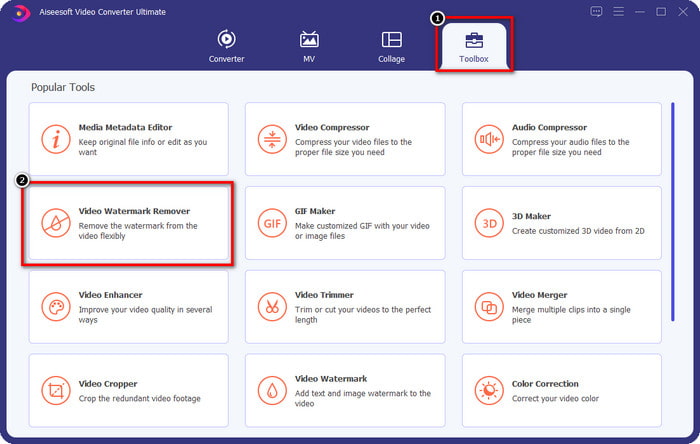
Шаг 2. Перейдите во вкладку Toolbox, затем нажмите Video Watermark Remover, чтобы начать пользоваться эффективной функцией удаления водяных знаков.
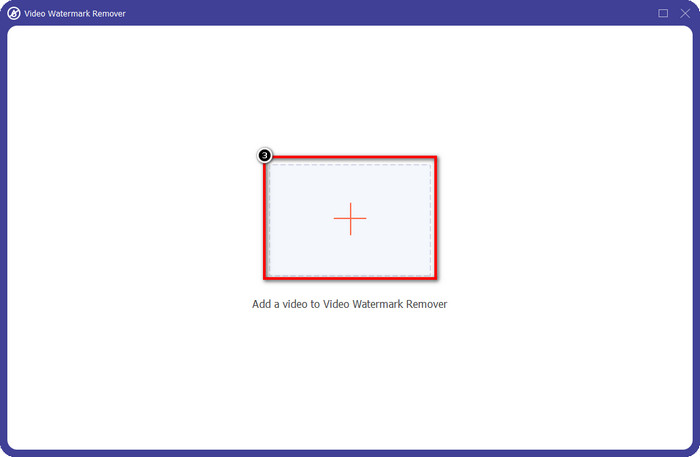
Шаг 3. Загрузите видео из Viva Video с водяным знаком, сохранённое на рабочем столе, нажав на значок «+». Найдите видеофайл в папке, появившейся на экране, и нажмите Open, чтобы успешно его импортировать.
Шаг 4. Нажмите Add Watermark Removing Area, чтобы приступить к использованию функции удаления водяного знака.
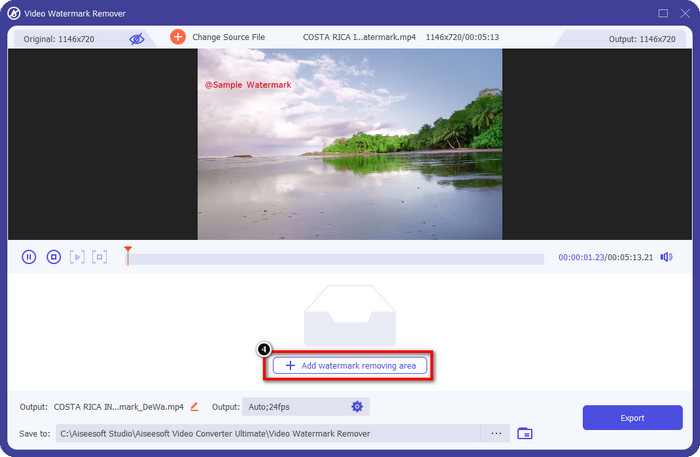
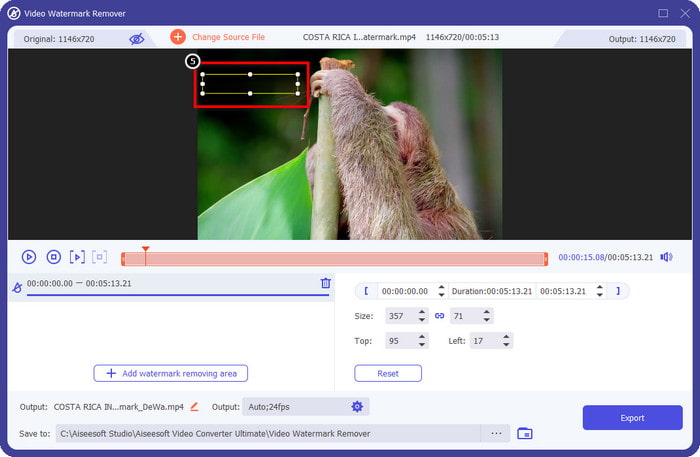
Шаг 5. Перетащите и разместите прямоугольную область на водяной знак в вашем видео и полностью его закройте. Важно закрыть его целиком, иначе останутся следы водяного знака; при необходимости вы можете изменить размер области.
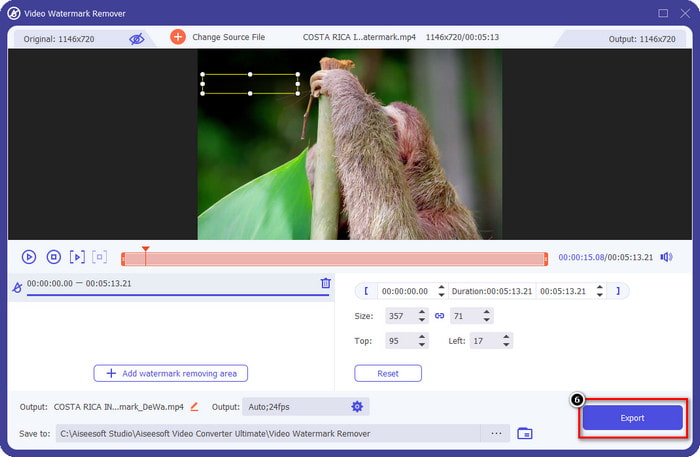
Шаг 6. После этого нажмите Export, чтобы сохранить видео без водяного знака. Легко? Именно для этого и создан этот универсальный инструмент — простой в использовании, но при этом максимально эффективный.
Часть 3. Часто задаваемые вопросы о том, как удалить водяной знак Viva Video
Могу ли я скачать Viva Video без водяного знака?
Да, вы можете приобрести профессиональную версию этого инструмента, чтобы при экспорте редактируемого здесь видео не оставалось водяного знака на видео. Кроме того, после того, как вы приобретете профессиональную версию этого инструмента, вы сможете использовать другую премиальную функцию этого инструмента, которая недоступна бесплатно.
Есть ли у Viva Video настольная версия?
Вы можете скачать версию Viva Video только на Android и iOS. Итак, если вы хотите загрузить настольную версию, вы ее не найдете, но вы можете найти лучшие альтернативы для редактирования видео, такие как Viva Video.
Есть ли у Viva Video шпионское ПО?
В 2017 году отчеты об этом приложении позже подтвердили наличие вредоносного ПО. Таким образом, люди, которые загрузили это программное обеспечение, принудительно удалили это приложение на своих устройствах, чтобы избежать дальнейших последствий.
Заключение
С помощью средства удаления водяных знаков Viva Video из этой статьи вы можете удалить водяной знак, который Viva Video встраивает в экспортированное видео. Вы можете попробовать использовать вышеупомянутые приложения и следовать приведенным нами инструкциям по удалению водяного знака. Но для пользователей Windows и Mac с водяным знаком Viva Video лучше использовать лучшее программное обеспечение для быстрого и эффективного удаления водяного знака и получения профессионального результата. Чего ты ждешь? Нажмите кнопку загрузки, чтобы удалить последний водяной знак с вашего устройства прямо сейчас, и используйте его, выполнив описанные выше шаги.
-
 Как удалить водяной знак Lomotif с помощью этих замечательных инструментов
 Хотите узнать, как удалить водяной знак Lomotif из вашего видео? Прочтите эту статью, чтобы узнать о самых выдающихся методах его удаления онлайн и офлайн.
-
 Как удалить туристов с фотографий с помощью удаления водяных знаков
 Как убрать туристов с фотографий? Если вы хотите научиться удалять ненужные элементы с фотографии, эти инструменты помогут вам. Прочтите эту статью, чтобы узнать больше.
-
 Средство для удаления водяных знаков 123rf — подробный обзор лучших инструментов
 Если вы хотите узнать, какие самые выдающиеся средства для удаления водяных знаков 123rf, внимательно прочитайте эту статью. В этой статье представлен подробный обзор инструментов.
