


 Видео конвертер Ultimate
 Устройство записи экрана
 Видео ремонт
Соберитесь с мыслями о том, как ускорить видео в iMovie
Вы любите смотреть документальные фильмы на своем новом iPhone, вы всегда выбираете их из‑за интересных историй. Без особой причины вы хотите собрать каждый из них и быстро отредактировать. В поисках лучшего приложения, которое могло бы одновременно монтировать видео и ускорять его, вы находите iMovie. Но так как вы только начинаете пользоваться iPhone и самим приложением, вы не знаете, как им пользоваться и как ускорить видео в iMovie. Продолжайте читать, потому что в этой статье приводится множество подробностей, которые помогут вам лучше узнать это приложение.

Часть 1. Как ускорить видео в iMovie
На вопрос, как ускорить видео, можно ответить, используя функции iMovie. Его высококачественный видеовыход, различные шаблоны и подручные инструменты для окончательной обработки могут впервые обеспечить управление скоростью воспроизведения на iPhone. iMovie также может ускорить видео, как и другие приложения. Один из его инструментов может вносить коррективы в ваше видео вместе с другими доступными инструментами. Теперь легко получить доступ к видео, которые вы хотите ускорить, с помощью этого приложения, доступного только в операционных системах iOS и Mac. Теперь, когда вы знаете об этом инструменте, давайте поговорим о процедурах, которые вам необходимо выполнить.
Для пользователей iPhone
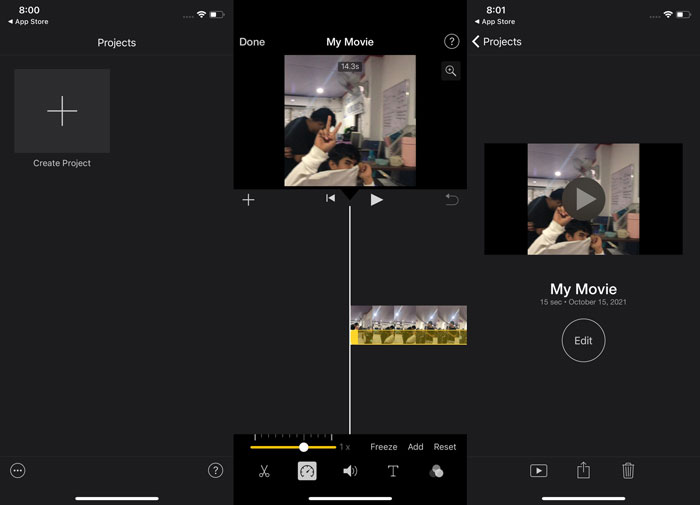
Шаг 1: Зайдите в App Store на вашем iPhone или iPad и скачайте приложение iMovie. Когда появится окно с обзором интерфейса, выберите Continue (Продолжить). На странице Projects (Проекты) нажмите значок в виде знака «+», чтобы начать новый видеоклип. Затем в окне New Projects выберите Movie (Фильм).
Шаг 2: После выбора видео из вашей фотопленки нажмите кнопку Create Movie (Создать фильм) внизу экрана. Коснитесь временной шкалы и дождитесь появления инструментов редактирования, затем используйте инструмент скорости, который выглядит как спидометр. Чтобы перемотать видео вперед или назад, просто передвигайте нижний желтый ползунок (Slider). Вы можете ускорить воспроизведение до двух раз или замедлить его до одной восьмой от исходной скорости.
Шаг 3: Когда закончите, в левом верхнем углу экрана телефона нажмите Done (Готово). Чтобы сохранить готовое видео, откройте меню Share (Поделиться) и выберите, куда вы хотите его сохранить, из появившихся вариантов.
Для пользователей Mac
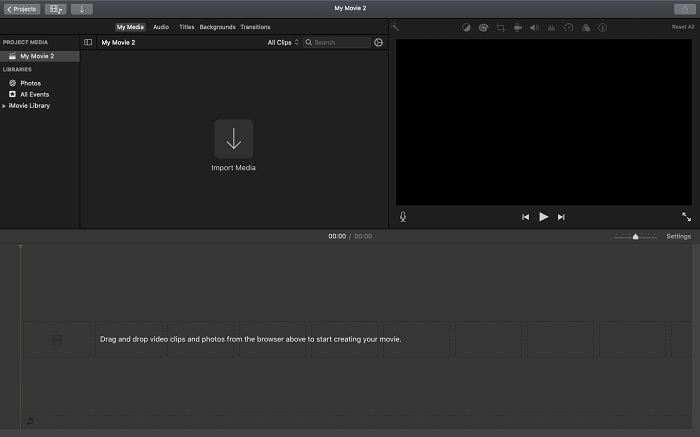
Шаг 1: В приложении iMovie на Mac выберите клип на временной шкале, а затем измените его скорость.
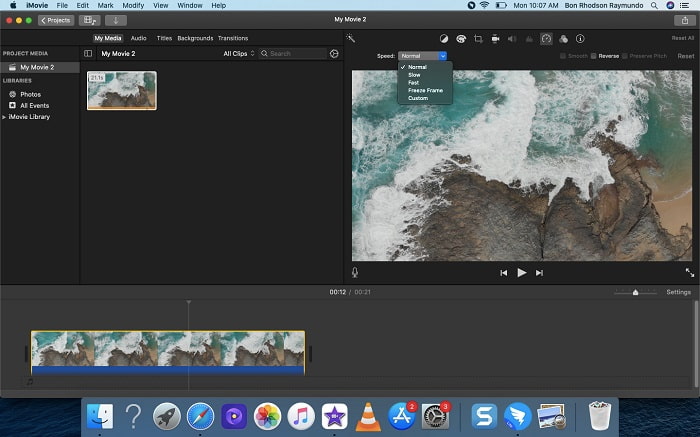
Шаг 2: Нажав кнопку Speed (Скорость) в верхней части интерфейса, вы откроете настройки скорости. Просто выберите между режимами Slow (Медленно) и Fast (Быстро) на панели скорости, чтобы точно настроить скорость воспроизведения.
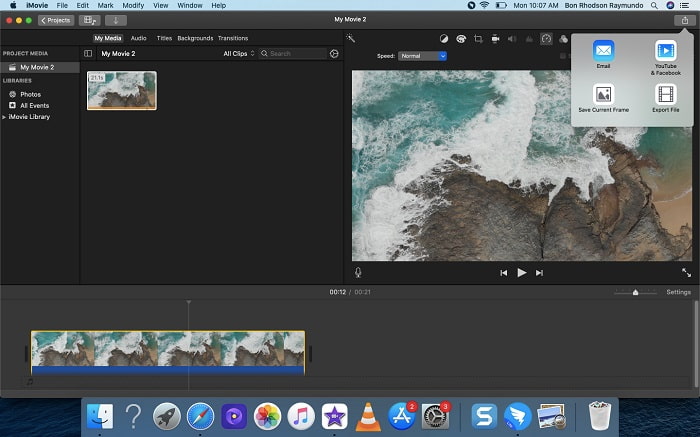
Шаг 3: Нажмите значок Upload (Загрузить) в правом верхнем углу интерфейса, чтобы экспортировать файл на рабочий стол.
Часть 2. Еще один более простой способ ускорить видео
Использовать iPhone или другие онлайн‑приложения, доступные только на iPhone, как редактор видео может быть непросто, если вы хотите ускорить воспроизведение ролика. Video Converter Ultimate станет лучшим вариантом, поскольку позволяет навсегда изменить скорость вашего видео. С помощью этого инструмента, который можно получить бесплатно, вы сможете регулировать скорость воспроизведения. В нем есть различные встроенные инструменты, включая Video Speed Controller (Контроллер скорости видео), который позволяет ускорять воспроизведение ролика с высоким качеством вывода и очень быстрой конверсией. Чтобы узнать больше подробностей, выполните следующие шаги:
Шаг 1: Чтобы сохранить программу на компьютер, нажмите Free Download (Бесплатная загрузка). После этого установите программу, настроив параметры по своему усмотрению.
Бесплатная загрузкаДля Windows 7 или более поздних версийБезопасная загрузка
Бесплатная загрузкаДля MacOS 10.7 или более поздних версийБезопасная загрузка
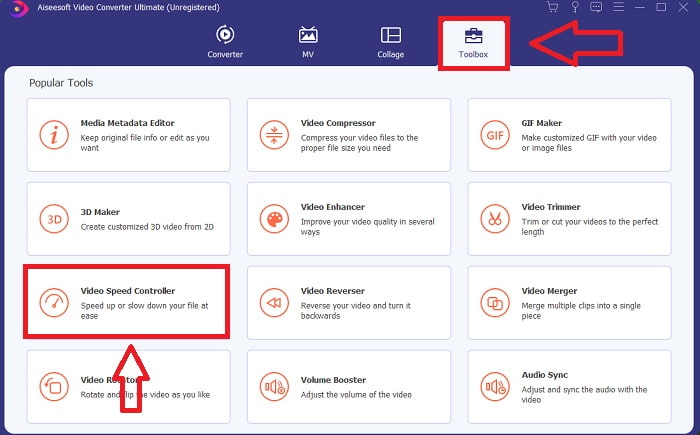
Шаг 2: После первого запуска установленной программы выберите раздел Toolbox (Набор инструментов), а затем инструмент Video Speed Controller (Контроллер скорости видео).
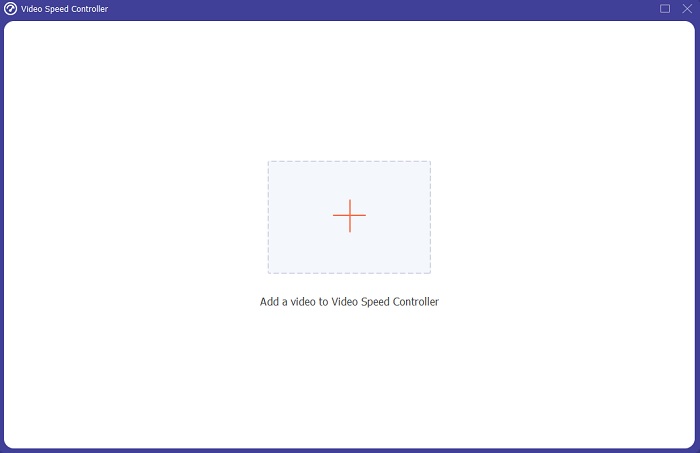
Шаг 3: Чтобы перейти к этапу редактирования, загрузите видеофайл с компьютера, нажав кнопку с символом «+», которая появится после выбора инструмента Video Speed Controller.
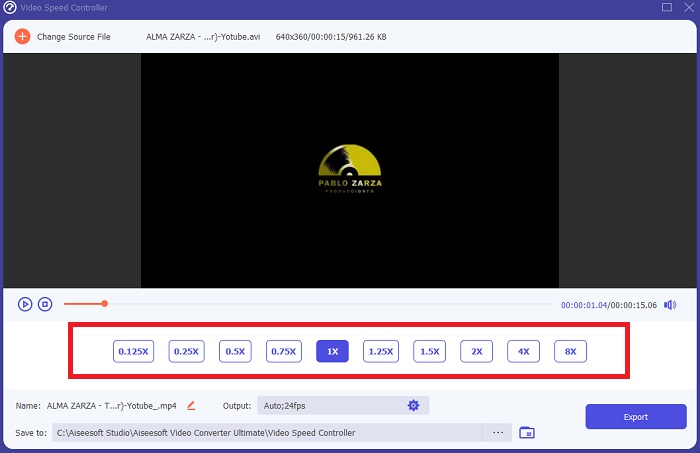
Шаг 4: Теперь вы можете ускорить видео сильнее, чем в iMovie, потому что этот инструмент предоставляет больше вариантов того, насколько быстро вы хотите применить множитель скорости к вашему видео. После выбора нужной скорости вы также можете просмотреть предварительный просмотр ролика, чтобы понять, устраивает ли вас результат.
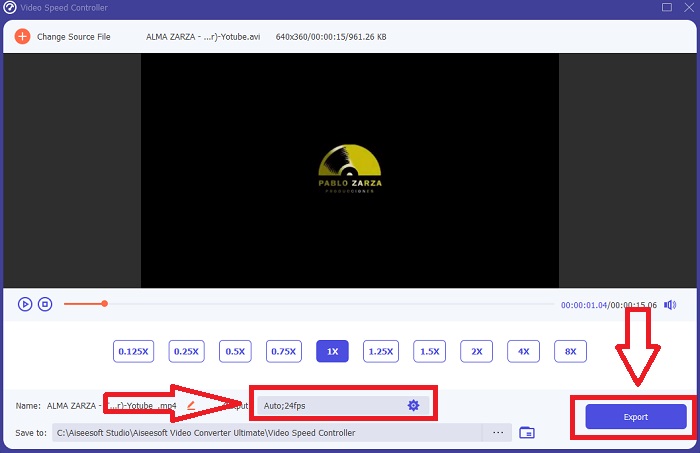
Шаг 5: После того как вы закончите регулировать скорость воспроизведения видеоклипа, вы можете выбрать желаемый итоговый формат, разрешение и качество клипа, а также другие параметры. Когда будете готовы сохранить результат, нажмите Export (Экспорт) и укажите место сохранения.
Похожие материалы:
Как объединить видео на iPhone
Часть 3. Часто задаваемые вопросы о том, как ускорить видео
Что если я отправлю быстрое видео и получу медленное, чтобы уменьшить размер видео?
Нет, это влияет только на представление данных, а не на количество самих данных. Однако можно уменьшить размер видео, запустив его с более низкой частотой кадров. С меньшим количеством кадров в секунду он поддерживает ту же скорость, что и оригинал. 60 кадров в секунду против 30 существенно влияет на размер видеофайла. Из-за различий между кадрами, которые учитываются при кодировании видео. Уменьшите разрешение видео, например, с 1080p до 720p, чтобы еще больше уменьшить его размер. Из-за этого размер файла будет значительно уменьшен.
Какие у вас есть варианты ускорения воспроизведения видео на Mac?
Чтобы увеличить скорость воспроизведения в два или более раз (в 5 или более раз), нажимайте кнопку перемотки вперед или назад, пока видео не начнет воспроизводиться с желаемой скоростью, например, в 30 или 60 раз. Во время воспроизведения видео вы можете изменить скорость воспроизведения с шагом 1,1x, нажав кнопку перемотки вперед или назад, удерживая клавишу Option.
Как навсегда изменить скорость воспроизведения видео?
Подумайте, сколько шагов требуется, чтобы изменить скорость воспроизведения ваших видео. Хотя инструменты для работы с видео и видеоредакторы легко найти в интернете, вы все еще ищете лучший способ исправить проблемы со скоростью воспроизведения видеоклипа. В сети доступно множество веб‑инструментов, некоторые из них бесплатны, но требуют оплаты для разблокировки всех функций. Video Converter Ultimate — бесплатная программа для ускорения видео — это ваш лучший выбор, если вы хотите навсегда изменить скорость воспроизведения.
Заключение
В заключение, iMovie — отличное приложение для устройств на базе iOS, таких как Mac и iPhone, чтобы решить проблему со скоростью воспроизведения видео. Оно доступно очень широкому кругу пользователей, удобно и бесплатно. Да, оно отлично подходит для изменения скорости воспроизведения, но как насчет других важных параметров видео? Именно поэтому мы рекомендуем использовать Video Converter Ultimate как лучшее программное обеспечение для коррекции скорости воспроизведения видео; кроме того, в нем есть множество функций, которые помогут вам создать выдающееся видео, которое вы даже не могли себе представить.
-
 Android DVD Player - Как воспроизводить DVD-видео на мобильных устройствах Android
 Как воспроизводить файлы DVD на мобильных телефонах Android? Есть ли Android DVD плееры? В этой статье вы узнаете о 3 способах воспроизведения DVD-видео на мобильных устройствах Android с внешним драйвером или без него.
-
 10 лучших бесплатных плееров Android MP4 для воспроизведения видео HD / 4K
 Хотя мобильные устройства Android имеют проигрыватели по умолчанию для воспроизведения видео в формате MP4, они не поддерживают настройку параметров воспроизведения и других функций. Таким образом, вы можете узнать о 10 лучших плеерах Android MP4 из этой статьи.
-
 Застрявший видеоплеер Samsung: топ-5 лучших видеоплееров для Samsung
 Когда вы воспроизводите видео через видеоплеер Samsung по умолчанию, вы можете обнаружить, что он всегда зависает. Чтобы получить более плавный и лучший опыт просмотра, вы можете узнать о 5 лучших видеоплеерах для Samsung из этой статьи.
