


 Видео конвертер Ultimate
 Устройство записи экрана
 Видео ремонт
Как ускорить видео онлайн: обширные подходы, доступные в Интернете
Онлайн‑занятия — это ещё один метод обучения, используемый в смешанных учебных программах, особенно во время этой пандемии, когда видеопрезентации служат альтернативой синхронным курсам. Однако большинство видеопрезентаций продолжительностью около часа невероятно скучно смотреть. Некоторым студентам ничего не остаётся, как ускорять или проматывать видео, чтобы выхватить только самые важные моменты урока. Эта статья отлично подходит для решения подобной проблемы, с которой сталкивается большинство учащихся. Ниже приведены примеры того, как ускорить видео онлайн.

Часть 1. Различные способы увеличения скорости воспроизведения видео
Ускорение воспроизведения видео может показаться необычным, потому что все ролики обычно идут в среднем темпе. Но некоторые пользователи хотят смотреть клипы в 2 раза быстрее обычного. Например, кто‑то ускоряет видео, чтобы пропустить несущественные детали, из‑за которых фильм становится скучным, особенно если вы пересматриваете его. Вы хотите пропустить длинные диалоги и перейти сразу к динамичным сценам или кульминации. Другие же просто предпочитают смотреть видео в ускоренном режиме. Существуют программы для монтажа, которые нужно покупать, прежде чем использовать, и они могут помочь вам решить эту задачу. Однако представленные ниже программы и онлайн‑сервисы позволят вам ускорить видео онлайн бесплатно.
Способ 1. Используйте Клидео
Программное обеспечение для видеомаркетинга Clideo включает инструменты для создания, редактирования, сжатия и подготовки видео к распространению практически в любой онлайн‑среде. В нём есть множество функций, включая набор инструментов для редактирования, механизм настройки и поддержку различных форматов. Один из инструментов позволяет перематывать и ускорять видео. Если вы хотите узнать, как им пользоваться, ниже приведена инструкция по работе с Clideo:
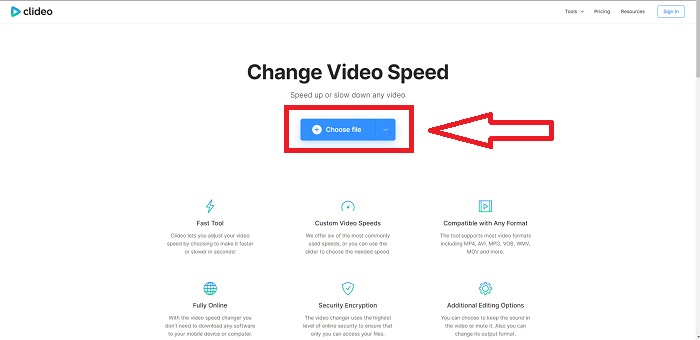
Шаг 1: Нажмите Choose File в интерфейсе Clideo и загрузите видеоролик, который вы хотите ускорить.
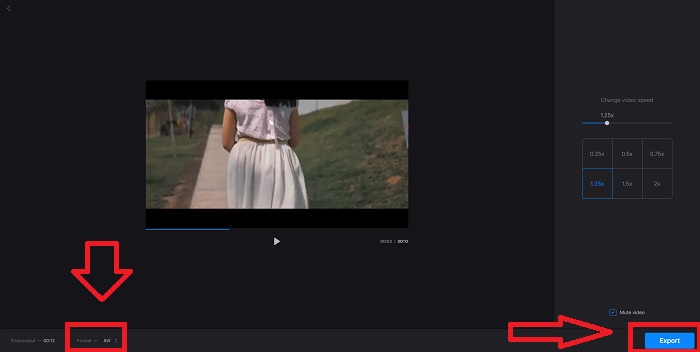
Шаг 2: После загрузки видео выберите нужную вам скорость в правой части интерфейса и примените её к файлу. Вы можете выбрать, хотите ли вы сделать видео быстрее или, наоборот, замедлить его по сравнению с исходной скоростью клипа. Также вы можете полностью отключить звук в ролике.
Шаг 3: Когда вы будете довольны выбранной скоростью, укажите подходящий формат для вашего видео. Доступные форматы: AVI, 3G2, 3GP, F4V, ASF, FLV и M2TS. Затем, если всё готово к выгрузке, нажмите Export, а затем Download, чтобы сохранить файл на компьютере.
Способ 2. Используйте Fastreel
Онлайн‑редактор видео Fastreel позволяет создавать короткие ролики, монтировать видео и использовать готовые шаблоны, чтобы ускорить и упростить процесс. Одной из компаний, стоящих за этим сервисом, является Movavi, также известная своим программным обеспечением для видеомонтажа и конвертации. Поскольку сервис работает в любом браузере — Firefox, Google Chrome, Opera и Safari — Fastreel является отличной альтернативой настольным программам как для пользователей Windows, так и Mac. Как и первый онлайн‑сервис, Fastreel имеет функции, которые помогут вам ускорить видео онлайн. Выполните следующие шаги:
Шаг 1: В интерфейсе Fastreel нажмите Use Online Tools, чтобы открыть все доступные инструменты.
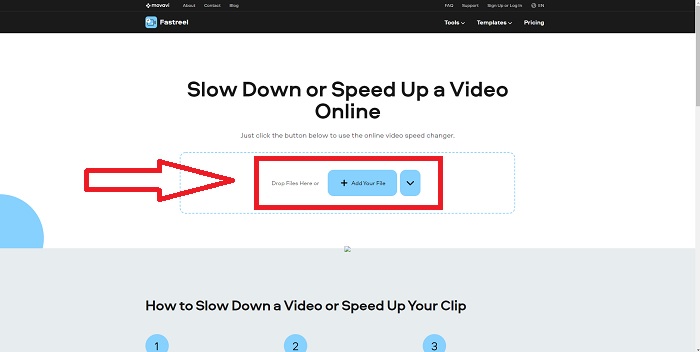
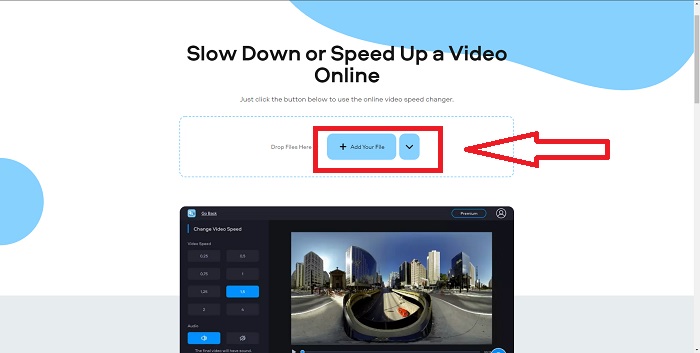
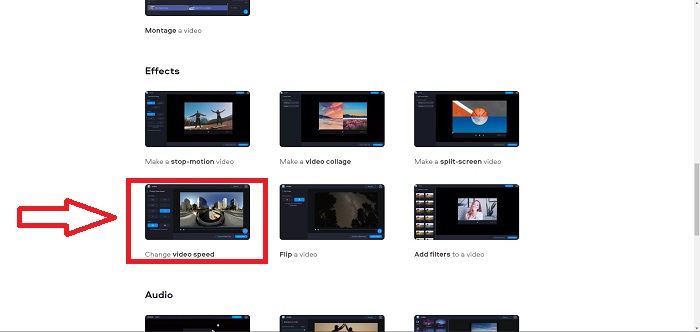
Шаг 2: Затем вы увидите обзор всех функций Fastreel. Пролистайте ниже до раздела Effects и нажмите Change Video Speed, чтобы начать редактирование видеоролика. Далее нажмите Add file и продолжайте монтаж.
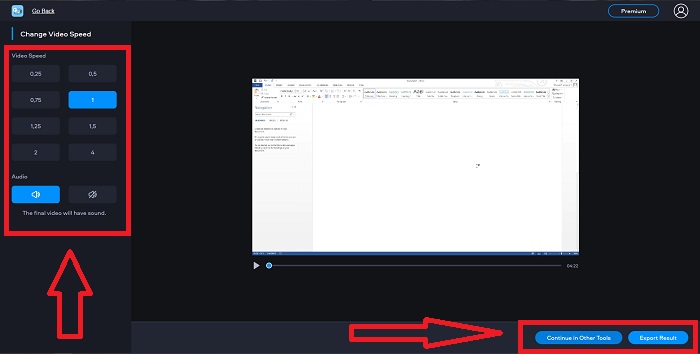
Шаг 3: Наконец, отрегулируйте скорость воспроизведения — увеличьте или уменьшите её. Затем вы сможете либо экспортировать файл, либо воспользоваться другим инструментом Fastreel. При этом вы можете разблокировать все остальные функции, если оформите Premium.
Способ 3. Используйте Flixier
Следующий онлайн‑сервис не накладывает ограничений на размер файла при изменении скорости воспроизведения, так как позволяет ускорять большие видео онлайн. Попробуйте Flixier — наш онлайн‑редактор, который позволяет монтировать видео прямо в браузере максимально простым способом. Добавлять текст и изображения в ролики так же просто, как перетащить их в окно редактора. Вам не нужно скачивать или устанавливать программы, чтобы обрезать, резать или кадрировать видео за считанные минуты. Независимо от уровня подготовки вы сможете быстро создавать контент высокого качества. Ознакомьтесь с шагами ниже:
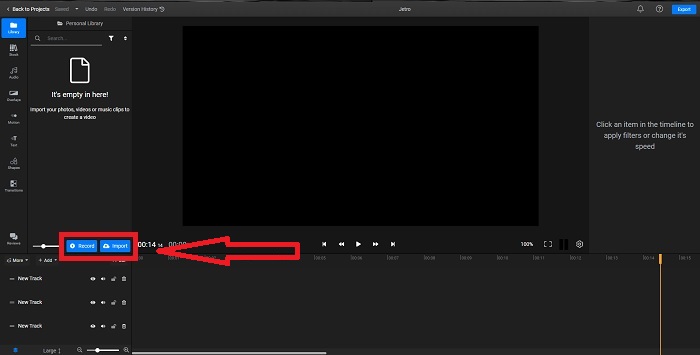
Шаг 1: Откройте Flixier в другой вкладке и начните импорт видео с компьютера, нажав Import, либо начните запись, нажав Record. Перетащите импортированный файл на временную шкалу и приступайте к монтажу.
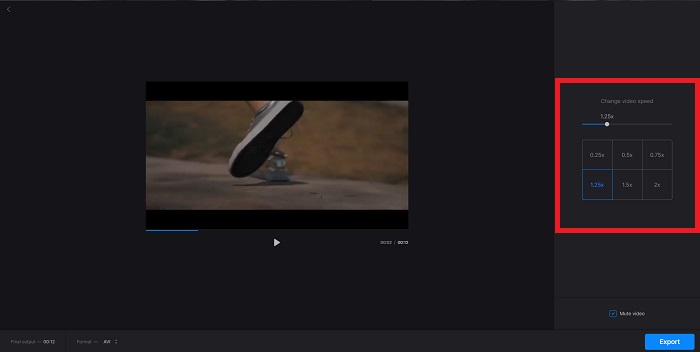
Шаг 2: В правой части окна вы увидите вкладку Video в панели инструментов редактирования. Пролистайте вниз и нажмите Video Speed, чтобы изменить скорость воспроизведения импортированного ролика. Выберите, хотите ли вы замедлить видео до 0,5x или ускорить до 1,5x, 2x, либо перетащите Slider, чтобы задать конкретное значение скорости, которое хотите применить к клипу.
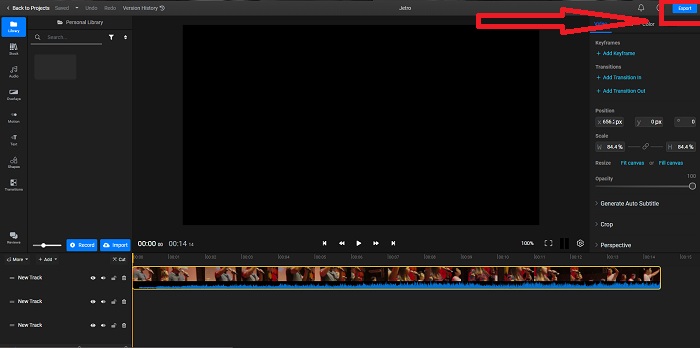
Шаг 3: Экспортируйте ролик, нажав кнопку экспорта в правом верхнем углу интерфейса. После этого откроется новое окно. В нём вы сможете переименовать экспортируемый файл и выбрать различные соцсети и облачные хранилища для сохранения.
Способ 4. Используйте Video Converter Ultimate — самый простой способ
Если вы сомневаетесь, чем лучше сделать видео быстрее, не хотите больше пользоваться онлайн‑редакторами и предпочитаете устанавливаемое программное обеспечение, попробуйте Video Converter Ultimate для редактирования видео и изменения скорости воспроизведения.
Шаг 1: Нажмите кнопку Free Download, чтобы сохранить программу на жёсткий диск компьютера. Затем установите ПО и выполните первоначальные настройки системы.
Бесплатная загрузкаДля Windows 7 или более поздних версийБезопасная загрузка
Бесплатная загрузкаДля MacOS 10.7 или более поздних версийБезопасная загрузка
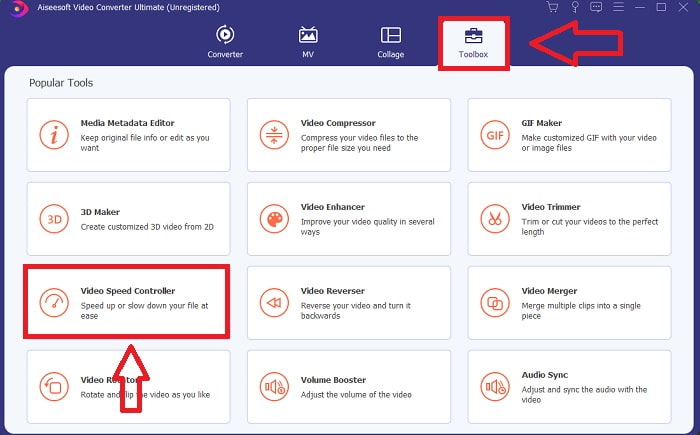
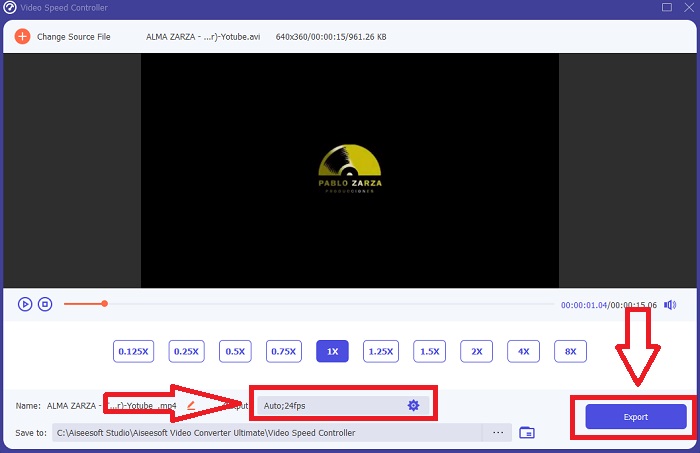
Шаг 2: После установки запустите программу, выбрав в строке меню раздел Toolbox, а затем пункт Video Speed Controller из появившегося списка.
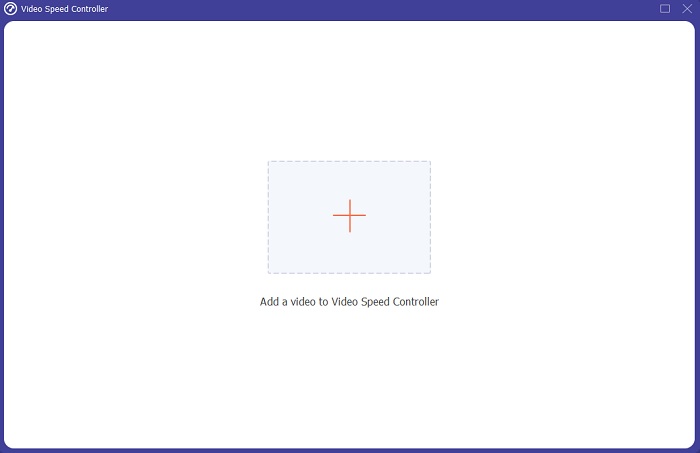
Шаг 3: Нажмите кнопку с символом «+» в нужном месте, чтобы добавить файл, и продолжайте редактирование видео.
Шаг 4: Отрегулируйте скорость воспроизведения, выбрав, во сколько раз увеличить или уменьшить скорость видео.
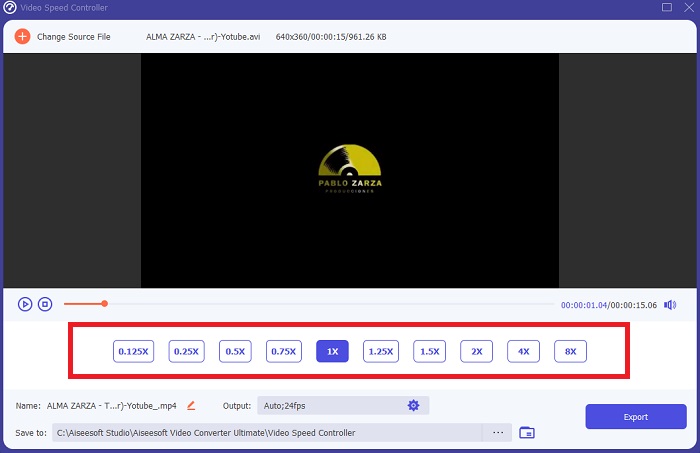
Шаг 5: Закончив редактирование скорости воспроизведения, выберите желаемые параметры выхода — формат, разрешение, качество и т. д. Нажмите Export и укажите, куда сохранить файл.
Связанный материал:
Лучшие VOB‑проигрыватели для Android
Часть 2. Часто задаваемые вопросы о том, как ускорить видео в Интернете
Уменьшается ли размер файла видео при увеличении скорости воспроизведения?
Только кадр будет разделяться каждый раз, когда вы увеличиваете или уменьшаете скорость воспроизведения вашего видео. Если вы увеличите его на 0,5 раза быстрее, кадр будет 60 кадров за 1/120 секунды. Короче говоря, это не может повлиять на видео, если видео уже не имеет низкой частоты кадров.
Какой инструмент намного проще использовать для ускорения видео?
Все инструменты бесплатны для использования или для бесплатной загрузки. Тем не менее, Video Converter Ultimate — лучшая альтернатива каждому веб-инструменту, который обсуждался в предыдущей части статьи. Этот инструмент также имеет множество доступных функций и может помочь вам улучшить ваше видео доступными способами.
Принимает ли инструмент все форматы?
Нет, некоторые из предоставленных инструментов могут поддерживать только ограниченное количество форматов. Некоторые из них могут конвертировать вывод в другой формат. Однако Video Converter Ultimate может поддерживать различные форматы, а также доступен для любого устройства. Он также может ускорить онлайн-видео mp4, поскольку большинство медиаплееров могут поддерживать формат mp4.
Заключение
Ускорение видео может показаться странной идеей для большинства людей, и это привело лишь к некоторым необычным целям. Тем не менее, это по-прежнему приносит пользу людям, которые хотят быстро конвертировать свои видео. Эта статья может быть полезной для тех, кто разбирается в редактировании видео и отвечает на все вопросы об ускорении видеоклипа.
-
 Как плавно конвертировать файлы MKV для воспроизведения на PS3 [решено]
 Хотите воспроизводить видео MKV на своей PS3? Однако PS3 не может напрямую воспроизводить файлы MKV. Эта статья покажет вам способы конвертировать видео MKV в поддерживаемые PS3 видеоформаты для воспроизведения на PS3 без каких-либо проблем.
-
 Android DVD Player - Как воспроизводить DVD-видео на мобильных устройствах Android
 Как воспроизводить файлы DVD на мобильных телефонах Android? Есть ли Android DVD плееры? В этой статье вы узнаете о 3 способах воспроизведения DVD-видео на мобильных устройствах Android с внешним драйвером или без него.
-
 10 лучших бесплатных плееров Android MP4 для воспроизведения видео HD / 4K
 Хотя мобильные устройства Android имеют проигрыватели по умолчанию для воспроизведения видео в формате MP4, они не поддерживают настройку параметров воспроизведения и других функций. Таким образом, вы можете узнать о 10 лучших плеерах Android MP4 из этой статьи.
