


 Video Dönüştürücü Ultimate
 Ekran kaydedicisi
 Video Onarımı
Sağlanan En İyi Konseptle Ağır Çekim Video Nasıl Yapılır
Hepimiz ağır çekim videolar yapmak istedik, çünkü ağır çekim videolar sayesinde cihazlarımızın kısa sürede yakalayabildiği ayrıntıları, tek tek takdir etmeyi öğreniyoruz. Ağır çekimi, videoları normal hızda kaydetmenin dışında, anıları kaydetmenin birçok yolundan biri olarak düşünüyoruz. Ancak diğer bazı cihazlarda anlık ağır çekim video kaydı özelliği bulunmuyor. Ve cihazlarında bu tür bir özellik olmayan çoğu insanın yaşadığı soruna en iyi çözümü bulmak oldukça zor. Bu makaleyi okuyarak ağır çekim video nasıl yapılır öğrenin.

Bölüm 1. Windows'ta Ağır Çekim Video Nasıl Yapılır
Video Converter Ultimate gibi bir yazılım, ücretsiz kullanılabilen bu tür bir yazılım için bir editörün isteyebileceği hemen her şeyi yapabilir. Windows ve Mac’te kullanılabilir, ancak özellikle Windows’taki yazılımlar arasında her zaman öne çıkar. Videonuzu bir üst seviyeye kadar düzenleyebilir ve Video Hız Denetleyicisi (Video Speed Controller) adlı, videonuzun oynatma hızını ayarlayabilen veya videoyu ağır çekime dönüştürebilen bir özelliğe sahiptir. Bu yazılım çok sayıda formatla uyumlu ve erişilebilirdir. Yazılımı doğru kullanmak için sunulan adımlar şunlardır:
Adım 1. Yazılımı bilgisayarınıza kaydetmek için Ücretsiz İndir (Free Download) düğmesine tıklayın. İndirme tamamlandıktan sonra yazılımı masaüstünüze kurun ve başlatmaya hazırlanın.
Ücretsiz İndirWindows 7 veya üstü içinGüvenli İndirme
Ücretsiz İndirMacOS 10.7 veya üstü içinGüvenli İndirme
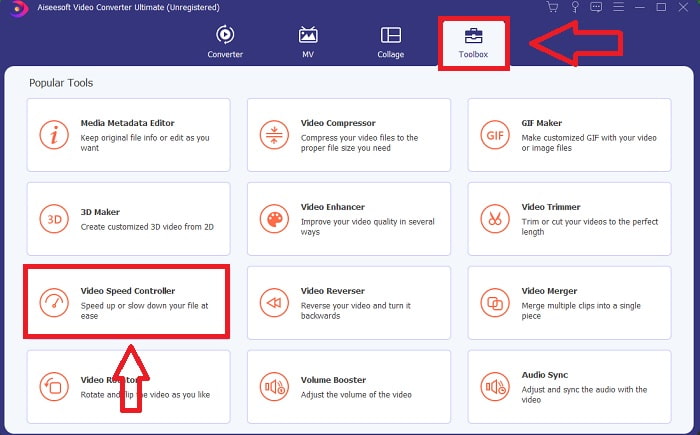
Adım 2. Yazılımı kurduktan sonra açın, Araç Kutusu (Toolbox) seçeneğini seçin ve ardından videonun oynatma hızını düzenlemeye başlamak için Video Hız Denetleyicisi (Video Speed Controller) seçeneğine tıklayın.
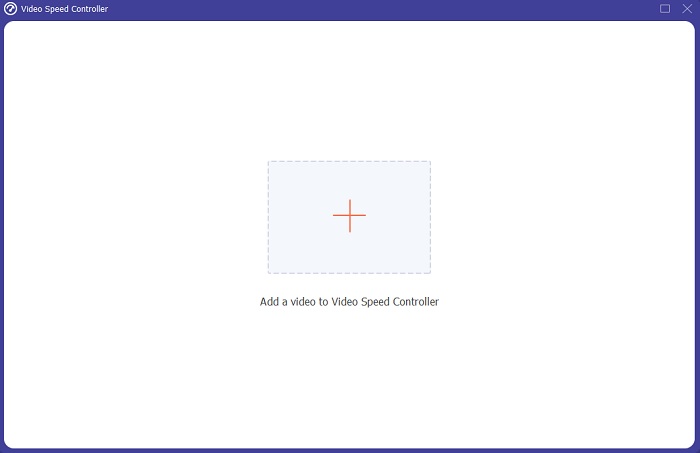
Adım 3. Tercih ettiğiniz konumdaki + simgesine tıklayarak herhangi bir dosyayı ekleyin ve ardından video klibi düzenleyin.
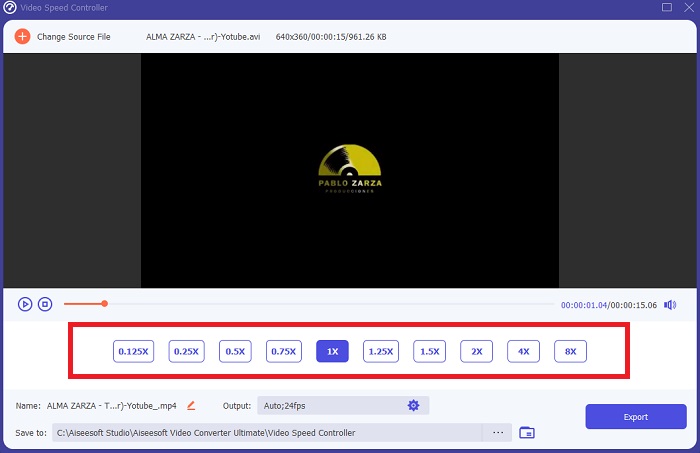
Adım 4. Videonun kare hızının (frame rate) kaç kat artırılıp azaltılacağını belirterek oynatma hızını değiştirin.
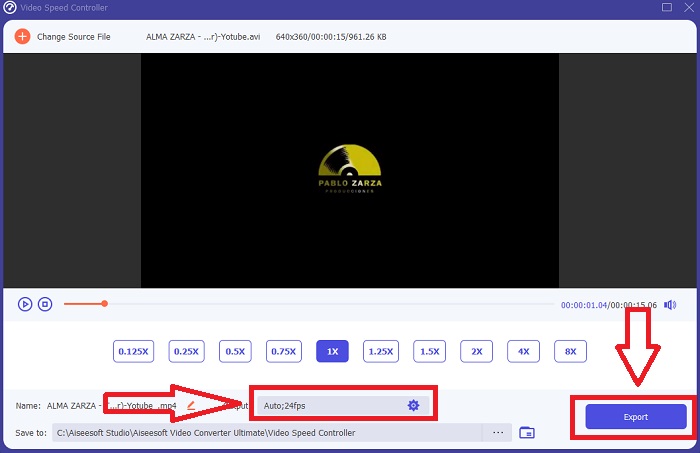
Adım 5. Video klibinizin oynatma hızını ayarlamayı tamamladıktan sonra, format, çözünürlük ve kalite gibi ayarları değiştirerek istediğiniz çıktı türünü seçebilirsiniz. Hazır olduğunuzda Dışa Aktar (Export) düğmesine tıklayın ve çalışmanızı kaydedeceğiniz konumu seçin.
Artıları
- Windows ve Mac'te ücretsiz olarak indirilebilen bir yazılımdır.
- Bir videoyu düzenlemeye yardımcı olan birçok araca sahiptir ve bunlar kolaylıkla kullanılabilir.
Eksileri
- Özel özelliklerin kilidini açmak için satın alınabilir, ancak o kadar pahalı değil.
İlgili:
Bölüm 2. Mac'te Ağır Çekim Video Nasıl Yapılır
Mac’inizde iMovie ile 4K çözünürlükte Hollywood tarzı fragmanlar oluşturun. Videolarınızı düzenledikten sonra, animasyonlu başlıklar, müzik, filtreler ve efektlerle son dokunuşları verin. Apple’ın iMovie yazılımıyla pürüzsüz ve profesyonel bir video hazırlayın ve ailenizle, arkadaşlarınızla paylaşın. Hiç de zor değil. iMovie’nin sunduğu çeşitli şablonları ve bitiriş araçlarını kullanırsanız videonuz çok daha iyi görünecektir. Bu yeni özellikle, Mac’inizde videonun oynatma hızını değiştirebilir veya ağır çekim videolar oluşturabilirsiniz; çoğu editörün önce ele almak zorunda olduğu bu konular göz önüne alındığında, bu araçla Mac’te istediğiniz hıza ulaşmak için aşağıdaki adımları izleyebilirsiniz.
Adım 1. Mac’inizde iMovie uygulamasını açın ve Zaman Çizelgesi (Timeline) panelinden üzerinde çalışmak üzere bir video klip seçin.
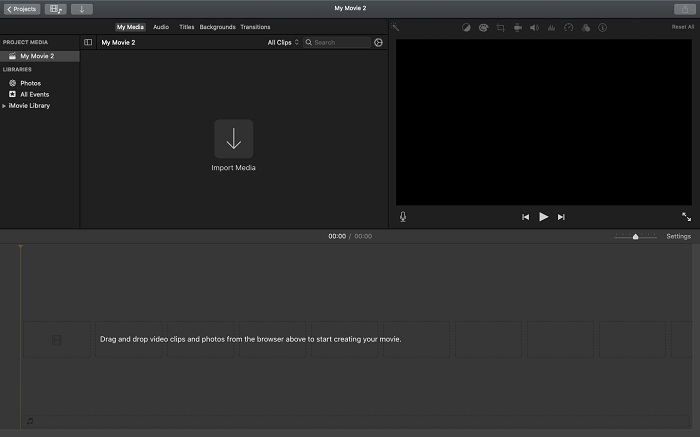
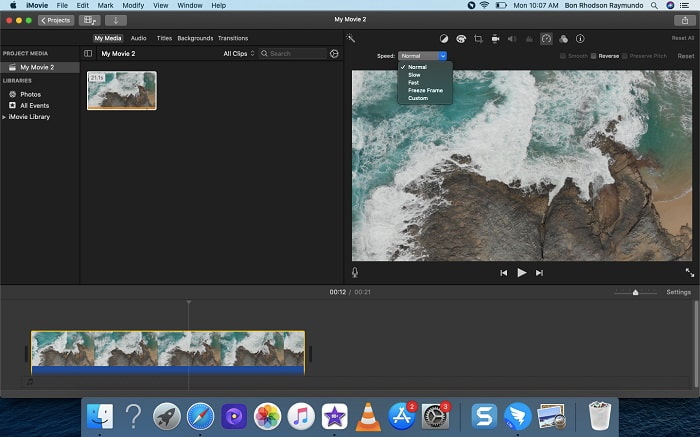
Adım 2. Arayüzün sol üst köşesindeki Hız (Speed) düğmesine tıklayarak hız ayarlarını görebilirsiniz. Ayrıntılı ayar yapmak için bu hız düğmesinden Yavaş (Slow) veya Hızlı (Fast) oynatma hızları arasında seçim yapabilirsiniz.
Adım 3. Dosyayı bilgisayarınızın sabit diskine kaydetmek için arayüzün sağ üst köşesindeki Yükle (Upload) simgesine tıklayın.
Artıları
- Mac'te ücretsiz olarak indirilebilen bir yazılımdır.
- Kolayca düzenlemeye yardımcı olabilecek video klibin izini gösterebilir.
Eksileri
- Bazı özellikler profesyonel temellidir; bir videonun tüm potansiyelini geliştirmesine yardımcı olan araçlardan yoksundur.
- Yalnızca verilen seçenekleri seçeceğiniz için bu yazılımı kullanarak videonuzun oynatma hızını özelleştiremezsiniz.
Bölüm 3. Ağır Çekim Videoyu Çevrimiçi Yapma
Yöntem 1. VEED'i kullanın
Ağır çekim video yapmak için kullanabileceğiniz en basit çevrimiçi aracı arıyorsanız, VEED doğru seçimdir. Ancak çalışabilmesi için güçlü bir internet bağlantısına ihtiyacınız vardır; çünkü bir web aracıdır ve yalnızca çevrimiçi kullanılabilir. Kullanımı kolay arayüzü ve kullanıcı dostu araçları sayesinde ağır çekim videoları rahatlıkla oluşturabilirsiniz. Ana özelliklerinden biri, videonun hızını düşürmeye olanak tanır; ağır çekim bir video yapmak için videonuzun normal hızını azaltmanız gerekir ve VEED sayesinde bu işlemi yapma süreciyle uğraşmak zorunda kalmazsınız. Bu web aracıyla yolculuğunuzda size yardımcı olmak için aşağıdaki adımlar sunulmaktadır:
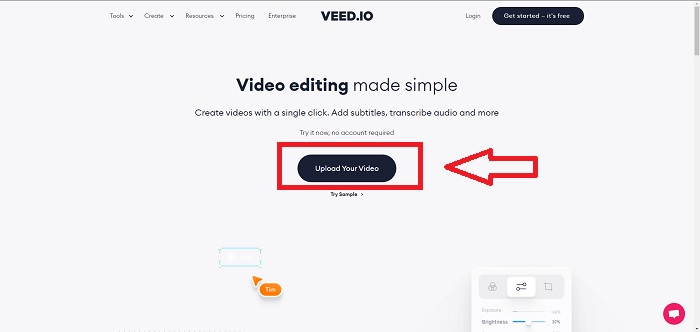
Adım 1. Videonu Yükle (Upload Your Video) düğmesine tıklayarak bilgisayarınızdan bir video dosyasını sunucunun depolama alanına (SAN) gönderebilirsiniz.
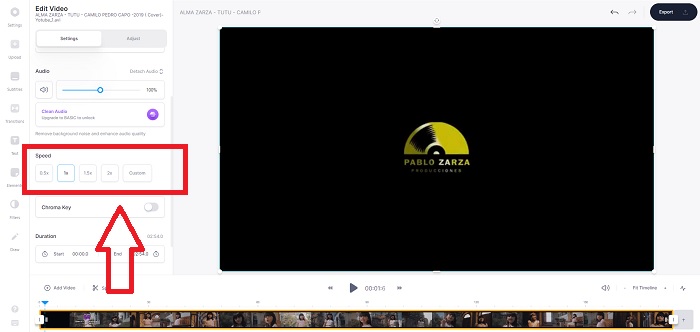
Adım 2. Fare imlecini web aracının düzenleme arayüzünün üzerine getirdiğinizde bir video parçası görünür. Oynatma hızını değiştirmek için Hız (Speed) seçeneğini bulun ve tıklayın. Özel (Custom) seçeneğini seçmek, tercih ettiğiniz hız hazır seçenekler arasında olmasa bile videonuzu özel bir hızda oynatmanıza imkân tanır.
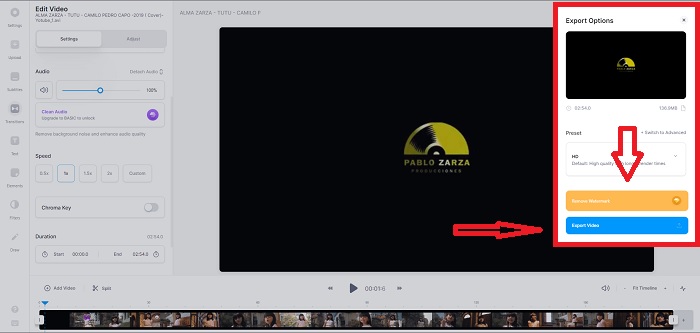
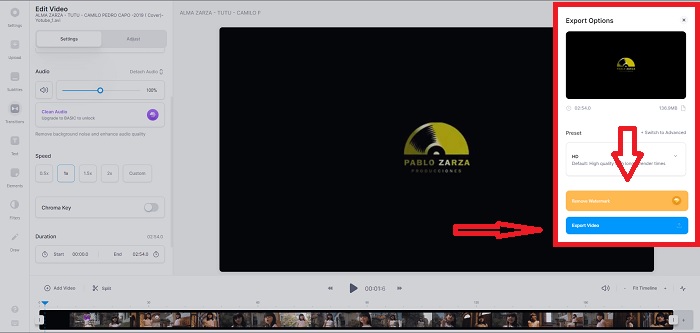
Adım 3. Videonun hızını istediğiniz gibi ayarladıktan sonra, dışa aktarma sekmesine geçmek için Dışa Aktar (Export) düğmesine tıklayın. Bu arada, web aracının Premium sürümüne yükselterek istediğiniz video kalitesini seçebilir ve filigranı kaldırabilirsiniz. Tüm ayarlar tamamlandıktan sonra videoyu bilgisayarınıza dışa aktarabilirsiniz.
Artıları
- Web aracını kullanmaya yardımcı olacak öğreticiler vardır.
- Araçlar, fiyatlandırma, kaynaklar ve işletmeler hakkında bilgi içeren iyi bir web aracıdır.
Eksileri
- Sadece kullanılacak az sayıda alet vardır.
Yöntem 2. Video İçi Kullan
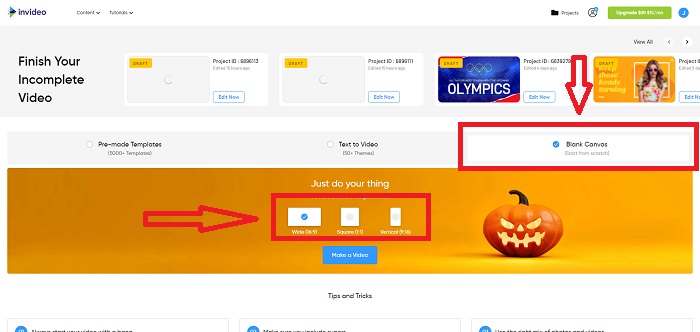
InVideo, sunduğu yaratıcı şablonlar ve çeşitli araçlar sayesinde diğer çevrimiçi araçlardan daha iyi video performansı sağlayan bir çevrimiçi araçtır. Bu çevrimiçi web hizmeti, MP4 formatındaki herhangi bir video klibi dönüştürme uyumluluğu ve video düzenleme özelliklerinden biri olan ağır çekime dönüştürme özelliği sayesinde, bir MP4 ağır çekim dönüştürücüsü olarak kabul edilir. InVideo, ağır çekim video yapmak için hangi web aracını kullanacağına karar veremeyen her editör için bir dayanak noktası görevi görür. Sorununuzu daha iyi çözebilmek için izlemeniz gereken adımlar şunlardır:
Adım 1. Web aracını kullanmak için bir hesap oluşturmanız gerekir. Çalışacağınız bir şablon seçmek ise bir sonraki adımdır. Yüklemeyi başlatmak için arayüzün sol üst köşesindeki Yükle (Upload) düğmesine tıklayın. Yükleme başlayacaktır.
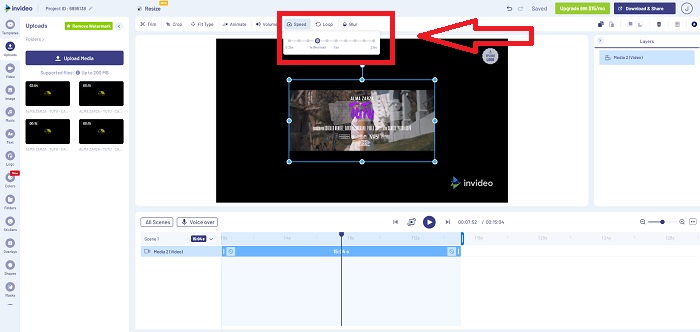
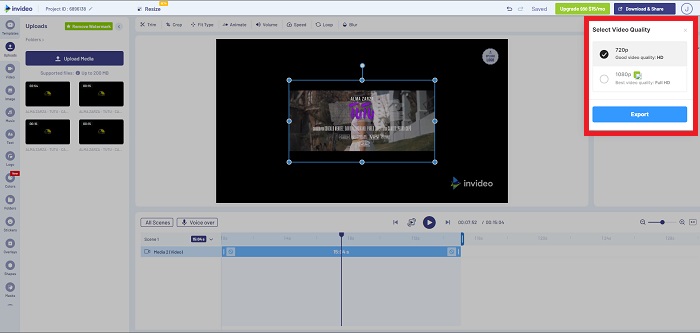
Adım 2. Arayüzün sağ üst köşesindeki Hız (Speed) sekmesine tıklayın ve video klibinizin oynatma hızını düzenlemek için bunu zaman çizelgesine sürükleyin. Oynatma hızını değiştirmek için yalnızca Kaydırıcıyı (Slider) tıklayıp sürüklemeniz yeterlidir.
Adım 3. Düzenlemeyi tamamladığınızda çalışmanızı indirin ve paylaşın, ardından daha da iyi sonuçlar elde etmek için Premium’a yükseltin.
Artıları
- Ücretsiz olarak kullanılabilecek özelleştirilmiş şablonlara sahiptir.
- Profesyonel özellikler içerir.
Eksileri
- Tüm özelliklerin kilidini açmak için satın alınması gerekiyor.
Yöntem 3. Typito'yu kullanın
Bir videoyu ağır çekime alma sorununu çözebilecek çevrimiçi bir editör arıyorsanız, Typito’yu denemeyi düşünün. Typito, diğer videolar ve kalabalık arasından sıyrılmanıza yardımcı olacak, dikkat çekici videolar oluşturmayı kolaylaştırır. Canva’nın video düzenleme biçiminde çalışan bir versiyonu gibi düşünebilirsiniz. Bu web uygulaması yalnızca profesyonellere yönelik değildir. Okul projeleri veya yarı profesyonel multimedya projeleri için de kullanabilirsiniz. Ayrıca, video klibinizi istediğiniz ayarlara göre dönüştürmek için bir e‑posta adresine ihtiyacınız olacak.
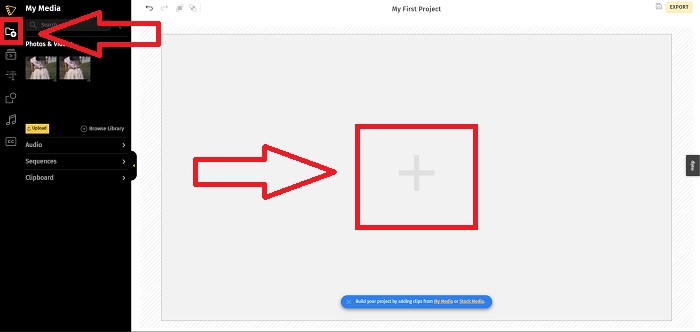
Adım 1. Medya dosyalarını bilgisayarınızın masaüstünden sürükleyip bırakın veya eklemek için klasör simgesine tıklayın.
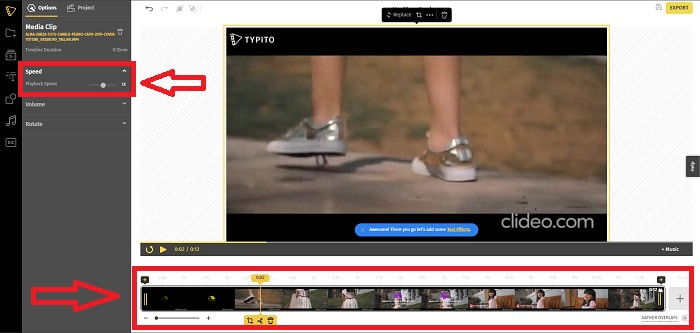
Adım 2. Videonuzu düzenlemeye başlamak için video parçasına gidin ve video dosyasını seçin. Ardından Projeler Ekle (Add Projects) düğmesine tıklayın. Bir videonun oynatma hızını değiştirmek için arayüzün sol köşesindeki Hız (Speed) özelliğini bulun ve videonun hızını değiştirmek için Kaydırıcıyı (Slider) kullanın.
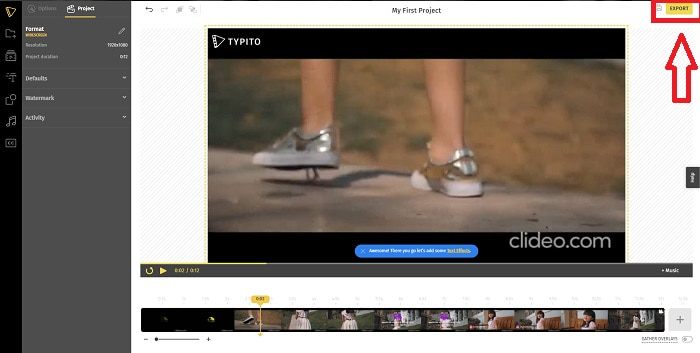
Adım 3. Arayüzün sağ üst köşesindeki Dışa Aktar (Export) düğmesine tıklayarak dönüştürülmüş dosyayı masaüstünüze indirebilirsiniz. Hazır olduğunda dosyayı indirin.
Artıları
- Kullanımı kolay bir çevrimiçi web aracıdır.
- Videonuzu düzenlerken kullanılacak biçimleri ve şablonları içerir.
Eksileri
- Web aracının arayüzü çok basit.
- Mevcut birkaç aracı var.
Bölüm 4. Ağır Çekim Video Nasıl Yapılır Hakkında SSS
Yavaşlarsam videonun kalitesini kaybeder miyim?
Hayır, videonuzun oynatma hızını artırmakla aynı; videonuzu yavaşlatmak videonuzun kalitesini kaybetmez. Bazı nedenlerden dolayı, videonun oynatma hızını düşürdükten sonra bazı videoların biraz aksaklaşmasının nedeni, video kalitelerinin zaten donuk ve düşük olmasıdır. Ayrıca, video klibinizin oynatma hızını azaltmak için yoğunlaştırırsanız, kare hızı yarıya bölünerek gecikmeye ve kalitenin düşmesine neden olur.
Ağır çekim video için en iyi uygulama hangisidir?
Video Converter Ultimate, Windows ve Mac’te kullanılabilen, indirilebilir en iyi ücretsiz dönüştürücü veya editördür. Ayrıca videonuzu geliştirebilen ve iyileştirebilen özelliklere sahiptir ve dönüştürücüyü kullanacak her kullanıcı için erişilebilirdir.
Google Fotoğraflar, ağır çekim videoları normal hıza dönüştürmek için en iyi uygulama mı?
Tahmin edebileceğiniz gibi, bu ücretsiz uygulamayı kullanmanın birkaç dezavantajı var. Her şeyden önce, video işleme hızı, özellikle uzun bir video klibi düzenlerken nispeten yavaştır. Ayrıca, videoyu oynatma hızını değiştirmeden önce bölerseniz, arka plan sesi veya sesli anlatım kapatılacaktır. Ne olursa olsun, harika bir ücretsiz Android uygulaması. Üçüncü taraf uygulamaları kullanmaya devam edebilirsiniz, ancak kullanımı kolay olanların çoğu ücretsiz değildir.
Sonuç
Sonuç olarak, bu makaleyi etkileyici bir şekilde bitirmek gerekirse, ağır çekim video yapmak, yukarıda belirtilen çözümleri kullanarak çocuk oyuncağı kadar kolay olacaktır. Video Converter Ultimate, ağır çekim işini her zamankinden daha zahmetsiz ve yönetilebilir hale getiren bir ağır çekim video editörü olarak kabul edilebilir. Bu yazılımda sunulan özelliklerin sayısı, onu kullanacağınız profesyonel düzeyde bir editör olarak anılmayı hak edecek düzeydedir.
-
 [Çözüldü] iPhone'da Oynatılmayan Videoları Ayrıntılı Adımlarla Nasıl Düzeltebilirim?
 Galerideki yerel videolar, varsayılan video oynatıcı aracılığıyla iPhone'unuzda oynatılamıyor mu? İPhone'da oynatılmayan çevrimiçi YouTube videoları her zaman mı oluyor? İşte bu makalede size yardımcı olacak 5 çözüm.
-
 QuickTime'ı Düzeltmek için Uygulanabilir 5 Yöntem MOV Dosyalarını Açamıyor
 MOV formatı esas olarak QuickTime Player'da oynatma için oluşturulur. Ancak, bazen içinde oynamadıklarını görebilirsiniz. QuickTime'ın bu gönderiden MOV dosyalarını oynatmayacağını nasıl düzelteceğinizi öğrenin.
-
 MKV Dosyalarını PS3'te Sorunsuz Oynatmak İçin Nasıl Dönüştürülür [Çözüldü]
 PS3'ünüzde MKV videoları oynatmak ister misiniz? Ancak PS3, MKV dosyalarını doğrudan oynatamaz. Bu makale, MKV videolarını PS3'te sorunsuz bir şekilde oynatmak için PS3 destekli video formatlarına dönüştürmenin yollarını gösterecektir.
