


 Video Dönüştürücü Ultimate
 Ekran kaydedicisi
 Video Onarımı
WebM Dosyasını MOV'a Dönüştürme Süreci: Bilmeniz Gereken Sorunsuz Yöntemler
Prodüksiyon ve akış söz konusu olduğunda, her video formatı her dijital platformla uyumlu değildir. İlgili dosyaları girmeye, üretmeye, karşıya yüklemeye veya indirmeye çalışırken bu, büyük sorunlara neden olabilir. Örneğin Apple, geçmişte büyüdüğümüz geleneksel tarayıcıları kullanmıyor - Safari adlı kendi platformuna sahip. Bu nedenle, yalnızca Google Chrome, Mozilla Firefox, Opera ve Microsoft Edge tarafından desteklenen video biçimlerine tarayıcı açısından Mac kullanıcıları her zaman erişemez.
Bunlardan biri, HTML5 için açık video sıkıştırması sunan bir format olan WebM videodur. Mac kullanıcısıysanız, bunu izlemek için üçüncü taraf bir medya oynatıcıya ihtiyaç duyarsınız. Oysa, videolarınızı hiçbir zahmet olmadan oynatmak istiyorsanız aradığınız dosya formatı MOV’tur; çünkü bu, Apple’ın kendi Apple QuickTime Player’ı için geliştirdiği bir formattır. Dolayısıyla bu yazıda size bunun için en iyi yöntemleri sunacağımız üzere, Mac’inizde yapmak istediğiniz şey WebM’i MOV’a dönüştürmektir.
Bölüm 1. Genel Bakış: WebM ve MOV
Uzun bir süredir video tüketimine ve akışa maruz kaldıysanız, farklı platformları kullanarak çok sayıda farklı formatta video izlemiş olmalısınız. Bir zamanlar bu dosya uzantılarının neyi temsil ettiğini veya birbirlerinden nasıl farklı olduklarını merak etmiş olabilirsiniz. Elbette tarayıcınızda belirli bir videoyu oynatmayı denediniz, ancak desteklenmediğini söyleyerek bunu yapmıyor. Örneğin WebM, genellikle bir HTML5 kullanılarak web sayfalarına gömülü olduğundan yalnızca Chrome, Firefox ve kenar gibi birkaç modern tarayıcı tarafından desteklenir.
Bölüm 2. WebM'yi MOV'a Dönüştürmeye Yardımcı Olan En İyi Dönüştürücü
Video dosyalarını dönüştürmek sandığınız kadar zor değildir. Size yardımcı olabilecek sayısız yazılım ve program olmasına rağmen, bunlardan biri işi hem hızlı hem de kolayca halleder. FVC Video Converter Ultimate, internette en iyi dönüştürücüyü arayarak vakit kaybetmenizi önleyen, ücretsiz indirilebilen bir yazılımdır. Size en iyisini sunmak istiyoruz. Dönüştürmek istediğiniz videonun formatı konusunda endişelenmenize gerek yok; çünkü bu yazılım çok çeşitli formatları destekler ve ayrıca, dönüştürme esnasında videonuzu düzenlemeniz için pek çok seçenek sunar. Bu yazılımı kullanmak için izlemeniz gereken adımlar şunlardır:
Adım 1: Dönüştürme işlemine başlamadan önce yazılımı indirmeniz gerekir ve bunu Ücretsiz İndir düğmesine tıklayarak yapabilirsiniz. Windows veya Mac sürümünden birini seçebilirsiniz. Bu durumda, Mac OS için olanı seçin. .exe dosyasının indirilmesini bekleyin ve tamamlandığında yüklemeyi başlatmak için açın.
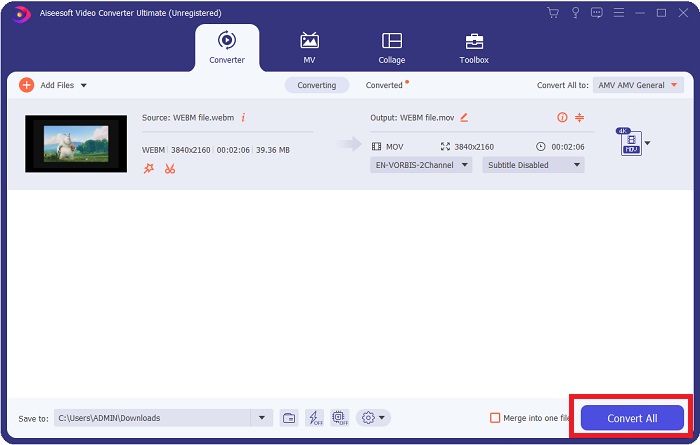
Adım 2: Yazılımın kurulumu bittiyse, programı başlatın ve karşınıza bir arayüz çıkacaktır. Yazılım başlatıldığında otomatik olarak Converter sekmesinde olursunuz. Değilseniz, bu sekmeye tıklayın.
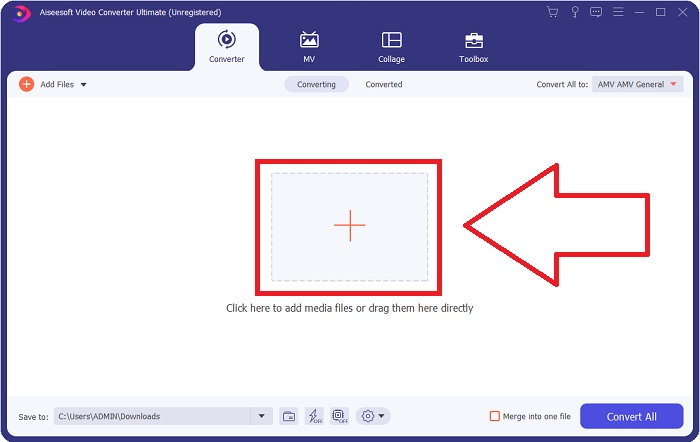
Adım 3: Dönüştürmek istediğiniz video dosyasını içe aktarmanız için arayüzün ortasında tıklayabileceğiniz bir + düğmesi olacaktır. Ayrıca videolarınızı kolayca sürükleyip bırakabilirsiniz.
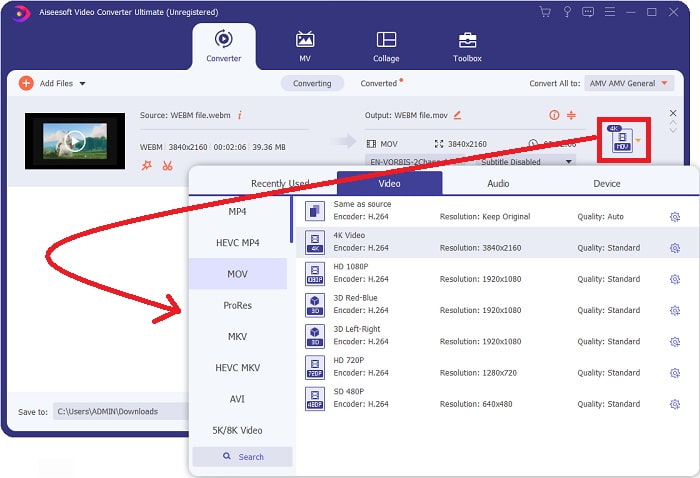
Adım 4: Videonuz başarıyla içe aktarıldığında başka bir arayüz görünecektir. Burada, en sağda videonuzun mevcut formatını görebilirsiniz. Yanında bir açılır ok bulunur, buna tıklayın ve çeşitli seçenekler görünecektir. Videonuzun dönüştürülmesini istediğiniz herhangi bir formatı seçebilirsiniz; ancak bu durumda MOV’u seçin. Çözünürlük ve ses kalitesi gibi seçenekler mevcuttur. Daha fazla ayar için, seçtiğiniz kalite veya çözünürlüğün yanındaki dişli simgesine tıklayın ve ihtiyaçlarınıza göre videonuzu daha ayrıntılı düzenleyin. Yapılan değişiklikleri kaydetmek için Yeni Oluştur düğmesine tıklayın.
Adım 5: İşiniz bittiğinde ve yaptığınız değişikliklerden memnun kaldığınızda, arayüzün sağ alt köşesinde bulunan Tümünü Dönüştür düğmesini bularak tıklayın ve dönüştürülmüş videonuzu dışa aktarın.
Bölüm 3. Bonus İpuçları: WebM'yi MOV'a Dönüştüren Diğer Çevrimiçi Dönüştürücüler
Yöntem 1: Ücretsiz Dönüştürmeyi Kullan
Artık yazılım indirmek istemiyorsanız ve dönüştürme işlemine devam ediyorsanız, size bunun için alternatifler gösterebiliriz. Bu, tamamen çevrimiçi yapılırken, düzenleme ihtiyaçlarınız için ihtiyaç duyduğunuz özellikleri sunmaya devam eder. Sorunsuz bir yöntem istiyorsanız, bu web aracı gitmenin bir yoludur.
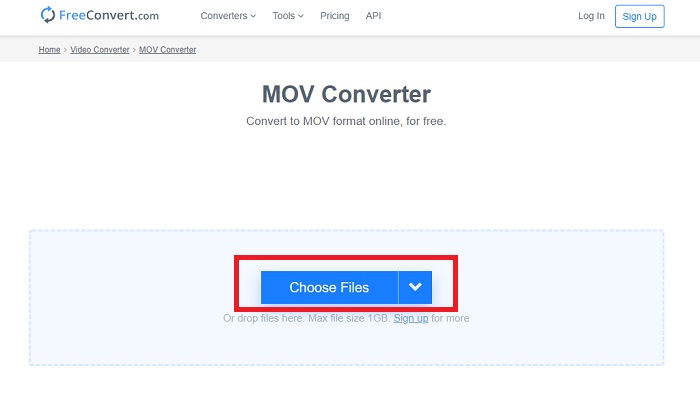
Adım 1: Önce siteye gidin; sayfada ortada bir Dosya Seç düğmesinin bulunduğu bir arayüz görürsünüz. Dönüştürmek istediğiniz video dosyasını içe aktarmak için buna tıklayın.
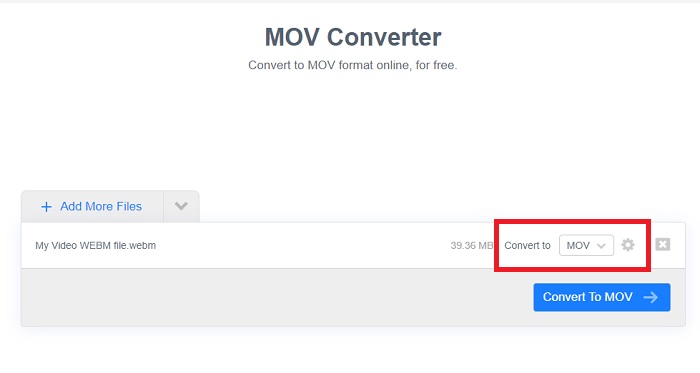
Adım 2: Yazılımda olduğu gibi, videonuzun mevcut formatını sağ tarafta görebilirsiniz ve yanında bir açılır ok bulunur. Buna tıklayın ve videonuzun dönüştürülmesini istediğiniz formatlardan birini seçin. Daha fazla seçenek için, videonuzu daha ayrıntılı düzenlemek üzere dişli simgesine tıklayın. Yaptığınız değişiklikleri korumak için Ayarları Uygula düğmesine tıklayın.
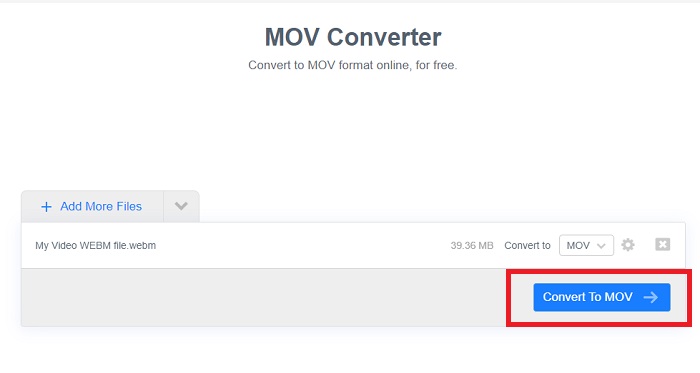
Adım 3: Tüm değişiklikleri tamamladıysanız, hemen aşağıdaki MOV’a Dönüştür düğmesine tıklayarak dönüştürmeyi başlatabilirsiniz ve bitmesini bekleyin. Ardından, Dönüştürülmüş videonuzu MOV’u İndir düğmesine tıklayarak dışa aktarabilirsiniz.
Yöntem 2: Bulut Dönüştürmeyi Kullan
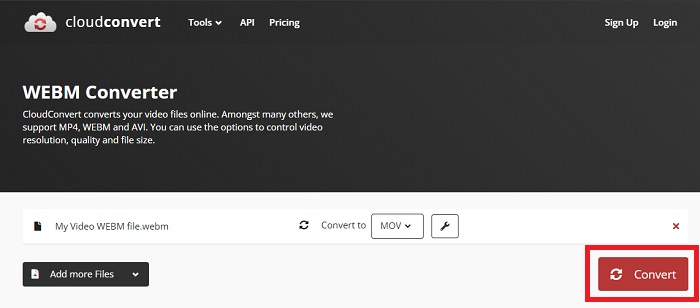
Bu web aracı, WebM dosyanızı çevrimiçi MOV'a dönüştürürken size birkaç seçenek daha sunar. Yalnızca çözünürlüğü veya ses kalitesini değil, fps'yi, altyazıları ve daha fazlasını da düzenleyebilirsiniz. Bu çevrimiçi dönüştürücüyü kullanmak için şu kolay adımları izleyin:
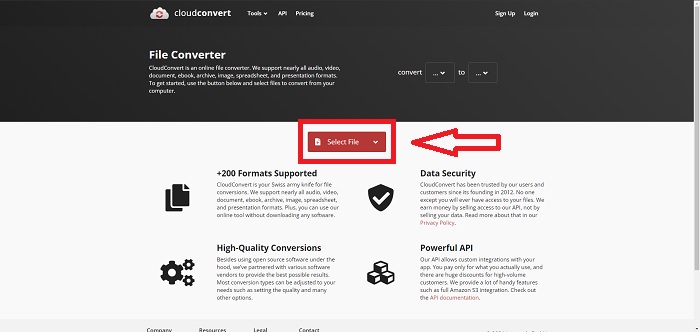
Adım 1: Öncelikle, sayfanın ortasındaki Dosya Seç düğmesine tıklayarak dönüştürmek istediğiniz video dosyasını içe aktarmanız gerekir. Dosyaları aynı anda dönüştürmek istiyorsanız, Daha Fazla Dosya Ekle seçeneğine tıklayın.
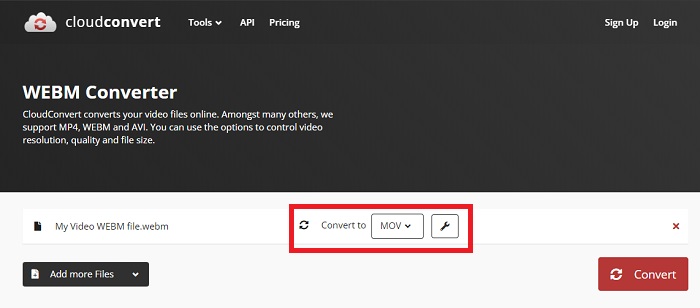
Adım 2: Dosyanın yanında, açılır ok simgesine tıklayarak video formatını seçebilirsiniz. Ayrıca, daha fazla seçenek için anahtar (ingiliz anahtarı) simgesine tıklayın. Buradan videonuzun ve sesinin belirli yönlerini düzenleyebilirsiniz. Sonra, değişiklikleri kaydetmek için Tamam’a tıklayın.
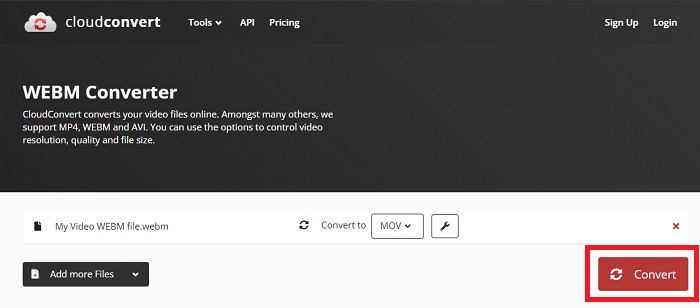
Adım 3: Tüm düzenlemeleri bitirdiğinizde, kırmızı renkle vurgulanmış Dönüştür düğmesine tıklayın ve işlemin tamamlanmasını bekleyin. Son olarak, tamamen dönüştürülmüş videonuzu dışa aktarmak için yeşil renkle vurgulanmış İndir düğmesine tıklayın.
Yöntem 3: ZamZar Dönüştürmeyi Kullan
Bu web aracı, yalnızca video ve ses biçimini dönüştürdüğü için videonuz için daha az seçenek sunar. Ancak, işi belirtilen diğer yöntemlerden daha hızlı yapar. Bu çevrimiçi dönüştürücüyü kullanmak için sağlanan adımları izleyin:
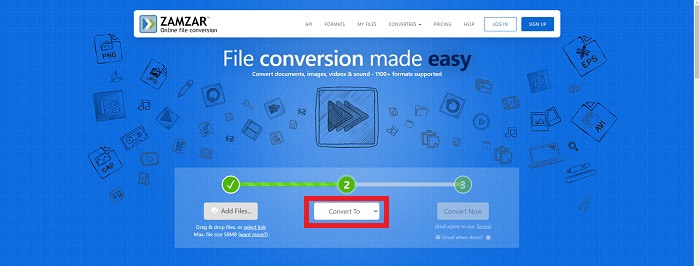
Adım 1: Sayfanın ortasında, videonuzun dönüştürülmesi için tıklamanız gereken yalnızca üç düğme vardır. İlk olarak, video dosyanızı içe aktarmak için Dosya ekle düğmesine tıklayın.
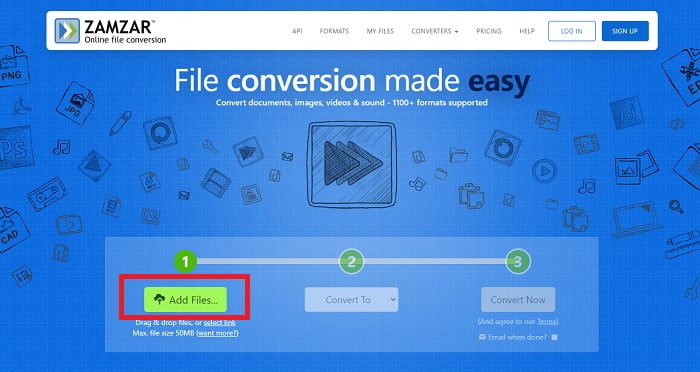
Adım 2: İkinci düğmede, videonuz için hangi video ve ses formatını istediğinizi seçebilirsiniz. Bu durumda, MOV formatını seçin.
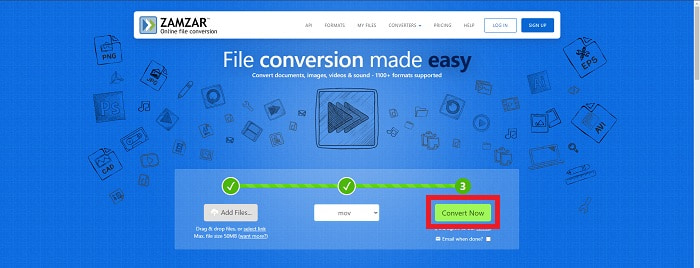
Adım 3: Son olarak, dönüştürme işlemini başlatmak için üçüncü ve son düğme olan Şimdi Dönüştür’e tıklayın ve bitmesini bekleyin. İşlem tamamlandığında, videonuzu son olarak masaüstünüze aktarmak için İndir’e tıklayın.
Bölüm 4. WebM'yi MOV'a Dönüştürme Hakkında SSS
WebM formatı tam olarak nedir?
WebM, VP8 veya VP9 video kodekleriyle sıkıştırılmış video akışlarını, Vorbis veya Opus ses kodekleriyle sıkıştırılmış ses akışlarını ve WebVTT metinlerini içeren web'e özgü bir açık medya dosyası biçimidir. WebM dosya yapısı, Matroska medya kapsayıcısını temel alır. Çoğu web tarayıcısı, bazen çevrimiçi filmleri oynatmak için HTML5 web sitelerinde kullanıldığından WebM dosyalarını kabul eder. Örneğin, YouTube, sayfalarındaki tüm videolar için 360p'den diğer son derece yüksek kalitelere kadar WebM Video dosya biçimini kullanır. Wikimedia ve Skype aynıdır.
MOV'a dönüştürmek istemezsem WebM videolarını oynatmak için hangi medya oynatıcılara ihtiyacım var?
WebM videonuzu oynatmak için tüm bu dönüştürme sürecinden geçmek istemiyorsanız bir alternatif daha vardır. Üçüncü taraf bir uygulama, yani çapraz platform oynatıcılar kullanabilirsiniz. Bu üçüncü taraf medya oynatıcılarından bazıları VLC, KM Player, Media Player Classic, Winamp, jetAudio Basic, Moovidia, Persian ve XBMC’dir; bunları kendi sitelerinden indirerek WebM dosyalarınızı oynatabilirsiniz.
MOV yüksek mi yoksa düşük kaliteli mi?
MOV dosyalarıyla video oynatma oldukça yüksek kalitededir. MOV, resimler, videolar ve 360 derecelik animasyonlar gibi karışık ortamları tutabildiğinden özellikle kullanışlıdır. Ayrıca tüm video ve ses bilgilerini içerir. Bu, dosyayı düzenlemeyi çok daha basit hale getirir.
Sonuç
Videonuzu bir yazılım aracılığıyla veya çevrimiçi bulabileceğiniz bir web aracı aracılığıyla bir biçimden diğerine dönüştürmek için kullanabileceğiniz gerçekten birçok araç var. Bununla birlikte, sundukları seçenekler veya kolaylıklar açısından hala el ele giderler. Bazıları sadece işi halleder, bazıları ise aralarından seçim yapabileceğiniz çeşitli seçenekler sunar. Bu makale, ihtiyaçlarınıza göre hangisini kullanmanız gerektiği konusunda bilgi sahibi olmanıza yardımcı olmak için buna odaklanmaktadır. Bu nedenle, ne zaman ihtiyacınız olacağını asla bilemeyeceğiniz tüm ek seçenekleri sunduğu için en çok Video Converter Ultimate'ı öneriyoruz. Her ihtiyaç duyduğunuzda çevrimiçi bir dönüştürücü bulma zahmetinden sizi kurtarmak için bu yazılımı her zaman yanınızda bulundurmak daha iyidir.
-
 Dosya Kalitesini Kaybetmeden GIF'i WebM Formatına Nasıl Değiştirirsiniz?
 HTML5 video etiketine sahip olmak için Gif'lerinizi bir WebM video formatına dönüştürün. Hangisinin iş için en iyisi olduğunu öğrenmek için aşağıdaki bu araca güvenin.
-
 Ses Kalitesini Kaybetmeden WebM'yi MP3'e Dönüştürmenin 3 Yolu
 WebM dosyalarının kaydettiğiniz sesi çalmak için kullanılamaması nedeniyle bir sorun mu yaşıyorsunuz? WebM'yi MP3'e dönüştürerek etkili bir yardım sağladığımız için bu makaleyi okuyun.
-
 WebM Dosyasını AVI Formatına Dönüştürmek İçin Kullanılan 3 Çarpıcı Yazılım
 WebM'yi AVI'ye nasıl dönüştüreceğiniz konusunda hiçbir fikriniz yok mu? O zaman bu makaleyi okumaya başlayalım. WebM'deki tüm detayları ve dönüştürmek için kullanabileceğiniz üç dönüştürücüyü belirttiğimiz gibi.
