


 Video Dönüştürücü Ultimate
 Ekran kaydedicisi
 Video Onarımı
Mac'te MOV Dosyaları Meta Verilerini Adımlarla Zahmetsizce Değiştirme
Hepimiz MOV’un, Apple cihazlarınızda video oynatımı ve düzenleme için ideal olarak kullanabileceğiniz en üst düzey formatlardan biri olduğunu biliyoruz. Peki MOV’u benzersiz kılan nedir? Profesyoneller tarafından tercih edilen bir video sıkıştırma türünü destekler. Tek bir dosyada birden fazla öğe depolayabilmesine rağmen, MOV dosyasında karışmış etiketler bulunması ve bunun da soruna yol açması yine de mümkündür. Bunu hemen düzeltmek için, uygun meta veriye sahip olacak şekilde etiketleri düzenlemek faydalı olacaktır. Kullanışlı bir araçla bu görev çocuk oyuncağına döner. Bugün, MOV dosyası meta verilerini anında düzenlemenin en iyi yollarını sunacağız.

Bölüm 1. Mac'te Ultimate Etiket Düzenleyici ile MOV Meta Verileri Nasıl Düzenlenir
FVC Video Converter Ultimate, bu meta veri sorunu için tek duraklı çözümünüzdür ve Mac ile Windows’ta 1000’den fazla formatı destekler. Bu araçla, MOV dosyanızdaki meta veriyi anında kaldırabilir, düzenleyebilir veya ekleyebilirsiniz. Dahası da var: Düzenleme konusunda profesyonel olmasanız bile, MOV dosyanız üzerinde kesme, kırpma, birleştirme, çerçeve kırpma ve daha binlerce işlem yapabilirsiniz. Gerçekten de bu aracı yanınızda bulundurmak etkileyicidir ve sadece birkaç tıklamayla çok daha fazlasını yapabilirsiniz. Ancak bugün, MOV dosyalarınızın meta verilerini başarıyla düzenlemeniz için takip edebileceğiniz ayrıntılı talimatları sunuyoruz.
Adım 1. Aşağıdaki indirme düğmesine dokunarak bu gelişmiş dönüştürücüyü Mac veya Windows’unuza indirebilirsiniz. İndirdiğiniz dosyaya tıklayarak kurulum işlemine devam edin ve aracı hemen başlatmak için Start Now seçeneğine tıklayın.
Ücretsiz İndirWindows 7 veya üstü içinGüvenli İndirme
Ücretsiz İndirMacOS 10.7 veya üstü içinGüvenli İndirme
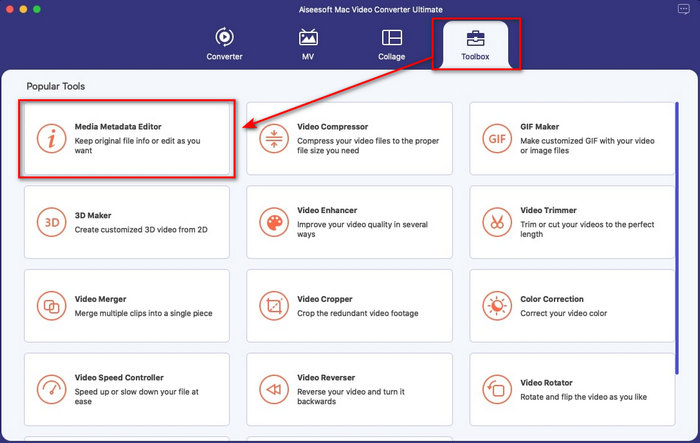
Adım 2. Aracın arayüzü ekranınızda görünecektir; Toolbox bölümüne gidin ve Media Metadata Editor seçeneğini açın.
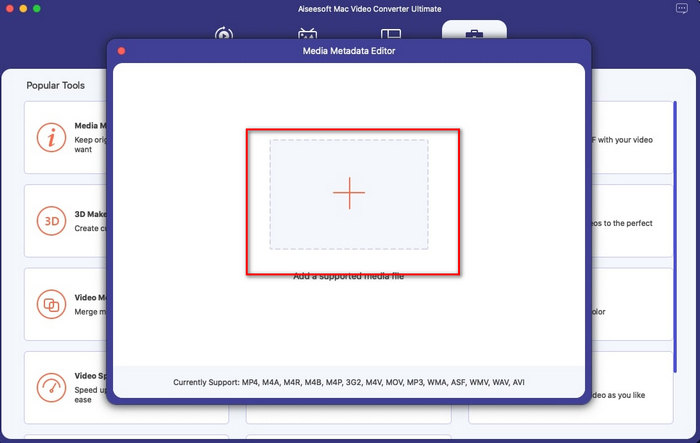
Adım 3. Düzenleyiciyi açtığınızda küçük bir pencere görünecektir; dosyayı bulabileceğiniz klasörü açmak için + düğmesine dokunun ve içeri aktarmak için Open seçeneğine tıklayın.
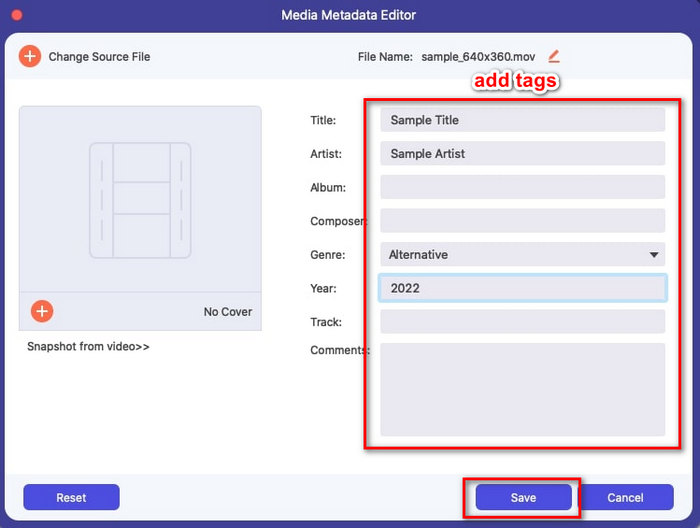
Adım 4. Artık metin kutusu kısmında MOV dosyanızdaki etiketleri ekleyebilir, düzenleyebilir veya kaldırabilirsiniz. Her şeyi bitirdiyseniz, Save düğmesine tıklayın. MOV dosyalarınızdaki meta veriyi işte bu kadar hızlı bir şekilde düzenlemiş olursunuz.
İlgili:
MOV Meta Verilerini Değiştirmek için En İyi MOV Etiket Düzenleyicilerinin 3. Kısmı
VLC medya oynatıcı
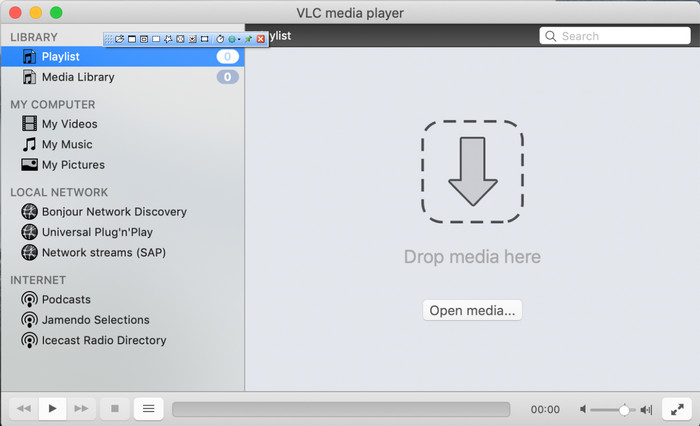
VLC Media Player, Mac ve Windows’ta kullanılabilen, ünlü bir medya oynatıcıdır. Farklı video formatlarını oynatabilmesinin yanı sıra, MOV dosyaları da dâhil olmak üzere ortam dosyanızın meta verilerini değiştirebilir. Ayrıca dosyanızın meta verilerini görüntülemek isterseniz, bunu kolayca kullanabilirsiniz. Ancak, Mac veya Windows’ta kullanabileceğiniz diğer özel meta veri düzenleyiciler kadar etkili değildir. Yine de, MOV dosyası meta verilerini düzenlemek, bu medya oynatıcı ile yapılabilir.
Adım 1. Medya oynatıcıyı VLC’nin resmi web sitesinden indirin ve açın.
Adım 2. Klavyenizde Command + I tuşlarına basın; MOV dosyanızın meta verilerini ekleyip silebileceğiniz ortam bilgileri penceresi açılacaktır.
Adım 3. MOV dosyanıza etiketleri uygulamayı bitirdiyseniz, Save Metadata düğmesine tıklayın.
iTunes
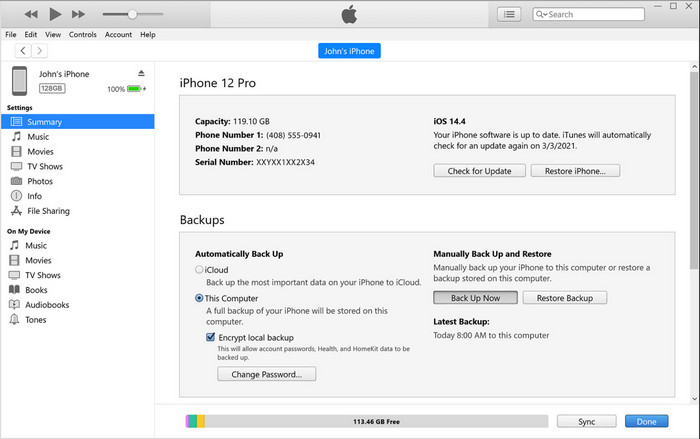
iTunes, herhangi bir Apple cihazında erişebileceğiniz, en iyi yerleşik akış uygulamasıdır. Bu araç; müzik oynatıcı, müzik mağazası, film, podcast ve telif hakkı sorunlarını önlemek için DRM ile korunan daha birçok içerik gibi farklı özelliklerle doludur. Harika bir yerleşik uygulama olmasına rağmen, meta veri düzenleyicileri arasındaki rekabet iTunes’un bu alanda öne çıkmasını zorlaştırmaktadır. Yine de, Mac’te MOV meta verilerini değiştirebildiği için bu uygulamayı listeye dâhil ediyoruz.
Adım 1. iTunes’u açın ve MOV dosyasını iTunes kitaplığına içe aktarın.
Adım 2. Ardından eklediğiniz .mov dosyasına sağ tıklayın ve Get Info seçeneğini seçin. Buna tıkladıktan sonra; ayrıntılar, kapak görseli, şarkı sözleri, seçenekler, sıralama ve dosya gibi meta verileri değiştirebileceğiniz farklı sekmeler göreceksiniz; bunları ihtiyaçlarınıza göre ayarlayın.
Adım 3. Değişiklikleri kaydetmek için OK tuşuna basın.
MetaZ
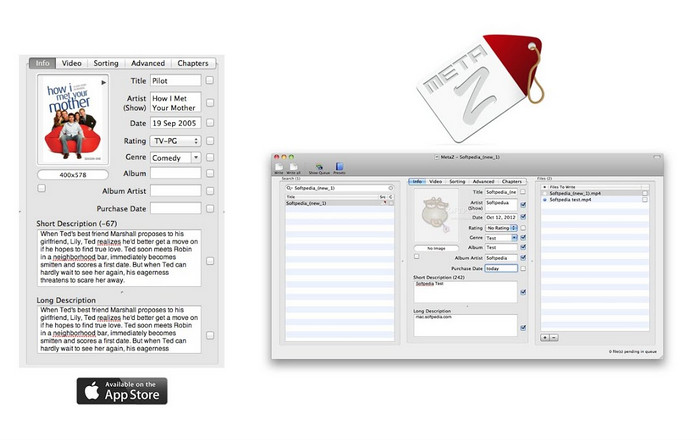
macOS X için, dosyalarınızın meta verilerini kolayca değiştirmek için Metaz'ı ücretsiz olarak indirebilirsiniz. Bu meta veri düzenleyici, video etiketlerinizi MOV gibi çoğu biçimde değiştirmenize yardımcı olabilir. Bu uygulama ile hileyi kolayca yapabilir ve MOV'u kitaplığınızda düzenleyebilirsiniz. Ancak, son zamanlarda uygulamayla ilgili birçok rapor oluyor; kullanıcılar uygulamayı kullanırken birçok zahmetli sorunla karşılaşmaktadır. Sorunlar ortaya çıksa bile, Mac'inize indirebileceğiniz en çok seçilen MOV meta veri düzenleyicilerinden biridir.
Adım 1. Uygulamayı Mac’inize indirin, başlatın; ardından arayüzde dosya ekleme, etiket düzenleme ve etiket arama olmak üzere üç bölüm görüntülenecektir.
Adım 2. MOV dosyasını sol tarafa sürükleyip bırakın; sol tarafında, dosyanın adına göre MOV dosyanız için etiketleri otomatik olarak aradığını göreceksiniz, ancak isterseniz bunları orta bölümde değiştirebilirsiniz.
Adım 3. Write düğmesine basın; etiketler MOV dosyasına eklenecektir.
Bölüm 3. MOV Meta Veri Düzenleyicisi hakkında SSS
Etiketleri değiştirmek için QuickTime meta veri düzenleyicisini kullanabilir miyim?
Ne yazık ki yapamazsınız çünkü bu araç yalnızca medya formatını oynatabilir, videoları düzenleyebilir ve kaydedebilir. Ancak bu basit adımları izleyerek dosyanızın meta verilerini Quicktime'da özgürce görüntüleyebilirsiniz. İlk olarak, MOV dosyasını Quicktime'da açın ve oynatın. Üst kısımda farklı seçenekler göreceksiniz; Pencere'ye tıklayın ve altında, Denetçiyi Görüntüle'ye basın, ardından MOV dosyanızla ilgili küçük bilgileri görmek için ekranınızda yeni bir pencere görünecektir.
MOV etiketlerini değiştirmek kaliteyi etkiler mi?
Neyse ki, MOV dosyasının çözünürlüğünü veya kalitesini değil, etiketleri ayarlamış olduğunuz için olmaz. Bu nedenle, etiketleri değiştirdikten sonra video çözünürlüğünün düşebileceğinden endişe ediyorsanız, tekrar edeceğiz; olmayacak.
MOV'a meta veri eklemek dosya boyutunu artırır mı?
Herhangi bir dosyada, o dosyaya meta veri eklediğinizde, etiketi olmayan dosya ile etiketi olan dosya arasındaki farkı göreceksiniz. Ancak, bu etiketler dosyanın içeriği kadar büyük değildir. Bu nedenle, MOV'unuza meta veriler eklerseniz, video dosyası hakkında bilgi eklediğiniz için boyutunun biraz artmasını bekleyin.
Sonuç
Artık MOV dosyası meta verilerini nasıl değiştireceğinizi öğrendiğimize göre, hangi eğitimi takip edeceğinizi seçme zamanı geldi. Mac’inize ücretsiz bir araç indirmek isterseniz, MOV dosyanızın meta verilerini düzeltmek veya düzenlemek için VLC ve Metaz’i indirebilirsiniz. Ama indirmek istemiyorsanız, meta verileri kolayca düzenlemek için iTunes’u kullanabilirsiniz. Bu araçlar kullanışlı olsa da, Mac’e indirebileceğiniz ve meta veri düzenleme konusunda FVC Video Converter Ultimate kadar güçlü özellikler sunan başka bir araç yoktur. Hâlâ hangi aracı kullanacağınıza karar veremiyorsanız, bu görev için kullanımı kolay olmasına rağmen ihtiyaç duyabileceğiniz tüm özellikleri tek pakette sunan bu gelişmiş aracı şiddetle tavsiye ederiz.
-
 Meta Veri Nedir: Meta Veriler Hakkında Temel Bilgileri Öğrenin
 Meta Veri nedir? Bu önemli mi? Meta verinin bölümleri nelerdir? Aynı soru var mı? Bu yazıda metadata hakkında temel bilgileri öğreneceksiniz.
-
 Çevrimiçi ve Çevrimdışı En İyi 4 Meta Veri Görüntüleyici [Güncelleme 2022]
 Dosyamın meta verilerini kontrol edebilir miyim? Evet, yapabilirsiniz, bu yazının yardımıyla size kullanabileceğiniz farklı meta veri görüntüleyicilerini tanıtacağız.
-
 Masaüstünde En Çok Seçilen 4 WMV Etiket Düzenleyicisi [Güncelleme 2022]
 WMV etiketlerini düzenlemek için güvenilir bir WMV etiket düzenleyicisine mi ihtiyacınız var? Bu makale, WMV'yi destekleyen araç hakkında yeterli bilgi sağlar.
