


 Video Dönüştürücü Ultimate
 Ekran kaydedicisi
 Video Onarımı
 Güvenli İndirme
Bir Dakikada Yüksek Kaliteli Görüntü Çıkışıyla HEIC Fotoğrafları Nasıl Basılır
Diğer cihazlar için daha az destek sunmasına rağmen Apple, hiçbir ek maliyet olmadan alan kazandıran hiperspektral bir görüntüyle birlikte hızlı fotoğraf çekmek ve görüntüyü HEIC formatında kaydetmekte ısrar ediyor. Ancak Apple ile ilişkili olmayan başka bir cihaza görüntü yazdırmak, görüntülemek veya aktarmak isterseniz yalnızca desteklenmiyor bildirimini alırsınız. Öte yandan bir Mac kullanıcısıysanız, ham dosyada elde ettiğinizle aynı kalitede HEIC fotoğrafları nasıl yazdıracağınızı hızla öğrenebilirsiniz. Bu çıktıyı nasıl alacağınızın adımlarını öğrenmek istiyorsanız, aşağıdaki ayrıntıları okumaya devam etmelisiniz.

Bölüm 1. HEIC Fotoğraflarını Mac'te Yazdırmanın 2 Etkili Yolu
Mac'te HEIC fotoğraflarının nasıl yazdırılacağını araştırıp denediğimizde, biçimi dönüştürmeden HEIC dosyasının basılı bir kopyasını oluşturmanın iki yolu olduğunu fark ettik. Bu nedenle, sahip olduğunuz HEIC görüntüsünün basılı bir kopyasını nasıl oluşturacağınızı bilmek istiyorsanız, aşağıdaki iki yöntemi okumaya devam etmelisiniz.
Lütfen yazıcının Mac'e doğru yüklenip yüklenmediğini kontrol edin ve adımlara geçmeden önce sorunu giderin. EĞER her şey hazırsa ve hazırsa, şimdi devam etmelisiniz.
1. Yöntem: Kısayol Tuşu Kullanma
Daha az tıklama istiyorsanız, Mac'te bir görüntü yazdırmak için kısayol tuşunu kullanmanız gerekir. HEIC dosyasını Mac'inizde zahmetsizce yazdırmak için b'ye tıkladığımız adımları ve tuşları izleyin.
1. Adım. Mac’inizde depolanan HEIC dosyasına tıklayın ve açın.
2. Adım. Dosyayı açtıktan sonra klavyenizden Command + P tuşlarına basın.
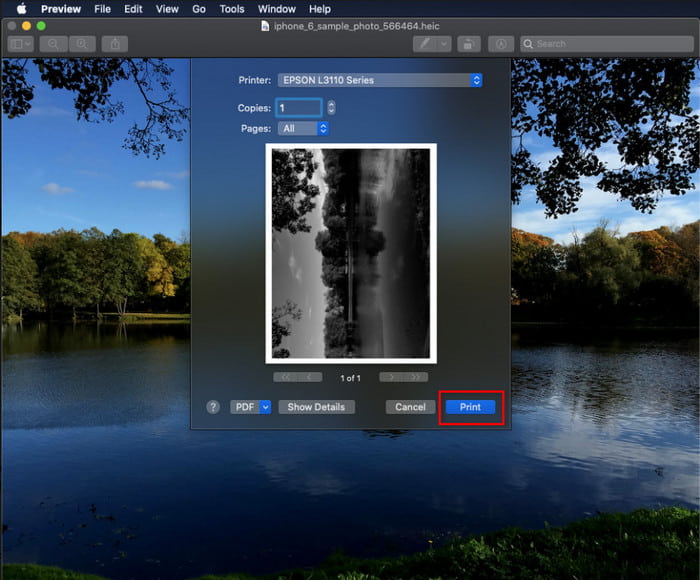
3. Adım. Yazdırma iletişim kutusunda görüntünün önizlemesini görebilir ve yazdırma ayarlarını düzenleyebilirsiniz; HEIC görüntüsünün yüksek kalitede basılı kopyasını almak için Print seçeneğine tıklayın.
2. Yöntem: Dosya Menüsünü Kullanma
Kısayol tuşunun belgeyi yazdırmanıza yardımcı olamayacağını düşünüyorsanız, Dosya menüsünü kullanmayı denemelisiniz. Bu menü ile, HEIC görüntüsünün basılı bir kopyasını almadan önce yazdır düğmesine kolayca tıklayabilir ve bazı değişiklikler yapabilirsiniz. Lafı fazla uzatmadan, kısayol tuşlarını kullanmadan macOS'unuzdaki HEIC'i yazdırmaya başlayalım.
1. Adım. Her şeyden önce Mac’inizdeki HEIC dosyasını açın.
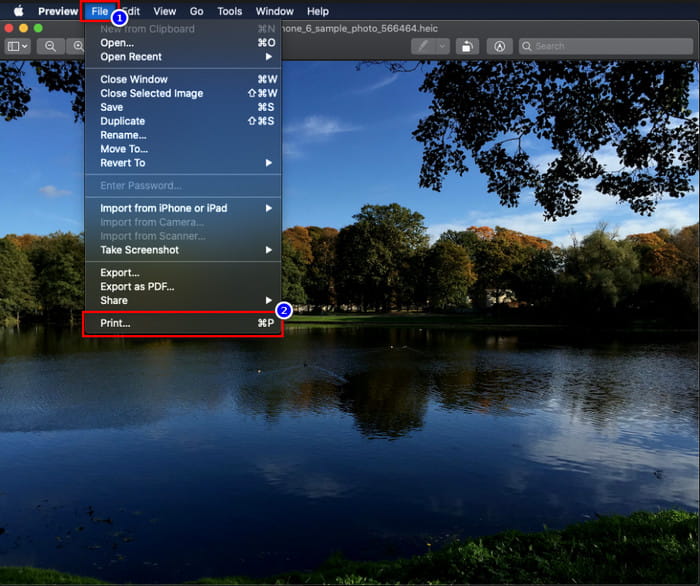
2. Adım. Üst kısımda yer alan File menüsüne tıklayın; ekranda bir seçenek listesi belirecektir. Şimdi en sondaki seçenek olan Print komutunu seçin.
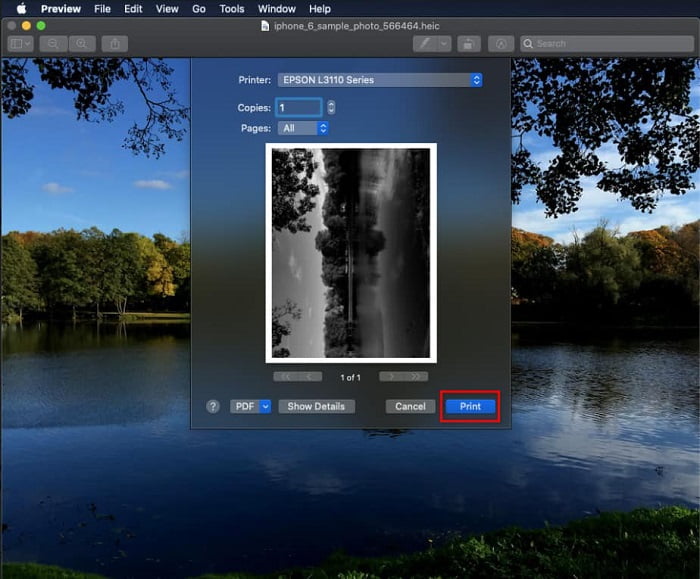
3. Adım. Ekranınızda yazdırma iletişim kutusunun açıldığını göreceksiniz. Ortadaki bölümde HEIC dosyanızın basılı kopya hâlindeki örneğini, diğer tarafta ise yazdırmadan önce bazı ayarlamalar yapabileceğiniz alanı göreceksiniz. Her şeyi ayarladıktan sonra belgeyi yazdırmaya başlamak için Print seçeneğine tıklayın.
Bölüm 2. Neden HEIC Fotoğraflarımı Yazdırmak İçin Yükleyemiyorum?
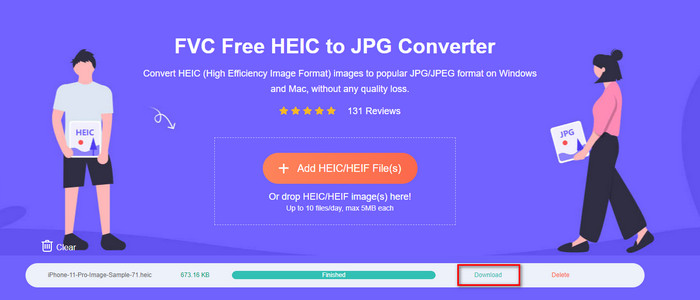
HEIC dosyasıyla başa çıkmakta zorlanan ve ondan basılı bir kopya alamayan kullanıcılardan biri misiniz? Öyleyse, sorunu çözmenize yardımcı olabilecek belirli bir web aracını tanıtalım: FVC Free HEIC to JPG Converter. Bu web aracı HEIC dosyanızı zahmetsizce JPG’ye dönüştürebilir. HEIC’e kıyasla çok daha yaygın tanınan JPEG formatına dönüştürerek dosyayı yazdırma için kolayca yükleyebilirsiniz. Her ne kadar günde yalnızca on kez ve 5 MB veya daha küçük dosyalarla sınırlı olsa da, bu kısıtlamalara rağmen hâlâ güvenilir bir web dönüştürücüdür. Öyleyse daha fazla zaman kaybetmeyelim ve elinizin altındaki en iyi açık kaynaklı web dönüştürücüyü nasıl kullanacağınızın adımlarına geçelim.
1. Adım. Web dönüştürücüsüne erişmek için bu bağlantıya tıklayabilirsiniz; yeni bir sekme anında açılacaktır.
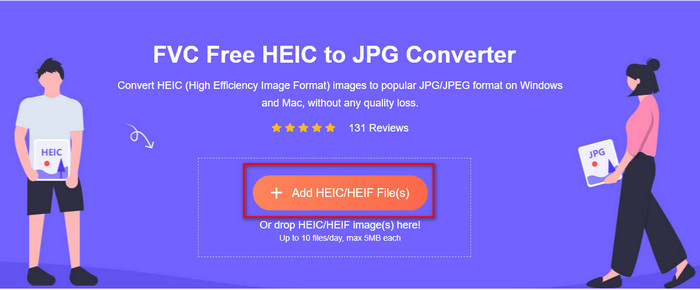
2. Adım. Bu düğmeye tıklayarak HEIC dosyasını ekleyin, klasörünüzden HEIC dosyasını bulun ve tam olarak yüklemek için Open seçeneğine tıklayın.
3. Adım. Dönüştürme işlemi kısa süre içinde başlayacaktır; tamamlandıktan sonra dosyayı bilgisayarınıza kaydetmek için Download seçeneğine tıklayın. Artık HEIC görüntüsünün, ham görüntü dosyasıyla aynı kalitede fakat farklı bir formatta, yazıcınızdan kopyalarını almanız kadar kolay bir şekilde yazdırılmaya hazırdır.
Bölüm 3. HEIC Fotoğraflarını Yazdırma hakkında SSS
HEIC fotoğraflarını Windows'ta yazdırabilir miyim?
Ne yazık ki Windows HEIC'i desteklemiyor, bu nedenle yüksek kaliteli HEIC'in basılı bir kopyasını oluşturamayacağı anlamına geliyor. Ancak umudunuzu kaybetmeyin çünkü ikinci bölümde HEIC'i tanınabilir bir JPEG formatına dönüştürmenin bir yolunu ekledik. Nasıl yapılacağını öğrenmek için özgürce okuyabilir, ardından Windows'ta sahip olduğunuz HEIC dosyasını yazdırabilirsiniz, ancak dosya uzantısı farklıdır.
Yazıcı neden HEIC'i tanımıyor?
Sıkıştırma yöntemi ve formatın yapısı sayesinde HEIC, JPEG’den bile daha küçük dosya boyutlarında yüksek kaliteli görüntüler içerebilse de, piyasaya yeni sürüldüğü için hâlâ tanınması zordur. Yine de bu formatı, her yazıcının sorunsuz algılayabildiği en uyumlu görüntü formatına dönüştürebilirsiniz; bu da şüphesiz günümüzde hâlâ kullanılan en iyi yüksek çözünürlüklü görüntü formatı olan JPEG’dir. Bir dönüştürücüye ihtiyacınız varsa yukarıda bir tane ekledik; ancak HEIC’i JPEG’e dönüştürmek için kullanabileceğiniz diğer araçları da öğrenmek isterseniz bu bağlantıya tıklayabilirsiniz; hepsini sizin için inceledik.
HEIC dosyası nedir?
Moving Picture Expert Group (MPEG), JPEG veya JPG’ye alternatif standart görüntü formatı olabilecek HEIC’i geliştirdi. Her iki formatı da aynı grup geliştirmiş olsa da aralarında hâlâ farklar vardır; HEIC nedir hakkında daha fazla bilgi edinmek isterseniz bu bağlantıya tıklayın ve ayrıntıları okuyun; sizin için araştırdık.
Sonuç
Artık yukarıdaki adımlarla HEIC fotoğraflarının nasıl yazdırılacağı fikrine sahip olduğumuza göre, her Mac kullanıcısının bunun basılı bir kopyasını oluşturması mümkün hale geliyor. Ancak, bir Windows kullanıcısıysanız, biçim Windows'ta desteklenmediği için yazıcınızda tek bir HEIC görüntüsü yazdıramazsınız. Ancak bu, HEIC görüntüsünü yazdırma umudunuzu kaybedeceğiniz anlamına gelmez. Orijinal HEIC dosyasını yazdırmanıza yardımcı olamasak da, formatı yayınlamadan önce JPEG/JPG'ye dönüştürürseniz yine de mümkündür.
İkinci bölümde, web üzerinden erişebileceğiniz en iyi çevrimiçi HEIC'den JPG'ye dönüştürücüyü dahil ediyoruz ve ayrıca virüs içermez. Hala doğru dönüştürme işini yapıp yapamayacağından emin değil misiniz? O zaman neden bu bağlantıya tıklayarak bir denemiyorsunuz? Araç sahip olduğunuz HEIC dosyalarını zahmetsizce dönüştürebildiğinden kesinlikle etkileneceksiniz.
-
 2022'de En İyi 4 İyileştirilmiş Yolu Kullanarak HEIC'i PDF'ye Dönüştürün
 En iyi HEIC'den PDF'ye dönüştürücü hakkında daha fazla bilgi edinmek için bu 2022'yi indirebilirsiniz. Onlar hakkında bir inceleme sağladığımız için bu makaleyi okuyabilirsiniz.
-
 En İyi HEIC - JPG Dönüştürücülerinden 5'i Bu 2022'yi Seçiyor
 HEIC'den JPC'ye dönüştürücü ile görüntü formatını kolayca taşınabilir bir JPG'ye değiştirebilirsiniz. Bu 5 aracın ne olduğunu bilmek ister misiniz? Bu makaleyi okuyun.
-
 Bilmeniz Gereken En İyi Ücretsiz ve Ücretli HEIC Dönüştürücü [Güncelleme 2022]
 HEIC dönüştürücünün ne olduğunu bilmek ister misiniz? Öyleyse, HEIC biçimini değiştirmek için kullanabileceğiniz en iyi 5 ücretsiz ve ücretli HEIC dönüştürücüyü dahil ediyoruz.
