


 Video Dönüştürücü Ultimate
 Ekran kaydedicisi
 Video Onarımı
 Güvenli İndirme
HEIC Dosyasını Windows ve Mac'te Lightroom'da Etkili Bir Şekilde İçe Aktarma
HEIC görüntüsünü iyileştirmek veya düzenlemekle ilgileniyorsanız, HEIC’i Lightroom’a aktarıp tüm düzenleme ve düzenleme işlemlerini kolayca yapabilirsiniz. Bu yazılımla HEIC’i görüntülemek veya düzenlemek için ek bir HEIC codec’i indirmeden dosyayı buraya kolayca yükleyebilirsiniz. Bu yazılımda HEIC dosyasını nasıl içe aktaracağınızı öğreten bir kılavuza ihtiyacınız varsa, bu yazıda yer verdiğimiz Windows ve Mac yöntemlerini okuyup uygulayabilirsiniz.
Lafı fazla uzatmadan nasıl yapılacağını öğrenmek için aşağıdaki detayları okuyalım ve Lightroom HEIC'i içe aktaramazsa, buraya da eklememizin bir yolu var. Ancak her şeyden önce, aşağıdaki ayrıntıları okumadan önce yazılımı Windows veya Mac'inize indirmelisiniz.

Bölüm 1. HEIC'i Windows 10/11'inizde Lightroom'a Nasıl Aktarılır veya Güncellenir
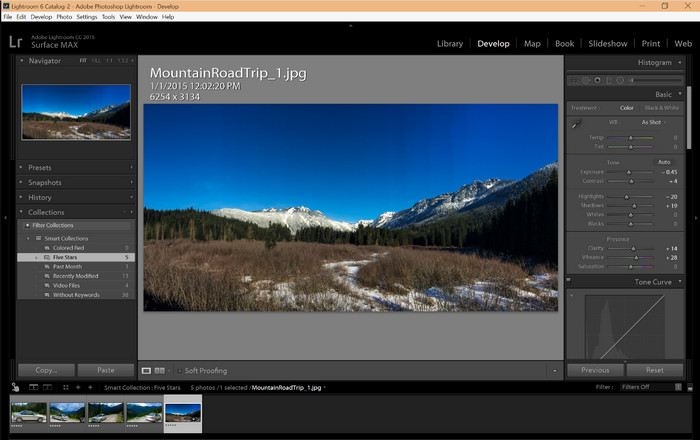
Lightroom, güncellenmiş bir Windows sürümünü destekler; Yazılımı Windows işletim sisteminize indirirseniz bu kısım tam size göre. Endişelenmenize gerek yok çünkü Lightroom, aşağıdaki öğreticiyi izleyerek HEIC dosyalarını zahmetsizce açabiliyor.
1. Adım. Yazılımı Windows 10/11 bilgisayarınıza indirin, ardından kurun ve devam etmek için açın.
2. Adım. Yazılım sisteminizde çalışmaya başladığında, + düğmesine tıklayın, Gözat’a basın ve buraya aktarmak istediğiniz HEIC dosyasını seçin.
3. Adım. Dosyaları seçtikten sonra, artık Windows 10/11 üzerinde Lightroom kullanarak HEIC dosyalarını görüntüleyebilirsiniz.
Bölüm 2. HEIC Fotoğrafını Mac 10.13 veya Üzeri Bilgisayarınızda Lightroom'da Nasıl Açılır
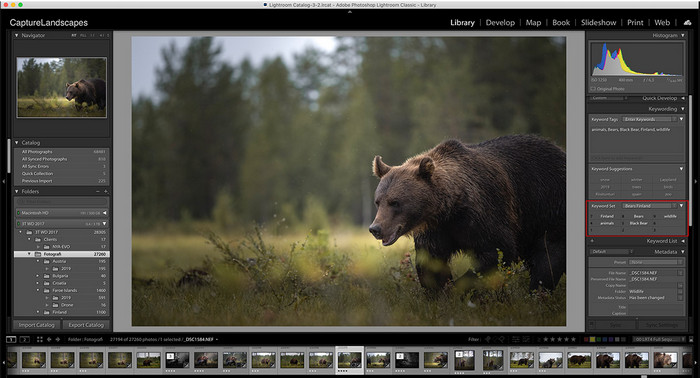
Lightroom olmadan bile, özellikle Mac sürümünüz High Sierra 10.13 veya Önizleme'de daha yeniyse HEIC dosyasını zahmetsizce görüntüleyebilirsiniz. Önizleme, düzenleme özelliklerini desteklese de, Lightroom'un size sağlayabileceği gibi karmaşık düzenleme için kullanmak yeterli değildir. Ayrıca, Lightroom, bunları Mac'inizde düzenlemek veya düzenlemek için HEIC dosyalarını desteklediğinden endişelenmenize gerek kalmayacak.
1. Adım. Yazılımı macOS 10.13 veya üstü sürüme kurun; eğer işletim sisteminizin sürümü daha düşükse, yazılımın açılmayacağını unutmayın. Lightroom’u masaüstünüze indirdikten sonra programı açmanız gerekir.
2. Adım. Üst kısımda, farklı menüleri ve sol üstte Lightroom adını göreceksiniz; bu, yazılımın açık olduğu anlamına gelir. File (Dosya) menüsüne basın ve ardından Add Photos (Fotoğraf Ekle) seçeneğine gidin ya da bunun yerine klavyenizden Command + Shift + I kısayolunu kullanın.
3. Adım. Ekranınızda bir klasör penceresi açılacaktır; içe aktarmak istediğiniz görüntüyü seçin ve Review for Import (İçe Aktarmayı Gözden Geçir) düğmesine tıklayın.
Bölüm 3. Lightroom, HEIC Dosyasını İçe Aktaramadı | Desteklenmeyen HEIC Sorununu Çözmek İçin En İyi Çözüm
Birçok kullanıcı, Windows ve Mac'te Lightroom gibi yazılımlarla uyumluluk nedeniyle HEIC dosyasını yüklerken sorun yaşadı; yukarıdaki yöntemlerin yardımıyla bile, yine de imkansızdır. Ancak üzülmenize gerek yok çünkü HEIC dosyanızı web'deki en iyi aracın yardımıyla HEIC'i JPG'ye dönüştürerek Lightroom'da içe aktarmanın bir yolu var.
FVC Free HEIC to JPG Converter, Windows ve Mac’te HEIC dosyasını herhangi bir yazılım indirmeden dönüştürmek için kullanmanız gereken çözümdür. Bu tür bir web aracı, desteklenmeyen biçimi JPEG gibi standart bir formata dönüştürebilir. Böylece Lightroom’a resmi yüklerken biçim desteği sorunuyla karşılaşmazsınız. HEIC’i JPG’ye dönüştürmenin yanı sıra, buraya birden fazla HEIC görüntüsü de yükleyebilir ve hepsini aynı anda dönüştürerek toplu dönüştürmeyi destekleyebilirsiniz. Harika, değil mi? Peki bizi daha da çok ne şaşırttı bilmek ister misiniz? Üstelik hızlandırılmış dönüştürmeyi ücretsiz yapabiliyorsunuz. HEIC ile karşılaştığınız desteklenmeme sorununu çözmek istiyorsanız, biçimi nasıl dönüştüreceğinizi öğrenmek için aşağıda belirtilen adımları izleyin.
Bir Web Aracı Kullanarak HEIC Formatını JPG'ye Nasıl Değiştireceğinize İlişkin Kolay Adımlar:
1. Adım. FVC Free HEIC to JPG Converter bağlantısına tıklayarak, tercih ettiğiniz arama motoru üzerinden dönüştürücünün ana web sitesini açabilirsiniz. Endişelenmenize gerek yok; kullanımı güvenlidir ve web arayüzünde rahatsız edici reklâmlar yoktur.
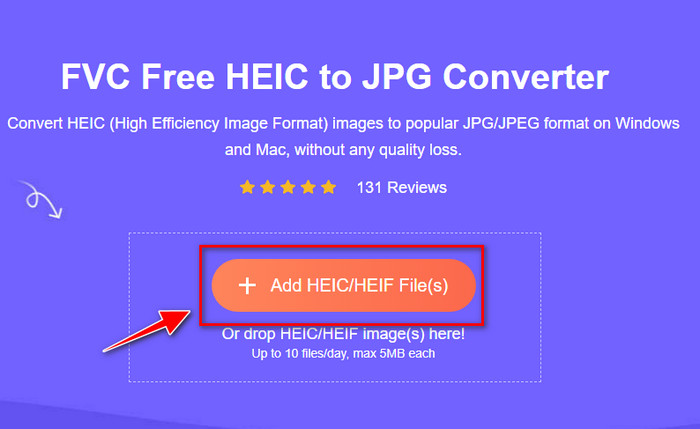
2. Adım. Lightroom’un açamadığı HEIC görüntüsünü yüklemek için Add HEIC/HEIF Files düğmesine tıklayın. Alternatif olarak, dosyayı klasörden seçmek yerine buraya sürükleyip bırakabilirsiniz.
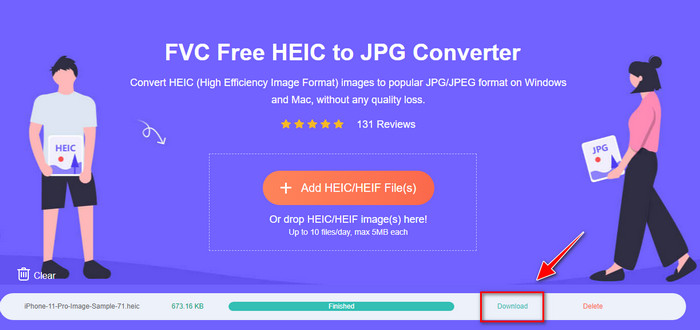
3. Adım. İlerleme çubuğu tamamlandığında bir Download (İndir) düğmesi belirecektir; yeni dönüştürülmüş HEIC dosyasını masaüstünüze kaydetmek için buna tıklayın. Bundan sonra, Lightroom’a dosyayı içe aktarırken artık desteklenmiyor veya bozuk olduğuna dair bir uyarı kutusu almazsınız.
Bölüm 4. HEIC'i Lightroom'da İçe Aktarma Hakkında SSS
Lightroom'da HEIC dosyalarını içe aktarma konusunda herhangi bir sınırlama var mı?
Bu noktaya kadar, HEIC dosyalarını Lightroom'a istediğiniz kadar içe aktarabilirsiniz. Lightroom'a bu tür bir formatı yükleme konusunda herhangi bir sınırlaması yoktur.
Lightroom, Windows ve Mac'te ücretsiz mi?
Ne yazık ki Lightroom Windows ve Mac'te ücretsiz değil, ancak Windows ve Mac'inizde ücretsiz olarak indirebilirsiniz. Yazılım ücretsiz olmasa da 7 gün boyunca desteklediği ücretsiz deneme sürümünden yararlanabilirsiniz. Yazılıma uzun süre ihtiyaç duyacağınızı düşünüyorsanız deneme süresinden sonra abone olabilirsiniz.
Lightroom'da bir HEIC dosyasını dışa aktarmak filigran bırakır mı?
Neyse ki, Lightroom buraya yüklediğiniz görüntüye filigran eklemez. Ancak isterseniz siz filigran ekleyebilirsiniz. Bu nedenle, resmi internete yükleyecekseniz, onu çalmaya çalışabilecek kişilere karşı koruma sağlamak için filigran eklemenizi öneririz.
Görüntü düzenleme için hangisi daha iyi? Photoshop mu, Lightroom mu?
Taleplerinize bağlıdır; Adobe düzenleyici Photoshop ve Lightroom'un yardımıyla görüntünüzü görünüm olarak kolayca daha iyi hale getirebilirsiniz. Kullanımı kolay bir resim düzenleyici istediğinizi varsayalım. Bu durumda, Lightroom, sahip olduğunuz görüntüyü geliştirmek için en iyi görüntü düzenleyici olduğundan, seçmeniz gereken bir seçimdir. Ancak daha ayrıntılı görüntü düzenleme yapmak istiyorsanız, Photoshop her profesyonel editörün ihtiyaçlarına uyan düzenleyicinizdir.
Sonuç
Lightroom'un yardımıyla, sahip olduğunuz görüntüyü kolayca düzenleyebilir veya düzgün görünmeleri için uygun şekilde düzenleyebilirsiniz. Yani HEIC dosyasını Lightroom'da içe aktarmak istiyorsanız, ister Windows ister Mac kullanıcısı olun eklediğimiz adımları takip edebilirsiniz. Ancak HEIC dosyasını içe aktarırken sorun yaşarsanız, Lightroom ile uyumlu hale getirmek için çözdüğümüz üçüncü bölümü okuyun. Şimdi düzenlemeye devam edebilirsiniz. Bu yazının size dosyayı nasıl içe aktaracağınız konusunda bir fikir vereceğini umuyoruz; Başka öneri veya tavsiyeleriniz varsa bize mesaj bırakabilirsiniz.
-
 iMazing HEIC Dönüştürücü | İşlevler, Artıları ve Eksileri ve Nasıl Kullanılacağı
 Bu makale, iMazing HEIC Dönüştürücü özelliğini ve alternatiflerini gözden geçirecektir, bu nedenle bu konuda daha fazla bilgi edinmek istiyorsanız bunu dikkatle okuyun.
-
 Bir Uzman Gibi iPhone'da HEIC'i JPG'ye Dönüştürmenin En Kolay 3 Yolu
 İPhone'da HEIC'yi JPG'ye nasıl değiştireceğiniz hakkında hiçbir fikriniz yok mu? HEIC ile sorun yaşayan kullanıcılardan biriyseniz, bunu okuyun.
-
 iPhone Fotoğraflarım Neden HEIC Formatında [Nedenler ve Nasıl Çözülür]
 iPhone fotoğraflarımın neden HEIC biçiminde olduğunu bilmek ister misiniz? Bu makale, HEIC'i neyin en iyi yaptığı konusunda güvenilir kanıtlar sunmaktadır.
