


 Video Dönüştürücü Ultimate
 Ekran kaydedicisi
 Video Onarımı
 Güvenli İndirme
Menşe Grafiğinden Filigranı Grafik Üzerinden Etkili Bir Şekilde Kaldırma
Origin Graph'ı, sözcüklerle ifade edilmesi zor olacak kadar karmaşık olan matematiksel veya bilimsel veriler için bir şablon oluşturmak amacıyla kullanmanız gerekebilir. Bu yazılım, kendi grafiğini oluşturması gereken öğrenciler, araştırmacılar, profesörler, iş dünyasındaki kişiler ve daha birçok kullanıcıya zaten yardımcı olmuştur. Sunulan şablon seti sayesinde, izleyicilerin dikkatini çekebilecek, göze hitap eden grafikler hazırlayabilirsiniz. Ancak ücretsiz sürümü kullanırsanız, son çıktının üzerinde metin filigranı eklemesi gibi bir sorunla karşılaşmanız olasıdır. Filigranı kaldırmakta zorlanıyor musunuz? Artık endişelenmeyin! Çünkü bu konuda size yardımcı olacağız. Burada, Origin Graph filigranını kaldırma konusunda işe yarar ipuçları sunacak ve ardından bu grafiği Word ya da PowerPoint sunumlarınızda nasıl kullanacağınızı göstereceğiz.

Bölüm 1. Çevrimiçi Görüntü Filigran Kaldırıcı ile Köken Grafiğinden Filigranı Kaldırma
FVC Free Watermark Remover Online, Origin Graph filigranını kaldırmak için kullanabileceğiniz üst düzey bir metin filigranı kaldırma aracıdır. Bu araç, görüntülerinizdeki herhangi bir nesneyi temizlemede son derece etkilidir; böylece filigranı kaldırdığınızda görselleriniz çok daha profesyonel görünür. Bununla, bu tür durumlarda güvenle kullanabileceğiniz, özel olarak tasarlanmış bir filigran kaldırıcıya sahip olduğunuzu garanti edebiliriz. Bu aracın kullanımı kolay mı diye merak mı ediyorsunuz? Artık merak etmeyin! Çünkü aşağıya eklediğimiz adımlar, Origin Graph'ın görsele eklediği metin filigranından kurtulmak için birebir uygulayabileceğiniz adımlardır.
Adım 1. Çevrimiçi görsel filigran kaldırma aracını açmak için bu bağlantıya tıklayabilirsiniz; bağlantı araca erişebileceğiniz yeni bir sekmeyi doğrudan açacaktır.
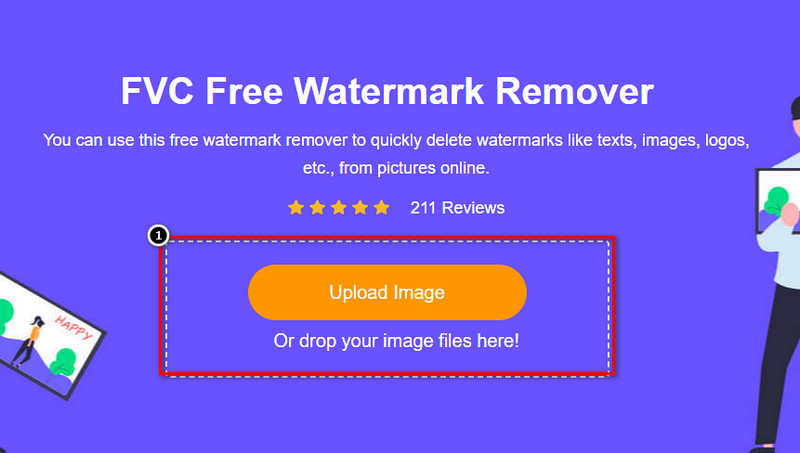
Adım 2. Filigranlı fotoğrafı eklemek için Upload Image düğmesine basın, klasör içinden fotoğraf dosyasını bulun ve başarıyla yüklemek için Open butonuna tıklayın.
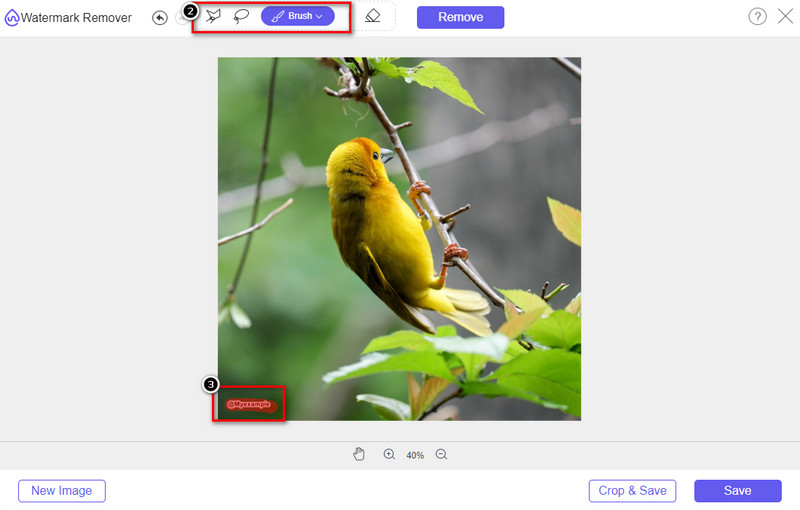
Adım 3. Filigranı vurgulamak için kullanabileceğiniz üç araç vardır; işlevleri farklı olsa da etkililikleri aynıdır. Bu araçlardan birini seçin ve görüntüde filigran bulunan alanı işaretleyin.
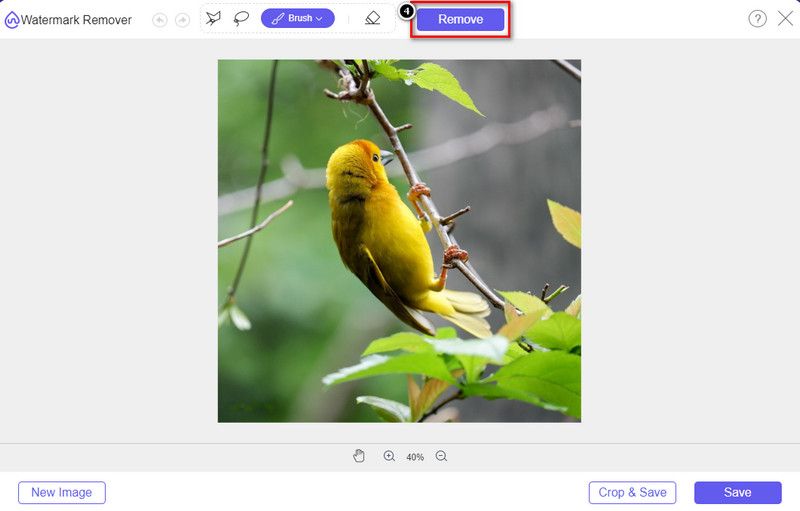
Adım 4. Aracı kullanarak filigranı vurguladıktan sonra mutlaka Remove simgesine tıklayın. Bu adım önemlidir; böylece görüntüyü dışa aktardığınızda filigransız bir sürüme sahip olursunuz.
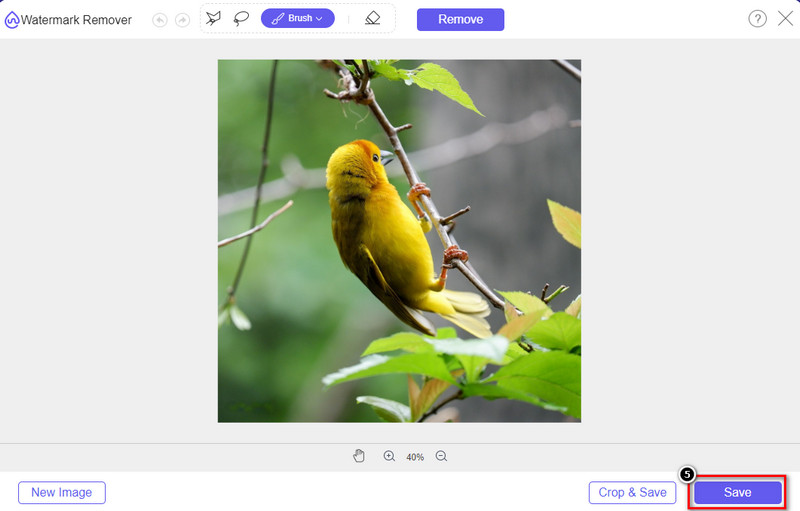
Adım 5. Dışa aktarma işlemini başlatmak için artık Save düğmesine tıklayabilirsiniz. İşlemin tamamlanmasını bekleyin ve ardından Origin Graph filigranının ilgili alanda artık görünmediği görseli kontrol edin.
Artıları
- Erişebileceğiniz ücretsiz bir web tabanlı görüntü filigran sökücü.
- AI-Technology desteği ile filigranı kaldırma konusunda verimli çalışır.
- Yerel sürücünüzde bulunabilecek çok çeşitli görüntü formatlarını destekler.
- Dışa aktarılan görüntülere filigran eklenmez.
Eksileri
- Çalışmak için internet bağlantısı gerekir.
- Odak noktası filigranı kaldırmak ve başka bir şey değil.
Bölüm 2. Filigran Olmadan Grafikleri Origin'den Word veya PowerPoint'e Kopyalama
Makalenin bu bölümünde, Origin Graph üzerinde oluşturduğunuz grafiği filigran olmadan eklemek için bilmeniz gereken prosedürü size vereceğiz. Microsoft Word ve PowerPoint üzerinde oluşturduğunuz grafiği filigran olmadan başarıyla eklemek için buna göre izleyin.
Muazzam dosya boyutu nedeniyle en az 1,9 GB yer açmanız gerekecek. 1.9GB'lık dosyada ihtiyacınız olan yardıma sahip olabilirsiniz, ancak yardım istemiyorsanız, 652 MB'lık sürümünü .zip veya .exe aracılığıyla indirebilirsiniz.
Filigran Olmadan Menşe Grafiği Üzerinde Grafik Oluşturma Adımları:
Adım 1. Öncelikle Origin Graph'ı, resmi web sitesine giderek işletim sisteminize indirin. İstediğiniz grafiği oluşturmaya başlamak için aracı açın.
Adım 2. Yazılımı başlattıktan sonra, ihtiyacınız olan tablo değerlerini ekleyin. Burada daha fazla değişken ve buna karşılık gelen sayıda grafik ekleyebilirsiniz.
Ek: Plot seçeneğine tıklayarak Basic 2D, Bar, Statistical ve diğer türlerde kullanabileceğiniz farklı grafiklere bakabilirsiniz.
Adım 3. Dosya'ya tıklayın, ardından burada oluşturduğunuz grafiği dışa aktarmak için Save düğmesine basın.
Adım 4. Birinci Bölüm'de eklediğimiz adımları izleyebilir ve FVC Free Watermark Remover Online yardımıyla Origin Graph filigranını kaldırma eğitimini takip edebilirsiniz.
Filigransız Word'de Grafik Nasıl Kullanılır:
Adım 1. Masaüstünüzde Word uygulamasını açın ve Boş Sayfa'yı tıklayın. Zaten oluşturduğunuz Word belgeleri varsa, ilgili dosyayı açın.
Adım 2. Insert (Ekle) bölümüne gidin, ardından Pictures (Resimler) seçeneğine tıklayın. Yerel sürücünüzdeki grafik dosyasını arayın, bir kez tıklayın ve Word'e yüklemek için Aç'a basın.
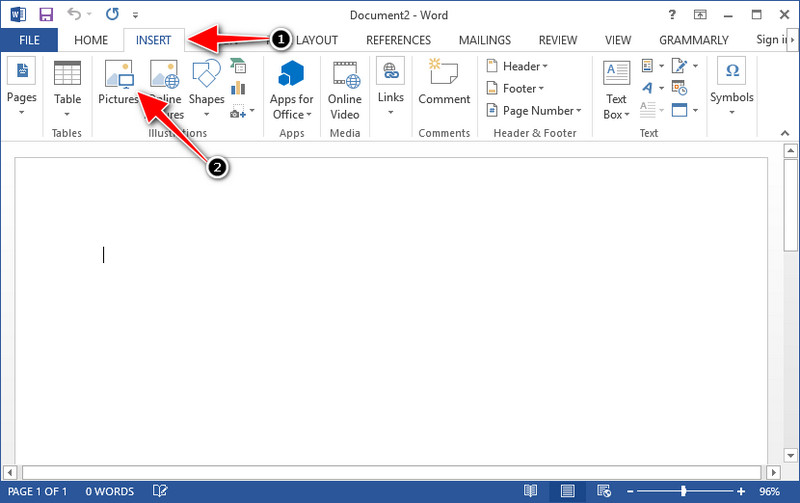
Adım 3. Grafik, açtığınız veya oluşturduğunuz Word belgesine otomatik olarak yüklenecektir; artık grafiği basılı tutup sürükleyerek Word sayfası üzerinde istediğiniz yere yerleştirebilirsiniz.
Filigransız Powerpoint'te Grafik Nasıl Kullanılır:
Adım 1. Bilgisayarınızda PowerPoint'i başlatın ve Boş Sunu'ya tıklayın. Sol tarafta daha önce oluşturduğunuz son sunumlara da göz atabilirsiniz. Grafiği eklemeniz gereken bir dosya varsa, açmak için ona tıklayın.
Adım 2. Origin Graph'ta oluşturduğunuz grafik görselini eklemek için Insert (Ekle) seçeneğine basın ve Picture (Resim) öğesini tıklayın.
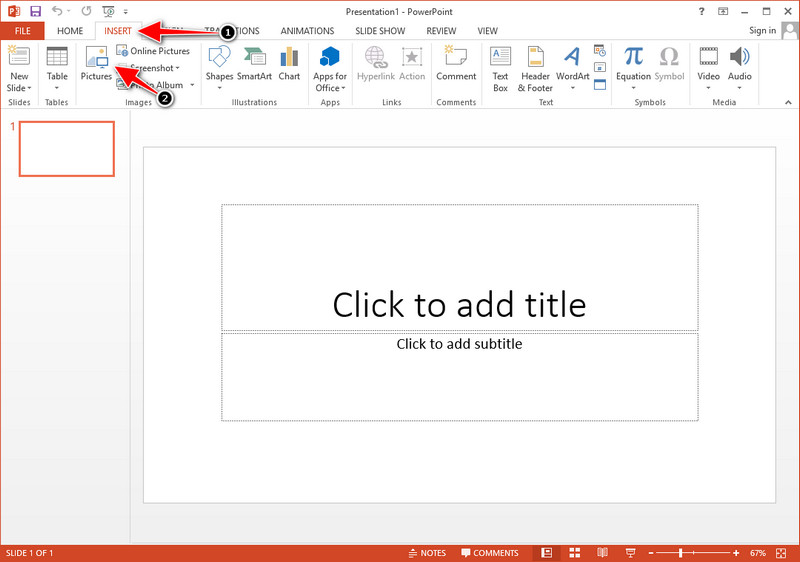
Adım 3. Grafik görselinin boyutunu ayarlayın ve slayt üzerinde istediğiniz konuma yerleştirin.
Daha Fazla Okuma:
Görsellerinizden B612 Filigranı Nasıl Kaldırılır
WOW Slider Filigranı Ücretsiz Nasıl Kaldırılır
Bölüm 3. Köken Grafiğinden Filigranın Nasıl Kaldırılacağına İlişkin SSS
Origin Pro'nun fiyatı ne kadar?
Bireysel kullanıcılar için, $435 başlangıç için Origin Graph'ın premium sürümünü edinebilirsiniz. Origin Lab'deki resmi mağazasını ziyaret edebilirsiniz.
Origin Graph'ı resmi olarak nereden indirebilirim?
Origin Grafiği'ni indirmek için Origin Lab'ı ziyaret edin. Yazılımı masaüstünüze indirmeden önce size sorular soracaktır. Bundan sonra, dosyayı yardımla indirmek isteyip istemediğinizi .exe veya zip şeklinde indirmek için iki seçenek olacaktır.
Excel ve Origin aynı mı?
Excel ve Origin, verileri düzenlemek, etiketleri hesaplamak ve tanımlamak için elektronik tablo benzeri bir GUI'ye sahiptir. Ancak Excel, kullanabileceğiniz birçok sütun ve satır içermeye odaklanır. Ancak Origin ile, Excel'in desteklediği gibi bir hücre formülü yerine bir sütun formülü kullanan öznitelikleri düzenlemek içindir.
Sonuç
Artık Origin Graph'tan filigranı nasıl kaldıracağınızı öğrendiğinize göre, oluşturduğunuz grafiği kullanma ve profesyonelce sunma zamanı geldi. Amacınız Word veya Powerpoint'te kullanmaksa nasıl yapılacağını öğrenmek için Bölüm 2'yi okuyabilirsiniz. Bu araçla filigranı kaldırmak, görüntülerdeki filigranı kaldırmak isteyen herkes tarafından açık ara en çok aranan şeydir. Sorun bu araçla çözüldü. Bu makale size yardımcı olduysa, lütfen aşağıya 5 yıldız bırakın.
-
 Ayrıntılı Adımlarda Pixlr ile Filigran Nasıl Kaldırılır [Etkili]
 Pixlr ile bir filigranın nasıl kaldırılacağını bilmek ister misiniz? Eğer öyleyse, nasıl yapılacağını ve kullanabileceğiniz alternatifleri öğrenmek için aşağıdaki okumaya devam edin.
-
 3 Kanıtlanmış Yolla Dışa Aktarılan Videolardaki Animotica Filigranını Kaldırın
 Dışa aktardığınız videolarda Animotica filigranını kaldırmanın mümkün olup olmadığını hiç merak ettiniz mi? Bu makale bir nasıl yapılır sağlar.
-
 Videolardaki VideoShop Filigranını Kaldırmanın Ücretsiz Yolları [Zahmetsizce]
 VideoShop filigranını kaldırmak için cihazınızın bir filigran çıkarıcıya ihtiyacı olacaktır. Bunların ne olduğunu öğrenmek için bu makaleyi okuyun.
