


 Video Dönüştürücü Ultimate
 Ekran kaydedicisi
 Video Onarımı
 Güvenli İndirme
Videolarda Filigranı Kullanmak ve Kaldırmak için 3 Shutterstock Filigran Sökücü
Projeniz için yüksek kaliteli, lisanslı Shutterstock videolarına mı ihtiyacınız var ama üzerlerinde Shutterstock filigranı mı görünüyor? Shutterstock filigran kaldırıcı yardımıyla indirdiğiniz videodaki filigranı kolayca silebilirsiniz. Profesyonel ya da kişisel olarak, videolarımızda filigran olmasını istemeyiz çünkü videonun bütün fikrini bozabilir. Bu yüzden Shutterstock filigranından kurtulmak istiyorsanız, bu yazıda verdiğimiz bilgileri ve kısa eğitimi okumaya devam edebilirsiniz.

Bölüm 1. Piyasadaki Nihai Filigran Kaldırıcı ile Shutterstock Filigranı Nasıl Kaldırılır [Editörün Seçimi]
FVC Video Converter Ultimate, kaydettiğiniz videodaki Shutterstock filigranını nasıl kaldıracağınız konusunda size doğru ve adım adım yardımcı olabilir. Windows ve Mac’te indirebileceğiniz, filigran kaldırma gibi ayarlamalar yapabildiğiniz hepsi bir arada bir çözümdür. Her ne kadar çok yönlü bir yazılım olsa da, geliştiricisi bu programı herkesin, kapsamlı teknik bilgiye sahip olmadan kullanabilmesi için olabildiğince kullanıcı dostu tasarlamıştır.
Düşük seviye becerilere sahip olsanız bile, bu düzenleyiciyi bir kez kullandığınızda, sonunda birinci sınıf bir çıktıya sahip olabilirsiniz. Hala eklediğimiz bilgilerle ikna olmadınız mı? Bunu kanıtlamak için, bu video düzenleyiciyle Shutterstock filigranını ücretsiz olarak nasıl kaldıracağınızı size öğreteceğiz.
Adım 1. İndirdiğiniz videodaki filigranı kaldırmak için önce bu düzenleyiciyi işletim sisteminize uygun indirme düğmesine tıklayarak indirmeniz gerekir. Kısa bir kurulum sürecinden geçtikten sonra yazılımı kullanmaya başlayabilirsiniz.
Ücretsiz İndirWindows 7 veya üstü içinGüvenli İndirme
Ücretsiz İndirMacOS 10.7 veya üstü içinGüvenli İndirme
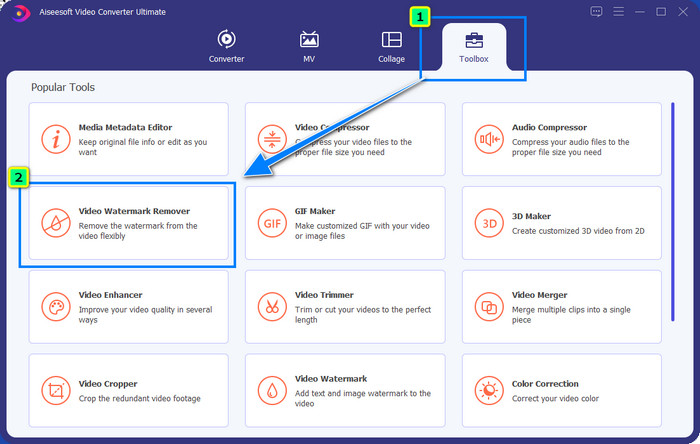
Adım 2. Sonraki adımda Video Filigran Kaldırıcı özelliğini kullanmalısınız; bu özelliği Araç Kutusu bölümünün altında bulabilirsiniz. Gördüğünüz gibi, görüntüyü istediğiniz hale getirmek için kullanabileceğiniz birçok düzenleme özelliği ve işlevi vardır.
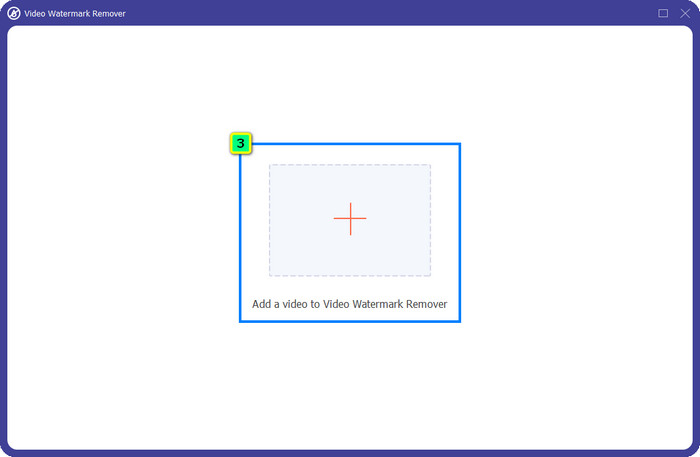
Adım 3. Artı simgesine tıklayın; ekranınızda bir dosya yöneticisi açılacaktır. Filigranlı video dosyasını seçin ve yüklemek için Open (Aç) düğmesine tıklayın.
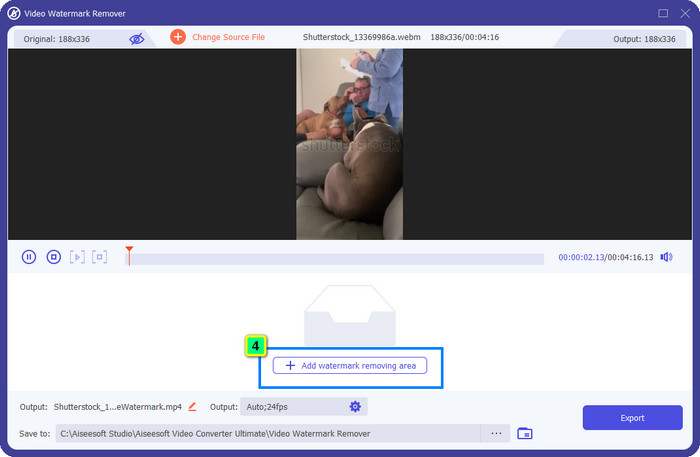
Adım 4. Yüklediğiniz videodaki filigranı silmek için Filigran Kaldırma Alanı Ekle düğmesine basın; yeni bir pencere açılacaktır.
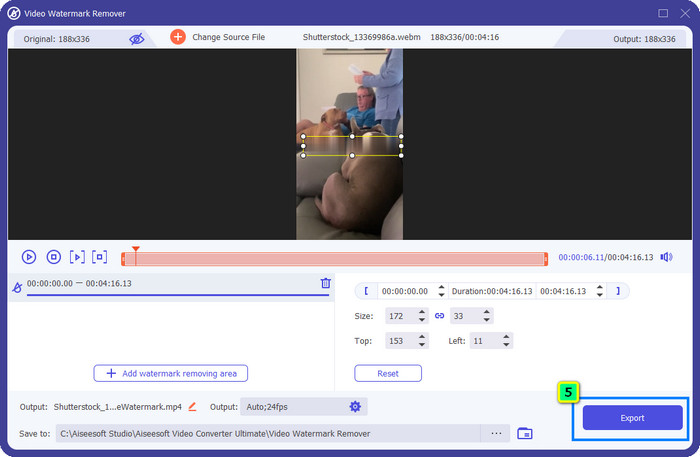
Adım 5. Bu kısımda videonuzun üzerinde kare şeklinde bir alan göreceksiniz; bunu filigranın üzerine yerleştirin. Silmek istediğiniz filigrana tam oturması için bu alanı yeniden boyutlandırabilir, sürükleyebilir, küçültebilir veya büyütebilirsiniz.
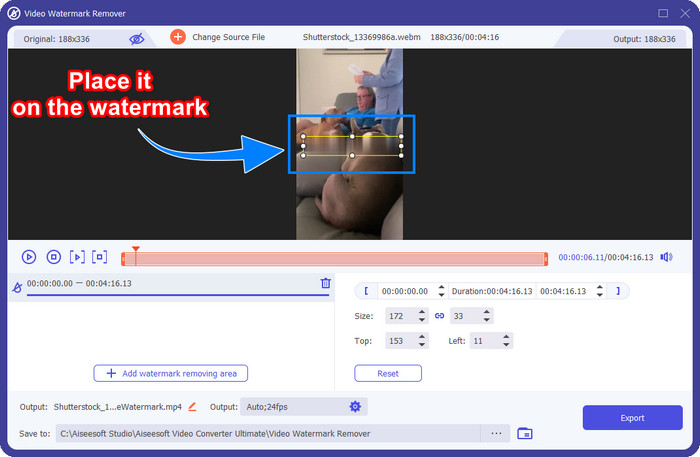
Adım 6. Son olarak, cihazınıza indirdiğiniz Shutterstock videosunun nihai çıktısını almak için Dışa Aktar düğmesine tıklayın. Artık filigran silindiği için, videonun keyfini filigran derdi olmadan çıkarabilirsiniz.
Bölüm 2. Shutterstock Filigranını Çevrimiçi Olarak Ücretsiz Olarak Kaldırma
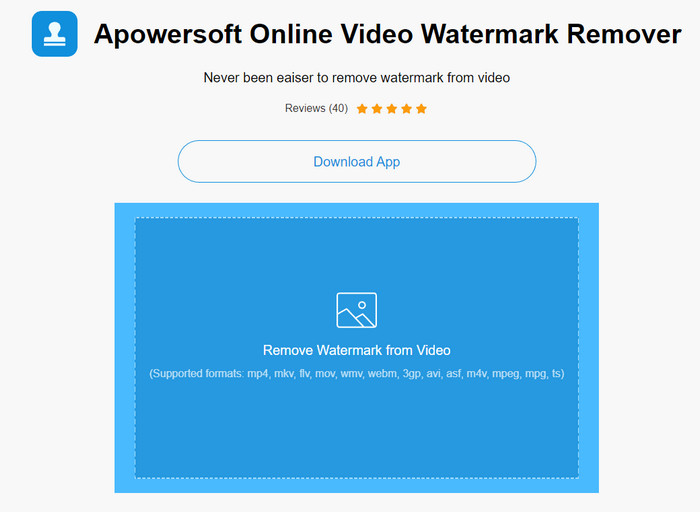
Masanıza bir filigran kaldırma programı indirme fikrinden hoşlanmıyor musunuz? Öyleyse, Apowersoft Online Watermark Remover kullanabilirsiniz; biz de Shutterstock filigranını çevrimiçi olarak nasıl kaldıracağınızı anlatacağız. Elinizdeki video veya görüntüdeki filigranı kaldırması gereken herkes için harika bir seçenektir. Bunu eklememizin nedeni, yazılımın erişilebilir olması ve elinizdeki farklı işletim sistemleriyle uyumlu çalışmasıdır.
Çevrimdışı araçların aksine, bunları kullanmak için kararlı ve sağlam bir internet bağlantısına ihtiyacınız olacak. Söz verdiğimiz gibi, Shutterstock'un üzerinde bıraktığı filigranı kaldırmak için bu filigran çıkarıcıyı kullanma eğitimi aşağıdadır.
Adım 1. Tercih ettiğiniz arama motorunu kullanarak Apowersoft Online Watermark Remover’ın resmi web sitesini açın, ardından video dosyasını yüklemek için sağ taraftaki + düğmesine tıklayın.
Adım 2. Seçim kutusunu videodaki Shutterstock filigranının üzerine yerleştirin.
Adım 3. Ardından filigranı kaldırmak ve sonucu görmek için Erase (Sil) düğmesine tıklayın.
Adım 4. Filigransız Shutterstock videosuna sahip olmak için Dosyayı İndir düğmesine basın.
Bölüm 3. Photoshop Kullanarak Shutterstock Filigranı Nasıl Kaldırılır [Ücretli]
Birçok kullanıcı Shutterstock filigranını Photoshop kullanarak nasıl kaldıracağını soruyor ve biz de bu konuda size yardımcı olmak istiyoruz! Adobe Photoshop, kullanmaktan memnun kalacağınız profesyonel bir filigran kaldırma özelliğini destekler. Bu yazıda tanıtılan yazılımlar gibi amacına hizmet eder; ancak filigranı kare kare kaldırma yaklaşımını kullanır. Yani videonun her karesindeki filigranı tek tek silmek için zaman harcamanız gerekir; video uzadıkça kare sayısı da artar. Aracın nasıl çalıştığını öğrenmek istiyorsanız aşağıdaki bilgilendirici adımları okuyun.
Adım 1. Uygulamayı bilgisayarınıza indirin, ardından File (Dosya) menüsüne tıklayın. Altından, bilgisayarınıza kaydedilmiş videoyu yüklemek için Open (Aç) seçeneğine basın.
Adım 2. Sol taraftan Sihirli Değnek Aracını seçin, ardından kaldırmak istediğiniz filigrana tıklayın. Bu özellik, karedeki filigranı otomatik olarak izler.
Adım 3. Edit (Düzenle) menüsüne gidin ve filigranı izledikten sonra İçerik Duyarlı Dolgu seçeneğine basın.
Adım 4. İçerik Duyarlı Dolgu penceresini açtıktan sonra, daha önce seçtiğiniz filigranı otomatik olarak kaldıracaktır; ardından OK (Tamam) düğmesine basın.
Daha Fazla Okuma:
Shootproof Filigranını Kaldırmanın Kolay Yöntemleri
Bandicam Filigranını Zahmetsizce Kaldırma Yolları [3 Etkili Çözüm]
Bölüm 4. Shutterstock Filigranının Nasıl Kaldırılacağına İlişkin SSS
Photoshop olmadan Shutterstock filigranı nasıl kaldırılır?
Videonuza bağlı Shutterphoto'yu kaldırmak için FVC Video Converter Ultimate'ı kullanabilirsiniz. Denemek isteyeceğiniz güçlü bir filigran silgisine sahiptir. Photoshop kadar etkili bir şekilde yapmak için bu makalede eklediğimiz adımları izleyin.
Shutterstock filigranını kırpmak videoda işe yarar mı?
Boyutu değiştirerek videoyu yeniden boyutlandırmak istiyorsanız, çevrimiçi ve çevrimdışı birden fazla video düzenleyici yardımıyla videoyu kırpabilirsiniz. Shutterstock filigranı ortada olduğu için kırpma özelliklerini kullanmamakta fayda var. Çok sayıda filigran sökücü yardımcı olmak için burada; Eklediğimiz öğreticiyi okuyabilir ve kopyalayabilir, böylece üzerinde leke bırakmadan etkili bir şekilde silebilirsiniz.
Shutterstock filigranını kaldırmak yasal mı?
Shutterstock'un filigranını kaldırmak yasal değildir, ancak ticari olmayan amaçlarla kullanmak istiyorsanız bunu bir filigran sökücü yardımıyla yapabilirsiniz. Ticari amaçla kullanacaksanız, istediğiniz fotoğrafı Shutterstock üzerinden satın almanız daha iyi olur; size pahalıya mal olsa da, en azından onu kullanmak için yasal haklara sahip olmanızı sağlar.
Sonuç
Artık bu yazıda yer alan yazılımlarla Shutterstock filigranını kaldırmayı biliyorsunuz. Peki siz hangisini tercih edersiniz: ücretli olanı mı, ücretsiz çevrimiçi aracı mı yoksa tüm özellikleriyle öne çıkan yazılımı mı? Tercihiniz ne olursa olsun, Shutterstock görselini ürün logosu olmadan elde edebilirsiniz. Ama bize hangisini kullanmamız gerektiğini sorarsanız, hiç tereddütsüz FVC Video Converter Ultimate deriz; çünkü görevi en tatmin edici şekilde yerine getirir. Gelişmiş bir filigran kaldırıcı olmasına rağmen hâlâ son derece kolay kullanılabilir. Bu yazılımı denemek isterseniz, masaüstünüze indirmek için indirme düğmesine tıklayabilirsiniz.
-
 Renderforest Dışa Aktarılan Videolardan Filigranı Kaldırmak için Üstün Araçlar
 Filigranı Renderforest'tan kaldırmak için cihazınızda bir filigran sökücüye ihtiyacınız olacak, kullanabileceğiniz tüm araçlar burada.
-
 WOW Kaydırıcı Filigranının Nasıl Kaldırılacağına İlişkin Kolay Adımlar [Çözüldü]
 WOW Slider, harika bir slayt gösterisi oluşturmak için bir uygulamadır. Ancak, çıktısına filigran yerleştirir. WOW Slider filigranını nasıl kaldıracağınızı öğrenmek için aşağıyı okuyun.
-
 Power Director Filigranından Ücretsiz Olarak Nasıl Kurtulur [Tam]
 Power Director filigranından ücretsiz olarak nasıl kurtulurum? Filigranı ortadan kaldırmak için en iyi araçlar burada, bu yüzden bunları okuyarak öğrenin.
