


 Video Dönüştürücü Ultimate
 Ekran kaydedicisi
 Video Onarımı
 Güvenli İndirme
Denemeniz Gereken Camtasia 9'dan Filigranı Kaldırmanın Harika Yolu
Camtasia 9’da filigranı kaldırmanın en basit ve en iyi yolunu arıyorsanız, en doğru yerdesiniz. İzlemek istediğimiz birçok harika video var. Ancak, bunların bazılarında büyük bir filigran bulunur; bu da videoları daha rahatsız edici hale getirir ve videonun içeriğini tam anlamıyla takdir etmemizi engeller. Ayrıca, bu gereksiz nesneler nedeniyle videonun göremediğiniz bazı kısımları olur ve bu da izleyicilerin daha fazla hayal kırıklığı yaşamasına neden olur. Neyse ki, videolarınızdaki filigranları kaldırmak için kullanabileceğiniz filigran kaldırma özelliklerine sahip bazı yazılımlar var; böylece en sevdiğiniz filmleri rahatsız edilmeden izleyebilirsiniz. Videolarınızdaki filigranları hızlıca nasıl kaldıracağınızı daha ayrıntılı öğrenmek istiyorsanız, bu makaleyi baştan sona okuyun.

Bölüm 1: Filigranı Camtasia'dan Kaldırmanın En İyi Yolu
Video Converter Ultimate'ı Kullanma
Filigran kaldırma araçlarına sahip, harika ve güvenilir bir uygulama arıyorsanız, Video Converter Ultimate kullanabileceğiniz mükemmel bir yazılımdır. Bu uygulamayı kullanarak videolarınızdaki filigranları kaldırabilirsiniz. Ayrıca videonuzda Camtasia gibi diğer uygulamalardan gelen filigranlar varsa da bu programdan yararlanabilirsiniz. Dahası, kullanımı kolay ve basittir; bu nedenle yeni başlayanlar için uygundur. Buna ek olarak Video Compressor, Video Enhancer, Video Trimmer, Audio Compressor, Video Reverser, Video Rotator ve daha pek çok keyifli düzenleme aracına sahiptir. Bu makale, Video Converter Ultimate kullanarak videolarınızdaki filigranları kaldırmanın iki yolunu gösterecektir.
1. Video Filigran Sökücüyü Kullanma
Adım 1: Video Converter Ultimate yazılımını masaüstünüze indirin. Ardından kurulum işlemine devam edin.
Ücretsiz İndirWindows 7 veya üstü içinGüvenli İndirme
Ücretsiz İndirMacOS 10.7 veya üstü içinGüvenli İndirme
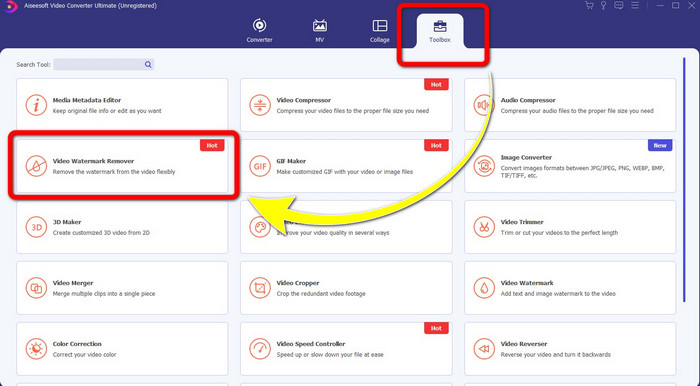
Adım 2: Kurulum tamamlandıktan sonra uygulamayı açın ve Toolbox > Video Watermark Remover bölümüne gidin. Ardından ekranınızda başka bir arayüz belirecektir.
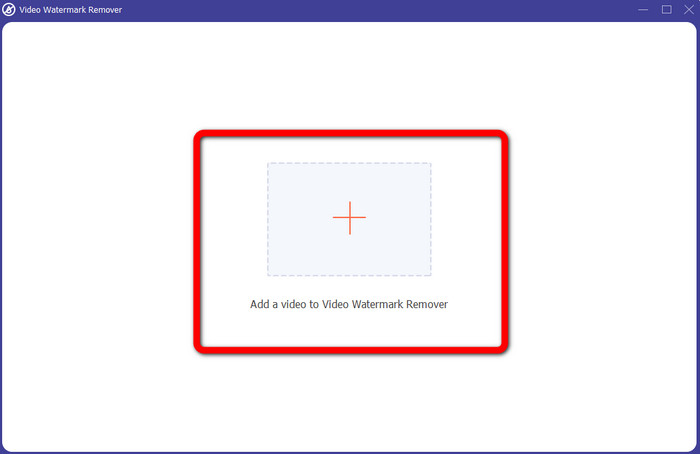
Adım 3: Yeni arayüz göründüğünde, Artı simgesine tıklayın ve filigran içeren videoyu ekleyin.
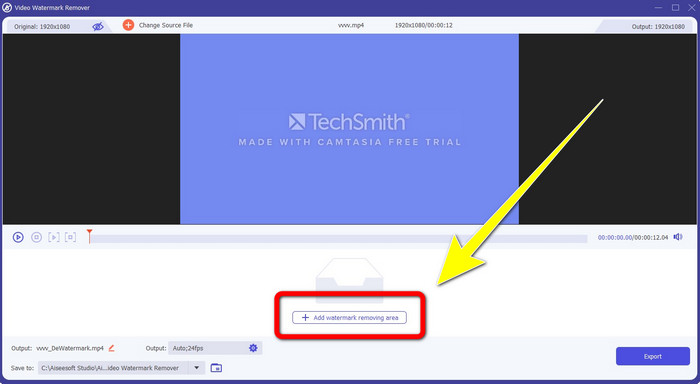
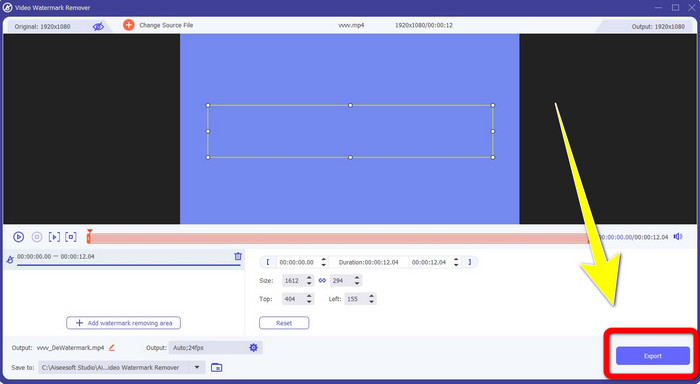
Adım 4: Filigranlı videonuzu ekledikten sonra Add Watermark Removing Area seçeneğine tıklayın.
Adım 5: Ekranınızda kutu şeklinde bir alan görünecektir. Bu kutuyu videonuzdaki filigranı kapatacak şekilde konumlandırın.
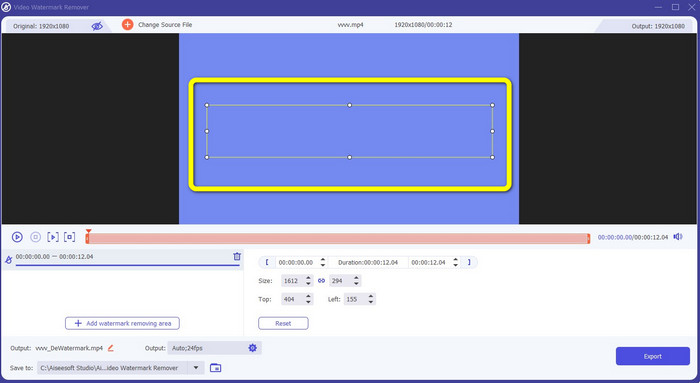
Adım 6: Filigran kutu ile kapatıldığında, videonuzdaki filigran ortadan kalkacaktır. Videonuzu kaydetmek için Export düğmesine tıklayın. Bu yöntemle, Camtasia’dan gelen filigranlı videoyu artık filigransız hale getirebilirsiniz.
2. Kırpma Özelliklerini Kullanma
Deneyebileceğiniz bir diğer yöntem ise Video Converter Ultimate yazılımının kırpma özelliğidir. Bu, özellikle filigran yalnızca videonuzun köşesinde veya kenarında bulunuyorsa, videolardaki filigranları kaldırmanın en kolay yollarından biridir. Videolarınızı kırparak, videodaki gereksiz nesneleri anında silebilirsiniz. Kırpma aracıyla filigranı kaldırmak için bu basit adımları izleyin.
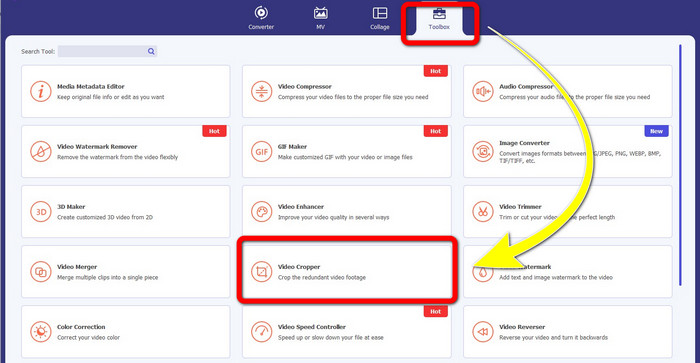
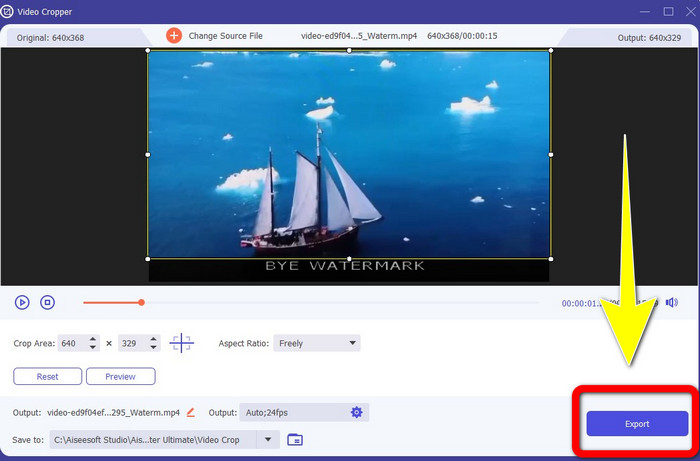
Adım 1: Video Converter Ultimate uygulamasını açın. Toolbox > Video Cropper seçeneğine tıklayın. Ardından ekranınızda yeni bir arayüz görünecektir.
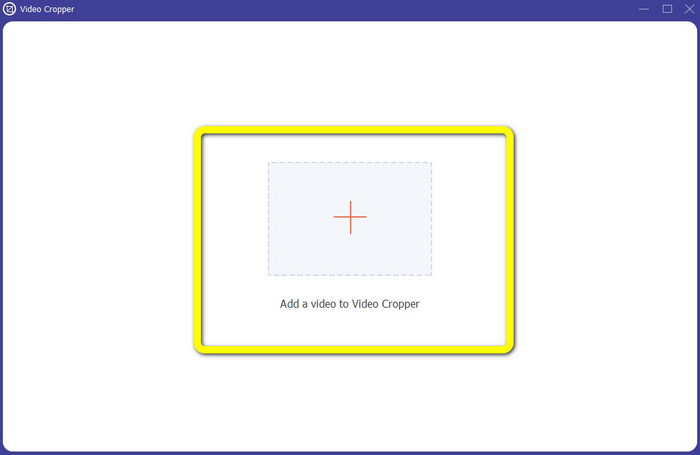
Adım 2: Artı simgesine tıklayın ve filigranını kaldırmak istediğiniz videoyu ekleyin.
Adım 3: Filigranlı videonuzu ekledikten sonra, videonuzun filigranın bulunduğu kenar kısmını kırparak ayarlayabilirsiniz. Bu şekilde filigranları kaldırabilirsiniz.
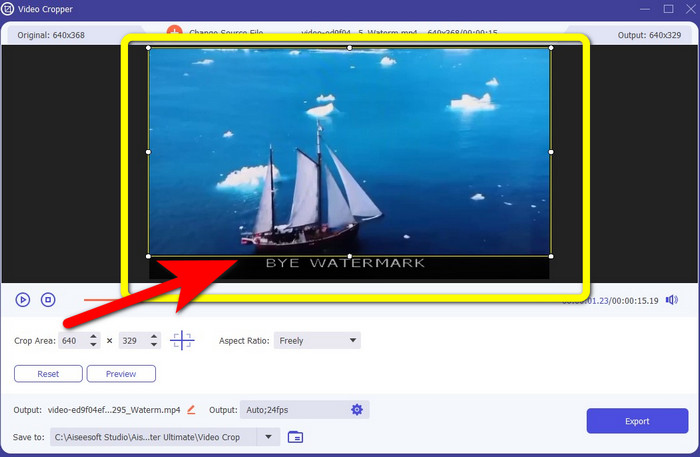
Adım 4: Videonuzu kırpıp filigranın kaybolduğunu gördükten sonra, düzenlenmiş videonuzu kaydetmek için Export düğmesine tıklayın. Artık videonuzu ekranınızda herhangi bir filigran olmadan izleyebilirsiniz.
Bölüm 2: Filigran Olmadan Camtasia'da Videolar Nasıl Üretilir
Camtasia’da filigransız video üretmeyi öğrenmek mi istiyorsunuz? Önce Camtasia nedir, onu tanımlayalım. Camtasia, kullanabileceğiniz basit ve kullanışlı bir düzenleme aracıdır. Ayrıca sahip olabileceğiniz bir ekran kayıt yazılımıdır. Bunun yanı sıra, açıklamalar (annotations), geçişler (transitions), animasyonlar, ses efektleri, video efektleri ve daha birçok düzenleme özelliğine sahiptir. Ayrıca bu uygulama ile slayt gösterileri de hazırlayabilirsiniz.
Bu uygulama yardımıyla videolarınızı izleyiciler için daha çekici ve benzersiz hale getirebilirsiniz. Camtasia'da keyifle izleyeceğiniz güzel videolar üretebilirsiniz. Ancak, uygulamayı satın almadığınız sürece videonuzu dışa aktardıktan sonra bu uygulamanın bir filigranı olur. Bu uygulamada, özellikle Camtasia'da videolar oluşturmak için birçok şeyi öğrenmek için bu basit adımları izleyin.
Bu uygulama yardımıyla videolarınızı izleyiciler için daha çekici ve benzersiz hale getirebilirsiniz. Camtasia'da keyifle izleyeceğiniz güzel videolar üretebilirsiniz. Ancak, uygulamayı satın almadığınız sürece videonuzu dışa aktardıktan sonra bu uygulamanın bir filigranı olur. Bu uygulamada, özellikle Camtasia'da videolar oluşturmak için birçok şeyi öğrenmek için bu basit adımları izleyin.
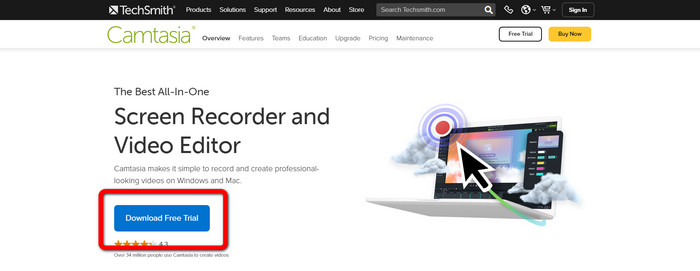
Adım 1: Windows işletim sisteminize Camtasia’yı indirmeniz gerekir. Uygulamayı edinmek için Download Free Trial düğmesine tıklayın. Ardından kurulum işlemi bittikten sonra uygulamayı açın.
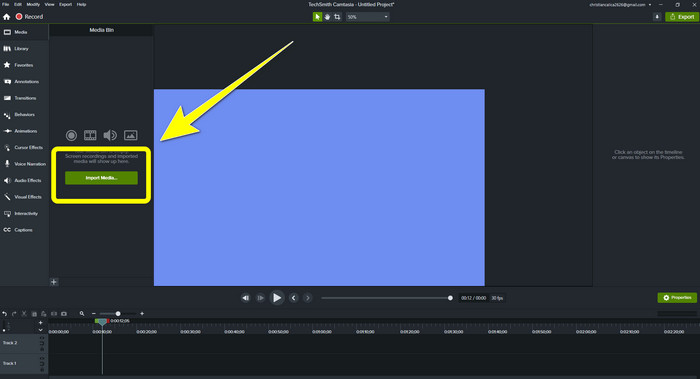
Adım 2: Uygulamayı başlattıktan sonra, düzenlemek istediğiniz dosyayı eklemek için Import Media düğmesine tıklayın.
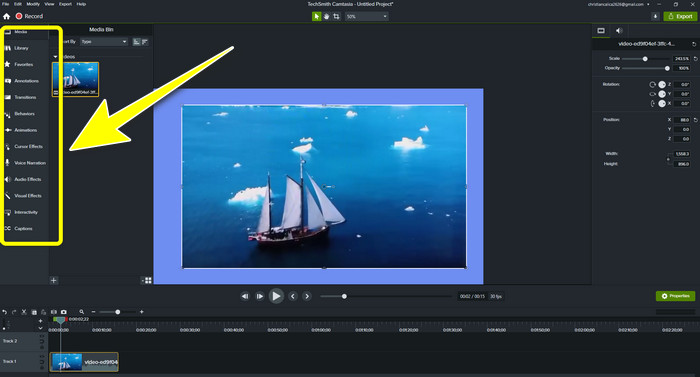
Adım 3: Bu uygulamada, altyazı ekleme, geçişler, animasyonlar, açıklamalar (annotations), davranışlar (behaviors) ve daha fazlası gibi düzenleme araçlarını kullanarak dosyalarınızı düzenleyebilirsiniz.
Adım 4: Videolarınızı düzenlemeyi bitirip sonuçtan memnun kaldığınızda, çıktınızı kaydetmek için Export > Local File düğmesine tıklayabilirsiniz.
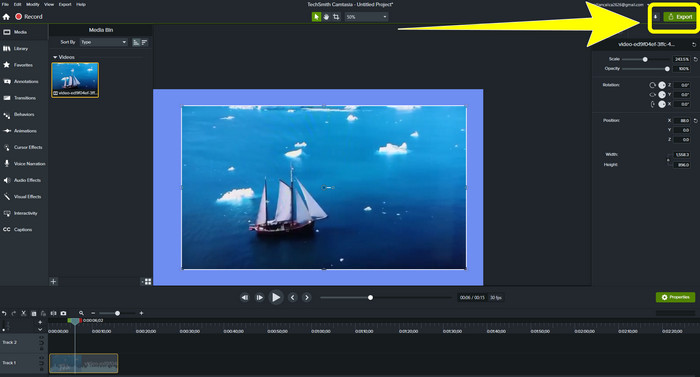
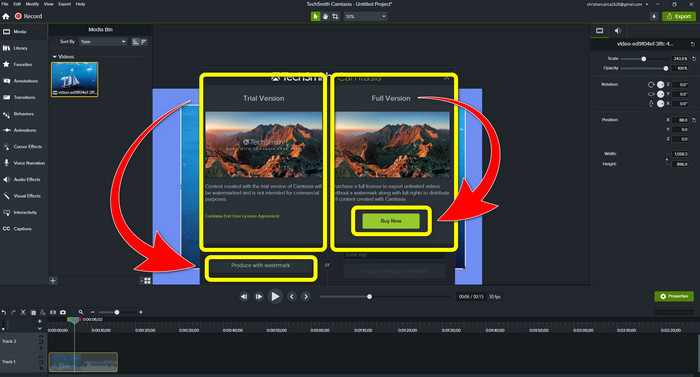
Adım 5: Export > Local File Button seçeneğine tıkladıktan sonra başka bir arayüz açılacaktır. Uygulamayı satın almak istiyorsanız, Camtasia’da filigransız video üretmek için Satın Al (Buy) düğmesine tıklayın. Ancak yalnızca deneme sürümünü kullanıyorsanız, videonuz dışa aktarıldıktan ve kaydedildikten sonra filigran içerecektir.
İlgili:
Filmora Filigranını Videolarınızdan veya Projelerinizden Ücretsiz Olarak Nasıl Kaldırırsınız
Videodan Adobe Stock Filigranını Kaldırmanın En Hızlı Yöntemi [ Eğitim ]
Bölüm 3: Filigranları Kaldırma Hakkında SSS
Mac'imde kullanabileceğim mükemmel bir filigran sökücü var mı?
Kesinlikle evet! Video Converter Ultimate gibi filigran kaldırma araçlarına sahip uygulamaları kullanabilirsiniz. Bu uygulama, videolarınızdaki filigranları kaldırma kapasitesine sahiptir. Ayrıca hem Windows hem de Mac’te erişilebilir olduğundan, kullanımını daha da pratik hale getirir.
Fotoğraflardan filigranları kaldırmamın bir yolu var mı?
Kesinlikle evet! Fotoğraflardan filigranları kaldırmak için cihazınızdaki birçok uygulamayı kullanabilirsiniz. Yapmanız gereken en iyi şey, tarayıcılarınızda filigran temizleme araçları hakkında arama yapmak ve sonuç sayfasında ilk 10 sonucu aramaktır.
Telefonumu kullanarak filigranları kaldırabilir miyim?
Evet yapabilirsin! Filigran kaldırıcılara sahip bazı uygulamalara artık Mac ve Windows'ta ve Android telefonlar ve iPhone'lar gibi cep telefonlarında erişilebilir.
Bir kırpma aracı kullanarak filigranları nasıl kaldırabilirim?
Fotoğraflarınızdaki veya videolarınızdaki filigranları bir kırpma aracı kullanarak kaldırmak çocuk oyuncağıdır, özellikle de filigran resmin kenarındaysa. Tek yapmanız gereken kırpmak, filigranı ortadan kaldırmak ve işiniz bitti.
Sonuç
Görüldüğü gibi bu makalede, Camtasia 9’dan filigranı kaldırmanın en iyi yolları açıklanmıştır. Ayrıca videolarınızdaki gereksiz nesneleri kaldırmak için iki yöntem sunan, harika ve güvenilir bir uygulama da tanıtılmıştır. Bu uygulama Video Converter Ultimate’tır.
-
 Bir Videodan Profesyonel Bir Şekilde Filigranı Kaldırmanın 5 Yolu
 Bir videonun profesyonel görünmesi için filigranı kaldırmanız mı gerekiyor? Pekala, nasıl yapılacağına dair bir eğitim eklediğimiz için bu makaleyi okuyun!
-
 Şimdiye Kadar İhtiyacınız Olan En Yeni Shutterstock Filigran Sökücülerinden 3'ü
 Dışa aktarılan videoya eklenen Shutterstock filigranını beğenmediniz mi? Etkili bir şekilde silmek için Shutterstock filigran çıkarıcı kullanabilirsiniz.
-
 Fotoğraflardan Filigranı Kaldırmanın En Kolay Yöntemleri
 Fotoğrafınızdaki filigranlardan rahatsız mısınız? Endişelenme! Bu makale, fotoğraflarınızdan filigranları kaldırmak için basit ve kolay yöntemler sağlayacaktır.
