


 Video Dönüştürücü Ultimate
 Ekran kaydedicisi
 Video Onarımı
 Güvenli İndirme
Daha Küçük Dosya Boyutları ve Üstün Ses Kalitesi Elde Etmek için MP3'ü OGG'ye Dönüştürme
Son birkaç yılda, sağladığı faydalar nedeniyle MP3'ü OGG'ye dönüştürmek daha popüler hale geldi. MP3 dosyaları çok popüler olsa da, dosyaları küçültmek için genellikle sesin kalitesinden ödün verilir. Bu, ayrıntıların ve keskinliğin kaybolduğu anlamına gelir. OGG dosyaları ise daha iyi bir ses kalitesine ve daha küçük dosya boyutlarına sahiptir. Bu, onları müzik kitaplıklarından en iyi şekilde yararlanmak isteyen kişiler için harika bir seçenek haline getirir.
MP3 dosyalarını OGG’ye dönüştürmek için bir MP3’ten OGG’ye dönüştürücü gereklidir. Kullanıcılar bir dönüştürücü kullanarak MP3 dosyalarını kolayca OGG formatına çevirebilir. Bu sayede dosya boyutunu küçültmek zorunda kalmadan daha iyi ses kalitesi elde ederler. Yüksek kaliteli ses akışının bu kadar yaygın olduğu günümüzde, dinleme deneyimini geliştirmek isteyen her müzikseverin bir MP3’ten OGG’ye dönüştürücüye ihtiyacı vardır.

Bölüm 1. MP3'i OGG'ye Dönüştürmenin En İyi Yolu
FVC Video Converter Ultimate, kullanıcılara çeşitli formatlardaki video ve ses dosyalarını dönüştürme olanağı sunan çok yönlü bir yazılım aracıdır. Birçok özelliği arasında, FVC harika bir MP3’ten OGG’ye dönüştürücüdür ve kullanıcıların müziklerini yalnızca birkaç tıklamayla MP3’ten OGG formatına dönüştürmelerine imkân tanır.
Ayrıca, kullanıcıların ses kalitesi ile dosya boyutu arasındaki mükemmel dengeyi elde etmek için çıktı kalitesini ayarlamasına olanak tanır ve nerede çalınırsa çalınsın müziklerinin harika ses vermesini sağlar. İster bir müzik meraklısı olun, ister sadece ses koleksiyonunuzu optimize etmek isteyin, FVC Video Converter Ultimate, tüm dönüştürme ihtiyaçlarınız için mükemmel bir seçimdir. Bugün deneyin ve ses kalitesindeki farkı kendiniz deneyimleyin.
1. Adım. Uygulamayı edinin ve MP3 dosyaları ekleyin
Resmî web sitesinden FVC Free Video Converter’ı indirin ve kurun. Programı başlatın ve dönüştürmek istediğiniz MP3 dosyasını içe aktarmak için Artı simgesi düğmesine tıklayın.
Ücretsiz İndirWindows 7 veya üzeri içinGüvenli İndirme
Ücretsiz İndirMacOS 10.7 veya üzeri içinGüvenli İndirme
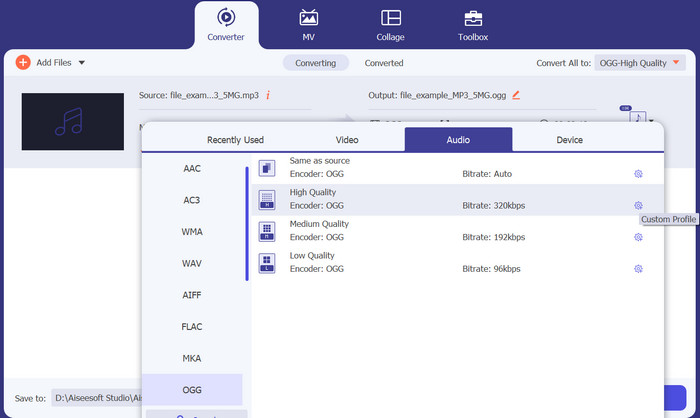
2. Adım. Çıkış formatı olarak OGG’yi seçin
Profil açılır menüsüne tıklayarak ve mevcut formatlar listesinden OGG’yi seçerek çıkış formatı olarak OGG’yi belirleyin. Gerekirse, Ayarlar düğmesine tıklayarak çıkış ayarlarını da düzenleyebilirsiniz. Bu sayede bit hızı, örnekleme hızı ve kanal sayısı gibi parametreleri özelleştirebilirsiniz.
3. Adım. Çıkış konumunu belirtin
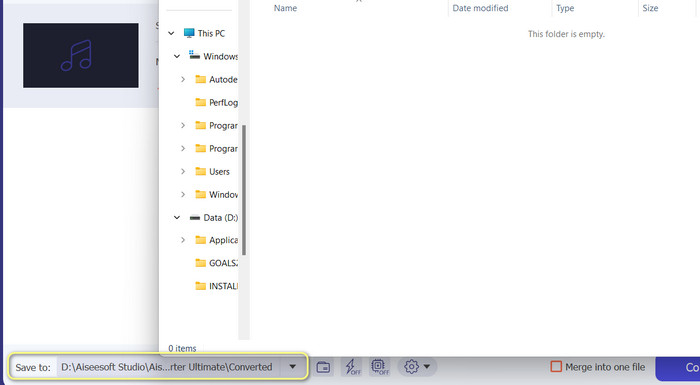
Çıkış Klasörü alanının yanındaki Gözat düğmesine tıklayarak dönüştürülen dosyayı kaydetmek istediğiniz çıkış klasörünü seçin.
4. Adım. MP3’ü OGG dosyalarına dönüştürün
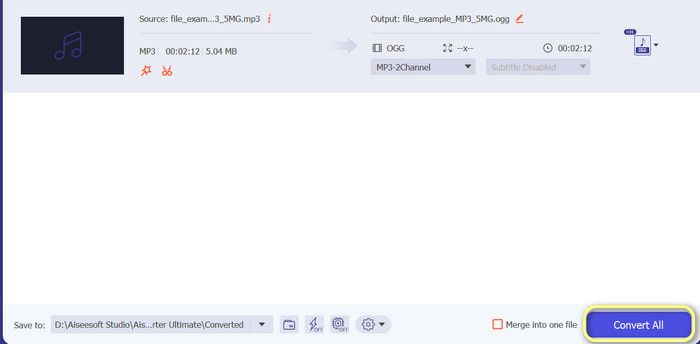
Ayarlarınızdan memnun kaldığınızda, dönüştürme işlemini başlatmak için Tümünü Dönüştür düğmesine basın. FVC Free Video Converter, MP3 dosyanızı OGG formatına dönüştürmeye başlayacaktır. İlerleme çubuğu, dönüştürme işleminin ne kadar ilerlediğini gösterecek ve ayrıca tahmini kalan süreyi de görebilirsiniz.
Artıları
- Ses çıkışı ayarlarını özelleştirin.
- Hızlı dönüştürme hızı.
- Farklı ihtiyaçlar için birçok yardımcı program sunar.
Eksileri
- Sınırlı özellikler ücretsiz kullanıcılara sunulmaktadır.
- Donanım hızlandırması için daha yüksek bilgisayar kaynakları gerekebilir.
Bölüm 2. Ücretsiz Bir Ses Dönüştürücü Kullanarak MP3'ü OGG'ye Dönüştürme
123apps Çevrimiçi Ses Dönüştürücü, MP3'ü çevrimiçi olarak OGG'ye dönüştürmeyi kolaylaştıran güçlü bir araçtır. Kullanımı kolay arayüzü ile kullanıcılar, MP3 dosyalarını hızlı bir şekilde ekleyebilir ve bunları OGG formatına dönüştürmeyi seçebilir. Dönüştürücü, kullanıcıların istedikleri OGG dosyalarının kalitesini elde etmek için bit hızı ve örnekleme hızı gibi çıktı ayarlarını değiştirmelerine de olanak tanır. Dönüştürme işlemi hızlı ve kolaydır ve kullanıcılar değiştirilmiş dosyalarını doğrudan web sitesinden alabilirler. Bunun da ötesinde, Online Audio Converter birçok farklı ses dosyasıyla çalışarak sesi farklı şekillerde dönüştürmesi gereken kişiler için kullanışlı bir araç haline getirir. Bu arada, MP3'ü doğrudan web sitesinden OGG'ye nasıl değiştireceğinizi öğrenmek için aşağıdaki talimatları izleyin.
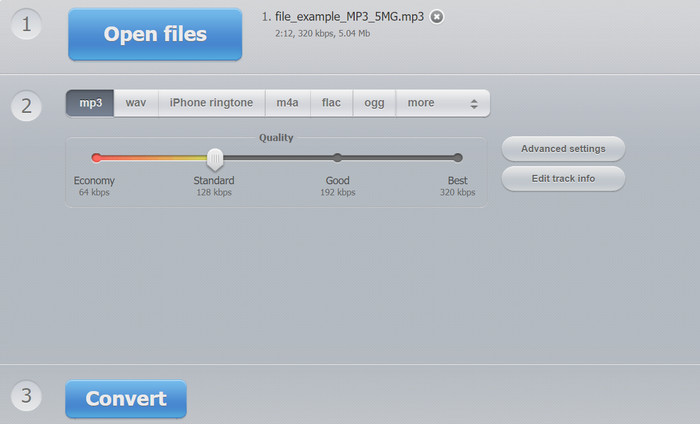
1. Adım. Web tarayıcınızı açın ve 123apps tarafından sunulan Online Audio Converter sitesine gidin. Dönüştürmek istediğiniz MP3 dosyasını seçmek için Dosyaları aç düğmesine tıklayın.
2. Adım. Açılır menüden çıkış formatı olarak OGG’yi seçin. İsteğe bağlı olarak, bit hızı, örnekleme hızı ve kanal gibi çıkış ayarlarını özelleştirebilirsiniz. Bu adım isteğe bağlıdır ancak çıktı dosyasının kalitesini kontrol etmek istiyorsanız faydalı olabilir.
3. Adım. Dönüştürme işlemini başlatmak için Dönüştür düğmesine tıklayın. Bu işlem, dosyanızın boyutuna ve internet bağlantınızın hızına bağlı olarak birkaç dakika sürebilir. Son olarak, OGG dosyasını bilgisayarınıza kaydetmek için İndir düğmesine tıklayın.
Artıları
- Toplu dönüştürmeyi destekler.
- Yükleme dosyası boyutunda herhangi bir sınırlama yoktur.
Eksileri
- Web sitesi reklamları görüntüler.
- İnternet bağlantısı her zaman gereklidir.
Bölüm 3. MP3'ü Audacity ile OGG'ye Dönüştürme
Audacity MP3'ten OGG'ye dönüştürücü de vardır. Evet, doğru duydunuz. Bu program, dosyaları MP3'ten OGG'ye dönüştürme yeteneği sunan açık kaynaklı bir ses düzenleme yazılımıdır. Audacity, dönüştürmeye ek olarak, kullanıcıların ses dosyalarını değiştirmelerine ve geliştirmelerine olanak tanıyan bir dizi düzenleme aracı ve efekt sağlayarak, onu ses düzenleme ve dönüştürme görevleri için çok yönlü bir araç haline getirir.
Ayrıca Audacity, Windows, macOS ve Linux işletim sistemlerinde kullanılabilir ve bu da onu erişilebilir kılar. Gelişmiş özellikleri ve kullanım kolaylığı ile Audacity, MP3 dosyalarını OGG formatına dönüştürmek isteyen herkes için mükemmel bir seçimdir. Aşağıdaki kılavuza göz atarak bu programın nasıl çalıştığını öğrenin.
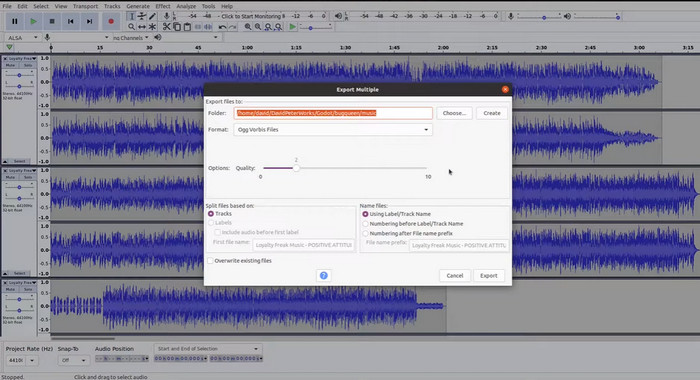
1. Adım. Audacity’yi edinin ve bilgisayarınıza kurun. Audacity’yi açın ve ardından dönüştürmek istediğiniz MP3 dosyasını açın. Bunu, Dosya ve Aç seçeneklerine tıklayıp bilgisayarınızda MP3 dosyasını bularak ve ona tıklayarak yapabilirsiniz.
2. Adım. MP3 dosyası Audacity’de açıldıktan sonra Dosyaya ve ardından Dışa Aktara tıklayın. Ses Dışa Aktar iletişim kutusunda, dosya türü olarak OGG Vorbis Dosyalarını seçin.
3. Adım. Kalite kaydırıcısını hareket ettirerek OGG dosyanızın kalitesini istediğiniz seviyeye ayarlayabilirsiniz. Daha yüksek kalite ayarları dosya boyutunu büyütürken, daha düşük kalite ayarları dosya boyutunu küçültür ancak müzik kalitesine zarar verebilir.
4. Adım. OGG dosyasını, bilgisayarınızda seçtiğiniz bir konuma kaydetmek için Kaydet düğmesine tıklayın. Format değiştirme işlemini tamamlamak için Tamam’a tıklayın.
Artıları
- MP3'ü toplu olarak OGG'ye dönüştürebilir.
- Windows, macOS ve Linux işletim sistemine kurulabilir.
Eksileri
- Özel bir destek topluluğu programı desteklemez.
- Doğrudan MP3 aktarımı yok.
Daha Fazla Okuma:
MP3 Dosyalarını Toplu Olarak M4R’ye Dönüştürmek için Kullanabileceğiniz En İyi Araçlar
Ücretsiz Olarak Denemeniz Gereken OGG Meta Verilerini Düzenlemenin En İyi 2 Yolu
Bölüm 4. FFmpeg Kullanarak MP3'ü OGG'ye Dönüştürme
FFMPEG, MP3 dosyalarını OGG formatına dönüştürmesi gereken ve dönüştürme işlemi üzerinde yüksek derecede kontrol ve esnekliğe ihtiyaç duyan kullanıcılar için harika bir seçimdir. Çok çeşitli ses ve video formatlarını işleyebilir ve belirli gereksinimleri karşılamak için çıktı formatına ince ayar yapmak için kullanılabilecek çeşitli codec bileşenlerini ve ayarları destekler. Ek olarak, FFMPEG bir komut satırı aracı olduğundan, MP3'ü OGG'ye dönüştüren Windows, macOS ve Linux dahil olmak üzere çok çeşitli işletim sistemlerinde erişilebilir. FFmpeg MP3'ü OGG'ye dönüştürmek için aşağıdaki talimatları izleyin.
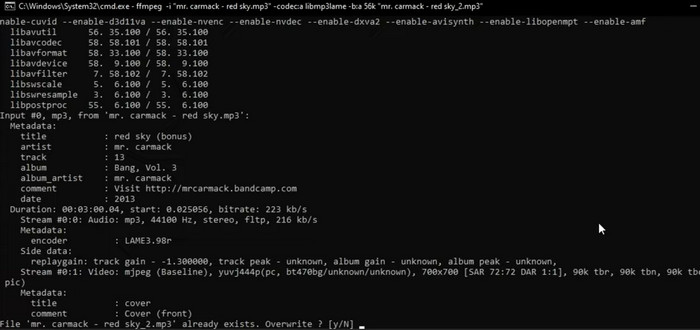
1. Adım. Bilgisayarınızın terminalini veya komut satırını açın. Dönüştürmek istediğiniz MP3 dosyasının bulunduğu konumu bulun.
2. Adım. ffmpeg -i input.mp3 output.ogg yazın; burada input.mp3 MP3 dosyanızın adı, output.ogg ise OGG dosyanıza vermek istediğiniz addır. Komutu çalıştırmak için Enter tuşuna basın.
3. Adım. FFMPEG’in dönüştürme işlemini bitirmesini bekleyin. Dönüştürme tamamlandığında, işlemin başarıyla gerçekleştiğini belirten bir mesaj görmelisiniz. Artık yeni OGG dosyanızı, orijinal MP3 dosyanızla aynı klasöre kaydetmiş olursunuz.
Artıları
- Kullanıcılara yüksek derecede esneklik ve kontrol sağlar.
- Dosyaları hızlı ve verimli bir şekilde dönüştürür.
- Platformlar arası uyumluluk.
Eksileri
- Çoğu kullanıcı, komut satırı araçlarını kullanma konusunda rahat değildir.
- Nasıl etkili bir şekilde kullanılacağını öğrenmek biraz zaman alabilir.
Bölüm 5. VLC Media Player ile MP3'i OGG'ye Dönüştürme
VLC medya oynatıcı, çeşitli medya dosyalarını oynatmak için yaygın olarak kullanılan güçlü bir multimedya aracıdır. Ancak, birçok kullanıcı bu yazılımın aynı zamanda etkili bir MP3'ten OGG'ye dönüştürücü olarak da hizmet edebileceğini bilmiyor olabilir. Yerleşik dönüştürücü aracıyla VLC media player, MP3 dosyalarını hızlı ve kolay bir şekilde OGG formatına dönüştürebilir ve kullanıcıların en sevdikleri müzikleri çeşitli formatlarda dinlemelerine olanak tanır. İster tek bir dosyayı ister bir grup dosyayı dönüştürmek isteyin, VLC media player tüm ses dönüştürme ihtiyaçlarınız için basit ve kullanıcı dostu bir çözüm sunar. Aşağıdaki adımları kullanarak MP3'ü OGG'ye nasıl dönüştüreceğinizi öğrenin:
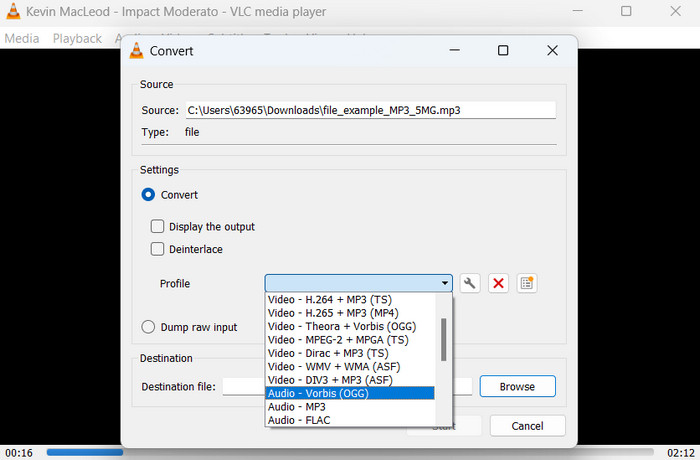
1. Adım. Bir video oynatmak için VLC’yi başlatın ve oynatıcının menü çubuğundan Ortamı seçin. Açılır menüde görünen Dönüştür/Kaydet seçeneğini tıklayın.
2. Adım. Dosya Seçimi bölümünde, Ekle düğmesine tıklayarak dönüştürmek istediğiniz MP3 dosyasını seçin. Dosyayı dönüştürmeye veya kaydetmeye hazır olduğunuzda, Dönüştür/Kaydet düğmesine basma zamanı gelmiştir.
3. Adım. Profil açılır menüsüne tıklayın ve istediğiniz profil olarak Ses - Vorbis (OGG) seçeneğini belirleyin.
4. Adım. Dönüştürülen dosya için yeni bir konum ve dosya adı belirtmek üzere, Hedef dosya bölümünün sağındaki 'Gözat' düğmesine tıklayın. Pencerenin alt kısmındaki Başlat düğmesine tıklayarak dönüştürme işlemini başlatabilirsiniz.
Artıları
- Birden fazla formatı destekler.
- Basit ve kullanıcı dostu.
Eksileri
- Sınırlı düzenleme seçenekleri.
- Olası ses kalitesi kaybı.
Bölüm 6. MP3'ten OGG'ye hakkında SSS
MP3 ve OGG dosyaları arasında ses kalitesinde bir fark var mı?
Evet, MP3 ve OGG dosyaları arasında ses kalitesi farkı vardır. OGG dosyaları, daha iyi sıkıştırma algoritmaları nedeniyle daha iyi ses kalitesine sahip olma eğilimindedir, ancak ses kalitesindeki fark, ortalama bir dinleyici tarafından algılanmayabilir.
Bir MP3 dosyasını OGG'ye dönüştürmek ne kadar sürer?
Bir MP3 dosyasını OGG'ye dönüştürmek için gereken süre, dosya boyutuna ve bilgisayarınızın hızına bağlıdır. Tipik olarak, tek bir dosyayı dönüştürmek birkaç dakika sürer, ancak bu, çeşitli faktörlere bağlı olarak değişebilir.
MP3'ten OGG'ye dönüştürücüler bir mobil cihazda kullanılabilir mi?
Evet, mobil cihazlar için de MP3'ten OGG'ye dönüştürücüler mevcuttur. Bu dönüştürücüler, Android ve iOS cihazlar için ilgili uygulama mağazalarından uygulama olarak indirilebilir.
Sonuç
MP3’ten OGG’ye dönüştürme, çeşitli yollarla mümkündür. Ele aldığımız dönüştürücülerin her birinin kendine özgü avantajları ve dezavantajları vardır. Bazıları daha sezgisel ve kullanımı kolayken, diğerleri daha fazla esneklik ve güçlü özellikler sunar. Kullanıcının hangi dönüştürücüyü tercih edeceği ise nihayetinde kendi bireysel ihtiyaçlarına bağlıdır.
-
 Windows ve Mac için Mükemmel OGG Oyuncuları Kaçırmamalısınız
 En sevdiğiniz sesi OGG formatında çalmak istediğinizde, özellikle daha az depolama alanı olduğunda. Bu makaleden En İyi 5 OGG oyuncusu hakkında daha fazla bilgi edinebilirsiniz.
-
 MP3'ün WAV Formatına Nasıl Dönüştürüleceğini Öğrenin
 MP3'ü WAV'a nasıl dönüştüreceğinizi bilmek ister misiniz? Hangi araçların alabileceğiniz en kaliteli dönüşümü ürettiğini belirleyin.
-
 Windows ve Mac'te MP3 Meta Verilerini Düzeltmenin ve Düzenlemenin En İyi 4 Yöntemi
 MP3 meta verilerini kolayca düzenlemenin sırlarını bilmek ister misiniz? Bu blog, kolayca erişebileceğiniz farklı araçlarla size farklı teknikler öğretecek.
