


 Video Dönüştürücü Ultimate
 Ekran kaydedicisi
 Video Onarımı
 Güvenli İndirme
DaVinci Resolve'i MP4 Olarak Dışa Aktarma Hakkında Nihai Kılavuz
DaVinci Resolve, renk derecelendirme ve görsel efektlerdeki gelişmiş özellikleriyle tanınan, sektör lideri bir video düzenleyicisidir. Olağanüstü işleme yetenekleri sayesinde birçok profesyonel post prodüksiyon stüdyosu için tercih edilen bir seçenektir ve videoların en yüksek kalitede teslim edilmesini sağlar.
Ancak DaVinci Resolve güçlü bir araç olsa da, profesyonel düzeydeki özellikleri ve karmaşık dışa aktarma ayarları kullanıcılar için çoğu zaman bunaltıcı olabilir. Dışa aktarma seçenekleri arasında gezinmekte zorlandıysanız ya da yaygın medya oynatıcıların açamadığı dosyalarla karşılaştıysanız, yalnız değilsiniz. Ama endişelenmeyin! Bu rehberde, sizi adım adım DaVinci Resolve’dan MP4 olarak dışa aktarma sürecinden geçireceğiz.
Hadi başlayalım ve videolarınızın her cihazda sorunsuz bir şekilde oynatılmaya hazır olduğundan emin olalım!

Bölüm 1: DaVinci Resolve'i MP4 Olarak Nasıl Dışa Aktarırım
DaVinci Resolve projelerini MP4 dosyaları olarak dışa aktarmanın iki yolu vardır, her birinin kendine özgü avantajları ve değerlendirmeleri vardır. Bu yöntemleri anlamak, DaVinci Resolve ile çalışan herkes için çok önemlidir, çünkü bunlar nihai videolarınızın çok çeşitli cihazlar ve platformlarla uyumlu ve oynatılabilir olmasını sağlar.
Yöntem 1: MP4'ü Doğrudan Dışa Aktarma
Bu yöntemle, gelişmiş dışa aktarma ayarlarında gezinmeniz gerekmez. Bunun yerine, DaVinci Resolve projenizi doğrudan MP4 formatına hızla dışa aktarmak için kullanışlı bir seçenek sunar. Şu adımları izleyin:
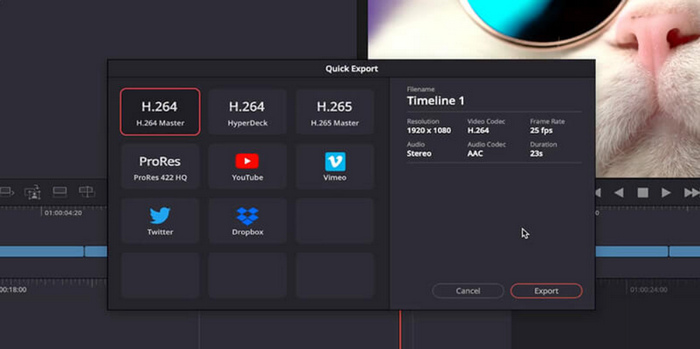
Adım 1. DaVinci Resolve menü çubuğundan File (Dosya) sekmesine tıklayın.
Adım 2. Açılır menüden Quick Export (Hızlı Dışa Aktar) seçeneğini seçin.
Adım 3. Son olarak, dosyayı nereye kaydedeceğinizi belirleyin ve bir ad verin.
Yani, DaVinci Resolve videonuzu çıktı kalitesi sonucu için herhangi bir değişiklik ve düzenleme gerektirmeyen hızlı bir şekilde dışa aktarmanın bir yolunu arıyorsanız, bu yöntem sizin için ideal olabilir. Ancak, bu yalnızca dosyanın hızlı bir şekilde kaydedilmesiyle ilgilidir ve diğer medya oynatıcılarda ve platformlarda oynatıldığında uyumluluğu garanti etmez.
Ayrıca, DaVinci Resolve için abonelik yapmadığınızda, dışa aktarılan dosyanın üzerinde bir filigran olur. DaVinci Resolve filigranını kaldırmak için bu gönderiye göz atın.
Yöntem 2: Dışa Aktarma Ayarlarını Değiştirin
Bu arada, DaVinci Resolve'i dışa aktarma ayarını değiştirerek MP4 olarak dışa aktarmak, nihai çıktı üzerinde daha fazla özelleştirme ve kontrol sağlar. İşte nasıl yapılacağı:
Adım 1. Önce ekranınızın alt kısmına inin ve Delivery (Teslim) sekmesine tıklayın.
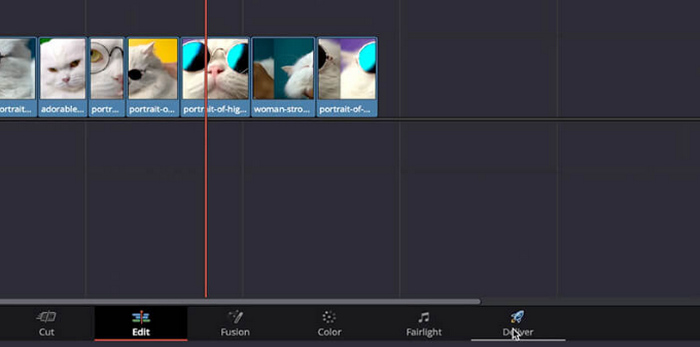
Adım 2. Ardından, Custom Export (Özel Dışa Aktarım) düğmesine tıklayın. Buradan dosyanıza bir ad yazın ve kaydedileceği konumu seçin.
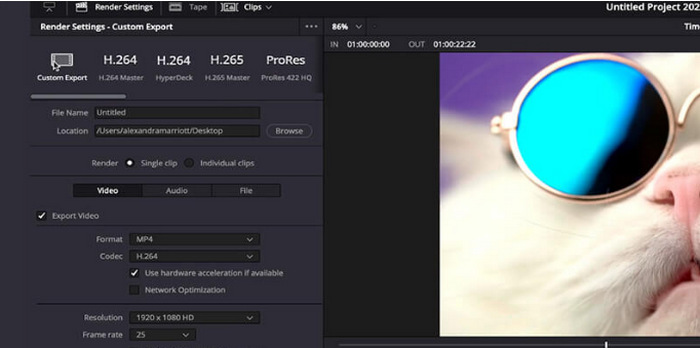
Adım 3. Daha sonra, Format (Biçim) bölümüne gidin ve açılır menüyü açın. Biçim seçenekleri arasından MP4’ü seçin.
Adım 4. Formatla birlikte, çözünürlük için farklı seçenekler göreceksiniz; tercihinize göre 1920 ile 4K çözünürlük arasında seçim yapmalısınız.
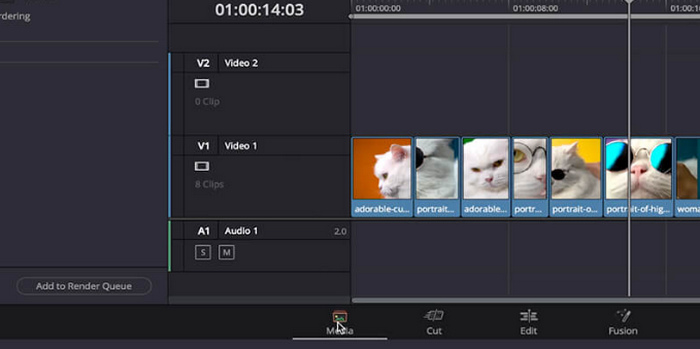
Adım 5. Ardından bit hızını değiştirmek için Quality (Kalite) bölümüne gidin ve Restrict (Sınırla) seçeneğine tıklayın.
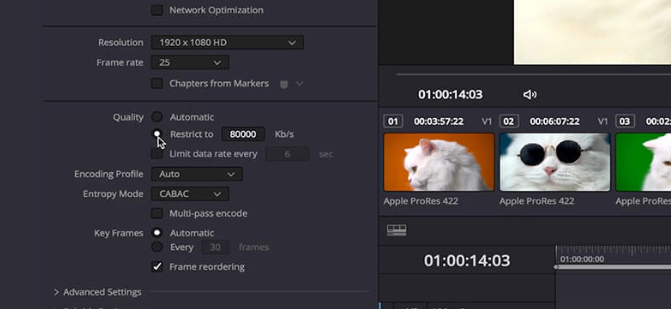
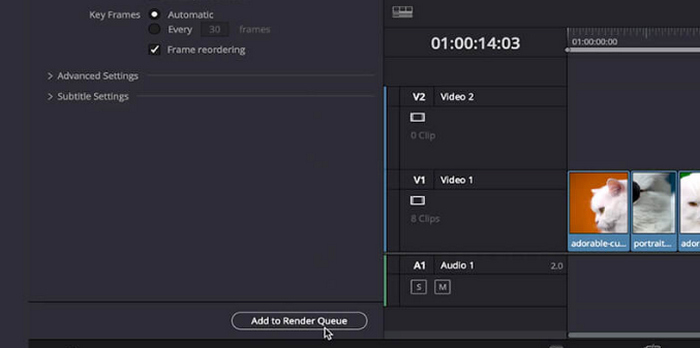
Adım 6. Şimdi Add Render Queue (İşlem Kuyruğuna Ekle) düğmesine tıklayın.
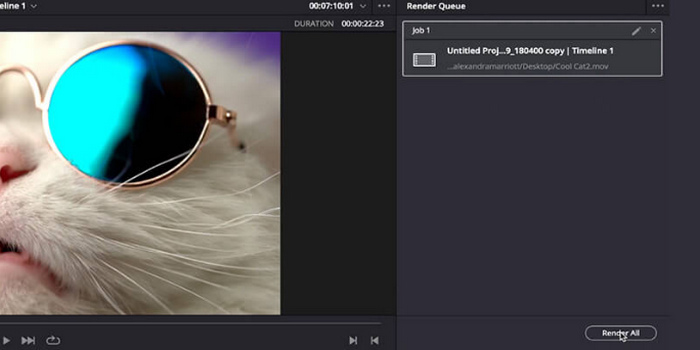
Adım 7. Son olarak Render All (Tümünü İşle) seçeneğine tıklayın ve videonuz dışa aktarılmaya başlayacaktır.
Bu, proje çıktınızı özelleştirmede büyük bir fırsat sunsa da, bu yöntem bu aracı yeni kullanmaya başlayanlar için biraz zor olabilir.
Bölüm 2: DaVinci Resolve MP4'ü Dışa Aktarmadığında Ne Yapılmalı
DaVinci Resolve MP4'e dışa aktarmayı başaramadığında, bunu çözmenin en iyi yolu bir dönüştürücü araç kullanmaktır. FVC Free Video Converter Online, kullanıcıların dosyalarını istedikleri çıktı biçimine dönüştürmek için kullandıkları ücretsiz bir video ve ses dönüştürücüdür. Ayrıca bu araç, MP4 gibi çeşitli formatları destekler; dolayısıyla DaVinci videonuzu başka formatlara dönüştürmeniz gerekirse, bu araç sizin için çok işlevsel olacaktır. Dahası, çözünürlüğü 1080p’ye kadar ayarlayabilir, böylece dönüştürme sırasında ve sonrasında kayıpsız kaliteyi güvence altına alabilirsiniz.
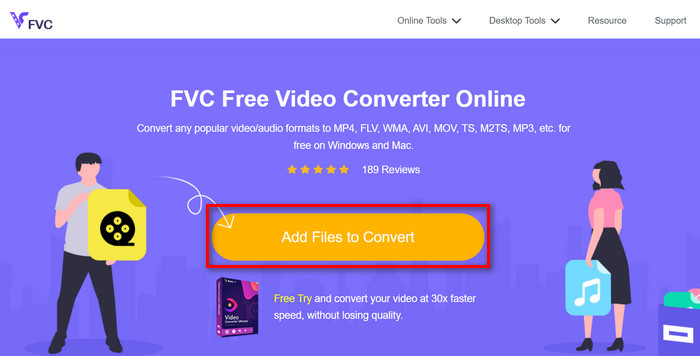
Adım 1. Önce, Add Files to Convert (Dönüştürülecek Dosyaları Ekle) düğmesine tıklayarak MP4 olarak dışa aktarılmayan DaVinci Resolve videosunu içe aktarın.
Adım 2. Sonra, sağ taraftaki çıktı açılır seçeneğinin yanından tercih ettiğiniz çıktı biçimi olarak MP4’ü seçin. Bu arada, çözünürlüğü, video kodlayıcılarını, bit hızını vb. elle ayarlamak isterseniz, çıktı biçiminin yanındaki Gear (Dişli) simgesine tıklamanız yeterlidir. İşiniz bittiğinde OK düğmesine tıklayın.
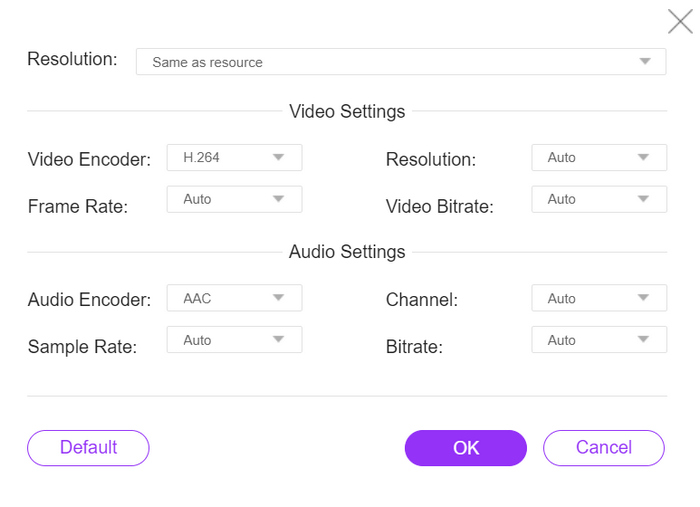
Adım 3. Son olarak, dönüştürme sürecini başlatmak için Dönüştür düğmesine tıklayın.
FVC Free Video Converter Online, DaVinci Resolve export MP4 çalışmadığında gerçekten en iyi alternatiftir. Diğer ücretsiz dönüştürücü araçlarıyla karşılaştırıldığında, bu gerçekten en iyi şekilde çalışır.
Bölüm 3: DaVinci Resolve'i MP4 Olarak Dışa Aktarma Hakkında SSS
DaVinci Resolve'den bir videoyu MP4 olarak dışa aktarmak ne kadar zaman alır?
Dışa aktarma süresi, video uzunluğu, çözünürlük ve bilgisayarınızın işlem gücü gibi faktörlere bağlı olarak değişir. Genellikle, bir videoyu DaVinci Resolve'den MP4 formatına dışa aktarmak, daha büyük projeler için birkaç dakikadan birkaç saate kadar sürebilir.
DaVinci Resolve'den dışa aktardığım MP4 dosyam cihazımda oynatılmazsa ne yapmalıyım?
Dışa aktardığınız MP4 dosyanızda oynatma sorunlarıyla karşılaşırsanız, farklı bir medya oynatıcısı kullanmayı deneyin veya FVC Video Converter Ultimate gibi bir video dönüştürücü aracı kullanarak video dosyasını farklı bir biçime dönüştürün. Ayrıca, cihazınızın yazılımının güncel ve MP4 biçimiyle uyumlu olduğundan emin olun.
DaVinci Resolve'de daha hızlı render alabilmek için export ayarlarını optimize etmenin bir yolu var mı?
Evet, işleme süresini azaltmak için DaVinci Resolve'de dışa aktarma ayarlarını optimize edebilirsiniz. Dışa aktarma sürecini kolaylaştırmak için video çözünürlüğünü düşürmeyi, bit hızı ayarlarını düzenlemeyi ve gereksiz efektleri veya geliştirmeleri devre dışı bırakmayı düşünün.
DaVinci Resolve projemi doğrudan sosyal medya platformlarına aktarabilir miyim?
Evet, DaVinci Resolve YouTube ve Twitter gibi popüler sosyal medya platformlarıyla yerleşik entegrasyon sunar. Hızlı Dışa Aktarma seçeneğini seçtikten sonra, videonuzu doğrudan bu platformlara dışa aktarma penceresinden yüklemeyi seçebilir, böylece zamandan ve zahmetten tasarruf edebilirsiniz.
Sonuç
İşte bu kadar! Artık DaVinci Resolve’dan MP4 olarak nasıl dışa aktarım yapılacağını biliyorsunuz. İsterseniz basitlik için hızlı dışa aktarma yöntemini kullanın, isterseniz dışa aktarma ayarlarını düzenleyerek daha fazla özelleştirmeye gidin, ihtiyaçlarınıza göre uyarlanmış yüksek kaliteli MP4 videolar oluşturacak donanıma sahipsiniz. Ve nadiren de olsa DaVinci Resolve dışa aktarma sorunlarıyla karşılaştığında, elinizin altında FVC Free Video Converter Online ile bir çözümünüz olduğunu da artık biliyorsunuz.
Daha ne bekliyorsunuz? Hemen bu rehberi takip edin!
-
 DaVinci Resolve Speed Editor – İnceleme, Özellikler ve Alternatifler
 DaVinci Resolve Speed Editor, bulabileceğiniz en iyi video hızı düzenleyicisidir. Bu aracın işlevlerini, fiyatını ve alternatiflerini öğrenmek için bu makaleyi okuyun.
-
 Kaçırmamanız Gereken Fantastik VOB'dan MP4'e Dönüştürücüler
 Güçlü ve etkili programlar kullanarak kesintisiz VOB'dan MP4'e dönüştürmeyi keşfedin. Video dosyalarınızı VOB formatından evrensel olarak uyumlu MP4'e zahmetsizce dönüştürün.
-
 2025'in En İyi Ücretsiz MPG'den MP4'e Dönüştürücüsü (Derinlemesine İnceleme)
 MPG'yi neden MP4 olarak değiştirmeniz gerekiyor? Bu gönderideki cevabı alın ve piyasadaki yüksek dereceli MPG'den MP4'e dönüştürücüyü tanıyın.
