


 Video Dönüştürücü Ultimate
 Ekran kaydedicisi
 Video Onarımı
 Güvenli İndirme
WMA Dosyalarını Kesme: Windows ve Mac Kullanıcıları İçin Nihai Kılavuz
Ses dosyalarını düzenlemek eğlencelidir, ta ki kırpılması imkânsız görünen uzun WMA parçalarla uğraşmanız gerekene kadar. İster bir podcast yayıncısı, ister müzisyen olun, ister sadece seslerle oynamayı seven biri, WMA dosyalarını kesmek doğru araçlar ve bilgi olmadan göz korkutucu bir görev haline gelebilir. Bu makale, hem Windows hem de Mac kullanıcıları için süreci basitleştirmeyi, adım adım talimatlar ve ses düzenleme yolculuğunuzu daha sorunsuz ve verimli kılmak için mevcut en iyi araçları sunmayı amaçlıyor. Daha fazlası için bu makaleyi okuyun.

Bölüm 1: Windows/Mac'te WMA Dosyasını Kesmenin En İyi Yolu
Hem Windows hem de Mac’te WMA dosyalarını kesmenin en iyi ve nihai yolu, FVC tarafından seçilmiş Video Converter Ultimate üzerinden ilerlemektir. Bu hepsi bir arada video ve ses dönüştürücü araç, özellikle WMA formatlarıyla ve bunları kesme konusunda son derece iyi çalışır. Bu araç, ses dosyalarını kolayca kırpan özel bir özelliğe sahiptir. Bu da özellikle pratik olmayan derecede uzun WMA dosyalarını ve istenmeyen kısımlar veya bölümler içeren dosyaları kesmesi gerekenler için faydalıdır. Ayrıca, bu araçla, kesmek istediğiniz WMA dosyasının bölümünü elle seçebilir veya hızlı bölme özelliğini kullanarak otomatik olarak kırpabilirsiniz.
Adım 1. Öncelikle Mac veya Windows bilgisayarınıza Video Converter Ultimate’ı indirin ve kurun.
Ücretsiz İndirWindows 7 veya üstü içinGüvenli İndirme
Ücretsiz İndirMacOS 10.7 veya üstü içinGüvenli İndirme
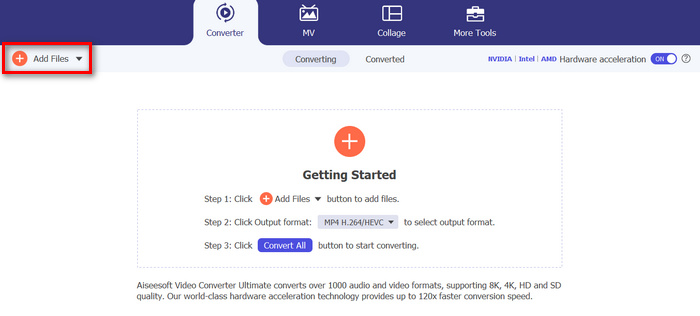
Adım 2. Kesmek istediğiniz WMA dosyalarını içe aktarmak için Add Files düğmesine tıklayın.
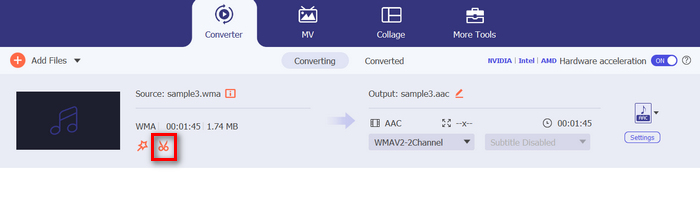
Adım 3. Ardından Cut düğmesine tıklayın.
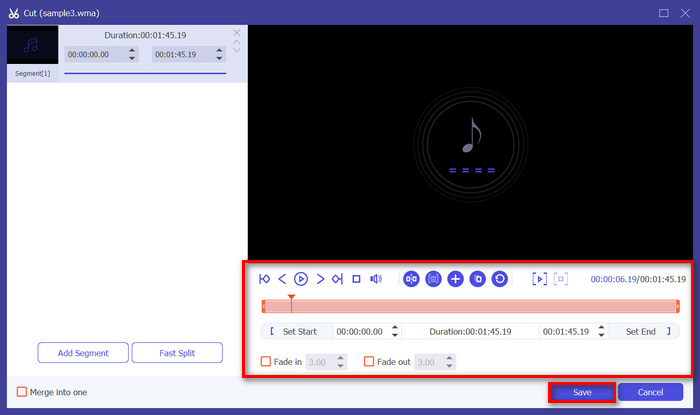
Adım 4. WMA dosyalarınızı kırpmak için, klip üzerindeki başlangıç ve bitiş çubuklarını sürükleyip sola veya sağa hareket ettirerek ya da kırpmak istediğiniz WMA dosyası bölümünün başlangıç ve bitiş süresini yazarak, bunu manuel olarak kolayca ayarlayabilirsiniz.
Bu işlem, kesme işlemini başlatmak ve bitirmek istediğiniz zamana göre sesin o kısmını otomatik olarak keser.
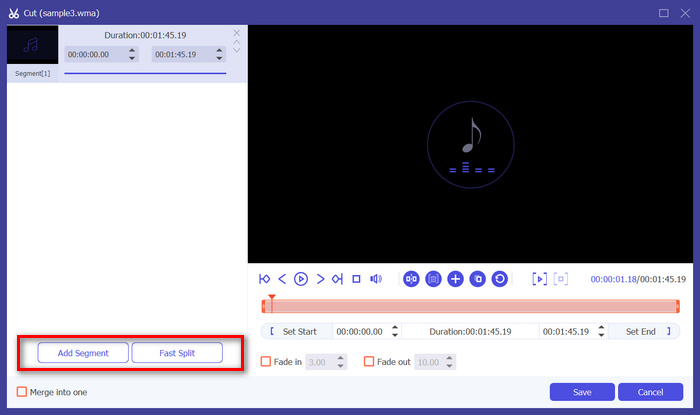
Adım 5. Bu arada, Fast Slip kırpma özelliğini kullanarak kesmek isterseniz, Add Segment düğmesinin yanındaki Fast Slip düğmesine tıklamanız yeterlidir. Ardından, segmenti hangi modda bölmek istediğinizi seçin. Eğer Ortalama’ya göre bölmeyi seçerseniz sadece sayıyı belirtin; zamana göre bölmek isterseniz süreyi belirtin. Bundan sonra Save düğmesine tıklayın.
Adım 6. Son olarak, kırpılmış WMA dosyasını dışa aktarmak için Convert All düğmesine tıklayın.
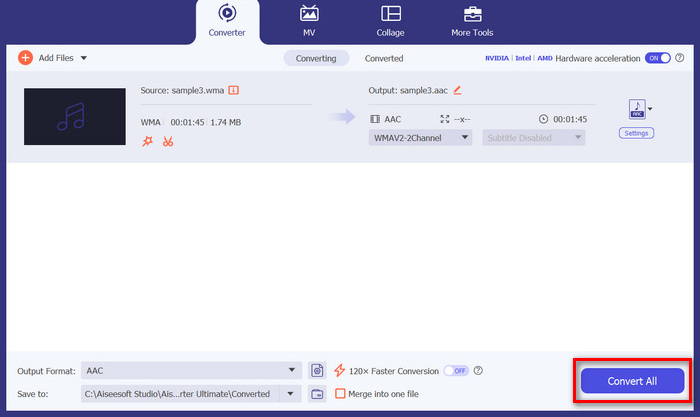
WMA dosyalarını kesmeye gelince, FVC'nin seçtiği bu Video Converter Ultimate gerçekten de olmazsa olmaz bir çözümdür. Basit ve kullanıcı dostu arayüzü, WMA dosyalarınızı zahmetsizce ve hassas bir şekilde kesmenizi sağlar ve çeşitli kesme seçenekleri, ses dosyalarınızı kolayca nasıl kesmek istediğiniz konusunda size esneklik sağlar.
Bölüm 2: WMA Dosyasını Ücretsiz Olarak Çevrimiçi Kesin
Audio Trimmer, kullanıcıların anında ses dosyalarını kırpmasına olanak tanıyan ücretsiz bir araçtır. WMA dahil olmak üzere çok çeşitli popüler ses formatlarını destekler ve bu da WMA dosyalarını çevrimiçi kesmeyi tercih ediyorsanız bu aracı en iyi alternatiflerden biri yapar.
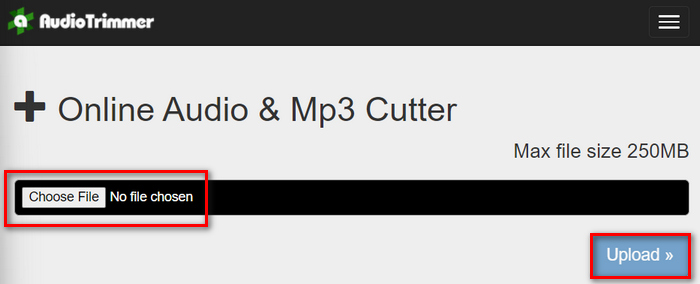
Adım 1. Kesmek istediğiniz WMA dosyalarını içe aktarmak için Choose File düğmesine ve ardından Upload düğmesine tıklayın.
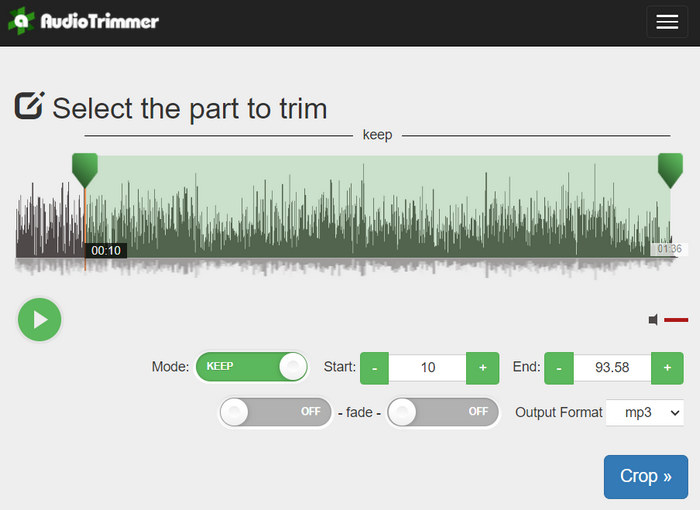
Adım 2. Şimdi çubuğu aşağı doğru kaydırın ve kırpmak istediğiniz ses parçası bölümünü seçin. İşiniz bittiğinde Crop düğmesine tıklayın.
Adım 3. Son olarak, kırpılmış WMA dosyanızı kaydetmek için Download düğmesine tıklamanız yeterlidir.
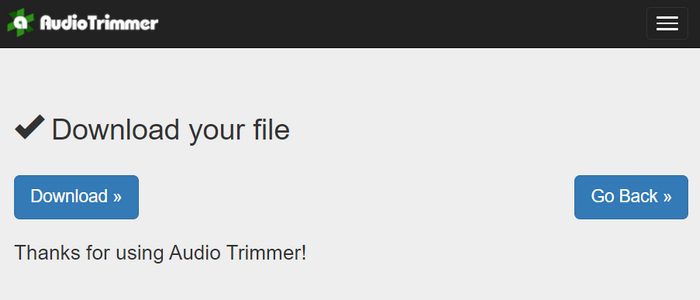
İşte bu kadar; kliplerinizi doğru şekilde kesip kesmediğinizi görmek için WMA oynatıcı ile izleyebilirsiniz. Son derece basit ve sezgisel arayüzü sayesinde, WMA dosyalarını kesmek yalnızca 3 adım sürer. Ses dosyalarını kırpmayı kolaylaştırsa da, tüm kullanıcılar bu ücretsiz çevrim içi araçtan yararlanamaz çünkü 250 MB altındaki dosyaları işlemekle sınırlıdır.
Bölüm 3: VLC Media Player ile WMA'yı Kesin
VLC Media Player, çok yönlülüğü nedeniyle yaygın olarak kullanılan açık kaynaklı bir medya oynatıcısıdır. Bu araç, WMA dosyaları da dahil olmak üzere çok çeşitli ses ve video formatlarını destekler. Bu araç, medya oynatma, akış ve kayıt özelliklerine ek olarak, WMA dosyalarını kesmek için de kullanılabilir. Bununla, kullanıcılar oynatma süresini manuel olarak değiştirmeye gerek kalmadan gerçek zamanlı olarak kayıt yaparak bölümleri kolayca kesebilirler.
Adım 1. VLC Media Player’ı açın. Kesmek istediğiniz WMA dosyasını sürükleyip bırakmanız yeterlidir.
Adım 2. Ses otomatik olarak çalmaya başlayacaktır. Bir an duraklatın, ardından View düğmesine tıklayın ve Advanced Controls seçeneğini işaretleyin. Artık oynatma simgesinin üzerinde dört yeni düğme belirdiğini göreceksiniz.
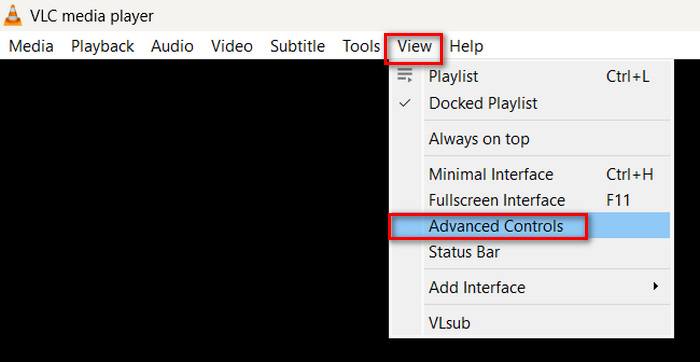
Adım 3. İlerleme çubuğunu, klibinizi başlatmak istediğiniz noktaya sürükleyin. Şimdi, WMA dosyanızı kırpmaya başlamak istediğiniz yere göre çubuğu ayarlayın. İşiniz bittiğinde, oynatın ve Record düğmesine tıklayın.
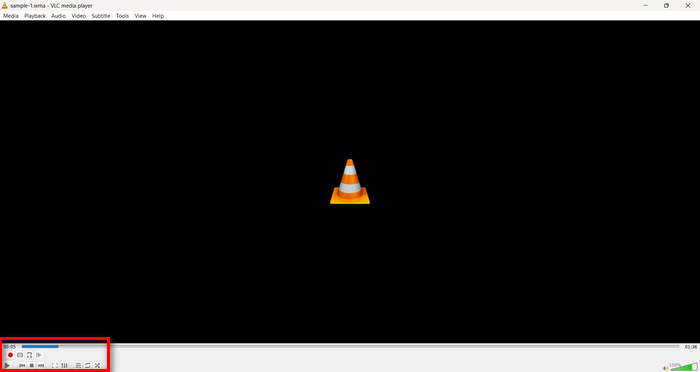
Adım 4. Kaydetmek istediğiniz bölümün sonuna geldiğinizde, kaydı durdurmak için Record düğmesine tekrar tıklayın.
Kayıt sırasında oynatma süresini değiştirmek için ilerleme çubuğunu sürüklemekten kaçının, çünkü VLC’nin segmenti gerçek zamanlı olarak kaydetmesi gerekir. Bu aracı beğendiyseniz, buradaki VLC alternatiflerini kaçırmayın.
Bölüm 4: WMA'yı Kesme Hakkında SSS
Bir ses dosyasından bir parçayı nasıl keserim?
Bir ses dosyasından bir parçayı kesmek için Video Converter Ultimate gibi araçları kullanabilirsiniz. Bunu yapmak için, sadece WMA dosyanızı içe aktarmanız, Kes düğmesine tıklamanız ve başlangıç ve bitiş zamanlarını ayarlamanız gerekir.
WMA, MP3'ten daha mı iyidir?
WMA, genellikle MP3'e kıyasla daha düşük bit hızlarında daha iyi ses kalitesi sunar ve böylece iyi ses kalitesine sahip daha küçük dosya boyutları elde edilir. Ancak MP3, çeşitli cihazlar ve platformlarda çok daha geniş destek görmektedir. WMA ile MP3 arasında seçim, kalite ve uyumluluk ihtiyaçlarınıza bağlıdır. Ayrıca, WMA’yı hızlıca dönüştürmek için WMA’dan MP3’e dönüştürücü araçlarıyla MP3’e çevirebilirsiniz.
Windows Media Player'da ses dosyaları nasıl kırpılır?
Windows Media Player'da ses dosyalarını kırpmak için SolveigMM WMP Trimmer Plugin Home Edition adlı bir eklentiyi kullanmanız gerekir. Bu eklenti kullanıcıların ses dosyalarını doğrudan Windows Media Player'ın arayüzünde kolayca kırpmasını sağlayarak ses düzenleme görevleri için kullanışlı bir çözüm sunar.
Sonuç
WMA dosyalarını kesmek stresli olmak zorunda değil. İster Video Converter Ultimate gibi bir yazılımı, ister Audio Trimmer gibi çevrim içi bir aracı, ister çok yönlü VLC Media Player’ı tercih edin, hem Windows hem de Mac kullanıcıları için verimli yöntemler mevcut. Size en uygun yöntemi seçin ve ses dosyalarınızı kolaylıkla düzenlemeye başlayın. Ses düzenlemeyi kolaylaştırmaya hazır mısınız? Bu yöntemlerden birini bugün deneyin!
-
 FLV'yi WMA Audio'ya Dönüştürmenin 2 Yöntemi [Ücretsiz ve Çevrimiçi]
 FLV videodan WMA sesini çıkarmak ister misiniz? İşte Mac OS X ve Windows 10/8/7'de hızlı dönüştürme hızıyla FLV'yi (Flash Video) WMA'ya (Windows Media Audio) dönüştürmek için 2 ücretsiz WMA ses çıkarıcı.
-
 En Çok Tercih Edilen WMA Meta Veri Düzenleyicileri Kaçırmamanız Gerekiyor [2024]
 Neden WMA etiketlerini düzenleyemiyorum? Bu sorun,' kullanıcılarında yaygındır. sorguları. Ancak bugün sizlere 2024 yılında kullanabileceğiniz WMA meta editörlerini vereceğiz.
-
 MP4'ü MP3 Sesine Dönüştürmenin 8 Yolu (Toplu Dönüştürme ve Büyük Boy)
 MP4 videodan MP3 sesini çıkarmak istiyorsanız, bu makaleye göz atabilir ve 8 çözüm alabilirsiniz. MP4'ü telefonunuzda veya bilgisayarınızda kolaylıkla MP3'e dönüştürmenin çevrimiçi ve çevrimdışı yolları vardır.
