


 Video Dönüştürücü Ultimate
 Ekran kaydedicisi
 Video Onarımı
 Güvenli İndirme
Facebook Ekran Görüntüsü Nasıl Alınır: Bunu Yapmanın 6 Uygulanabilir Yolu
As an avid user of social media platforms like Facebook, I know that sharing information has become an integral part of the overall social media experience. As always, when looking for something interesting, you need to be able to share news from your mutual friends, and the best way to do it is by taking a Facebook screenshot. Regardless of the context of the screenshot, doing it is very easy. Through this guide, we will delve into different ways to take a screenshot on Facebook using different devices, varying from mobile to desktop devices. In the process of knowing how to do it, we also included the use of a reliable third-party software tool that can do all screenshot-type regardless of the device you are using. To find more information on the software tool, read this article until the end and take Facebook screenshots like a pro.

Bölüm 1. Farklı Cihazlarda Facebook Ekran Görüntüsü Alma Yöntemleri
Facebook gönderilerinin ekran görüntüsünü alma yöntemlerine dalmadan önce, öncelikle hangi cihazı kullanacağınıza karar vermeniz veya bilmeniz gerekir. Bunun için, her cihazı ayırmaya ve Windows, Mac, iPad/iPhone, Samsung Galaxy ve Android'den başlayarak adım adım kılavuzlarını hazırlamaya karar verdik. Farklı cihazlarda ekran görüntüsü alma açısından ufak farklılıklar olabilir, Facebook gibi bir sosyal medya platformunda kullanmak için daha ne olabilir.
pencereler
Windows için, bir kullanıcı Windows 7 veya daha yenisini kullanıyor olsun, Facebook'ta ekran görüntüsü almanın birden fazla yolu vardır. Aşağıdaki adımlarımızı takip etmek, en basit yöntemi kullanarak etkili bir şekilde ekran görüntüsü almanızı sağlar. Dahası, aşağıdaki adımlar Facebook ekran görüntüsü almak için Windows'un Snipping Tool özelliğini kullanır.
Step 1. From your Windows Start Menu, search and open the Snipping Tool software.
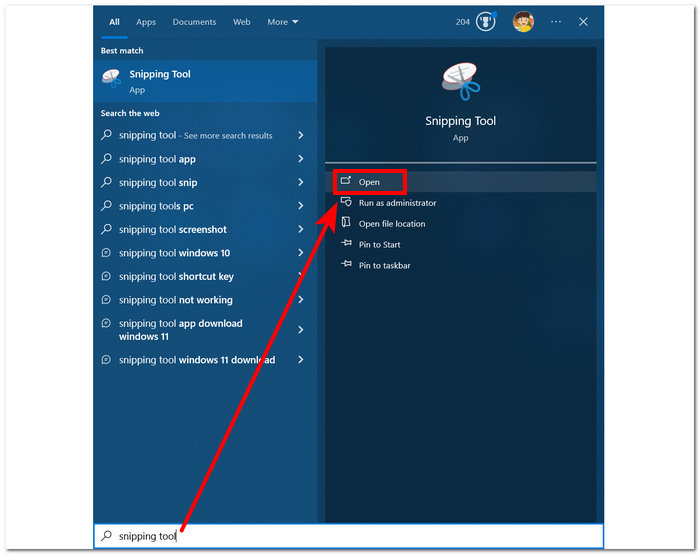
Snipping Tool yazılımı Windows'unuza önceden yüklenmiştir.
Step 2. Once the Snipping Tool software is open, proceed to click on the Mode drop-down button to access the snipping features. For this case, you can select the Rectangular Snip.
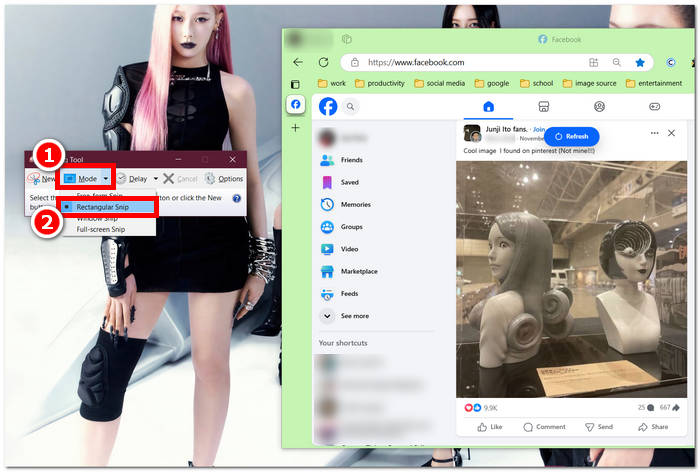
Anlık görüntünüzde özel şekilli bir bölge istiyorsanız, Serbest Biçimli Kesit'i seçin. Dikdörtgen bir ekran görüntüsü alanı istiyorsanız, Dikdörtgen Kesit'i seçin. Belirli bir pencerenin veya sekmenin ekran görüntüsünü yakalamak istiyorsanız, Pencere Kesiti'ni seçin. Tüm Windows ekranınızın anlık görüntüsünü yakalamak için Tam Ekran Kesiti'ni seçin.
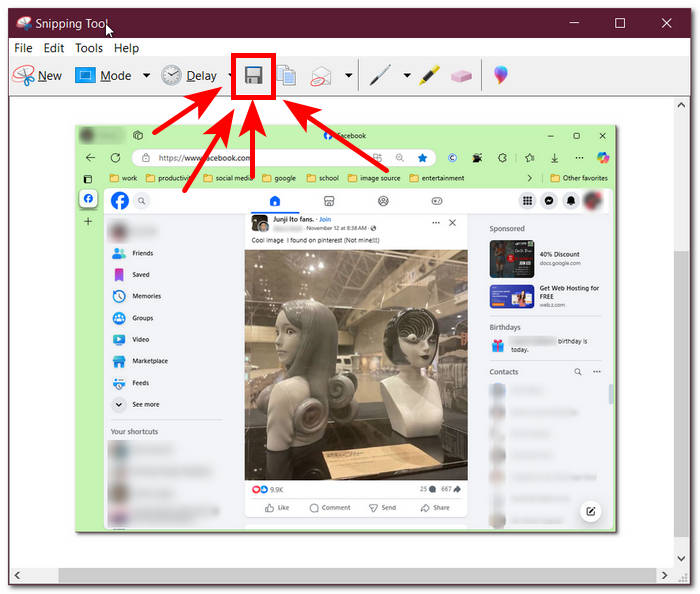
Step 3. Once you click on the Rectangular Snip, you can select the area on your Facebook web that you want to include in your screenshot. Once you've done this, a Snipping Tool window will appear containing your selected screenshot. Within that, you can customize your screenshot by adding text, highlights, annotating words, and more.
Step 4. To finish the process, click the Save button in the upper part of the Snipping Tool window.
Mac
Facebook içeriğinin ekran görüntüsünü almak, Mac cihazları için kullanıcıların Windows'ta yaptığından farklı olabilir. Ancak, bu sefer kullanıcılara yalnızca Mac klavyelerinde temel kısayol tuşu komutlarını takip etmelerini söyleyeceğiz.
Step 1. Using your Mac devices, open your Safari web browser and proceed to the Facebook website.
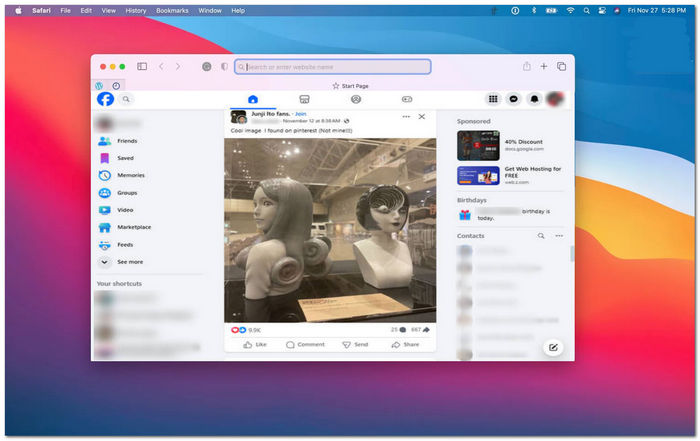
Step 2. On your Mac keyboard, to screenshot your Facebook webpage, hold down the following command + shift + 4.
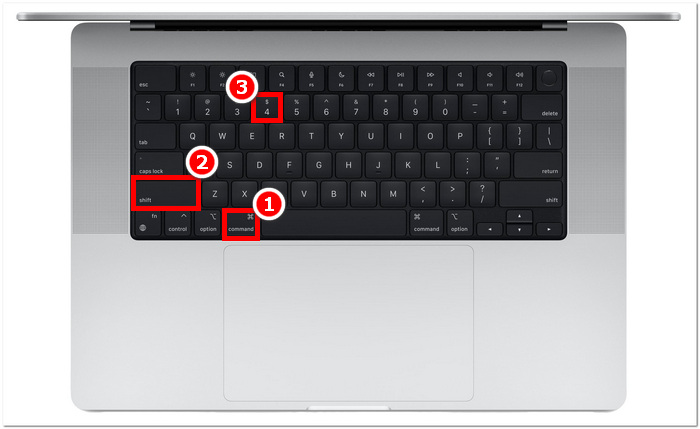
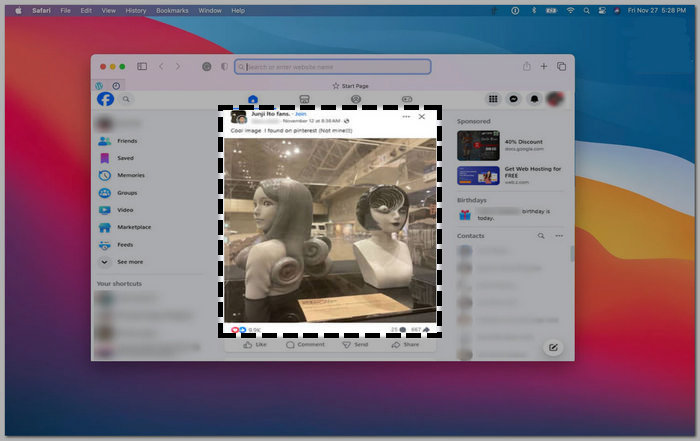
Step 3. Using your cursor, click, hold, and drag onto the area you want to capture.
Step 4. Release the cursor to instantly screenshot the Facebook consent using your Mac’s Safari web browser.
iPad/iPhone
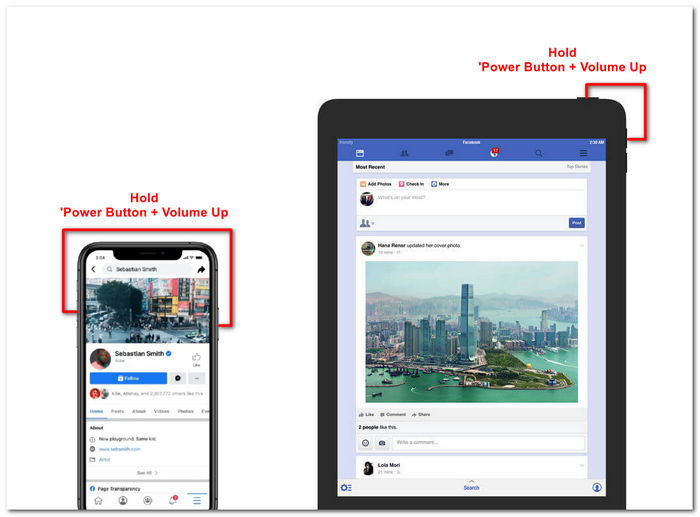
iPad veya iPhone gibi elde taşınabilen bir cihazda ekran görüntüsü almak kolaydır, çünkü her iki cihaz da yalnızca birleşik güç düğmesini ve ses açmayı kullanır. İster iPad ister iPhone kullanın, aşağıdaki adımları takip edebilirsiniz.
Step 1. Open your iPhone or iPad’s Facebook App and browse through your feed to find a post or perhaps a screenshot of Facebook story content.
Step 2. Once you are all set, take a screenshot of Facebook content; hold your device's Power Button + Volume Up button to capture it and have it saved in your Photos App.
Samsung Galaksisi
Samsung Galaxy cihazı kullanıyorsanız ve Facebook uygulamanızda ekran görüntüsü almayı bilmiyorsanız, aşağıdaki adımlar size yardımcı olacaktır.
Step 1. Through your Samsung Galaxy device, open your Facebook App and look for content within the platform you want to save as a screenshot to your device.
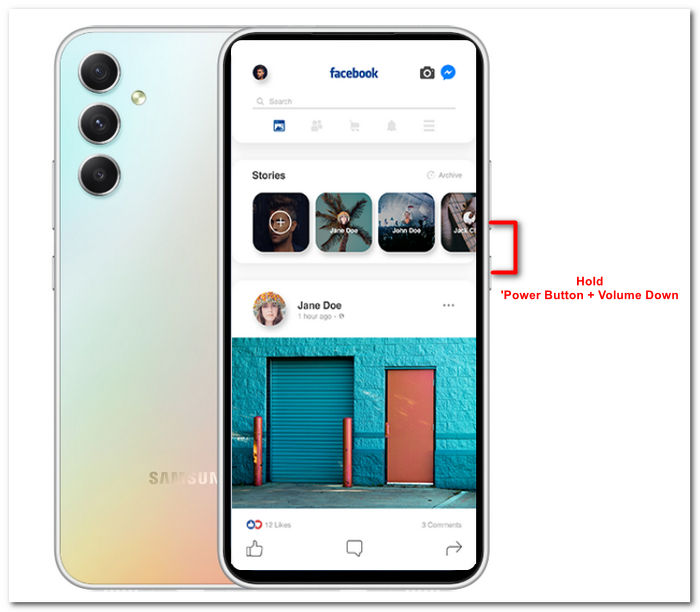
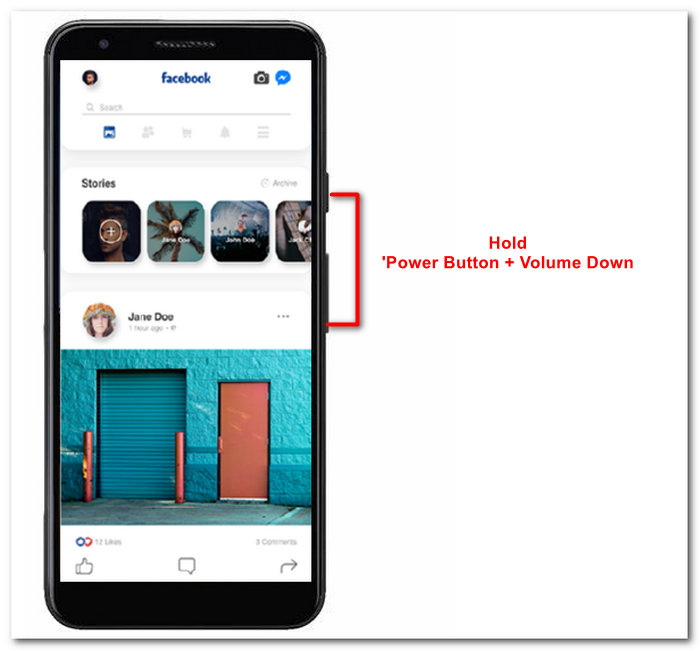
Step 2. Once you find the Facebook content you want to capture, hold your Power Button + Volume Down to screenshot it effectively.
It can also help you how to screenshot Samsung-specific models, like S23. You can use it to solve all your screenshot problems.
Android
Ekran görüntüsü alma işlemi Android ve iOS cihazlar arasında farklılık gösterir, çünkü Android Sesi Açma düğmesi yerine Sesi Azaltma düğmesini kullanır. Bir Facebook ekranını kolayca yakalamak için aşağıdaki işlemi izleyin.
Step 1. Open the Facebook mobile app on your Android device and browse your timeline for content you want to save as a screenshot in your Gallery.
Step 2. Once you find one, hold your mobile’s Power Button and Volume Down to screenshot it and save it directly in your Gallery App.
Bölüm 2. Masaüstündeki Her Şeyi Yakalamak İçin Harika Bir Ekran Kaydedici
If you are looking for a more convenient way to take screenshots on your Facebook with a feature that allows you to instantly make edits, annotate, highlight, crop, and more in the screenshot, then you might like using the FVC-picked screen recorder. This free-to-use screen record tool can double function as a tool to record your screen in real time and take a snapshot for easy and quick sharing of content. Moreover, this comprises four screenshot settings to cater to all types of screen capture needs, no matter whether you want to screenshot on Mac or Dell. and using it in the likes of Facebook is beneficial. To learn more about these screenshot features offered by FVC-picked screen record, it is best to show you how to do it.
Step 1. On your desktop, download and install the FVC-picked screen recorder software, then start the application.
Ücretsiz İndirinWindows 7 veya üzeri içinGüvenli İndirme
Ücretsiz İndirinMacOS 10.7 veya üzeri içinGüvenli İndirme
Step 2. Access your Facebook web using any of your preferred web browsers. In the screen recording tool, click on the Snapshot drop-down menu, then select a screenshot type to capture your Facebook screen.
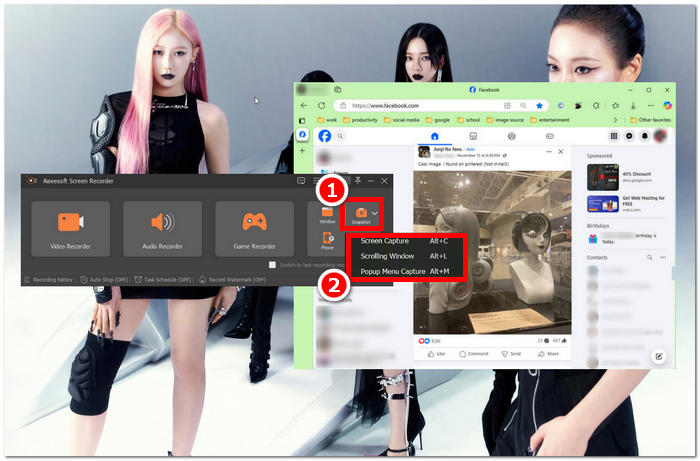
Ekran Yakalama özelliğini kullanarak tüm ana sayfanın ekran görüntüsünü kaydedebilirsiniz. Kayan Pencere işlevi, tüm ana sayfanın yukarıdan aşağıya bir ekran görüntüsünü alır. Kullanıcılar, Popup Menü Yakalama ile özelleştirilmiş bir ekran görüntüsü alırken web sayfasının bir bölümünü seçebilirler.
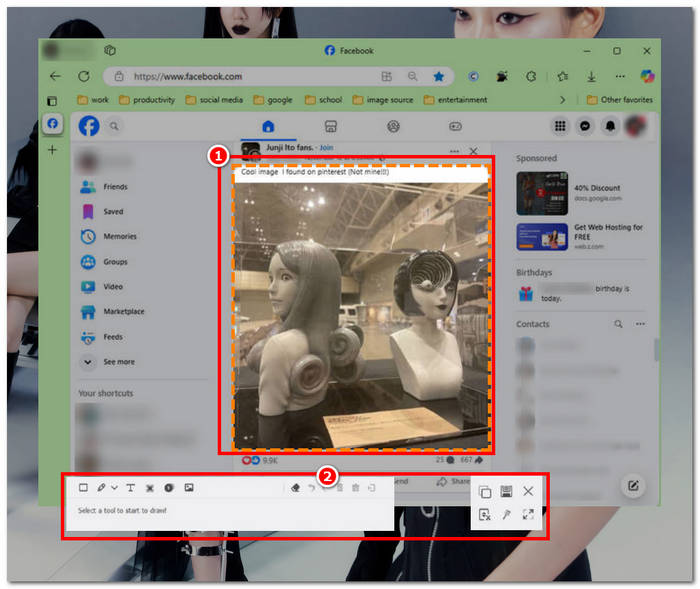
Step 3. In your Facebook timeline, click, hold, and drag your cursor on the area of the Facebook content you wish to capture as a screenshot.
Step 4. Once done, you can utilize the tools below to edit your screenshots before you can download them to your desktop download folder.
Bölüm 3. Facebook'ta Ekran Görüntüsü Hakkında SSS
Başkaları profillerinin, gönderilerinin veya fotoğraflarının ekran görüntüsünü aldığımda görebilir mi?
Hayır, Facebook profillerinin ekran görüntüsünü aldığınızda diğer kullanıcılar bilgilendirilmeyecektir. Ekran görüntüsünü onlarla paylaşmadığınız sürece yalnızca siz görebilirsiniz.
Messenger ekran görüntüleri algılanabilir mi?
Hayır, güvenlik ve veri ihlali endişesi yarattığı için Facebook, diğer kullanıcıya konuşmanızın ekran görüntüsünü aldığınızı bildirmez.
Facebook içeriklerinin ekran görüntüsünü almak yasal mı?
Facebook içeriklerinin ekran görüntüleri yasa dışı değildir, çünkü herkese açık paylaşımlar herkese açıktır ve herkes tarafından görülebilir. Ancak, birinin içeriğini veya paylaşımını izni olmadan kendi çıkarınız için kullanmak yasa dışıdır.
Sonuç
Taking screenshots of Facebook content is a great way to store and quickly share it with another user. While it is greatly helpful, learning how to do it, especially using other devices, from desktop to mobile, is also helpful. Through this guide, you learn different approaches to taking a Facebook screenshot using any available device you may have. While it is very convenient, the ability to edit and highlight instantly the screenshot using the FVC-picked screen recorder is the best way to take when you want to crop or highlight a certain part of the screenshot so that you won’t have to edit them later.
-
 Anı Yakalamak İçin Alcatel'de Ekran Görüntüsü Nasıl Alınır?
 Alcatel cihazınızda ekran görüntüsü almakta zorlanıyor musunuz? Bu cep telefonu ve masaüstü yazılım çözümünü deneyin ve ekranınızın çevrimdışı görüntüleme için kaydedilmesini sağlayın.
-
 Minecraft'ta Ekran Görüntüleri Nasıl Yapılır: En Kolay Oyun Ekranı Yakalama
 Minecraft'ta ekran görüntüsü almanın en kolay yolunu öğrenin. Minecraft yaratımınızı kaydetmek için yerleşik araçları ve ekran kaydedici yazılımını deneyin.
-
 Chromebook'ta Ekran Görüntüsü Nasıl Alınır [Adım Adım Kılavuz]
 Bu kapsamlı adım adım kılavuzla Chromebook'unuzda ekran görüntülerini nasıl kolayca yakalayacağınızı keşfedin. Rehberlik edin ve o mükemmel ekran görüntüsünü hemen alın!
