


 Video Dönüştürücü Ultimate
 Ekran kaydedicisi
 Video Onarımı
MOV'dan AVI'ye Çevrimiçi ve Çevrimdışı için Çok Çeşitli Dönüştürücüler
MOV, Apple Inc. tarafından geliştirilen ve varsayılan medya oynatıcısı olan QuickTime Player’da oynatılmak üzere tasarlanmış bir formattır. Bu yüzden MOV dosyanızı Windows gibi başka bir masaüstü programına aktarırsanız, yalnızca Mac kullanıcılarına özel olduğundan büyük ölçüde desteklenmeme ihtimali vardır. Eğer masaüstünüzde MOV dosyalarını oynatmakta zorluk çeken kullanıcılardan biriyseniz, hangisini seçmeniz gerektiğini öğrenmek için bu makaleyi sonuna kadar okumalısınız. Size herhangi bir kalite veya güvenlik kaybı olmadan MOV’u AVI’ye dönüştürmeyi öğretecek kişisel dönüştürücünüzü burada bulacaksınız.

Bölüm 1. Sınırlama olmadan MOV'u AVI'ye Çevrimiçi Çevirin
FVC Ücretsiz Çevrimiçi Video Dönüştürücü
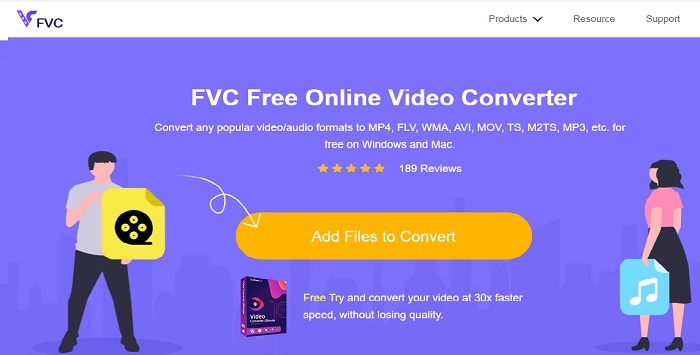
Çevrimiçi en iyi dönüştürücülerden ilki FVC Free Video Converter’dır. Video veya ses dönüştürmeyi çevrimiçi ortamda yeni bir seviyede deneyimlemek istiyorsanız, bu araç tam size göre. En iyi ücretsiz MOV’dan AVI’ye dönüştürücülerden biridir. Bununla birlikte, ücretli sürümde olduğu gibi premium özellikler sunmaması ve format seçeneklerinin sınırlı olması bir dezavantajdır. Sınırsız dönüştürme yapabilseniz de aynı anda çoklu dönüştürme yapamaz. Yine de aracın ücretsiz olması ve dönüştürücü olarak VLC’den daha iyi olması önemli bir artıdır. Bu çevrimiçi aracı nasıl kullanacağınızı bilmek ister misiniz? Zorlanmadan dönüştürme yapmak için aşağıdaki adımları izleyin.
Adım 1. Ana web sitesine gitmek için bu bağlantıya tıklayın. Güvenli ve size erişim için emniyetlidir, endişelenmenize gerek yok.
Adım 2. Programı başlatmak için Add Files to Convert düğmesine tıklayın.
Dosyaları toplu dönüştürmek için Masaüstü Sürümü indirin.
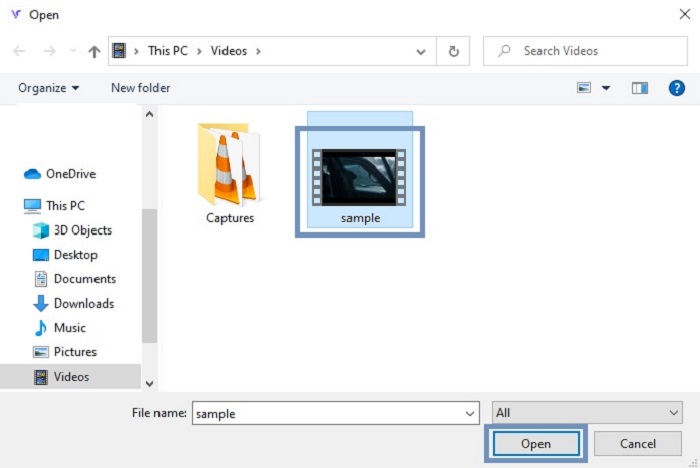
Adım 3. Dönüştürmek istediğiniz MOV dosyasını seçin ve devam etmek için OK düğmesine basın.
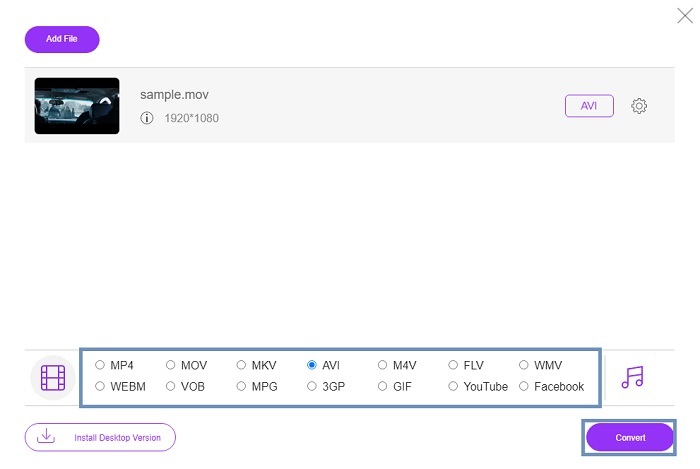
Adım 4. AVI formatını ya da istediğiniz başka bir formatı seçtikten sonra işlemi başlatmak için Convert düğmesine tıklayın.
Adım 5. Birkaç dakika tamamlanmasını bekleyin. Ardından son çıktıyı kontrol etmek için bu klasöre tıklayın.

Bölüm 2. MOV'u AVI Masaüstü Uygulamasına Çevrimdışı Olarak Dönüştürün
Çevrimiçi dönüştürme sizin için uygun değilse, o zaman bu muhteşem masaüstü tabanlı araçları kullanmayı düşünmelisiniz. İşi yapmak için en iyi dönüştürücüyü seçin.
1. FVC Video Dönüştürücü Ultimate
Video ve ses dosyalarını görkemli bir şekilde dönüştürmek, düzenlemek ve geliştirmek istiyorsanız, o zaman bu FVC Video Converter Ultimate tam size göre bir araçtır. MOV’u AVI formatına hiç zorlanmadan dönüştürün. Kullanıcı dostu arayüzü ve hafif yapısı sayesinde internetteki birçok kullanıcının bir numaralı tercihi haline gelmiştir. Günümüzde bu aracı indiren kullanıcıların sayısı hem sayı hem de yetkinlik bakımından büyük ölçüde artmıştır. Burada ve internette tanıtılan diğer araçlardan farklı olarak, bu araca sahip olmak kendi İsviçre çakınıza sahip olmak gibidir. Tüm özellikleriyle dolu gelmesine rağmen bu yazılım “önce ödeme” politikasına sahiptir. Yani kullanmak istiyorsanız satın almanız gerekir. Ancak endişelenmeyin, fiyatı uygun ve ödeme yöntemi PayPal, banka havalesi, Visa ve daha fazlasıyla güvenli bir şekilde desteklenmektedir. Bunun en iyi seçenek olup olmadığı konusunda tereddüt yaşıyorsanız, bunun sizin için en iyi dönüştürücü olup olmadığını anlamak üzere aşağıdaki adımları okumanız yeterli.
Adım 1. Yazılımı masaüstü sürücünüze indirin ve sisteminize en uygun olan sürümü seçin. Ardından isterseniz tercihleri ayarlayın ve yazılımı sürücünüze kurmak için bitir’e tıklayın.
Ücretsiz İndirWindows 7 veya üstü içinGüvenli İndirme
Ücretsiz İndirMacOS 10.7 veya üstü içinGüvenli İndirme
Adım 2. Kurulum işleminin ardından program otomatik olarak açılacaktır. İşte bunun örnek arayüzü.
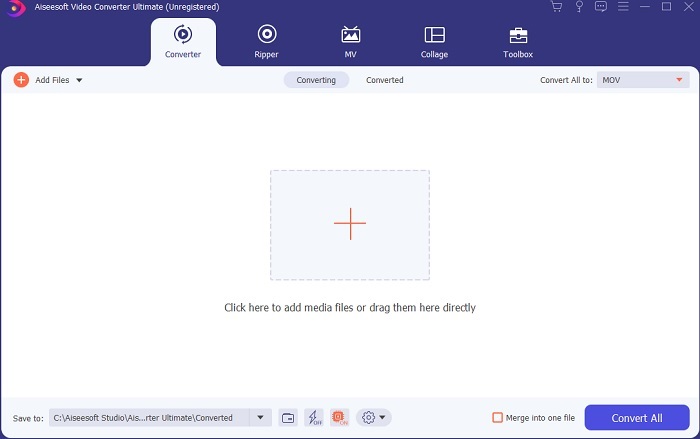
Adım 3. Add Files düğmesine tıklayın ve dönüştürmek istediğiniz MOV dosyasını seçin. Birden fazla MOV dosyasını dönüştürmek istiyorsanız, onları aracın arayüzüne sürükleyip bırakabilirsiniz.
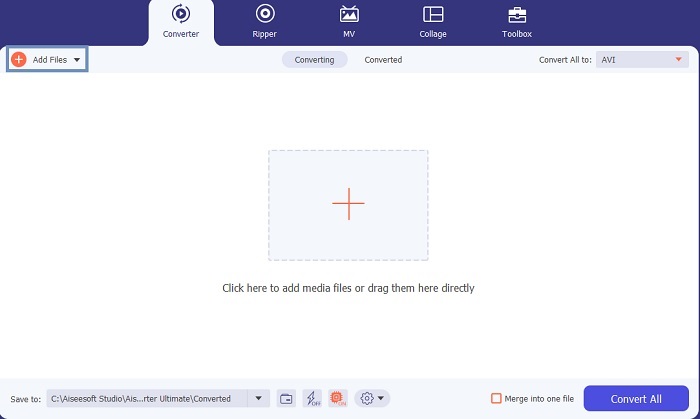
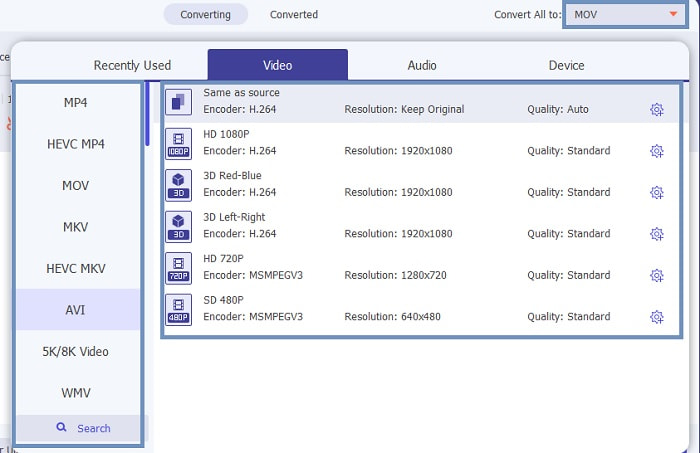
Adım 4. Convert All to alt menüsündeki listeden istediğiniz formatı seçin. Seçebileceğiniz farklı varyasyonlar vardır. Ve işlemi başlatmak için Convert All düğmesine tıklayın.
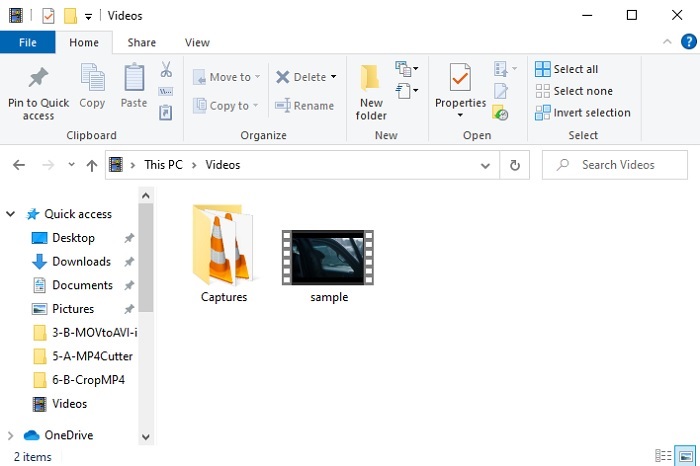
Adım 5. Bu yalnızca birkaç saniye sürecektir ve bittiğinde, ekranınızda bir dosya gezgini açılacaktır; şimdi dönüştürdüğünüz dosyaya tıklayarak bilgisayarınızda izleyebilirsiniz. Videoya bir şeyler eklemek, geliştirmek veya özel bir şey yapmak istiyorsanız, Araç Çubuğu bölümüne gidip videolarınızı veya seslerinizi yükseltmek için mevcut özelliklere göz atabilirsiniz.
2. VLC Media Player
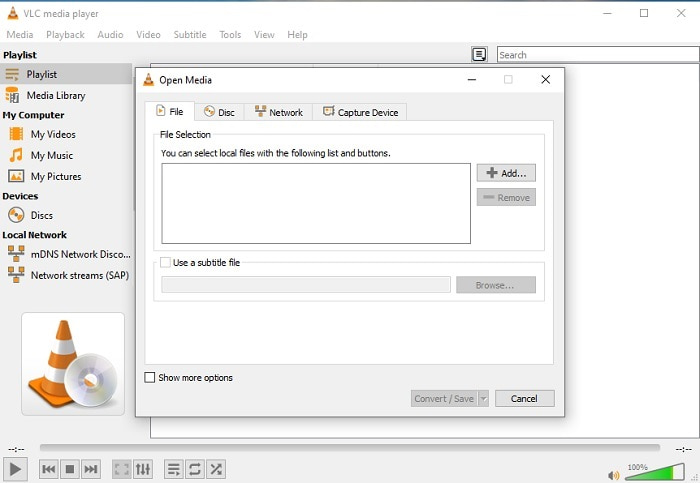
VLC kullanarak MOV’u AVI’ye dönüştürebileceğinizi biliyor muydunuz? Evet, bu medya oynatıcıyı dönüştürücü olarak da kullanabilirsiniz. Format dönüştürebilmesine rağmen, dönüştürücü olarak kullanmak için en iyi seçenek değildir. Çünkü kullanıcı dostu değildir, arayüzde nasıl kullanılacağına dair yeterli açıklama yoktur ve desteklenen format sayısı da oldukça azdır. En iyi medya oynatıcı olabilir, ancak en iyi dönüştürücü olmak onun güçlü yanı değildir. Yine de denemek isterseniz, kendiniz inceleyebilir ve format dönüştürmek için kullanabilirsiniz.
3. Pazera
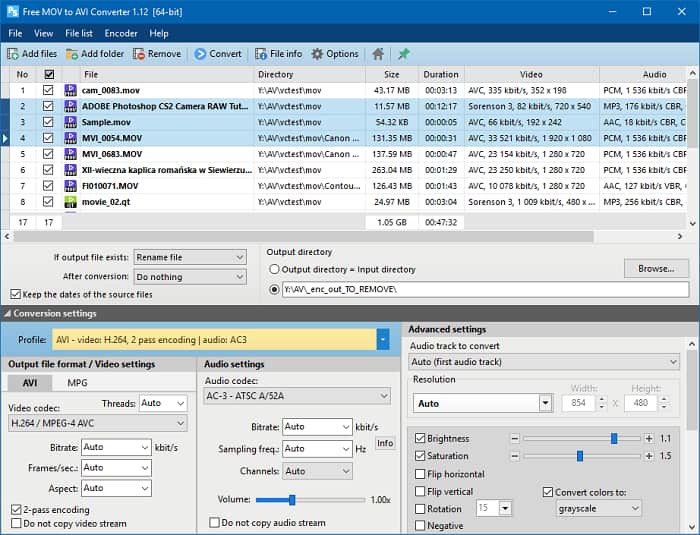
Pazera MOV to AVI Converter’ı ücretsiz indirebilirsiniz. Bu araç kullanımı kolaydır ve az bilinse de iyi bir dönüştürme deneyimi sunar. Ancak göz korkutucu kısmı, çoklu dönüştürücü olmamasıdır. Yukarıda bahsedilen araçların aksine, bu dönüştürücü size yalnızca tek bir dönüşüm türü sunar. Açık olmak gerekirse, MP4’ten AVI’ye dönüştürücü indirirseniz yalnızca o dönüşümü yapabilirsiniz. Bu yüzden her şeyi kapsayan bir dönüştürücü arıyorsanız bu araç sizin için son çare olmalıdır. Ayrıca, aracı indirmek için web sayfasına erişmeye çalıştığınızda çok sayıda can sıkıcı açılır reklamla karşılaşırsınız. Bu araca erişmeye çalışırken dikkatli olmalısınız.
Daha Fazla Okuma
MOV’u FLV’ye Nasıl Dönüştürürsünüz
MOV’u GIF’e Nasıl Dönüştürürsünüz
MOV ve AVI
MOV formatı bir film, TV programı, kısa video klip veya ev filmi depolamak için kullanılabilir. Aslında 1991'de Apple tarafından tanıtılan QuickTime Dosya Formatında (QTFF) kaydedilmiştir. MOV dosyaları genellikle insanlar bir videoyu yüksek kalitede kaydetmek istediğinde kullanılır.
Kaynak Değişim Dosyası Formatına (RIFF) dayalı olarak, AVI formatı 1992'de Microsoft tarafından tanıtıldı. Daha az sıkıştırma kullandığından yüksek kaliteli video/ses kaydedebilir. Ancak bu, sınırlı alan olduğunda sorun olabilecek bir AVI dosyasının büyük dosya boyutuna da neden olur.
Bölüm 3. MOV to AVI hakkında SSS
QuickTime, MOV'u AVI'ye dönüştürebilir mi?
QuickTime, Mac'in varsayılan medya oynatıcısı olmasıyla ünlü olsa da. QuickTime ile dönüştürme mümkündür. QuickTime ile MOV'u AVI'ye nasıl dönüştüreceğinizi öğrenmek istiyorsanız bu bağlantıyı kontrol edebilirsiniz.
MOV ve AVI arasındaki farklar nelerdir?
İkisi arasındaki ilk büyük fark, sahipleridir. İlk başta söylendiği gibi, MOV Apple Inc. tarafından QuickTime oyuncuları için benzersiz bir format olarak üretildi. MOV, farklı ses, video ve metin dosyalarını da depoladığı için kullanabileceğiniz en iyi formatlardan biri olduğu için popüler oldu. AVI, Microsoft tarafından MOV ile rekabet etmek için geliştirilmiştir. Bu biçim sıkıştırılmamış olmasına rağmen. Bu nedenle, bu formatta bir dosya kaydeder veya indirirseniz, büyük bir dosya boyutu bekleyin. Bu nedenle, dosya boyutunu küçültmek istiyorsanız sıkıştırmanız gerekir. Ancak bunun iyi yanı, süper yüksek kaliteli video ve ses çıkışı üretmesidir.
AVI'ye dönüştürülmüş MOV'umu nerede oynayabilirim?
Yeni dönüştürdüğünüz AVI veya MOV dosyasını izlemek istiyorsanız, izlemek için FVC Free Video Player’ı kullanabilirsiniz. Böylece, Mac’te veya PC’de bir MOV dosyasını AVI’ye dönüştürmeseniz bile onu daha sonra izleyebilirsiniz.
Sonuç
Bu yolculuğun sonunda artık dönüştürmenin herkesin kolaylıkla yapabileceği işlerden biri olduğu daha da netleşiyor. Bu makaleden öğrenmek, hepimiz için büyük bir değişim, çünkü ayrıntılar, adımlar ve alternatifler sunuyor. Hâlâ birincil dönüştürücünüz olarak ne kullanacağınız konusunda kafanız karışıksa, bu durum artık açıklığa kavuşuyor. FVC Video Converter Ultimate aradığınız tam kapsamlı dönüştürücüdür. Dönüştürme, düzenleme, geliştirme ve üretme fikri bu aracın içindedir. Öyleyse ne bekliyorsunuz? Endişelenmenize gerek yok, çünkü FVC Video Converter Ultimate rakipsiz bir dönüştürücüdür.
-
 4 MOV'u Windows ve Mac'te MP3'e Kolayca Dönüştürmenin En İyi Yöntemleri
 MP3 ses dosyalarını MOV dosyalarından çıkarmak istediğinizde, makaleden istediğiniz dosyaları elde etmek için en verimli 4 MOV - MP3 dönüştürücü hakkında daha fazla bilgi edinebilirsiniz.
-
 QuickTime MOV Dosyalarını Orijinal Kalitede Oynatmak için En İyi 8 MOV Oynatıcı
 Hem Windows hem de Mac için mevcut en iyi 8 MOV oynatıcı hakkında daha fazla bilgi edinin. MOV dosyalarını orijinal kalitede oynatmak için istediğiniz ve uygun olanı seçebilirsiniz.
-
 MKV'den MOV'a - MKV'yi MOV'a Dönüştürme
 Mac'te MKV'yi MOV'a nasıl dönüştürebilirim? İMovie, MKV'yi okuyabilir mi? MOV formatı ne anlama geliyor? Bu gönderi, ücretsiz çevrimiçi ve profesyonel video dönüştürücülerle MKV'yi MOV'a dönüştürmenize yardımcı olacak 2 basit yolu anlatıyor.

