


 Video Dönüştürücü Ultimate
 Ekran kaydedicisi
 Video Onarımı
Windows Media Player'da Videoları Mümkün Olan En İyi Şekilde Hızlandırmada Ustalaşın [Kanıta Dayalı]
Tüm video sahneleri, oynatma hızları bakımından birbirinden farklıdır ve hızlarının değişme amaçları da farklılık gösterir. Videonuzun hızını artırdığınızda, bu genellikle filmdeki ya da videodaki ilgisiz ve sıkıcı olayları simgeler. Buna karşılık, videoyu yavaşlattığınızda, görsel olarak vurgulanması çok önemli olan anları veya sahneleri öne çıkarır. Oynatma hızına yönelik bu düzenlemeleri kurgulama yaparken veya video filmi oluştururken uygulamak son derece önemlidir. Bu makaleyi okuyarak kullanıcılara özellikle masaüstümüzde yer alan yaygın medya oynatıcılarından biri olan Windows Media Player gibi programlarda videolar nasıl hızlandırılır konusunu öğretin.

Bölüm 1. Windows Media Player: Videoları Hızlandırma
Windows Media Player, Microsoft'un her Windows kopyasıyla birlikte gelen ücretsiz bir medya oynatıcısıdır. Microsoft tarafından WMP veya WM oynatıcı olarak da bilinir. Fotoğraflara bakmalarına ve müzik dinlemelerine izin vermenin yanı sıra video izlemelerine de olanak tanır. Windows Media Player (WMP) ile hem ses CD'lerini kopyalamak hem de müzik kitaplığınızı düzenlemek mümkündür. Ayrıca videoları, resimleri ve müziği ayarlamaya yardımcı olan bir düzenleme sekmesine sahiptir. Windows Media Player kullanarak bir videoyu hızlandırmak istiyorsanız, izlemeniz gereken adımlar şunlardır:
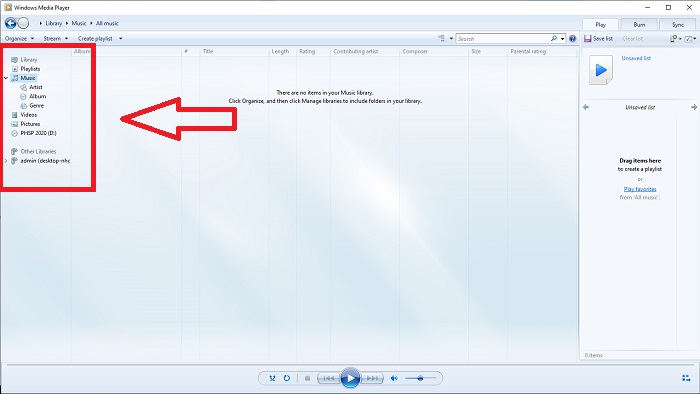
Adım 1: Windows Media Player’ı açın; sol köşeden Video sekmesini seçin.
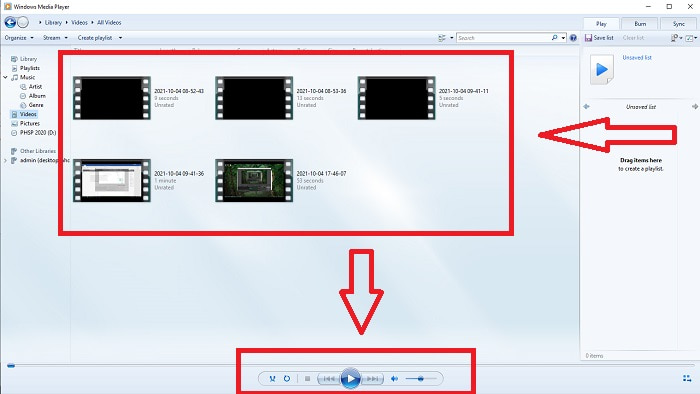
Adım 2: Videoyu oynatmak için dosyaya çift sol tıklayın ya da sağ tıklayın veya arayüzün alt orta kısmındaki Oynat düğmesine basabilirsiniz.
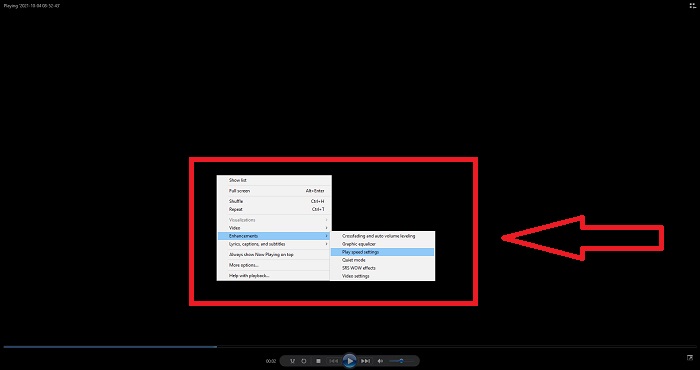
Adım 3: Daha sonra düzenleme sekmesine erişmek için ekrana sağ tıklayın. Ardından Geliştirmeler ve Oynatma Hızı Ayarlarına tıklayın. Bundan sonra, Kaydırıcıyı sürükleyerek video klibinizin oynatma hızını ayarlayabilirsiniz.
Bölüm 2. Windows Media Player Oynatma Hızı Çalışmıyorsa Ne Olur?
AVI, WAV veya MOV video dosyalarını oynatırken, Windows media player'a girebilir ve dosya hatasını oynatırken bir sorunla karşılaşabilirsiniz. Vasat kalitede videolar sıklıkla AVI formatında izlenir. Diğer medya oynatıcıların AVI'yi oynatma sorunu yoktur. Öte yandan WMP, bir AVI dosyasını oynatırken bir aksaklık olabilir. Windows Media Player, codec bileşenleri kullanılarak kodlandıkları için AVI dosyalarını desteklemez. Aşağıdaki bildirimi almış olabilirsiniz: Windows Media Player dosyayı yürütemiyor. Player, dosya türünü desteklemiyor veya dosyayı sıkıştırmak için kullanılan codec bileşenini desteklemiyor olabilir. Bu fenomen için iki olası açıklama vardır.
1. Gerekli dosyayla eşleşmediğinden, Windows medya oynatıcı (WMP) dosyanın codec bileşenini destekleyemez.
2. Windows medya oynatıcı, sıkıştırma kodeklerini desteklemez.
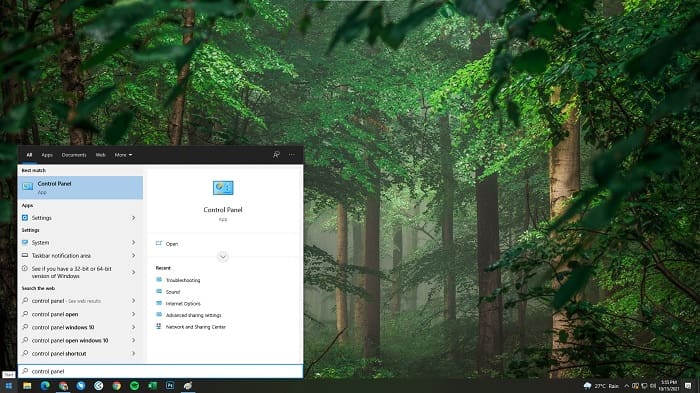
Adım 1: Bilgisayarınızda denetim masasını açın ve Görüntüle seçeneğini bulun, ardından denetim masasının tüm özelliklerine erişmek için Büyük Simgelere tıklayın.
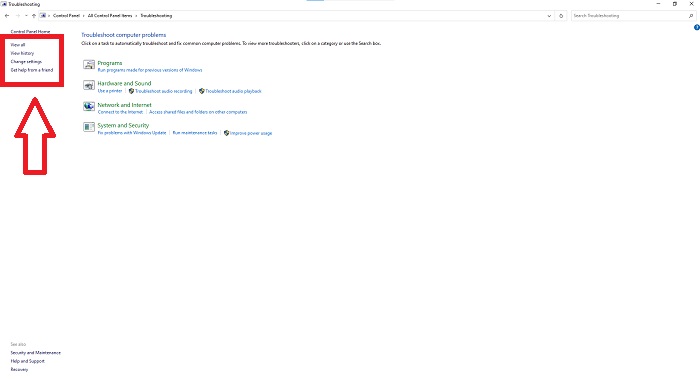
Adım 2: Ardından Sorun Gidermeye tıklayın. Sol köşeden Tümünü görüntüleyi seçin ve Windows Media Player Kitaplığını bulun.
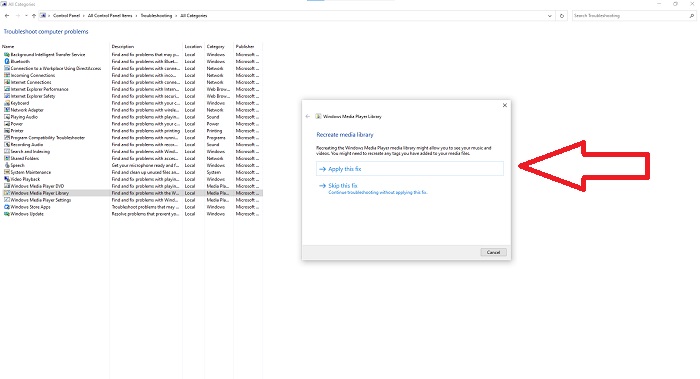
Adım 3: Son olarak, bir pencere göründükten sonra İleri’ye tıklayarak Windows Media Player’ınızda sorun giderin. Ardından Bu Düzeltmeyi Uygulayı seçerek devam edin. Sorun giderme tamamlandığında, işlemi kapatmayı mı yoksa bu işlemle ilgili geri bildirim vermeyi mi tercih edeceğinize karar verin.
Bölüm 3. Videoları Hızlandırmanın Başka Bir Uygun Yolu
Karmaşık adımlar nedeniyle videolarınızın oynatma hızını düzeltmekte sorun yaşadığınızı varsayalım. Ayrıca, sorun giderme çalışmıyorsa ve videoyu hala oynatamıyorsanız. İnternette mevcut web araçları vardır ve bazılarının tüm araca erişmeden önce satın alınması gerekir. Video Converter Ultimate, videoları hızlandırmak için en iyi alternatiftir ve kullanımı ücretsizdir. Bu yazılım, videonuzu bir sonraki seviyeye düzenleyebilir ve işte sağlanan adımlar:
Adım 1: Yazılımı bilgisayarınıza doğrudan indirmek için Ücretsiz İndir’i seçin. Ardından programı özelleştirip kurun.
Ücretsiz İndirWindows 7 veya üstü içinGüvenli İndirme
Ücretsiz İndirMacOS 10.7 veya üstü içinGüvenli İndirme
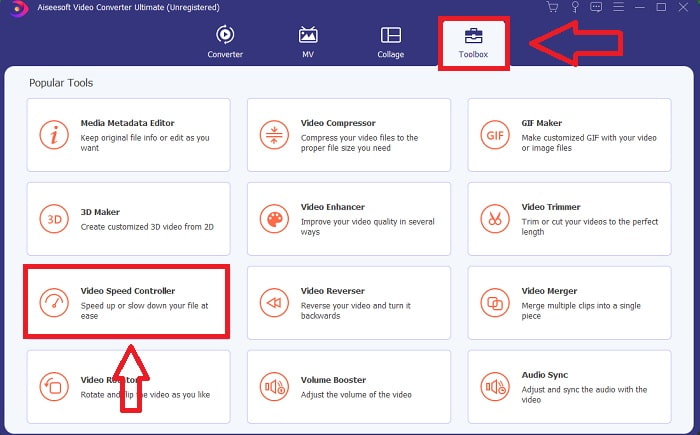
Adım 2: Yazılım kurulduktan sonra, menü çubuğundan Araç Kutusu seçeneğini seçip listeden Video Hız Denetleyicisini seçerek programı çalıştırın.
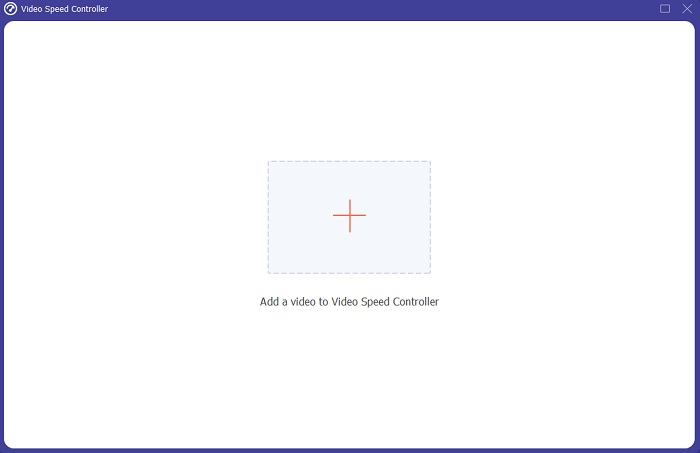
Adım 3: Tercihinize göre dosya eklemek için + düğmesine tıklayın ve ardından videoyu düzenlemeye devam edin.
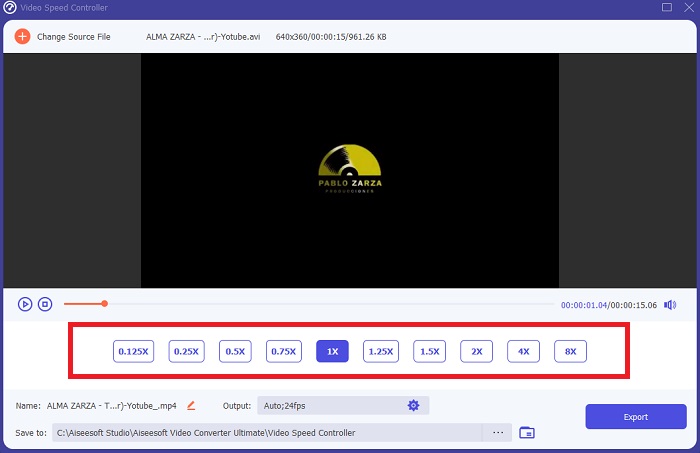
Adım 4: Oynatma hızını değiştirmek için videonun kare hızının (frame rate) kaç kat artırılacağını veya azaltılacağını seçin.
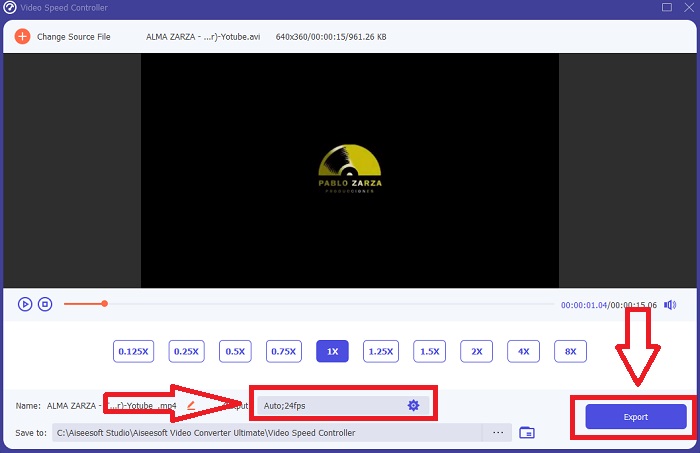
Adım 5: Biçim, çözünürlük, kalite vb. ayarları değiştirmek, videonuzun oynatma hızını ayarlamayı bitirdikten sonra istediğiniz çıktıyı seçmenizi sağlar. Dışa Aktar’a tıklayın ve işiniz bittiğinde çalışmanızı kaydedeceğiniz bir konum seçin.
Bölüm 4. Windows Media Player'da Videoları Hızlandırma Hakkında SSS
Windows Media Player'da oynatılamayan MP4 videoları nasıl düzeltilir?
Makalenin daha önce belirttiği gibi, Windows Media Player çok geniş bir video formatı yelpazesini desteklemez. Yalnızca çoğu Windows’a uygun formatları desteklediği için, hataları bu medya oynatıcıyla düzeltmek zordur. Bu nedenle, dönüştürmeyi ya da MP4 video formatlarını nasıl oynatacağınızı öğrenmeniz gerekir. Bu sorunu çözmenize yardımcı olacak faydalı bir makale için buradaki bağlantıya göz atabilirsiniz.
Windows Media Player'da DVD nasıl oynatılır?
Bazı filmler DVD üzerindedir ve bunları oynatmak için DVD oynatabilen doğru medya oynatıcıyı bulmanız gerekir. Windows Media Player, DVD oynatabilen yaygın medya oynatıcılarından biridir. Ayrıca bu medya oynatıcı, DVD oynatılırken düzenlemeye yardımcı bazı ayarlar da sunar. Windows Media Player’da DVD nasıl oynatılır konusunda daha fazla ayrıntı burada yer almaktadır.
Oynatma hızını artırırsanız videonun dosya boyutu küçülür mü?
Videonuzun oynatma hızını her artırdığınızda veya azalttığınızda yalnızca kare bölünür. 0,5 kat daha hızlı artırırsanız, çerçeve 1/120 saniyede 60 kare olacaktır. Kısacası, video zaten düşük kare hızına sahip değilse videoyu etkileyemez.
Sonuç
Sonuç olarak, Windows Media Player yalnızca birkaç formatı destekleyen sorunlu bir yazılım olabilir. Yine de bu yazılımın, video formatlarıyla ilgili sorunları giderebilen bazı özellikleri vardır. Ancak video klibinizin oynatma hızını artırmak istiyorsanız, yalnızca videonuzu hızlandırmak için değil, daha fazlası için Video Converter Ultimateı indirin. Bu yazılım videonuzu bambaşka bir seviyeye taşıyabilir. Tüm mevcut özellikleriyle birlikte, kullanmanızı önerdiğimiz en iyi ve erişilebilir yazılım bu olacaktır.
-
 WebM'den GIF'e – Kendi GIF'lerinizi Oluşturmak için 3 Ücretsiz WebM'den GIF'e Dönüştürücü
 WebM bir GIF mi? Bir video nasıl GIF'e dönüştürülür? Ücretsiz WebM'den GIF'e dönüştürücü var mı? Bu gönderi, WebM'yi GIF'e dönüştürmenize yardımcı olacak 3 ücretsiz yolu paylaşıyor.
-
 Photoshop/FFmpeg olmadan MKV Videolarını Animasyonlu GIF'lere Dönüştürme
 MKV filmlerini bilgisayarınıza indirip izledikten sonra, harika anları arkadaşlarınızla veya internette GIF olarak paylaşmak isteyebilirsiniz. Bu makalede, MKV'yi GIF'e dönüştürmenin en kolay 2 yolunu öğrenebilirsiniz.
-
 Çevrimiçi GIF Oluşturucu [2021] ile En İyi Animasyonlu GIF'inizi Oluşturun
 Web üzerinden zaten karşılaştığınız veya karşılaşmadığınız bu basit çevrimiçi GIF oluşturucuları kullanarak nasıl GIF yapılacağı hakkında bilgilendirici bir inceleme.
