


 Video Dönüştürücü Ultimate
 Ekran kaydedicisi
 Video Onarımı
 Güvenli İndirme
M4V'yi MP4'e Dönüştürme
M4V dosyalarını iTunes ve QuickTime Player'da açmak kolaydır. Ancak iMovie, Final Cut Pro, Android telefon, Windows Media Player, VLC vb. Söz konusu olduğunda M4V dosyaları uyumsuz hale gelir.
Sorunu çözmek için, neredeyse tüm oynatıcılar ve düzenleyiciler tarafından kabul edilen en popüler format olan M4V’yi MP4’e dönüştürmeniz gerekir.
Bu yazıda konuşacağımız şey bu, dönüştürücülerle M4V'yi MP4'e dönüştürmenin 6 yolu.
[
Bölüm 1. M4V Nedir?
MP4'e benzeyen M4V, Apple tarafından iTunes Store'daki video dosyalarını kodlamak için geliştirilen video kapsayıcıdır. FairPlay korumalı bir M4V dosyası, iTunes ve QuickTime aracılığıyla iTunes kullanılarak yetkilendirilmiş bir bilgisayarda oynatılabilir. Yetkisiz M4V yapımlarının oynatılması engellenecektir.
Aksine, M4V dosyaları VLC, Media Player Classic, MPlayer vb. Gibi birçok oynatıcı ile açılabilir.
Bölüm 2. M4V'den MP4'e Nasıl Değiştirilir
M4V dosyalarını tanıyabilen bazı video oynatıcılarda oynatmak için en kolay yol, uzantıyı .m4v'den .mp4'e değiştirmektir.
M4V video dosya adına sağ tıklayın ve Yeniden Adlandır’ı tıklayın, ardından uzantıyı doğrudan değiştirin.
Bundan sonra, oynatıcıyı doğrudan MP4 dosyasını oynatmayı deneyin.
Elbette, video oynatıcı MP4 uzantısını tanımazsa, sonraki bölümde M4V'yi MP4'e dönüştürmek için fazladan adımlara ihtiyacınız vardır.
Bölüm 3. M4V'yi MP4'e Dönüştürmenin 4 Yolu
Bu M4V dosyaları için, VLC, Zoom Player, RealPlayer vb. üzerinde oynamak için M4V'yi MP4'e çevirecek M4V dönüştürücüyü bulmalısınız.
Masaüstü Ücretsiz Yazılım ile M4V'yi MP4 Online'a dönüştürün
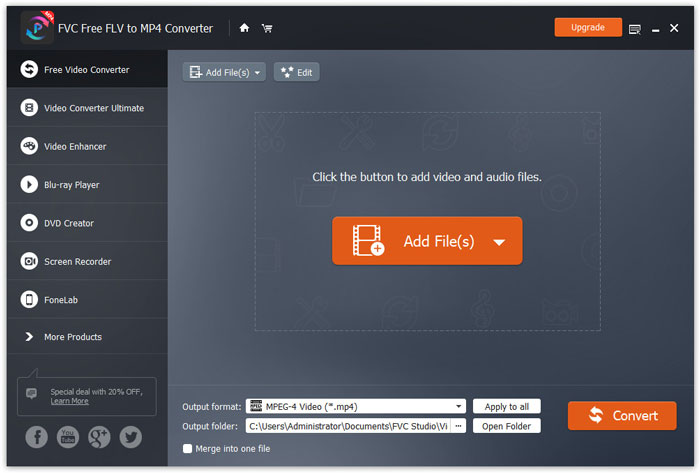
FVC FLV to MP4 Converter, M4V, FLV, MOV veya diğer yaygın formatları hızlı bir şekilde MP4’e dönüştürmenizi sağlayan, kullanımı kolay bir dönüştürücüdür. Tamamen ücretsizdir ve zaman kazanmanız için toplu dönüştürmeyi destekler.
Adım 1: Yazılımı bilgisayarınıza ücretsiz indirin. Kurulumdan sonra açın ve M4V dosyalarınızı programa eklemek için Dosya(ları) Ekle düğmesine tıklayın.
Ücretsiz İndirWindows 7 veya sonrası içinGüvenli İndirme
Ücretsiz İndirMacOS 10.7 veya sonrası içinGüvenli İndirme
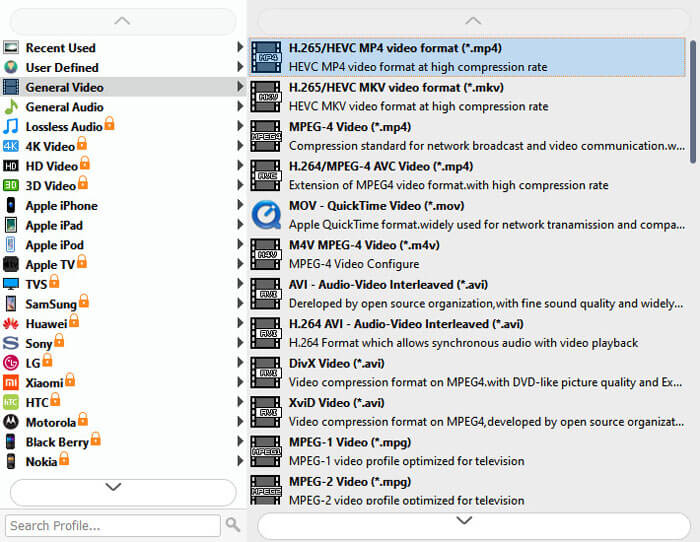
Adım 2: Çıktı formatı alanına gidin ve Genel Video sekmesinden MP4 formatını seçin.
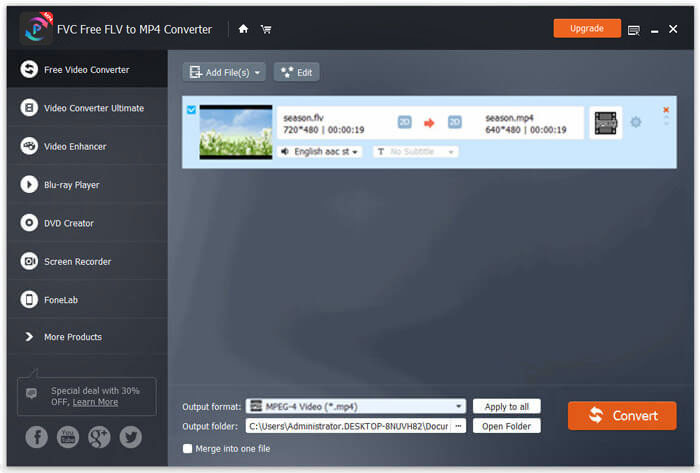
Adım 3: Son olarak, dönüştürülmüş dosyanızı kaydedeceğiniz hedefi seçmek için Klasör Aç düğmesine tıklayın ve ardından M4V’yi MP4'e dönüştürmeyi başlatmak için Dönüştür düğmesine basın.
M4V'yi MP4 Online'a Ücretsiz Dönüştür
M4V'yi MP4'e dönüştürmenin en kolay yolu, ücretsiz çevrimiçi dönüştürücüyü kullanmaktır.
Free Online Video Converter, çevrimiçi olarak kullanılan ücretsiz bir M4V’den MP4’e dönüştürme yazılımıdır. Korumalı olmayan M4V dosyalarını toplu olarak MP4 videolara dönüştürebilir. Ayrıca, çıktı video ve ses codec’ini ayarlamanıza ve cihazınız için çözünürlüğü seçmenize olanak tanır. Yalnızca 3 adımda, tüm süreci Windows ve Mac bilgisayarda tamamlayabilirsiniz.
Adım 1. Bu ücretsiz çevrimiçi M4V’den MP4’e dönüştürücüye gidin ve bilgisayarınıza dönüştürücü başlatıcısını indirmek için Dosya Ekle ve Dönüştür düğmesine tıklayın.
Dosyaları toplu dönüştürmek için Masaüstü Sürümü indirin.
Adım 2. Başlatıcının başarılı kurulumundan sonra açılan Kaynak Aç penceresinde, bilgisayarınızdaki M4V dosyalarını seçmeniz gerekir.
Adım 3. MP4 onay kutusunu işaretleyin ve dönüştürülmüş MP4 dosyalarının saklanacağı konumu bulmak için Dönüştür’e tıklayın; ardından M4V’yi MP4’e dönüştürmeye başlayacaktır.
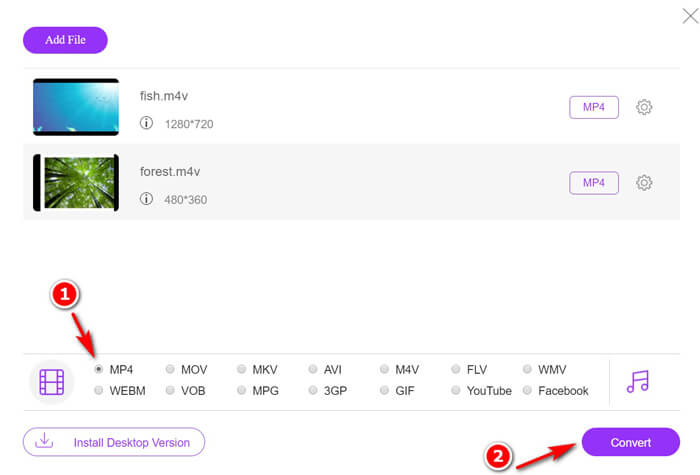
Dönüştürme işlemi yapılırken, dönüştürülen MP4 dosyaları otomatik olarak bilgisayarınıza indirilecektir.
M4V'den MP4'e VLC ile Ücretsiz Dönüştürme
VLC, M4V dosyalarını doğrudan oynatmak için popüler bir medya oynatıcıdır. Ayrıca, korumasız M4V dosyalarını bilgisayarınızda MP4 olarak değiştirmek için M4V - MP4 dönüştürücü olabilir.
Adım 1. VLC’yi bilgisayarınıza indirin. Windows, Mac ve Linux ile uyumludur ve bilgisayarınıza dilediğiniz sürümü indirebilirsiniz.
Üst menüden Medyaya tıklayın ve Dönüştür / Kaydet… seçeneğini seçin.
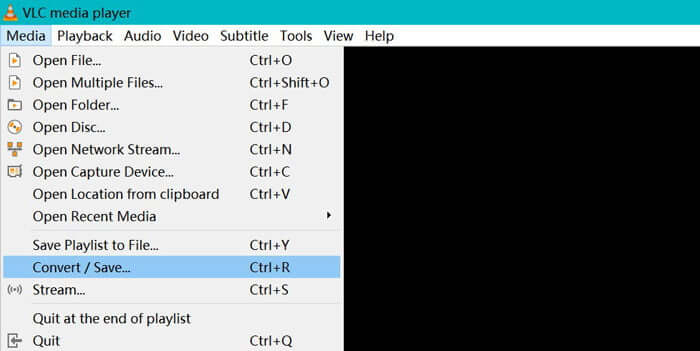
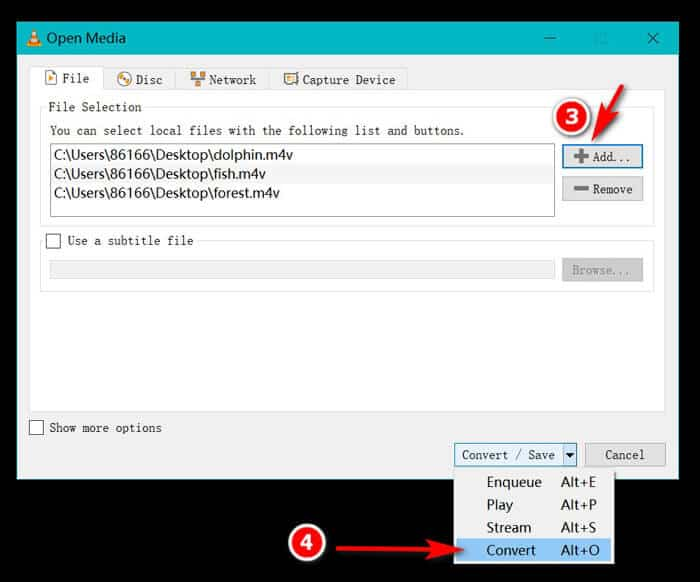
Adım 2. Bilgisayarınızdaki sabit diskinizden M4V dosyalarını içe aktarmak için Ekle düğmesine tıklayın.
Ardından, alttaki Dönüştür / Kaydet seçeneğinin açılır menüsünden Dönüştürü seçin.
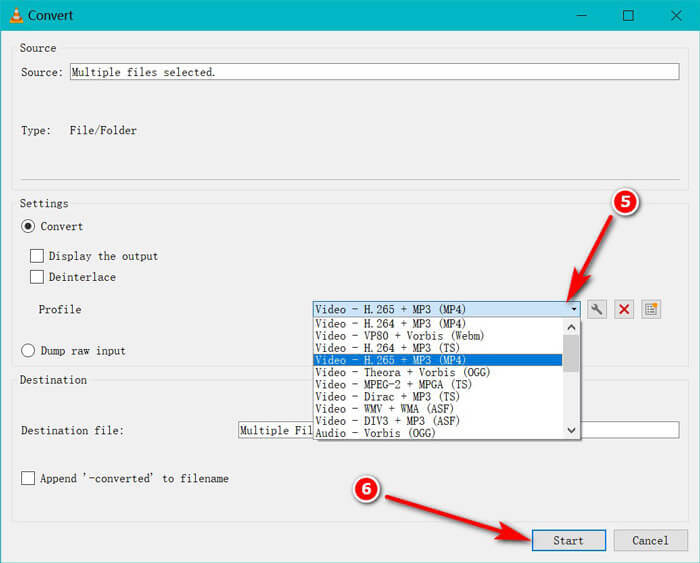
Adım 3. Profil açılır listesinden çıktı formatı olarak MP4ü seçin. VLC’de M4V’yi hemen MP4’e dönüştürmek için Başlat’a tıklayın.
M4V'den MP4'e dönüşümlerin yapılıp yapılmadığını görmek için VLC'deki ilerleme çubuğunu kontrol edebilirsiniz.
El Freni ile M4V'yi MP4'e Ücretsiz Dönüştürme
Mac, Windows ve Linux bilgisayar için bir başka ücretsiz M4V'den MP4'e dönüştürücü HandBrake'dir.
HandBrake, açık kaynaklı DVD, Blu-ray ve video dönüştürücüdür. Neredeyse tüm videoları MKKV ve MP4'e dönüştürebilir.
Adım 1. Handbrake yazılımını bilgisayarınıza indirin. Varsayılan olarak, bu yazılım başlatılırken M4V videolarını seçmenize olanak tanıyan Açık Kaynak iletişim kutusu açılır.
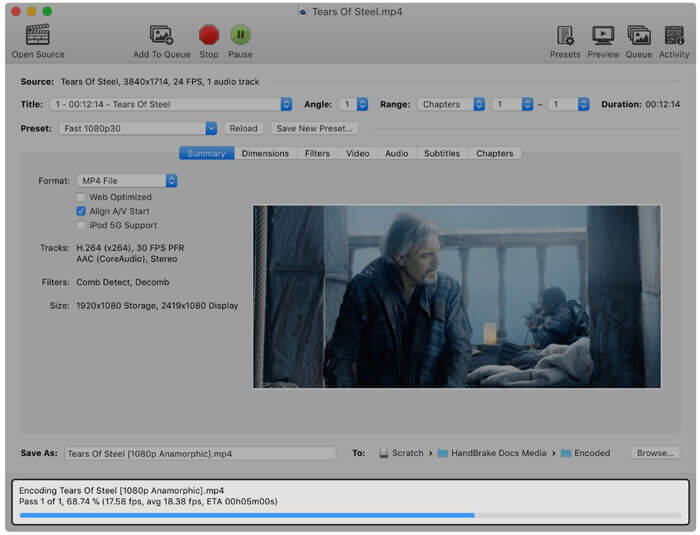
Adım 2. Ardından, Özet sekmesine tıklayın ve çıktı formatı olarak Biçim açılır menüsünden MP4ü seçin. Filtreler, video codec’leri ve diğer dosya parametreleri düzenleme için isteğe bağlıdır.
Adım 3. Hedef bölümünde dönüştürülmüş MP4 dosyalarının kaydedileceği konumu ayarlayın ve M4V’yi MP4'e dönüştürmeye başlamak için araç çubuğundaki Başlat düğmesine tıklayın.
Bazen dönüştürülen dosyaların Mac bilgisayarda .m4v uzantısı olacağını fark edebilirsiniz. HandBrake neden MP4'ü M4V olarak kaydediyor?
Bölüm 4. M4V'yi MP4'e Dönüştürme
Yukarıdaki M4V - MP4 dönüştürücüler, M4V dönüşümünü çözebilir. Ek olarak, M4V dosyalarını MP4 videolarına veya diğer popüler dosya biçimlerine kaydetmek için kayıt yöntemini kullanabilirsiniz.
Bilgisayarınızda oynatılanları kaydedebilen ve MP4 videolarını dışa aktarabilen birçok çevrimiçi ekran kaydedici vardır.
Burada, M4V videolarını nasıl kaydedip MP4 video olarak dışa aktaracağınızı göstermek için örnek olarak FVC Free Screen Recorderı ele alıyoruz.
Adım 1. Tarayıcınızda https://www.free-videoconverter.net/free-screen-recorder/ adresini ziyaret edin, Kaydı Başlat’a tıklayın ve kurmanız gereken başlatıcı açılacaktır.
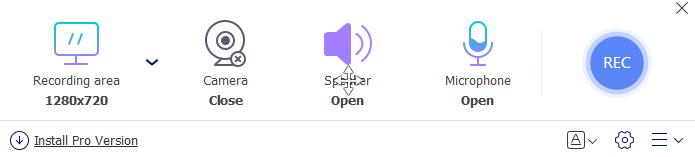
Adım 2. Kurulum başarıyla tamamlandıktan sonra ana arayüzü görebilirsiniz. Burada, kayıt alanını seçmeniz, yalnızca iTunes video sesini kaydetmek için Sistem Sesini etkinleştirip Mikrofonu devre dışı bırakmanız gerekir.
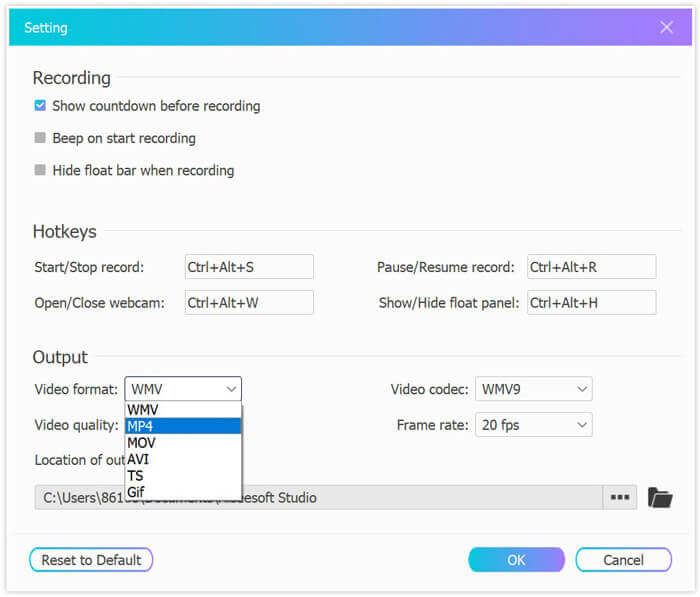
Kayıt için kısayol tuşları ayarlamak, çıktı formatı olarak MP4'ü seçmek, video kalitesini, video codec’ini, kare hızını vb. ayarlamak ve kaydedilen MP4 videoyu saklayacağınız hedef klasörü belirlemek için Ayarlara tıklayın.
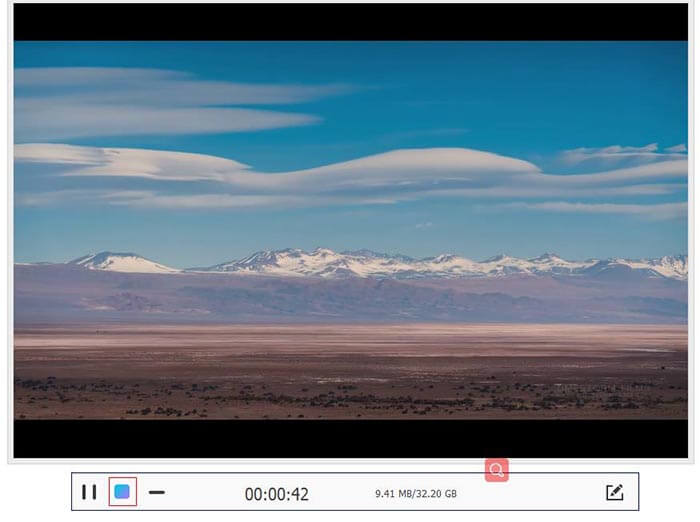
Adım 3. Tüm ayarlar istediğiniz gibi olduğunda, iTunes videolarını QuickTime veya iTunes ile oynatın ve iTunes videolarını kaydetmeye başlamak için KAYIT düğmesine tıklayın. Durdur düğmesi ise video kaydını sonlandıracak ve M4V videoyu MP4 dosyası olarak kaydedecektir.
M4V ve MP4
M4V, aynı zamanda MPEG 4 kullanan Apple tarafından geliştirilmiştir. M4V dosyaları genellikle, müzik videoları, TV bölümleri vb. gibi Apple iTunes mağazasından indirilen videoları depolamak için kullanılır. Kullandığı için bazı M4V dosyalarını kopyalamaya karşı korumalı bulabilirsiniz. Apple'ın FairPlay DRM telif hakkı koruması.
2001 yılında Moving Picture Experts Group (MPEG) tarafından piyasaya sürülen MP4 formatı, video, ses, altyazı ve görüntü verilerini ayrı parçalarda kaydetmenize yardımcı olabilir. MPEG-4 Part 14'ün kısaltmasıdır. Ayrıca, video akışı ve paylaşımı için kullanılan en popüler formatlardan biridir.
Bölüm 5. M4V'yi MP4'e Dönüştürme Hakkında SSS
M4V neyle uyumludur?
DRM korumalı M4V dosyaları yalnızca iTunes ve QuickTime ile uyumludur. Korunmayan M4V dosyaları için, bunları Media Player Classic, K-Multimedia Player, RealPlayer, Zoom Player, VLC media player, MPlayer, DivX Plus Player, Nero Showtime, Palm Pre'de kullanılmak üzere web video oynatıcıda oynatabilirsiniz. ve Palm Pixi akıllı telefonlar ve Android telefon. HandBrake tarafından üretilen M4V videoları, PlayStation 3'te tam Dolby Digital 5.1 surround desteği ile oynatılabilir.
M4V ve MP4 arasında bir fark var mı?
M4V ve MP4 arasındaki temel fark, M4V dosyalarının DRM kopya koruması tarafından seçilebilmesi, MP4 ise şifrelenmemiş olmasıdır.
M4V'yi YouTube'a yükleyebilir misiniz?
Evet. YouTube, DRM korumalı olmayan M4V dosyalarını yüklemenize izin verirken, DRM korumalı M4V dosyaları tarafından kabul edilmez.
HandBrake neden MP4'ü M4V olarak kaydediyor?
Varsayılan olarak, MP4 dosyalarının çıktısını aldığınızda, AC3 ile kodlanır ve SRT veya etkin bölüm işaretçileri ile altyazılı olduğunda, .mp4 uzantısı .m4v olarak değiştirilir.
Sonuç
M4V dosyaları DRM korumalıdır ve bunları yalnızca iTunes veya QuickTime oynatıcı aracılığıyla iTunes hesap yetkilendirmesi yoluyla oynatabilirsiniz. Ayrıca M4V dosyası MP4 kadar popüler değildir. M4V'yi MP4'e dönüştürmek, M4V dosyalarını herhangi bir oynatıcıda veya düzenleyicide açmak akıllıca bir fikirdir. Bu gönderi, M4V'yi MP4'e dönüştürmenin 6 yolunu paylaşıyor. Ücretsiz çevrimiçi video dönüştürme ile doğrudan çevrimiçi olarak değiştirebilirsiniz. Ayrıca, M4V'yi Windows, Mac ve Linux'ta MP4'e dönüştürmek için masaüstü yazılımını indirebilirsiniz.
En sevdiğiniz çözüm hangisi?
Yorumlarınızı aşağıya bırakarak bana bildirin.
-
 Windows / Mac'te M2TS'yi MOV'a Dönüştürme (Çevrimiçi / Çevrimdışı)
 Video dosyalarını çeşitli oynatıcılarda ve platformlarda oynatmak için M2TS'yi MOV'a dönüştürmeniz mi gerekiyor? Bu makale, Windows / Mac'te M2TS'yi MOV'a dönüştürmek için en iyi Çevrimiçi / Çevrimdışı yöntemi bulmanıza yardımcı olacaktır.
-
 MP4 Video Dosyalarınızı Kalite Kaybı Olmadan Animasyonlu GIF Görüntülerine Dönüştürme
 MP4 videonuzu animasyonlu GIF'lere dönüştürmenin en iyi yolunu mu arıyorsunuz? İşte bunu Photoshop, Windows Movie Maker, çevrimiçi video dönüştürücü ve daha fazlasında yapmak için ayrıntılı bir kılavuz.
-
 FLV Video Dosyalarınızı Bir Kuruş Ödemeden MP4'e Dönüştürme
 Bu kılavuz, FLV video dosyalarınızı Windows 10/8/7 / XP ve Mac OS X'te MP4 formatına dönüştürmek için dört ücretsiz yöntemi paylaşır, böylece herhangi bir cihazda videoların keyfini çıkarabilirsiniz.

