


 Video Dönüştürücü Ultimate
 Ekran kaydedicisi
 Video Onarımı
 Güvenli İndirme
M4A Dosyasını Birleştirin: Ses Birleştirme İçin Hızlı ve Kolay Adımlar
Bir M4A dosyası kullanmak zaten yeterince zorken, tüm cihazlar ve ses yazılımları bu ses dosyası biçimini desteklemez. Bu dosyayı düzenlemek ise kullanıcılar için başka bir zorluk yaratır. Elbette, M4A dosyalarını tek bir ses dosyasında birleştirmenin sayısız yolu vardır ve yazılım ya da çevrimiçi araçlar gibi üçüncü taraf araçları kullanmak bunu mümkün kılar. Bu kılavuz, zorlanan kullanıcıların M4A dosyalarını birleştirmek için güvenilir bir araç bulmalarına yardımcı olurken, aynı zamanda yazılım ve çevrimiçi araçlarda gezinmeye başlamalarına yardımcı olacak bir adım adım açıklama sunacaktır.

Bölüm 1. Windows/Mac'te M4A Dosyalarını Birleştirmenin En Hızlı Yöntemi [Yüksek Kalite İçin]
Listede ilk sırada FVC-seçkisi Video Converter Ultimate yer alıyor. Bu yazılım aracı, kesin kesimler, kırpmalar, sıkıştırılmış dosyalar ve bu durumda M4A dosya birleştirmeleri oluşturma konusunda son derece etkilidir. M4A dosyalarını birleştirmek, kullanıcıların birden fazla M4A dosyasını önceden dönüştürmek zorunda kalmadan aynı anda yüklemesine olanak tanır. Oldukça hızlı ve kolaydır, çünkü yazılımın arayüzü düzenli ve gezinmesi rahattır; bu da onu özellikle yeni başlayan kullanıcılar için anında favori yapar.
Adım 1. FVC-seçkisi Video Converter Ultimate yazılımını masaüstünüze indirin ve başlatın.
Ücretsiz İndirWindows 7 veya üstü içinGüvenli İndirme
Ücretsiz İndirMacOS 10.7 veya üstü içinGüvenli İndirme
Adım 2. Yazılım kurulduktan sonra, Dosya Ekle düğmesine tıklayın ve birleştirmek istediğiniz M4A dosyalarını seçin.
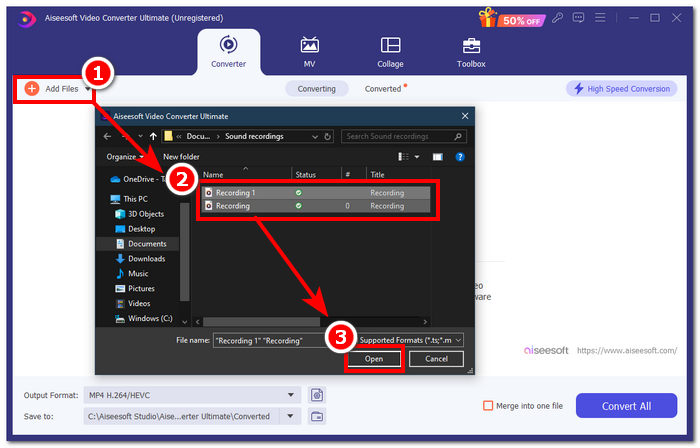
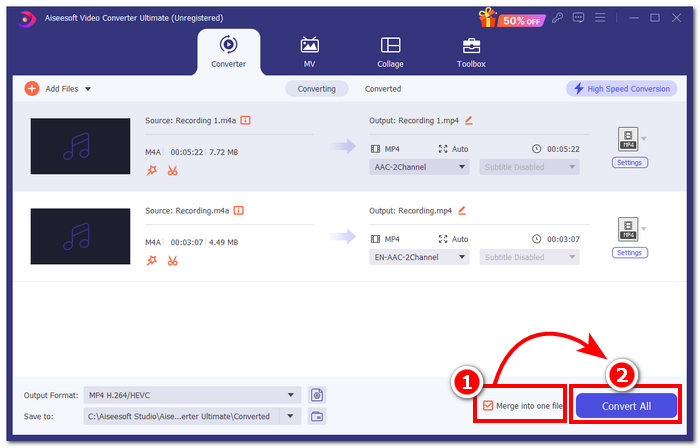
Adım 3. M4A dosyalarınız aracın arayüzüne yüklendikten sonra, M4A dosyalarınızı birleştirmeyi etkinleştirmek için aracın sağ alt kısmında bulunan onay kutusuna tıklayın. Ardından, hemen yanındaki Tümünü Dönüştür düğmesine tıklayarak birleştirme işlemini başlatın.
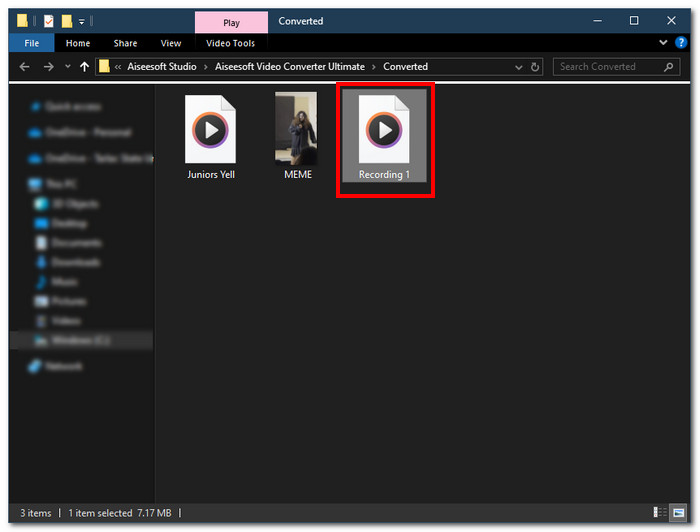
Adım 4. Birleştirme işlemi tamamlandığında, ekranınızda yeni bir pencere açılacaktır. Birleştirilmiş M4A dosyalarınız bu pencerede yer alacaktır. Tebrikler, M4A dosyalarınızı başarıyla birleştirdiniz.
FVC-picked Video Converter Ultimate, yüksek hızlı işleme teknolojisiyle entegre edilerek kayıpsız kaliteli bir sonuç sağlarken aynı zamanda M4A dosyalarınızın sorunsuz bir şekilde birleşmesini sağlayan çok sezgisel bir arayüz sunduğu için listelenen yazılımlar arasında en hızlısıdır. Sadece sınırlı sayıda ses dosyası formatını destekleyen diğer yazılımların aksine, bu yazılım M4A, MP3, MP4, WAV, AAC vb. dahil olmak üzere çok çeşitli ses ve video dosyası formatlarını desteklemiştir.
Bölüm 2. GarageBand ile Mac'te M4A Dosyalarını Birleştirin [Müzik Yapımcıları İçin]
Apple ekosistemindeki profesyonel müzik tutkunları veya yapımcıları için GarageBand, M4A dosya birleştirme aracıdır. Mac cihazlarınızı kullanarak M4A dosyalarını birleştirmek kolaydır, çünkü Apple'ın GarageBand'i cihazlarınıza önceden yüklenmiş bir ses düzenleyicisidir. İki M4A dosyasını tek bir ses dosyasında birleştirmek için aşağıdaki adımlarımızı takip etmeniz yeterlidir GarageBand, basit ve kolay bir şekilde çalışan yazılım araçlarından biridir.
Adım 1. Mac cihazlarınıza GarageBand’i indirin ve başlatın.
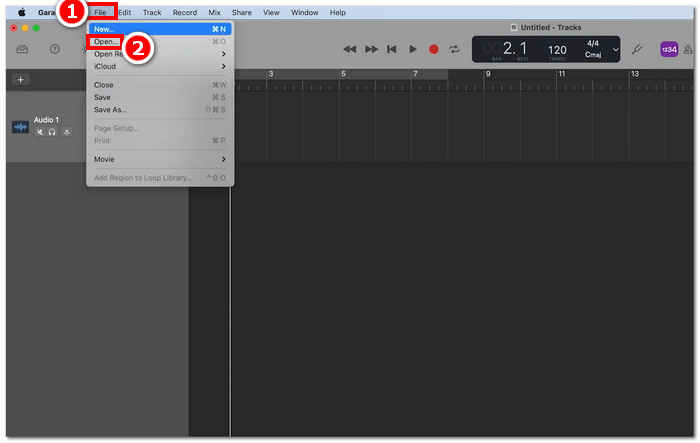
Adım 2. Ana arayüzde, M4A dosyalarınızı yüklemek için aracın sol üst köşesinde bulunan File > Open seçeneğine tıklayın.
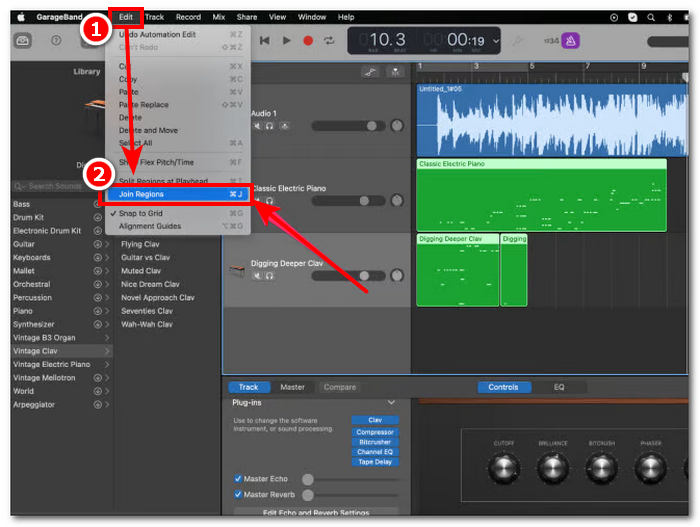
Adım 3. M4A dosyalarınız aracın arayüzüne yüklendikten sonra, yüklediğiniz M4A dosyalarını birleştirmeye başlamak için Edit > Join Regions seçeneğine tıklayın.
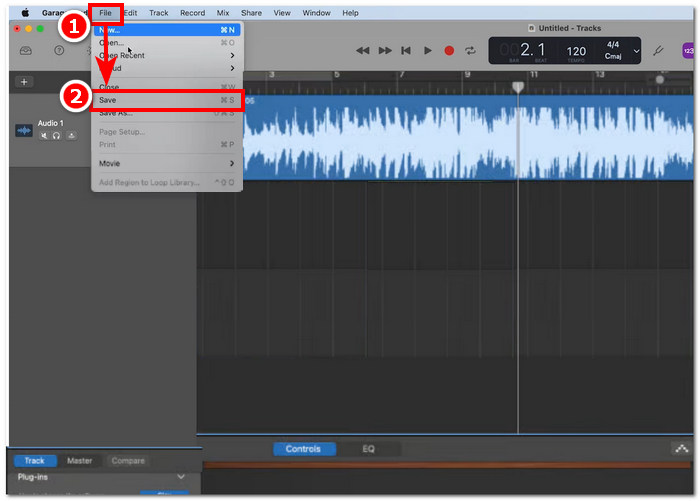
Adım 4. M4A dosyalarınız tek bir ses parçasında birleştirildikten sonra, aracın sol üst köşesinde bulunan File > Save seçeneğine tıklayarak artık kaydedebilir veya indirebilirsiniz.
Gerçekten de GarageBand, M4A dosyalarını birleştirmek ve düzenlemek için en basit ama profesyonel şekilde geliştirilmiş yazılımlardan biridir. Yukarıdaki adımları izlemek, iki ya da daha fazla M4A dosyasını tek bir ses dosyasında düzenlemenin harika bir yoludur; bu da bir karışımı (mix’i) paylaşmayı kolaylaştırır.
Bölüm 3. Windows'ta M4A Dosyalarını VLC ile Birleştirin [Temel Kullanıcılar İçin]
Şaşırtıcı bir şekilde, VLC Media Player M4A dosyalarını birleştirebilir. Medya ve dosya özellikleri görüntüleyicisindeki ayarlarından yararlanarak kusursuz ve basit bir birleştirme süreci sağlar. Bu ücretsiz ve kullanışlı popüler ses ve video oynatıcısı, VLC'yi hangi dosya biçimini birleştirmek istediğinize bakılmaksızın, bunları etkili bir şekilde dönüştürebilir ve birleştirebilir.
Adım 1. VLC Media Player’ı masaüstünüze indirin ve başlatın.
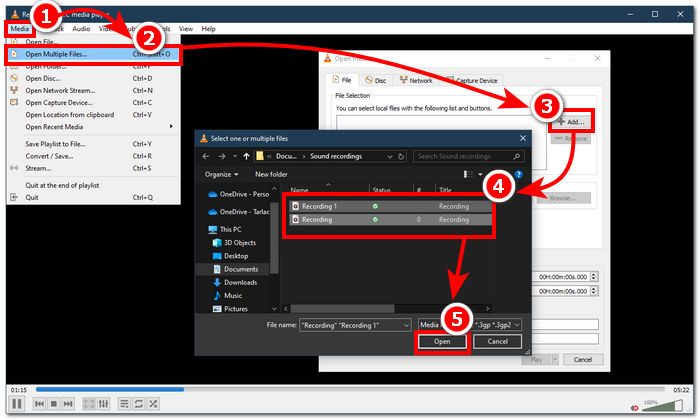
Adım 2. Ana arayüzde, önce oynatıcının sol üst köşesindeki Media > Open Multiple Files seçeneğine tıklayın. Buna tıkladığınızda yeni bir pencere açılacaktır. Devam etmek için + Add düğmesine tıklayın ve birleştirmek istediğiniz M4A dosyalarını seçin.
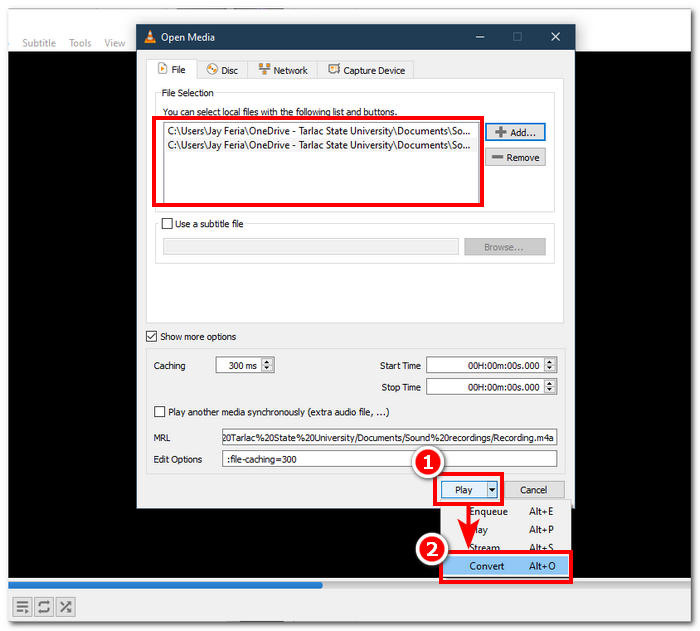
Adım 3. M4A dosyalarınız dosya alanında göründükten sonra, aracın arayüzünün alt kısmında, Play düğmesinin yanındaki aşağı ok simgesine tıklayın ve Convert seçeneğini seçin.
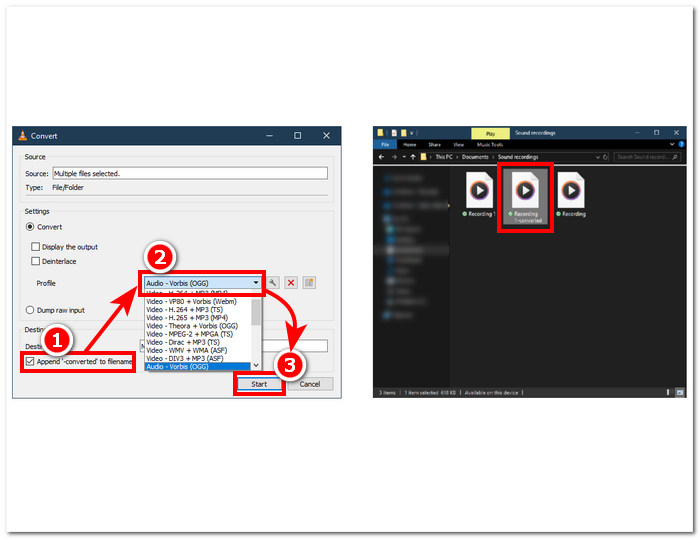
Adım 4. Ardından yeni bir pencere açılacaktır. Dosya adına ‘-converted’ ekle kutucuğunu işaretleyin. Sonra profil ayarlarına giderek Audio seçeneğini seçin. Her şey ayarlandıktan sonra Start düğmesine tıklayın; birleştirilmiş M4A dosyanız, M4A dosyalarınızın bulunduğu klasörde hazır olacaktır.
M4A dosyalarını birleştirirken, bir video dosyasıyla senkronize edebilmek için ses uzunluğunu ayarlamayı unutmayın. Eğer VLC’de ses gecikmesi yaşıyorsanız, şu makale işinize yarayacaktır: VLC ses gecikmesi nasıl düzeltilir.
Sağlanan adımları takip etmek, M4A dosyalarınızı sorunsuz bir şekilde birleştirmenizi sağlar. VLC Media Player, her türlü medya için tipik bir oynatıcı olmakla kalmaz, aynı zamanda bir meta veri düzenleyicisi olarak da kullanılabilir ve yalnızca M4A'yı değil videoları da birleştirebilir.
Bölüm 4. M4A Dosyalarını Çevrimiçi Birleştirin [Küçük M4A Dosyaları İçin]
Daha verimli ve zaman kazandıran bir M4A birleştirme aracı arıyorsanız, çevrimiçi bir araca başvurmak isteyebilirsiniz. M4A dosyalarını çevrimiçi birleştirmek için, çevrimiçi olarak bir sürü yanıltıcı M4A birleştirme aracı olduğu için güvenilir bir araç kullanmak gerekir. Neyse ki, Audio Joiner sizin arkanızda çünkü M4A dosya birleştirme için web tabanlı bir araç. Temel olarak M4A dosyalarınızı web sitesine yükleyerek çalışır ve tek bir tıklamayla ses dosyalarınızı anında birleştirir.
Adım 1. Hizmete erişmek için Audio Joiner’ın resmi web sitesine gidin.
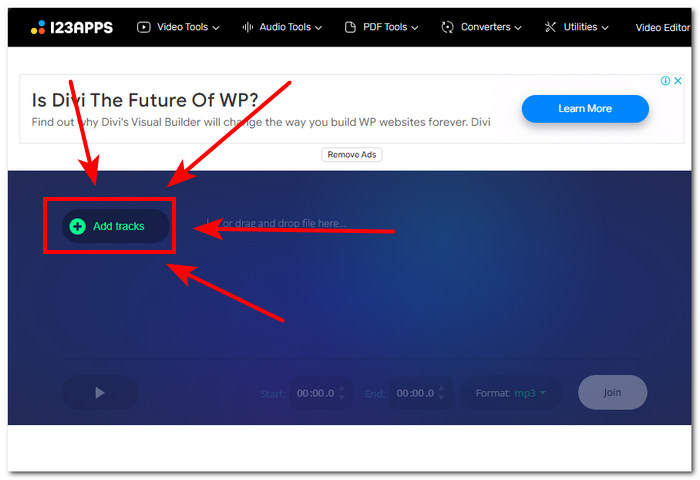
Adım 2. Web sitesinin arayüzüne girdikten sonra, yeşil renkli + Add Tracks düğmesine tıklayın ve birleştirmek istediğiniz M4A dosyalarını seçin.
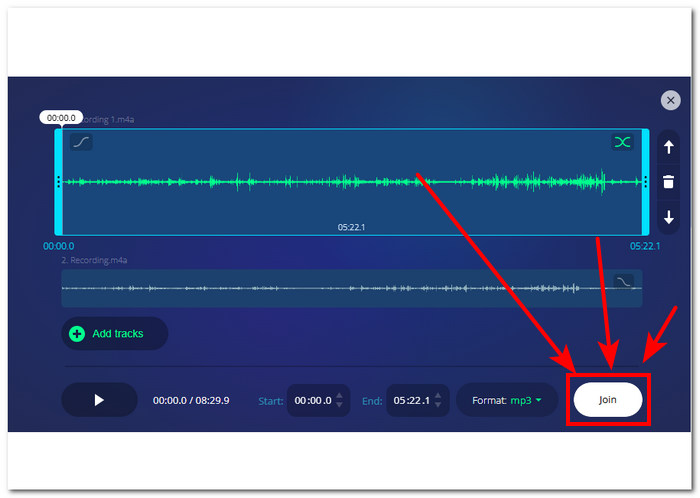
Adım 3. M4A dosyalarınız araca yüklendikten sonra, web sitesinin sağ alt kısmında bulunan Join düğmesine tıklayın ve birleştirme işleminin tamamlanmasını bekleyin.
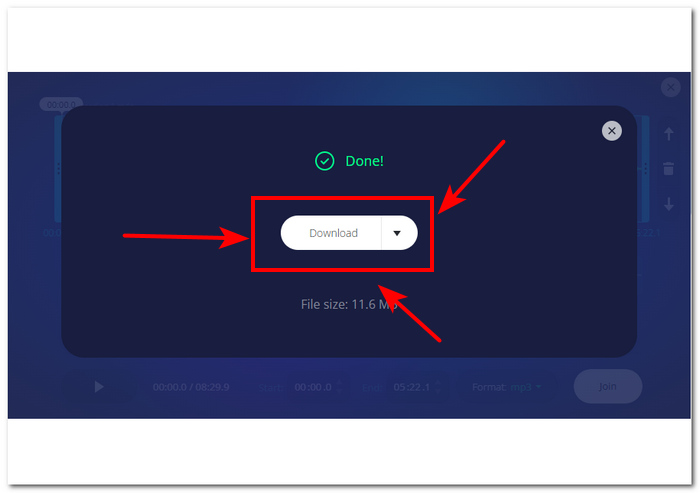
Adım 4. Birleştirme tamamlandığında, ekrandaki Download düğmesine tıklayarak birleştirilmiş M4A dosyanızı masaüstünüze indirip kaydedebilirsiniz.
Yazılım aracı yüklemekle zaman harcamak istemeyen kullanıcılar için kullanışlı olmasına rağmen, bu web tabanlı M4A dosya birleştirme aracı açılır reklamlarla çalışıyor ve ne yazık ki ses dosyalarınızı daha yavaş yüklüyor.
Bölüm 5. M4A Dosyalarının Nasıl Birleştirileceğine Dair SSS
Ses dosyalarını birleştirmenin en kolay yolu nedir?
M4A dosyalarını birleştirmenin en kolay yolu, tek bir tıklamayla anında ses dosyalarını birleştirme olanağı sunan çevrimiçi araçlara güvenmektir. Ancak, bu tür araçları kullanırken dikkatli olun, çünkü bazı riskler söz konusudur.
GarageBand'de parçaları birleştirme komutu nedir?
GarageBand'de bir parçayı birleştirmenin klavye kısayolu Command + J tuşlarına aynı anda basmaktır.
Şarkıları mikslemek için Windows Media Player'ı kullanabilir misiniz?
Ne yazık ki Windows Media Player'da şarkıları karıştırmanıza veya birleştirmenize yardımcı olacak bu tür özellikler veya yerleşik işlevler henüz bulunmuyor.
M4A dosyalarını kalite kaybı yaşamadan birleştirmenin bir yolu var mı?
Evet, kaliteyi kaybetmeden M4A'yı birleştirmenin birçok yolu var. Bazı araçların bunun için belirlenmiş bir ayar ayarı vardır ve bazıları da her seferinde doğrudan yüksek kaliteli bir dışa aktarma sunar, FVC tarafından seçilen Video Converter Ultimate gibi.
Akıllı telefonumda M4A dosyalarını birleştirebilir miyim?
Evet, M4A dosya birleştirmeleri masaüstü ve web tarayıcılarının yanı sıra mobil cihazlarda da mevcuttur. GarageBand masaüstü sürümünün mobil sürümünü sunar, ancak bu yalnızca iOS cihazlarda kullanılabilirken WavePad mobil hem iOS hem de Android'de kullanılabilir.
Sonuç
M4A parçalarını birleştirmeyi bilmek, ses düzenlemeyi öğrenirken sahip olunması harika bir beceridir. Projelerinizi kırpmanıza ve düzenlemenize yardımcı olarak, aynı anda saçma derecede fazla sayıda parça açık olmasının önüne geçer. M4A dosyalarını etkili biçimde birleştirmek için kullanıcıların bu işi halletmelerine yardımcı olacak güvenilir yazılımlara veya çevrimiçi araçlara ihtiyaçları olabilir. Bu nedenle, başlamanız için sunduğumuz adımları takip etmek, daha gelişmiş kayıt platformlarına geçmeden önce edinilmesi yararlı bir beceriyi ustalıkla kazanmanıza yardımcı olabilir.
-
 M4A'yı 4 Ücretsiz Ses Dönüştürücüsü ile MP3'e Dönüştürme
 M4A çalamıyor ve MP3'e dönüştürmeniz mi gerekiyor? M4A'yı MP3'e çevrimiçi olarak dönüştürmenin ücretsiz bir yolu var mı? Bu gönderi, M4A'yı iTunes, çevrimiçi ve profesyonel ses dönüştürücülerle MP3'e dönüştürmenize yardımcı olacak 4 ücretsiz yolu paylaşıyor.
-
 MP3 Çalar İndir - 2021'in En İyi 10 Ücretsiz MP3 Müzik Çaları
 En iyi MP3 müzik çalar hangisidir? MP3 çalara nasıl müzik koyarım? MP3 müzik çaları nasıl indirebilirim? Bu gönderi size Windows PC ve Mac için en iyi 10 ücretsiz MP3 oynatıcının ayrıntılı bir incelemesini sunar.
-
 MP4 Dosyalarını Yüksek Görsel Kalitede Oynatmak için En İyi MP4 Oynatıcınızı Edinin
 En son 10 MP4 video oynatıcı yazılımının önerilerinden en iyi MP4 oynatıcınızı okuyun ve edinin. MP4 video dosyalarını Windows ve Mac'te gecikmeden sorunsuz bir şekilde oynatabilirsiniz.
