


 Video Dönüştürücü Ultimate
 Ekran kaydedicisi
 Video Onarımı
 Güvenli İndirme
iMovie'de Ses Nasıl Kırpılır: iPhone ve Mac İçin Eğitim
iMovie, Apple tarafından geliştirilen ve iPhone ile Mac için sunulan ücretsiz bir video/ses düzenleme yazılımıdır; kullanıcıların medya projelerini sorunsuz bir şekilde düzenleyip üretmelerine olanak tanır. Apple kullanıcıları ellerindeki belirli bir ses dosyasını düzenlemek, kırpmak veya içinden bölümler kesip çıkarmanın yollarını aradığında, bunun için bir yazılım kullanmaları gayet yerindedir. Birçoğu iMovie’nin ses kesme ve kırpma görevlerinde de kullanılabildiğini bilmez; bu nedenle, bu kılavuzu adım adım takip etmek, sizin gibi kullanıcıların iMovie’de ses kesme işlemini sorunsuz bir şekilde gerçekleştirmesine yardımcı olacaktır.

Bölüm 1. iMovie'de Ses Nasıl Kırpılır
iPhone
iMovie'de müzikleri iPhone kullanarak kırpmak, Mac kullanmaktan daha kolaydır. iMovie'nin mobil versiyonu hafif ve anlaşılırdır ve kullanıcıların mobil uygulamada birkaç dokunuşla ses dosyalarını kırpmalarına olanak tanıyan kusursuz bir işlem sağlar. Mac versiyonuyla karşılaştırıldığında anlaşılır olduğu kadar, video ve ses düzenlemede sınırlı özelliklere sahiptir.
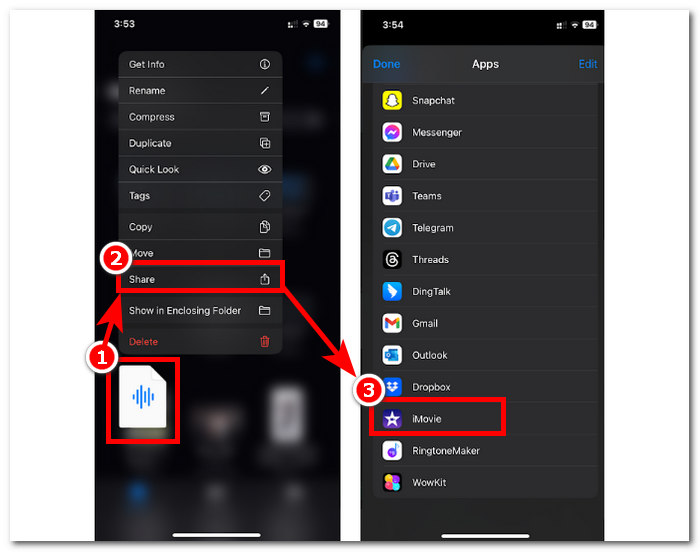
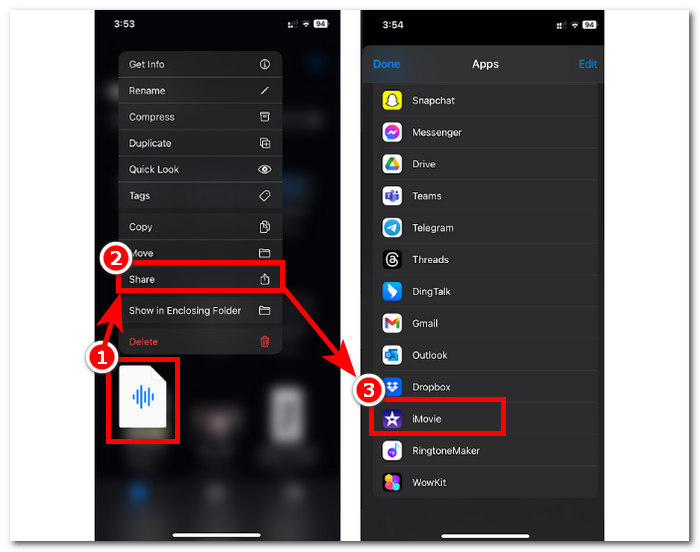
Adım 1. Dosyalar uygulamasına gidin, kırpmak istediğiniz ses dosyasına uzun basın, Paylaş’a dokunun ve iMovie uygulamasında açın. Eğer bir kaydı kesmek istiyorsanız önce ses dosyasını iMovie’de kaydedin.
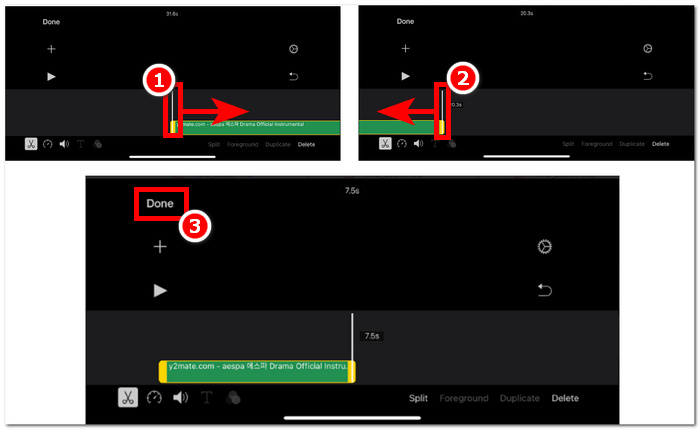
Adım 2. Ses dosyanızı kırpmak için zaman çizelgesinde ses dosyanızın başlangıç ve bitiş kısımlarına gidin; her iki tarafta da kırpma çubuklarını göreceksiniz. Kırpma çubuklarını soldan ve sağdan, sesinizin kırpılmış hâlinden memnun kalana dek sürüklemeniz yeterlidir. İşlemi tamamladığınızda, devam etmek için üstteki Bitti düğmesine tıklayın.
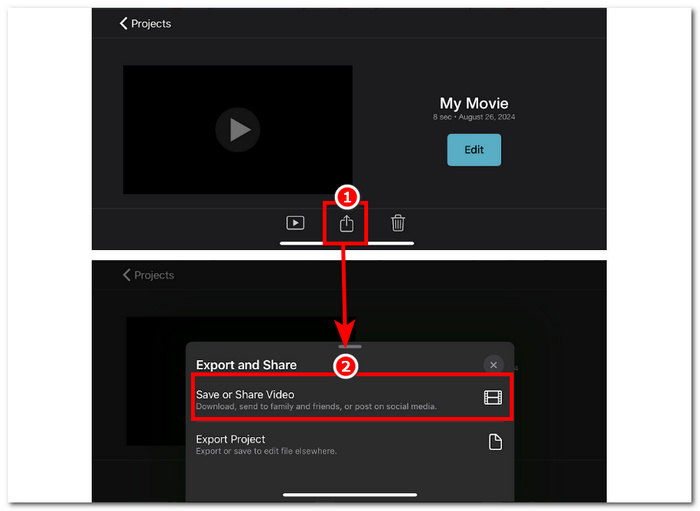
Adım 3. Son olarak, uygulamanın alt orta kısmındaki Paylaş simgesine tıklayın ve kaydetme işlemine geçin.
Mac
iMovie'de müzik nasıl kırpılır? Kullanıcılar, Mac cihazlarında iMovie kullanarak ses kliplerini kırpma seçeneğine sahiptir. iMovie'nin Mac sürümünü kullanarak bir ses dosyasını kırpmak, kullanıcıların çeşitli ses düzenleme özelliklerine erişmesini sağlar; bu durumda, mobil sürümünde bulunmayan bir klip kırpıcının kullanımı. Bu klip kırpıcı, kırpma çubuklarının soldan ve sağdan sorunsuz bir şekilde sürüklenerek anında kırpma oluşturmasını sağlar. Bunu etkili bir şekilde yapmak için aşağıdaki adımları izlemelisiniz.
Adım 1. Mac’inizde iMovie yazılımını açın ve ses dosyanızı ekleyin ya da zaman çizelgesine sürükleyin.
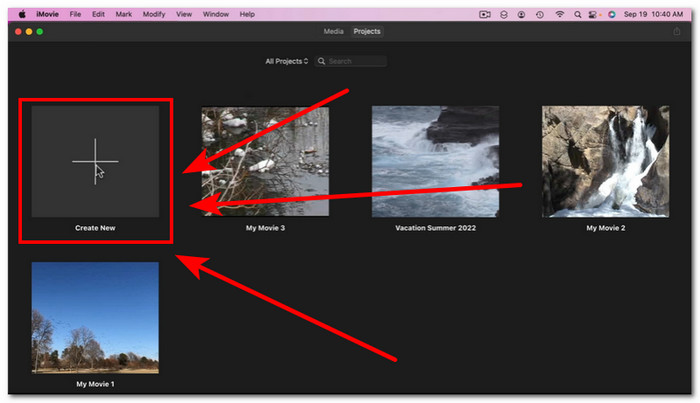
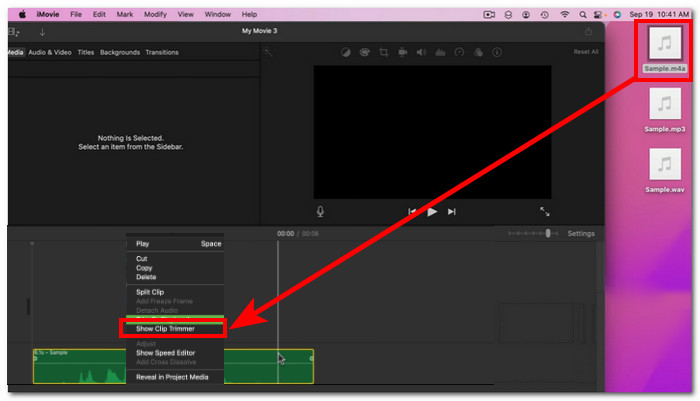
Adım 2. Dosya yazılımda yüklendikten sonra, ses dosyanızın üzerine sağ tıklayın ve Klip Kırpıcıyı Göster menüsüne tıklayın.
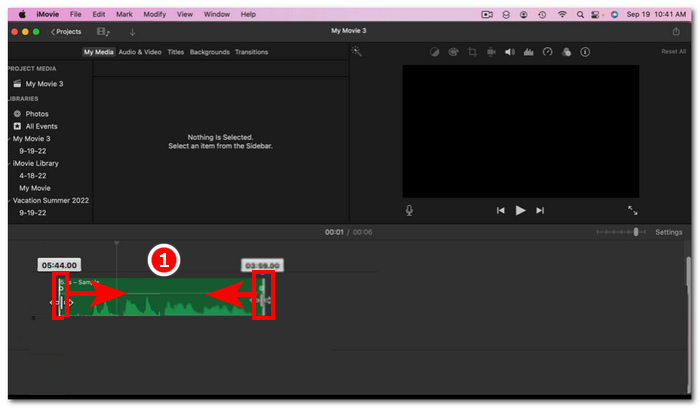
Adım 3. Buna tıkladıktan sonra, sesinizi kırpmak için ses dosyanızın her iki ucunda bulunan kırpma çubuklarını sürükleyin.
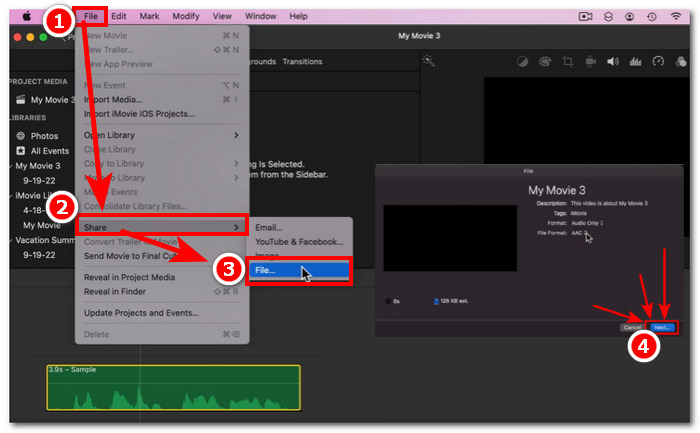
Adım 4. Kırpma işlemini bitirdiğinizde, dosyayı kaydetmek için yazılımın sol üst kısmındaki Dosya menüsüne tıklayın ve şu yolu izleyin: File > Share > File > Next ve böylece dosyayı Mac’inize kaydedin. iMovie yalnızca Mac bilgisayarlarda kullanılabilir.
Böyle bir kırpma özelliğine sahip Windows için iMovie kullanmanız gerekiyorsa, buradan inceleyin.
Bölüm 2. iMovie'de Sesin Bazı Bölümlerini Nasıl Kesersiniz
iPhone
iMovie'de müzik nasıl kesilir? iPhone'daki iMovie'yi kullanarak müzik veya sesteki belirli bölümleri kesmek için zaman çizelgenizde kaldırmak veya kesmek istediğiniz belirli bölümlere gidin. Daha sonra zaman çizelgesindeki bölümleri kolayca kaldırmak için özel silme düğmesini kullanarak silin.
Adım 1. Bir ses dosyasını kırpmak için, Dosyalar uygulamasında dosyanın üzerine uzun basın. Ardından Paylaş düğmesine dokunun ve dosyayı iMovie uygulamasında açmak için iMovie’yi seçin.
Adım 2. Ses dosyanızı kesmek istediğiniz kısma gidin, ardından ekranınızın sol alt kısmındaki makas simgesine dokunarak ses dosyasını iki parçaya ayırın. Artık zaman çizelgenizde iki bölüm olacaktır. İhtiyacınız olmayan kısmı seçin ve kesmek için Sil düğmesine tıklayın.
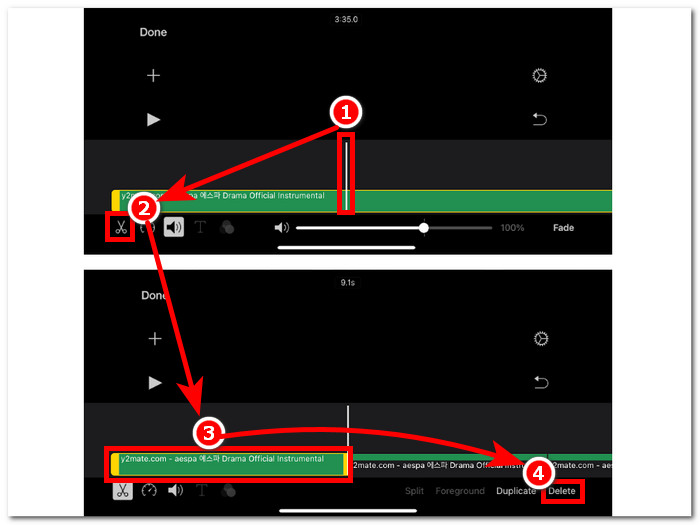
Adım 3. Ses dosyanızdan gereksiz tüm bölümleri kaldırdıktan sonra, ekranınızın sol üst köşesindeki Bitti düğmesine tıklayın.
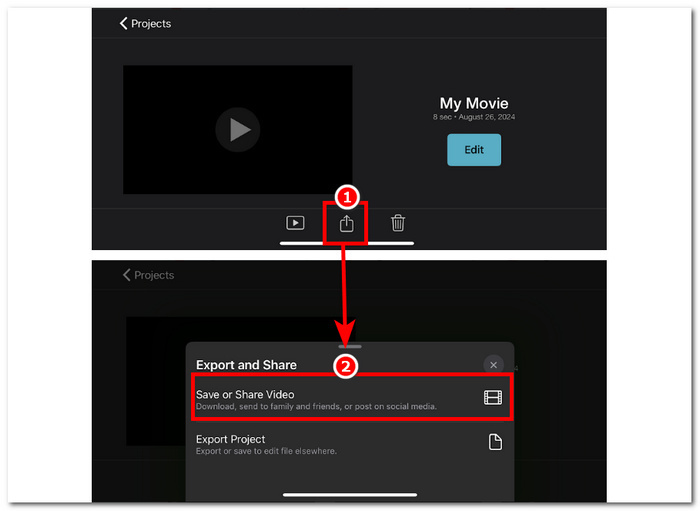
Adım 4. Dosyanızı Paylaş simgesine tıklayıp ardından Videoyu Kaydet veya Paylaş seçeneğine dokunarak kaydedin.
Mac
iMovie kullanarak ses dosyanızın belirli kısımlarını kesmek kolaydır, çünkü aracın temel işlevlerine dayanır: Split Clip özelliğini birleştirme ve silme. Bunu yapmanın en kolay yolları aşağıdadır.
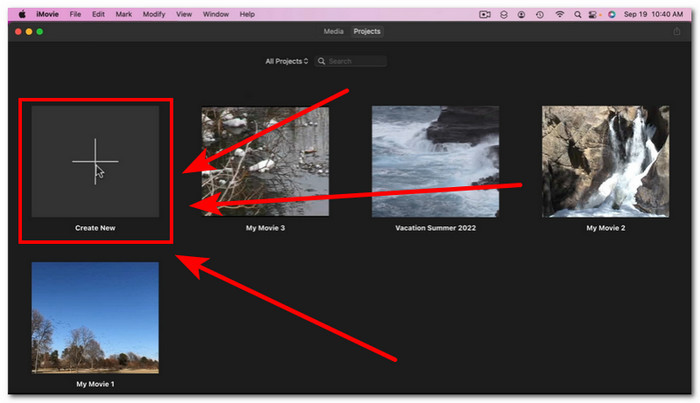
Adım 1. Mac’inizde iMovie uygulamasını açın ve kesmek istediğiniz ses dosyasını açmak için + düğmesine tıklayın.
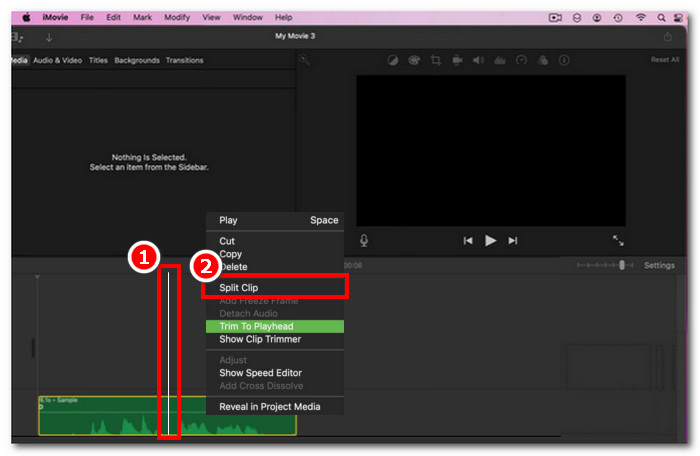
Adım 2. Ses dosyanız yazılıma aktarıldıktan sonra, sesinizin kesmek istediğiniz kısmına gidin, sağ tıklayın ve Klibi Böl seçeneğini seçin.
Adım 3. Ses dosyası bölündükten sonra, artık ihtiyaç duymadığınız kısımları sağ tıklayıp Sil seçeneğini kullanarak silin veya kesin.
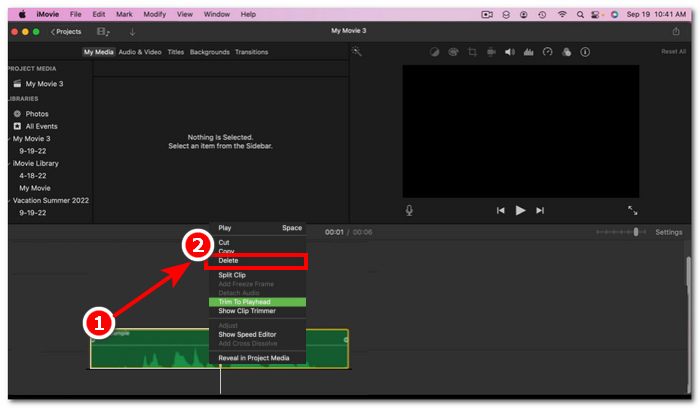
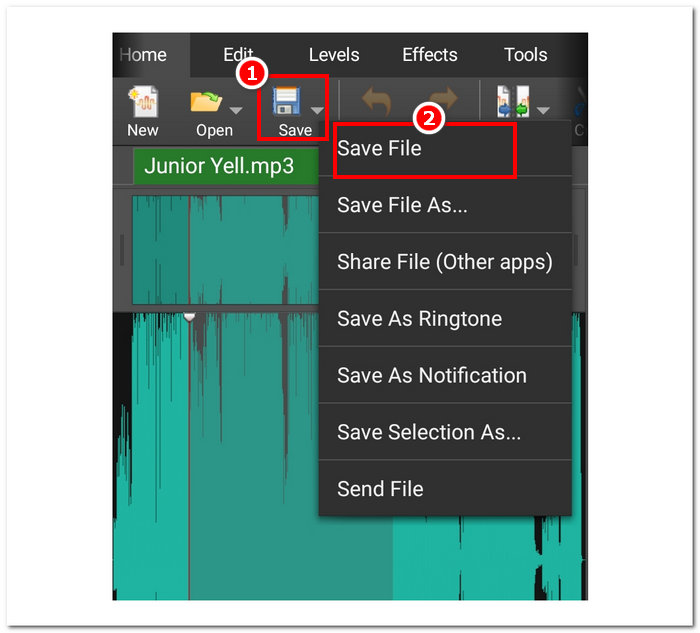
Adım 4. Böylece sesinizde istemediğiniz kısmı kesmiş oldunuz. Dosyanızı File > Share > File yolunu izleyerek kaydedin, ardından Mac’inize kaydetmek için İleri’ye tıklayın.
Bölüm 3. Sesi Kesmek İçin En İyi iMovie Alternatifi
iMovie, ses dosyalarını kesme veya kırpma işlemlerinde gayet iyi çalışsa da, hatalarla karşılaşırsanız veya iMovie herhangi bir nedenle çalışmayı durdurursa kullanabileceğiniz en iyi alternatif yazılım aracını bulduk. FVC tarafından seçilen Video Converter Ultimate, yalnızca bir ses kesici veya kırpıcı olarak değil, aynı zamanda iMovie’ye benzer şekilde video için de kullanılabilen mükemmel bir araçtır. Ayrıca düzenleme aracı sunar, sesi keser ve çıktı formatını düzenlemenize imkân tanır. Böylece, diğer yazılım araçlarının çoğunda olduğu gibi yalnızca temel kırpma veya kesme işlemlerinin ötesine geçer; benzersiz bir işleme hızına sahipken aynı zamanda kayıpsız ses kalitesi de sağlar.
Adım 1. Bilgisayarınızda FVC tarafından seçilen Video Converter Ultimate yazılımını indirin ve açın. Yazılım arayüzünde, kırpmak veya içinden belirli kısımları kesmek istediğiniz ses dosyasını yüklemek için Dosya Ekle seçeneğine tıklayın.
Ücretsiz İndirWindows 7 veya üstü içinGüvenli İndirme
Ücretsiz İndirMacOS 10.7 veya üstü içinGüvenli İndirme
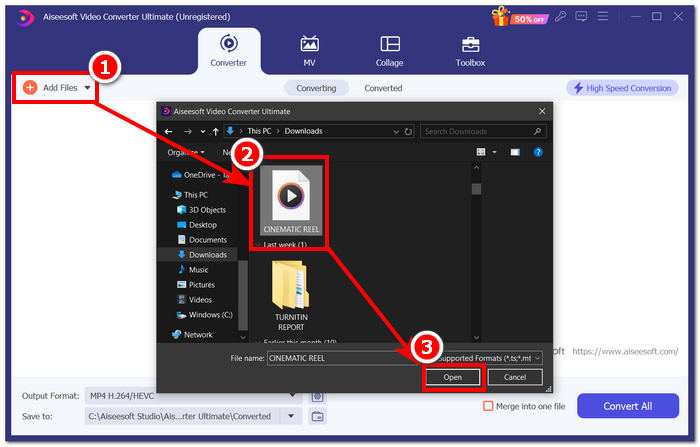
Adım 2. Yazılımın kesme ve kırpma özelliklerine erişmek için makas simgesine tıklayın.
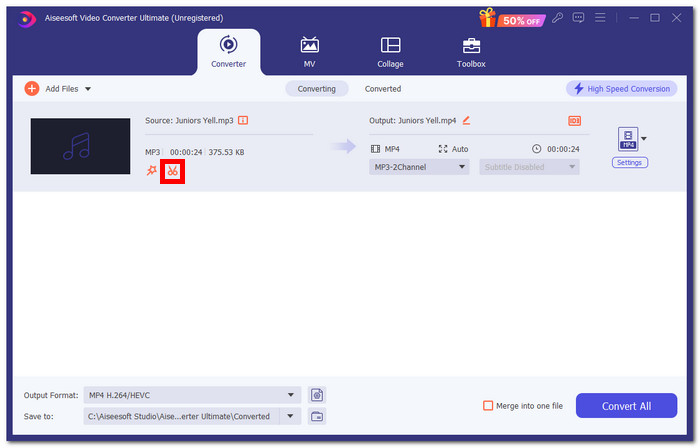
Adım 3. Yazılımın sunduğu özellikleri kullanarak ses dosyasını kesmek veya kırpmak için, yalnızca saklamak istediğiniz kısımlara kadar kırpma çubuklarını hareket ettirin.
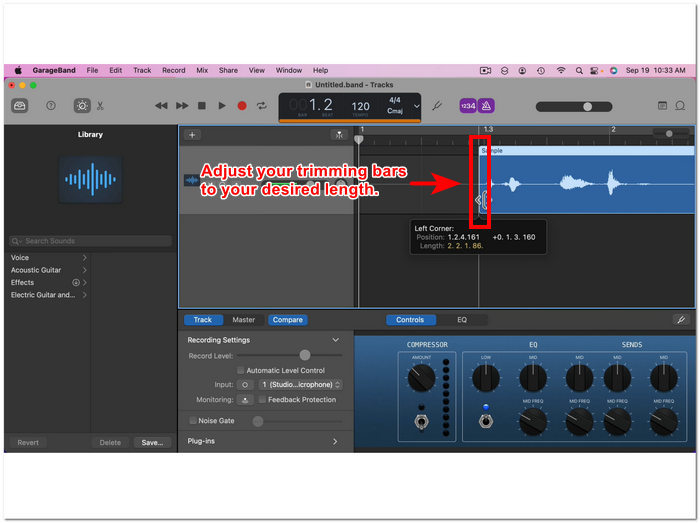
Trimming barların dışında kalan kısımlar ses dosyanızı kısaltmak için çıkarmanız gereken kısımlardır.
Adım 4. Son olarak, yeni ve daha kısa ses dosyanızı kaydetmek için Tümünü Dönüştür düğmesine tıklayın; böylece değişiklikler kaydedilir ve bilgisayarınızda ayrılmış klasöre kaydedilmiş olur.

Bölüm 4. iMovie'de Ses Nasıl Kesilir Hakkında SSS
iMovie'de sesin bir kısmını nasıl seçersiniz?
Ses dosyanızı birçok parçaya böldüğünüzde, zaman çizelgenizde bulunan sesin belirli parçalarına dokunarak veya tıklayarak bir parça seçebilirsiniz. Seçtiğiniz parçanın etrafında sarı bir kenarlık olduğunda, bu o parçayı seçtiğiniz anlamına gelir.
iMovie sesimi neden kesiyor?
iMovie videonuzun bir kısmını aniden keserse, bu sesinizin uzunluğunun iMovie'nin maksimum ses uzunluğunu aştığını gösterebilir. Bu kılavuzu yazarken, bir kullanıcının iMovie yazılımına aktarabileceği maksimum ses uzunluğu bir saat on dakikadır.
Quicktime'da sesi kesebilir misiniz?
Evet, kullanıcılar QuickTime kullanarak ses dosyalarını kırpabilirler. Bunun için ses dosyalarını oynatıcıya yükleyip, oynatıcı arayüzünün üst kısmındaki Düzenle menüsüne tıklayıp, Kırpma bölümüne gitmeniz gerekir.
Sonuç
Apple'ın kendi iMovie yazılımı sayesinde, bir ses dosyasında belirli kısımları kesmek ve kırpmak basit ve kolaydır. Video düzenleme yazılımı olarak bilinmesine rağmen, kırpma ve kesme gibi ses düzenleme görevlerini sorunsuz bir şekilde yapmayı bir şekilde başarabilir. Elbette, iOS ve macOS kullanıcıları, iMovie'nin ses düzenleme görevlerinde sunduğu özellikleri en üst düzeye çıkarmayı bilirler; ancak, yazılımın gelecekte bir sorun çıkarması durumunda, hepsi bir arada FVC tarafından seçilen Video Converter Ultimate'ı kullandığınızdan emin olmakta fayda var.
-
 MPEG-4 Dosyaları Çevrimiçi Nasıl Sıkıştırılır - İndirme Yok, Filigran Yok
 Tüm MPEG-4 dosyalarınızı saklamak için yeterli dosya depolama alanınız yok mu? İşte video dosyalarınızı küçültmenize yardımcı olabilecek bazı çözümler.
-
 VOB Dosyaları Çevrimiçi ve Ücretsiz Nasıl Sıkıştırılır [İndirme Yok]
 VOB dosyalarını sıkıştırmak için yöntemler mi arıyorsunuz? Bu makaleden VOB dosyalarını küçültmenin en iyi yolunu öğrenin.
-
 Kaliteyi Kaybetmeden Bir OGV Dosyası Nasıl Sıkıştırılır
 Büyük OGV dosyalarını başkalarına gönderemiyor musunuz? Bu makale, OGV dosyalarını kolayca sıkıştırmanıza yardımcı olacak 2 kolay yolu tanıtacaktır.
