


 Video Dönüştürücü Ultimate
 Ekran kaydedicisi
 Video Onarımı
 Güvenli İndirme
WMA Dosyalarını Kolayca Düzenlemenin 3 Nihai Yöntemi [2024]
WMA dosyaları, yani Windows Media Audio dosyaları, dosya boyutlarını makul düzeyde tutarken yüksek ses kalitesi sunan, ses sıkıştırma için popüler bir formattır. Bu dosyaları düzenlemek göz korkutucu görünebilir; bu da, dosyayı değiştirmesi gereken bazı kullanıcılar için yaygın bir sorundur. Ancak doğru araçlar ve tekniklerle bu tür dosyaları düzenlemek çocuk oyuncağıdır. Bu rehberde, Windows, macOS ve çevrimiçi platformlar da dahil olmak üzere farklı platformlarda WMA dosyalarını düzenlemenin üç etkili yöntemini adım adım anlatacağız. İster bu işe yeni başlayan biri olun ister deneyimli bir ses düzenleyici, bu makalede ihtiyaçlarınıza mükemmel bir çözüm bulacaksınız.

Bölüm 1: Windows 11/10/8/7 ve macOS'ta WMA Dosyalarını Düzenlemek İçin Kolay Adımlar
Windows ve macOS’ta WMA dosyalarını düzenlemenin en kolay yolu, FVC tarafından seçilmiş Video Converter Ultimate aracını kullanmaktır. Bu hepsi bir arada araç, WMA dahil olmak üzere çeşitli ses formatlarını destekler; bu nedenle WMA dosyalarını düzenlemek için en iyi seçeneklerden biridir. Ayrıca son derece kullanıcı dostu ve sezgisel bir arayüze sahiptir; bu da onu yeni başlayanlar için bile erişilebilir kılar. Kullanıcılar seslerini sıkıştırabilir, ses seviyesini artırabilir ve gürültü engelleme uygulayabilir; böylece tüm ses düzenleme ihtiyaçlarınız için eksiksiz bir çözüm sunar.
Adım 1. Windows veya macOS bilgisayarınıza Video Converter Ultimate’ı kurun.
Ücretsiz İndirWindows 7 veya üstü içinGüvenli İndirme
Ücretsiz İndirMacOS 10.7 veya üstü içinGüvenli İndirme
Adım 2. Düzenlemek istediğiniz WMA dosyalarını içe aktarmak için Dosya Ekle düğmesine tıklayın.
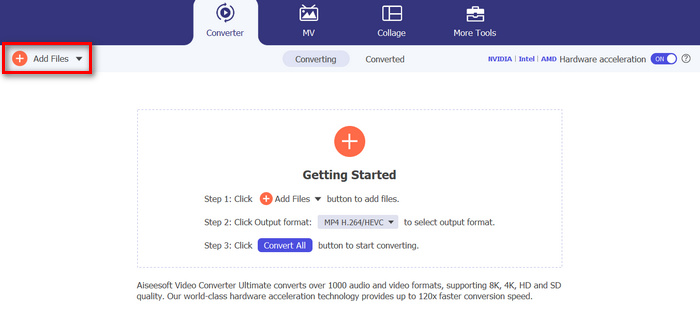
Adım 3. Ardından, Kes düğmesine tıklayın. Bu işlem, WMA dosyalarını bölebileceğiniz, kesebileceğiniz, ses geçişi (fade) ekleyebileceğiniz ve daha fazlasını yapabileceğiniz başka bir pencereye götürecektir.
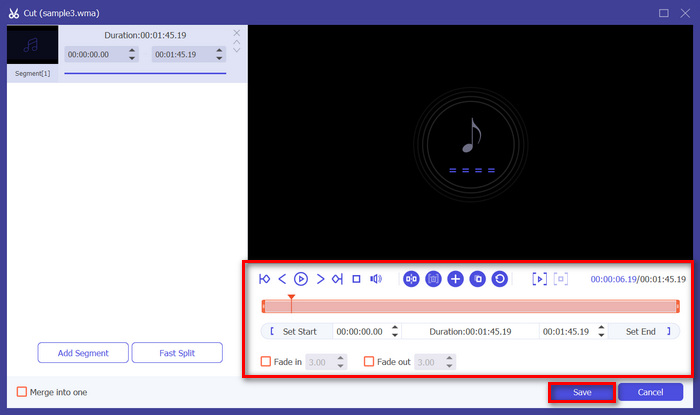
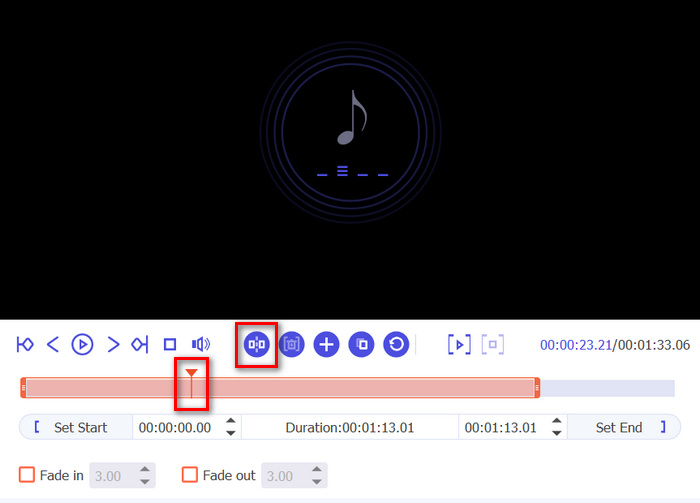
Adım 4. Ses dosyalarını bölmek istiyorsanız, kırmızı çizgiyi parça üzerinde bölmek istediğiniz kısma getirin ve Böl düğmesine tıklayın. Bir ses parçasının bir bölümünü kesmek için de aynı yöntemi kullanabilirsiniz.
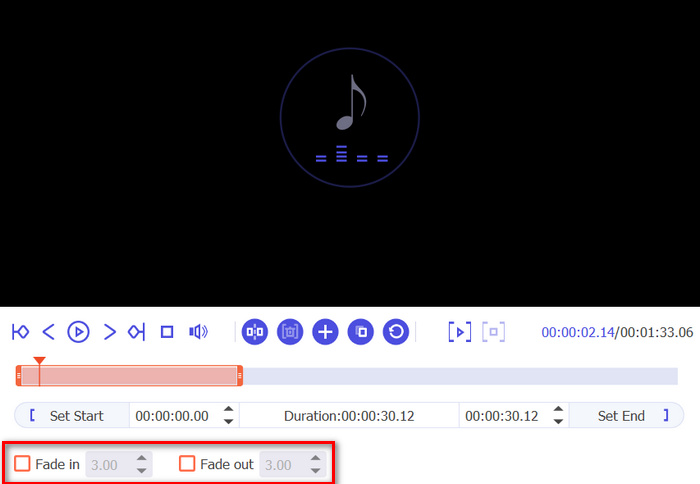
Adım 5. Ayrıca sesinizi yumuşak geçişli başlatmak veya bitirmek (fade in / fade out) isterseniz, Giriş Geçişi (Fade in) ve Çıkış Geçişi (Fade out) seçeneklerine tıklayın, alttaki kutuyu işaretleyin ve WMA ses dosyalarınızda giriş ve çıkış geçişlerinin ne zaman başlayıp biteceğini ayarlayın.
Adım 6. Bu arada, ses seviyesini yükseltmek veya gecikmeler eklemek isterseniz, Düzenle düğmesine tıklayın ve oradan ilgili seviyeleri ayarlayarak bu özellikleri düzenleyebilirsiniz.
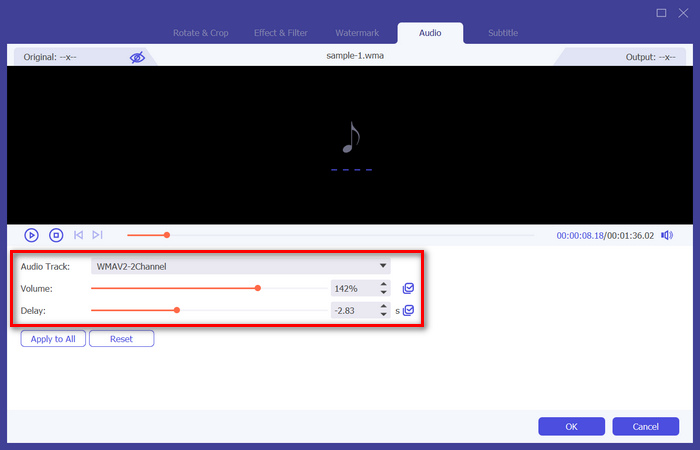
Adım 7. İşiniz bittiğinde Kaydet düğmesine tıklayın. Ardından WMA dosyalarınızı burada önizleyebilirsiniz; her şey istediğiniz gibi olduğunda Tümünü Dönüştür düğmesine tıklayın.
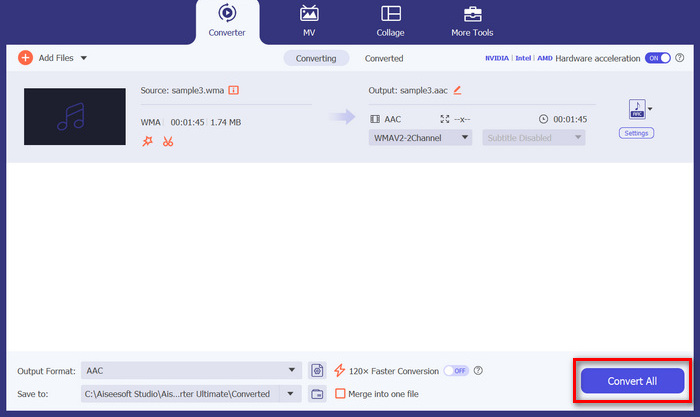
WMA dosyalarını düzenlemek için, işlevselliği ve kullanım kolaylığını birleştiren güvenilir bir araca sahip olmak gerçekten önemlidir. Video Converter Ultimate, kapsamlı düzenleme özellikleri ve yüksek kaliteli çıktısı nedeniyle harika seçeneklerden biridir. Çeşitli ses formatlarını işleme yeteneği çok yönlülüğü garanti eder ve onu tüm ses düzenleme ihtiyaçlarınız için tek duraklı bir çözüm haline getirir. Ayrıca, hızlı işleme hızı zamandan tasarruf sağlarken, sezgisel arayüzü tüm beceri seviyelerindeki kullanıcılar için sorunsuz bir düzenleme deneyimi garanti eder. İster temel düzenlemeler yapın ister daha karmaşık değişiklikler, bu araç WMA dosyalarınızı geliştirmek için güçlü ancak basit bir platform sağlar.
Bölüm 2: Audacity'de WMA Dosyalarını Düzenleme
Audacity, WMA dosyalarını düzenlemek için de harika bir araçtır. Bu araç kullanımı ücretsizdir ve birçok ön ödemeli araç kadar iyidir. Bu aracı, keserek, birleştirerek ve çok daha fazlasını yaparak herhangi bir ses dosyasını düzenlemek için kullanabilirsiniz. İsterseniz WMA dosyalarınızdan gürültüyü veya vokalleri bile kaldırabilirsiniz. Ancak, bu uygulama bazı kullanıcılar için çok karmaşık olabilir, ancak yine de bu araç WMA dosyalarını işlemede harikadır.
Adım 1. Önce, WMA dosyalarınızı aracın zaman çizelgesine sürükleyerek içe aktarmanız gerekir.
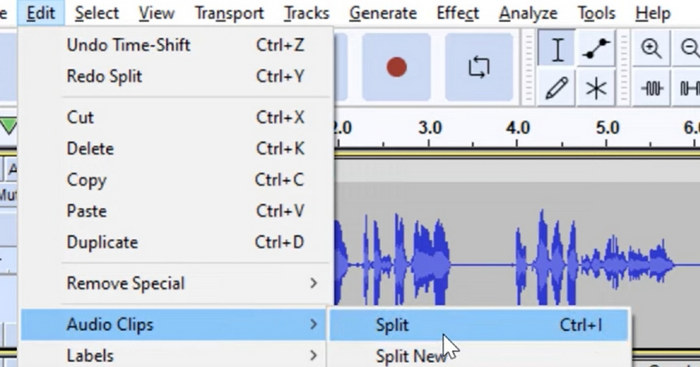
Adım 2. WMA dosyalarınızı düzenlemek için Düzenleme aracına tıklayın. Bu araçla dosyalarınızı bölebilir, kesebilir veya daha birçok işlem yapabilirsiniz.
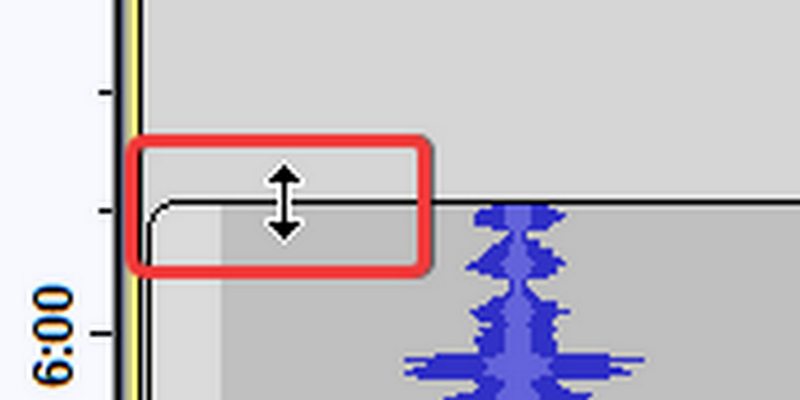
Adım 3. WMA dosyalarını kırpmak için, imlecinizi klibin sol veya sağ kenarının üst üçte birlik kısmına getirin.
Adım 4. Öte yandan, WMA dosyalarınızı bölmek istiyorsanız, parçayı bölmek istediğiniz yerin üzerine tıklayın, sağ tıklayın ve Klibi Böl seçeneğine tıklayın.
Adım 5. WMA dosyalarınızı düzenlemeyi bitirdiğinizde, Dosya sekmesine gidin ve düzenlenmiş dosyanızı dışa aktarmak için Projeyi Kaydet seçeneğini seçin.
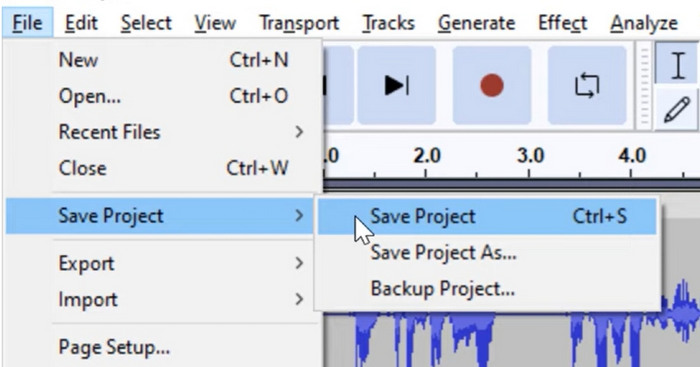
Audacity, WMA dosyalarını düzenlemek için harika bir araçtır. Tek olumsuz yanı, yeni kullanıcılar için karmaşıklığı ve cihazlar için sistem gereksinimidir; bu da diğer araçlara kıyasla genel performansını yavaşlatabilir.
Bölüm 3: WMA Dosyalarını Çevrimiçi Düzenleyin
Apps123, WMA dosyaları da dahil olmak üzere multimedya dosyalarını düzenlemek için bir araç takımı sunan çevrimiçi bir platformdur. Bu web tabanlı hizmet, kullanıcıların yazılım indirmeye veya yüklemeye gerek kalmadan doğrudan tarayıcılarından çeşitli ses düzenleme görevlerini gerçekleştirmelerine olanak tanır. Bu araçla kullanıcılar, sesi kırpma, ses seviyesini değiştirme, hızı, perdeyi değiştirme ve daha fazlası gibi özellikleri kullanarak WMA dosyalarını düzenleyebilir.
Bu aracı kullanmak için:
Adım 1. Resmi web sitelerine gidin.
Adım 2. Ana arayüzlerinde, Ses araçlarına tıklayın ve WMA dosyalarınız için kullanmak istediğiniz düzenleme özelliğini seçin.
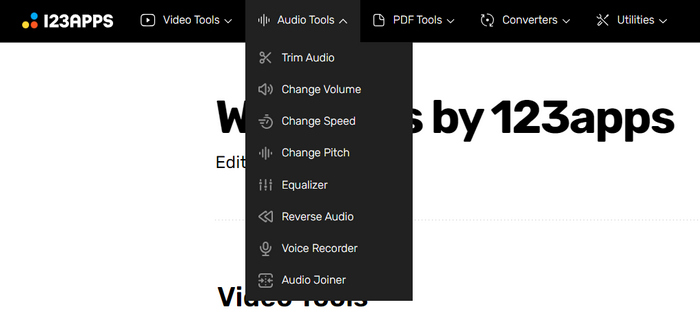
Adım 3. Buradan sesi kırpma, ses seviyesini, hızı, tonu değiştirme, sesleri birleştirme ve daha fazlasını yapabilirsiniz. Bu özellikleri kullanmak için, kullanmak istediğiniz ilgili ses düzenleme aracına tıklayın ve WMA dosyasını içe aktarın.
Adım 4. Ardından ekrandaki talimatları izleyin.
Adım 5. Son olarak, düzenlenmiş WMA dosyanızı dışa aktarmak için Kaydet düğmesine tıklayın.
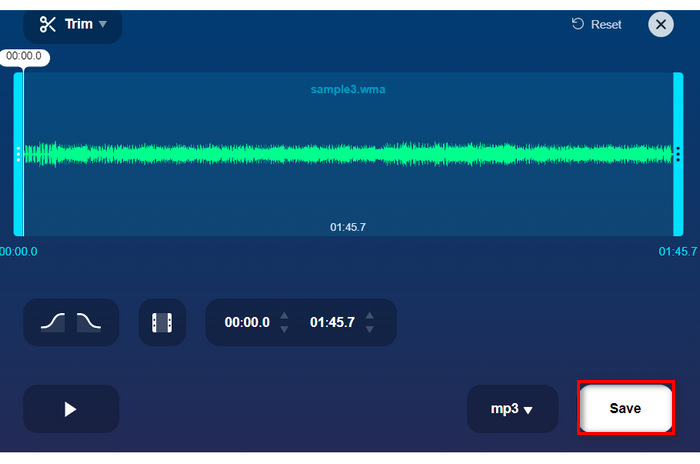
Apps123 gibi bir çevrimiçi araç kullanmak WMA dosyalarını düzenlemenin rahat bir yolunu sunar ve aralarından seçim yapabileceğiniz birçok özellik vardır. Ancak, bu düzenleme özelliklerinin hepsini aynı anda uygulayamazsınız, çünkü bunlar çeşitli işlevlerine göre ayrı ayrı oluşturulmuştur. Ayrıca, içe aktarma ve işleme hızı zaman alır. Belki diğerleri için bu bir sorun değildir, ancak bazıları için hız ve verimlilik önemlidir. Yine de, bu araç WMA dosyalarını düzenlemek için çevrimiçi bir yöntem arayan kullanıcılar için harika bir alternatiftir.
Bölüm 4: WMA Dosyalarını Düzenleme Hakkında SSS
WMA Mac ile çalışır mı?
Evet, WMA dosyaları Mac işletim sistemleriyle uyumludur. Ancak bazı varsayılan Mac uygulamaları ek eklentiler veya üçüncü taraf yazılımlar olmadan WMA oynatmayı desteklemeyebilir.
WMA dosyalarını hangi programla açabilirim?
WMA dosyaları farklı platformlardaki çeşitli programlarla açılabilir. Mac kullanıcıları için Audacity, VLC Media Player veya QuickTime gibi ek eklentilere sahip uygulamalar WMA dosyalarını işleyebilir. Windows'ta, Windows Media Player gibi yerel programlar, VLC ve Audacity gibi üçüncü taraf seçenekleriyle birlikte WMA dosyalarını açabilir.
Hangi uygulama WMA'yı WAV'a dönüştürür?
Makalede bahsedilen Video Converter Ultimate gibi WMA'yı WAV'a dönüştürmek için çeşitli uygulamalar mevcuttur. Bu araç, basit bir arayüz sunar ve kolaylık için toplu dönüştürmeyi destekler.
Sonuç
Özetle, güvenilir bir WMA düzenleme aracına duyulan ihtiyaç büyüktür; çünkü diğer bazı araçlar veya platformlar bu dosya formatını desteklemez. Bu nedenle, bu makalede bahsedilen Video Converter Ultimate, Audacity ve Apps123 gibi araçları kullanmak, tercihlerinize ve ihtiyaçlarınıza göre WMA dosyalarını düzenlemek için farklı yöntemler ve özellikler sunar. Öyleyse ne bekliyorsunuz? Bu araçlardan herhangi birini hemen deneyin ve dosyalarınızı zahmetsizce düzenleyin.
-
 Çekimlerinizi İyileştirecek En İyi 5 AI Video Düzenleyici
 En iyi AI video düzenleyicimiz olan video düzenleme teknolojisinin zirvesiyle tanışın. Yapay zeka destekli araçlarla videoları düzenlerken yaratıcılığı ve verimliliği kusursuz bir şekilde birleştirin.
-
 Çevrimdışı ve Çevrimiçi Kullanıcılar için Etkili Ses Kompresörleri
 Büyük ses dosyalarıyla ilgili sorun mu yaşıyorsunuz? Çevrimdışı ve çevrimiçi kullanıcılar için birçok ses dosyası sıkıştırıcı mevcuttur. Onlara buradan göz atın.
-
 Windows, Mac ve Mobil Cihazlarda 7 Popüler Müzik Etiketi Düzenleyicisi
 Müzik etiketleri, kitaplığınızdaki müzikleri içindeki verilere göre düzenlemek için popülerdir. Peki ya değiştirmek istersen? Daha fazlasını öğrenmek için aşağıdaki ayrıntıları okuyun.
