


 Video Dönüştürücü Ultimate
 Ekran kaydedicisi
 Video Onarımı
 Güvenli İndirme
Güvenilir ve Güncel Programlar Kullanılarak GIF'ler Nasıl Yeniden Boyutlandırılır?
GIF’ler popüler bir görüntü türüdür, ancak bazen siyah çubuklar, küçük ekran oranı ve benzeri, medya tüketimine uygun olmayan öğeler içerebilirler. Bu nedenle birçok kullanıcı, GIF’lerini kolayca yeniden boyutlandırabilecekleri bir program bulmak ister. İşte tam bu noktada GIF yeniden boyutlandırma programları işe yarar. GIF yeniden boyutlandırma için uygulama derlemelerimizi ve bu uygulamaları nasıl kullanacağınıza dair ipuçlarını inceleyin. Bu, sizin gibi kullanıcıların uygulamalar hakkında daha iyi fikir sahibi olmasına ve arka plan bilgisi edinmesine yardımcı olacaktır.

Bölüm 1: Neden GIF'i Yeniden Boyutlandırın?
Bir GIF'i yeniden boyutlandırmak aynı zamanda eğlenceli ve korkunç bir iştir. Kullanılacak uygulama veya programların mevcut olmaması durumunda, GIF'leri basitçe optimize etmek imkansız bir iştir. Peki neden GIF'inizi yeniden boyutlandırasınız? GIF'in oluşturulduğunda sabit bir boyut oranı vardır, bu nedenle birisi size bir GIF gönderdiğinde, bu GIF ekranınıza tam sığmayabilir veya kalitesi düşük olabilir. Bu nedenle birçok kullanıcı GIF'lerini çevrimiçi olarak yeniden boyutlandırıyor.
GIF Yeniden Boyutlandırma İpuçları:
◆ Güvenilir Uygulamaları ve Yazılımları Kullanın
◆ İstediğiniz sonucu bilin
◆ Hiçbir zaman 720×1280p'den daha düşük bir piksel sayısı üretmeyin
Bölüm 2. Etkili Uygulamalar Kullanılarak Masaüstünde GIF Nasıl Yeniden Boyutlandırılır
1. Video Dönüştürücü Ultimate
Video Converter Ultimate, hayal edebileceğiniz her görev için nihai araçtır. Bu uygulama, herhangi bir GIF’i piksel kalitesini kaybetmeden sorunsuz bir şekilde yeniden boyutlandırma ve iyi bir piksel oranı önerisi sunar. Yeniden boyutlandırmak istediğiniz, en iyi şekilde optimize edilmiş animasyonlu GIF’leri elde etmenizi sağlar. Bu nedenle GIF’lerinizi düzenlerken kullanabileceğiniz güvenilir ve kullanışlı bir uygulamadır.
Adım 1. Uygulamayı Edinin ve Yükleyin
Öncelikle, aşağıda verilen Ücretsiz İndir düğmesine tıklayarak programı indirin. İndirme tamamlandıktan sonra bilgisayarınıza kurun. Cihazınıza uygun bağlantıya tıklamanız yeterlidir. Kurduktan sonra, aracı kolayca kullanabilmek için uygulamaya biraz alışın.
Ücretsiz İndirWindows 7 veya üzeri içinGüvenli İndirme
Ücretsiz İndirMacOS 10.7 veya üstü içinGüvenli İndirme
Adım 2. Aracı Başlatın
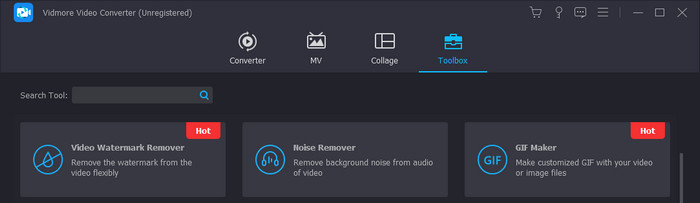
Bilgisayarınızda Video Converter Ultimate uygulamanızı açın, ardından Araç Kutusu seçeneğine tıklayın. Sonra GIF Oluşturucu’yu seçin veya doğrudan aratabilirsiniz. Bu seçeneği kullanmak, kullanıcıların bir GIF’i zahmetsizce yeniden boyutlandırmasını sağlar.
Adım 3. İşlemi Seçin
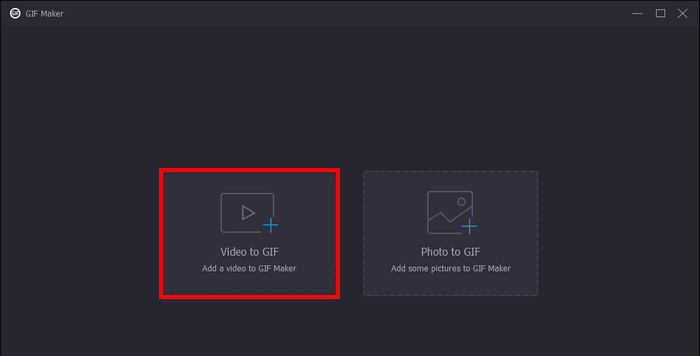
GIF Oluşturucuya tıkladıktan sonra, hangi işlemi yapmak istediğinizi seçebilirsiniz. Video’dan GIF’e seçeneğini işaretleyin. Bu, yeniden boyutlandırma için GIF dosyanızı içe aktarmanızı sağlar. Dosyalarınızı, dizin klasörünüzden seçerek içe aktarın.
Adım 4. GIF’i Yeniden Boyutlandırın ve Oluşturun
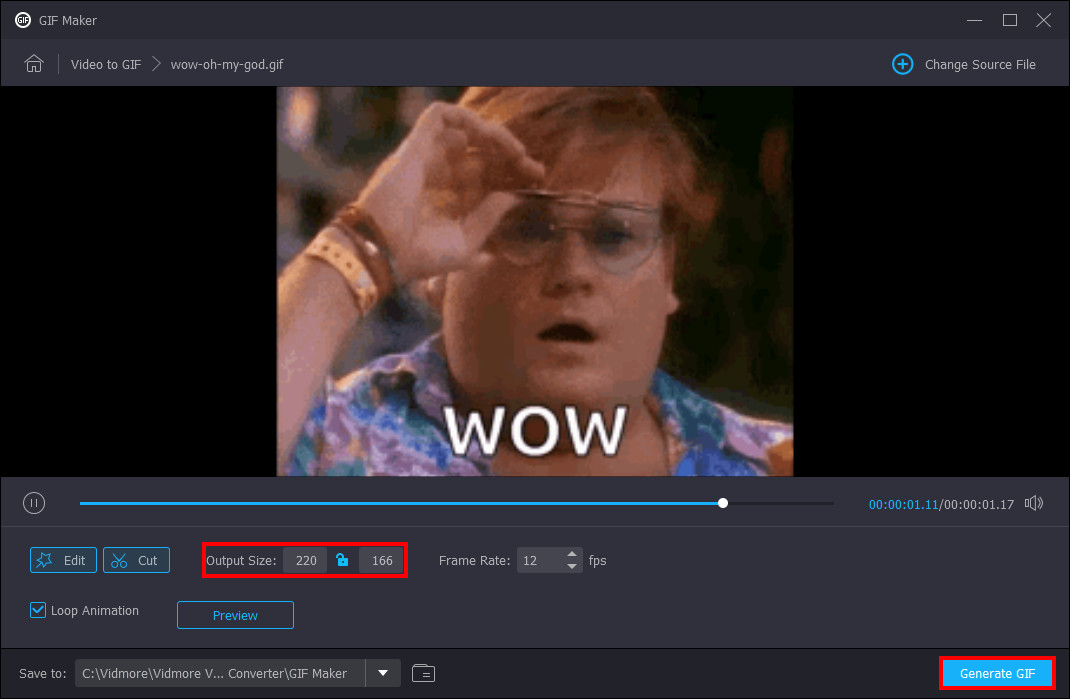
Artık GIF boyutunuzu değiştirebilirsiniz. GIF’inizin altındaki boyut paneline istediğiniz ölçüleri girerek yeniden boyutlandırın. GIF’inizi yeniden boyutlandırdıktan sonra, kaydedip oluşturabilirsiniz. Uygulamanızın sağ alt köşesindeki GIF Oluştur düğmesine tıklamanız yeterlidir.
2. Photoshop
Photoshop, görüntüleri düzenlemek ve tasarlamak için yapılmış bir uygulamadır. Artık kullanıcılar görüntüleri yeniden boyutlandırmak ve kırpmak için Photoshop'u da kullanıyor. Bu uygulama aynı zamanda daha iyi disk yönetimi için GIF'lerin dosya boyutlarını küçültebilir.
Adım 1. Bilgisayarınızı açtıktan sonra, GIF dosyanıza sağ tıklayın, Birlikte açı seçin ve Photoshop’a tıklayın.
Adım 2. Ardından, görüntülerinizi seçin. Son olarak, klavyenizde Ctrl + T tuşlarına basın. GIF’inize istediğiniz boyutu, köşelerden sürükleyerek uygulayın.
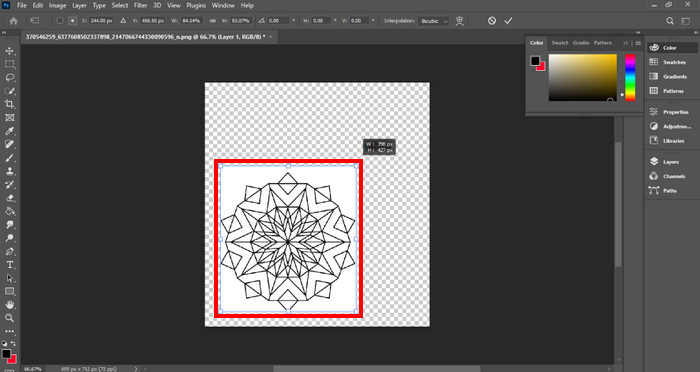
Adım 3. GIF’inizi yeniden boyutlandırdıktan sonra, yapılan tüm değişiklikleri uygulamak için sadece Tamam’ı seçin.
3. Önizleme
Önizleme, Mac işletim sisteminde önceden yüklenmiş bir uygulamadır. Düzenleme ve görüntüleme için yapılmıştır. Önizleme, GIF'leri daha küçük dosya boyutuna getirecek araçlara bile sahiptir. Yalnızca Mac dizüstü ve masaüstü bilgisayarlara özeldir.
Adım 1. Mac’inizi açtıktan sonra, dosyanıza sağ tıklayarak açın. Ardından Birlikte Aç’a tıklayın ve Önizleme uygulamanızı seçin.
Adım 2. GIF’inizi içe aktardıktan sonra, üst çubuk menüsünden Araçlar’ı seçin ve animasyonlu GIF’inizi yeniden boyutlandırmak için Boyutu Ayarla’yı seçin. Buradan GIF’inizin Genişlik ve Yüksekliğini ayarlayabilirsiniz. Tercihinize göre düzenleyin.
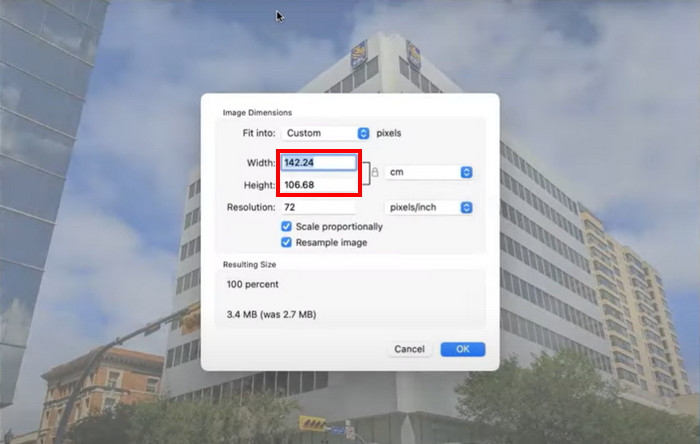
Adım 3. İstediğiniz tüm değişiklikleri uygulamak için Tamam’a tıklayın. Ardından düzenlenen GIF’inizi kaydetmek için cmd + S tuşlarına basın.
Bölüm 3. En İyi 5 Ücretsiz Çevrimiçi Araçla GIF Nasıl Daha Küçük Yapılır
1. EZGIF
Bu program, cihazlarında yeterli alanı olmayanlar için faydalı olan çevrimiçi tabanlı bir programdır. Ancak evinde interneti olmayan kullanıcılar için bu durum sıkıntı yaratabilir. EZGIF, GIF'leri birkaç tıklamayla değiştirebilen ve yeniden boyutlandırabilen yeniden boyutlandırma ve efekt araçlarıyla birlikte gelir. Düzenleme sürecinizi çok daha verimli hale getirecek gelişmiş kırpma araçlarıyla donatılmıştır.
Adım 1. Bağlantıyı açtığınızda, GIF’lerle ilgili seçenekleri göreceksiniz. Yeniden Boyutlandır’a tıklayın; bu, fotoğraf yüklemenizi sağlar. Dosyalarınızı seçtikten sonra Yükle düğmesine tıklayın.
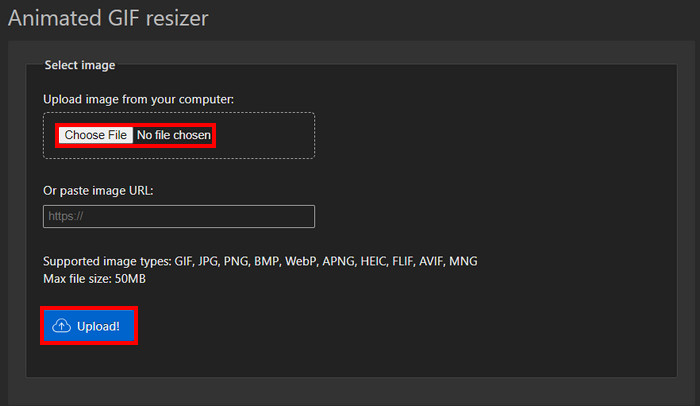
Adım 2. GIF’lerinizi yükledikten sonra, GIF’inizin boyutunu düzenleyip değiştirebilirsiniz. Genişlik ve Yükseklik paneline istediğiniz boyutu girmeniz yeterlidir.
Adım 3. GIF’inizi düzenlemeyi tamamladığınızda, artık GIF’inizi indirebilirsiniz. Dönüştür’e tıklayın; GIF’iniz otomatik olarak indirilecektir.
2. Veed.io
Veed.io, yalnızca birkaç tıklamayla GIF'lerin boyutlarını küçültebilen web tabanlı bir programdır. Kullanıcıların GIF dosyalarına uygulayabilecekleri özel efektler sağlar. Kullanıcılar bu web tabanlı programda düzenleme yaparken eğlenceli vakit geçirecekler.
Adım 1. Siteye girdiğinizde büyük bir Dene düğmesi göreceksiniz, buna tıklayın. Bu, GIF’inizi yükleyebileceğiniz başka bir sayfaya yönlendirir.
Adım 2. Dosyanızı büyük Yükle düğmesine tıklayarak yükleyin. Bu işlem, GIF’inizi seçebileceğiniz dizin klasörünüze götürür.
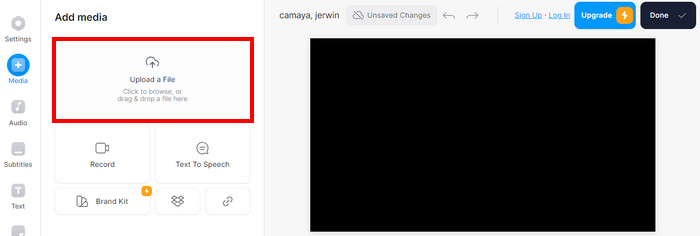
Adım 3. GIF’inizi yeniden boyutlandırmak için, fotoğrafınızın yanındaki kaydırıcıyı hareket ettirin. GIF’iniz için istediğiniz boyutu ayarladıktan sonra, Bitti ve ardından İndire tıklayarak GIF’inizi indirebilirsiniz.
3.Canva
Canva, GIF'ler ve sunumlar için çok sayıda şablonla dolu çevrimiçi bir araçtır. Birlikte gelen yazılımla GIF dosyalarını yeniden boyutlandırmak artık çok kolay. GIF'leri yeniden boyutlandıran birçok şablonla sıkıştırılmıştır.
Adım 1. Tarayıcınızda Canva’yı açın ve yeni bir tasarım oluşturmak için Tasarım Oluştur’a tıklayın. Ardından, yeniden boyutlandırmak istediğiniz GIF’i Dosya Yükleye tıklayarak içe aktarın.
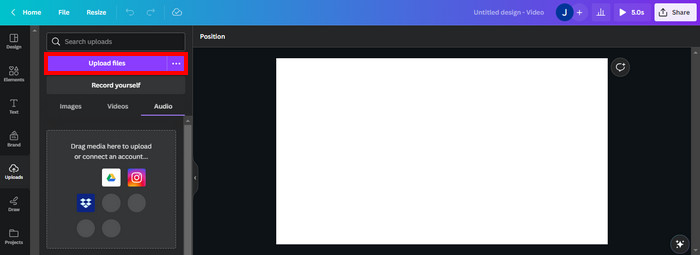
Adım 2. Bu kısımda, Canva GIF’inizi düzenlemek için ayarlayabileceğiniz seçenekleri gösterecektir. GIF’iniz için mevcut boyut seçeneklerini görmek ve seçmek için Yeniden Boyutlandır’a tıklayın.
Adım 3. GIF boyutunuzu seçtikten sonra, Bittiye tıklayarak bu boyutu uygulayabilirsiniz. Bu, GIF’i indirmeniz için sağ üst köşedeki İndir düğmesine tıklayabileceğiniz başka bir sekmeye yönlendirecektir.
4. RedKetchup - GIF Değiştirici
RedKetchup, içerik oluşturmak için GIF boyutlarını yeniden boyutlandırabilen ve değiştirebilen web tabanlı bir araç olarak oluşturulmuştur. GIF'leri yeniden boyutlandırmak için kullanışlı araçlarla dolu olan bu araç, GIF'i yeniden boyutlandırmak için kullanılabilecek güvenilir ve kullanışlı bir araçtır.
Adım 1. Siteye girdiğinizde, bu sitede bulunan araçlarla karşılaşırsınız. Görüntü Yeniden Boyutlandırıcı’ya tıklayın; bu araç, GIF’inizi ücretsizce yeniden boyutlandırmanıza olanak tanır.
Adım 2. Görüntü Yeniden Boyutlandırıcıyı seçtikten sonra, GIF’inizi yüklemek için Yükleye tıklayın. Bu işlem, GIF dosyalarınızı görebileceğiniz başka bir klasöre yönlendirir.
Adım 3. GIF’inizi yükledikten sonra, aşağı kaydırın ve istediğiniz boyutu girebileceğiniz bir panel göreceksiniz. İstediğiniz boyutu girin.
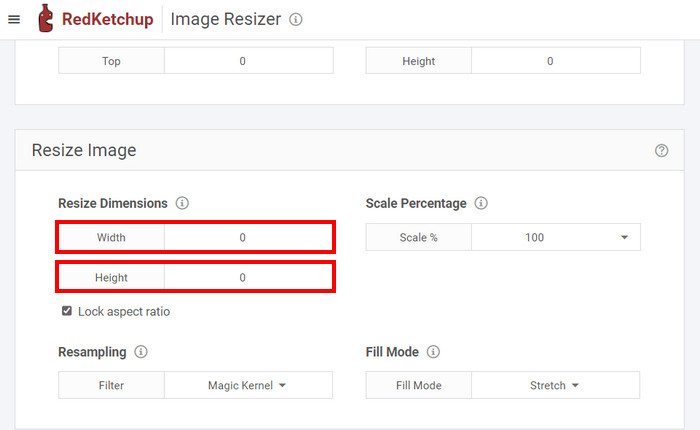
Adım 4. GIF’inizin boyutunu değiştirdikten sonra, sayfanın en altına kaydırarak artık indirebilirsiniz. Şimdi GIF’inizi indirmek için İndire tıklayın.
5. Iloveimg.com - GIF'i yeniden boyutlandır
Iloveimg.com, GIF dosya boyutunu nasıl optimize edeceğinizi öğrenmenize yardımcı olan bir yardımcı programa sahiptir. GIF resim boyutlarınızı değiştirmek için kullanabileceğiniz internete özel bir programdır.
Adım 1. Çevrimiçi siteyi açtığınızda, bu sitede sunulan araçlar karşınıza çıkar. GIF’inizi yeniden boyutlandırmak için Görüntüyü Yeniden Boyutlandır’a tıklayın.
Adım 2. Bu bölümde, Görüntü Seçe tıklayarak GIF dosyanızı yükleyebilirsiniz. Bu, başka bir klasör penceresinin açılmasına neden olur ve yüklemek için GIF dosyanızı seçmenizi sağlar.
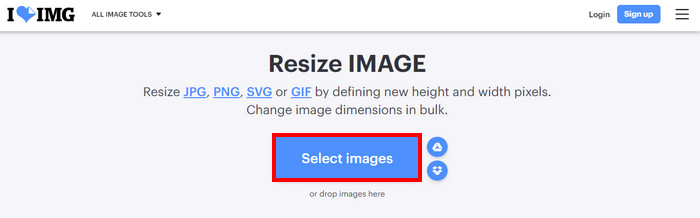
Adım 3. Yükledikten sonra, sağ taraftaki Genişlik ve Yükseklik paneline istediğiniz boyutu girerek GIF’inizi yeniden boyutlandırın. Dosyanızı indirmek için Görüntüleri Yeniden Boyutlandır’a tıklayın.
Bölüm 4. iPhone ve Android'de GIF'ler Nasıl Yeniden Boyutlandırılır
1. GIF Mini: GIF Düzenleyici
GIF Mini: GIF Editor, GIF'leri yeniden boyutlandırmak ve sıkıştırmak için güvenilir bir uygulamadır. Bu uygulama Android'de mevcuttur ve discord emojisi için bir GIF'i yeniden boyutlandırmak için kullanılabilecek GIF'ler oluşturmak ve değiştirmek için birçok güvenilir araçtan oluşur.
Adım 1. Uygulamayı açtığınızda, galerinizdeki dosyalarınızı görürsünüz. Yeniden boyutlandırmak istediğiniz GIF’i seçin.
Adım 2. Dosyanızı seçtikten sonra, uygulamanızın sağ üst köşesindeki Kalem Simgesine tıklayın. Bu, resminizin boyutunu gösterir ve yeniden boyutlandırmanıza imkân tanır. GIF’inizin boyutuna tıklayın ve istediğiniz ölçüleri girin.
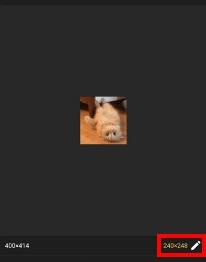
Adım 3. Yeniden boyutlandırdıktan sonra artık kaydedebilirsiniz. Kaydet düğmesine tıklayın.
2. Hızlı GIF Düzenleyici - Kırp, Yeniden Boyutlandır
Quick GIF Editor, IOS cihazlarına özel bir uygulamadır. Bir yapay zekanın özel bir araç seti ile GIF'inizin arka planını kaldırabildiği hızlı düzenleme seçenekleriyle derlenmiştir. Kullanıcıların bir GIF'in nasıl küçültüleceği konusunda çevrimiçi bir eğitim aramasına gerek kalmayacak.
Adım 1. Uygulamanızı açın ve Görüntü Seç’e Tıklayın. Bu, seçtiğiniz görüntüyü içe aktarır.
Adım 2. Fotoğrafınızı, fotoğrafınızın altındaki Genişlik ve Yükseklik Paneline tıklayarak yeniden boyutlandırın. Memnun kalana kadar yeniden boyutlandırın.
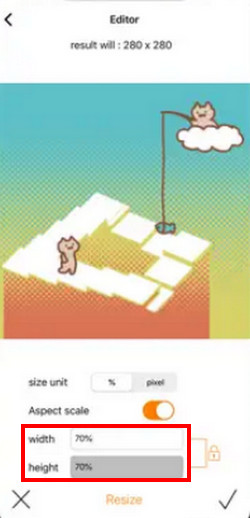
Adım 3. Son olarak, GIF’inizi kaydetmeye hazırsınız. Uygulamanın sağ üst köşesindeki Kaydet/Yükle düğmesine tıklayın.
Daha Fazla Okuma:
GIF Kırpmak için En İyi Çevrimİçi ve Çevrimdışı GIF Kırpıcıyı Seçin [2023]
[Ücretsiz ve Ücretli] GIF Hız Değiştirici: 2023’ün Gözde Seçimleri
Bölüm 5. GIF'in Yeniden Boyutlandırılmasına İlişkin SSS
iPhone'da GIF'leri yeniden boyutlandırmak için kısayollar var mı?
Hayır, ancak GIF'lerinizi yeniden boyutlandırmak için bir uygulama indirebilirsiniz.
Discord için en iyi GIF boyutu nedir?
128×128 piksel Discord için en iyi GIF boyutudur. Bunu aşmak mümkün değil çünkü bu aynı zamanda Discord'daki GIF'ler için maksimum boyuttur.
Yeniden boyutlandırma GIF'in dosya boyutunu nasıl etkiler?
GIF'inizi yeniden boyutlandırmak, dosya boyutuna bağlı olarak farklı sonuçlar doğurabilir. Bir GIF'in ölçeğini büyütüyorsanız dosya boyutu artabilir ancak kalitesi düşebilir. Aşağı ölçeklendirirken dosya boyutunu azaltabilir.
Şeffaflığı olan bir GIF'i yeniden boyutlandırırsam ne olur?
Aynı şeffaflığa sahip olur ancak küçültürseniz şeffaflık kapsamı daha küçük olur. Büyütürseniz aynı şey olur.
Web kullanıcıları için ideal GIF boyutu nedir?
En iyi GIF boyutu 720p, önerilen en düşük boyut ise 480p'dir.
Sonuç
Bir GIF’i yeniden boyutlandırmak, internet kullanan kişiler için önemli bir parça hâline gelmiştir. İlk GIF’inizi düzenlemeye çalışırken bu işlem zahmetli olabilir. Bu nedenle bu makale hazırlandı. Böylece GIF’lerini düzenlemek isteyenler, bir GIF’i Photoshop’ta veya Video Converter Ultimate ile yeniden boyutlandırmanın mümkün olduğunu bilsin.
-
 GIF'i Sıkıştırma ve Dosya Boyutunu Yüksek Kaliteyle Küçültme Eğitimi
 Burada GIF'i sıkıştırmanın 2 kolay yolu var. GIF dosya boyutunu farklı yönlerden azaltmak için FVC Ücretsiz Çevrimiçi Video Kompresörü ve Photoshop'u kullanabilirsiniz.
-
 En İyi GIF Editörleri ile GIF'e Filtre Eklemenin En İyi 3 Yolu [Favori]
 GIF'i daha iyi hale getirmek için nasıl filtre ekleyeceğinizi bilmek ister misiniz? Bu blogda, GIF'lerinize filtre eklemek için farklı teknikleri kolayca öğreneceksiniz.
-
 Kaçırmamanız Gereken En İyi 4 Çevrimdışı ve Çevrimiçi GIF Büyütücü
 En iyi GIF büyütücüleri arıyorsanız, bu gönderi tam size göre. Bilgisayarınız için en iyi performans gösteren çevrimiçi ve çevrimdışı GIF büyütücüleri listeledik.
