


 Video Dönüştürücü Ultimate
 Ekran kaydedicisi
 Video Onarımı
 Güvenli İndirme
Cihazlarınızda MOV Dosyasını M4V'ye Dönüştürmenin Olağanüstü Yolları
MOV dosya formatını M4V’ye dönüştürmeyi öğrenmek istiyorsanız, doğru yerdesiniz. Bu yazıda özellikle MOV’dan M4V’ye dönüştürme konusunda olmak üzere, çeşitli dosyaları dönüştürmek için kullanabileceğiniz mükemmel ve kullanışlı dönüştürücülerden bahsedeceğiz. Ayrıca bu dosya türleri arasındaki farkları da öğreneceksiniz. Daha fazlasını öğrenmek istiyorsanız, bu makaleyi dikkatle okuyun.

Bölüm 1: MOV ile M4V Arasındaki Fark
| MOV | M4V | |
| Dosya adı | Apple QuickTime Filmi | iTunes Video Dosyası |
| Dosya uzantısı | .mov | .m4v |
| Tanım | .mov multimedya formatı olarak bilinen MPEG-4 video kapsayıcısı, sıklıkla Apple'ın QuickTime çerçevesine bağlanır. 1991'de QuickTime'ın ilk piyasaya sürülmesiyle, film dosyası formatı en çok Macintosh'a tam uzunlukta renkli filmlerin getirilmesiyle tanınır. Bu, kişisel bilgisayar ve Microsoft Windows işletim sisteminin karşılaştırılabilir herhangi bir şeye sahip olmasından önceydi. Bu film formatı, ses, video, efektler ve metin benzeri altyazılara bölünmüş birden çok veri dizisini veya parçayı destekler. Bir kaynak dosyası .mov ile biter. | M4V dosya uzantısı, MP4 dosya uzantısına oldukça benzer ve Apple tarafından özellikle iTunes mağazasında görülen içerik için oluşturulmuştur. Apple ürünleri, M4V'yi destekleyen tek ürünlerdir. MP4 ve MOV video kodekleri, Apple cihazlarında oynatmak için M4V'ye dönüştürülebilir. M4V ve MP4 arasındaki temel fark, M4V'nin görsel-işitsel içeriğin telif hakkını yasaklayan DRM-Telif Hakkı Koruması sağlamasıdır. Bilgisayarın DRM korumalı bir M4V dosyasını oynatmak için izne ihtiyacı var ve bunu video dosyasını satın almak için kullanılan iTunes hesabına giriş yaparak yapıyor. Dosyaları Apple dışı cihazlarla uyumlu hale getirmek için, kullanıcının M4V dosya uzantısını yalnızca dosyalar DRM korumalı değilse MP4 olarak yeniden adlandırması gerekir. |
| Tarafından geliştirilmiş | Apple Inc. | Apple Inc. |
| Dosya Kategorisi | Video | Video |
| İlişkili Programlar | Güç DVD'si Apple QuickTime Oynatıcı Roxio Yaratıcısı VLC medya oynatıcı | Yakınlaştırma Oyuncusu Medya Oynatıcı Klasik KMPlayer VLC medya oynatıcı |
| MIME Türü | video/hızlı zaman | video/x-m4v |
Bölüm 2: Mac Kullanarak MOV'u M4V'ye Dönüştürmenin En İyi Yolu
Mac kullanarak MOV’u M4V’ye nasıl dönüştürebilirsiniz? En iyi cevap Video Converter Ultimate’tır. Bu uygulama kullanabileceğiniz en iyi dönüştürücülerden biridir. 100’den fazla video dosya formatını desteklediği için neredeyse tüm video formatlarını ekleyebilirsiniz; bunlara MP4, FLV, AVI, M4V, MOV, VOB, MTS, SWF ve daha fazlası dahildir. Ayrıca MOV dosyanızı dönüştürmek için anlaşılır bir işleyişe sahiptir, bu da profesyonel olmayan kullanıcılar için uygundur. Buna ek olarak, bu dönüştürücü sadece Mac’te değil, Windows’ta da kullanılabilir. Bu sayede bu dönüştürücünün güvenilir olduğunu söyleyebilirsiniz. Dahası, MOV dosyanız üzerinde dönüştürmenin dışında da yapabileceğiniz başka şeyler vardır. MOV videonuzda can sıkıcı bir filigran varsa bu uygulamayı kullanabilirsiniz. Filigran kaldırma araçlarını kullanarak MOV videolarınızdaki filigranları hızlıca silebilirsiniz. Ayrıca, videolarınıza izleyicilerin gözünde daha hoş görünmeleri için bazı filtreler eklemeyi planlıyorsanız, yine bu uygulamaya güvenebilirsiniz. Yani, FVC Video Converter Ultimate ile birçok şey yapabilirsiniz.
Özellikler
◆ MP4, AVI, FLV, WMV, MKV, VOB, M4V, MOV vb. gibi çeşitli video formatlarını dönüştürün.
◆ Mevcut filtreler ve şablonlarla bir Kolaj oluşturun.
◆ Bir Müzik Videosu Yapın.
◆ Video hızı denetleyicisi, geliştirici, kırpıcı, kırpıcı, döndürücü vb. gibi videoları geliştirmek için düzenleme araçları sunar.
◆ BMP, JPG, PNG, vb. gibi çok sayıda görüntü formatını dönüştürün.
◆ Toplu dönüştürme sunar.
Video Converter Ultimate Mac sürümünü kullanarak MOV'u M4V'ye ücretsiz olarak dönüştürmek için aşağıdaki temel adımları izleyin.
Adım 1: Aşağıdaki İndir düğmesine tıklayarak Video Converter Ultimate’ı indirin. Ardından, kurulum işlemi bittiğinde uygulamayı başlatın.
Ücretsiz İndirWindows 7 veya üstü içinGüvenli İndirme
Ücretsiz İndirMacOS 10.7 veya üstü içinGüvenli İndirme
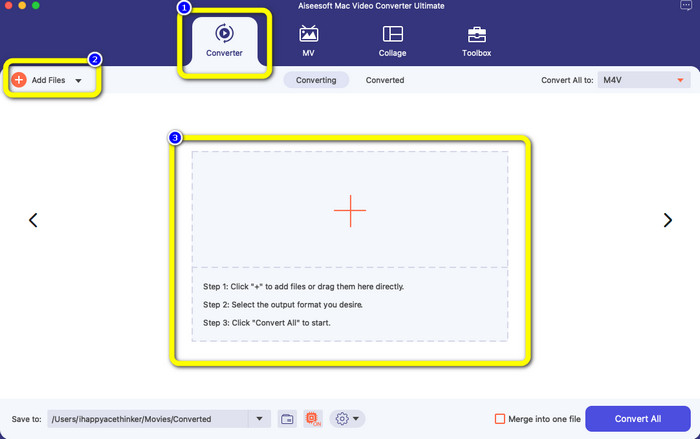
Adım 2: Üst arayüzden Dönüştürücü seçeneğini seçin. Bundan sonra, MOV dosyanızı eklemek için Dosya Ekle düğmesine veya + simgesine tıklayın. MOV video dosyanızı kutunun içine sürükleyip bırakmanız da mümkündür.
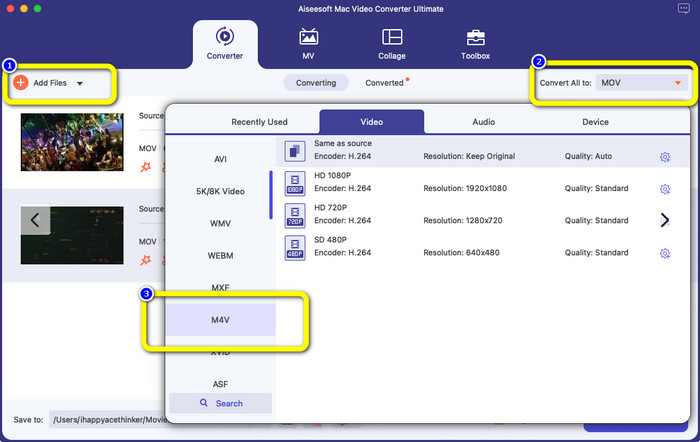
Adım 3: Özellikle toplu dönüştürme yapmak istiyorsanız daha fazla dosya ekleyebilirsiniz. Dosya Ekle düğmesine tıklayın. Ardından bunları M4V dosya formatına dönüştürmek için Tümünü Dönüştür seçeneğine gidin ve M4V dosya formatını seçin. İstediğiniz çözünürlüğü de belirleyebilirsiniz.
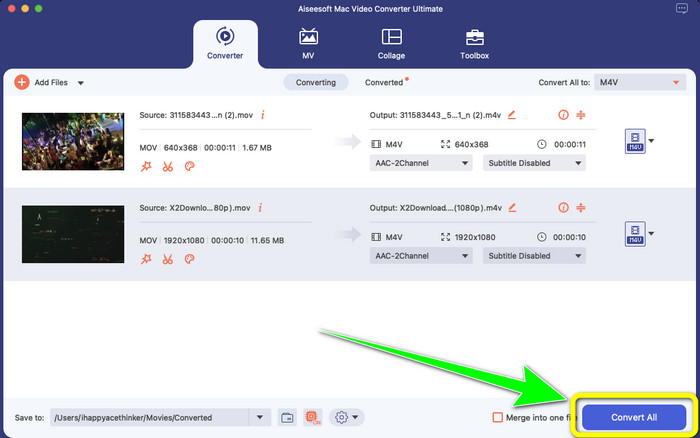
Adım 4: Bundan sonra, videonuzu kaydetmek için Tümünü Dönüştür düğmesine tıklayın. Dönüştürme işleminin tamamlanmasını bekleyin. Ve hepsi bu kadar! MOV videonuz M4V’ye dönüştürülmüş olacaktır.
Bölüm 3: Mac'te MOV'u M4V'ye Dönüştürmek için 2 Yöntem
QuickTime'ı kullanma
Daha önceki Mac makinelerinde, yerleşik uygulama QuickTime'dır. QuickTime'daki Dışa Aktar seçeneği, MOV video dosyalarını bir iPhone, iPad veya Apple TV'de oynatmak için yapmanız gerektiğinde yararlı bir araç olan bir Mac'te M4V dosyalarına dönüştürmek için iyidir. .mov videolar, Dışa Aktar seçeneği kullanılarak sıkıştırılabilir ve 480p, 720p veya 1080p'ye dönüştürülebilir. macOS'in daha yeni sürümlerinde QuickTime desteklenmez. Dönüştürme özelliğini etkinleştirecek bir kayıt kodu için Apple'a ödeme yapmanız gerekir. QuickTime kullanarak MOV'u M4V'ye dönüştürmek için adımları izleyin.
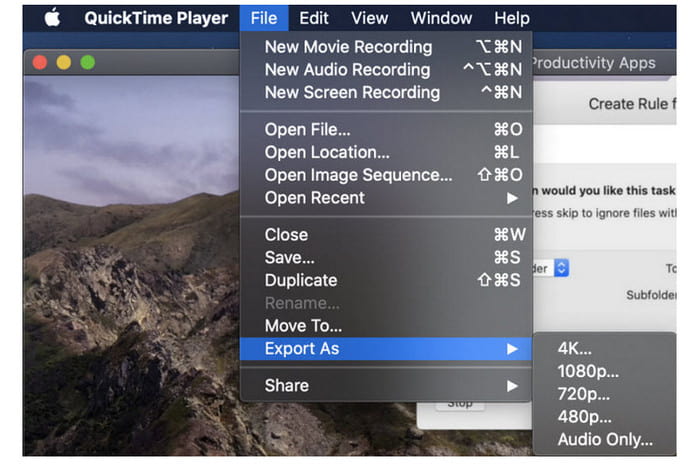
Adım 1: MOV dosyasını QuickTime’da açın. Ardından üst kısımdaki Dosya menüsünü seçin ve Dışa Aktar’ı tercih edin.
Adım 2: Dışa Aktar menüsü altında 480p, 720p, 1080p, iPad, iPhone, iPod touch, Apple TV, iTunes ve Yalnızca Ses gibi birçok seçenek mevcuttur. MOV’u iPhone, Apple TV veya diğer Apple cihazları için M4V’ye dönüştürürken, iPad, iPhone, iPod touch & Apple TV seçeneğini işaretleyin; ardından videonuzu nerede izleyeceğinize göre boyut seçmenize olanak tanıyan yeni bir pencere açılacaktır.
Adım 3: Dönüştürülen video dosyasına bir ad verin. Video dosya uzantısı .m4v olmalıdır. Her şey hazır olduğunda, alttaki Kaydet düğmesine basın. Dosyanızı saklamak istediğiniz konumu belirleyin.
Adım 4: Son olarak, .m4v dosyasını dışa aktarmak için tekrar Kaydet düğmesine tıklayın. Dönüştürme işlemini herhangi bir noktada durdurmak için ilerleme çubuğundaki X düğmesine tıklayın. Bu yöntemle AVI’yi M4V’ye dönüştürmeniz da mümkündür.
iTunes'u kullanma
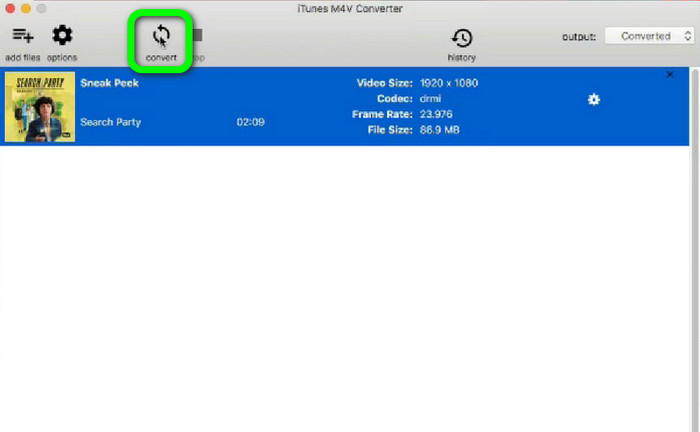
iTunes'u kullanarak MOV'u M4V'ye dönüştürmek ister misiniz? Ardından, aşağıdaki ayrıntılı kılavuzları takip edebilirsiniz. iTunes, güvenebileceğiniz başka bir dönüştürücüdür. Ancak, karmaşık bir süreci vardır ve seçenekler çok kafa karıştırıcıdır.
Adım 1: iTunes’u açın. Kitaplıkta Filmler bölümünü seçin ve MOV dosyasını ekleyin.
Adım 2: Gelişmiş menüsüne gidin ve Mac için Seçimi Dönüştür’ü seçin.
Adım 3: Ardından, video uzantısını M4V olarak değiştirin.
Adım 4: Daha sonra Dosya > Dönüştür yoluna gidin. Dönüştürme işlemini bekleyin ve videonuzu kitaplığınıza kaydedin.
Bölüm 4: MOV'u Çevrimiçi M4V'ye Dönüştürmenin Mükemmel Yolu
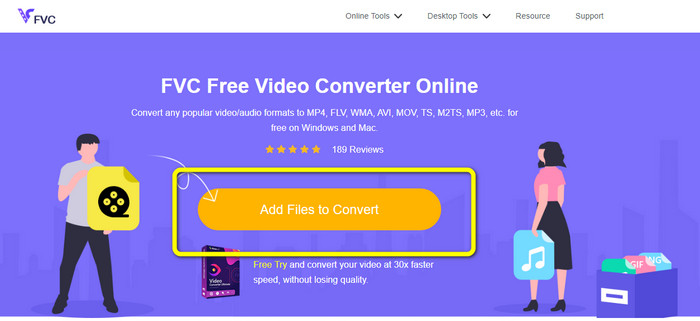
MOV’u çevrimiçi olarak M4V’ye dönüştürmek için FVC Free Video Converter Online’ı kullanabilirsiniz. Bu dönüştürücü dosyaları anında dönüştürebilir. Ayrıca bu yazılım, birden fazla dosyayı aynı anda dönüştürmenize olanak tanır. Ek olarak, AVI, VOB, MP4, 3GP, AAC, AC3, MP3, FLAC ve daha fazlası gibi çeşitli video ve ses dosya formatlarını destekler. MOV’u M4V’ye kolayca dönüştürmek için aşağıdaki basit adımları kullanabilirsiniz.
Adım 1: FVC Free Video Converter Online web sitesine gidin. Ardından MOV dosyanızı eklemek için Dönüştürülecek Dosyaları Ekle düğmesine tıklayın.
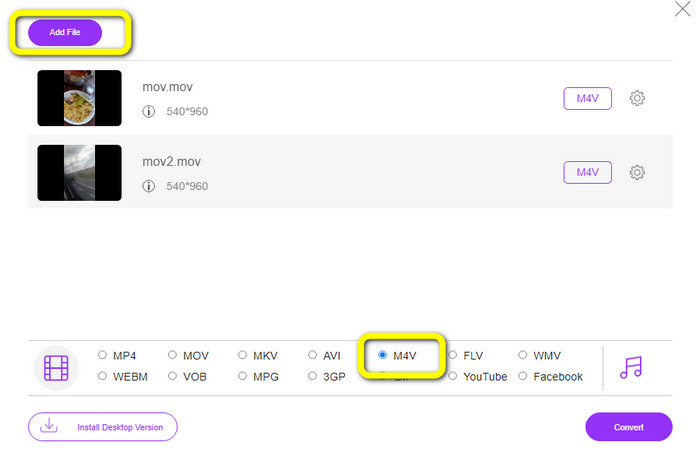
Adım 2: Birden fazla dosya eklemek için Dosya Ekle düğmesine tıklayın. Ardından format seçeneklerine gidin ve M4V dosya formatını seçin.
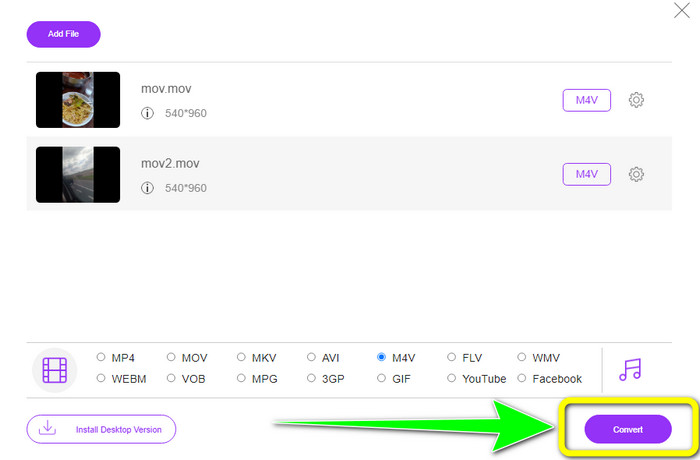
Adım 3: MOV’u M4V’ye dönüştürmek için Dönüştür düğmesine basın. Ardından dosyanızı istediğiniz konuma kaydedin. Bu aracı kullanarak MOV’u MKV’ye dönüştürebilirsiniz.
Bölüm 5: MOV'u M4V'ye Dönüştürmeyle İlgili SSS
Hangisi kalite açısından daha iyi, MOV veya M4V?
M4V kalite olarak daha iyidir. Filmi iPhone, iPad veya iPod gibi bir mobil cihazda izlerseniz M4V formatı tercih edilir çünkü neredeyse tüm mobil cihazlar bu formatı oynatabilir. M4V dosyaları, MOV dosyalarına kıyasla herhangi bir uyumluluk sorunu yaşamamalıdır.
Bir MOV dosyasının avantajı nedir?
MOV pratik bir dosya formatıdır çünkü ses ve video da dahil olmak üzere birkaç medya bileşenini tek bir küçük alanda depolayabilir. Bilgileri saklar, böylece gerekirse yeniden yazmakla uğraşmak zorunda kalmadan dosyayı hızlı bir şekilde değiştirebilirsiniz.
MOV neden bu kadar büyük?
iPhone, iPad veya Mac'inizle çektiğiniz videolar .mov biçiminde kaydedilir. MOV dosyaları, kameranın kaydettiği ayrıntıları korumak için yapılır; bunlar daha büyüktür ve düzenleme için daha uygundur.
Sonuç
Yukarıdaki bilgilere dayanarak, MOV’u M4V dosya formatına dönüştürmenin en iyi yolları bunlardır. Bazıları kullanımı biraz karışık olan ve bir kod etkinleştirmeyi gerektiren yöntemlerdir. Dosyalarınızı dönüştürmenin daha basit bir yolunu istiyorsanız, FVC Free Video Converter Online’ı kullanın.
-
 MTS'yi Zahmetsizce M4V'ye Dönüştürmenin Kolay Yolları
 Herhangi bir sorunla karşılaşmadan MTS dosyanızı M4V'ye dönüştürmek istediniz mi? Bu makaleye gidin. Takip edebileceğiniz ayrıntılı prosedürler sağladık.
-
 VOB'u M4V'ye [Çevrimdışı ve Ücretsiz] Dönüştürmeyi Öğrenin
 VOB'u M4V'ye dönüştürmek mümkün mü? VOB'u anında M4V'ye dönüştürmek için deneyebileceğiniz en iyi yöntemleri öğreneceğiniz için bu kılavuzu okuyarak cevabı öğrenin.
-
 Windows ve Mac'te WMV'yi M4V'ye Dönüştürmeyi Öğrenin
 En iyi dönüştürücü ile WMV'yi M4V'ye dönüştürmek istediğinizi biliyoruz. Bu durumda, dosyalarınızı dönüştürmek için deneyebileceğiniz en iyi yöntemleri size göstereceğiz.
