


 Video Dönüştürücü Ultimate
 Ekran kaydedicisi
 Video Onarımı
 Güvenli İndirme
iPhone'da MP3'ü Zahmetsizce Zil Sesine Nasıl Dönüştürürsünüz
iPhone’unuzdaki varsayılan zil seslerini pek de sevdiğiniz türden bulmuyor ve MP3 dosyalarınızdan birini iPhone zil sesi olarak kullanmayı mı umuyorsunuz? Size, iPhone’da MP3’ü zil sesine dönüştürmenin mümkün olduğunu söylesek ne dersiniz?
Bu yazıda, iPhone'unuzdaki MP3 müzik dosyalarınızı zil sesine dönüştürmenin 3 farklı yolunu öğrenin. Bunları dönüştürmek biraz zordur, ancak doğru araç ve yöntemle bunu sizin için olabildiğince basit ve kullanışlı hale getirelim. Daha ne bekliyorsunuz? Hadi başlayalım!

Bölüm 1. MP3'ü Mac/Windows'ta iPhone için Zil Sesine Dönüştürme
iPhone’da MP3'ü zil sesine dönüştürmenin en kolay ve en hızlı yollarından biri, Windows veya macOS bilgisayarınızda FVC’nin seçtiği Video Converter Ultimate aracını kullanmaktır. Bu hepsi bir arada dönüştürücü araç, M4R formatı da dahil olmak üzere 300’e kadar farklı formatı destekler; bu da MP3 müzik dosyalarını iPhone zil sesine dönüştürmek için onu güvenilir bir araç haline getirir. Ayrıca bu dönüştürücü, diğer dönüştürücü araçlara göre 120 kata kadar daha hızlıdır, böylece dönüştürme süreci hızlı ve sorunsuz gerçekleşir.
MP3’ünüzü zil sesine dönüştürmek için FVC’nin önerdiği Video Converter Ultimate’ı kullanma şekliniz şöyledir:
Adım 1. Önce, aracı Windows veya Mac bilgisayarınıza indirin ve kurun.
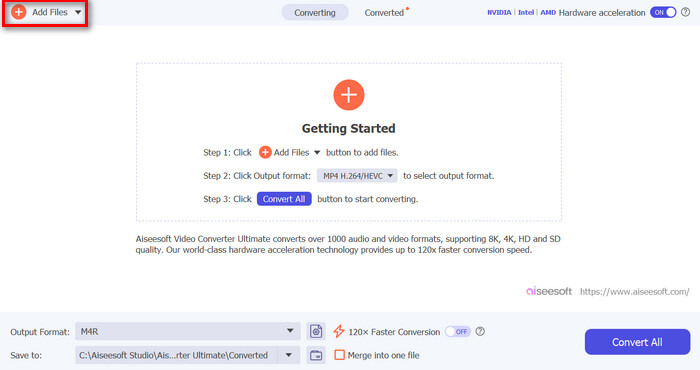
Adım 2. Aracı başlatın ve ana arayüze geldiğinizde Add Files (Dosya Ekle) düğmesine tıklayın. Bu, iPhone zil sesine dönüştürmek istediğiniz MP3 dosyasını içe aktarmanıza olanak tanır.
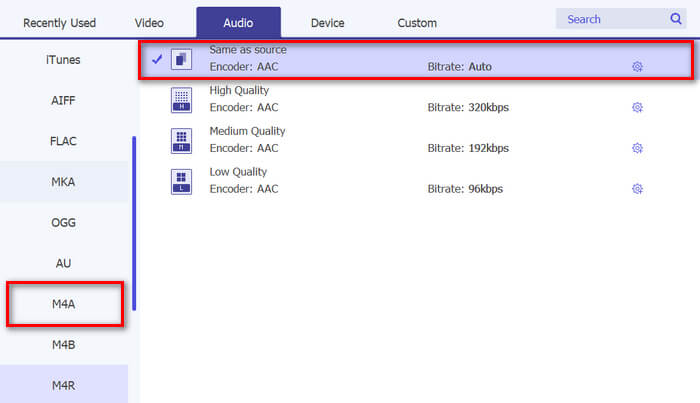
Adım 3. Şimdi Output format (Çıkış formatı) bölümüne gidin ve çeşitli ses formatları listesinden M4R’yi seçin. M4R, iPhone zil seslerinin dosya formatıdır.
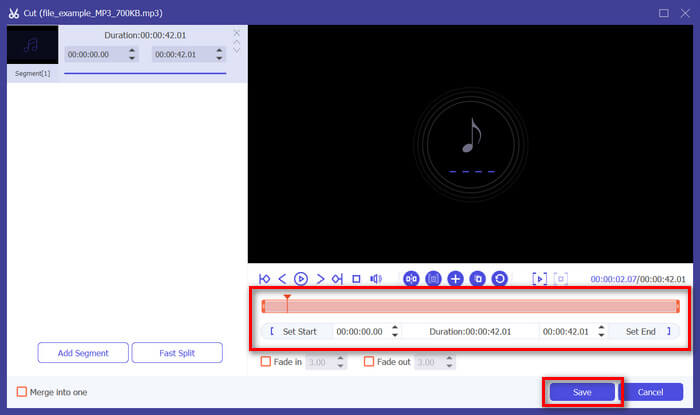
Adım 4. Ardından, MP3 dosyanızın yalnızca 30 saniye uzunluğunda olduğundan emin olun. Bu süreden uzunsa, Cut (Kes) düğmesine gidin ve zaman çizelgesindeki çubuğu ayarlayarak ya da dosyanın bitiş süresini elle 30 saniye olarak belirleyerek dosyanın uzunluğunu ayarlayın.
Adım 5. Şimdi MP3 dosyalarınızı iPhone zil sesine dönüştürmeye başlamak için Convert All (Tümünü Dönüştür) düğmesine tıklayın. Dönüştürülen dosyalar doğrudan bilgisayarınızdaki klasöre kaydedilir.
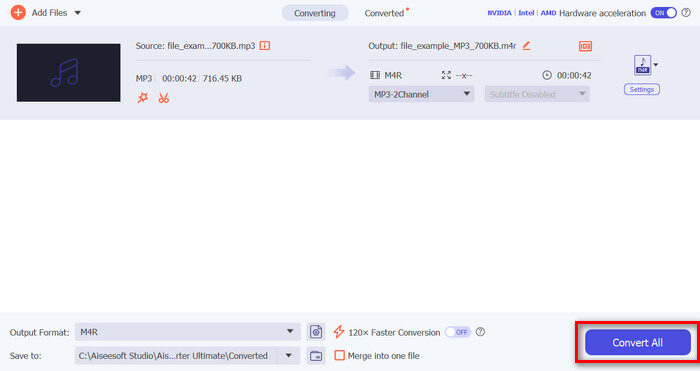
Bu hızlı, değil mi? FVC tarafından seçilen Video Converter Ultimate aracının MP3'ü iPhone zil sesine dönüştürmeyi ne kadar kolay ve hızlı hale getirdiği gerçekten inanılmaz. Yani, size zaman kazandırabilecek bir dönüştürücü araç arıyorsanız, bu aracı hemen deneyin.
Bölüm 2. MP3'ü iPhone'da Zil Sesine Dönüştürme
Bilgisayar kullanmadan doğrudan bir yöntem tercih ediyorsanız, GarageBand MP3'ü doğrudan iPhone'unuzda zil seslerine dönüştürmek için kullanışlı bir çözüm sunar. Bu araç, çoğu iPhone'da önceden yüklü olarak gelen güçlü bir müzik oluşturma uygulamasıdır. Bu araç yalnızca kullanıcı dostu olmakla kalmaz, aynı zamanda ses dosyalarınızı etkili bir şekilde özelleştirmek için çeşitli özellikler de sağlar.
MP3’ünüzü bir zil sesine dönüştürmek için GarageBand’i şöyle kullanabilirsiniz:
Adım 1. Öncelikle iPhone’unuzda GarageBand uygulamasını başlatın. Uygulama yüklü değilse App Store’a gidip indirin.
Adım 2. Project simgesine ve ardından sağ üst köşeye yakın Loop simgesine dokunun.
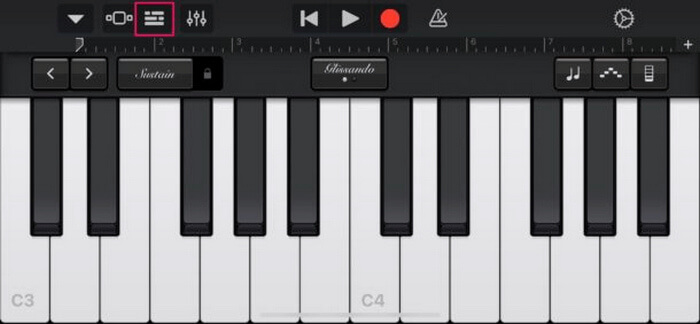
Adım 3. Şimdi MP3 dosyasını seçmek için Music or Files (Müzik veya Dosyalar) seçeneğine dokunun ve dosyayı GarageBand’e aktarmak için üzerine uzun basın.
Adım 4. Ardından, parçaya dokunun ve sesi kırpmak için her iki ucunu sürükleyin. Zil sesinin 30 saniyeden kısa olduğundan emin olun.
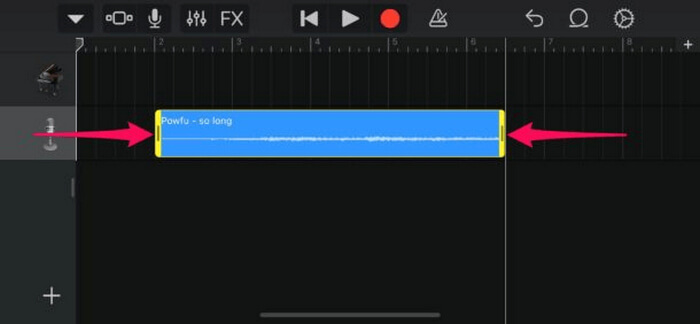
Adım 5. Sol üst köşede Aşağı Ok simgesini göreceksiniz. Ona dokunun ve klibi kaydetmek için My Songs (Parçalarım) seçeneğini seçin.
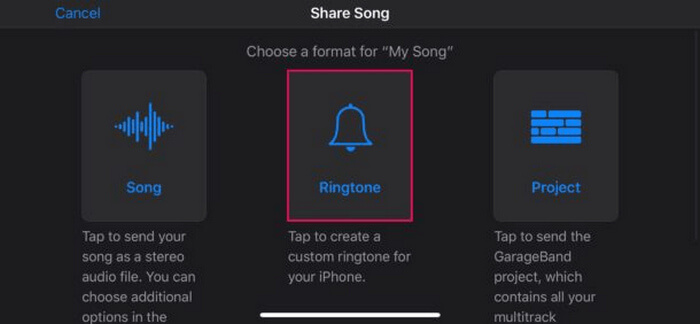
Adım 6. Oluşturduğunuz klibi bulun, üzerine uzun basın, Share (Paylaş) seçeneğine dokunun ve Ringtone (Zil Sesi) seçeneğini seçin. Zil sesine bir ad vermeyi unutmayın ve Export (Dışa Aktar) düğmesine dokunun.
Adım 7. Dönüştürdüğünüz MP3 dosyasını iPhone’da zil sesi olarak kullanmak için Use Sound As (Sesi Şu Olarak Kullan) seçeneğine dokunarak zil sesini varsayılan mesaj sesi ya da belirli bir kişi için ayarlayın. Alternatif olarak, Settings (Ayarlar), Sounds & Haptics (Sesler ve Dokunuşlar) ve Ringtone (Zil Sesi) yolunu izleyerek iPhone’unuzdaki zil sesini değiştirebilirsiniz.
MP3 dosyalarını doğrudan iPhone'unuzda zil seslerine dönüştürmeyi tercih ediyorsanız, bu yöntem tam size göre. Ancak, yeni kullanıcıların bunu öğrenmesi biraz zaman alacaktır, çünkü ilk başta onları bunaltabilecek karmaşık özellikler içermektedir.
Bölüm 3. MP3'ü iPhone Zil Sesine Dönüştürün [Çevrimiçi ve Ücretsiz]
Bu arada, MP3'ü iPhone zil sesine dönüştürmek için ücretsiz ve çevrimiçi bir yöntem tercih ediyorsanız, FVC Free Audio Converter tam size göre. Bu araçla ses dosyanızın herhangi bir formatını, özellikle MP3’ü M4R’ye, kolayca dönüştürebilirsiniz; çünkü MP3, AAC, AC3, WMA, WAV, AIFF, FLAC, MKA, M4A, M4B ve M4R ses formatlarını destekler. Ayrıca bu araç, son derece sezgisel ve basit arayüzü sayesinde, her an kullanıma hazır bir ses dönüştürücüye ihtiyaç duyanlar için idealdir.
MP3’ünüzü zil sesine dönüştürmek için FVC Free Audio Converter’ı şöyle kullanabilirsiniz:
Adım 1. Zil sesine dönüştürmek istediğiniz MP3 dosyalarını içe aktarmak için Add Files düğmesine tıklayın.
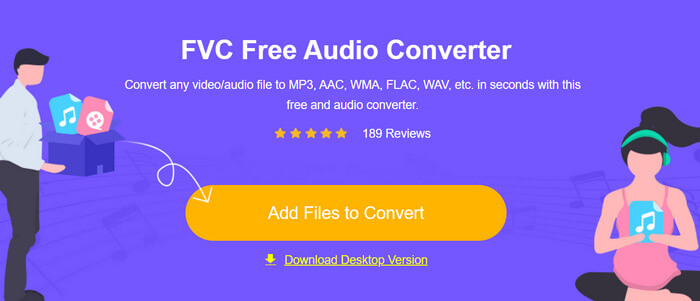
Adım 2. Ses çıkış formatı olarak M4R’yi seçin.
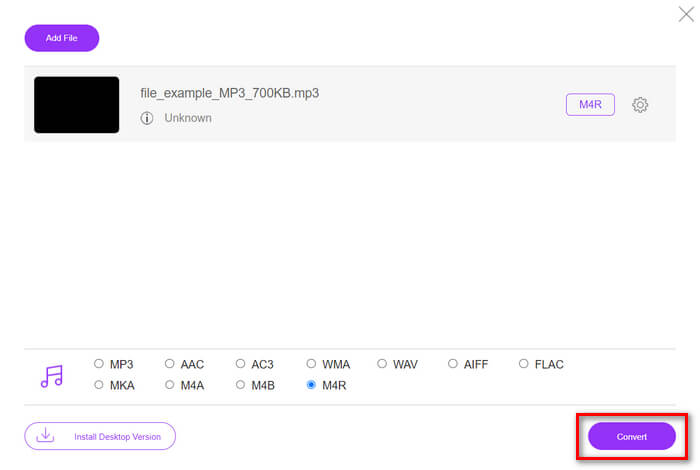
Adım 3. Son olarak, MP3 dosyanızın zil sesine dönüştürülmesini başlatmak için Convert (Dönüştür) düğmesine tıklayın. Dönüştürülen dosya doğrudan bilgisayarınıza kaydedilecektir.
iPhone’da MP3’ü M4R zil sesine dönüştürmek için ücretsiz ve çevrimiçi bir alternatif yöntem arıyorsanız, FVC Free Audio Converter mükemmel bir çözümdür. Sezgisel arayüzü dönüştürme sürecini kolaylaştırır ve farklı dosya türleriyle uyumluluğu sağlayan çok çeşitli ses formatlarını destekler.
Bölüm 4. Dönüştürülen Zil Sesleri Bilgisayardan iPhone'a Nasıl Aktarılır
Artık MP3 dosyalarınızı bilgisayarınızda zil sesine dönüştürdüğünüze göre, bunları iPhone'unuza aktarmanın en hızlı yolu iTunes'u kullanmaktır.
Dönüştürülen zil seslerini iTunes kullanarak iPhone’a aktarma yöntemi şöyledir:
Adım 1. Bilgisayarınızda iTunes’u açın ve iPhone’unuzu bir USB kablosuyla bağlayın.
Adım 2. Dönüştürülen zil sesi dosyasını iTunes kitaplığına sürükleyin. Tones (Tonlar) bölümünde göründüğünden emin olun.
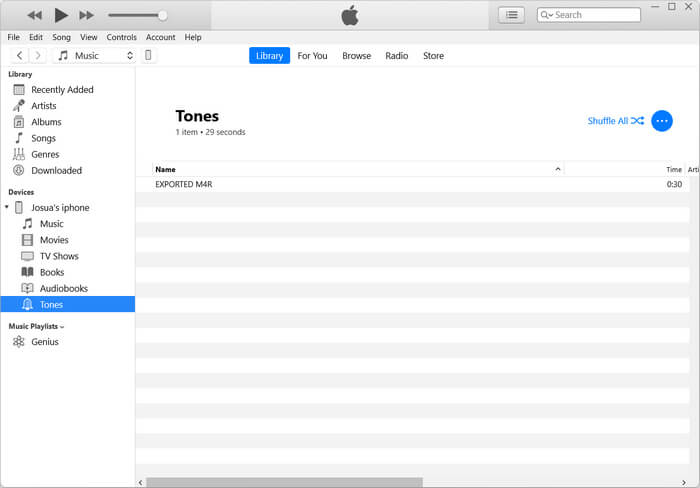
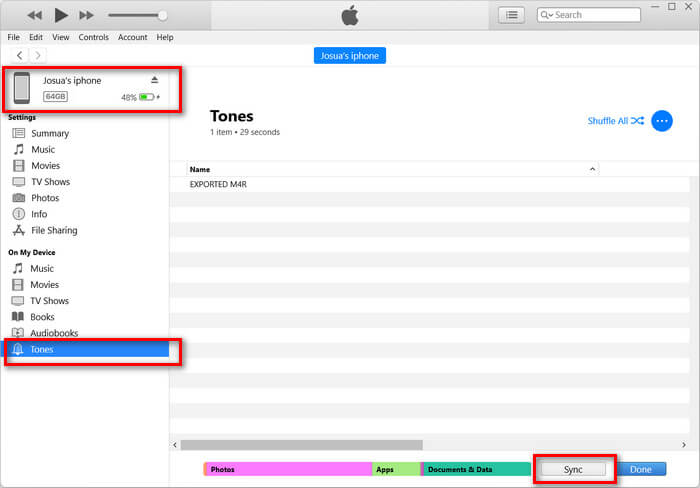
Adım 3. iTunes’ta iPhone simgenizi seçin, Tones sekmesine gidin ve Sync Tones (Tonları Senkronize Et) seçeneğini işaretleyin. Ardından içe aktardığınız zil sesi dosyasını seçin ve senkronize etmek için Apply (Uygula) düğmesine tıklayın.
Adım 4. Şimdi iPhone’unuzda Ayarlar’a gidin, Sesler ve Dokunuşlar’ı seçin, Zil Sesi’ne dokunun ve yeni zil sesinizi seçin.
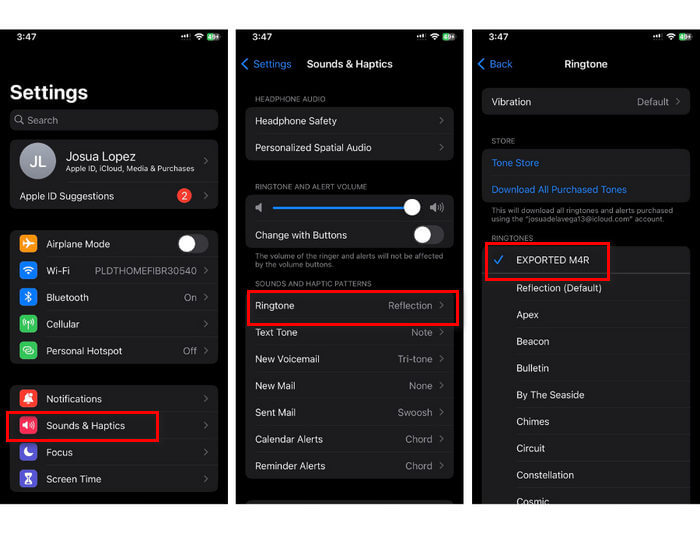
İşte bu kadar. Artık dönüştürülen MP3'ü iPhone'unuzda zil sesine kolayca aktarabilir ve kullanabilir, cihazınıza en sevdiğiniz seslerle kişisel bir dokunuş katabilirsiniz.
Bölüm 5. MP3'ü Zil Sesine Dönüştürme Hakkında SSS
En iyi ücretsiz zil sesi sitesi hangisidir?
Birçok web sitesi ücretsiz zil sesleri sunuyor, ancak popüler ve güvenilir olanlar arasında Zedge, Mobile9 ve Tones7 yer alıyor. Bu siteler telefonunuza indirip kullanabileceğiniz çok çeşitli zil sesleri sunuyor.
MP3'ten iPhone zil sesine hangi format uygundur?
iPhone zil sesi formatı M4R'dir. Bir MP3 dosyasını iPhone'da zil sesi olarak kullanmak üzere dönüştürürken, M4R formatında kaydedilmesi gerekir.
iPhone zil sesine MP3 nasıl eklenir?
iPhone zil sesinize MP3 eklemek için, öncelikle MP3 dosyasını FVC tarafından seçilen Video Converter Ultimate gibi bir dönüştürücü araç kullanarak M4R'ye dönüştürmelisiniz. MP3 dosyasını dönüştürdükten sonra, iTunes'u kullanarak iPhone'unuza aktarın ve yeni zil sesiniz olarak kullanın.
Sonuç
Artık favori MP3 dosyalarınızı kullanarak iPhone’unuz için bir zil sesi oluşturabilirsiniz. İhtiyaçlarınıza en uygun dönüştürücü aracı seçmeniz yeterli. Her biri, MP3’ü iPhone’da bir zil sesine dönüştürmenin son derece pratik bir yolunu sunar. Öyleyse ne bekliyorsunuz? Hemen kendinize özgü zil sesinizi oluşturun ve iPhone’unuzu gerçekten size ait kılın!
-
 MOV VS MP4 - Hangisini Seçersiniz?
 MOV VS MP4, hangisi daha iyi? Bu gönderi MP4 ve MOV arasındaki farkı anlatıyor, böylece video dosyalarınız için daha iyi bir seçim yapabilirsiniz.
-
 FLAC ve MP3: Hangi Ses Dosyası Formatı En Üstün Hükümdardır?
 Bu gönderi, FLAC ile MP3 arasındaki temel farkları karşılaştıracak. Buna ses kalitesi, dosya boyutu, uyumluluk ve daha fazlası dahildir.
-
 Gelişmiş Ses Kalitesi için MP3'ü M4A'ya Dönüştürme
 Uzman ipuçlarımız ve püf noktalarımızla MP3'ü M4A'ya dönüştürerek müzik dosyalarınızın kalitesini artırın. Kılavuzumuz adım adım talimatlar ve önerilen yazılımlar sunar.
