


 Video Dönüştürücü Ultimate
 Ekran kaydedicisi
 Video Onarımı
 Güvenli İndirme
En İyi MP3'ten M4A'ya Dönüştürücüler: Hızlı ve Kolay Ses Dönüştürme
Favori şarkılarınıza hakkını vermeyen, düşük kaliteli ses dosyalarını dinlerken memnun kalmıyor musunuz? Ses deneyiminizi MP3'ü M4A'ya dönüştürmenin gücüyle yükseltmenin zamanı geldi! Ses dosyalarınızı M4A formatına dönüştürerek müzik arşivinizin gerçek potansiyelini açığa çıkarabilir ve farkı bizzat duyabilirsiniz. Bu rehber yazısında, MP3'ten M4A'ya dönüştürmenin avantajlarını adım adım anlatacak ve sorunsuz bir dönüştürme süreci için en iyi yazılım dönüştürücülerini sizlere sunacağız. Ses deneyiminizi dönüştürmeye ve müziğinizin keyfini hiç olmadığı kadar çıkarmaya hazırlanın.

Bölüm 1. MP3'i M4A'ya Dönüştürmenin En İyi Yolları
İşte MP3'ten M4a'ya en iyi ses dönüştürücülerden bazıları. Bir masaüstü uygulaması olan çevrimdışı bir yol ve web tabanlı bir program olan başka bir çevrimiçi araç vardır. Daha fazlasını öğrenmek için onlara göz atın.
1. Video Dönüştürücü Ultimate
Video Converter Ultimate, ses ve video dönüştürme için çok çeşitli özellikler sunan esnek bir yazılımdır. MP3'ü M4A'ya dönüştürme söz konusu olduğunda, Video Converter Ultimate, kullanıcılarına ses dosyalarını dönüştürmek için basit ve anlaşılır bir süreç sunan mükemmel bir seçenektir. Araç, çok geniş bir ses formatı yelpazesini destekler ve gelişmiş ses kodek teknolojisi sayesinde yüksek kaliteli çıktı sağlar. İster kişisel ister profesyonel amaçlarla ses dosyalarını dönüştürmeniz gereksin, Video Converter Ultimate işlemi hızlı hale getirir ve böylece en önemli olana, yani yüksek kaliteli ses dosyalarınızın keyfini çıkarmaya odaklanabilirsiniz.
Adım 1. Programı edinin ve kurun
Başlamak için, Ücretsiz İndir düğmelerinden birini seçin ve ardından dosyayı bilgisayarınıza kaydetmek için ekrandaki talimatları izleyin. Sonraki adım, uygulamayı başlatmak ve sezgisel kontrol düğmelerine aşina olmaktır.
Ücretsiz İndirWindows 7 veya üzeri içinGüvenli İndirme
Ücretsiz İndirMacOS 10.7 veya üzeri içinGüvenli İndirme
Adım 2. Ses dosyaları ekleyin
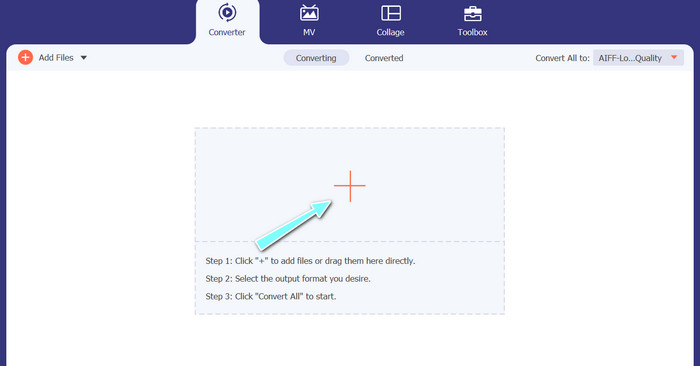
Ardından, ana arayüzdeki artı işaretini seçin ve dönüştürmek istediğiniz ses dosyasının bulunduğu konuma gidin. Bir dosya yüklendikten sonra, kullanıcı arayüzünde dosyanın bir önizlemesi görünecektir. MP3'ü M4A’ya toplu olarak dönüştürmek isterseniz, bir dosya klasörü de yükleyebilirsiniz.
Adım 3. Bir çıktı formatı seçin
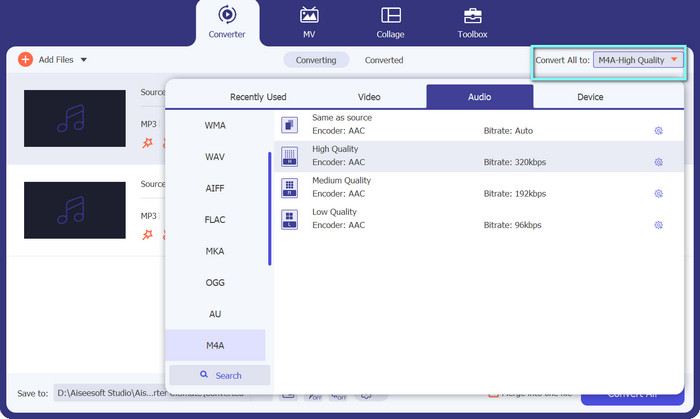
Sonrasında, aracın sağ üst kısmında yer alan Profil menüsündeki Ses sekmesine tıklayarak çıktı formatını seçin. MP3 veya M4A formatlarını kullanarak MP3 formatına ya da MP3 formatından dönüşüm yapabilirsiniz.
Adım 4. Çıktıyı kaydedin
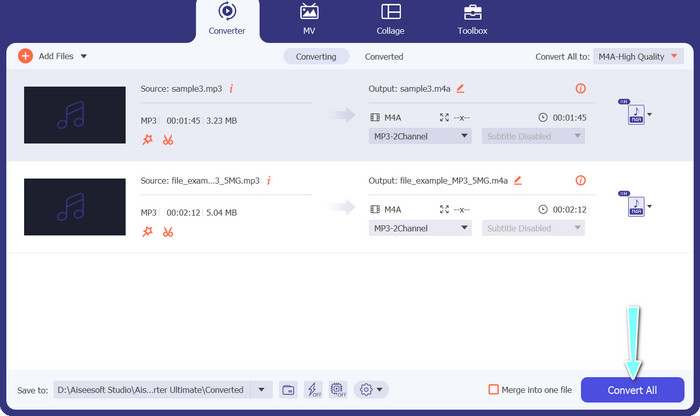
Ekranın alt kısmında, hedef klasörü seçin. Dönüştürme işlemine başlamaya hazır olduğunuzda, Tümünü Dönüştür düğmesine tıklayın.
2. Ücretsiz Çevrimiçi Video Dönüştürücü
Başka bir program için yeriniz yok mu? Endişelenmeyin, çünkü bir program indirmeden dosyalarınızı dönüştürmenize yardımcı olacak çevrimiçi bir aracı tercih edebilirsiniz. Web tabanlı Free Video Converter Online uygulaması, doğrudan tarayıcınız üzerinden dönüştürme yapmanızı sağlar. Ayrıca hem video hem de ses dosyaları için pek çok formatı destekler. Üstelik, bu çevrimiçi araçla toplu dönüştürme işlemi de yapabilirsiniz. Bunlara ek olarak, ses dosyasının çıktı ayarlarını özelleştirebilmeniz de aracın diğer harika özelliklerinden biridir. Bu MP3'ten M4A'ya çevrimiçi dönüştürücünün nasıl çalıştığına göz atın.
Adım 1. Free Video Converter Online’ı kullanmaya başlamak için önce favori web tarayıcınızı açın ve doğrudan web sitesine gidin.
Adım 2. Ardından, Dönüştürülecek Dosyaları Ekle düğmesine tıklayarak M4A’ya dönüştürmek istediğiniz MP3 dosyasını seçin.
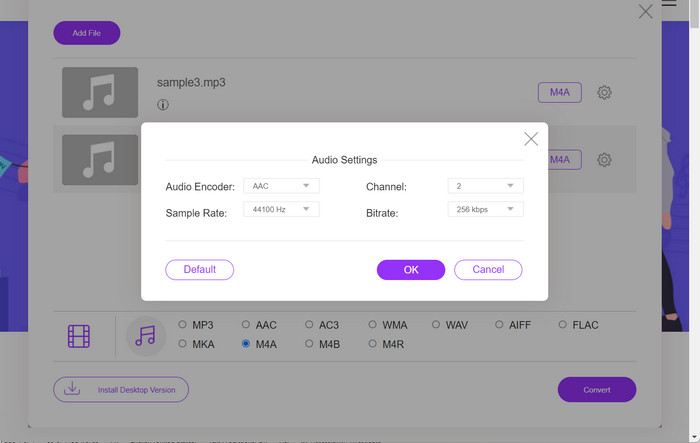
Adım 3. Ses formatı seçeneklerinden, istediğiniz çıktı dosyası formatı olarak M4A’yı seçin. M4A dosyasının çıktı kalitesini, yani bit hızını (bitrate) da değiştirebilirsiniz.
Adım 4. Dönüştürme işlemini başlatmak için Dönüştür düğmesine tıklayın. MP3’ü çevrimiçi olarak M4A’ya bu şekilde dönüştürebilirsiniz.
Bölüm 2. Windows'ta MP3'i M4A'ya dönüştürün
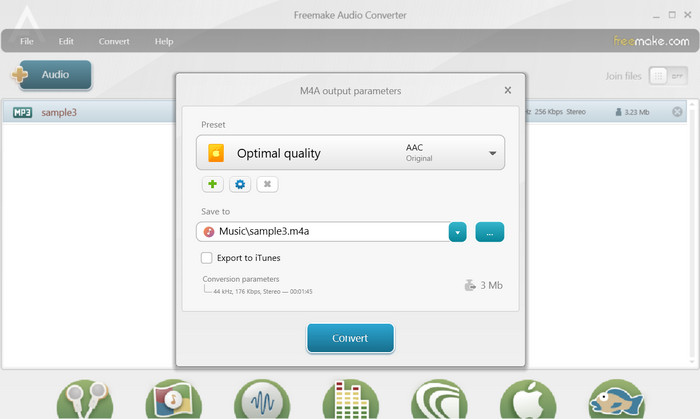
Freemake Audio Converter, kullanıcıların ses dosyalarını M4A, MP3, WAV ve daha fazlası dahil olmak üzere çeşitli biçimlere dönüştürmesine olanak tanıyan ücretsiz ve kullanımı kolay bir programdır. Basit sürükle ve bırak arayüzü ile kullanıcılar, MP3 dosyalarını herhangi bir karmaşık ayar veya yapılandırma olmadan kolayca ekleyebilir ve bunları M4A'ya dönüştürebilir. Araç ayrıca, kullanıcıların istenen çıktı kalitesini elde etmek için bit hızı ve örnekleme hızı gibi parametreleri ayarlamasına olanak tanıyan bir dizi özelleştirme seçeneğine de sahiptir. Sonuç olarak, kullanabileceğiniz en iyi MP3'ten M4A'ya dönüştürücülerden biridir.
Adım 1. Freemake Audio Converter'ı Windows bilgisayarınıza indirin ve kurun.
Adım 2. Programı başlatın ve MP3 dosyalarınızı programa eklemek için +Audio düğmesine tıklayın.
Adım 3. Program penceresinin alt kısmındaki mevcut formatlar listesinden M4A seçeneğini işaretleyin. Çıktı dosyanız için istediğiniz kalite ayarını açılır menüden seçin.
Adım 4. Dönüştürülmüş dosyanızın kaydedileceği çıktı klasörünü seçin. Son olarak, dönüştürme işlemini başlatmak için Dönüştür düğmesini işaretleyin.
Bölüm 3. Mac'te MP3'i M4A'ya dönüştürün
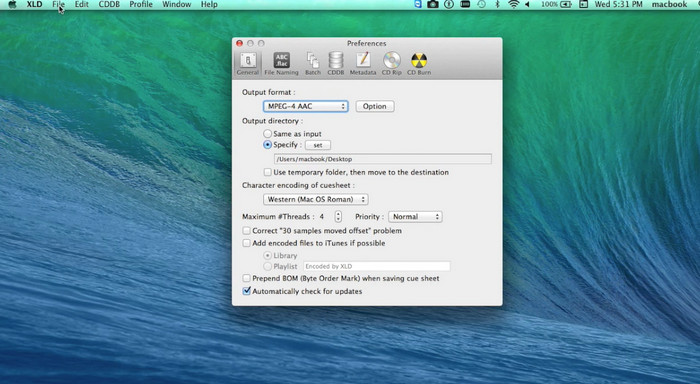
XLD, Mac kullanıcılarının ses dosyalarını M4A, MP3, FLAC ve daha fazlası dahil olmak üzere çeşitli biçimlere dönüştürmesine olanak tanıyan ücretsiz ve kullanımı kolay bir programdır. Basit sürükle ve bırak arayüzü ile kullanıcılar, MP3 dosyalarını herhangi bir karmaşık ayar veya yapılandırma olmadan kolayca ekleyebilir ve bunları M4A'ya dönüştürebilir. XLD ayrıca, kullanıcıların istenen çıktı kalitesini elde etmek için bit hızı ve örnekleme hızı gibi parametreleri ayarlamasına olanak tanıyan bir dizi özelleştirme seçeneği sunar.
Adım 1. Mac bilgisayarınıza XLD’yi indirin ve kurun.
Adım 2. Programı başlatın ve MP3 dosyalarınızı programa eklemek için Aç düğmesine tıklayın.
Adım 3. Programın tercihler bölümündeki kullanılabilir formatlar listesinden M4A’yı seçin. Çıktı dosyanız için istediğiniz kalite ayarını açılır menüden seçebilirsiniz.
Adım 4. Sonraki adımda, dönüştürülmüş dosyanızın kaydedileceği çıktı klasörünü seçin. Son olarak, dönüştürme işlemini başlatmak için Dönüştür düğmesine basın. Mac’te MP3’ü ücretsiz olarak M4A’ya bu şekilde dönüştürebilirsiniz.
Bölüm 4. Android'de MP3'i M4A'ya dönüştürün
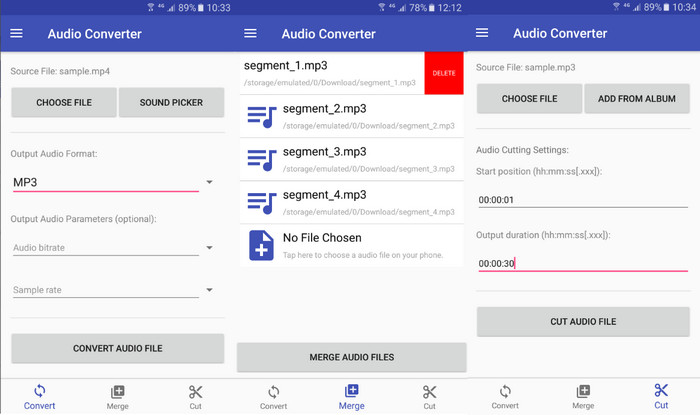
Ses dosyalarını dönüştürmek söz konusu olduğunda, Online-Convert.com'un ücretsiz ve basit Android yazılımı Audio Converter'ı yenmek zordur. Kullanıcılar, M4A'ya dönüştürme sürecini başlatmak için MP3 dosyalarını programın arayüzüne sürükleyip bırakabilir. Bir ses dosyasının çıktı kalitesi, Audio Converter'da bit hızı ve örnekleme hızı gibi ayarlar değiştirilerek ayarlanabilir. Android'de MP3'ü M4A olarak değiştirme adımları şunlardır:
Adım 1. Android cihazınıza Google Play Store’dan Online-Convert.com’un Audio Converter uygulamasını indirin ve kurun. Uygulamayı başlatın ve Ses Dönüştür düğmesine dokunun.
Adım 2. Ardından, giriş formatı olarak MP3’ü ve çıktı formatı olarak M4A’yı seçin.
Adım 3. Şimdi, MP3 dosyalarınızı uygulamaya eklemek için Dosya Seç düğmesine dokunun. Son olarak, dönüştürme işlemini başlatmak için Dönüştürmeyi Başlat düğmesine dokunun. İşte bu kadar kolay! Artık Android’de MP3’ü M4A’ya nasıl dönüştüreceğinizi öğrendiniz.
Bölüm 5. iOS'ta MP3'i M4A'ya dönüştürün
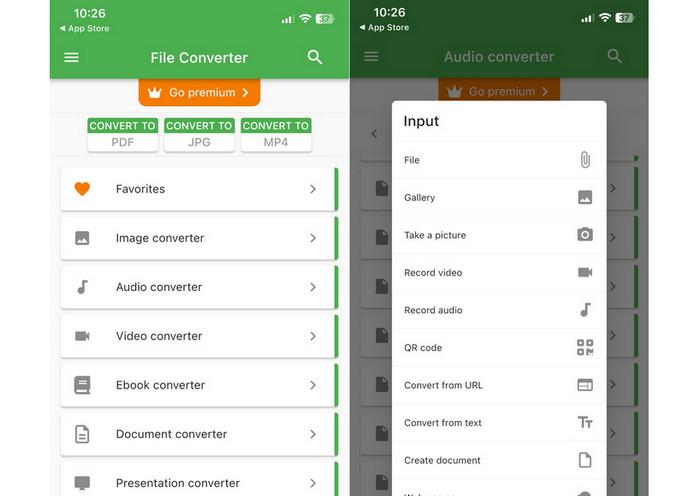
MP3 gibi ses dosyaları, ücretsiz ve basit bir iOS yazılımı olan File Converter Free'nin yardımıyla daha taşınabilir ve kayıpsız M4A formatına dönüştürülebilir. Basit tasarımı, herhangi bir ayar veya kurulumla uğraşmak zorunda kalmadan herkesin MP3 dosyalarını yüklemesini ve bunları M4A'ya dönüştürmesini kolaylaştırır.
Adım 1. File Converter Free uygulamasını App Store’da bulabilir, ücretsiz olarak indirip kullanabilirsiniz. Programı başlatın ve Ses sekmesine dokunun.
Adım 2. Giriş ve çıkış formatı olarak MP3’ü, Apple’ın AAC formatı için ise M4A’yı seçin. Açılır menüden istediğiniz çıktı dosyası kalitesini belirleyin. Program içine MP3 dosyası aktarmak için Dosya Ekle düğmesini seçin.
Adım 3. Dönüştürme işlemini başlatmak için Dönüştür düğmesine tıklayın.
Bölüm 6. MP3'ü M4A'ya Dönüştürme Hakkında SSS
Windows Media Player kullanarak MP3'ü M4A'ya dönüştürebilir miyim?
Evet, Windows Media Player kullanarak MP3'ü M4A’ya dönüştürebilirsiniz; ancak M4A, Windows Media Player tarafından yerel olarak desteklenmediği için birkaç ek adım gerektirir. Ya da doğrudan bir Windows Media Player alternatifi de kullanabilirsiniz.
MP3'ün M4A'ya dönüştürülmesi ses kalitesinde herhangi bir kayba neden olur mu?
MP3'ün M4A'ya dönüştürülmesi, iki format tarafından kullanılan sıkıştırma algoritmalarındaki farklılıklar nedeniyle ses kalitesinde hafif bir kayba neden olabilir.
M4A'yı tekrar MP3'e dönüştürebilir miyim?
Evet, birçok ses dönüştürme programı ve aracı gerekirse M4A’yı MP3’e dönüştürmenize izin verir. Ancak, formatlar arasında defalarca dönüşüm yapmanın kalite kaybına yol açabileceğini unutmayın.
Sonuç
MP3’ten M4A’ya dönüştürme, ses dosyalarının kalitesini ve uyumluluğunu artırmak isteyen herkes için değerli bir işlemdir. Bu yazıda açıklanan adımları ve ipuçlarını izleyerek MP3 dosyalarınızı kolayca M4A’ya dönüştürebilir ve herhangi bir cihazda yüksek kaliteli sesin tadını çıkarabilirsiniz.
-
 Ücretsiz ve Çevrimiçi | MP4, Windows / Mac'te M4A'ya Nasıl Dönüştürülür
 MP4'ü çevrimiçi olarak M4A'ya nasıl dönüştürebilirim? MP4 dosyalarından sesi çıkarabilir miyim? Bu yazıyı okuyun ve MP4'ten M4A'ya dönüşümle ilgili tüm yanıtları alacaksınız.
-
 MP3'ü M4R Dosyalarına Toplu Dönüştürmek için Kullanabileceğiniz En İyi Araçlar
 MP3 dosyanızı toplu olarak iPhone veya iPad'iniz için M4R zil sesine dönüştürebilecek bir dönüştürücü mü arıyorsunuz? En iyilerinden bazılarını keşfetmek için makaleyi okuyun.
-
 Her Sesi Kolayca Kesmek için 5 MP3 Kesici [2023 Güncellemesi]
 Sesi kırpmak için bir MP3 kesiciye mi ihtiyacınız var? Bu durumda, bu makaleyi okuyun çünkü güvenebileceğiniz ve ses için kolay kesim sağlayan araçları sağlıyoruz.
